


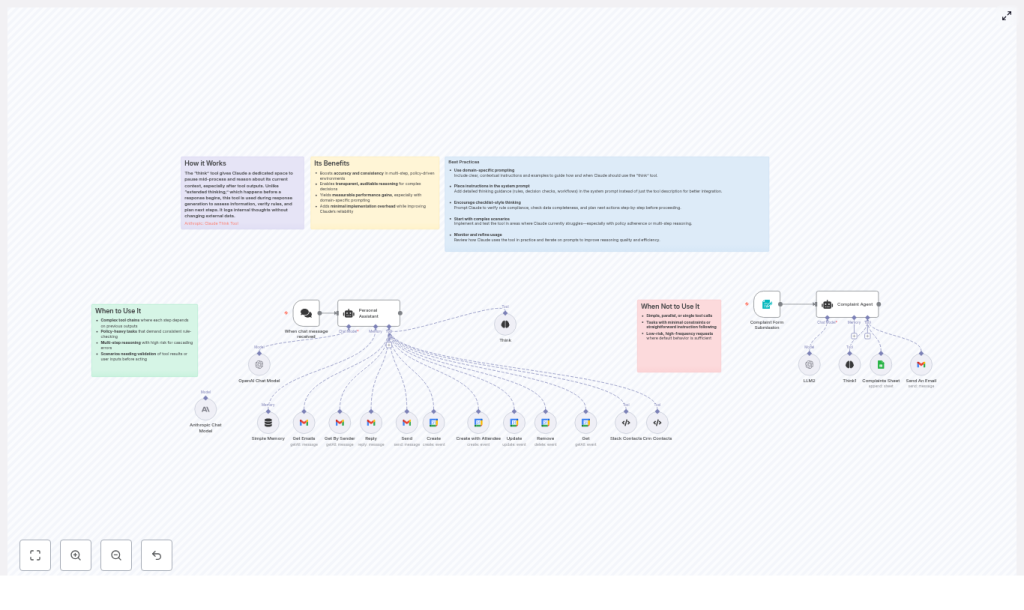
Think Tool: Improve Multi-Step Automation
In complex n8n and AI-assisted workflows, a short, explicit reasoning step often makes the difference between a safe, predictable automation and a fragile one. The Think Tool pattern introduces an internal reasoning phase, typically implemented as a dedicated node that works with Claude or other LLMs in an n8n-style flow.
This node does not mutate external systems, call APIs, or modify records. Instead, it records structured reasoning, validates assumptions, and produces a concrete execution plan before any state-changing node is triggered. This reference-style guide explains the concept, the architecture in an n8n + Claude setup, node-by-node behavior, configuration patterns, and practical usage guidelines for robust multi-step automations.
1. Conceptual Overview
1.1 What is the Think Tool?
The Think Tool acts as an internal notebook or reasoning buffer for your AI agent inside an n8n workflow. It is typically implemented as a dedicated LLM node (for example, Claude) configured to:
- Capture intermediate reasoning steps and validation checks during multi-step tasks.
- Verify that required inputs, constraints, and business rules are satisfied before continuing.
- Produce a clear, ordered plan of subsequent tool calls (for example, fetch contact, check calendar, create event, send email).
- Maintain an auditable log that explains why specific actions were executed, skipped, or blocked.
Unlike standard operational nodes (such as “Send Email”, “Create Calendar Event”, or CRM actions), the Think Tool node:
- Only appends reasoning to a log or returns a structured plan.
- Does not call external services or change any external state.
This makes it particularly suitable for multi-step workflows where early mistakes tend to propagate, such as scheduling, CRM updates, or email workflows.
1.2 Key Benefits in n8n Workflows
- Improved accuracy – By explicitly listing rules, inputs, and checks before calling other nodes, the agent reduces incorrect or premature actions.
- Policy and compliance alignment – A dedicated reasoning step ensures that domain rules, safety constraints, and organizational policies are evaluated before any state change.
- Deterministic planning – The Think Tool outputs a step-by-step plan (for example, fetch contact → check calendar → create event → send email), reducing ambiguity in tool selection and ordering.
- Auditability and debugging – The reasoning log becomes a traceable artifact that explains how and why a particular tool path was chosen.
- Low operational risk – Since it only writes to an internal log and returns reasoning, it is safe to run frequently and cannot accidentally modify external systems.
2. Workflow Architecture in n8n
2.1 High-Level Flow
In a typical n8n + Claude automation template, the Think Tool node is placed between the initial user request and any tool that changes external state. A common high-level pattern looks like this:
- Trigger: A user sends a request to the agent (for example, via chat, webhook, or another trigger node).
- Think Tool node: The LLM is instructed to:
- List all applicable rules and constraints.
- Check for missing or ambiguous inputs.
- Design a step-by-step plan of tool calls.
- Return a decision flag (for example, ready to act / need clarification / blocked).
- Clarification branch:
- If required information is missing, the workflow routes to a node that asks the user clarifying questions.
- Execution branch:
- Once the Think Tool confirms that checks have passed, the flow continues to operational nodes such as:
- Contact retrieval (for example, Slack, CRM).
- Calendar operations (Get, Create, Update, Remove).
- Email operations (Get Emails, Send, Reply).
- Once the Think Tool confirms that checks have passed, the flow continues to operational nodes such as:
The template described includes:
- Contact nodes for multiple sources (Slack and CRM).
- Calendar nodes for operations like Get, Create, Update, and Remove.
- Email nodes for retrieving and sending messages, including threaded replies.
- A Think node that is required to run before any of these external actions are invoked.
This architecture enforces rules such as:
- “Always check if an event already exists at the requested time before creating a new one.”
- “Always fetch contact information if the email address is missing.”
2.2 When to Use the Think Tool Node
The Think Tool node is most effective when the automation meets one or more of these conditions:
- Multiple dependent tool calls are required (for example, fetch contact → check calendar → create event → send email).
- There are domain-specific rules or policies that must be evaluated (for example, privacy constraints, approval requirements, internal SLAs).
- User inputs are incomplete, ambiguous, or inconsistent (for example, missing date/time, no recipient email, unclear subject).
- The operation has high cost or risk (for example, deleting events, sending client communications, modifying CRM records).
It is usually unnecessary for trivial, single-step tasks where a direct node call is safe and unambiguous.
3. Node-by-Node Breakdown
3.1 Think Tool Node (Reasoning Node)
Purpose: Perform internal reasoning, validation, and planning before any state-changing tools run.
Typical configuration:
- Model / Provider: Claude or another LLM node integrated into n8n.
- Prompt / System instructions:
- Embed all domain rules, safety constraints, and policies.
- Provide a checklist of what must be verified (for example, required fields, conflict checks).
- Instruct the model to output:
- A concise checklist of checks performed.
- A step-by-step plan of tool calls.
- A decision flag (ready / need clarification / blocked).
- A user-facing explanation if blocked or unclear.
- Side effects: None on external systems. The node only writes to:
- The internal reasoning log.
- Structured JSON or text fields used for branching.
Data flow:
- Input: User request content and relevant context (for example, previous messages, metadata).
- Output:
- List of applied rules and checks.
- Flags for missing or ambiguous inputs.
- Planned sequence of tool calls and expected outputs (for example, IDs, timestamps).
- Status: ready / need clarification / blocked.
3.2 Contact Nodes (Slack and CRM)
Purpose: Resolve people or entities referenced in the user request into concrete contact records, including email addresses.
Typical behavior in the template:
- If a user mentions “Sarah” without an email, the Think Tool instructs the workflow to:
- Query Slack for user information.
- Query the CRM for matching contacts.
- If the email is already present and verified, the Think Tool may skip additional contact lookups.
Data flow:
- Input: Name or identifier extracted from the user request.
- Output: Contact object(s) with email, name, and possibly IDs used later by calendar or email nodes.
3.3 Calendar Nodes (Get, Create, Update, Remove)
Purpose: Manage events in the user’s calendar, while adhering to conflict and duplication rules defined in the Think Tool prompt.
Typical behavior in the template:
- Get: Retrieve events for a specified time range to detect conflicts.
- Create: Add a new event, often with attendees, once the Think Tool has:
- Confirmed that date and time are present.
- Confirmed there are no conflicting events.
- Ensured required attendees have email addresses.
- Update / Remove: Modify or delete events, typically gated by stricter rules in the Think Tool due to higher risk.
Data flow:
- Input: Time slot, attendee information, event metadata (title, description, location).
- Output: Event objects, including IDs used for later updates or cancellations.
3.4 Email Nodes (Get Emails, Send, Reply)
Purpose: Retrieve email threads and send or reply to messages with correct threading and recipients.
Typical behavior in the template:
- Get Emails / Get by Sender:
- Used when the Think Tool determines that the user wants to reply to an existing thread.
- Locates the target message and extracts its ID or thread identifier.
- Send:
- Used for new emails where no existing thread is referenced.
- Reply:
- Used when the Think Tool classifies the request as a reply.
- Ensures that the correct message ID and threading information are used.
Data flow:
- Input: Recipient email(s), subject, body, and optionally message ID for replies.
- Output: Sent message metadata, including IDs for logging or further automation.
4. Configuration & Implementation Notes
4.1 Embedding Rules in the System Prompt
The reliability of the Think Tool depends heavily on the system prompt or agent configuration in the LLM node. Recommended practices:
- Define domain rules and checks explicitly, such as:
- Always check for calendar conflicts before creating an event.
- Always fetch contact information if the email address is missing.
- Do not delete or modify events without explicit confirmation.
- Include a checklist of required fields:
- Date and time for scheduling.
- Recipient email addresses for emails or invites.
- Subject and content for messages.
- Instruct the model to:
- Use concise, enumerated reasoning.
- Output a clear decision state (ready / need clarification / blocked).
4.2 Checklist: What the Think Tool Should Verify
Before the workflow proceeds to operational nodes, the Think Tool should systematically verify:
- All applicable rules and policies for the current request.
- Presence of required fields:
- Date and time for scheduling tasks.
- Recipient email(s) for communication tasks.
- Subject and message body for emails.
- Contact lookup strategy:
- Confirm which sources to query (for example, Slack and CRM by default).
- Calendar conflict checks:
- Verify that no existing event occupies the requested slot before creating a new one.
- Tool call plan:
- Define the exact sequence of nodes to call.
- Note expected outputs such as IDs, timestamps, or thread references.
- Limitations and blockers:
- Identify steps that cannot be performed.
- Prepare a clear, user-facing explanation when blocked.
4.3 Branching Logic & Error Handling
To make the Think Tool actionable, the workflow should branch based on its output:
- Ready to act:
- The Think Tool confirms that requirements and rules are satisfied.
- n8n routes directly to the planned sequence of nodes (contacts, calendar, email, etc.).
- Need clarification:
- Required fields are missing or ambiguous (for example, no date/time, unclear recipient).
- The workflow sends a follow-up question to the user and waits for a response before re-running the Think Tool or continuing.
- Blocked:
- A rule violation or policy constraint prevents execution (for example, insufficient permissions, disallowed operation).
- The workflow returns a clear explanation to the user and does not call any state-changing nodes.
This pattern ensures fail-safe behavior by default. When in doubt, the workflow asks for confirmation or stops instead of executing potentially harmful actions.
5. Practical Usage Scenarios
5.1 Example: Scheduling a Meeting with Sarah
Consider a user request: “Schedule a meeting with Sarah tomorrow afternoon.”
- Think Tool node:
- Checks if the user provided a specific date and time.
- Verifies whether Sarah’s email address is available.
- Determines whether to fetch contacts from Slack and CRM.
- Plans to query the calendar for events in the requested time range.
- If date/time is missing:
- The workflow routes to a clarification step that asks the user to specify an exact date and time.
- Contact resolution:
- If Sarah’s email is not known, the workflow calls Slack and CRM contact nodes to retrieve it.
- Calendar conflict check:
- The calendar “Get” node retrieves events for the requested slot.
- The Think Tool’s plan ensures that any conflict results in a different suggestion or a clarification request.
- Event creation and invite:
- If no conflict is found, the calendar “Create” node creates the event (for example, “Create with Attendee”).
- An email or calendar invite is then sent to Sarah using the appropriate email node.
5.2 Example: Replying to an Email Thread
For a user request like “Reply to the last email from Sarah

One thought on “Think Tool: Improve Multi-Step Automation”