


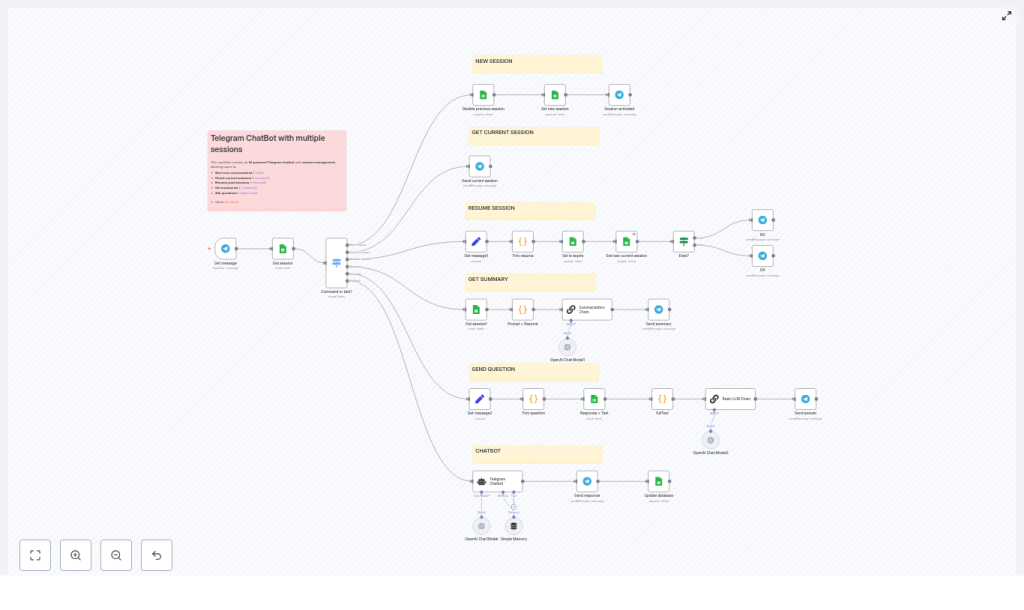
Build a Telegram Chatbot with Multiple Sessions using n8n
Imagine chatting with a Telegram bot that actually remembers what you were talking about last week, lets you pause and resume different conversations, and can even summarize everything for you in a neat little recap. That is exactly what this n8n workflow template helps you build.
In this guide, we will walk through how the template works, when you would want to use it, and how all the pieces fit together: n8n for orchestration, Google Sheets as a lightweight session database, and OpenAI via LangChain for all the natural language magic.
We will keep things practical: you will see the high-level architecture, the role of each node, the commands your bot supports, and the code snippets you can paste directly into your n8n Code nodes.
What this n8n Telegram chatbot template actually does
This workflow turns your Telegram bot into a session-aware assistant. Instead of treating every message like a one-off request, it tracks separate conversation sessions and lets you:
- Start a fresh session when you want to change topics
- Check which session is currently active
- Resume an older session by its id
- Get a summary of everything discussed in the current session
- Ask questions about the full history of a session
Behind the scenes, the workflow uses:
- A Telegram Trigger node in n8n to receive incoming messages
- Google Sheets as a simple database for sessions and conversation history
- LangChain + OpenAI (gpt-4o-mini in the example) for chat replies, summaries, and Q&A
- A small memory buffer so the bot can keep recent context without overloading the model
- Code nodes to clean up inputs, extract parameters, and build text for summarization and question answering
So instead of a forgetful “answer this one question” bot, you get a multi-session Telegram chatbot that feels more like an ongoing, organized assistant.
Why session management matters for Telegram bots
Most simple Telegram bots are stateless. They see each message, respond, and move on. That is fine for quick utilities, but it falls apart when you want:
- Multi-turn conversations where context actually matters
- To pause a topic and come back later
- To keep different projects or topics in separate “threads”
- To summarize what has been discussed so far
Session management solves this by assigning messages to a specific session and tracking which session is currently active. With this template you can:
- Mark one session as
current - Expire old sessions when starting a new one
- Switch the current session using a simple command
- Use the stored history for summaries and Q&A
In short, your bot stops acting like a goldfish and starts behaving like a proper conversational assistant.
When to use this Telegram chatbot template
This n8n template is a great fit if you want to:
- Run multiple parallel conversations, for example different projects, clients, or topics
- Give users the ability to resume older discussions by id
- Offer summaries of long chats without manually scrolling through Telegram
- Let users ask questions about what was said earlier in a session
- Prototype a production-style chatbot before moving to a more advanced database
If you only need a one-off Q&A bot, this might be more than you need. If you want something that can grow into a serious assistant, this is a solid starting point.
What you need before you start
Before you plug in the template, make sure you have a few basics ready:
- An n8n instance, either cloud or self-hosted
- A Telegram bot token and a configured Telegram node in n8n
- A Google account and a Google Sheets file to store:
- Sessions (session id, state)
- Conversation history (prompts and responses)
- An OpenAI API key, with LangChain nodes installed and configured in n8n
Once those are in place, you are ready to connect the template and start testing.
How the architecture fits together
Let us look at the big picture first, then we will zoom into each part.
High-level workflow
- Telegram Trigger listens for new messages and passes the raw payload into n8n.
- Session lookup in Google Sheets finds which session is currently marked as
current. - Switch node (Command router) decides what to do based on the message text, for example commands vs normal chat.
- Google Sheets updates create, expire, or resume sessions, and store conversation history.
- LangChain + OpenAI nodes handle:
- Regular chat responses
- Summaries of the entire session
- Question answering based on session history
- Code nodes help extract parameters like session ids and questions, and build the
fullTextused for summaries and Q&A.
Commands your Telegram chatbot supports
The template comes with a small but powerful set of commands. You can always expand them later, but these cover the main session use cases:
/new– Start a brand new session/current– Show the id of the active session/resume <session-id>– Switch back to a previous session/summary– Generate a concise summary of the current session/question <text>– Ask a question about the current session history
Everything that is not a command is treated as regular chat and routed to the chatbot agent with a small memory buffer.
Step-by-step: what each node does
1. Telegram Trigger – entry point for every message
The Telegram Trigger node listens for incoming updates from your bot. It receives the raw message payload and hands it off to the rest of the workflow.
Think of it as the front door. Every command, every piece of text, all of it starts here before being routed through the flow.
2. Get session from Google Sheets
Next, the workflow needs to know which session is currently active. A Google Sheets node reads from your Sessions sheet and finds the row where STATE is set to current.
The SESSION value from that row becomes:
- The sessionKey for the memory node
- The session id used when appending chat data to the Database sheet
This is how the workflow keeps all messages and responses tied to the right conversation.
3. Command router with a Switch node
Once the current session is known, a Switch node checks the message text and decides what to do with it.
It looks for messages that start with:
/new/current/resume/summary/question
If none of these match, the message is treated as a normal chat input.
This clean routing makes it easy to add more commands later without turning your workflow into a tangle of conditions.
4. Managing the session lifecycle in Google Sheets
Two commands affect the actual lifecycle of sessions: /new and /resume.
/new – Start a new session
When a user sends /new, the workflow:
- Marks the existing current session as
expirein the Sessions sheet - Appends a new row with:
STATEset tocurrentSESSIONset to a unique id (in this template, the Telegramupdate_idis used)
- Sends a confirmation message back to the user that a new session is active
From that point on, all new messages and responses are recorded under this new session id.
/resume <session-id> – Resume a past session
For /resume, the workflow needs to extract the session id from the message text, then update the right rows in Google Sheets:
- The current session is set to
expire - The requested session row is updated so
STATEbecomescurrent - The bot replies to confirm the switch or returns an error if that session id does not exist
This is where the “Trim resume” Code node comes into play, which we will look at in a moment.
5. Storing conversations in the Google Sheets “Database” sheet
Every message and response pair is recorded in a Database sheet. Each row contains:
SESSION– Which session this interaction belongs toDATE– Timestamp of the exchangePROMPT– The user’s messageRESPONSE– The bot’s reply
Because everything is stored per session, it is straightforward to:
- Fetch all rows for the current session
- Build a long
fullTextrepresentation of the conversation - Pass that text into summarization or Q&A chains
6. LangChain + OpenAI for chat, summaries, and Q&A
The template uses LangChain nodes connected to OpenAI to handle three main tasks:
- Chatbot agent for regular conversation, using a small memory buffer so the model sees recent context without exceeding token limits.
- Summarization Chain that takes the full session history (as
fullText) and returns a concise summary of the conversation. - LLM Chain for question answering that reads the same
fullTextplus a user’s question and generates an answer grounded in that history.
The example uses gpt-4o-mini, but you can swap the model for another OpenAI model that fits your needs and budget.
Key Code node snippets for this template
Several Code nodes help prepare data for session management and language model calls. You can paste these snippets directly into n8n Code nodes where the template indicates.
Trim resume – extract the session id from /resume
This snippet looks for text following /resume and stores it in item.json.resume. If no id is found, it sets the value to null.
for (const item of $input.all()) {  const text = item.json.text || '';  const match = text.match(/\/resume\s+(.*)/);  if (match) {  item.json.resume = match[1].trim();  } else {  item.json.resume = null;  }
}

return $input.all();
Trim question – extract the question text from /question
Similarly, this node pulls out everything after /question and saves it as item.json.question for the Q&A chain.
for (const item of $input.all()) {  const text = item.json.text || '';  const match = text.match(/\/question\s+(.*)/);  if (match) {  item.json.question = match[1].trim();  } else {  item.json.question = null;  }
}

return $input.all();
Prompt + Resume – build fullText for summarization
This node loops through all conversation rows for a session and concatenates them into a single string. That string becomes the input for your summarization chain.
let fullText = '';

for (const item of $input.all()) {  const prompt = item.json.PROMPT || '';  const response = item.json.RESPONSE || '';  fullText += `PROMPT: ${prompt}\nRESPONSE: ${response}\n`;
}
const chat_id=$('Get message').first().json.message.from.id

return [{ json: { fullText, chat_id } }];
fullText node for question answering
This version also includes the extracted question from the “Trim question” node, so the LLM can answer based on the full history plus the user’s query.
let fullText = '';

for (const item of $input.all()) {  const prompt = item.json.PROMPT || '';  const response = item.json.RESPONSE || '';  fullText += `PROMPT: ${prompt}\nRESPONSE: ${response}\n`;
}
const chat_id=$('Get message').first().json.message.from.id;
const question=$('Trim question').first().json.question;

return [{ json: { fullText, chat_id, question } }];
How to test your multi-session Telegram bot
Once you have the template wired up, it is worth spending a few minutes testing different paths to make sure everything behaves as expected.
- Check session transitions Start with:
/new- Send a few normal messages
- Trigger
/summaryand see if the summary reflects the right conversation
- Validate
/resumebehavior Try resuming:- A valid session id and confirm it becomes current
- An invalid session id and make sure your error handling responds clearly
- Watch Google Sheets in real time Keep the Sessions and Database sheets open while you test:
- Check that rows are appended correctly
- Verify that
STATEswitches fromcurrenttoexpirewhen expected - Look out for permission or rate-limit issues from the Sheets API
Security, privacy, and cost considerations
This template is intentionally simple so you can get started quickly, but there are a few practical things to keep in mind if you are planning to go beyond experiments.
- Storage security Google Sheets is convenient and easy to work with, but it is not a secure production database. If you are handling sensitive information, consider moving to a more robust and encrypted datastore such as Postgres or Firestore.
- OpenAI token usage and costs Summaries and Q&A over long histories can consume a lot of tokens. To keep costs under control:
- Limit how much history you include in
fullText - Use chunking or extraction strategies for very long sessions
- Choose cost-effective models where appropriate
- Limit how much history you include in
- Memory window size The memory buffer window node should not be too large. A smaller window:
- Keeps context length manageable
- Reduces API calls and token usage
- Still gives the model enough recent context for coherent
