


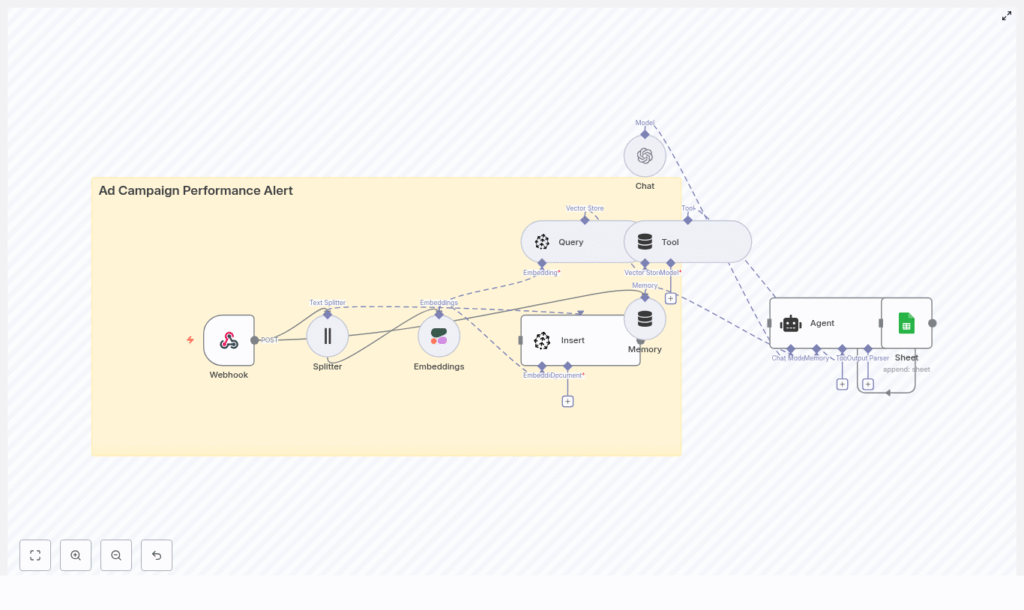
Ad Campaign Performance Alert in n8n
Ever wished your ad campaigns could tap you on the shoulder when something’s off?
One day your ads are crushing it, the next day your CTR tanks, your CPA spikes, or conversions quietly slip away. If you are not watching dashboards 24/7, those changes can sneak past you and cost real money.
That is exactly where this Ad Campaign Performance Alert workflow in n8n comes in. It pulls in performance data through a webhook, stores rich context in a vector database (Pinecone), uses embeddings (Cohere) to understand what is going on, and then lets an LLM agent (OpenAI) explain what happened in plain language. Finally, it logs everything into Google Sheets so you have a clean audit trail.
Think of it as a smart assistant that watches your campaigns, compares them to similar issues in the past, and then tells you what might be wrong and what to do next.
What this n8n template actually does
At a high level, this automation:
- Receives ad performance data via a POST webhook from your ad platform or ETL jobs.
- Splits and embeds the text (like logs or notes) using Cohere so it can be searched semantically later.
- Stores everything in Pinecone as vector embeddings with useful metadata.
- Looks up similar past incidents when a new anomaly comes in.
- Asks an OpenAI-powered agent to analyze the situation and suggest next steps.
- Writes a structured alert into Google Sheets for tracking, reporting, and follow-up.
So instead of just seeing “CTR dropped,” you get a context-aware explanation like “CTR dropped 57% vs baseline, similar to that time you changed your creative and targeting last month,” plus concrete recommendations.
When should you use this workflow?
This template is ideal if you:
- Manage multiple campaigns and cannot manually check them every hour.
- Want to move beyond simple “if CTR < X then alert” rules.
- Care about understanding why performance changed, not just that it changed.
- Need a historical trail of alerts for audits, reporting, or post-mortems.
You can run it in real time for live campaigns, or feed it daily batch reports if that fits your workflow better.
Why this workflow makes your life easier
- Automated detection – Campaign logs are ingested and indexed in real time so you do not need to babysit dashboards.
- Context-aware analysis – Embeddings and vector search surface similar past incidents, so you are not starting from scratch every time.
- Human-friendly summaries – The LLM explains likely causes and recommended actions in plain language.
- Built-in audit trail – Every alert lands in Google Sheets for easy review, sharing, and analysis.
How the architecture fits together
Here is the core tech stack inside the template:
- Webhook (n8n) – Receives JSON payloads with ad performance metrics.
- Splitter – Breaks long notes or combined logs into manageable chunks.
- Embeddings (Cohere) – Converts text chunks into vectors for semantic search.
- Vector Store (Pinecone) – Stores embeddings with metadata and lets you query similar items.
- Query & Tool nodes – Wrap Pinecone queries so the agent can pull relevant context.
- Memory & Chat (OpenAI) – Uses an LLM with conversation memory to generate explanations and action items.
- Google Sheets – Captures structured alert rows for humans to review.
All of this is orchestrated inside n8n, so you can tweak and extend the workflow as your needs grow.
Step-by-step: how the nodes work together
1. Webhook: your entry point into n8n
You start by setting up a POST webhook in n8n, for example named ad_campaign_performance_alert. This is the endpoint your ad platform or ETL job will send data to.
The webhook expects JSON payloads with fields like:
{  "campaign_id": "campaign_123",  "timestamp": "2025-08-30T14:00:00Z",  "metrics": {"ctr": 0.012, "cpa": 24.5, "conversions": 5},  "notes": "Daily batch from ad platform"
}
You can include extra fields as needed, but at minimum you want identifiers, timestamps, metrics, and any notes or anomaly descriptions.
2. Splitter: breaking big logs into bite-sized chunks
If your notes or logs are long, sending them as one big block to the embedding model usually hurts quality. So the workflow uses a character-based text splitter with settings like:
- chunkSize around
400 - overlap around
40
This splits large texts into overlapping chunks that preserve context while still being embedding-friendly. Short logs may not need much splitting, but this setup keeps you safe for bigger payloads.
3. Embeddings with Cohere: giving your logs semantic meaning
Each chunk then goes to Cohere (or another embeddings provider if you prefer). You use a stable embedding model and send:
- The chunk text itself.
- Relevant metadata such as
campaign_id,timestamp, and metric deltas.
The result is a vector representation of that chunk that captures semantic meaning. The workflow stores these embedding results so they can be inserted into Pinecone.
4. Inserting embeddings into Pinecone
Next, the workflow writes those embeddings into a Pinecone index, for example named ad_campaign_performance_alert.
Each vector is stored with metadata like:
campaign_id- Date or
timestamp metric_type(CTR, CPA, conversions, etc.)- The original chunk text
This setup lets you later retrieve similar incidents based on semantic similarity, filter by campaign, or narrow down by date range.
5. Query + Tool: finding similar past incidents
Once a new payload is processed and inserted, the workflow can immediately query the Pinecone index. You typically query using:
- The latest error text or anomaly description.
- Key metric changes that describe the current issue.
The n8n Tool node wraps the Pinecone query and returns the top-k similar items. These similar incidents become context for the agent so it can say things like, “This looks similar to that spike in CPA you had after a landing page change.”
6. Memory & Chat (OpenAI): the brain of the operation
The similar incidents from Pinecone are passed into an OpenAI chat model with memory. This agent uses:
- Current payload data.
- Historical context from similar incidents.
- Conversation memory, if you build multi-step flows.
From there, it generates a structured alert that typically includes:
- Root-cause hypotheses based on what worked (or went wrong) in similar situations.
- Suggested next steps, like pausing campaigns, shifting budget, or checking landing pages.
- Confidence level and evidence, including references to similar logs or vector IDs.
The result feels less like a raw metric dump and more like a quick analysis from a teammate who remembers everything you have seen before.
7. Agent & Google Sheets: logging a clean, structured alert
Finally, the agent formats all that insight into a structured row and appends it to a Google Sheet, typically in a sheet named Log.
Each row can include fields such as:
campaign_idtimestamp- Current metric snapshot
alert_type- Short summary of what happened
- Concrete recommendations
- Links or IDs that point back to the original payload or vector entries
Example: what an alert row might look like
campaign_id | timestamp  | metric | current_value | baseline | alert_type | summary  | recommendations  | evidence_links
campaign_123 | 2025-08-30T14:00  | CTR  | 1.2%  | 2.8%  | CTR Drop  | "CTR dropped 57% vs baseline..." | "Check creative, audience change..."  | pinecone://...
This makes it easy to scan your sheet, filter by alert type or campaign, and hand off action items to your team.
How the alerting logic works
Before data hits the webhook, you will usually have some anomaly logic in place. Common approaches include:
- Absolute thresholds For example, trigger an alert when:
- CTR drops below
0.5% - CPA rises above
$50
- CTR drops below
- Relative change For example, alert when there is more than a
30%drop vs a 7-day moving average. - Statistical methods Use z-scores or anomaly detection models upstream, then send only flagged events into the webhook.
The nice twist here is that you can combine these rules with vector context. Even if the metric change is borderline, a strong match with a past severe incident can raise the priority of the alert.
Configuration tips & best practices
To get the most out of this n8n template, keep these points in mind:
- Credentials Use n8n credentials for Cohere, Pinecone, OpenAI, and Google Sheets. Store keys in environment variables, not in plain text.
- Metadata in Pinecone Always save
campaign_id, metric deltas, and timestamps as metadata. This makes it easy to filter by campaign, date range, or metric type. - Chunking strategy Adjust
chunkSizeandoverlapto match your log sizes. Short logs might not need aggressive splitting. - Retention policy Set up a strategy to delete or archive older vectors in Pinecone to manage cost and keep the index clean.
- Cost control Batch webhook messages where possible, and choose embedding models that balance quality with budget.
- Testing and validation Replay historical incidents through the workflow to check that:
- Vector search surfaces relevant past examples.
- The agent’s recommendations are useful and accurate.
Security & compliance: keep sensitive data safe
Even though embeddings are not reversible in the usual sense, they can still encode sensitive context. To stay on the safe side:
- Mask or remove PII before generating embeddings.
- Use tokenized identifiers instead of raw user IDs or emails.
- Avoid storing raw user data in Pinecone whenever possible.
- Encrypt your credentials and restrict Google Sheets access to authorized service accounts only.
Scaling the workflow as you grow
If your traffic grows or you manage lots of campaigns, you can scale this setup quite easily:
- Throughput Use batch ingestion for high volume feeds and bulk insert vectors into Pinecone.
- Sharding and segmentation Use metadata filters or separate indices per campaign, client, or vertical if you end up with millions of vectors.
- Monitoring Add monitoring on your n8n instance for:
- Execution metrics
- Webhook latencies
- Job failures or timeouts
Debugging tips when things feel “off”
If the alerts are not quite what you expect, here are some quick checks:
- Log raw webhook payloads into a staging Google Sheet so you can replay them into the workflow.
- Start with very small test payloads to make sure the splitter and embeddings behave as expected.
- Verify Pinecone insertions by checking the index dashboard for recent vectors and metadata.
- Inspect the agent prompt and memory settings if summaries feel repetitive or off-target.
Use cases & variations you can try
This template is flexible, so you can adapt it to different workflows:
- Real-time alerts for live campaigns with webhook pushes from ad platforms.
- Daily batch processing for overnight performance reports.
- Cross-campaign analysis to spot creative-level or audience-level issues across multiple campaigns.
- Alternative outputs such as sending alerts to Slack or PagerDuty in addition to Google Sheets for faster incident response.
Why this approach is different from basic rule-based alerts
Traditional alerting usually stops at “metric X crossed threshold Y.” This workflow adds:
- Historical context through vector search.
- Natural language analysis via an LLM agent.
- A structured, auditable log of what happened and what you decided to do.
That combination helps your operations or marketing team react faster, with more confidence, and with less manual digging through logs.
Ready to try it out?
If you are ready to stop babysitting dashboards and let automation handle the first line of analysis, this n8n template is a great starting point.
To get going:
- Import the Ad Campaign Performance Alert template into your n8n instance.
- Add your Cohere, Pinecone, OpenAI, and Google Sheets credentials using n8n’s credential manager.
- Send a few test payloads from your ad platform or a simple script.
- Tune thresholds, prompts, and chunking until the alerts feel right for your workflow.
If you want help customizing the agent prompt, integrating additional tools, or scaling the pipeline, you can reach out for consulting or keep an eye on our blog for more automation templates and ideas.
