


AI Logo Generator Workflow From Any Website URL
Imagine getting a logo from just a URL…
Picture this: you paste a website URL into a form, hit send, and a few seconds later you get a custom AI-generated logo that actually matches the site’s look and feel. No long briefs, no back and forth, no blank-page anxiety.
That is exactly what this n8n workflow template does for you.
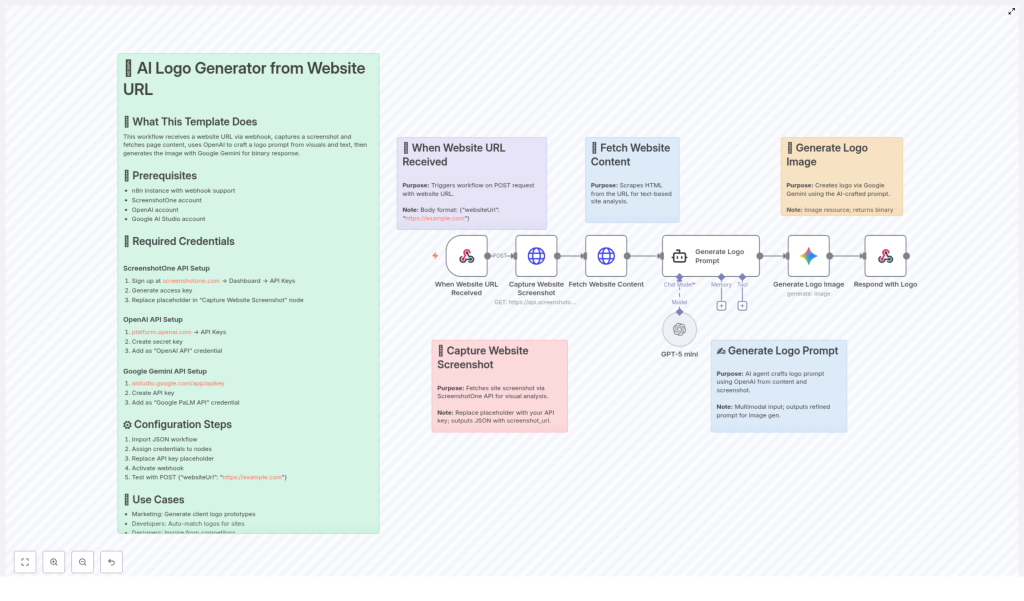
Using a mix of automation and AI models like OpenAI GPT and Google Gemini, this workflow grabs a screenshot of the site, reads its content, turns that into a smart logo prompt, then generates a logo image and sends it right back to you. All from a single request.
In this guide, we will walk through what the workflow does, how it works behind the scenes, what you need to set it up, and when it can really save you time.
What This n8n Workflow Actually Does
At a high level, this is an AI logo generator workflow for n8n that creates a logo from a website URL. You send it a URL, and it returns a logo image as a binary response.
Here is what happens under the hood, step by step, in simple terms:
- Receives a URL via webhook – You send a POST request with a JSON body that includes
websiteUrl. That kicks off the workflow. - Captures a clean screenshot – Using the ScreenshotOne API, it takes a screenshot of the homepage, blocking ads and trackers so the image is focused on the real content.
- Scrapes the website content – It fetches the HTML and pulls out text to understand what the site is about, its tone, and its context.
- Builds a logo prompt with GPT – An AI agent powered by an OpenAI GPT model (configured as GPT-5 mini in this template) looks at both the screenshot URL and the site content and writes a detailed, creative logo prompt.
- Generates the logo image with Gemini – That prompt is then passed to the Google Gemini image model, which turns it into a unique logo image.
- Sends the logo back – Finally, n8n responds to the original request with the generated logo as a binary image output.
The result is an end-to-end automated logo creation flow that starts from a URL and ends with a ready-to-use logo image.
When You Would Use This Workflow
So where does this actually fit into your day-to-day work? Here are some practical use cases where this template really shines.
1. Marketing agencies testing logo concepts
If you are working with multiple clients, you can quickly spin up logo prototypes based on their websites. Just drop in their URL and generate a few options to kickstart a branding discussion or moodboard.
2. Web developers onboarding new clients
Setting up a new site and the client does not have a logo yet? Use this workflow to auto-generate a temporary or draft logo that visually matches the site. It is great for staging environments or early design previews.
3. Designers looking for inspiration
Sometimes you just need a starting point. You can feed in competitors’ URLs or similar sites and generate logo ideas to spark your own creativity, then refine or redesign from there.
4. Education, demos, and workshops
Teaching automation or AI design workflows? This is a perfect demo for showing how n8n can orchestrate multiple AI tools, from scraping content to generating images, all in a single flow.
How The Workflow Runs, Step By Step
Let us go a bit deeper into the actual flow so you know exactly what is going on inside n8n.
1. Webhook trigger
The workflow starts with a Webhook node. It listens for a POST request that includes a JSON body like this:
{  "websiteUrl": "https://example.com"
}
As soon as that request hits your n8n instance, the rest of the workflow kicks in.
2. Capture the website screenshot
Next, the workflow calls the ScreenshotOne API to grab a screenshot of the homepage for the given URL.
- It uses your ScreenshotOne access key for authentication.
- Ads and trackers are blocked to keep the screenshot clean.
- The resulting screenshot URL is stored so the AI can use it later.
This gives the AI visual context about layout, colors, and overall style.
3. Fetch and parse website content
In parallel with the visual snapshot, the workflow also scrapes the website content. It pulls the HTML and extracts text so the AI can understand:
- What the business or project does
- Key topics, products, or services
- Brand tone, language, and audience hints
Combining both text and visuals helps the AI create a logo prompt that feels aligned with the actual brand.
4. Generate the logo prompt with GPT
This is where the AI agent comes in. Using an OpenAI GPT model (set to GPT-5 mini in this template), the workflow:
- Takes the screenshot URL
- Reads the scraped website content
- Crafts a detailed, descriptive prompt for logo generation
The prompt usually includes information like style, color mood, brand personality, and any strong themes that appear on the site. You can also tweak this step to add your own branding rules or preferences.
5. Create the logo image with Google Gemini
Once the prompt is ready, it is passed to the Google Gemini image model using your Google AI Studio API key.
Gemini then generates a custom logo image based on that prompt. The result is returned to n8n as binary image data.
6. Respond with the logo image
Finally, the workflow sends a response back to the original request, returning the generated logo image as a binary file. Your app, form, or frontend can then display it, save it, or let the user download it instantly.
What You Need Before You Start
To get this workflow up and running, you will need a few accounts and API keys. Here is the checklist.
Required accounts and services
- n8n instance – You need an n8n setup that can run workflows with webhook support (self-hosted or cloud).
- ScreenshotOne API – For capturing website screenshots with a clean output.
- OpenAI API – To access GPT models for generating the logo prompt.
- Google AI Studio – To use the Google Gemini image model for logo creation.
How to set up your API keys
Here are the setup steps in order:
- Sign up at screenshotone.com and grab your ScreenshotOne access key.
- Create or log in to your OpenAI account at platform.openai.com and generate an API key with access to GPT models.
- Go to aistudio.google.com/app/apikey and create a Google Gemini API key.
- Open the workflow in n8n and replace the API placeholders in these nodes:
- Capture Website Screenshot – use your ScreenshotOne access key.
- Generate Logo Prompt – use your OpenAI API key.
- Generate Logo Image – use your Google Gemini API key.
- Import the template into your n8n instance, activate the workflow, and make sure the webhook URL is accessible from wherever you will be sending requests.
Tips, Best Practices, and Little Gotchas
To keep everything running smoothly, here are a few helpful tips.
- Use publicly accessible URLs
The website must be reachable from your n8n instance for both screenshots and content scraping. Private or firewall-protected sites will not work unless your setup can access them. - Tune ScreenshotOne timeouts
If some pages load slowly, adjust the timeout and delay settings in the ScreenshotOne node so it waits long enough before capturing the screenshot. - Add your own branding rules
In the logo prompt generation step, you can add extra style instructions, like:- Preferred color palettes
- Typography hints
- Flat vs 3D style
- Minimalist vs detailed
This can help keep logos more consistent with your brand or your clients’ guidelines.
- Keep an eye on API quotas
Make sure your OpenAI, ScreenshotOne, and Google Gemini API keys have enough quota and the right permissions. If any of them hit a limit, the workflow will fail mid-run.
Why This Workflow Makes Life Easier
Instead of manually brainstorming logo ideas, writing prompts, and juggling multiple tools, this n8n template connects everything for you in one automated flow.
You get:
- A logo idea that actually reflects the website content and style
- Faster client onboarding and concept exploration
- A repeatable, scalable way to generate logo drafts
- A great example of how to combine n8n, GPT, and Gemini in a real-world automation
Ready To Try It?
This AI logo generator workflow is a simple but powerful way to turn any website URL into a personalized logo, using automation instead of manual effort.
Want to speed up your branding workflow? Plug this template into n8n, drop in your API keys, and start generating logos from URLs in seconds.
Need help tweaking the prompt, adding extra logic, or integrating this into your app? Feel free to ask or share your questions and ideas in the comments.
