


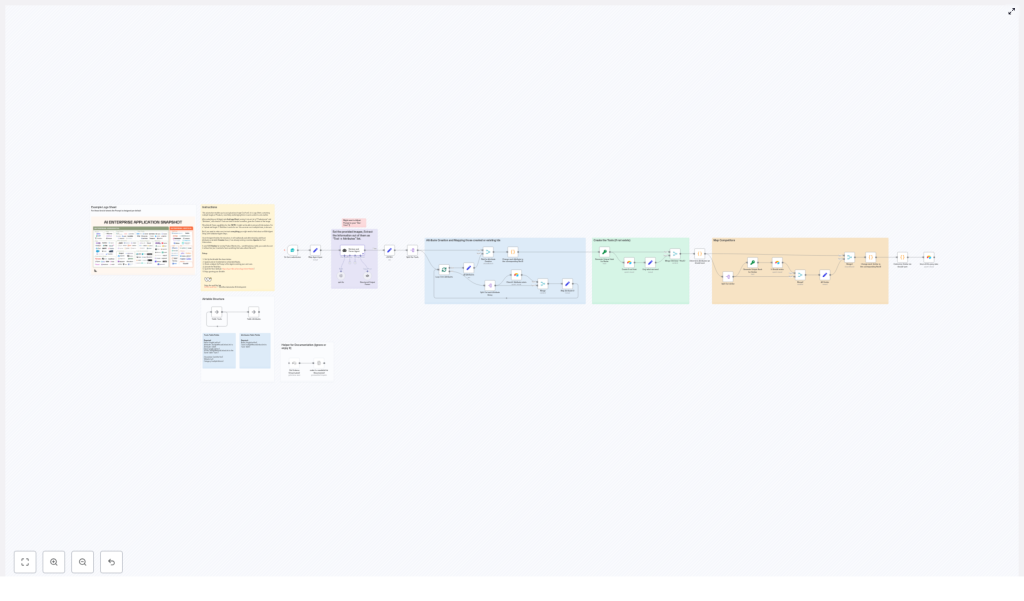
Summary: Transform static logo sheets into a structured, queryable product catalog in Airtable using an n8n workflow that combines AI vision, agents, and deterministic upserts to extract tool names, attributes, and competitive relationships automatically.
Overview: From logo sheets to structured product intelligence
Teams in product, partnerships, and competitive intelligence often receive vendor landscapes, partner lists, and comparison grids as images or PDFs. Converting those logo sheets into a normalized database typically requires manual transcription, ad hoc spreadsheets, and repeated clean-up work. This is slow, error-prone, and difficult to scale.
The AI Logo Sheet Extractor to Airtable n8n template automates this ingestion process. It accepts a logo sheet through a simple form, uses an AI vision agent to interpret the content, then writes standardized records into Airtable. The result is a clean, extensible dataset of tools, attributes, and relationships that can be searched, analyzed, and integrated with downstream systems.
Core capabilities of the workflow
This n8n workflow implements an end-to-end ingestion pipeline that:
- Captures logo sheet images via a public n8n form.
- Uses an AI vision agent (LangChain with OpenAI or a similar stack) to identify tools and contextual information from the image.
- Extracts tool names, multiple attributes per tool (such as categories and features), and similar or competitive tools inferred from the sheet.
- Upserts attributes into a dedicated Airtable Attributes table, creating missing records automatically.
- Upserts tools into an Airtable Tools table using deterministic hashes, then links each tool to its attributes and similar tools using Airtable record IDs.
Architecture and key components
The solution is built around a few core technologies that work together as a robust ingestion pipeline:
- n8n – Orchestrates the workflow, manages the form trigger, coordinates the AI call, and handles branching, mapping, and upsert logic.
- AI Agent (LangChain / OpenAI) – Processes the uploaded logo sheet image and returns a structured JSON representation of tools, attributes, and similar tools.
- Airtable – Serves as the system of record with two linked tables, Tools and Attributes, where all extracted data is stored, updated, and related.
- MD5 / Hashing – Generates deterministic hashes for tools based on normalized names, enabling reliable deduplication and idempotent upserts.
Data model: Airtable schema design
To support consistent ingestion and linking, the workflow expects an Airtable base with two main tables.
Tools table
This table represents individual products or tools extracted from the logo sheet.
- Name (Single line text)
- Hash (Single line text) – Deterministic key used for upsert and matching.
- Attributes (Linked records to Attributes table)
- Similar (Linked records to Tools table)
- Description, Website, Category (optional fields that you can enrich later)
Attributes table
This table stores reusable, normalized attributes that can be linked to multiple tools.
- Name (Single line text)
- Tools (Linked records to Tools table)
Workflow lifecycle: How the template operates
1. Intake via public form
The process starts with an n8n form trigger configured on a public path, for example logo-sheet-feeder. A user uploads a logo sheet image and can optionally provide an additional prompt or context string. This prompt can specify the domain or intent, such as “This sheet compares enterprise AI infrastructure tools”, which helps the AI agent disambiguate logos and interpret the sheet correctly.
2. AI vision and agent-based extraction
The uploaded file is passed to an AI agent built on LangChain with an OpenAI model or equivalent. The agent analyzes the image, reads any text near logos, and infers a structured representation of the content. The workflow expects a JSON array with the following shape:
[{  "name": "ToolName",  "attributes": ["attribute1", "attribute2"],  "similar": ["otherTool"]
}]
For each tool, the agent aims to extract multiple granular attributes, such as:
- Category or product type
- Deployment model
- Key features or tags
- Likely competitors or similar tools shown on the same sheet
3. Normalization and attribute upsert
Once the JSON is returned, n8n nodes iterate through the extracted attributes. For each attribute string, the workflow checks whether a corresponding record already exists in the Airtable Attributes table. If it does not exist, a new attribute record is created.
After attribute creation, the workflow maps attribute names to their Airtable record IDs. This mapping is essential for linking tools to attributes later in the process without creating duplicates.
4. Tool hashing and upsert logic
Each tool name is normalized and used to generate a deterministic hash, typically via MD5. This hash functions as a stable identifier for upsert operations. The workflow then:
- Searches the Tools table for an existing record with the same hash.
- Creates a new tool record if no match is found.
- Updates the existing record if a match is found, while preserving existing relationships.
The upsert strategy is designed to avoid overwriting current links or metadata. New attributes and similar tool relationships are appended without erasing what is already stored, which is important for incremental enrichment over time.
5. Linking similar and competitive tools
The workflow also processes the similar field for each tool. Similar tool names are normalized, hashed, and matched against the Tools table using the same deterministic hashing approach. For each similar tool:
- If the tool already exists (hash match), the workflow links the two tools together via their Airtable record IDs.
- If it does not exist, the workflow creates a new tool record, then establishes the relationship.
Reciprocal links can be created to keep competitive relationships symmetric, so that both tools reference each other as similar or competing products.
Implementation checklist
To deploy this template in a production or near-production environment, follow these setup steps:
- Install and host n8n, either via n8n cloud or self-hosted, and ensure the form trigger feature is enabled.
- Set up an Airtable base with the Tools and Attributes tables, including at least the fields listed in the schema above.
- Configure Airtable credentials (API token) in the relevant n8n Airtable nodes so the workflow can read and write records.
- Review and refine the AI agent’s system message and prompts to reflect your specific domain, such as SaaS tools, infrastructure vendors, or marketing technologies.
- Activate the workflow and test with several representative logo sheets, iterating on prompts and schema as necessary to improve extraction accuracy.
Best practices to improve extraction quality
AI-driven extraction is highly dependent on input quality and context. To maximize performance:
- Provide rich context in the form prompt such as the industry, audience, or type of comparison represented in the sheet.
- Use high-resolution images with clear, readable text near each logo. Avoid heavily compressed screenshots where labels are blurred.
- Iterate and validate by running the workflow multiple times on sample sheets and manually reviewing records, especially for critical datasets.
- Refine the system message to explicitly list the attributes you care about, such as category, deployment model, primary use cases, or pricing tier.
- Consider a validation layer for production use, such as a human review step or a secondary agent that checks for missing or inconsistent entries.
Limitations and considerations
While the workflow significantly accelerates ingestion, it is important to recognize the constraints of AI vision and large language models:
- Accuracy will vary with image quality, layout complexity, and how clearly logos are labeled.
- Small fonts or crowded designs may lead to missed or misinterpreted tools.
- Logos without accompanying text are harder to identify reliably, especially for less-known brands.
For high-stakes or compliance-sensitive datasets, incorporate a human validation step or a multi-agent verification loop before treating the extracted data as authoritative.
High-value use cases
This pattern is particularly useful for teams that routinely work with visual vendor or product landscapes, such as:
- Competitive intelligence – Convert conference “market maps” or industry cheat sheets into a searchable database of competitors and adjacent tools.
- Partner management – Ingest partner lists from PDFs or one-pagers directly into a partner CRM or Airtable base without manual data entry.
- Product and GTM enablement – Populate internal knowledge bases with categorized tools, attributes, and competitive relationships to support sales and product strategy.
Conclusion: A reusable pattern for AI-assisted data ingestion
The AI Logo Sheet Extractor to Airtable workflow illustrates a repeatable pattern for modern data operations: simple form-based intake, an AI vision and agent step for structured extraction, and deterministic upserts into Airtable for clean, incremental data management. For organizations that frequently handle visual product lists, this approach can eliminate hours of manual transcription and unlock richer analytics and integrations.
Ready to implement it? Deploy the n8n workflow, connect it to your Airtable base, and upload a sample logo sheet to validate the pipeline. If you need assistance with prompt engineering, schema design, or adding a validation step, work with an automation specialist or explore the n8n community for examples and extensions.
Call to action: Download or clone the workflow, deploy it in n8n, and run your first logo sheet ingestion. If you need guidance, request a guided setup or an implementation review to ensure the workflow aligns with your data quality and governance standards.
