


AI Logo Sheet Extractor to Airtable: How One Marketer Turned Chaos Into a Clean Database
By the time Mia opened her laptop on Monday morning, her inbox was already packed with logo sheets. Dozens of agencies, tools, and startups had sent over glossy image grids full of logos that needed to be added to her team’s Airtable database.
Her task sounded simple: keep an up-to-date catalog of tools, grouped by category, attributes, and similar products. In reality, it meant zooming into giant PNGs, squinting at tiny text, and typing the same names and categories into Airtable again and again.
It was slow, repetitive, and easy to mess up. A missed logo here, a duplicate entry there, and suddenly the “single source of truth” was not so trustworthy.
That was the week Mia discovered an n8n workflow template called AI Logo Sheet Extractor to Airtable, a setup that combined AI vision, LangChain agents, and Airtable upserts into a single automated pipeline. What started as a tedious data-entry problem turned into a clean, repeatable workflow that quietly worked in the background.
The Problem: Logo Sheets That Never End
Mia’s company relied on logo sheets for everything: competitor landscapes, partner showcases, internal tooling overviews, and investor decks. Agencies loved sending them as single images that grouped tools by category or use case.
For Mia, that meant:
- Manually reading every logo on each sheet
- Typing tool names into Airtable
- Assigning attributes like “Agentic Application” or “Browser Infrastructure”
- Trying to remember if a tool was already in the database
She knew this manual process was:
- Slow and hard to scale when new sheets came in
- Error-prone, with inconsistent naming and missed entries
- Blocking downstream analytics and discovery, since the data was never fully up to date
Her team wanted to run queries such as “show all tools related to browser automation” or “find similar tools to X,” but the data model was constantly lagging behind reality.
So Mia set a goal: turn these image-based logo sheets into structured Airtable records automatically, with minimal manual cleanup.
Discovering the n8n AI Logo Sheet Extractor
One afternoon, while searching for “n8n Airtable logo sheet automation,” Mia landed on an n8n template that sounded almost too perfect: an AI Logo Sheet Extractor to Airtable. It promised to:
- Take an uploaded logo-sheet image
- Use an AI vision agent built with LangChain and OpenAI (gpt-4o in the example)
- Extract tool names, attributes, and similar tools
- Upsert everything into Airtable with deterministic hashes to avoid duplicates
Instead of manually reading and typing, Mia could simply upload an image and let the workflow populate her Airtable base with structured, queryable data.
Curious and slightly skeptical, she decided to set it up.
First Things First: Structuring Airtable So the Automation Can Work
Before the automation could shine, Mia needed to give it a solid foundation. The template recommended a simple, flexible data model in Airtable with two core tables: Attributes and Tools.
Airtable Data Model Mia Used
1. Attributes table
- Name (single line text)
- Tools (link to Tools table)
2. Tools table
- Name (single line text)
- Attributes (link to Attributes table)
- Hash (single line text) – deterministic ID for upserts
- Similar (link to Tools table)
- Optional fields: Description, Website, Category
This structure would let her:
- Tag each tool with multiple attributes
- Link tools to other tools they are similar to
- Use a stable hash as an ID so the workflow could update existing entries instead of creating duplicates
Once the base was ready, she connected her Airtable credentials in n8n and opened the template.
Inside the Workflow: How the Automation Actually Thinks
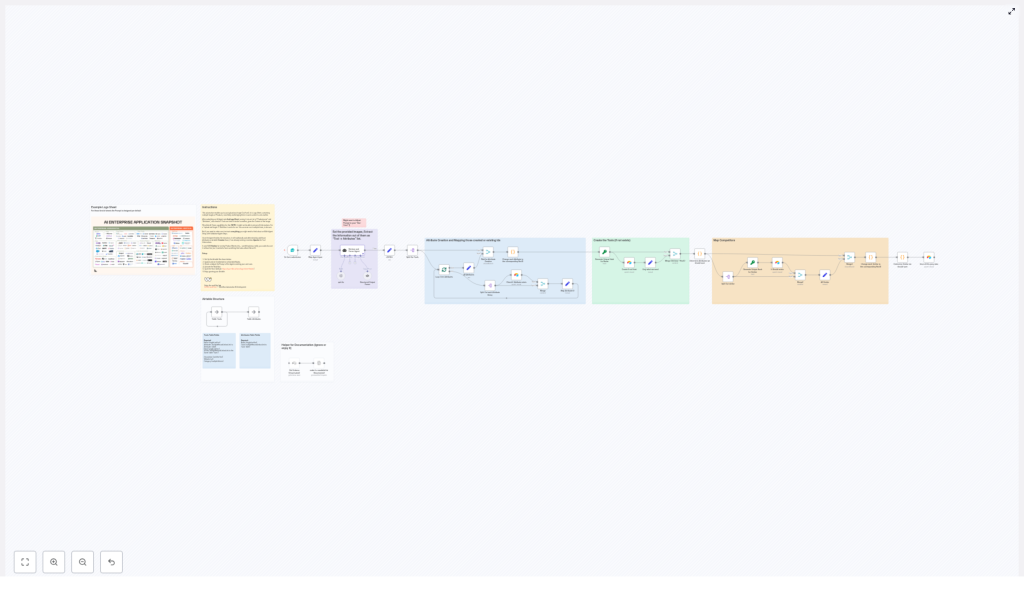
The n8n workflow Mia imported was not just a simple “upload and save” script. It was a small pipeline of specialized nodes that handled everything from file intake to AI parsing to Airtable upserts.
The Story Starts With a Simple Form
Mia’s experience began with a Form trigger. The workflow exposed a public form endpoint where she, or anyone on her team, could:
- Upload a logo-sheet image file
- Optionally provide a short context prompt, such as “These are AI infrastructure tools” or “This sheet shows CRM platforms by category”
Every time someone submitted this form, the trigger node kicked off the n8n workflow with the attached image and text.
The AI Agent Takes a Look
Next came the part Mia was most curious about: the AI retrieval and parsing agent.
The workflow used a LangChain/OpenAI-powered agent (gpt-4o in the example) with vision capabilities. This agent:
- Performed OCR and visual recognition on the logo sheet
- Read tool names wherever they were legible
- Used the overall layout and optional prompt to infer attributes like “Agentic Application,” “Persistence Tool,” or “Browser Infrastructure”
- Generated a structured JSON list of tools with attributes and similar tools
The expected structure looked like this:
{  "tools": [  {  "name": "ToolName",  "attributes": ["Attribute 1", "Attribute 2"],  "similar": ["OtherToolA", "OtherToolB"]  }  ]
}
Instead of Mia squinting at tiny logos, the AI agent did the hard visual work and returned data in a machine-friendly format.
Keeping the AI Honest: Structured Output Parsing
AI is powerful, but Mia knew it could sometimes be messy. That is where the Structured Output Parser node came in.
This node validated that the agent’s response matched the expected JSON schema. If the output did not conform, the workflow could catch the issue early instead of sending malformed data into Airtable.
Once validated, the workflow split the tools array so each tool could be processed individually. That allowed fine-grained control when creating attributes, tools, and relationships.
The Turning Point: From Raw AI Output to Clean Airtable Records
The next phase was the real test. Could the workflow reliably map AI output into Mia’s Airtable base without creating a mess of duplicates and inconsistencies?
Step 1: Creating or Reusing Attributes
For every attribute string returned by the agent, the workflow:
- Checked the Attributes table in Airtable to see if that attribute already existed
- Created a new record if it did not
- Collected the Airtable record IDs for both new and existing attributes
These IDs were then attached to the relevant tool. That way, if multiple tools shared “Agentic Application” as an attribute, they all correctly linked to the same attribute record instead of creating duplicates.
Step 2: Deterministic Tool Upserts
Next, the workflow focused on the Tools table. To avoid clutter and duplicates, it used a deterministic hashing strategy:
- Each tool name was normalized by trimming whitespace, converting to lowercase, and removing punctuation
- An MD5 or similar deterministic hash was generated from this normalized name
- The Hash field in Airtable stored this value as a stable key
Using that hash, the workflow’s Create/Upsert nodes could:
- Update an existing tool if the hash already existed
- Create a new tool if it did not
This gave Mia confidence that re-uploading a logo sheet, or uploading a slightly updated version, would not create a forest of duplicate tool records.
Step 3: Mapping “Similar” Relationships
The agent also returned a similar list for each tool, essentially a set of related or competitor tools. The workflow handled these by:
- Resolving each “similar” tool name to an Airtable record ID
- Storing those IDs in the Similar field of the corresponding tool
Over time, this created a network of related tools that Mia could query to explore clusters, competitor groups, and alternative solutions.
Fine Tuning the Workflow: Mia’s Best Practices
Once the automation was up and running, Mia started refining it based on real-world data. The template came with practical best practices that helped her get better results:
- Normalize names for hashing Before hashing tool names, the workflow trimmed spaces, converted text to lowercase, and removed punctuation. This made hashes consistent and reduced accidental duplicates.
- Improve the agent prompt Mia enriched the AI prompt with examples and edge cases, such as how to handle small logos, abbreviations, or combined icons. This gave the agent clearer guidance and more reliable output.
- Use multiple passes when needed If the first run missed some logos on a crowded sheet, she could run a second pass with adjusted sensitivity or manually review a subset of tools.
- Rate-limit and batch large sheets To avoid vision model timeouts or unexpected API costs, she split very large logo sheets into smaller segments.
- Add human verification for critical data For high-stakes datasets, Mia added a manual review step in n8n before final upsert, so a human could quickly confirm or correct the AI’s output.
When Things Go Wrong: Troubleshooting in Real Life
Not every run was perfect at first. Mia bumped into a few common issues, all of which the template anticipated.
- Malformed JSON from the agent Occasionally, the AI returned slightly malformed JSON. Tightening the structured-output prompt and relying on the strict parser helped. In some cases, she added a rescoring or retry step.
- Missing logos or unreadable text Some logo sheets had tiny or low-contrast logos. Pre-processing the images with higher DPI, contrast adjustments, or slicing them into tiles improved recognition.
- Duplicate attributes or tools When duplicates slipped in, Mia checked whether attribute strings were normalized before lookup in Airtable. Aligning that logic with the hashing strategy for tools reduced duplication.
- Performance issues on big batches For large collections of images, she parallelized batch processing in n8n and used caching for attribute lookups to keep the workflow responsive.
Security, Privacy, and Stakeholder Trust
As the workflow became central to her team’s process, Mia had to answer a different question from her stakeholders: “Where is all this data going?”
To keep things secure and compliant, she followed the template’s guidance:
- Stored Airtable Personal Access Tokens (PATs) securely in n8n credentials
- Limited retention of raw images, only keeping what was necessary for processing
- Reviewed how the AI provider handled image data
- Paid special attention to logo sheets that might include identifiable people, aligning with relevant privacy and legal requirements
This gave her team confidence that the automation was not just efficient, but also responsible.
Where Mia Took It Next: Extensions and Ideas
Once the core workflow was stable, Mia started to see new possibilities. The template suggested several extensions, and she gradually implemented them:
- Slack and email notifications Whenever new tools were added, n8n sent a short summary to a Slack channel so the team could see what changed.
- Automatic enrichment She connected public APIs to fetch tool descriptions, websites, and even updated logos, enriching the Airtable records without extra manual work.
- Dashboards and visualizations Using tools like Retool and Tableau, Mia built dashboards that showed similarity graphs and attribute heatmaps. The once-static logo sheets became interactive maps of the tooling landscape.
- Validation agent For higher accuracy, she experimented with a validation agent that spot-checked new entries against known data sources.
The Resolution: From Manual Drudgery to a Reliable Automation
A few weeks after adopting the AI Logo Sheet Extractor, Mia noticed something remarkable. Her team was no longer stuck in manual transcription mode. Instead, they were exploring the data, running queries, and making decisions faster.
Logo sheets that once took hours to process now flowed through a simple pipeline:
- Upload via a public form
- AI agent performs visual extraction and contextual inference
- Structured output parser validates JSON
- Attributes are created or reused in Airtable
- Tools are upserted with deterministic hashes
- Similar relationships are mapped for future analysis
The result was a clean, rich Airtable base, ready for analytics, discovery, and integrations with the rest of their stack.
Try the n8n AI Logo Sheet Extractor Yourself
If you recognize Mia’s story in your own workflow, you do not have to stay stuck in manual mode.
Here is how to get started:
- Clone the n8n workflow template
- Connect your Airtable credentials and set up the two-table data model
- Deploy the form trigger and upload a sample logo sheet
- Review the AI output, tweak the prompt, and refine your normalization rules
Within a short time, you can turn scattered logo sheets into a structured, queryable Airtable base that supports analytics, discovery, and future integrations.
Try it now: deploy the template, upload a sample image, and watch structured tool and attribute records populate your Airtable base, just like they did for Mia.
Keywords: n8n automation, Airtable integration, logo sheet extraction, AI vision, LangChain, workflow automation, AI logo parser, n8n template.
