

AI Logo Sheet Extractor to Airtable – Turn One Image Into a Clean Database
Imagine your teammate drops a giant logo sheet into Slack and says, “Can you put all of these into Airtable?” Suddenly you are copy-pasting tiny logo names like it is 2009 and spreadsheets are your full-time job. If that scenario makes your eye twitch a little, this n8n workflow template is for you.
With this AI-powered logo sheet extractor, you upload a single image, grab a coffee, and come back to neatly structured Airtable records. The workflow uses n8n, AI vision, and a bit of smart post-processing to turn messy visual lists into a searchable catalog of tools, attributes, and competitor relationships.
In this guide you will learn what the template does, how the nodes fit together, how to structure your Airtable base, and how to write prompts that keep your AI from inventing random tools. By the end, you will have an almost “upload-and-forget” system for cataloging logos, products, and tools.
What this n8n logo extractor workflow actually does
At a high level, this n8n workflow takes a logo sheet image and turns it into structured Airtable records. The magic combo is:
- An n8n form trigger that collects your logo sheet image and an optional prompt
- An AI agent with vision that reads the image and extracts tools, attributes, and similar tools
- A structured parser that forces everything into clean JSON
- Airtable upserts that create or update tools and attributes, and link similar tools
The result is a database where each tool has:
- A name pulled from the image
- Attributes like category, function, or visible tags
- Links to related or competitor tools
All this happens automatically once you upload the image. No more zooming in on pixelated slides to guess if that logo says “DataBox” or “DataBoxx.”
Why automate logo-sheet extraction instead of doing it by hand?
Teams constantly receive visual lists of products and services: conference slides, vendor comparison charts, product roundups, partner sheets, and so on. Manually turning those into structured data is:
- Slow – especially when there are dozens (or hundreds) of logos
- Error-prone – typos, missed entries, inconsistent naming
- Boring – the kind of work that makes you question your career choices
By combining AI vision, an extraction agent, and n8n automation, you can:
- Extract product or tool names and their attributes directly from an image
- Automatically create attributes in Airtable if they do not exist and link them to tools
- Map similar or competitor relationships between tools in one pass
- Scale with a simple web form: upload an image, let the workflow run, move on with your life
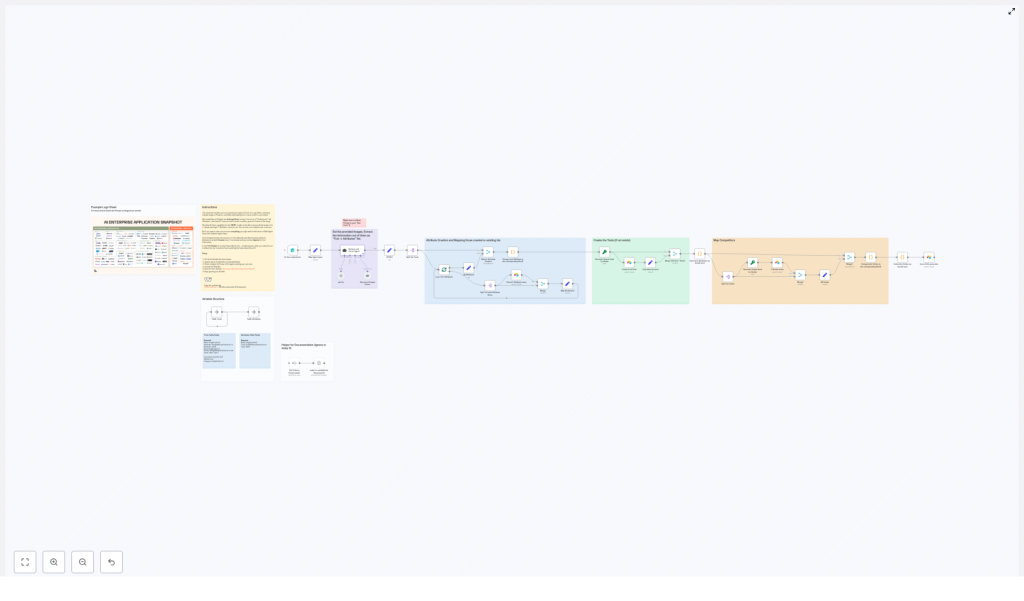
How the workflow is structured in n8n
The template is broken into a series of stages so you can understand and customize each part. In plain language, here is what happens:
- Form Trigger – A web form receives the logo sheet image and an optional prompt from the user.
- Agent (LangChain / LLM + Vision) – An AI agent reads the image, groups logos into tools or products, and extracts attributes and similar tools.
- Structured Output Parser – The agent output is validated and coerced into a strict JSON schema.
- Attribute Creation & Mapping – Attributes are upserted into Airtable and linked to tools.
- Tool Creation / Upsert – Tools are created or updated in Airtable using a deterministic hash so you avoid duplicates.
- Mapping Similar Tools – Tools listed as “similar” are resolved to Airtable record IDs and linked back to the main tool.
Let us walk through the important nodes in a more human-friendly way.
Key n8n nodes and what they are responsible for
1. Form Trigger – the front door of the workflow
The workflow starts with a form trigger node. This is where users upload the image and, if they want, give the AI a bit of extra context.
Your form should include at least:
- File: The logo sheet as an image (required)
- Optional prompt: Something like “These are AI tools, extract names and categories” or “What is the meaning of this graphic?” for extra context
Once the form is submitted, the workflow takes over and the user can go back to doing literally anything more interesting than data entry.
2. Retrieve and Parser Agent – the AI with vision
This node uses a LangChain-powered agent with an LLM that supports vision. Its job is to look at the image and produce a structured list of tools. Specifically, it will:
- Read text and logos from the image
- Group logos into distinct tools or product entries
- Produce an array of objects in JSON with fields:
nameattributes[]similar[]
The system prompt you give this agent is important. You want it to:
- Be conservative and avoid hallucinating tool names
- Extract all visible tools from the image
- List clear attributes like category, function (for example “Browser Infrastructure”), or visible taglines
Think of the agent as an intern that only reports what it can actually see, not what it wishes was on the slide.
3. Structured Output Parser – keeping the JSON clean
AI output can be a little… creative. The structured output parser node steps in to make sure everything follows a strict JSON schema so downstream nodes do not break.
This node:
- Validates the agent output against a defined schema
- Coerces values into the expected types (for example, ensuring attributes are always arrays, not sometimes a string)
- Prevents parsing errors that could crash the workflow later
The template already includes an example schema. Keep it strict so your Airtable upserts stay predictable.
4. Attribute creation and mapping – building your attributes table
Once the tools array is clean, the workflow splits it and processes each tool individually. For each tool, it then splits its attribute strings and handles them one by one.
For every attribute the workflow will:
- Upsert the attribute into the Attributes table in Airtable, matching by Name
- Store the returned Airtable record ID (RecID)
- Use that RecID to link the attribute back to the tool in the Tools table
This is how you end up with a clean many-to-many relationship between tools and their attributes without manually creating records.
5. Tool creation / upsert – avoiding duplicate tools
To keep your Airtable base from turning into a duplicate-filled mess, the workflow uses deterministic hashing. For each tool, it:
- Generates a hash from the tool name, such as an MD5 or similar
- Uses that hash as a unique key to upsert the tool into the Tools table
This approach makes the workflow idempotent. If you upload the same image again later, you will not get duplicate tools, just updates where needed.
6. Mapping similar tools – connecting competitors
Each tool can include a similar[] array in the AI output. This is used to map related or competitor tools inside Airtable.
The workflow:
- Ensures each “similar” tool exists in Airtable (create or upsert if needed)
- Resolves those tools to their Airtable record IDs
- Links those RecIDs to the primary tool in the Similar field
The end result is a self-linked tools table where you can browse related tools without manually building all those relationships.
Airtable schema setup: recommended structure
To keep the workflow simple and flexible, the template assumes a minimal Airtable schema with two tables.
Tools table (required fields)
Create a Tools table with at least these fields:
- Name – single line text
- Attributes – multiple record links to the Attributes table
- Hash – single line text, used as the unique match key for upserts
- Similar – multiple record links to the Tools table (self-link)
- Optional: Description, Website, Category
Attributes table (required fields)
Create an Attributes table with at least:
- Name – single line text
- Tools – multiple record links to the Tools table
With just these two tables you can store tools, their attributes, and their relationships in a clean, normalized way.
Prompt tips to keep your AI agent under control
Good prompts are the difference between “useful assistant” and “creative fiction writer.” To reduce hallucinations and keep output structured, you can use patterns like:
- System prompt example:
“You are an extractor that only reports text seen in the image. Output JSON with tools[], each tool must have name (exact text), attributes[], similar[]. If you are uncertain about a name mark it as uncertain and try alternative spellings.” - User prompt example:
“Image attached. Extract product names and visible tags. Group logos that clearly belong to the same product. Provide categories if obvious (for example ‘Storage Tool’, ‘Agent Hosting’).”
Feel free to tweak the wording for your specific logo sheets, but keep the structure requirements very explicit.
Quick setup guide: from image upload to Airtable records
- Install or open the n8n template for the AI Logo Sheet Extractor.
- Connect your Airtable account and set your API token or credentials.
- Create the Tools and Attributes tables in Airtable using the schema above.
- Configure the form trigger node to accept:
- A required image file field
- An optional text field for a custom prompt
- Configure the LangChain / LLM + Vision agent with:
- Your preferred LLM provider and model
- A strong system prompt that enforces JSON output and “no hallucination” rules
- Review the structured output parser node and confirm the JSON schema matches:
tools[]withname,attributes[],similar[]
- Check the Airtable nodes for:
- Attribute upserts into the Attributes table using Name as the match field
- Tool upserts into the Tools table using Hash as the unique key
- Activate the workflow and test it with a sample logo sheet image.
Once it runs successfully, you can share the form link with your team so they can upload logo sheets without ever touching the n8n editor.
Best practices for smoother logo-to-database automation
- Run multiple passes if needed – If the first run misses a few tools, try again with slightly different LLM settings, such as temperature or seed.
- Use high-resolution images – Better resolution improves OCR and logo recognition, which means fewer mistakes.
- Add a human review step for high-value data – For critical inputs, you can insert a manual approval or validation agent before final Airtable upserts.
- Respect Airtable rate limits – Large logo sheets with hundreds of attributes can hit API limits. Batch operations or add short delays between upserts.
- Stick to deterministic hashing – Use a consistent hashing method for tool names to keep upserts idempotent and avoid duplicates.
Troubleshooting common issues
1. Agent misses text or misreads names
If the AI keeps confusing “CloudBox” with “CloudB0x,” try:
- Using a higher-resolution or cleaner version of the image
- Adding a more explicit prompt to clarify what should be extracted
- Running a two-stage process: first an OCR-only step to pull text, then a separate agent for name normalization
2. Duplicate attributes or tools in Airtable
Duplicates often come from small spelling variations, extra spaces, or inconsistent capitalization. To reduce this, you can:
- Implement a normalization routine in the agent (for example, lowercase, trim punctuation)
- Use the hashed name as the primary match key for tools
- Optionally add a fuzzy-merge cleanup step in Airtable for near-duplicates
3. Airtable rate limit or 429 errors
If Airtable starts sending 429 responses, you are going a bit too fast for its liking. Fix it by:
- Batching upserts into smaller groups
- Adding delays between operations
- Using Airtable bulk endpoints where available for large imports
Security and privacy considerations
Logo sheets can include private, internal, or trademarked images. Before you automate everything, make sure to:
- Confirm you have consent to process and store the data
- Limit access to the upload form to trusted users
- Secure your n8n instance and Airtable API keys
- Use private or self-hosted LLM endpoints if you are dealing with sensitive material, instead of public AI endpoints
Ideas for extending the workflow
Once the core logo-to-Airtable flow is working, you can keep leveling it up:
- Notifications: Send a Slack or email message after each import with a summary and a link to the Airtable view.
- Human-in-the-loop validation: Add a validation agent or manual approval step for ambiguous tool names before creating records.
- Automatic enrichment: After tools are created, trigger a web-scraping or enrichment flow to fetch websites, logos, or taglines.
Wrapping up: from logo chaos to structured Airtable bliss
This n8n workflow turns a single uploaded logo sheet into a structured Airtable catalog of tools, attributes, and competitor mappings. With deterministic upserts

