


AI Voice Appointment Setter with Google Calendar
Imagine Never Saying “What Times Work For You?” Again
You know that back-and-forth dance of scheduling calls? The one that starts with “Are you free Tuesday?” and ends three days later with “Actually, can we do next week instead?” If your calendar had feelings, it would have filed a complaint by now.
This is where automation swoops in like a very polite superhero. With this n8n workflow template, your Vapi AI voice assistant can talk to your clients, collect their details, check your Google Calendar in real time, and book appointments for you. No coding, no spreadsheets, no “sorry, that slot just got taken” drama.
The result: fewer repetitive tasks for you, smoother scheduling for your clients, and a calendar that basically manages itself.
What This n8n Workflow Template Actually Does
At its core, this template connects three main players: Vapi (your AI voice assistant), n8n (your automation brain), and Google Calendar (your schedule gatekeeper). Together, they handle appointment scheduling from first “hello” to final calendar event.
Here is what the workflow is built to do, start to finish:
- Receive a request from your Vapi voice assistant through a webhook
- Check whether the caller wants to see available times or actually book a slot
- Look up your real Google Calendar to avoid double-booking
- Calculate free time slots using your working hours, meeting length, and buffer rules
- Send those available times back to Vapi in a friendly, human-readable format
- When the caller confirms, create a detailed Google Calendar event with all their info
- Confirm the booking back to Vapi so the assistant can politely wrap up the call
All of this runs inside n8n using a series of nodes, each handling a specific part of the process.
Meet the Key Workflow Nodes
Here is how the workflow is organized behind the scenes. You do not have to love nodes to use this, but it helps to know who does what.
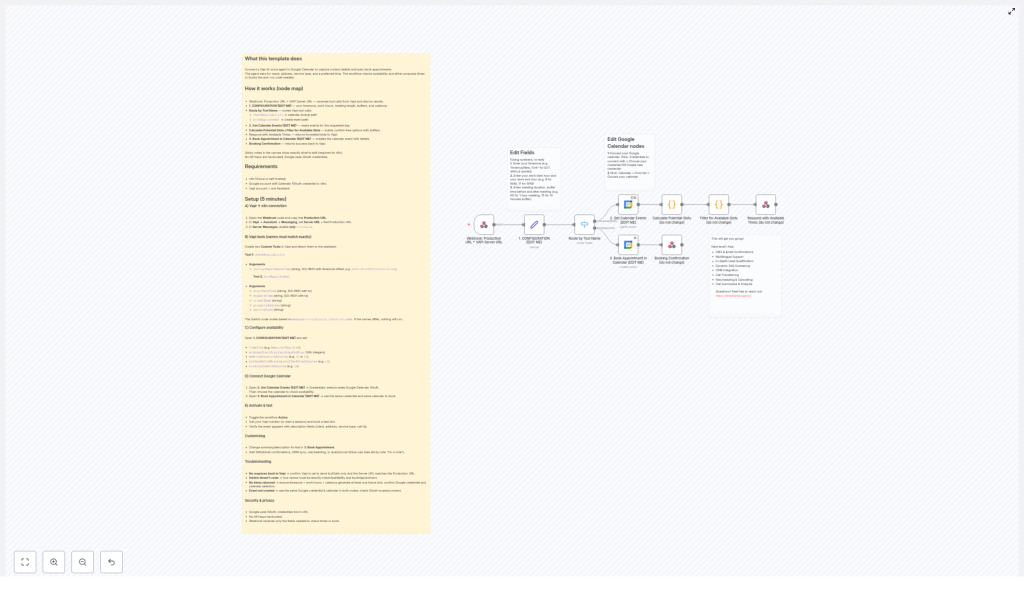
- Webhook Node: This is the entry point. It receives incoming requests from Vapi and sends back the results like available times or booking confirmations.
- Configuration Node: The control center. Here you set your timezone, working hours, meeting duration, buffer before and after meetings, and booking cadence. In other words, your scheduling rules.
- Router Node: Think of this as the traffic cop. It checks what kind of request Vapi sent and routes it either to “check availability” or “book appointment.”
- Google Calendar Integration (Get Events): This node asks Google Calendar which times are already busy so the workflow does not happily book two people into the same slot.
- Calculate Available Slots: Using your working hours, duration, buffer times, and cadence, this node generates possible time slots and filters out anything that clashes with existing events.
- Respond with Available Times: Packages those free slots into a human-readable format and sends them back to Vapi so the assistant can offer them to the caller.
- Book Appointment Node: When the caller picks a time, this node creates the actual Google Calendar event, including client name, address, service type, and other details.
- Booking Confirmation: Sends a success message back to Vapi so your AI assistant can reassure the caller that their appointment is locked in.
Quick Setup Guide: From “Cool Idea” To Working AI Scheduler
Let us walk through the setup without turning it into a part-time job. You will configure Vapi, tune your availability, hook up Google Calendar, and then test the whole thing.
Step 1 – Connect Vapi To Your n8n Workflow
First, we connect the voice assistant to the workflow so they can actually talk to each other.
- Open the Webhook node in n8n and copy the production webhook URL.
- In your Vapi assistant settings, paste that URL into the Server URL field.
- In Vapi, make sure it is set to send only
toolCallsin server messages so n8n gets exactly what it expects.
Step 2 – Define Your Vapi Tools (Names Matter Here)
Next, you tell Vapi which “tools” it can call in n8n. These tool names must match what the Router node is looking for, or the whole thing gets confused and just shrugs.
Create two custom tools in Vapi with these exact names and arguments:
- checkAvailability
Argument:initialSearchDateTime– in ISO-8601 format with timezone offset
- bookAppointment
Arguments:startDateTimeendDateTimeclientNamepropertyAddressserviceType
Make sure the names exactly match checkAvailability and bookAppointment in the switch or router node. Even a tiny typo can break the routing logic.
Step 3 – Configure Your Availability Rules
Now you tell the workflow when you actually want to work, how long your meetings are, and how much breathing room you need between them.
- Open the node named 1. CONFIGURATION (EDIT ME).
- Set your timezone, for example
America/New_York. - Define your workday start and end hours in 24-hour format, for example
9and17. - Set the meeting duration in minutes, for example
30. - Configure the buffer before and after meetings, such as 15 minutes each, so you are not stuck in back-to-back calls forever.
- Choose the booking cadence, which is the interval between potential start times, for example every 30 minutes.
These settings control how the “Calculate Available Slots” node generates and filters your open time slots.
Step 4 – Link Your Google Calendar
This is where your AI scheduler finally gets access to your real calendar, instead of guessing.
- In the node 2. Get Calendar Events (EDIT ME), configure your Google credentials and select the calendar you want to check for busy times.
- Use the same credentials and the same calendar in the node 3. Book Appointment in Calendar (EDIT ME) so that availability checks and bookings stay in sync.
Step 5 – Activate, Call, And Watch The Magic
Once everything is connected, it is time to test your new AI-powered scheduler.
- Toggle the n8n workflow to Active.
- Call your Vapi number or start a voice session.
- Ask for availability or try booking an appointment.
- Open Google Calendar and confirm that:
- Suggested times match your rules and open slots
- New events are created with full client details when bookings are confirmed
Going Beyond The Basics: Customization Ideas
Once the core appointment booking flow is working, you can start adding quality-of-life upgrades so your workflow feels less like a robot and more like a helpful assistant.
- Send SMS or email confirmations after a booking so clients get instant proof that their appointment is locked in.
- Sync with your CRM to automatically create or update leads when someone books.
- Add multilingual support so your AI can schedule in multiple languages for a wider audience.
- Include rescheduling or cancellation flows so clients can adjust their appointments without you lifting a finger.
- Generate call summaries and analytics to keep an eye on call quality, booking rates, and overall performance.
Troubleshooting: When The Robots Need A Little Help
If something is not working as expected, it is usually a small configuration detail. Here are some common issues and quick checks.
- No response from Vapi
Check that Vapi is configured to send onlytoolCallsin server messages and confirm the Server URL exactly matches the webhook node’s production URL. - Router / Switch node not routing correctly
Verify that your Vapi tool names are spelled exactlycheckAvailabilityandbookAppointment. Even minor differences will prevent the switch node from matching. - No available time slots showing up
Make sure your timezone and work hours are correctly set and that they actually allow for at least one future slot. Also double check your Google credentials and confirm you selected the right calendar. - Event not created in Google Calendar
Confirm that the same Google credentials and the same calendar are used in both the “Get Calendar Events” and “Book Appointment” nodes, and that Google OAuth permissions are correctly granted.
Security And Privacy: What Happens To Your Data
Even while your AI is busy talking to clients, your data is handled with care.
- Google OAuth credentials are securely stored in n8n so you are not hardcoding API keys into the workflow.
- The webhook only receives the fields it needs to check availability or book appointments, which helps keep client information limited to what is actually required.
Ready To Retire Manual Scheduling?
If you are tired of calendar ping pong and endless “Does this time work?” emails, this n8n workflow template is your shortcut to a fully automated, AI-powered scheduling system.
Connect your Vapi assistant to Google Calendar using this template, let the workflow handle the repetitive scheduling tasks, and spend your time on work that actually needs a human brain.
Want help tailoring this setup to your business, or adding custom features on top? Reach out to Streetlamp Agency for expert support.
