


Analyze Screenshots with AI using n8n, URLbox and OpenAI
Automating website screenshot capture and analysis can save hours of manual work. With the right n8n workflow, you can monitor UI changes, extract visual content, and send AI-powered insights directly to Slack or other tools.
This tutorial walks you step by step through an n8n workflow template that:
- Accepts a website URL and name via webhook
- Captures a full-page screenshot with URLbox
- Analyzes the screenshot with OpenAI image tools
- Merges AI insights with website metadata
- Sends a clear summary to Slack
Learning goals
By the end of this guide, you will be able to:
- Explain why automated screenshot analysis is useful for product, QA, and marketing teams
- Understand how n8n, URLbox, and OpenAI work together in a single workflow
- Rebuild or customize the provided n8n workflow template
- Design prompts that extract structured information from screenshots
- Apply basic security, error handling, and scaling best practices
Concepts and tools you will use
Why automate screenshot analysis?
Capturing and checking screenshots by hand is slow and difficult to scale. Automation helps you:
- Monitor visual changes for regressions, broken layouts, or unexpected UI updates
- Extract content such as headlines, CTAs, and key messages from landing pages
- Track competitors by regularly capturing and analyzing their public pages
- Generate reports that summarize what is visible on a set of URLs
With n8n, you can connect multiple services using low-code nodes and add AI image analysis to interpret what is on the page instead of just storing the image.
n8n as the automation backbone
n8n is the platform that orchestrates the entire workflow. In this template it is responsible for:
- Receiving incoming data through a Webhook
- Preparing and transforming data with nodes like Set and Merge
- Calling external APIs such as URLbox and OpenAI using HTTP Request or dedicated nodes
- Sending notifications to Slack
URLbox for screenshot capture
URLbox provides a Screenshot API that renders web pages as images. In this workflow, URLbox:
- Takes the provided URL
- Renders the page
- Returns a screenshot image (for example as a PNG or JPG)
Key capabilities you will use:
- Full-page capture so you see everything, not only the fold
- Viewport configuration to simulate different screen sizes
- Format selection such as
jpgorpng
You will need a URLbox API key, which is passed in the Authorization header of the HTTP request.
OpenAI image analysis
The OpenAI Image Analysis (Vision) model can interpret screenshots and return:
- Natural language descriptions of what is on the page
- Extracted text content using OCR
- Structured insights, for example:
- Main hero headline
- CTA button text
- Brand or logo mentions
By carefully designing your prompt, you can get compact, structured JSON that is easy to use in downstream nodes and notifications.
How the n8n workflow fits together
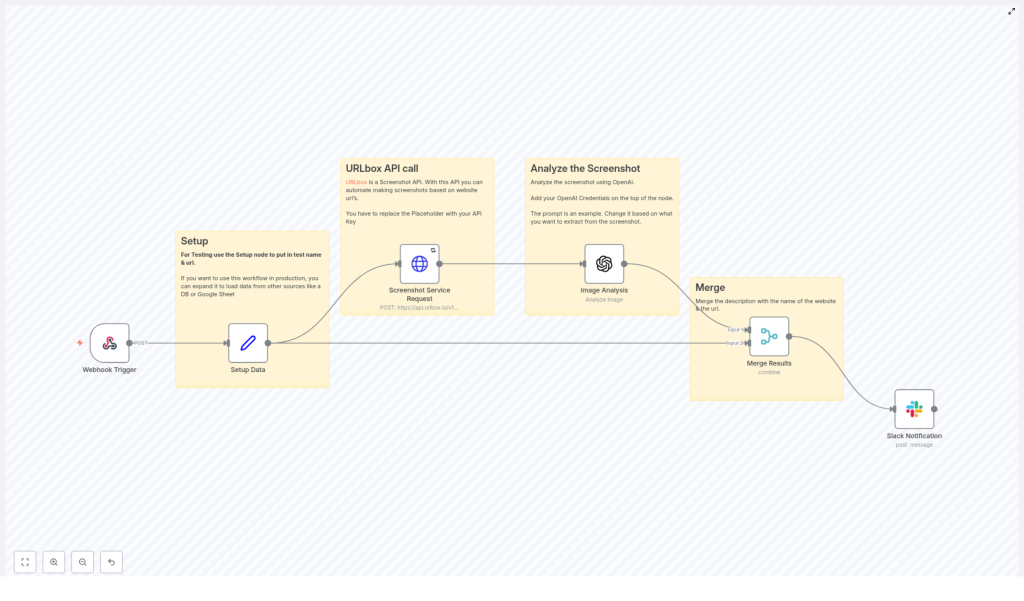
Before we build it step by step, here is the high-level flow of the template:
- Webhook Trigger – Receives a JSON payload with
website_nameandurl. - Set (Setup) Node – Normalizes and prepares these values for the rest of the workflow.
- HTTP Request to URLbox – Captures a full-page screenshot of the URL.
- OpenAI Image Analysis – Analyzes the screenshot and extracts descriptions and key text.
- Merge Node – Combines the website metadata with the AI analysis results.
- Slack Node – Posts a summary and optionally the screenshot to a Slack channel.
Next, you will walk through each step in detail so you can recreate or modify the workflow in your own n8n instance.
Step-by-step: Building the screenshot analysis workflow in n8n
Step 1 – Create the Webhook trigger
Start by adding a Webhook node in n8n. This is how external tools or scripts will trigger the workflow.
- HTTP Method:
POST - Path example:
/screenshot-webhook
The webhook expects a JSON body with at least two fields:
{  "website_name": "n8n",  "url": "https://n8n.io/"
}
You can test this using tools like curl, Postman, or any service that can send POST requests.
Step 2 – Prepare and store the payload
Next, add a Set node after the Webhook. This node helps you:
- Map incoming data from the webhook to well-defined fields
- Provide default values for testing
- Ensure consistent field names for later nodes
In the Set node, define fields such as:
website_nameurl
You can either hard-code values for debugging or map them from the Webhook node using n8n expressions.
Step 3 – Capture a screenshot with URLbox
Now you will call URLbox to generate the screenshot. Add an HTTP Request node and configure it as follows:
- HTTP Method:
POST - URL:
https://api.urlbox.io/v1/render/sync(or the relevant URLbox endpoint)
In the request body, include the URL and any desired options. Typical body parameters include:
url: the website URL from the Set nodefull_page:trueto capture the entire pageviewport: width and height if you want a specific viewport sizeformat:jpgorpng
For authentication, set the Authorization header to your URLbox API key. In n8n, store this in a credential and reference it in the node instead of hard-coding it.
Important URLbox options to consider:
full_page: true– captures the entire scrollable pageviewport– simulate desktop or mobile by adjusting width and heightformat– choose betweenjpgorpngdepending on quality and size needs
The response from URLbox will typically include a URL to the generated screenshot or binary image data, which you will pass to OpenAI.
Step 4 – Analyze the screenshot with OpenAI
Once you have the screenshot, add an OpenAI Image Analysis node (or use the LangChain/OpenAI integration if that is your preferred setup).
Configure the node so that it receives either:
- The screenshot URL returned by URLbox, or
- The binary image data if you are passing the file directly
Next, craft a prompt that clearly explains what you want the model to do. For example:
“Your input is a screenshot of a website. Describe the content in one sentence and extract the main headline and any visible CTA text.”
To make the output easier to process downstream, you can ask for structured JSON:
- Request specific keys, such as
headline,cta_text, anddetected_logos. - Mention that if a value is missing, it should be
nullrather than omitted. - Ask the model to be concise and avoid extra commentary.
Prompt design tips for robust extraction:
- Ask for structured JSON output, for example:
{"description": "...", "headline": "...", "cta_text": "...", "detected_logos": [...]}
- If you expect text from the page, explicitly request OCR style extraction.
- Limit verbosity so the response is short and machine friendly.
Step 5 – Merge website metadata with AI results
Now you have two sets of data:
- Website metadata from the Set node (
website_name,url) - Analysis output from the OpenAI node (description, headline, CTA text, etc.)
Add a Merge node to combine these into a single JSON object. Depending on how your nodes are connected, you can:
- Merge by position if there is a one-to-one relationship between items
- Merge by key if you have a specific field to match on
The final merged item might look something like:
{  "website_name": "n8n",  "url": "https://n8n.io/",  "description": "Automation platform homepage with workflow builder visuals.",  "headline": "Automate your workflows",  "cta_text": "Get started"
}
This object is now ready to be turned into a Slack message or stored in a database.
Step 6 – Send a summary to Slack
To complete the workflow, add a Slack node that posts a message to your chosen channel.
Construct a compact summary using data from the Merge node. For example:
Website: n8n
URL: https://n8n.io/
Analysis: Hero headline: "Automate your workflows" - CTA: "Get started"
Depending on your Slack integration, you can:
- Include the screenshot URL in the message
- Attach the image directly as a file
- Add emojis or formatting to highlight changes or alerts
Security, reliability, and best practices
Protecting your API keys
- Store your URLbox and OpenAI keys in n8n credentials, not directly in node fields.
- Limit who can view or modify credentials in your n8n instance.
Managing rate limits and costs
- Be aware of rate limits on URLbox and OpenAI APIs.
- Use n8n’s retry and backoff settings on HTTP Request nodes.
- Capture only the pages you truly need and avoid unnecessary full-page renders.
Validating AI output
- Check that the AI response is valid JSON before using it.
- Sanitize or truncate text before posting to Slack.
- Handle cases where the model returns incomplete or unexpected data.
Error handling and retries
To make the workflow production ready, add some basic resilience:
- HTTP Request retries: Configure the URLbox HTTP node to retry on network errors or 5xx responses.
- OpenAI error branches: Add conditional logic to detect:
- Empty or malformed AI responses
- Errors returned by the OpenAI API
- Fallback alerts: If analysis fails or the image is missing, send a Slack message to an admin or error channel instead of the main channel.
This ensures that when something goes wrong, you are notified and can investigate, instead of silently losing data.
Advanced ideas to extend the workflow
Once the basic template is running, you can expand it with more advanced automation patterns:
- Batch processing: Loop over a list of URLs from a Google Sheet, database, or CSV file and run the same screenshot-analysis pipeline for each entry.
- Visual regression monitoring: Store previous screenshots and use an image diff tool to compare new captures. Alert only when the visual difference exceeds a certain threshold.
- Structured data extraction: Ask the AI model to return JSON fields such as
headline,promo,price, andform_fields, then write the results to a database or analytics system. - Multi-model pipelines: First run OCR to extract all text, then use a classification model to detect logos, primary colors, layout type, or page category.
Sample prompt for consistent JSON output
To get reliable, machine-friendly responses from OpenAI, use a prompt that enforces a strict JSON format. For example:
"Analyze this website screenshot. Return JSON with keys: 'description', 'headline', 'cta_text', 'detected_text'. If a key is not present, return null."
This makes it much easier to parse the response in n8n and reduces the chance of errors in downstream nodes.
Recap
In this guide you learned how to build an n8n workflow that:
- Receives a website URL and name via a webhook
- Captures a full-page screenshot with URLbox
- Analyzes the screenshot with OpenAI’s image analysis capabilities
- Merges AI insights with website metadata
- Sends a clear summary to Slack
With this foundation, you can adapt the workflow for monitoring, reporting, competitor tracking, or any other use case that benefits from automated visual analysis.
FAQ
Can I trigger this workflow without a webhook?
Yes. Instead of a Webhook node, you can start the workflow from a Schedule Trigger, a manual execution, or another source such as a Google Sheets or database node that feeds URLs into the pipeline.
Do I have to use full-page screenshots?
No. You can disable full_page or adjust the viewport options in URLbox if you only care about the visible area or a specific resolution.
What if the page has very little text?
The AI model will still return a description of the visual layout. For text fields like headline or cta_text, you can expect null or empty values if nothing is clearly visible.
Is it possible to store the results instead of sending them to Slack?
Yes. Replace or supplement the Slack node with a database, Google Sheets, Notion, or any other storage node in n8n to keep a history of analyses.
