


Archive Empty Notion Pages with n8n
Your Notion workspace is where ideas are born, projects move forward, and teams stay aligned. Yet over time, it can quietly fill up with blank or half-started pages that never went anywhere. These empty database entries slow you down, clutter your searches, and make it harder to focus on what truly matters.
The good news is that you do not have to clean this up by hand. With a simple n8n automation, you can let your system take care of the mess for you, day after day. In this guide, you will walk through an n8n workflow template that scans your Notion databases, finds pages with empty properties or empty content blocks, and archives them automatically. Along the way, you will see how this one workflow can be a stepping stone toward a calmer, more intentional, and much more automated workspace.
From clutter to clarity: why automate empty page cleanup?
Every unused page is a tiny distraction. One or two are harmless, but hundreds slowly erode your focus. Automating the archiving of empty Notion pages is not just about tidiness, it is about creating an environment that supports deep work and faster decisions.
With this n8n workflow template, you can:
- Keep your Notion databases clean so search results surface what you actually use.
- Cut down on manual maintenance and reclaim time for real work.
- Help your team see only meaningful, actionable items instead of noise.
- Stay safe while you declutter, since archived pages can be restored in Notion at any time.
Think of this workflow as your personal digital housekeeping assistant. It quietly runs in the background while you stay focused on strategy, creativity, and growth.
Adopting an automation mindset
Before diving into the technical steps, it helps to approach this template with the right mindset. You are not just installing a one-off script, you are starting a journey toward a more automated, self-maintaining workspace.
As you work through this template, consider:
- What else feels repetitive in your Notion workflows? This template can be your starting point for many more automations.
- What does “empty” really mean for your team? A page with only a title might be useful for you, or it might be clutter. You get to define the rules.
- How often do you want your system to self-clean? Daily, weekly, or on demand, n8n lets you choose.
The goal is not perfection on the first try. The goal is to set up something useful, test it safely, learn from the results, and keep refining it until it feels like a natural extension of how you already work.
How the n8n Notion cleanup workflow works
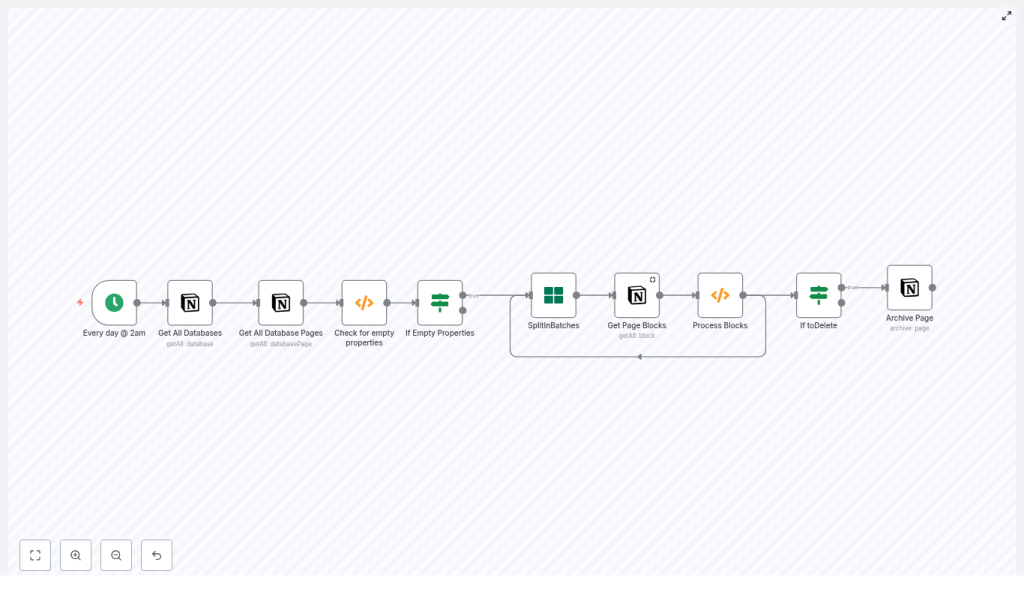
The provided n8n template runs on a schedule and moves through your Notion data in a careful, step-by-step way. It checks both database properties and page content blocks before deciding to archive anything.
Here is the high-level journey your data takes through the workflow:
- Cron Trigger – wakes the workflow on a schedule, for example every day at 2am.
- Get All Databases – lists every Notion database accessible to your integration.
- Get All Database Pages – pulls all pages from each database, with pagination support.
- Check for empty properties (Function) – flags pages whose properties are all empty.
- If Empty Properties – routes only those flagged pages to deeper content checks.
- SplitInBatches – processes pages one at a time to respect Notion rate limits.
- Get Page Blocks – fetches the content blocks that make up the page body.
- Process Blocks (Function) – decides whether the page truly has no content and sets a
toDeleteflag. - If toDelete + Archive Page – archives the page in Notion when it meets your “empty” criteria.
Each of these nodes is configurable, which means you can adapt the template to your own definition of clutter and your own comfort level with automation.
Step 1: Scheduling the cleanup with Cron
Cron node (Every day at 2am by default)
The journey begins with the Cron node. It is the alarm clock that tells your workflow when to run.
In the template, the Cron node is configured to run every day at 2am. This is a safe time for many teams, but you are free to adjust it:
- Run it weekly if you prefer a slower, more conservative cleanup rhythm.
- Run it on demand while testing, so you can trigger it manually inside n8n.
By choosing a schedule that fits your team, you turn cleanup into a predictable, low-friction habit instead of a stressful one-off task.
Step 2: Exploring your Notion space with database nodes
Get All Databases
Next, the workflow uses the Get All Databases node to retrieve every database your Notion integration can see. This is your broad sweep across the workspace.
You can refine this behavior by:
- Adding filters to limit which databases are processed.
- Creating a dedicated integration that only has access to specific databases you want to clean.
Get All Database Pages
Once the databases are identified, the Get All Database Pages node goes one level deeper and returns the pages inside each database.
Key details:
- It supports pagination, so large databases are handled safely.
- When you set
returnAlltotrue, it will fetch all pages in each database.
At this point, you have a complete list of pages that the workflow can evaluate. The next step is to decide which ones are truly empty.
Step 3: Detecting pages with empty properties
Check for empty properties (Function node)
The first filter is based on database properties. This function node loops through each page and checks whether all of its properties are empty. Only those pages get flagged as candidates for deeper inspection.
The template code looks like this:
// Template: Check for empty properties
for (item of items) {  let toDelete = false;  for (const key in item.json.properties) {  let type = item.json.properties[key].type;  let data = item.json.properties[key][type];  if (!data || data.length == 0) {  toDelete = true;  } else {  toDelete = false;  break;  }  }  item.json.toDelete = toDelete;
}

return items;
How it works in practice:
- The node iterates over each property in
item.json.properties. - For each property, it checks the value based on its type, for example
title,rich_text,select,multi_select,people,files,date,checkbox, and others. - If all properties are empty or missing, it sets
item.json.toDelete = true.
You can adapt this logic to your own schema. For example, if you have a specific property that always indicates a “real” page when filled, you can prioritize that property in your checks.
If Empty Properties
The If Empty Properties node acts as a gate. Only pages where toDelete is true move on to the next phase, where their content blocks are inspected.
If, for your use case, properties alone are enough to decide that a page is empty, you could even choose to skip the block-level checks and archive immediately. The template gives you both options so you can match your own definition of “empty.”
Step 4: Inspecting page content block by block
SplitInBatches
To protect your Notion API limits and keep the workflow stable, the template uses the SplitInBatches node. It processes pages one at a time, which is especially helpful in larger workspaces.
This node feeds each page into the content inspection step, making sure you do not overwhelm the Notion API with too many calls at once.
Get Page Blocks
For each page that passed the property check, the Get Page Blocks node fetches the actual content blocks that make up the body of the page.
Important behavior to keep in mind:
- If a page has no blocks, some Notion API versions simply return an empty array.
- Your processing function needs to handle this case and treat it as an empty page if that matches your rules.
Original Process Blocks function
The first version of the Process Blocks function checks the blocks to see if there is any text content. It sets a pageID and a toDelete flag based on what it finds.
let returnData = {  json: {  toDelete: false,  pageID: $node["SplitInBatches"].json["id"],  }
};

if (!items[0].json.id) {  returnData.json.toDelete = true;  return [returnData];
}

for (item of items) {  let toDelete = false;  let type = item.json.type;  let data = item.json[type];  if (!toDelete) {  if (data.text.length == 0) {  toDelete = true;  } else {  returnData.json.toDelete = false;  break;  }  }  returnData.json.toDelete = toDelete;
}

return [returnData];
This approach works in many cases, but it can fail for pages that contain images, embeds, or non-text blocks. To make your automation more reliable, you can upgrade to a more robust function.
Improved Process Blocks function for richer content
The improved version below is designed to handle more block types and edge cases safely. It checks for non-empty text, media, files, and embeds before deciding that a page is empty.
// Improved block processing
const pageId = $node["SplitInBatches"].json["id"];
let returnData = {  json: { pageID: pageId, toDelete: false }
};

if (!items || items.length === 0) {  // No blocks found -> consider empty  returnData.json.toDelete = true;  return [returnData];
}

// If any block contains non-empty text or is a non-empty media block, keep the page
for (const blockItem of items) {  const block = blockItem.json;  const type = block.type;  const data = block[type];  if (!data) continue;  // Handle rich_text arrays  if (data.rich_text && Array.isArray(data.rich_text) && data.rich_text.length > 0) {  const hasText = data.rich_text.some(rt => rt.plain_text && rt.plain_text.trim().length > 0);  if (hasText) {  returnData.json.toDelete = false;  return [returnData];  }  }  // Media/Files/Embeds count as content  if ((data.files && data.files.length > 0) || (data.external && Object.keys(data.external).length > 0) || (data.url && data.url.length > 0)) {  returnData.json.toDelete = false;  return [returnData];  }  // For paragraph-like blocks, check text  if (data.text && Array.isArray(data.text) && data.text.some(t => t.plain_text && t.plain_text.trim().length > 0)) {  returnData.json.toDelete = false;  return [returnData];  }
}

// No non-empty blocks found
returnData.json.toDelete = true;
return [returnData];
With this function in place, your workflow can confidently distinguish between truly empty pages and pages that contain useful content in different formats.
Step 5: Archiving pages safely with Notion
If toDelete and Archive Page
After both property and block checks, any page that is still flagged with toDelete = true reaches the final step.
Here, the If node checks the flag, and when it is true, the Archive Page node calls the Notion API to archive the page. This removes it from everyday view while keeping it recoverable if you ever need it again.
If you want extra reassurance, you can easily replace the Archive Page node with a “dry run” action at first, for example:
- Send a Slack message listing the pages that would be archived.
- Send an email summary to yourself or your team.
Once you are confident in the results, you can switch back to the Archive Page node and enjoy fully automated cleanup.
Testing your workflow with a safe dry-run strategy
Thoughtful testing is what turns this template into a trustworthy part of your system. Here is a simple approach that keeps you in control:
- Duplicate the workflow in n8n so you have a safe copy for experimentation.
- Swap the Archive Page node for a Slack or Email node that reports candidate pages instead of archiving them.
- Run the workflow manually or schedule it for a low-traffic time in your workspace.
- Review the reported pages and confirm that they are truly empty or unneeded.
- Adjust the property and block checks if you see false positives, for example treat “title only” pages as valid if you want to keep them.
- Re-enable Archive Page once you are satisfied and set a schedule that matches your comfort level.
This test-first approach lets you build trust in your automation, step by step, while keeping your data safe.
Customizing the template for your workflow
One of the biggest advantages of using n8n is that you are never locked into a one-size-fits-all setup. You can treat this template as a starting point and shape it around your own rules and priorities.
Ideas to tailor the workflow
- Protect special pages with tags or checkboxes
Add a property such as a “Protected” checkbox or a specific tag. In your function nodes or If nodes, skip archiving whenever this property is set. - Only archive older pages
Add a Date property check and compare it to the current date. You might decide to archive only pages older than a certain number of days that are also empty. - Move pages to a dedicated “Archive” database
While the Notion API does not support moving pages directly, you can create a copy in an Archive database and then archive the original. This gives you a curated archive space plus the safety of Notion’s own archive. - Log all archived pages
Send details about each archived page to a Google Sheet or a Slack channel. This creates an easy audit trail and helps you spot patterns in how your workspace is used.
Every small customization makes the workflow feel more like a natural extension of how you already manage projects and knowledge.
Common issues and how to troubleshoot them
As you refine your automation, you might run into some predictable challenges. Here are a few to watch for and how to handle them.
- Notion rate limits
If you see 429 errors, add delays or rely on the SplitInBatches node to slow down requests. Processing pages one by one is safer for large workspaces. - Different property shapes
Notion property structures vary by type. Inspect a sample page output from the Get All Database Pages node so you can adapt your checks fortitle,rich_text,select,multi_select, and other types. - Pages with only a title
Decide whether a title alone counts as content for your use case. If you want to keep such pages, adjust your functions so a non-empty title prevents archiving.
