Automate: Replace Images in Google Slides (n8n)

Automate: Replace Images in Google Slides with n8n (So You Never Manually Swap Logos Again)

Picture this: it is 5 minutes before a client meeting, you suddenly realize the logo in your 30-slide deck is the old one, and you start the frantic click-delete-insert dance across every slide. Again.

If that feels painfully familiar, this n8n workflow template is about to be your new favorite coworker. It automatically replaces images in Google Slides based on alt text, so you can swap logos, hero images, or screenshots across entire decks with a single request instead of a full-on copy-paste workout.

In this guide, you will see how to use an n8n workflow that talks to the Google Slides API, finds images by alt text, replaces them in bulk, updates the alt text, and even pings you in Slack to say, “All done, human.”


What this n8n workflow actually does (in plain language)

At its core, this is an image replacement bot for Google Slides. You send it a POST request, it hunts down images that match a specific alt-text key, then swaps them out with a new image URL.

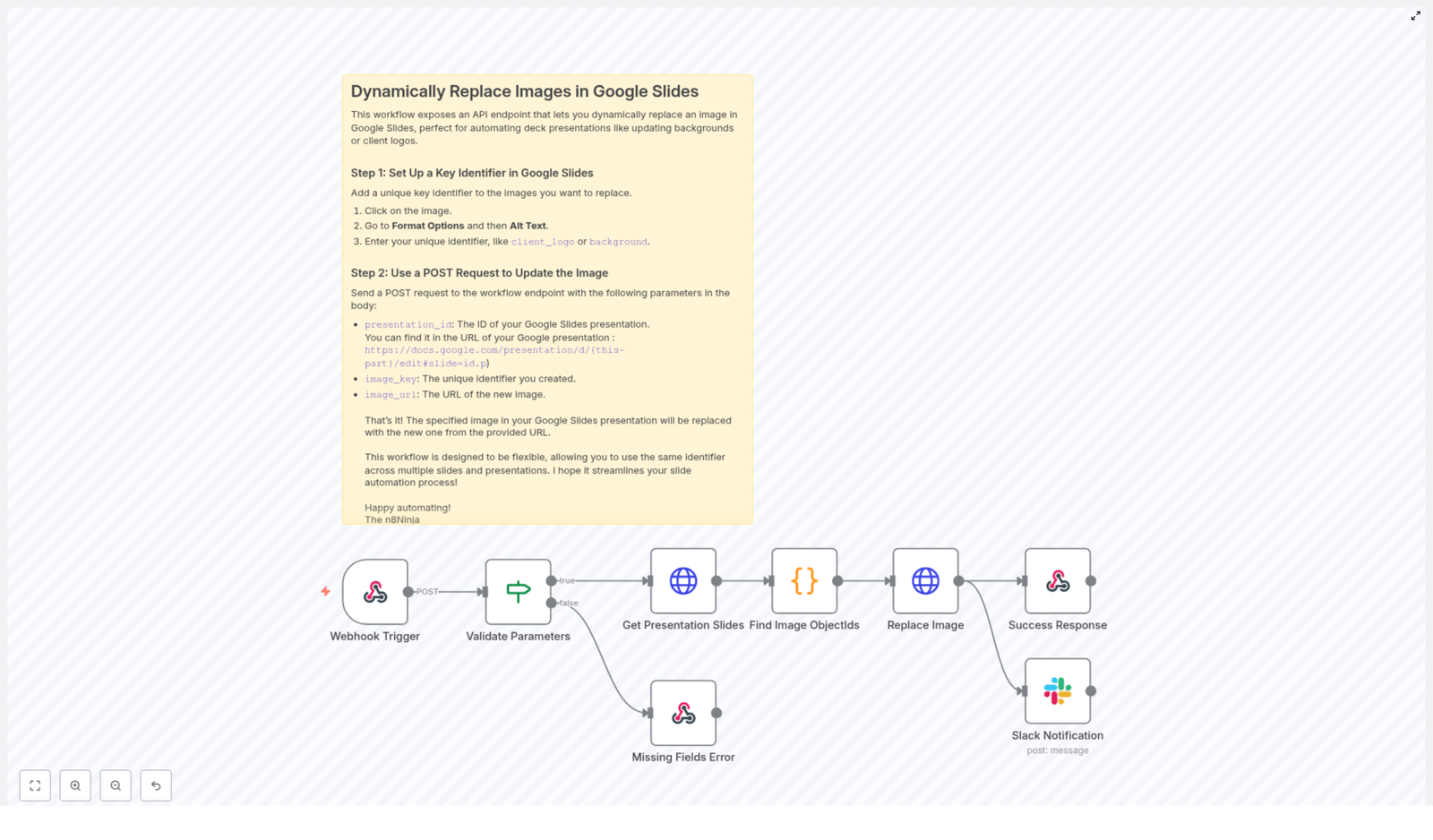
More technically, the n8n workflow:

  • Exposes a POST webhook endpoint that accepts a JSON payload
  • Validates the incoming parameters so you do not break anything accidentally
  • Retrieves the Google Slides presentation via the Google Slides API
  • Searches through slides for page elements (images) whose alt text matches your provided image_key
  • Uses the Slides API replaceImage request to:
    • Swap the image URL
    • Update the alt text with your key
  • Returns a JSON response to the caller so you know what happened
  • Optionally sends a Slack notification confirming the change

Result: you update one JSON payload instead of 47 slides. Your future self will be grateful.


Why automate Google Slides image replacement?

Manually updating images in a deck is the digital version of refilling the office printer: boring, repetitive, and surprisingly easy to mess up.

Automating it with n8n and Google Slides API gives you:

  • Speed – refresh logos, hero images, or screenshots across many slides or even multiple decks in seconds
  • Consistency – keep image positions, cropping, and layout exactly the same while only swapping the content
  • Scalability – plug this into your CMS, CRM, or marketing automation so slide updates just happen in the background

Once it is set up, you can treat your slides like a mini design system instead of a manual editing project.


Before you start: what you need in place

To use this n8n workflow template, make sure you have:

  • n8n instance – either n8n cloud or self-hosted
  • Google Slides API credentials configured in n8n using OAuth2
  • A Google Slides presentation where images have unique alt-text identifiers (for example client_logo, hero_background)
  • Optional: a Slack workspace and channel if you want notifications when images are replaced

Quick tour of the workflow: n8n nodes involved

Here is the cast of characters in this automation:

  • Webhook Trigger – listens for incoming POST requests with your JSON payload
  • IF (Validate Parameters) – checks that presentation_id, image_key, and image_url are present
  • HTTP Request (Get Presentation Slides) – calls the Google Slides API to fetch the presentation JSON
  • Code (Find Image ObjectIds) – scans slides and finds images whose alt text matches your image_key
  • HTTP Request (Replace Image) – sends a batchUpdate request to replace the image and update the alt text
  • Respond to Webhook – returns a success or error JSON response
  • Slack (optional) – posts a message to a channel to confirm the update

You do not have to be a Slides API wizard to use this template, but it helps to know what each node is doing behind the scenes.


Step 1 – Tag your images with unique alt text in Google Slides

Automation only works if it knows what to target. In this workflow, that targeting happens via alt text.

In your Google Slides deck:

  1. Open the presentation
  2. Click on the image you want to automate
  3. Go to Format options > Alt text
  4. In the description, enter a unique key, for example:
    • client_logo
    • hero_background
    • footer_badge

The workflow will later search for this exact alt-text value and replace all matching images in the presentation. Think of it as giving each image a secret code name.


Step 2 – Create the webhook trigger in n8n

Next, you need a way to tell n8n, “Hey, time to swap that image.” That is what the Webhook Trigger node is for.

In n8n:

  1. Add a Webhook Trigger node
  2. Set the HTTP method to POST
  3. Choose a path, for example: /replace-image-in-slide
  4. Set the response mode to responseNode so that you can return structured JSON from a later node

This gives you a URL that other systems (or you, via tools like Postman) can call to trigger image replacement.


Step 3 – Validate the incoming parameters with an IF node

To avoid mysterious failures and half-updated decks, the workflow checks that the request body contains all the required fields.

Use an IF node to ensure the JSON body includes:

  • presentation_id – the presentation ID from the Google Slides URL
  • image_key – the exact alt-text key you set on the image, for example client_logo
  • image_url – a publicly accessible URL for the new image

If any of these are missing, the workflow can immediately return an error response instead of failing in the middle of the Slides API call.


Step 4 – Retrieve the Google Slides presentation via the API

Now that the request is validated, the workflow needs to read the deck and see what is inside.

Use an HTTP Request node configured for the Google Slides API to GET the presentation JSON:

{  "url": "https://slides.googleapis.com/v1/presentations/{{ $json.body.presentation_id }}",  "method": "GET"
}

This returns the full structure of the presentation, including slides, page elements, and their objectId values. The next step is to find which of those elements are images with your target alt text.


Step 5 – Find image objectIds with a Code node

Now comes the detective work. You need to scan the presentation JSON and pick out only the images that match your image_key.

In a Code node, you will:

  • Loop through each slide and its pageElements
  • Filter elements where:
    • an image property exists
    • the element’s description (alt text) matches the incoming image_key
  • Return an array of objects that contain the matching objectId values

These objectIds are the handles you will pass to the Slides API so it knows which elements to replace.


Step 6 – Replace the image and update the alt text

With the objectIds in hand, it is time for the actual swap. This happens via a batchUpdate request to the Google Slides API from another HTTP Request node.

For each objectId that matched your image_key, send a payload similar to this:

{  "requests": [  {  "replaceImage": {  "imageObjectId": "OBJECT_ID_HERE",  "url": "https://example.com/new-image.jpg",  "imageReplaceMethod": "CENTER_CROP"  }  },  {  "updatePageElementAltText": {  "objectId": "OBJECT_ID_HERE",  "description": "your_image_key"  }  }  ]
}

A couple of important notes so nothing gets weird visually:

  • imageReplaceMethod controls how the new image fits into the existing frame. Common options include:
    • CENTER_CROP – keeps the aspect ratio and crops from the center
    • STRETCH – stretches the image to fit the shape
    • Other methods are available depending on your layout needs
  • Use the same objectId for both the replaceImage and updatePageElementAltText requests so they target the exact same element

After this step, your slides will look the same structurally, but with shiny new images.


Handling errors and sending responses

Things do not always go perfectly, so the workflow is set up to respond clearly when something is off.

If a required field is missing in the request body, the workflow returns a 500 JSON response similar to:

{ "error": "Missing fields." }

On success, it returns a JSON response like:

{ "message": "Image replaced." }

If you connected Slack, the workflow can also send a message to your chosen channel confirming that the image replacement finished. This is especially useful when other systems call the webhook automatically and you want a visible audit trail.


Security and best practices for this automation

Even though this is “just” replacing images, it still touches live presentations, so a few precautions are smart:

  • Make sure the image URL is reachable by Google. It should be publicly accessible or hosted somewhere Google can fetch from.
  • Protect your webhook from random callers. Use an API key, IP allowlists, or n8n’s built-in authentication options so only trusted systems can trigger replacements.
  • Test on a copy first. Run the workflow on a duplicate of your deck before pointing it at your production presentation.
  • Use descriptive alt-text keys. Names like client_logo or product_hero reduce the risk of accidentally replacing the wrong image.

A few minutes of setup here can save you from the “why is the footer logo now a cat meme” kind of surprises.


Example JSON payload for the webhook

When you call the webhook, the request body should look something like this:

{  "presentation_id": "1A2b3C4d5Ef6G7h8I9J0k",  "image_key": "client_logo",  "image_url": "https://assets.example.com/logos/new-logo.png"
}

Swap in your own presentation ID, alt-text key, and image URL, and you are good to go.


Troubleshooting: when things do not go as planned

If the workflow is not behaving, here are some common issues to check before blaming the robots:

  • No objectIds found?
    Confirm that the image’s Alt text in Google Slides exactly matches the image_key you send in the JSON. Even small typos will prevent a match.
  • Permission or access errors from Google?
    Check the OAuth scopes for the Slides API in your Google Cloud Console and make sure the n8n credentials are configured with the correct permissions.
  • Image looks distorted after replacement?
    Try a different imageReplaceMethod, for example STRETCH instead of CENTER_CROP, or use an image with proportions closer to the original frame.

Once you get the first run working, it is usually smooth sailing from there.


Ideas for next steps and integrations

Replacing a logo on demand is nice. Turning this into a fully automated content pipeline is even better.

You can extend this n8n workflow to:

  • Pull fresh images from a CMS when content is updated
  • Generate images dynamically via a design API or image generation service
  • Trigger replacements from CRM events, for example when a new customer is added or a campaign changes
  • Combine with version control or audit logging to track who changed which presentation and when

Once the basics are in place, your slides can quietly keep themselves up to date while you focus on more interesting work than “replace logo v5-final-final.png”.


Try the template and stop doing slide surgery by hand

If you are ready to retire the “click every slide and swap the image” routine, you can import this workflow into n8n, connect your Google Slides credentials, and test it on a sample presentation in just a few minutes.

Next steps:

  • Import the template into your n8n instance
  • Connect your Google Slides OAuth2 credentials
  • Tag a few images with alt text in a test deck
  • Send a sample JSON payload to the webhook and watch the magic happen

Want to go further? Subscribe for more n8n automation tutorials and get additional workflow templates straight to your inbox.

If you would like a downloadable n8n workflow JSON tailored to your setup, I can help adapt it to your exact use case. Tell me whether you want Slack notifications enabled and which imageReplaceMethod you prefer, and we can shape the workflow around that.
Auto-Post YouTube Videos to X with n8n

Auto-Post YouTube Videos to X with n8n

Every time you upload a new YouTube video, you are investing energy, creativity, and time. The last thing you want is for that work to disappear quietly because you were too busy to promote it. Automation can change that story.

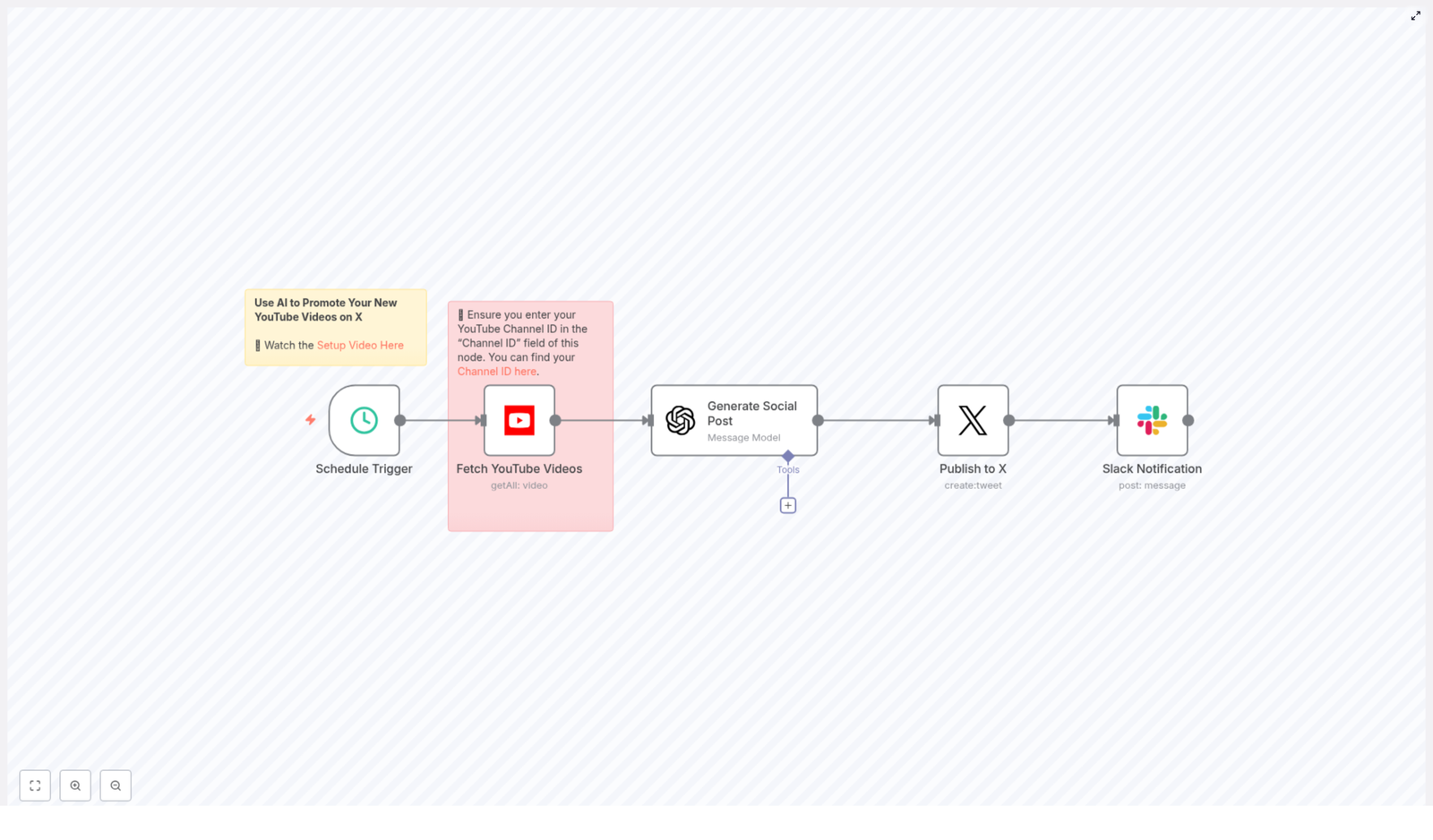
In this guide, you will walk through a simple but powerful n8n workflow that automatically:

  • Detects new YouTube videos on your channel
  • Uses OpenAI to write an engaging post for X (Twitter)
  • Publishes the post to X with your video link
  • Sends a Slack notification to keep your team in the loop

Think of this template as a stepping stone toward a more focused, automated workflow. Once it is running, you reclaim time and mental space to create better content, serve your audience, and grow your channel or business.

From manual posting to an automated growth engine

For many creators and teams, the process looks like this: upload a video, write a caption, open X, paste the link, think about hashtags, hit post, then notify the team in Slack. It works, but it is repetitive, easy to forget, and often delayed.

Automation with n8n transforms that routine into a background system that works for you. By connecting YouTube, X, OpenAI, and Slack, you create a small but mighty engine that:

  • Posts to X as soon as a video goes live, even when you are busy
  • Keeps your messaging consistent with AI-generated copy
  • Frees you from repetitive tasks so you can focus on higher value work
  • Alerts your team automatically so everyone stays aligned

This is not just about saving a few minutes. It is about building habits and systems that support sustainable growth. Once you see how easy this workflow is, you will start spotting more processes you can automate.

Adopting an automation mindset

Before jumping into the template, it helps to shift how you think about your work. Instead of asking, “How do I do this faster?” start asking, “How can I set this up once so it runs without me?”

n8n makes this possible by letting you connect tools you already use. This workflow is a perfect example: you keep using YouTube, X, Slack, and OpenAI, but n8n ties them together into one seamless flow.

As you follow this guide, treat it as a starting point. You can:

  • Experiment with different prompts and tones for your social posts
  • Add approval steps if you want to review content before it goes live
  • Extend the workflow to other platforms or data stores

The goal is not perfection on the first run. The goal is to get a working system in place, then refine it over time as your needs evolve.

The n8n workflow at a glance

The template you will use follows a clear, five-step journey from new video to published post:

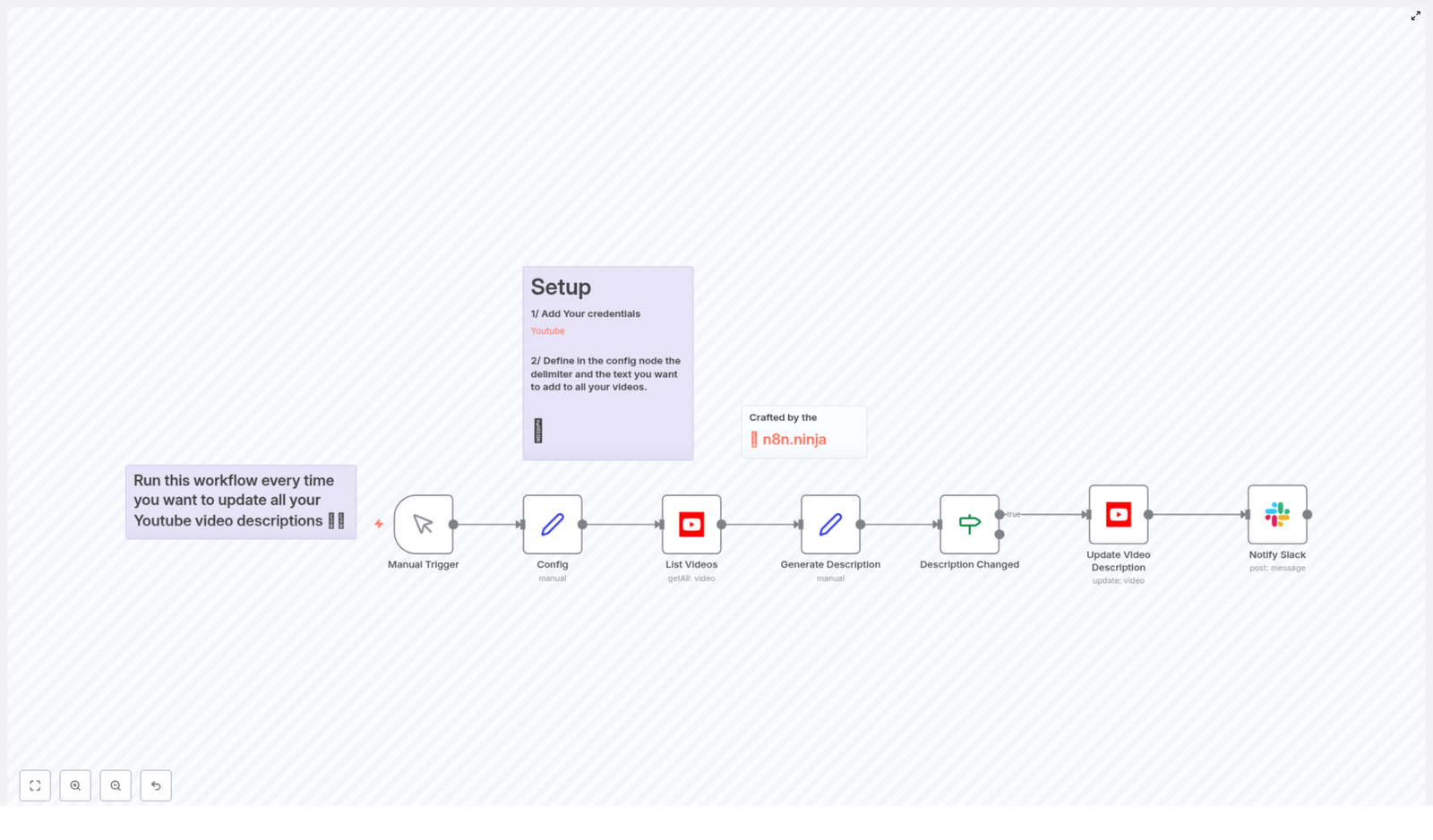
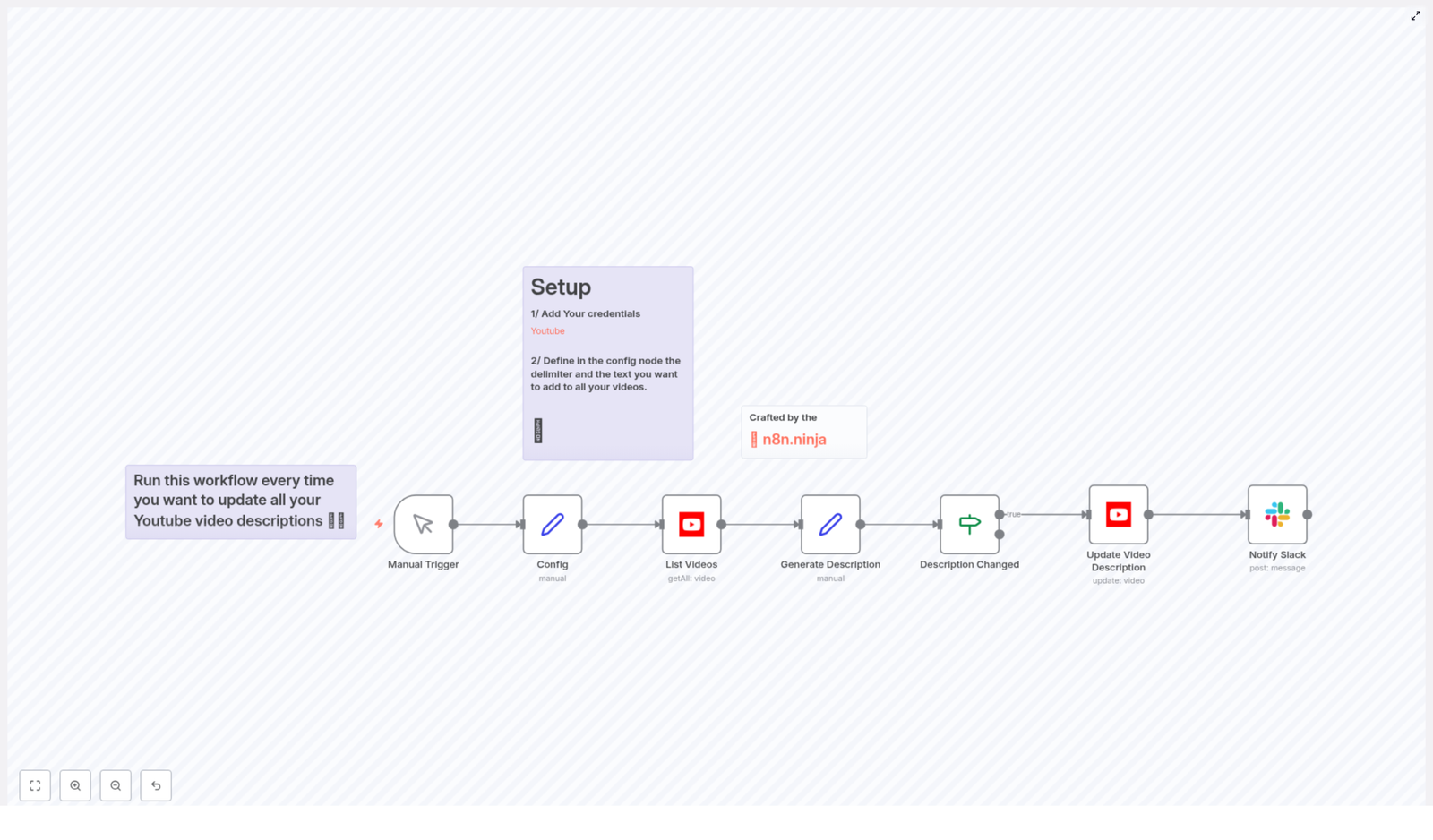
  1. Schedule Trigger – checks for new videos at regular intervals
  2. Fetch YouTube Videos – calls the YouTube API to find recent uploads
  3. Generate Social Post – uses OpenAI to write an X-ready post
  4. Publish to X – sends the generated message to X using OAuth2
  5. Slack Notification – notifies your team that the video is live

Each of these steps is configurable, so you can adapt the template to your channel size, posting style, and team workflow.

What you need before you start

To bring this automation to life, make sure you have access to the following:

  • YouTube OAuth2 account to call the YouTube Data API
  • X (Twitter) OAuth2 credentials with create/tweet access
  • OpenAI API key to generate social copy
  • Slack token with permission to post to your chosen channel
  • n8n instance (cloud or self-hosted) with these credentials configured

Once these are ready, you are set to turn your YouTube uploads into automatic social promotion.

Step-by-step: building your YouTube to X automation

1. Schedule Trigger – let n8n watch for you

Start by adding a Schedule Trigger node. This is the heartbeat of your workflow, the part that regularly checks for new content so you do not have to.

Configure it with an interval that fits your needs. The template uses every 30 minutes, which is a good starting point, but you can adjust based on:

  • How often you upload videos
  • Your YouTube API quota
  • How quickly you want posts to appear on X

Once this trigger is active, n8n will quietly monitor your channel in the background.

2. Fetch YouTube Videos – identify your latest upload

Next, add the YouTube node to pull in your most recent videos. Configure it with these key settings:

  • Resource: video
  • Limit: 1 (or increase if you want to handle a batch of recent uploads)
  • Channel ID: your YouTube channel ID
  • Published After: a dynamic value so you only fetch newly published videos, for example now - 30 minutes

You can find your Channel ID at youtube.com/account_advanced or in YouTube Studio under Settings → Channel.

Important: setting the Channel ID correctly is essential. The template even includes a sticky note reminding you to insert your own ID. If this field is wrong or empty, the node will not return your uploads and the automation will appear to do nothing.

3. Generate Social Post with OpenAI – craft engaging copy automatically

Now it is time to hand off the writing to AI. Add a LangChain/OpenAI node, or use an HTTP Request node if you prefer to call the OpenAI API directly.

The template uses a prompt similar to this:

=Write an engaging post about my latest YouTube video for X (Twitter) of no more than 140 characters in length. Link to the video at https://youtu.be/{{ $json.id.videoId }} use this title and description:  {{ $json.snippet.title }}  {{ $json.snippet.description }}

To get the most out of this step, keep a few prompt guidelines in mind:

  • Be explicit about constraints such as maximum length and including the link
  • Decide whether you want hashtags and mention that in the prompt
  • Specify tone, target audience, or style if you want a consistent voice
  • Watch the output length and, if needed, add a follow-up function node to safely truncate to X’s character limit

This is a great place to experiment. Try different hooks, tones, or CTA styles and see what resonates with your audience. Over time, you can refine the prompt to match your brand voice perfectly.

4. Publish to X – share your video with your audience

With your message generated, you are ready to publish. Add the X/Twitter node and configure it with your OAuth2 credentials.

Map the text field of this node to the output of the OpenAI node. For example:

{{ $json.message.content }}

(Adjust this depending on how your OpenAI node returns the text.)

Keep in mind:

  • X’s API and policies change from time to time
  • You need developer access and scopes that include create/tweet privileges
  • You should respect platform rate limits and posting guidelines

Once configured, this node becomes your automatic “publish” button that n8n presses for you every time a new video is detected.

5. Slack Notification – keep your team aligned

The final step closes the loop internally. Add a Slack node to send a short message to a channel whenever a new video is posted.

The template uses a simple message like:

New YouTube video posted: {{ $json.snippet.title }} https://youtu.be/{{ $json.id.videoId }}

You can customize this to include mentions, emojis, or additional context. The key benefit is that your team no longer has to ask, “Did the new video go out yet?” Everyone sees it in Slack right away.

Leveling up your workflow: enhancements and best practices

Once the basic automation is running, you can start improving and extending it. Here are some ideas that keep your system reliable and scalable.

Prevent duplicate posts

Because the workflow runs on a schedule, you want to ensure you do not post the same video multiple times. You can prevent duplicates by:

  • Storing the last posted video ID in a database or file, such as Google Sheets, Airtable, n8n credentials, or an external database
  • Using a Set or If node to compare the latest video ID with the stored value before continuing
  • Writing the video ID back to your data store after posting to mark it as processed

This simple check helps you maintain a clean, professional feed.

Respect rate limits and quotas

APIs give you power, but they also come with limits. To keep your workflow healthy:

  • Monitor your YouTube API quota, especially calls per day
  • Stay aware of X API rate limits and adjust if you see errors
  • Increase the schedule interval or batch checks if you run into restrictions

Balancing frequency with reliability ensures your automation keeps running over the long term.

Fine-tune message formatting and hashtags

Your social posts are part of your brand, so it pays to define a clear style. Consider:

  • Using a strong one-line hook that highlights the value of the video
  • Including 1-2 relevant hashtags for discoverability
  • Using the short youtu.be link format
  • Adding a call to action such as “Watch now” or “New video out today”

You can bake this into your OpenAI prompt so every post follows your chosen structure.

Testing and safety before going live

To build confidence in your automation, invest a little time in testing:

  • Test the workflow with a private or unlisted video, or use a sandbox account
  • Add an approval step if you want human review before posting, for example via a Slack message with action buttons or a manual webhook trigger
  • Use n8n’s error workflows or a dedicated Slack alert channel to log failures and retries

This gives you peace of mind while your workflow does the heavy lifting.

Prompt ideas to inspire your social copy

To help you experiment, here are a couple of sample prompt formats you can adapt inside your OpenAI node or use as static templates.

Short hook (140 characters):

New video: {{ $json.snippet.title }} - watch now: https://youtu.be/{{ $json.id.videoId }} #YouTube #NewVideo

Conversational tone:

Just dropped a new video: "{{ $json.snippet.title }}" - quick tips and demo inside. Watch now: https://youtu.be/{{ $json.id.videoId }}

Use these as inspiration, then refine your own version that fits your brand voice.

Troubleshooting: keep your automation running smoothly

If something does not work as expected, walk through this quick checklist:

  • If the YouTube node returns no items, double-check your Channel ID and the Published After setting
  • If OpenAI outputs text that is too long, tighten your prompt or add a truncate step or max tokens setting
  • If publishing to X fails, confirm OAuth scopes, API keys, and rate limits
  • If Slack messages do not arrive, verify the Slack token, channel name, and permissions

Most issues come down to configuration details, and once fixed, your workflow will run reliably in the background.

Security and compliance: protect your accounts

Automation is powerful, so it is important to handle credentials with care:

  • Store API keys and OAuth tokens as n8n credentials, not hardcoded in nodes
  • Limit who has access to sensitive credentials in your n8n instance
  • Respect each platform’s policies and terms of service when automating posting
  • Ensure you have the right to publish and republish content on connected accounts

Taking security seriously helps you build automations you can trust.

Bringing it all together

With this n8n workflow template, every new YouTube upload can automatically:

  • Trigger a fresh, AI-written X post
  • Share your video link with your audience right away
  • Notify your team on Slack so everyone is aligned

This is a small but meaningful step toward a more automated, focused way of working. You are not just saving time. You are building systems that support your creativity and your growth.

Ready to try it? Import the workflow template into n8n, add your Channel ID and credentials, and enable the workflow. Watch the first few runs, adjust the schedule, and refine your OpenAI prompt until the posts sound exactly like you.

Once this is in place, you can keep extending it: add deduplication logic, approvals, multiple social networks, or logging to your favorite database. Each improvement moves you closer to a workflow that runs smoothly in the background while you focus on what matters most.

Next step: make this template your own

If you would like a copy of this template or help tailoring it to your channel, reach out to us or subscribe to our newsletter. You will get more n8n automation templates, practical tutorials, and ideas for turning repetitive tasks into reliable workflows.

Start automating your social promotion today, and give your content the consistent visibility it deserves.


Template reference: Schedule Trigger → Fetch YouTube Videos → Generate Social Post (OpenAI) → Publish to X → Slack Notification.

Arabic Kids Story Workflow Template (n8n)

Arabic Kids Story Workflow Template: Let n8n Do Storytime For You

Imagine this: it is 9 PM, a small human is demanding a new bedtime story, and your brain is serving nothing but error messages. You have told the “clever rabbit” story 47 times this month. You are out of ideas, out of energy, and dangerously close to inventing a plot hole that will haunt you forever.

Now imagine instead that fresh, kid-friendly Arabic stories magically appear on your Telegram channel, complete with cute illustrations and audio narration, all on autopilot. No last-minute scrambling, no creative burnout, and no “Baba, that is the same story but with a different cat.”

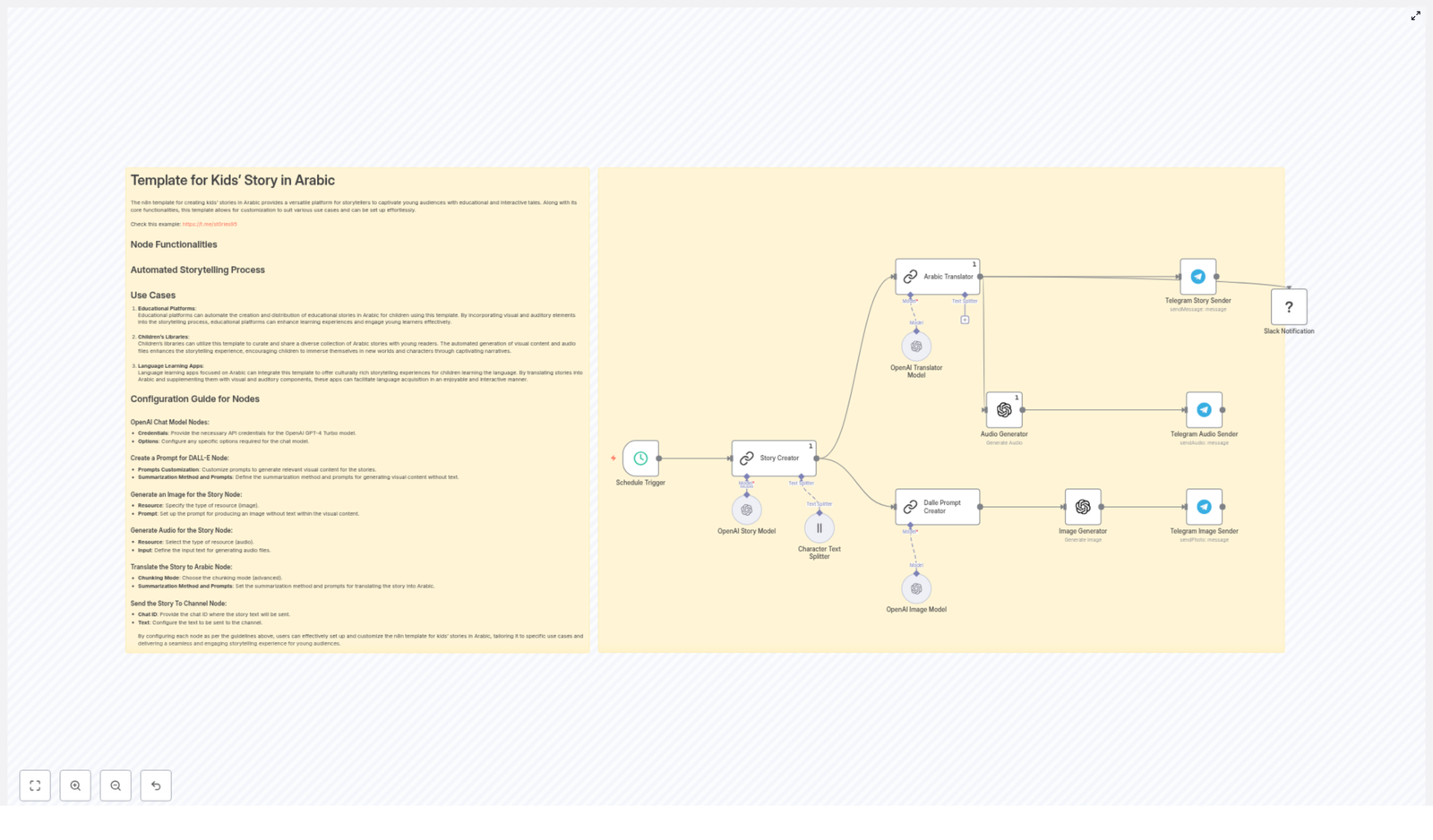
That is exactly what the Arabic Kids Story Workflow template for n8n does. It combines n8n automation with OpenAI text and image generation plus Telegram delivery to create charming, educational stories in Arabic, with visuals and audio, on a schedule you choose.

Below, you will find what this workflow actually does, how the pieces fit together, a simple setup guide, and some tips to keep your content safe, fun, and parent-approved.


What This n8n Template Actually Does

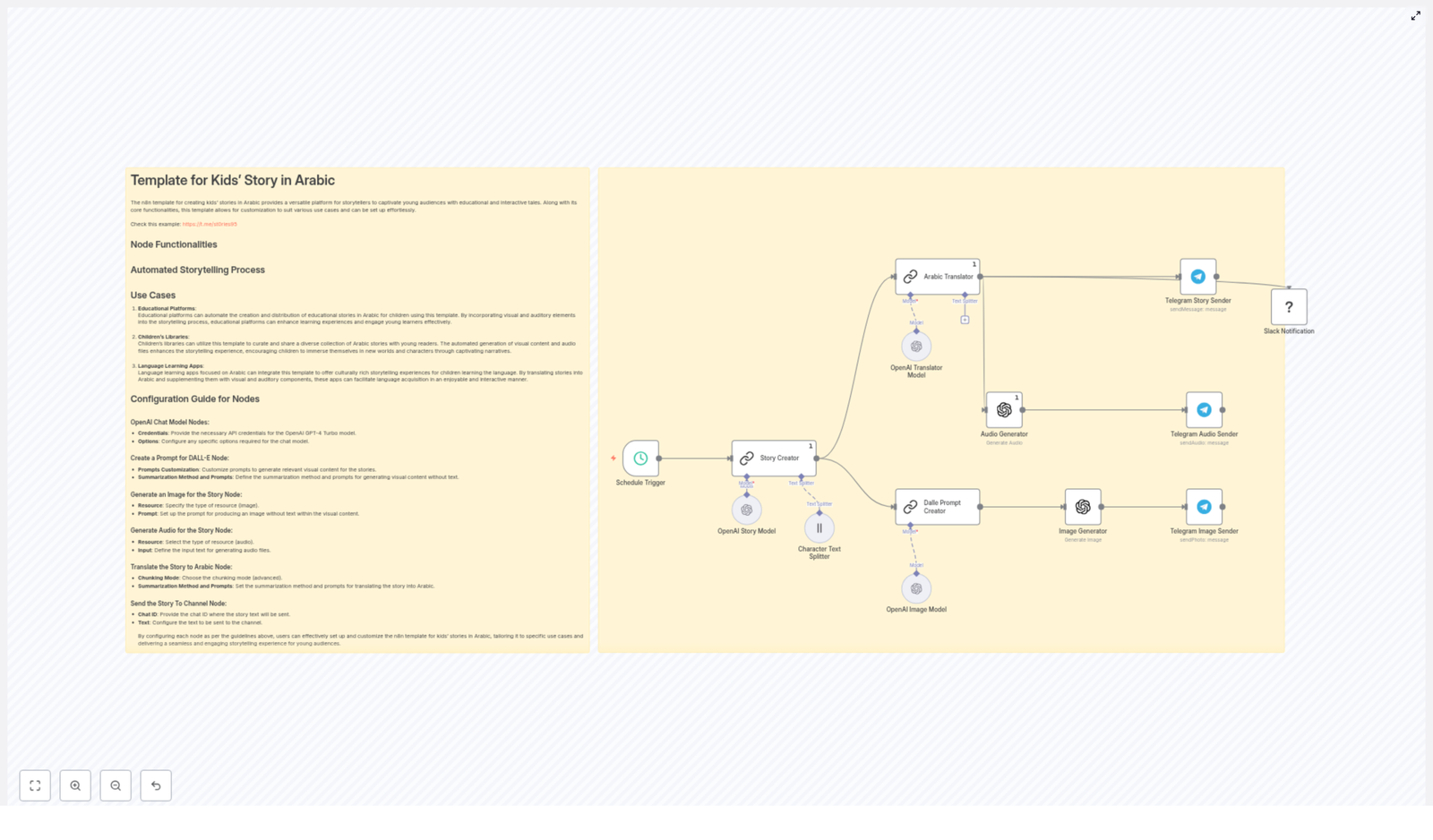
This workflow is like a tiny production team living inside n8n. Each node plays a specific role so that by the end you have a full story “package” ready to publish: text in Arabic, matching images, and audio narration, all sent straight to Telegram.

Key Outcomes You Get

  • Original short stories for kids generated with GPT-4-style models.
  • Simple, child-friendly Arabic that is easy to read and listen to.
  • Illustrations created from DALL·E-style prompts, without any on-image text.
  • Audio narration files for accessibility and multi-sensory learning.
  • Automatic publishing to Telegram channels, plus optional Slack notifications for your team.

In other words, it takes what would normally be a long, repetitive process and turns it into a workflow you can forget about while it quietly does the work for you.


Meet the Workflow Cast: Node-by-Node Tour

Here is how the template is structured behind the scenes. Think of it as your automated story factory.

1. Schedule Trigger – The Story Alarm Clock

The Schedule Trigger starts everything off. You can configure it to run, for example, every 12 hours, every morning, or whatever rhythm fits your audience. Once it fires, the whole workflow kicks into action and a new story begins its journey.

2. Story Creator – The Imagination Engine

The Story Creator node uses an OpenAI summarization/chain setup to write a short, imaginative story of around 900 characters. The prompts are tuned for:

  • Kid-friendly language and concepts
  • Playful, gentle tone
  • A clear moral or learning point at the end

This is your basic “once upon a time” generator, but with guardrails so it stays suitable for children.

3. Arabic Translator – The Kid-Friendly Rewriter

Next, the story goes to the Arabic Translator node. This is not just a literal translation step. The prompt tells the model to:

  • Use easy Arabic words
  • Keep sentences short and clear
  • Highlight the moral lesson in a way kids can understand

The result is Arabic text that is both accurate and genuinely accessible for young readers and listeners.

4. Character Text Splitter – The Story Chopper

Long text and some services do not always get along. The Character Text Splitter solves that by breaking the story into smaller chunks. These chunks are easier to handle for:

  • Audio generation
  • Additional translation or localization steps
  • Creating multiple image prompts for different scenes

Think of it as politely cutting the story into bite-sized pieces for downstream nodes.

5. Dalle Prompt Creator + Image Generator – The Art Department

Now we move into visuals. The workflow uses a Dalle Prompt Creator node to summarize the characters and scenes into short, non-text prompts. These prompts focus on:

  • Physical descriptions (colors, clothing, animal vs human, mood)
  • Clear scene descriptions
  • Explicit instructions like “no text in the image”

Those prompts are then passed to the Image Generator node, which creates illustrations that match the story. Because you are asking for no text in the images, the visuals stay universal and clean, perfect for kids and for different reading levels.

6. Audio Generator – The Narrator

The Audio Generator node takes the Arabic text and turns it into audio narration files. Depending on your TTS provider, you can aim for traits like:

  • Gender-neutral voice
  • Calm, steady pace
  • Warm, friendly tone

The final audio can be uploaded to Telegram or stored for later use, which is great for kids who prefer listening or for parents who want hands-free storytime.

7. Telegram Senders – The Delivery Crew

Once you have text, images, and audio, the workflow uses several Telegram sender nodes to deliver everything to your chosen channel:

  • Story text in Arabic
  • Generated images
  • Audio narration files

Your subscribers or parents see a neat, complete story package without knowing there is an army of nodes working in the background.

8. Optional Slack Notification – The Editorial Ping

If you work with a team, you can enable an optional Slack notification node. Every time a new story is published, a message appears in your chosen Slack channel. It is perfect for editors, educators, or anyone who likes to know what the robots are doing.


How To Set It Up (Without Losing Your Mind)

The good news is that this is a ready-made n8n template. You do not need to rebuild everything from scratch, just plug in your credentials and adjust a few prompts.

Basic Setup Steps

  1. Install n8n
    Make sure you have n8n running in your environment (self-hosted or cloud). Then import the template JSON into the n8n editor.
  2. Add OpenAI credentials
    In the relevant nodes, provide your OpenAI API key, including access to GPT-4 Turbo (or similar) and the image generation endpoint.
  3. Configure Telegram
    Set your Telegram bot credentials and the destination chat ID for the channel or group where you want stories to appear.
  4. Tune the Schedule Trigger
    Decide how often you want new stories to go out. Update the Schedule Trigger to match your preferred publishing frequency (for example, every 12 hours).
  5. Review and customize prompts
    Adjust the prompts in the story generator and Arabic translator nodes to match:
    • Target age group
    • Tone (playful, educational, calming, etc.)
    • Cultural context and sensitivity
  6. Run a full test
    Use the Manual Trigger in n8n to test the entire flow. Confirm that:
    • Stories are generated correctly
    • Images match the story and contain no text
    • Audio sounds natural enough
    • Everything arrives properly in Telegram

Once the test looks good, you can let the schedule run automatically and enjoy your new robot storyteller.


Prompt & Content Tips For Better Stories

Automation is powerful, but prompts are where the magic really happens. A few tweaks can turn “ok” stories into “please read it again” stories.

Tuning Story Prompts

  • Be explicit about length, tone, and moral.
    For example: “Write a short, gentle, playful story for young children, about 900 characters, with a clear lesson about sharing.”
  • Mention the age range you are targeting so the language and themes stay appropriate.

Simplifying Arabic Output

  • In the translator prompt, ask for “easy words” and short sentences.
  • Request an explicit moral sentence at the end, such as: “The lesson is that kindness is important.”
  • Encourage localization, not robotic translation, by saying “localize and simplify” instead of “translate word-for-word.”

Designing Better Image Prompts

  • Always include “no text in the image” to avoid random labels or signs.
  • Describe colors, clothing, species, and mood (for example, “happy brown cat wearing a blue scarf in a sunny park”).
  • Keep prompts short and focused so the model does not get confused.

Improving Audio Narration

  • If your TTS service allows it, specify traits like gender-neutral voice and calm pace.
  • For longer stories, consider chunking the text, which can improve pacing and reduce glitches.

Customization Ideas To Make It Yours

The template works out of the box, but you can easily adapt it to your brand, curriculum, or audience.

  • Change the story focus
    Adjust the story generator prompt to emphasize:
    • Cultural folktales and legends
    • Science or nature concepts
    • Vocabulary-building themes for language learners
  • Store and archive assets
    Integrate a CMS, Google Drive, or another storage service to save:
    • Story text
    • Generated images
    • Audio files

    This creates a reusable library of stories.

  • Add more languages or dialects
    Insert extra translation nodes to support:
    • Different Arabic dialects
    • Other languages for bilingual stories
  • Include moderation checks
    Add safety filters or review steps before publishing, to make sure every story is appropriate for kids and aligns with your guidelines.

Best Practices For Child-Friendly Automation

Even with automation, you are still responsible for what reaches young readers. A few simple rules go a long way.

  • Keep the language simple and sentences short, especially for younger children.
  • Avoid complex or sensitive topics. Focus on universal lessons like kindness, curiosity, honesty, and sharing.
  • Include authorship and contact details in your Telegram channel or platform so parents and educators know who is behind the content.
  • Regularly review story samples to catch any odd AI artifacts or phrasing that needs adjusting.

Troubleshooting & Quick Fixes

Sometimes the robots get a bit too creative. Here is how to nudge them back in line.

If images contain unwanted text:

  • Update your image prompts to clearly say “no text in the image”.
  • Refine the Dalle Prompt Creator instructions and re-run that part of the workflow.

If audio sounds strange or robotic:

  • Try different TTS voices or settings, if available.
  • Split the story into smaller segments so the TTS engine handles pacing more naturally.

If Arabic translations feel stiff or too literal:

  • Update the translator prompt to say “localize and simplify for children” instead of “translate literally.”
  • Ask for a natural storytelling style rather than direct translation.

Privacy & Compliance Considerations

Because this workflow is geared toward children’s content, it is important to handle data responsibly.

  • Avoid collecting unnecessary personal data (PII) from users or subscribers.
  • Store and use API credentials securely in n8n.
  • Follow relevant local laws and regulations for child-directed services and online content.

Where This Template Really Shines

The Arabic Kids Story Workflow template is useful in many settings where regular, engaging stories are needed without constant manual effort.

  • Educational platforms that share short moral tales for Arabic learners.
  • Children’s libraries and cultural organizations that want scheduled, illustrated story posts.
  • Language learning apps that supplement lessons with audio stories and visuals.

Try It Out: Let Automation Handle Storytime

This n8n template pulls together generation, translation, illustration, audio, and distribution into a single automated workflow. You can run it on a schedule or trigger it on demand whenever you need fresh content.

Next step: Import the template into your n8n instance, connect your OpenAI and Telegram credentials, and run a test story today. See how it feels to have storytime handled for you, then tweak the prompts until it matches your tone and audience perfectly.

If you want help with prompt engineering, moderation rules, or custom integrations, you can reach out for professional setup and fine-tuning so the workflow fits your brand and educational goals.

Bonus tip: Keep a simple log of generated stories and review them regularly. This makes it easy to refine prompts, maintain consistency, and build a safe, delightful library of Arabic stories for kids.

Automate Arabic Kids’ Stories with n8n Template

Automate Arabic Kids’ Stories with the n8n Template

With the Arabic Kids Story Workflow in n8n, you can turn children’s stories into a fully automated experience that includes text, images, and audio in Arabic. This guide walks you through how the template works, what each node does, and how to customize it so you can publish engaging stories to Telegram, Slack, or other channels on a regular schedule.


What you will learn

By the end of this tutorial-style guide, you will understand how to:

  • Set up a scheduled workflow in n8n to publish kids’ stories automatically
  • Use OpenAI to generate short, moral-focused stories for children
  • Translate and simplify stories into Arabic using a child-friendly style
  • Create image prompts and generate illustrations with OpenAI images (DALL·E style)
  • Convert Arabic text to narrated audio suitable for kids
  • Send story text, images, and audio to Telegram and send notifications to Slack
  • Customize prompts, visual style, and schedule for your own use case

Why automate Arabic kids’ stories?

Manually creating and distributing children’s stories in Arabic can be time consuming, especially if you want to publish frequently and on multiple platforms. Automation with n8n helps you:

  • Save time: Generate stories, images, and audio in one automated flow instead of doing each step by hand.
  • Stay consistent: Use fixed prompts, styles, and morals so every story feels part of the same series.
  • Scale up: Publish to Telegram, Slack, and other channels on a schedule without extra work.
  • Support learning: Provide children with regular Arabic stories that combine reading, listening, and visuals.

The template uses OpenAI text generation, translation, image creation, and text-to-speech inside an n8n workflow so that each new run produces a complete multimedia story in Arabic.


How the n8n Arabic Kids Story Workflow works

Before we go node by node, it helps to see the whole process as a single pipeline.

High-level workflow overview

  1. Schedule Trigger starts the workflow at a chosen interval, for example every 12 hours.
  2. Story Creator (OpenAI) generates a short, moral-driven story in English or another source language.
  3. Arabic Translator rewrites the story in simple Arabic suitable for children.
  4. Character Text Splitter divides long text into chunks to prepare for image prompt creation.
  5. Dalle Prompt Creator summarizes characters and scenes into concise prompts for illustration.
  6. Image Generator uses OpenAI images (DALL·E style) to create story illustrations without text.
  7. Audio Generator converts the Arabic story into narrated audio.
  8. Telegram and Slack nodes publish the story text, images, and audio, and send notifications.

Next, we will walk through each part of the workflow in a teaching-friendly, step-by-step way so you can understand and customize it.


Step 1 – Control timing with the Schedule Trigger node

The Schedule Trigger node is the entry point of the workflow. It tells n8n when to run the entire story pipeline.

  • Use it to run the workflow every few hours, daily, or weekly.
  • A common configuration is every 12 hours so children receive new stories twice a day.
  • This is ideal if you are running a Telegram channel, podcast-style feed, or educational series.

Once the schedule condition is met, the node fires and passes control to the Story Creator node.


Step 2 – Generate the story with the Story Creator (OpenAI) node

The Story Creator node uses an OpenAI chat model, such as GPT-4-turbo, to write the initial story. This story is usually written in English or another base language before translation.

How the story prompt works

The template uses a prompt that instructs the model to create a short, engaging, moral-focused tale for kids. A typical pattern looks like this:

Create a captivating short tale for kids, whisking them away to magical lands with a clear moral. Keep language simple and vivid. (Approx 900 characters)

"{text}"

CONCISE SUMMARY:

Key ideas for prompt design:

  • Length: Aim for around 700-900 characters so the story is short enough for children but still meaningful.
  • Tone: Specify that the story should be gentle, imaginative, and suitable for kids.
  • Moral: Ask clearly for a moral lesson to be included.
  • Details: You can add constraints such as character age, cultural context, or setting (for example, desert, village, or city).

Tip: Keep a small library of 5-10 prompts that you like and test them against each other to see which produce the best stories.


Step 3 – Translate and simplify with the Arabic Translator node

After the story is created, the Arabic Translator node adapts it into Arabic that is easy for children to understand.

What the translator prompt should include

The prompt usually looks like this:

Translate this story text to Arabic and make it easy to understand for kids with simple words and a clear moral lesson.

To improve quality for young readers, you can add more constraints such as:

  • Target age: For example, “use words for kids aged 6-9”.
  • Sentence structure: Ask for short sentences and clear transitions.
  • Moral clarity: Request that the moral be made explicit at the end of the story.
  • Localization: Mention cultural references or idioms that fit your audience.

This node is not only translating; it is also simplifying and localizing the story for Arabic-speaking children.


Step 4 – Prepare text chunks with the Character Text Splitter node

Some stories have multiple scenes or many characters. To generate accurate images, the template uses a Character Text Splitter to break the story into manageable parts before creating image prompts.

Why splitting text helps

  • Image prompt models work better with focused descriptions rather than very long text.
  • Splitting allows each chunk to represent a specific scene or group of characters.

Typical splitter settings

The template often uses a recursive character text splitter with values such as:

  • chunkSize = 500
  • overlap = 300

This keeps enough context while still forcing the text into smaller pieces that downstream nodes can handle effectively.


Step 5 – Build illustration prompts with the Dalle Prompt Creator node

Next, the Dalle Prompt Creator node reads each text chunk and turns it into a concise prompt for the image generator. The goal is to describe what should appear in the picture and to avoid any text in the final image.

Example image prompt pattern

Summarize the characters in this story by appearance and describe whether they are humans or animals and their key visual traits. The prompt must result in no text inside the picture.

"{text}"

CONCISE SUMMARY:

Good prompts include:

  • Whether characters are humans or animals
  • Key visual traits like colors, clothing, or facial expressions
  • The setting, such as desert, village, or night sky
  • A clear instruction like “no text inside the picture”

This node is crucial for turning narrative text into structured visual descriptions that DALL·E-style models can understand.


Step 6 – Generate illustrations with the Image Generator node

The Image Generator node takes the concise prompts created in the previous step and sends them to the OpenAI image resource (often referred to as DALL·E).

Best practices for image generation

  • Enforce no text: Repeat instructions like “no text, no words” in the prompt to avoid unwanted writing on images.
  • Choose a consistent style: For a series of stories, specify a style such as:
    • “soft watercolor, bright colors, children’s book style”
    • “flat vector illustration, pastel colors”
    • “storybook style with friendly characters”
  • Keep it child-friendly: Avoid dark or frightening imagery and focus on warm, inviting scenes.

Using the same style description in every run helps your stories look like they belong to the same collection.


Step 7 – Create narrated audio with the Audio Generator node

To complete the multimedia experience, the Audio Generator node converts the Arabic story into text-to-speech audio.

Key configuration points

  • Feed the Arabic-translated text from the translator node into the audio node.
  • Select a voice that sounds friendly, clear, and suitable for children.
  • Adjust speed and pitch so that young listeners can follow comfortably.
  • Make sure the audio file is properly encoded and compatible with Telegram’s audio upload requirements.

The resulting audio file is later attached to the Telegram Audio Sender node for distribution.


Step 8 – Publish to Telegram and notify via Slack

The final step in the workflow is distribution. The template uses multiple nodes to send different parts of the story to your chosen channels.

Telegram sender nodes

  • Telegram Story Sender: Posts the story text (Arabic version) to your Telegram channel or group.
  • Telegram Image Sender: Uploads and sends the generated illustrations.
  • Telegram Audio Sender: Uploads the narration audio file created by the Audio Generator.

Slack sender node

  • A Slack node can send a message to your team each time a new story is published.
  • Use it for moderation, review, or internal tracking before or after public posting.

You can extend this pattern to other platforms by adding more nodes, such as email, RSS feeds, or other messaging apps supported by n8n.


Deployment and customization tips

1. Prompt tuning for better stories

  • Small changes in wording can significantly affect story quality, tone, and moral clarity.
  • Maintain a small prompt library and regularly test which prompts produce the best results.
  • Specify details like age range, moral themes, and cultural elements to keep outputs aligned with your goals.

2. Visual style consistency

  • Decide on a for all stories, for example:
    • “soft watercolor, bright colors, children’s book style”
    • “simple flat vector, bold colors, friendly characters”
  • Repeat the same style description in every image prompt so your content looks like one coherent series.

3. Safety and moderation

  • If you publish widely, consider adding a content moderation step.
  • You can use:
    • OpenAI moderation models
    • Simple keyword filters in n8n
  • Review both text and images before they reach children, especially in public channels.

4. Localization for specific audiences

  • Arabic is used across many countries with different cultural norms.
  • Adjust the translator prompt to:
    • Use local expressions or idioms
    • Reflect local holidays, settings, and names
    • Avoid references that may not be understood by your target group

5. Audio quality for young listeners

  • Choose a TTS voice that is gentle and expressive.
  • Test different speeds and pitches until you find a combination that children can follow easily.
  • Listen to sample outputs regularly and adjust settings if the narration feels too fast or too flat.

Ready-to-use example prompts

Story Creator prompt (English)

Create a short, imaginative children's story about a brave little camel who learns the value of sharing. Keep the language simple, include a clear moral, and aim for 700-900 characters. End with a gentle uplifting line.

Arabic Translator prompt

Translate the story into Arabic for children. Use easy words, short sentences, and make the moral explicit at the end.

Dalle Prompt Creator (image) prompt

Describe the main characters visually without including any text elements in the image. Include colors, clothing, age of characters (child/animal), and background setting (desert oasis, night sky, village). Keep the description concise.

You can use these prompts directly in your nodes, then iterate based on your audience’s feedback.


Monitoring, analytics, and performance

Once your workflow is live, it is useful to track which stories are most engaging.

  • Monitor Telegram channel statistics such as views, forwards, and reactions.
  • Use Slack notifications to keep your team informed of new posts and any issues.
  • Optionally, add analytics nodes in n8n to:
    • Log story metadata into a Google Sheet
    • Store data in a database for long-term analysis

This helps you understand which topics, characters, or visuals resonate best with children.


Common troubleshooting questions

1. Why do some images contain unwanted text?

Issue: The generated illustrations sometimes include words or letters.

Fix:

  • Strengthen the prompt with phrases like “no text, no words, no letters”.
  • Test several prompt variations and keep the ones that reliably avoid text.

2. The Arabic translation feels too literal or complex. What should I change?

Issue: The story is technically correct but not child-friendly.

Fix:

  • Add constraints such as “use words for kids aged 6-9” and “short simple sentences”.

Groundhogg Address Verification with n8n & Lob

Groundhogg Address Verification with n8n & Lob

If you send physical mail, you already know the pain of bad addresses: returned envelopes, wasted postage, annoyed customers, and confused ops teams. The good news is that you can automate a lot of that headache away.

In this guide, we’ll walk through an n8n workflow template that connects Groundhogg and Lob so every new or updated contact gets an automatic address check. The workflow verifies mailing addresses as soon as they land in your CRM, tags contacts based on deliverability, and can even ping your team in Slack when something looks off.

Think of it as a quiet little assistant that sits between Groundhogg and your mail campaigns, catching typos and invalid addresses before they cost you money.

What this n8n template actually does

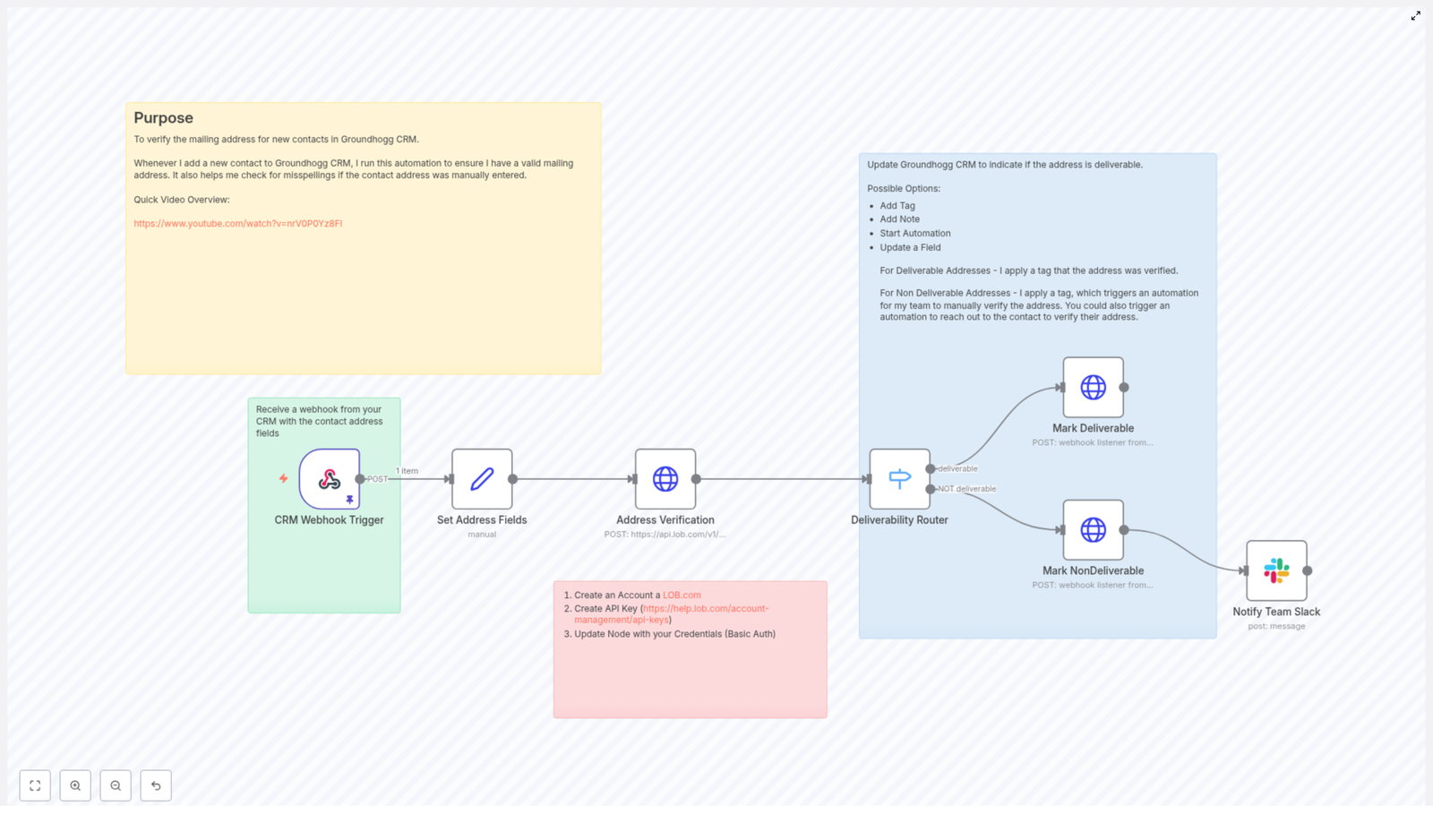
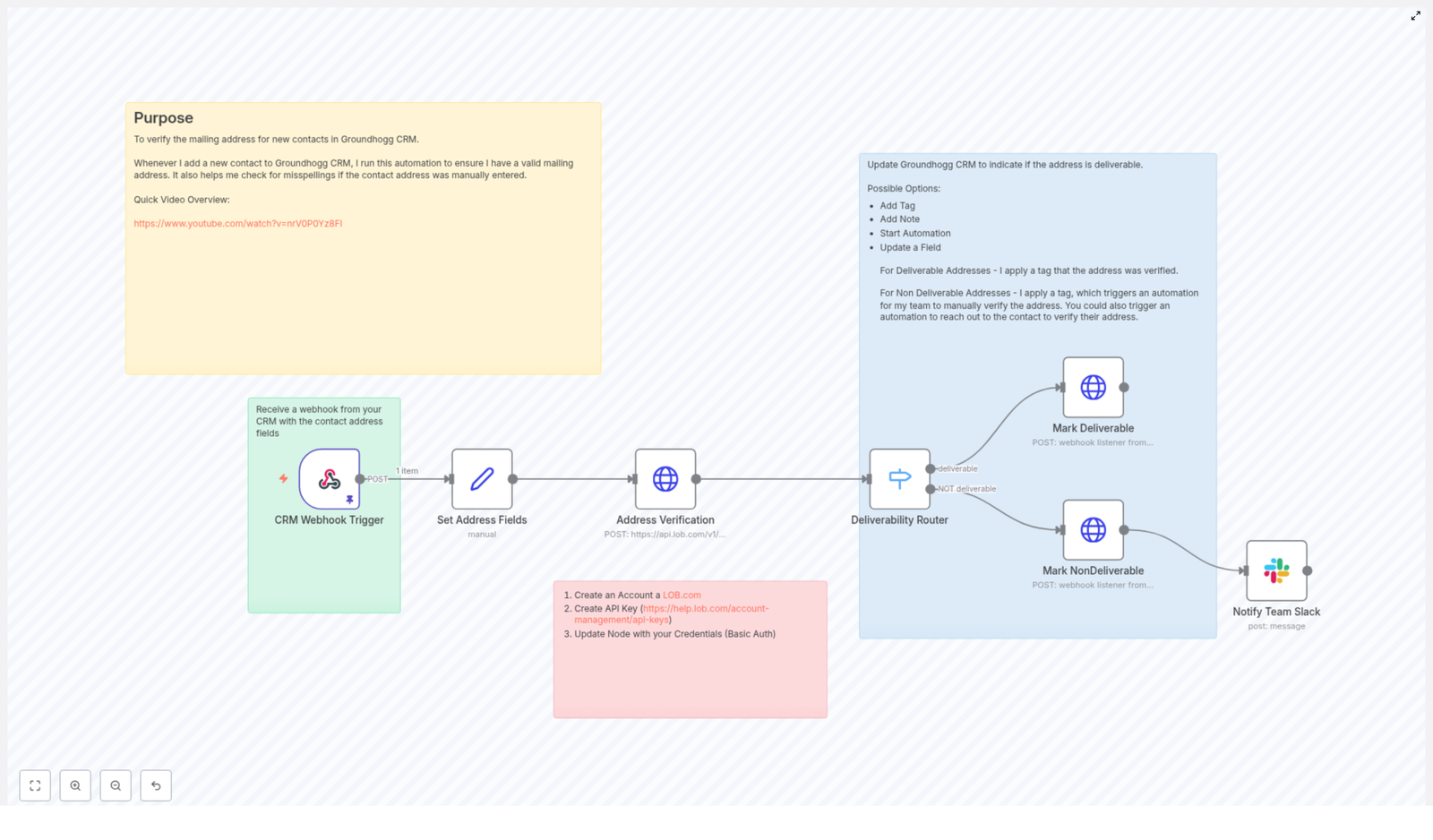
Let’s start with the big picture. This n8n workflow listens for new or updated contacts coming from Groundhogg, sends their address to Lob’s US address verification API, reads the result, and then updates your CRM and team accordingly.

Here’s the workflow in plain language:

  • Groundhogg sends a webhook to n8n whenever a contact is created or updated.
  • n8n maps the incoming address fields into a clean, standard format.
  • The workflow calls Lob’s /v1/us_verifications endpoint to verify the address.
  • Based on Lob’s deliverability result, n8n:
    • Adds a Mailing Address Deliverable tag in Groundhogg when everything looks good.
    • Adds a Mailing Address NOT Deliverable tag when there’s a problem.
    • Optionally sends a message to a Slack channel, like #ops, so someone can manually review the address.

The end result: your CRM stays clean, your mail gets where it’s supposed to go, and your team doesn’t have to manually double-check every address.

When should you use this automation?

This template is a great fit if you:

  • Run physical mail campaigns (letters, postcards, welcome kits, swag, etc.).
  • Rely on accurate addresses for billing, shipping, or compliance.
  • Are tired of returned mail and want to protect your campaign ROI.
  • Want a simple way to tag and segment contacts based on address quality.

If you’re already using Groundhogg as your CRM and n8n for automation, plugging Lob into the mix gives you a powerful, low-maintenance address verification layer.

Why verifying addresses in Groundhogg matters

It might be tempting to skip verification and “deal with problems later”, but that usually shows up as wasted time and money. Automated address verification helps you:

  • Improve deliverability for physical mail campaigns so your letters and packages actually arrive.
  • Cut down on returned mail and the postage you pay for pieces that never reach their destination.
  • Catch manual-entry errors early, such as typos, missing apartment numbers, or invalid ZIP codes.
  • Maintain high-quality customer data in Groundhogg, which also improves reporting and segmentation.

In other words, a small bit of automation upfront saves your team from chasing bad addresses later.

What you need before you start

Before you plug in this template, make sure you have the basics in place:

  • An n8n instance with web access (self-hosted or n8n.cloud).
  • A Groundhogg CRM account with the ability to send webhooks from funnels or automations.
  • A Lob account and API key so you can use the US address verification endpoint.
  • A Slack webhook or Slack app if you want notifications in a channel (optional but handy for ops teams).

How the workflow is structured in n8n

Let’s break down the main nodes so you know exactly what each part is responsible for and where you might want to customize things.

1. CRM Webhook Trigger

This is where the workflow starts. The Webhook Trigger node in n8n listens for POST requests from Groundhogg.

In Groundhogg, you configure your funnel or automation to send a webhook to the n8n URL and include the contact’s address details. Typical fields you’ll want in the payload:

  • id (the Groundhogg contact ID)
  • address
  • address2
  • city
  • state
  • zip_code
  • email or phone (optional, but often useful for context)

A sample webhook payload from Groundhogg might look like this:

{  "id": "5551212",  "email": "mr.president@gmail.com",  "phone": "877-555-1212",  "address": "1600 Pennsylvania Avenue NW",  "address2": "",  "city": "Washington",  "state": "DC",  "zip_code": "20500"
}

2. Set Address Fields

Once n8n receives the webhook, the next step is to standardize and map the incoming fields. The Set node is used to make sure the data going into Lob’s API is in the format it expects.

For example, you might map the payload into a simple object like:

{  "address": "1600 Pennsylvania Avenue NW",  "address2": "",  "city": "Washington",  "state": "DC",  "zip_code": "20500"
}

This keeps things consistent and makes it easier to debug if something doesn’t look right later.

3. Address Verification (Lob)

Now comes the actual verification step. The workflow uses an HTTP Request node to call Lob’s US verification endpoint:

https://api.lob.com/v1/us_verifications

It sends the mapped address fields and Lob responds with:

  • Standardized address components like primary_line, city, state, and zip_code.
  • A deliverability value that tells you whether the address is valid and deliverable.

Typical deliverability values include:

  • deliverable
  • not deliverable
  • unknown

Here’s an example cURL request that mirrors what n8n is doing behind the scenes, which you can use to test your Lob setup:

curl -u YOUR_LOB_API_KEY: \  -X POST https://api.lob.com/v1/us_verifications \  -d primary_line='1600 Pennsylvania Avenue NW' \  -d city='Washington' \  -d state='DC' \  -d zip_code='20500'

Setting up Lob in n8n

To get Lob working with this workflow, you’ll need to configure authentication properly.

  1. Create an account at Lob.com.
  2. Generate an API key (see Lob’s docs: API keys guide).
  3. In n8n, edit the Address Verification HTTP Request node:
    • Use Basic Auth as the authentication method.
    • Set your Lob API key as the username.
    • Leave the password field blank.

Once that’s done, your n8n workflow can securely talk to Lob and verify addresses on demand.

Routing based on deliverability

After Lob responds, the workflow needs to decide what to do next. This is where the Deliverability Router (a Switch node) comes in.

4. Deliverability Router

The Switch node checks $json.deliverability from the Lob response and sends the workflow down different paths based on that value.

  • If deliverability is deliverable, the contact follows the “success” path.
  • If it is not deliverable or another unexpected value, the workflow takes an alternate route.

This branching is what lets you treat good addresses, bad addresses, and “not sure” addresses differently.

5. Mark Deliverable / Mark NonDeliverable

On each branch, HTTP Request nodes talk back to Groundhogg to update the contact. These nodes can hit a Groundhogg webhook listener or the Groundhogg API directly.

Common actions include:

  • For valid addresses:
    • Add the tag Mailing Address Deliverable.
    • Optionally write a note or update a custom field.
    • Continue onboarding or campaign automations as usual.
  • For invalid addresses:
    • Add the tag Mailing Address NOT Deliverable.
    • Trigger a manual verification automation in Groundhogg.
    • Optionally pause certain mail-related funnels until the address is fixed.

The key is that Groundhogg always stays in sync with what Lob has verified.

6. Notify Team in Slack (optional but useful)

If an address comes back as non-deliverable, you probably want a human to take a quick look. The workflow can send a Slack notification to a channel like #ops whenever this happens.

The Slack node uses either a webhook URL or a Slack app to post a message that might include:

  • The contact’s ID or email.
  • The address Lob flagged as problematic.
  • A short note like “Address verification failed, please review.”

This makes it easy for your team to jump in and fix issues before they affect your campaigns.

How to handle different deliverability results

Once you’ve got the basic workflow running, you can decide exactly how your system should behave for each outcome.

  • Deliverable:
    • Add a positive verification tag (for example, Mailing Address Deliverable).
  • Not deliverable:
    • Add a non-deliverable tag.
    • Notify your ops team in Slack for manual review.
    • Optionally send an automated email or SMS asking the contact to confirm or correct their address.
  • Unknown or partial:
    • Route these to a “needs human review” path.
    • Consider a follow-up workflow that asks the contact for more details (like apartment number or suite).

Security and privacy best practices

Since you’re working with personal data, it’s worth taking a moment to lock things down properly.

  • Protect your Lob API key by using n8n’s credential storage or environment variables instead of hard-coding keys in HTTP nodes.
  • Keep webhook URLs private and avoid exposing them publicly. If possible, validate incoming requests.
  • Use HTTPS end to end and only store the personal information you actually need to run your business.
  • Stay compliant with applicable data protection laws by handling PII responsibly.

Testing and debugging your workflow

Before you roll this out to your entire list, it’s smart to run a few test contacts through the pipeline.

  1. Use pinData or a manual trigger in n8n to simulate sample payloads from Groundhogg.
  2. Inspect the output of the Address Verification node to see exactly what Lob is returning in the JSON.
  3. If your Switch node is not behaving as expected, check the deliverability value and update your conditions to match Lob’s exact string.
  4. Log failures and add retry logic in case of temporary HTTP errors or timeouts.

Troubleshooting common issues

If something’s not working, here are a few quick checks that usually help:

  • 401 from Lob:
    • Double-check your API key.
    • Confirm Basic Auth is configured correctly, with the key as the username and an empty password.
  • Unexpected deliverability values:
    • Log or print the full Lob response JSON.
    • Update your Switch node rules to match the actual values Lob is sending.
  • Groundhogg not updating:
    • Verify the HTTP Request node is pointing at the correct Groundhogg listener or API URL.
    • Confirm the payload includes the correct id for the contact.

Ideas to extend this workflow

Once you’ve got the basic template running smoothly, you can easily build on it. Some popular enhancements include:

  • Write back standardized addresses from Lob into Groundhogg so your records are always normalized.
  • Add a retry loop for addresses that come back as unknown, maybe after you collect more details from the contact.
  • Trigger a two-way verification flow via email or SMS asking the contact to confirm or correct their address.
  • Create a dashboard or report that tracks verification rates, error counts, and trends over time for ongoing data quality monitoring.

Costs and rate limits to keep in mind

Lob charges per verification request, so it’s worth keeping an eye on your usage. Check the pricing for your Lob plan and consider strategies like:

  • Verifying addresses only when they are first created or changed.
  • Batching or sampling if you handle very high volumes.

That way, you keep your data clean without any surprise bills.

Wrapping up

By connecting Groundhogg and Lob through n8n, you get a simple but powerful automation that:

  • Reduces manual address checking.
  • Improves mail deliverability and campaign performance.
  • Keeps your CRM data accurate and actionable.

The template includes everything you need to get started quickly: a webhook trigger, field

Groundhogg Address Verification with n8n & Lob

Groundhogg Address Verification with n8n & Lob

Sending physical mail to your contacts, but not totally sure the address is right? That can get expensive pretty fast. With this n8n workflow template, you can automatically verify mailing addresses for new contacts in Groundhogg CRM using Lob’s address verification API. It quietly checks every new address in the background, catches typos, and helps you avoid printing and mailing to places that don’t exist.

In this guide, we will walk through what the workflow does, when it makes sense to use it, and how to set it up step by step in n8n, Groundhogg, and Lob. Think of it as a friendly co-pilot for your direct mail and address data.

What this n8n template actually does

Here is the big picture. Whenever a new contact lands in Groundhogg or an address changes, this automation kicks in:

  1. Groundhogg sends a webhook with the contact’s address to n8n.
  2. n8n cleans up and standardizes the address fields.
  3. Lob’s US address verification API checks if the address is deliverable.
  4. Based on Lob’s response, n8n updates the contact in Groundhogg as deliverable or not deliverable.
  5. If the address is not deliverable, your ops team gets a notification, for example in Slack, so they can review it manually.

The result is a Groundhogg CRM that stays tidy, with clear tags or fields telling you which contacts you can safely mail and which ones need attention.

Why you should verify addresses in Groundhogg

Let’s be honest, nobody wants to pay for postage that ends up in the trash or bounced back to your office. Invalid or badly formatted addresses can cause:

  • Returned mail that wastes printing, envelopes, and postage
  • Failed deliveries that hurt your campaign performance
  • Messy data that makes segmentation and personalization harder

By verifying mailing addresses as soon as a contact is added or updated in Groundhogg, you keep your database clean and ready for action. Some practical benefits:

  • Less returned mail and fewer wasted campaigns
  • More reliable deliverability for direct mail and fulfillment
  • Better targeting, since you can filter by verified addresses
  • Built-in workflows for manual review when something looks off

If you send physical mail, postcards, welcome kits, or any kind of printed material, this kind of automation pays for itself quickly.

When this workflow is a great fit

You will get the most value from this n8n template if any of these sound familiar:

  • You send regular direct mail or swag to Groundhogg contacts.
  • Your team spends time cleaning up addresses or chasing down customers for corrections.
  • You want a clear “deliverable” flag or tag on contacts for segmentation.
  • You are already using n8n or want a low-code way to orchestrate automations across tools.

Even if you are not mailing yet, putting this in place early means your CRM grows with clean, verified address data from day one.

How the n8n workflow is structured

Let’s walk through the key nodes in the workflow so you know what each piece does. You can customize the details, but the core pattern looks like this:

1) CRM Webhook Trigger (Groundhogg → n8n)

The workflow starts with a Webhook node in n8n. Groundhogg calls this webhook whenever a new contact is created or an address changes.

The webhook should send at least these fields:

  • address
  • address2
  • city
  • state
  • zip_code
  • id (the Groundhogg contact ID)

2) Set Address Fields (normalize the data)

Next, a Set node in n8n takes the incoming JSON from Groundhogg and maps it to the field names that Lob expects. This is where you standardize the structure so you can easily plug in other CRMs later if you want.

For example, you might map:

{  "primary_line": "1600 Pennsylvania Avenue NW",  "secondary_line": "",  "city": "Washington",  "state": "DC",  "zip_code": "20500"
}  

This mapping step keeps your workflow flexible. If you ever switch CRMs, you only need to update this node instead of rebuilding the entire integration.

3) Address Verification (HTTP Request to Lob)

After the address is normalized, an HTTP Request node sends a POST request to Lob’s US verifications endpoint:

https://api.lob.com/v1/us_verifications

The request body includes the address fields you just mapped. Lob then responds with a JSON object that contains a deliverability field. That field is your decision point. It tells you whether the address is:

  • deliverable
  • or not deliverable (or otherwise problematic)

You will use that value in the next node to decide what happens to the contact in Groundhogg.

4) Deliverability Router (Switch node)

A Switch node in n8n checks the value of $json.deliverability from Lob’s response. This is where the workflow branches:

  • If deliverability === "deliverable", the contact is marked as verified in Groundhogg.
  • Otherwise, the contact is flagged as not deliverable and sent down a manual review path.

This routing step keeps your team focused on the addresses that actually need attention instead of reviewing everything manually.

5) Mark Deliverable / Mark NonDeliverable (update Groundhogg and notify)

Each branch uses HTTP Request nodes to talk back to Groundhogg. You can:

  • Add or remove tags
  • Update custom fields like “Address Status”
  • Add notes to the contact record
  • Trigger Groundhogg funnels or automations

For non-deliverable addresses, you can go a step further and:

  • Send a Slack message to your ops or support channel
  • Create a task for someone to follow up with the contact
  • Kick off a manual verification workflow

This is where the workflow becomes really powerful. You are not just labeling contacts, you are actually guiding your team on what to do next.

Step-by-step setup guide

Let’s go through the actual setup so you can get this running with your own Groundhogg account and Lob API key.

Step 1 – Create your Lob account and API key

First, sign up at Lob.com. Once you are in your account, navigate to Account > API Keys and generate an API key.

In n8n, configure your HTTP Request node for Lob with one of these options:

  • Basic Auth – Use your Lob API key as the username and leave the password empty.
  • Authorization header – Pass the key as described in the Lob documentation.

Either way works, just make sure the credentials are stored securely using n8n’s credentials or environment variables.

Step 2 – Configure the Groundhogg webhook

Next, you want Groundhogg to notify n8n whenever a new contact is added or an address changes.

  1. In Groundhogg, create an automation or funnel that triggers on:
    • New contact created, and / or
    • Mailing address updated
  2. Add a webhook step that posts to your n8n webhook URL (the one from the Webhook Trigger node).

Make sure the webhook includes the contact’s address fields and ID. A typical payload might look like this:

{  "id": "5551212",  "email": "mr.president@example.com",  "address": "1600 Pennsylvania Avenue NW",  "address2": "",  "city": "Washington",  "state": "DC",  "zip_code": "20500",  "phone": "877-555-1212"
}  

Once this is working, every new or updated address will automatically flow into your n8n workflow.

Step 3 – Map fields in the Set node

Back in n8n, open your Set node that follows the webhook. This is where you map Groundhogg’s field names to the ones Lob expects.

For example, you might configure the Set node to output something like:

{  "primary_line": $json["address"],  "secondary_line": $json["address2"],  "city": $json["city"],  "state": $json["state"],  "zip_code": $json["zip_code"]
}  

You can also use this step to trim whitespace or clean up weird formatting before sending anything to Lob.

Step 4 – Call Lob’s US verification endpoint

Now configure your HTTP Request node to talk to Lob:

  • Method: POST
  • URL: https://api.lob.com/v1/us_verifications
  • Auth: Use the Lob API key you set up earlier
  • Body: The normalized address fields from the Set node

Lob will respond with JSON that includes a deliverability field. That field is what you will check in the Switch node.

Step 5 – Route the result and update Groundhogg

In the Switch node, set the expression to $json.deliverability and define your conditions. For example:

  • Case 1: deliverable – Add a tag like Mailing Address Deliverable, update a custom field, or kick off a follow-up funnel in Groundhogg.
  • Case 2: anything else – Add a tag like Mailing Address NOT Deliverable, start a manual verification automation, and notify your team in Slack.

Use HTTP Request nodes to POST back to Groundhogg or trigger Groundhogg funnel webhooks. This keeps all the final status and activity visible right inside your CRM.

Best practices for this address verification workflow

To keep the automation reliable and scalable, here are a few tips:

  • Respect Lob’s quotas – Add rate limiting or queueing if you expect large bursts of new contacts.
  • Store verification status – Save both the verification result and, if needed, the raw Lob response on the contact record for auditing and debugging.
  • Use tags for downstream automations – Tags like “Deliverable” or “NOT Deliverable” can trigger additional Groundhogg automations for outreach or cleanup.
  • Sanitize address fields – Trim whitespace, remove obvious junk characters, and normalize casing before sending to Lob to improve match quality.
  • Centralize error logging – Log errors or unexpected responses to Slack, email, or an error queue so you do not silently lose verifications.

Troubleshooting and testing

Common issues to watch for

If the workflow is not behaving as expected, here are a few things to check:

  • Confirm the address fields in the Set node map correctly to Lob’s expected field names.
  • Verify you are using the right Lob API key and that Basic Auth or headers are configured properly.
  • If the response from Lob does not contain deliverability, log the full JSON response to see what is going on.

How to safely test the flow

n8n’s pinData feature is your friend here. You can pin a sample webhook payload to the Webhook node and run tests without having to repeatedly trigger Groundhogg.

Try testing with:

  • A clearly valid address, to confirm the “deliverable” branch works.
  • An obviously bad or incomplete address, to make sure the “not deliverable” branch triggers correctly and sends notifications.

Once both branches behave as expected, you can connect it to your live Groundhogg automation with confidence.

Security and compliance tips

Since you are working with API keys and personal address data, it is worth being a bit careful:

  • Never hard-code API keys into shared workflows or public repositories.
  • Use n8n’s credentials store or environment variables to keep secrets safe.
  • If you store address and verification data, make sure you comply with privacy regulations and your organization’s data retention policies.

Wrapping it up

By plugging Lob’s address verification into your Groundhogg CRM via n8n, you are essentially adding a smart filter in front of all your mailing efforts. You catch typos, avoid sending to undeliverable addresses, and keep your database clean without a lot of manual work.

The nice part is that this pattern is flexible. You can:

  • Swap Lob for another verification provider if your needs change.
  • Extend the workflow to handle international addresses.
  • Add more logic for special cases or high-value contacts.

Next steps

Ready to try it?

  • Download or import the n8n workflow template.
  • Create your Lob API key and plug it into the HTTP Request node.
  • Connect your Groundhogg webhook to the n8n Webhook Trigger.

From there, you can tweak tags, fields, and notifications to match your existing processes. If you want help adapting this for international verification or more complex automations, reach out to your team, your automation partner, or keep an eye out for more n8n workflow templates and tutorials.

Related resources: Lob API docs, n8n documentation, Groundhogg webhook guide.

AI Image Processing & Telegram Workflow with n8n

AI Image Processing & Telegram Workflow with n8n

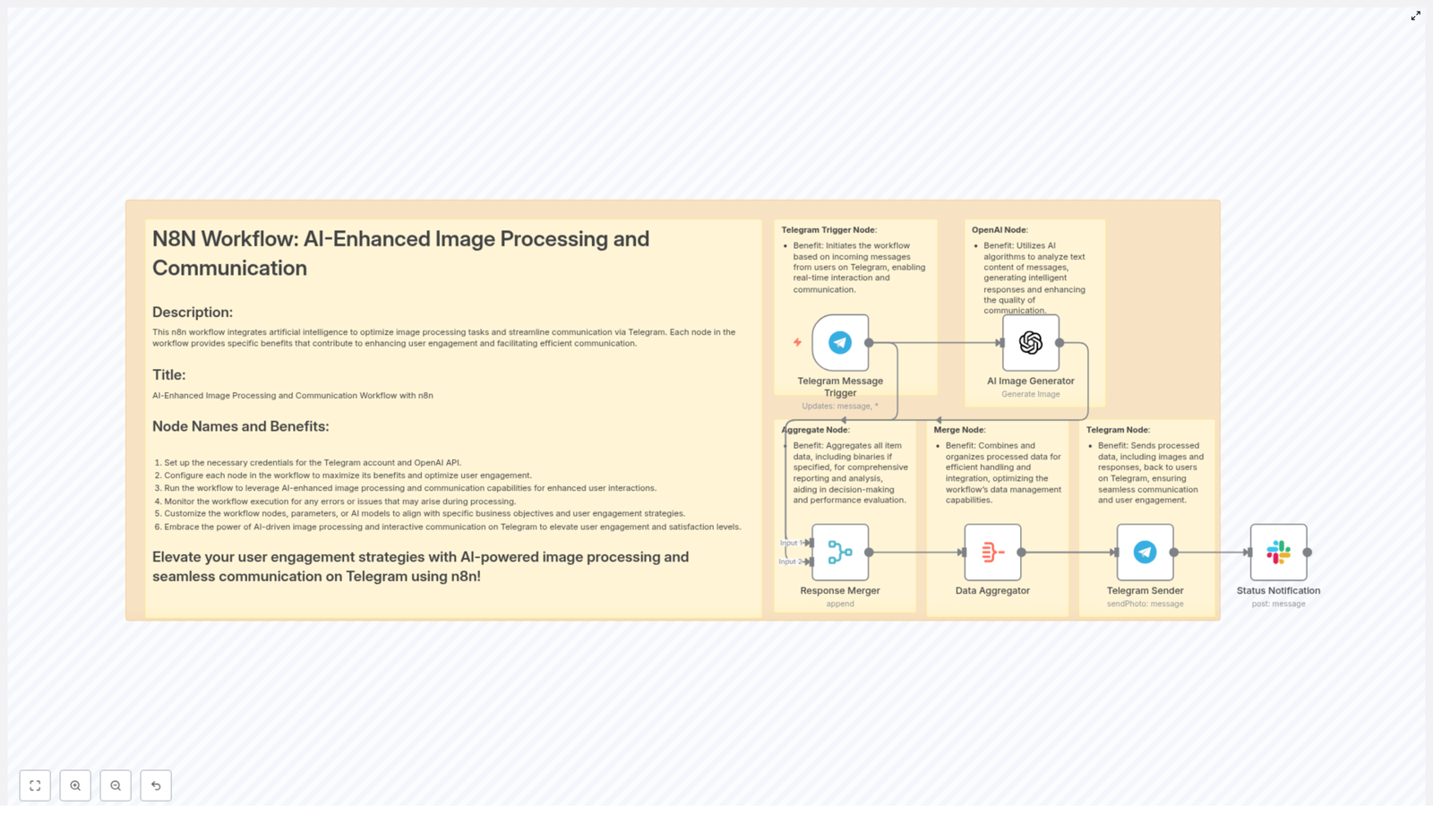
This guide walks you through an n8n workflow template that turns Telegram text prompts into AI-generated images and sends them straight back to the user. You will learn how each node works, how to configure credentials, and how to handle prompts, errors, and costs in a practical way.

What you will learn

By the end of this tutorial-style article, you will be able to:

  • Explain how an AI image generation workflow in n8n connects Telegram and OpenAI
  • Set up and configure each node in the template step by step
  • Use prompt engineering basics to improve image quality
  • Add security, moderation, and observability to your automation
  • Troubleshoot common issues with chat IDs, binaries, and rate limits

Why build an AI image workflow with Telegram and n8n?

Combining Telegram with AI image generation gives users a fast, conversational way to request and receive visuals. Instead of visiting a web app or dashboard, they simply send a message to a bot, wait a few seconds, and receive a generated image directly in chat.

Typical use cases

  • Marketing and creative teams – Quickly mock up social posts, ads, or thumbnails.
  • Customer support – Share visual explanations or diagrams on demand.
  • Community and hobby bots – Let users create custom artwork for fun.
  • Product and UX teams – Rapidly prototype visuals and concepts.

Key benefits of this n8n workflow template

  • Instant image delivery through Telegram using a simple chat interface.
  • No-code orchestration in n8n, so you can iterate quickly without heavy coding.
  • Centralized error handling using merge and aggregation nodes for clean data flow.
  • Flexible prompt handling to route, clean, and enrich user input before sending it to OpenAI.

Concept overview: How the workflow fits together

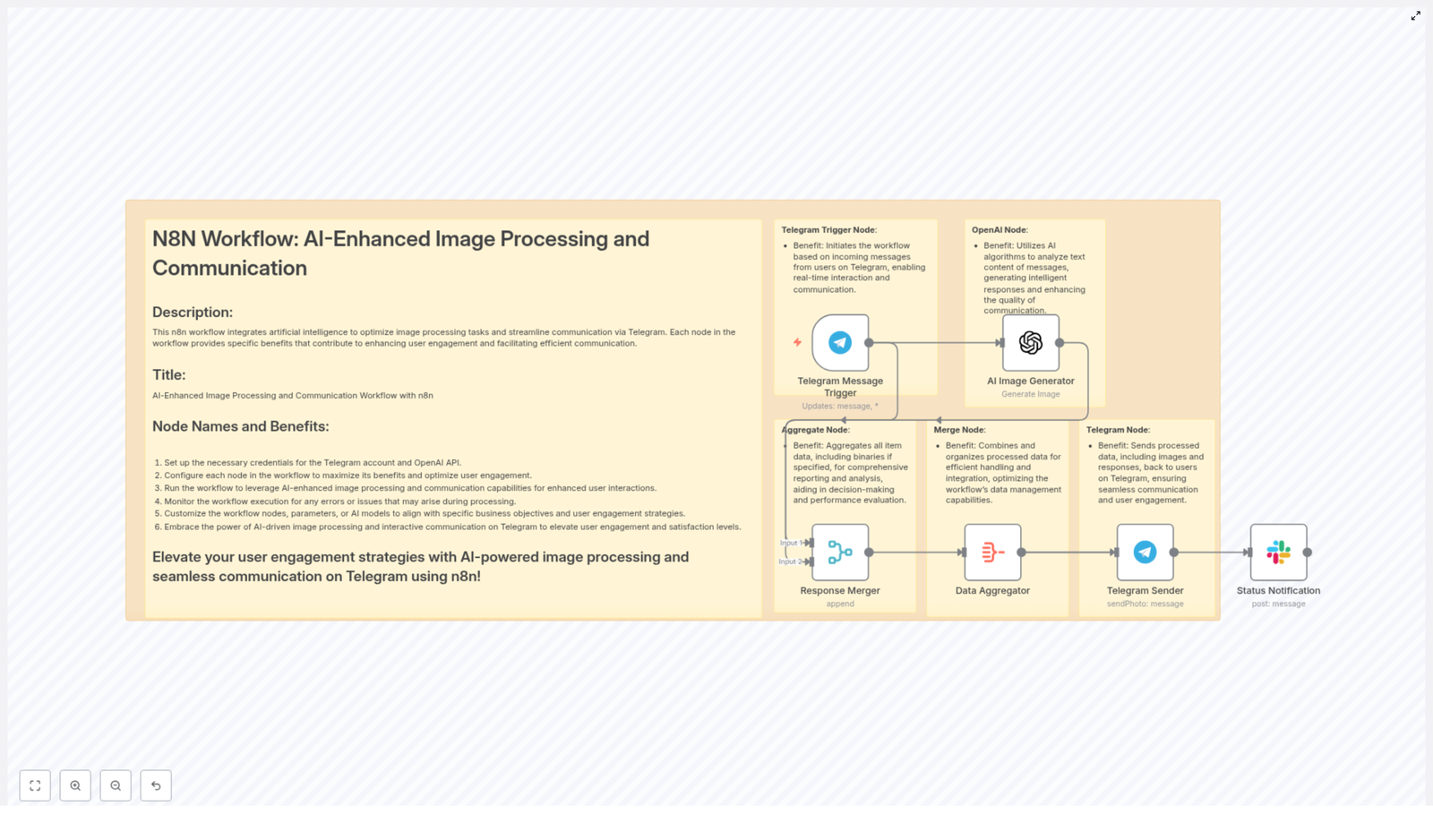
Before configuring anything, it helps to understand the overall flow. At a high level, the template:

  1. Listens for messages sent to your Telegram bot.
  2. Uses the message text as a prompt for an AI image generator (OpenAI).
  3. Merges the generated image with the original message metadata.
  4. Aggregates all required data and binaries into a single payload.
  5. Sends the image back to the user in Telegram via sendPhoto.
  6. (Optional) Notifies another channel like Slack for logging or analytics.

The main n8n nodes involved

In this template, you will work with the following core nodes:

  • Telegram Trigger – Starts the workflow when a user sends a message.
  • OpenAI Image Generation node – Creates an image from the user prompt.
  • Merge node – Joins message metadata and AI output.
  • Aggregate node – Assembles JSON and binary data for sending.
  • Telegram Sender node – Sends the final image back via sendPhoto.
  • Status / Notification node (optional) – Posts status updates to Slack or another channel.

Step-by-step setup in n8n

In this section you will configure the workflow from credentials to final delivery. Follow the steps in order, and test as you go.

Step 1 – Configure your credentials

First, connect n8n to Telegram and OpenAI.

  • Telegram Bot API Key
    • Open Telegram and start a chat with BotFather.
    • Create a new bot and copy the API token that BotFather gives you.
    • In n8n, go to Credentials and create a new Telegram credential.
    • Paste the bot token and save.
  • OpenAI API Key
    • Generate an API key in your OpenAI account.
    • In n8n, create an OpenAI credential and paste the key.
    • Keep this key secret and plan to rotate it periodically for security.

Step 2 – Set up the Telegram Message Trigger

The Telegram Trigger node listens for updates from your bot and starts the workflow whenever a message arrives.

  • Choose the Telegram Trigger node in your workflow.
  • Attach your Telegram credentials.
  • Configure it to listen for message updates.
  • If needed, filter by:
    • Commands like /generate to only respond to specific prompts.
    • User IDs to limit access to certain users or groups.

As an example, the JSON from Telegram often includes a path like message.text for the prompt and message.from.id for the user ID you will reply to.

Step 3 – Configure the AI Image Generator (OpenAI node)

Next, connect the incoming Telegram text to the AI image generator.

  • Add an OpenAI node after the Telegram Trigger.
  • Select the correct resource type, for example Image.
  • Map the prompt field to the incoming message text, for example:
    {{ $json.message.text }}
  • Optionally define a base prompt template or default style to keep outputs consistent.

You can think of this node as the “creative engine” of the workflow. The better and clearer the prompt, the better the resulting image will be.

Step 4 – Merge metadata and AI output

Once OpenAI returns an image, you usually want to keep track of who requested it, when it was requested, and any other context.

  • Add a Merge node after the OpenAI node.
  • Connect the original Telegram Trigger output and the OpenAI node output into this Merge node.
  • Configure the merge mode (for example, merge by index if both streams produce one item each).

This step lets you combine:

  • Chat metadata like chat.id, from.id, username, and timestamp.
  • The generated image data and any associated metadata from OpenAI.

Step 5 – Aggregate data and binaries

The Telegram Sender node expects a complete payload that includes both JSON fields and binary image data. The Aggregate node helps you assemble this.

  • Add an Aggregate node after the Merge node.
  • Configure it to include:
    • All necessary JSON fields (for example, the final chatId path).
    • The binary data property that holds the generated image.

This step is important to avoid issues where the image is generated correctly but not attached when sending via Telegram.

Step 6 – Send the image back via Telegram

Now you can reply to the user with the generated image using the Telegram Sender node.

  • Add a Telegram node configured as a sender.
  • Set the operation to sendPhoto.
  • Map the chatId field to the originating user. For example, based on your merged data structure:
    {{ $json.data[1].message.from.id }}

    Adjust this expression to match the actual path in your workflow after the Merge and Aggregate nodes.

  • Attach the binary image data from the Aggregate node to the photo or equivalent binary field.

Once configured, test by sending a prompt to your Telegram bot. If everything is correct, you should receive the AI-generated image as a photo message.

Optional Step 7 – Add status notifications

For logging or analytics, you may want a separate notification whenever an image is processed.

  • Add a node such as Slack, Webhook, or another messaging node.
  • Configure it to run after the Telegram Sender node.
  • Send a simple summary, for example:
    • User ID, prompt, timestamp
    • Generation status (success or error)

Prompt engineering tips for better AI images

The quality of your images depends heavily on the quality of your prompts. Here are some practical guidelines you can share with your users.

  • Be specific
    Instead of a vague prompt like “a city”, use something like: “a vibrant flat-style illustration of a city skyline at sunset, warm colors, minimalistic design”.
  • Add style references
    Mention artists, art styles, or photography types to guide the look and feel.
  • Reduce ambiguity
    Avoid pronouns like “it” or “they”. Clearly describe the subject, background, and main focus.
  • Use progressive refinement
    Start with a base prompt, then allow follow-up prompts to refine details such as lighting, angle, or mood.

Security, moderation, and access control

When you allow users to send free-form prompts, you need to think about safety, abuse prevention, and cost control.

Content safety and moderation

  • Sanitize user input to strip out unsafe words or patterns.
  • Integrate a content moderation API, or use OpenAI moderation endpoints, to block disallowed prompts before image generation.
  • Log or flag suspicious prompts for manual review if needed.

API key and access security

  • Store API keys as environment variables, not directly in workflow code.
  • Restrict credential access in n8n so only admin users can view or modify them.
  • Rotate keys periodically and revoke them immediately if you suspect leakage.

Usage limits and abuse prevention

  • Monitor usage per user to detect unusual spikes or abuse.
  • Set rate limits or quotas, such as a maximum number of images per day per user.
  • Consider requiring authentication or whitelisting for production bots.

Observability and metrics for your workflow

Treat this workflow like a small production service. Track key metrics so you can detect problems early.

  • Requests per day and per user to understand load and adoption.
  • Average image generation latency to see how long users wait.
  • API error rates and retries to spot reliability issues.
  • Telegram delivery success and failures to ensure users actually receive images.

You can use the optional Status Notification node to post summary events to Slack or a monitoring system every time an image is processed and sent.

Cost management and pricing ideas

AI image generation is usually billed per request and sometimes per resolution. A few configuration choices can keep your costs under control.

  • Offer a limited number of free generations per user, then require a subscription or manual approval for heavy usage.
  • Use smaller default image sizes to reduce cost, and only allow high-resolution images on demand.
  • Queue or batch requests during peak periods to avoid cost spikes and API throttling.

Troubleshooting: common issues and fixes

If the workflow does not behave as expected, start with these frequent problem areas.

1. Missing or invalid credentials

If nodes fail to connect to Telegram or OpenAI:

  • Open the relevant credential in n8n and re-enter the API key or token.
  • Run a connection test in each node if available.
  • Make sure you are using the correct bot token and OpenAI key.

2. Chat ID mapping errors

If the bot fails to send photos back to the user, the chatId expression is often the culprit.

  • Inspect the output of the Merge or Aggregate node to see the exact JSON structure.
  • Update the chatId expression in the Telegram Sender node to match the correct path, for example:
    {{ $json.data[1].message.from.id }}
  • Test with a simple text message first to confirm the mapping.

3. Binary data not attached

If Telegram responds with errors about files or the image does not appear:

  • Confirm that the Aggregate node is including the binary property from the OpenAI node.
  • Check that the binary field name in the Telegram Sender node matches the actual binary key.
  • Remember that sendPhoto expects the image as a binary file, not just a URL or JSON field.

4. API rate limits and timeouts

Errors like HTTP 429 or timeouts usually mean the API is overloaded or throttling your requests.

  • Implement retries with exponential backoff in your workflow.
  • Add a queue or delay node to smooth out spikes in traffic.
  • Monitor error rates and adjust usage or quotas accordingly.

Scaling the workflow and next steps

Once the basic template is working, you can evolve it into a more robust service.

  • Deploy n8n in a production-ready environment such as managed cloud, Docker with autoscaling, or Kubernetes.
  • Add a database or storage layer for user preferences and history, so users can revisit previous generations.
  • Introduce multi-model support and let users choose between different image engines or styles.
  • Build an admin dashboard to review prompts, handle flagged content, and track usage metrics.

Example prompt template you can use

Here is a simple template you can apply inside your workflow or share with users:

Generate a high-resolution, photorealistic image of: "{{ user_prompt }}" - bright daylight, shallow depth of field, warm tones, 16:9 aspect ratio

AI Image Processing & Telegram Automation with n8n

AI Image Processing & Telegram Automation with n8n

This article presents a production-ready n8n workflow template that connects Telegram, OpenAI image generation, and downstream processing into a single, automated pipeline. The workflow listens for user messages in Telegram, transforms those messages into AI image prompts, generates images with OpenAI, aggregates the results, and sends the final image back to the originating chat. Throughout, it follows automation best practices for security, reliability, and cost management.

Use Case and Value Proposition

Integrating n8n, OpenAI, and Telegram creates a powerful channel for interactive, AI-driven visual experiences. Typical applications include:

  • On-demand marketing image generation for campaigns or social content
  • User-requested artwork and creative visual responses
  • Automated visual replies for support or FAQ scenarios
  • Scheduled or triggered content delivery to Telegram audiences

By orchestrating these components in n8n, automation professionals can centralize control, enforce governance, and scale usage without custom backend code.

Architecture Overview of the n8n Workflow

The template is structured around a clear event flow from Telegram to OpenAI and back. Key nodes and their responsibilities are:

  • Telegram Message Trigger – Captures incoming Telegram messages that initiate the workflow.
  • AI Image Generator (OpenAI) – Uses the message text as a prompt to generate an image.
  • Response Merger – Joins metadata from the trigger with the AI output for downstream use.
  • Data Aggregator – Aggregates item data and binary image content into a single payload.
  • Telegram Sender – Sends the generated image back to the original chat via sendPhoto.
  • Status Notification (optional) – Posts completion or error notifications to Slack or another monitoring channel.

This modular design allows you to extend the workflow with additional steps such as moderation, logging, or personalization without disrupting the core logic.

Preparing the Environment and Credentials

1. Create and Secure API Credentials

Before configuring nodes, ensure that all external integrations are provisioned and securely stored.

  • OpenAI
    Generate an API key in the OpenAI dashboard. Where possible, restrict its usage to image generation endpoints and apply organization-level policies for rate limits and cost control.
  • Telegram
    Use BotFather to create a Telegram bot and obtain the bot token. Set up webhook or polling access according to your n8n deployment model.
  • n8n Credentials
    Store all secrets in the n8n Credentials store. Apply role-based access controls so that only authorized users and workflows can access production credentials.

Centralized credential management is crucial to maintain security, simplify rotation, and support compliance requirements.

Configuring the Workflow in n8n

2. Telegram Message Trigger Configuration

The Telegram Trigger node is the entry point of the workflow. Configure it to capture the right events and sanitize user input.

  • Set the trigger to watch for updates of type message.
  • Optionally filter for specific commands, for example /generate, or enforce message format rules.
  • Extract the message text that will be used as the AI image prompt, for example via {{$json["message"]["text"]}} or the relevant path in your Telegram payload.
  • Sanitize the incoming text to mitigate prompt injection, abuse, or malicious content.

At this stage, you should also confirm that chat and user identifiers are available, as they are required later when sending the image back to the correct conversation.

3. AI Image Generator (OpenAI) Node

Next, configure the OpenAI node to transform user prompts into images.

  • Map the prompt parameter to the Telegram message text, for example:
    ={{ $json["message"]["text"] }} or the equivalent expression based on your trigger output.
  • Select the appropriate image generation model, size, and quality settings. Use conservative defaults initially to manage cost and latency.
  • Consider setting explicit limits on the number of images per request and applying standard defaults for style or aspect ratio.

Careful parameter selection here helps balance user experience with performance and cost.

4. Merging Metadata and Aggregating Data

Once the image is generated, the workflow must merge context from the trigger with the AI output and prepare a single payload for Telegram.

  • Merge Node
    Combine the original Telegram message metadata (such as chatId and userId) with the OpenAI node output that contains the binary image data.
  • Aggregate Node
    Aggregate items to build a unified structure that includes both JSON fields and binary data. Ensure that the node is configured to include binaries, not only JSON properties.

This aggregation step ensures that the Telegram Sender node receives both the correct target identifiers and the image payload in a single, consistent item.

5. Telegram Sender Node

Finally, configure the Telegram Sender node to return the generated image to the user.

  • Set the operation to sendPhoto.
  • Map the chatId dynamically from the trigger output. A common pattern is:
    ={{ $json["data"][1].message.from.id }}
    Adjust the index or path based on your actual merged structure.
  • Reference the binary property that contains the image data, for example data, ensuring that the property name matches what is produced by the OpenAI node and preserved by the Aggregator.

At this point, the core loop from Telegram prompt to AI image to Telegram response is complete.

Prompt Engineering and User Experience

Designing Effective Prompts

Prompt quality has a direct impact on image output. To improve consistency and usability:

  • Encourage concise, descriptive prompts for users.
  • Provide example prompts in bot responses or help commands.
  • Use template prompts that incorporate user input, such as:
    "Create a high-resolution, colorful illustration of a sunrise over a city skyline in a modern flat style", and allow users to vary specific attributes.

Standardizing prompt structure helps maintain brand consistency and reduces the need for manual tuning.

Error Handling, Reliability, and Cost Management

Error Handling and Retry Logic

Robust automation requires explicit handling of failure scenarios. In n8n, consider:

  • Using error handling nodes or separate error workflows to capture exceptions from the OpenAI or Telegram nodes.
  • Implementing exponential backoff for OpenAI rate limit or timeout errors.
  • Notifying users when generation fails and optionally providing a retry mechanism or fallback response.
  • Logging errors to Slack, a database, or another monitoring system for later analysis.

These patterns reduce user frustration and simplify operational debugging.

Cost and Rate Limit Considerations

AI image generation can be resource intensive. To maintain budget control:

  • Define per-user or per-chat quotas and enforce them in the workflow logic.
  • Default to lower-resolution images and offer high-resolution output as a premium or restricted option.
  • Cache responses for repeated prompts where business logic allows, in order to avoid unnecessary regeneration.
  • Batch requests where possible, especially for scheduled or bulk operations.

Combining these techniques with metrics and alerts helps keep usage within acceptable limits.

Security and Compliance

Security should be integrated into the workflow design from the start.

  • Sanitize prompts to prevent injection of harmful content and avoid including sensitive personal data in prompt text.
  • Use n8n credential storage rather than hardcoding secrets in nodes or environment variables.
  • Restrict access to production workflows and credentials using role-based permissions.
  • If you persist generated images, ensure that storage, retention, and access policies align with your privacy and compliance requirements.

These practices are particularly important for public-facing bots and regulated environments.

Testing, Validation, and Deployment

Before promoting the workflow to production, conduct structured testing:

  • Validate with a wide range of prompts to confirm mapping correctness and image quality.
  • Simulate network failures and OpenAI errors to verify retry and error handling behavior.
  • Enable detailed logging for early-stage deployments to identify edge cases and performance bottlenecks.
  • Run a pilot with a limited user group to measure engagement, latency, and cost per image.

This iterative approach ensures that the automation behaves predictably under real-world usage patterns.

Advanced Extensions and Enhancements

Personalization

For recurring users, personalization can significantly improve experience:

  • Persist user preferences such as style, aspect ratio, or color palette in a database or key-value store.
  • Automatically apply these preferences to subsequent prompts so users receive consistent results without repeating configuration details.

Interactive Telegram Flows

Enhance interactivity by leveraging Telegram features:

  • Use inline keyboards to let users choose styles, resolutions, or categories.
  • Offer a "re-roll" option that regenerates an image based on the same or slightly modified prompt without requiring a new text message.

These patterns create a more conversational and engaging AI experience.

Moderation Pipeline

For public or large-scale deployments, add a moderation layer:

  • Integrate automated content moderation (for prompts and outputs) before sending images to users.
  • Optionally route flagged content to a manual review queue or a dedicated Slack channel.

Moderation is critical to reduce risk and maintain compliance with platform and organizational policies.

Key n8n Expression References

Below are some commonly used expressions in this template that you can adapt to your own payload structure:

  • Map incoming text to the OpenAI prompt
    ={{ $json["message"]["text"] }}
  • Dynamic chat ID for Telegram Sender
    ={{ $json.data[1].message.from.id }}
    Adjust the index and path to align with your merged output.
  • Binary data reference for image sending
    Ensure that the binary property, for example data, exists on the aggregated item and is selected in the Telegram Sender node.

Monitoring and Observability

To operate this workflow reliably at scale, implement observability from day one:

  • Send Slack or email notifications for both successful sends and failures, depending on your monitoring strategy.
  • Track usage metrics such as requests per day, images per user, and cost per image.
  • Configure alerts for budget thresholds or abnormal error rates.
  • Store logs and representative prompts for ongoing quality review and prompt optimization.

Continuous monitoring enables proactive tuning of both technical and business parameters.

Quick Troubleshooting Checklist

  • Images are not delivered
    Confirm that the binary image data is present, correctly named, and passed into the Telegram Sender node.
  • OpenAI node returns errors
    Verify that the API key is valid, usage limits have not been exceeded, and the correct endpoint/model is configured.
  • Chat or user IDs are missing
    Inspect the raw output of the Telegram Trigger node and adjust mapping expressions such as $json["message"]["chat"]["id"] or $json.data[1].message.from.id as required.

Conclusion and Next Steps

By combining n8n, OpenAI image generation, and Telegram, you can build an automated, interactive image delivery pipeline that is both flexible and production ready. With secure credential management, well-designed prompts, robust error handling, and clear monitoring, this workflow can serve as a foundation for a wide range of AI-driven user experiences.

To get started, import the template into your n8n instance, connect your OpenAI and Telegram credentials, and run a series of test prompts. Iterate based on real user feedback, cost metrics, and performance data to refine the solution for your environment.

Start now: Import the template, configure credentials, execute a test run, and then enhance the workflow with personalization, moderation, and advanced reporting as your use case matures.

If you need a tailored walkthrough, help with cost optimization, or integration into a broader automation stack, our team can support you in designing and deploying a robust AI image processing pipeline on Telegram.

n8n YouTube Description Updater

n8n YouTube Description Updater – Technical Reference & Configuration Guide

The n8n YouTube Description Updater template automates bulk maintenance of YouTube video descriptions. It reads existing descriptions via the YouTube Data API, isolates the video-specific portion using a configurable delimiter, appends or replaces a standardized footer, updates only those videos where the description has changed, and optionally notifies a Slack channel after each successful update.

This guide is written for users already familiar with n8n concepts such as nodes, credentials, expressions, and workflow execution. It focuses on the architecture of the template, node-by-node behavior, configuration details, and safe rollout strategies.


1. Workflow Overview

The workflow implements a linear, deterministic pipeline for description updates:

  1. Trigger the workflow (manual or scheduled).
  2. Load configuration for the splitter and standardized footer.
  3. Retrieve a set of videos from a YouTube channel.
  4. Generate a new description for each video using an n8n expression.
  5. Compare the new description with the existing one.
  6. Update the video on YouTube only when a change is detected.
  7. Notify a Slack channel about successful updates.

The core pattern is a splitter-based description rewrite: the workflow preserves all content before a unique delimiter and redefines everything after it as a shared footer. This ensures per-video content remains intact while maintaining a consistent call-to-action and link section across your entire channel.


2. Architecture & Data Flow

2.1 High-level node sequence

  • Manual Trigger – initiates the workflow run.
  • Config – stores the delimiter (splitter) and standardized footer (description).
  • List Videos – uses the YouTube API to fetch video metadata, including existing descriptions.
  • Generate Description – computes the new description string using an n8n expression.
  • Description Changed (If) – evaluates whether the generated description differs from the original.
  • Update Video Description – calls the YouTube videos.update endpoint to persist the new description.
  • Notify Slack – sends a message to a Slack channel summarizing the update.

2.2 Data propagation

The typical data path for each item (video) is:

  1. List Videos outputs
  2. snippet.description and id for each video.
  3. Generate Description reads:
    • Existing description from $json.snippet.description.
    • Splitter and standardized footer from the Config node via $('Config').
  4. Description Changed (If) compares:
    • Original description from List Videos.
    • New description generated in the previous node.
  5. Update Video Description consumes:
    • videoId from List Videos.
    • New description from Generate Description.
  6. Notify Slack receives:
    • Metadata about the updated video (for example title, ID, URL) to construct a human-readable message.

Each node operates on items in sequence, so the workflow scales to handle multiple videos in a single run while preserving item-level context.


3. Core Expression for Description Generation

3.1 Expression logic

The Generate Description node uses an n8n expression to reconstruct the description based on a splitter and a standardized footer. The expression in the template is:

= {{ $json.snippet.description.split($('Config').item.json.splitter)[0] }}{{ $('Config').item.json.splitter }}

{{ $('Config').item.json["description"] }}

3.2 Behavior breakdown

  • Splitting the existing description $json.snippet.description.split($('Config').item.json.splitter)[0]
    • Reads the current description from the YouTube snippet.description field.
    • Splits the string using the configured splitter from the Config node.
    • Takes the first element of the resulting array ([0]), which corresponds to all text before the splitter.
  • Reinserting the splitter {{ $('Config').item.json.splitter }}
    • Appends the same splitter string back into the description after the preserved video-specific content.
  • Appending the standardized footer {{ $('Config').item.json["description"] }}
    • Appends the standardized footer text defined in the Config node.
    • This footer typically includes global CTAs, links, social profiles, and other shared information.

3.3 Edge cases to consider

  • No splitter present in the original description If the splitter is not found, split() returns an array with the full description as the first element. The workflow then treats the entire existing description as the “pre-splitter” section and appends the splitter and footer. This is usually acceptable for first-time runs but is worth verifying on test videos.
  • Multiple occurrences of the splitter Only the text before the first occurrence is preserved. Any content after the first splitter is discarded and replaced by the standardized footer. Use a unique delimiter to avoid accidental matches inside normal text.
  • Empty or missing description If a video has an empty description, the pre-splitter part is an empty string. The workflow will then produce a description that consists of the splitter followed by the standardized footer.

4. Setup & Configuration Steps

4.1 Configure YouTube credentials

The workflow authenticates with the YouTube Data API using a YouTube OAuth2 credential in n8n. This credential is required for both reading and updating video metadata via videos.get and videos.update.

  1. Create a Google OAuth client in the Google Cloud Console with appropriate YouTube scopes.
  2. In n8n, add a new credential of type Google OAuth2 following the official documentation: n8n Google credential docs.
  3. Assign this credential to the YouTube nodes in the template (for example the List Videos and Update Video Description nodes).

Note: Use the smallest set of OAuth scopes needed to modify YouTube videos and ensure only trusted users can access or modify this credential in n8n.

4.2 Configure the Config node

The Config node centralizes the two key parameters used across the workflow:

  • splitter A unique delimiter that separates per-video content from the standardized footer.
    • Example: --- n8ninja ---
    • Choose a string that is highly unlikely to appear in normal text to avoid unintended splits.
  • description The standardized footer that will be appended to every processed video.
    • Typical contents: CTAs, website link, “Try n8n for free” link, social handles, template credits, or legal notes.

Adjust these values directly in the node so that other nodes can reference them through the $('Config') expression.

4.3 Initial testing with Manual Trigger

The template ships with a Manual Trigger node. Use it for controlled testing:

  1. Open the workflow in n8n and leave the trigger as Manual.
  2. Run the workflow on a small sample of videos, ideally:
    • A single unlisted video, or
    • A small subset filtered via the List Videos node.
  3. Inspect the output of the Generate Description node to confirm that:
    • The pre-splitter content is preserved correctly.
    • The splitter and footer are appended as expected.
  4. Verify that the YouTube video description is updated exactly as intended.

4.4 Scheduling or running on demand

Once you are satisfied with the behavior:

  • Replace the Manual Trigger node with a Cron node if you want periodic execution, for example:
    • After policy changes.
    • When starting or ending a campaign.
    • On a weekly or monthly maintenance schedule.
  • Alternatively, keep the Manual Trigger and run it on demand for ad hoc updates.

5. Node-by-Node Breakdown

5.1 Manual Trigger

Purpose: Start the workflow only when explicitly invoked from the n8n UI or via an API call.

  • Used primarily during development, staging, or one-off update runs.
  • Can be replaced later by a Cron or other trigger (for example Webhook) when automation is stable.

5.2 Config

Type: Typically a Set node or similar configuration node.

Fields:

  • splitter – custom delimiter string.
  • description – standardized footer text.

Usage:

  • Other nodes access these values using $('Config').item.json.splitter and $('Config').item.json["description"].
  • Centralizing configuration here simplifies maintenance when you need to update the footer or change the delimiter.

5.3 List Videos

Purpose: Retrieve a list of videos from your YouTube channel using the YouTube Data API.

Key behaviors:

  • Uses the configured YouTube OAuth2 credential.
  • Returns video metadata, including:
    • id (videoId).
    • snippet.title.
    • snippet.description.

Filtering options (recommended):

  • Limit results by:
    • Date range.
    • Playlist ID.
    • Search query or keywords.
  • Restricting the scope of this node helps:
    • Control which videos are updated.
    • Manage API quota usage.
    • Reduce risk during initial deployment.

5.4 Generate Description

Purpose: Construct the new description for each video using the splitter pattern and standardized footer.

Implementation details:

  • Uses the expression described in section 3.
  • Preserves content before the splitter from the existing description.
  • Re-inserts the splitter and appends the standardized footer from Config.

Outcome:

  • Produces a new description string that will be compared against the original and potentially sent to the YouTube API.

5.5 Description Changed (If)

Type: If node.

Purpose: Prevent unnecessary updates and conserve API quota by only proceeding when the description has actually changed.

Behavior:

  • Compares:
    • Original description from List Videos (for example $json.snippet.description).
    • New description generated in Generate Description.
  • If the two values differ, the item follows the “true” branch and continues to the update node.
  • If they are identical, the item is filtered out and no update call is made.

Benefits:

  • Reduces API calls to videos.update.
  • Prevents redundant writes and keeps version history cleaner.

5.6 Update Video Description

Purpose: Persist the new description to YouTube using the videos.update endpoint.

Key configuration aspects:

  • Uses videoId from List Videos as the target video.
  • Writes the new description computed by Generate Description into the snippet.description field.
  • The template also includes categoryId and regionCode:
    • These values are set in the node configuration.
    • Review and adjust them if your channel uses different categories or regions.

Error handling considerations:

  • Failures at this node can result from:
    • Insufficient OAuth scopes or revoked access.
    • Quota limits or API errors.
    • Invalid or missing videoId.
  • Monitor node execution logs in n8n to detect and resolve such issues.

5.7 Notify Slack

Purpose: Inform your team whenever a video description is successfully updated.

Behavior:

  • Runs only for items that passed the Description Changed check and were successfully updated.
  • Posts a message to a specified Slack channel using a configured Slack credential.
  • The message can include:
    • Video title.
    • Video URL or ID.
    • Timestamp or other metadata.

Customization:

  • Adjust the Slack message format to:
    • Tag specific team members.
    • Include links to internal documentation.
    • Provide a summary of what changed.

6. Best Practices & Operational Tips

  • Use a highly unique splitter Choose a delimiter that does not occur naturally in your descriptions to avoid truncating legitimate content.
  • Start with a small test set Run the workflow on a single unlisted video or a small subset before applying it to your full library.
  • Respect YouTube API quotas Process videos in batches and schedule runs during off-peak hours when possible.
  • Maintain backups Before updating, consider writing the

Automate YouTube Descriptions with n8n

Automate YouTube Descriptions with n8n: A Story From Chaos To Clarity

The marketer who dreaded “Update day”

Every quarter, Lena blocked off an entire afternoon for what her team jokingly called “Update day.” She was the marketing lead for a growing YouTube channel with more than 300 videos, and each time they changed a call-to-action, swapped an affiliate link, or added a new resource, she had to open video after video in YouTube Studio and manually edit descriptions.

It always started the same way. A new partnership, a fresh lead magnet, or a rebrand would require updating the footer in every video description. By the third hour, Lena’s eyes blurred, and her notes turned into a maze of half-checked links and “did I already update this one?” questions. She worried about broken CTAs, inconsistent branding, and the very real possibility of missing a video that still pointed to an outdated offer.

One afternoon, after yet another spreadsheet of URLs and half-finished edits, she decided she could not do it again. She needed a way to automate YouTube description updates, keep everything consistent, and stop wasting entire days on tedious work.

Discovering n8n and the YouTube Description Updater

A developer friend listened to her rant and simply asked, “Why are you doing this by hand? Just use n8n with the YouTube API.” He sent her a link to a workflow template called the YouTube Description Updater.

Lena was not a developer, but she understood processes. As she read through the template description, something clicked. Instead of manually editing every description, she could use an n8n workflow to append or replace a templated footer on all of her videos. The idea was simple:

  • Use n8n to pull all videos from her channel through the YouTube API
  • Automatically rebuild each description with a consistent footer
  • Only update the videos that actually needed changes

Automation, consistency, and auditability in one place. The pain of “Update day” suddenly looked optional.

Rising tension: what if automation breaks everything?

Of course, Lena had another fear. “What if this workflow overwrites all my descriptions and I lose everything?” She had spent years crafting intros, timestamps, and copy that performed well. She could not afford for a bad script to wipe them out.

So she decided to walk through the workflow step by step, understand what each node did, and test it on a single video before going all in.

The workflow Lena adopted

The n8n template she imported followed a clear, linear structure. Once she understood it, the whole thing felt surprisingly approachable.

  • Manual Trigger – so she could decide exactly when to run updates
  • Config node – where she defined a special delimiter and the footer text she wanted on every video
  • List Videos – which fetched all videos from her channel via the YouTube API
  • Generate Description – which combined the existing description with her new footer
  • Description Changed (IF) – which checked if the new description was actually different
  • Update Video Description – which called the YouTube API only when a change was needed
  • Notify Slack (optional) – which could ping her team after each update

This was not a mysterious black box. It was a clear pipeline she could read and control.

First step: connecting YouTube to n8n

Lena started with the most technical part: giving n8n permission to update her channel.

Adding YouTube credentials

Inside n8n, she created a new Google/YouTube OAuth2 credential. She made sure the OAuth client had the right YouTube Data API scopes so it could update video metadata, including descriptions.

That single step established the bridge between n8n and her YouTube channel. From this point on, any node configured with that credential could safely talk to the YouTube API.

The Config node that changed everything

The next piece was the Config node. This was where Lena would define how the workflow treated the existing descriptions and what it would add to them.

Choosing a unique delimiter

She learned that the workflow relied on a special string, called a splitter, to separate the main body of the description from the footer. The idea was simple but powerful:

  • Everything before the splitter would be her editable description content
  • Everything after (and including) the splitter would be the standardized footer

In the Config node, she set:

  • splitter – a unique text marker, for example --- n8ninja ---, that would not appear in normal descriptions
  • description – the footer template she wanted on every video, including CTAs, links, and social accounts

From now on, she knew that if she ever needed to change her footer, she could just adjust this one Config node and re-run the workflow.

The turning point: understanding the Generate Description magic

The heart of the workflow was the Generate Description node. This was where Lena needed to be absolutely sure her original descriptions would not be destroyed.

Inside, she found a key expression:

=\{\{ $json.snippet.description.split($('Config').item.json.splitter)[0] }\}\{\{ $('Config').item.json.splitter }\}\n\n\{\{ $('Config').item.json["description"] }\}

She broke it down line by line:

  • $json.snippet.description – this was the current description text for the video, coming from the List Videos node.
  • .split($('Config').item.json.splitter)[0] – this split the description at her chosen delimiter and kept everything before it. If the delimiter was not found, it simply used the entire description as-is.
  • Then it reinserted the same splitter, added two newlines, and finally appended the footer from $('Config').item.json["description"].

In other words, the workflow:

  • Preserved her original description body
  • Replaced or added a consistent footer block below her delimiter

That was the reassurance she needed. Her carefully written intros, timestamps, and SEO text would remain untouched. Only the footer would be standardized.

Protecting her channel: only update when needed

There was one more safeguard that made Lena comfortable enough to run this on her entire channel: the IF node named “Description Changed.”

This node compared the newly generated description with the one already on YouTube. If they were identical, the workflow did nothing. If they differed, it passed the item to the Update Video Description node, which then called the YouTube API to apply the change.

This meant:

  • No unnecessary API calls
  • Less risk of hitting YouTube API quotas
  • A clear, auditable record of which videos were actually updated

Her cautious first run: a single video test

Before trusting automation with hundreds of videos, Lena decided to run a small experiment.

  1. She imported the workflow JSON into her n8n instance.
  2. She attached her YouTube OAuth2 credential to the relevant nodes.
  3. In the Config node, she set a test splitter and a simple footer with one CTA and a couple of links.
  4. In the List Videos node, she limited the results so it would only fetch one video from her channel.
  5. She ran the Manual Trigger and watched the execution preview closely.

Using n8n’s execution preview, she inspected the output of the Generate Description node and confirmed that the new description looked exactly as she expected: original body, her splitter, then the new footer.

Only then did she let the Update Video Description node run. She refreshed the video in YouTube Studio and saw her new footer in place. Nothing else had changed.

Scaling up: from one video to the entire channel

Once the test passed, Lena gradually removed the limit in the List Videos node and let the workflow process more videos at a time. She monitored the execution, watched for any errors, and kept an eye on Slack notifications where each successful update could be reported.

Her quarterly “Update day” was starting to look more like “Update minute.”

How she customized the template for her channel

As Lena became more comfortable with n8n, she started tweaking the workflow to fit her strategy even better.

Dynamic fields in the footer

She realized she could personalize each footer using n8n expressions. For example, she could include the video title:

{{ $json.snippet.title }}

And with a bit of additional configuration, she could also insert a direct link to the video itself, using its videoId from the List Videos node.

Conditional footers

Some videos were tutorials, others were product launches, and some were live streams. Using extra logic in n8n, she experimented with:

  • Different footers based on playlists or tags
  • Alternate CTAs for specific series

Scheduling automatic runs

Once she trusted the system, she replaced the Manual Trigger with a Cron node so the workflow could run weekly or monthly. That way, any new video she published would automatically receive the correct footer without her even thinking about it.

Keeping a backup for peace of mind

For extra safety, Lena added a step that saved the original descriptions to a Google Sheet before any updates were made. This created a simple audit trail and gave her a way to roll back if she ever needed to.

Best practices Lena learned along the way

By the time her workflow was fully in place, Lena had collected a set of rules she wished she had known earlier:

  • Always choose a clear, unique delimiter that will never appear in normal text, to avoid accidentally cutting important content.
  • Test on a small subset of videos before doing bulk updates.
  • Respect YouTube API quotas and rate limits. If needed, batch updates or add small delays.
  • Keep a history of changes, for example by saving original descriptions to a Google Sheet or database.
  • Limit the OAuth token scope to only what is necessary to update video metadata.

When things went wrong (and how she fixed them)

Not everything went smoothly on the first try. A few common issues popped up, but n8n made them easy to debug.

Common problems she hit

  • Authentication errors – sometimes the Google credential would expire or lose permissions. Re-authorizing the OAuth2 credential with the correct YouTube channel fixed it.
  • Rate limit or quota issues – when she tried to update too many videos at once, the YouTube API sometimes complained. Adding delays, processing fewer videos per run, or scheduling updates with a Cron node helped.
  • Delimiter not found – in older videos that never had the splitter, the workflow treated the entire description as the body. She double-checked this behavior and confirmed she was comfortable with it before bulk updates.

Debugging with n8n

  • She used the execution preview to inspect the output of each node, especially the Generate Description node, to verify formatting.
  • She temporarily disabled the Update Video Description node and instead logged the new descriptions to a Google Sheet. Once she was happy with the results, she re-enabled the update step.

Advanced dynamic templating in action

As her confidence grew, Lena refined her footer using n8n expressions that pulled in data from each video.

Inside the Config node, she experimented with a simple but powerful template like this:

⭐️ Try n8n for free: https://n8n.io
📌 Watch this video: https://youtu.be/{{ $json.id.videoId }}
Follow me on X: https://twitter.com/yourhandle

Depending on how she structured the Generate Description node, she sometimes needed to reference fields from the List Videos node or use additional Set nodes to pass the videoId into the template context. Once configured, every footer automatically referenced the correct video link and title.

The resolution: no more “Update day”

Several months later, a new affiliate partner came on board. Previously, this would have triggered another dreaded “Update day.” Instead, Lena opened n8n, updated the footer text in the Config node, and ran the workflow.

Within minutes, every relevant video on her channel had the new CTA, correct affiliate links, and updated resources. No spreadsheets, no manual edits, no second-guessing.

Her YouTube descriptions were now:

  • Consistent across hundreds of videos
  • Up to date with the latest offers and links
  • Auditable with backups and clear logic
  • Automated so new videos got the right footer without extra work

Your next step: turn your own “Update day” into a one-click workflow

If you recognize yourself in Lena’s story, you do not have to keep suffering through manual updates.

Here is how you can follow her path:

  1. Import the YouTube Description Updater workflow JSON into your n8n instance.
  2. Add your YouTube OAuth2 credential with the right scopes to update video metadata.
  3. Configure the Config node with a unique splitter and your footer template, including CTAs, links, and social handles.
  4. Test on a single video using the List Videos node limit and the execution preview.
  5. Run the workflow with the Manual Trigger, then scale up, schedule it with a Cron node, or add conditional logic as needed.

If you want to extend the workflow with dynamic fields, playlist-based footers, or recurring schedules, the same structure Lena used will support it. You can add Set nodes, IF nodes, and additional logic without rewriting the core idea.

Pro tip: Pair this workflow with a simple monitoring routine that periodically checks your descriptions for broken links or outdated affiliate codes. That way, you are not just updating at scale, you are maintaining quality at scale.

Ready to experience the same transformation? Try this workflow in your own n8n instance and stop wasting hours on repetitive YouTube description edits.