Automate SERP Analysis with Serper + Firecrawl

Automate SERP Analysis with Serper + Firecrawl

Picture this: you open a new incognito window for the tenth time today, type in the same keyword, scroll through results, copy URLs, paste them into a sheet, and then try to make sense of it all. Again. And again. And again.

If your soul just sighed in recognition, this n8n workflow template is here to rescue you from SERP Groundhog Day.

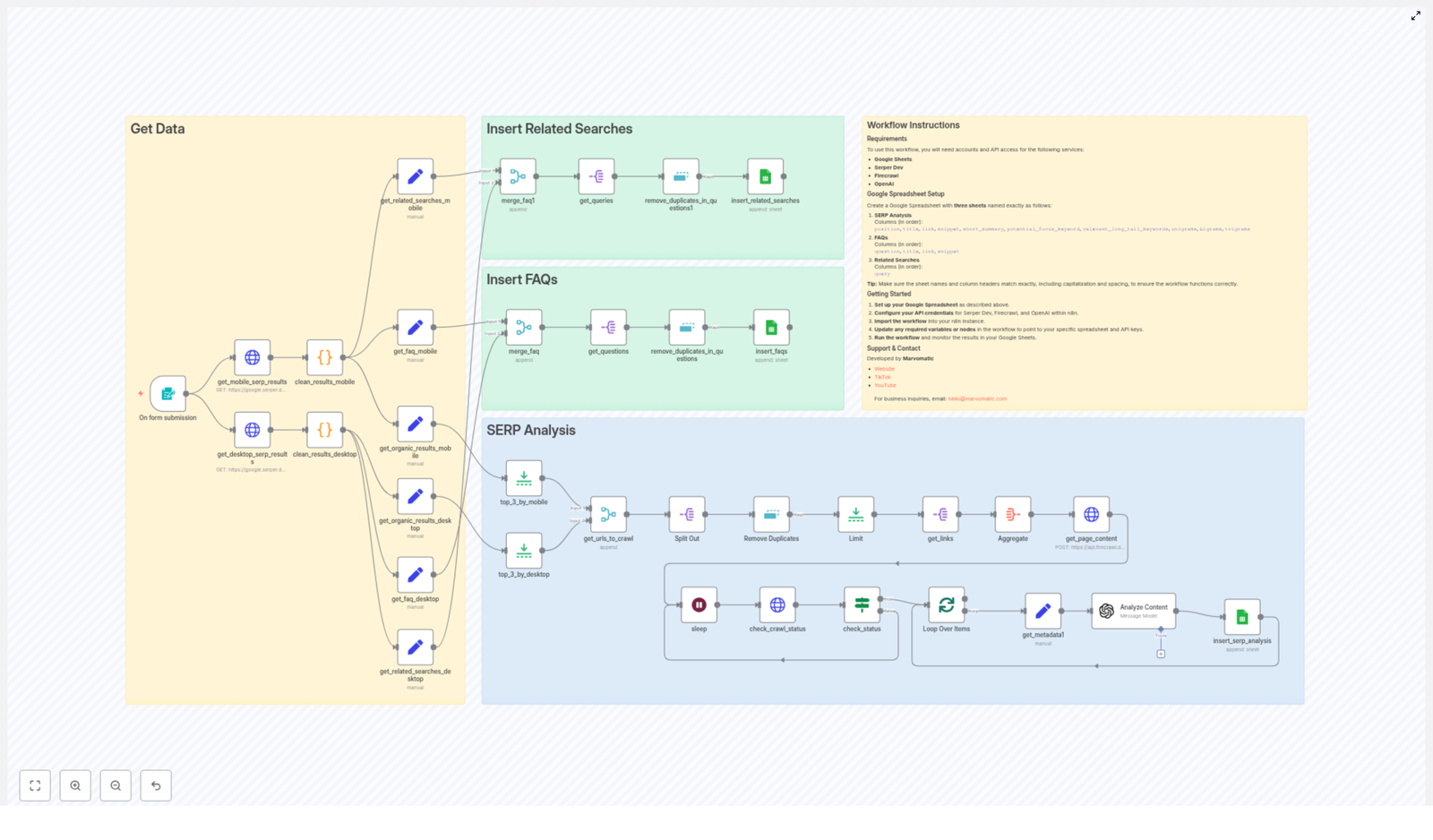
The “Product – SERP Analysis (Serper + Firecrawl)” template automates SERP research, pulls out FAQs and related searches, scrapes competitor pages, runs SEO-focused analysis with OpenAI, and neatly drops everything into Google Sheets. You get structured, reusable insights for SEO and content strategy, without the copy-paste fatigue.


What this n8n SERP analysis template actually does

At a high level, this workflow takes a focus keyword and a country, then:

  • Grabs both desktop and mobile SERP results from Serper.dev
  • Filters and deduplicates the results so you do not drown in junk
  • Scrapes the top URLs with Firecrawl and extracts markdown content
  • Runs that content through OpenAI acting as an SEO specialist
  • Writes everything into a Google Sheet with three tabs:
    • SERP Analysis
    • FAQs
    • Related Searches

In other words, it turns “I should really do a proper SERP analysis” from a 2-hour chore into “click run, grab coffee, come back to a fully loaded spreadsheet.”

Key capabilities at a glance

  • Dual-device SERP fetch – pulls results for both mobile and desktop via Serper
  • Cleaning & deduping – removes YouTube links and duplicates so your data is usable
  • Top N aggregation – merges and limits top results, then batches them for Firecrawl scraping
  • OpenAI SEO analysis – generates summaries, focus keyword ideas, long-tail keywords, and N-gram analysis
  • Automatic Google Sheets output – sends SERP data, FAQs, and related searches into their own sheets

Why automate SERP analysis instead of suffering manually?

Manual SERP analysis is like doing leg day without ever seeing results: painful and demotivating. Automation fixes that by giving you:

  • Speed – collect organic results across desktop and mobile in minutes, not hours
  • Depth – aggregate top-ranking URLs for real content analysis, not just “skim and guess”
  • Better content ideas – extract Related Searches and People Also Ask questions to fuel content briefs
  • Clean reporting – save everything into Google Sheets so your team can filter, sort, and collaborate without chaos

If you are serious about SEO or content strategy, doing this once is helpful, doing it at scale is where automation becomes non-negotiable.


Before you hit run: the Google Sheets setup

The workflow expects a very specific spreadsheet structure. Set this up once and you are good to go.

Required Google Sheets layout

Create a Google Spreadsheet with three sheets, using these exact names and column headers (capitalization and order matter):

  1. SERP Analysis
    Columns:
    • position
    • title
    • link
    • snippet
    • short_summary
    • potential_focus_keyword
    • relevant_long_tail_keywords
    • unigrams
    • bigrams
    • trigrams
  2. FAQs
    Columns:
    • question
    • title
    • link
    • snippet
  3. Related Searches
    Columns:
    • query

Once that is in place, the workflow can safely write all results into the right tabs without throwing a tantrum.


How the template works, step by step

Now let us walk through the structure of the workflow so you know what each part is doing and where you can customize it.

1. Trigger – start on form submission

The workflow kicks off with a form trigger. The form collects:

  • Focus Keyword – the main query you want to analyze
  • Country (gl) – for example, us, uk, de, etc.

These values are used as query parameters for both the desktop and mobile SERP requests that come next.

2. SERP fetch with Serper.dev (mobile + desktop)

Two HTTP Request nodes call Serper.dev:

  • One configured for mobile results
  • One configured for desktop results

Each request uses:

  • The focus keyword from the form
  • The country code (gl)
  • A device parameter (mobile or desktop)

Serper returns:

  • Organic results
  • Related searches
  • People Also Ask (FAQ) data

This gives you a complete view of what users see across devices.

3. Cleaning, splitting, and writing FAQs & related searches

Next comes the part where the workflow does the data housekeeping you usually do manually:

  • Custom code nodes clean the results:
    • Remove undesirable results like YouTube links
    • Ensure organic results and related searches are tidy and usable
  • The workflow then splits out:
    • Related searches
    • People Also Ask / FAQ items
  • Both sets are deduplicated to avoid repeated entries
  • Finally, they are appended to Google Sheets:
    • FAQs go into the FAQs sheet
    • Related searches go into the Related Searches sheet

End result: a growing library of questions and related queries that you can plug straight into content briefs and topic clusters.

4. Selecting top results and sending them to Firecrawl

Now for the juicy part: actually looking at what top competitors are doing.

  • The workflow limits the top results for each device (so you are not scraping the entire internet)
  • It then merges mobile and desktop results into a single list of URLs
  • After another deduplication step and a final limit, this unified list is:
    • Sent to Firecrawl in batches
    • Each URL is scraped for markdown content

This gives you the full page content for each top result, ready for analysis.

5. Crawl status loop and metadata extraction

Firecrawl works with jobs, so the workflow needs to patiently wait for crawls to finish instead of running off too early.

  • Firecrawl returns a job status and the markdown content when ready
  • The workflow enters a loop:
    • Polls Firecrawl until the crawl is complete
    • Handles any delays or slower jobs
  • Once done, the workflow extracts key metadata:
    • Title
    • Description
    • URL
    • Page markdown content

At this point you have both the SERP context and the actual page content for each top-ranking URL.

6. Content analysis with OpenAI

Now the workflow hands each scraped page to OpenAI, configured to behave like an SEO specialist that does not complain about repetitive analysis.

For every page, OpenAI returns:

  • A short summary of the page
  • A suggested potential focus keyword
  • Relevant long-tail keywords
  • N-gram analysis:
    • Unigrams
    • Bigrams
    • Trigrams

The workflow then appends these results into the SERP Analysis sheet, alongside:

  • Page metadata
  • Position in the SERP
  • Snippet from the SERP

You end up with a structured, keyword-rich overview of what each competitor page is doing and how it is positioned.


Setup checklist: from zero to automated SERP hero

Here is the quick setup roadmap so you can get the template running without guesswork.

  1. Create your Google Sheets document Set up the 3 sheets:
    • SERP Analysis
    • FAQs
    • Related Searches

    With the exact columns listed in the layout section above.

  2. Get your API keys Obtain access and keys for:
    • Serper.dev
    • Firecrawl
    • OpenAI
  3. Configure credentials in n8n In your n8n instance, set up:
    • Serper via HTTP header authentication
    • Firecrawl via HTTP header authentication
    • OpenAI credentials
    • Google Sheets with OAuth2
  4. Import the template Add the “Product – SERP Analysis (Serper + Firecrawl)” template into n8n, then:
    • Update the Google Sheets node to use your spreadsheet ID
    • Point it to the correct sheet names
  5. Run a test Try a simple query, for example:
    • Keyword: best running shoes
    • Country: gl=us

    Check your Google Sheet to confirm that SERP Analysis, FAQs, and Related Searches are all filling correctly.


Troubleshooting & best practices

Common issues (and how to un-break things)

  • API authentication errors If nodes are failing with auth errors, double-check:
    • Header tokens in the HTTP nodes
    • Credential IDs used in n8n
    • That the right credentials are mapped to the right services
  • Empty related searches or FAQs Sometimes the SERP for a keyword is just not very rich. Try:
    • Using queries with clearer intent
    • Testing different keywords or slightly broader variations
  • Firecrawl rate limits or slow jobs If crawls feel sluggish:
    • Check that your Firecrawl plan supports batch scraping at your current volume
    • Increase sleep or delay between polling attempts in the loop

Best practices for getting real SEO value

  • Run a seed list of keywords Use the workflow on multiple related keywords, then aggregate the data to see recurring competitor patterns, content structures, and topics.
  • Use N-grams to shape your content Take the unigrams, bigrams, and trigrams and use them to inform:
    • Headings and subheadings
    • Section titles
    • On-page keyword variations
  • Leverage FAQs & Related Searches Pull People Also Ask questions and Related Searches into:
    • FAQ sections in your articles
    • Supporting blog posts
    • Content outlines for topical depth
  • Use Google Sheets as your brief hub Treat your spreadsheet as the central repository for:
    • Content briefs
    • Keyword research
    • Competitor notes

    You can even plug these briefs into downstream content-generation workflows.


Use cases: who this template is perfect for

  • SEO teams creating content briefs with solid competitor intelligence
  • Agencies doing keyword research and gap analysis at scale without burning out interns
  • Product and growth teams tracking top-ranking competitor pages and how they evolve over time

Security & privacy considerations

Automation is great, but keep it safe:

  • Do not store sensitive or confidential data in public Google Sheets
  • Store all API keys securely in n8n credentials, not hard-coded in nodes
  • Rotate API keys regularly
  • Respect the terms of service of any websites you crawl with Firecrawl

Next steps: from manual slog to automated SERP system

This n8n template gives you a repeatable, scalable way to automate SERP research, scrape competitor pages, and generate structured SEO insights. With a few credentials and one properly formatted Google Sheet, you can turn “let me manually check the SERP” into a one-click workflow.

Ready to streamline your SERP analysis? Import the template into n8n, connect your Serper, Firecrawl, OpenAI, and Google Sheets credentials, then run a test keyword today.

If you would like help customizing the workflow or building a full content brief pipeline on top of it, reach out anytime.

Developed by Marvomatic – for business inquiries, email hello@marvomatic.com

Visit Marvomatic | hello@marvomatic.com


Call to action

Download the template, connect Serper + Firecrawl + OpenAI, and start automating your SERP analysis instead of doing it by hand.

Need help with
SERP Analysis Template — Serper + Firecrawl

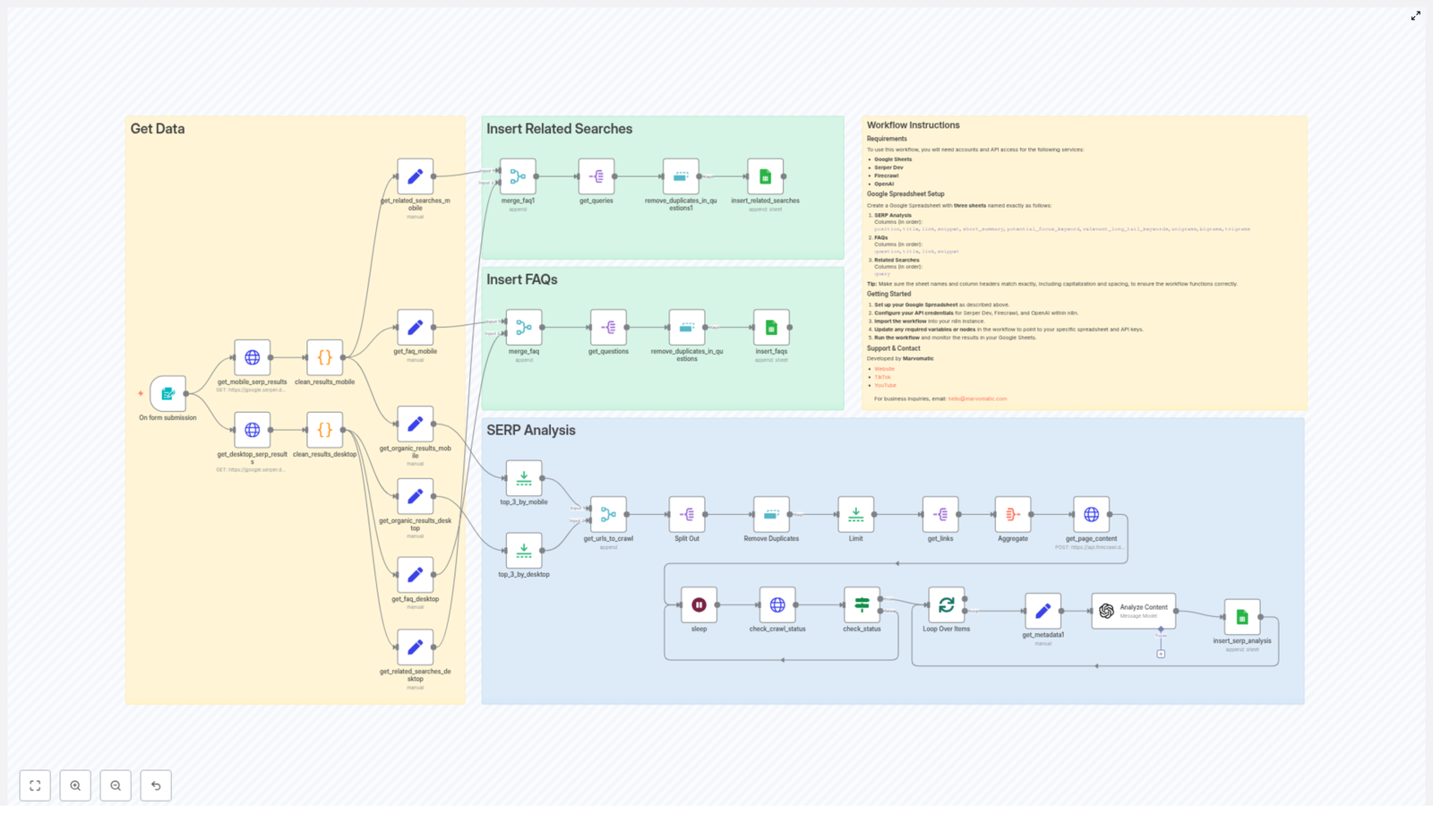
Automate high-quality SERP analysis with a production-ready n8n workflow template that connects Serper.dev for live search results, Firecrawl for rapid content extraction, OpenAI for structured analysis, and Google Sheets for reporting. Built for SEO leaders, content strategists, and growth teams, this workflow consolidates organic results, FAQs, related searches, and page content into a single automated pipeline, then outputs structured insights directly into your spreadsheet.

Overview: Automated SERP Intelligence for SEO and Growth Teams

Traditional SERP research relies on manual queries, copy-paste operations, and inconsistent note taking. This template replaces that fragmented process with a repeatable n8n workflow that orchestrates multiple APIs in a single run. It is optimized for:

  • Technical SEOs performing competitive analysis and content gap assessments
  • Content and editorial teams building outlines, FAQs, and keyword clusters
  • Growth teams tracking shifts in top results and emerging keyword opportunities
  • Product and marketing teams assembling concise competitor briefs

What the SERP Analysis Workflow Delivers

Once configured, each execution of the workflow can:

  • Retrieve mobile and desktop SERPs for a given keyword and country
  • Deduplicate and clean results, excluding unwanted domains such as YouTube or aggregators
  • Extract FAQs and related searches to surface user intent and topic variations
  • Crawl top ranking URLs and return page content in markdown format
  • Use OpenAI to summarize pages, suggest focus keywords, and generate n-gram analysis
  • Write all structured outputs to Google Sheets for collaboration and reporting

The result is a consistent, repeatable SERP research process that scales with your keyword list and reduces manual effort.

Workflow Architecture and Key Components

The template is organized into distinct logical stages that align with a typical SERP research process. Below is a breakdown of the main sections and the n8n nodes and integrations involved.

1. Input & SERP Retrieval (Serper.dev)

The workflow begins with a form-based trigger. This entry point allows you to specify:

  • Target keyword or keyphrase
  • Country code (for example, us, de) to localize results

Once triggered, the workflow calls Serper.dev twice, once for mobile results and once for desktop results. These HTTP requests return rich SERP data, including:

  • Organic listings with titles, URLs, and snippets
  • People Also Ask questions
  • Related searches

Subsequent nodes normalize and clean this data, removing duplicates and filtering out domains you do not want to analyze, such as video platforms or specific aggregators. At this stage, the workflow isolates the organic results that will later be crawled and analyzed.

2. Intent Signals: FAQs & Related Searches to Google Sheets

To support content ideation and topic modeling, the workflow extracts two key SERP features from Serper.dev responses:

  • People Also Ask / FAQs – common user questions that indicate intent and pain points
  • Related searches – alternative queries and semantic variations around the core keyword

These items are:

  • Split into separate datasets
  • Deduplicated to remove repeated entries
  • Appended into two dedicated sheets within the same Google Spreadsheet:
    • FAQs
    • Related Searches

This structure gives your SEO and content teams an immediate view of user questions and adjacent topics, ideal for building FAQ sections, supporting articles, and broader content clusters.

3. SERP Result Selection & Crawling (Firecrawl)

After cleaning the SERP data, the workflow selects the top results to analyze in depth. The number of URLs is configurable, so you can start with a small subset and scale later. Key steps include:

  • Combining mobile and desktop results into a single list
  • Deduplicating URLs across devices
  • Applying additional filters to exclude unwanted sources or internal domains

The selected URLs are then passed in batches to Firecrawl. Firecrawl is responsible for:

  • Crawling each URL
  • Extracting the visible page content
  • Returning the content in markdown format along with relevant metadata

This stage transforms raw SERP links into structured page content that can be fed into OpenAI for analysis.

4. Content Analysis & Keyword Intelligence (OpenAI)

Once Firecrawl returns the page content, the workflow invokes OpenAI with a prompt tailored for SEO analysis. For each page, OpenAI is instructed to act as an SEO specialist and produce:

  • A concise summary of the page
  • A suggested primary focus keyword
  • Relevant long tail keyword ideas
  • N-gram analysis that includes:
    • Unigrams
    • Bigrams
    • Trigrams

This structured output helps you quickly understand how competitors position their content, which terms they emphasize, and where there may be gaps or opportunities.

5. Output & Reporting (Google Sheets)

All processed data is written into a central Google Spreadsheet. The template expects three sheets named exactly as follows:

  • SERP Analysis
  • FAQs
  • Related Searches

The main SERP Analysis sheet is populated with rows that typically include:

  • Position, title, URL, and snippet from the SERP
  • Short OpenAI summary of the page
  • Suggested focus keyword and related long tail keywords
  • Unigram, bigram, and trigram data for quick keyword frequency review

The two additional sheets store the FAQ and related search data, giving you a complete view of query-level and page-level insights in one place.

Quick Setup Guide

To get this template running in your n8n environment, follow these steps:

  1. Create a Google Spreadsheet with three sheets named:
    • SERP Analysis
    • FAQs
    • Related Searches

    Ensure that the column headers match those expected by the template (you can reference the sample workbook bundled with the template).

  2. In n8n, configure credentials for:
    • Serper.dev
    • Firecrawl
    • OpenAI
    • Google Sheets
  3. Import the workflow template into your n8n instance and map your credentials to the corresponding nodes.
  4. Update the Google Sheets node configuration so that the document IDs point to your new spreadsheet.
  5. Trigger the workflow using the form node or execute it manually for an initial test. Review the populated sheets to validate that data is flowing as expected.

Operational Best Practices

To ensure reliable execution and high quality outputs, consider the following recommendations:

  • Start small – Configure the workflow to analyze the top 3 to 5 URLs initially. Once you are satisfied with the results, increase the limit.
  • Use appropriate country codes – Always specify the correct country code (for example, us, de) to obtain relevant local SERPs.
  • Refine filters – Adjust the remove or limit nodes to exclude domains that are not useful for your analysis, such as large aggregators, forums, or internal documentation sites.
  • Respect rate limits – Serper.dev and Firecrawl impose rate limits. If you experience errors or throttling, introduce or increase wait times between requests.
  • Harden security – Store API keys as environment variables or n8n credentials with minimal permissions. Avoid embedding secrets directly in nodes.

Troubleshooting & Optimization Tips

If the workflow returns incomplete data or errors, use the following checks:

  • Firecrawl issues – Confirm that your Firecrawl API key is valid and that your subscription supports batch scraping. Inspect any error messages returned by the Firecrawl nodes.
  • Serper.dev responses – Inspect the raw JSON in the Serper.dev HTTP Request nodes within n8n to ensure the API is responding correctly and that the expected fields are present.
  • Google Sheets permissions – Verify that the Google account connected to the Google Sheets node has edit access to the target spreadsheet and can append rows.
  • OpenAI output quality – If keyword suggestions or summaries are not useful, refine the system prompt to be more specific or adjust the model’s temperature for either more deterministic or more creative results.

Primary Use Cases

This template is particularly valuable in the following scenarios:

  • SEO competitive audits – Map the SERP landscape, identify content gaps, and benchmark competitor coverage.
  • Content planning and outline creation – Build article structures and FAQ sections directly from real user queries and top ranking pages.
  • Growth and performance monitoring – Track how top results evolve over time and surface new keyword or topic opportunities.
  • Product and marketing research – Generate concise summaries of competitor pages to support positioning documents and writer briefs.

Example Output Snapshot

After running the workflow for a single keyword, your Google Spreadsheet will typically contain:

  • In SERP Analysis:
    • Rank position, title, URL, and SERP snippet
    • OpenAI generated summary of each page
    • Suggested primary focus keyword and related long tail keywords
    • Unigram, bigram, and trigram data for quick keyword frequency and phrase analysis
  • In FAQs:
    • People Also Ask style questions for the analyzed keyword
  • In Related Searches:
    • Related queries and variations to expand your topic coverage

Advanced Customizations

The template is intentionally flexible and can be adapted to your specific workflows and tech stack. Common extensions include:

  • Changing the OpenAI model or refining prompts to reflect your brand voice, preferred summary format, or more detailed outlines.
  • Adding sentiment or intent classification nodes to categorize results by informational, commercial, transactional, or navigational intent.
  • Integrating Slack or email notifications that send a daily or weekly summary of new keyword opportunities or notable SERP changes.
  • Extending the Firecrawl step to extract structured data, such as schema.org markup, to identify FAQ schemas, how-to rich snippets, or other SERP feature opportunities.

Security & Compliance Considerations

When deploying this workflow in production environments, keep the following in mind:

  • Respect the terms of service for Serper.dev, Firecrawl, OpenAI, and Google APIs.
  • Adhere to robots.txt directives when scraping content and avoid excessive request rates.
  • Treat scraped content as input for analysis and ideation. Do not republish competitor content verbatim. Use summaries and insights to inform original content creation.

Get Started with the SERP Analysis Template

This n8n template provides a robust starting point for automating SERP research and transforming raw search results into actionable SEO and content insights. Import the workflow into your n8n instance, connect your Serper.dev, Firecrawl, OpenAI, and Google Sheets credentials, and run a test keyword to validate the setup.

Next step: Import the template now and execute your first SERP analysis. For guided implementation, custom prompts, or advanced integrations, collaborate with the workflow developer or your preferred automation partner.

If you need enhancements such as multi country sweeps, deeper intent classification, or automated content brief generation into Google Docs, reach out with your requirements. The workflow can be extended to align with your specific research and reporting processes.

Build a YouTube AI Agent with n8n

Build a YouTube AI Agent with n8n

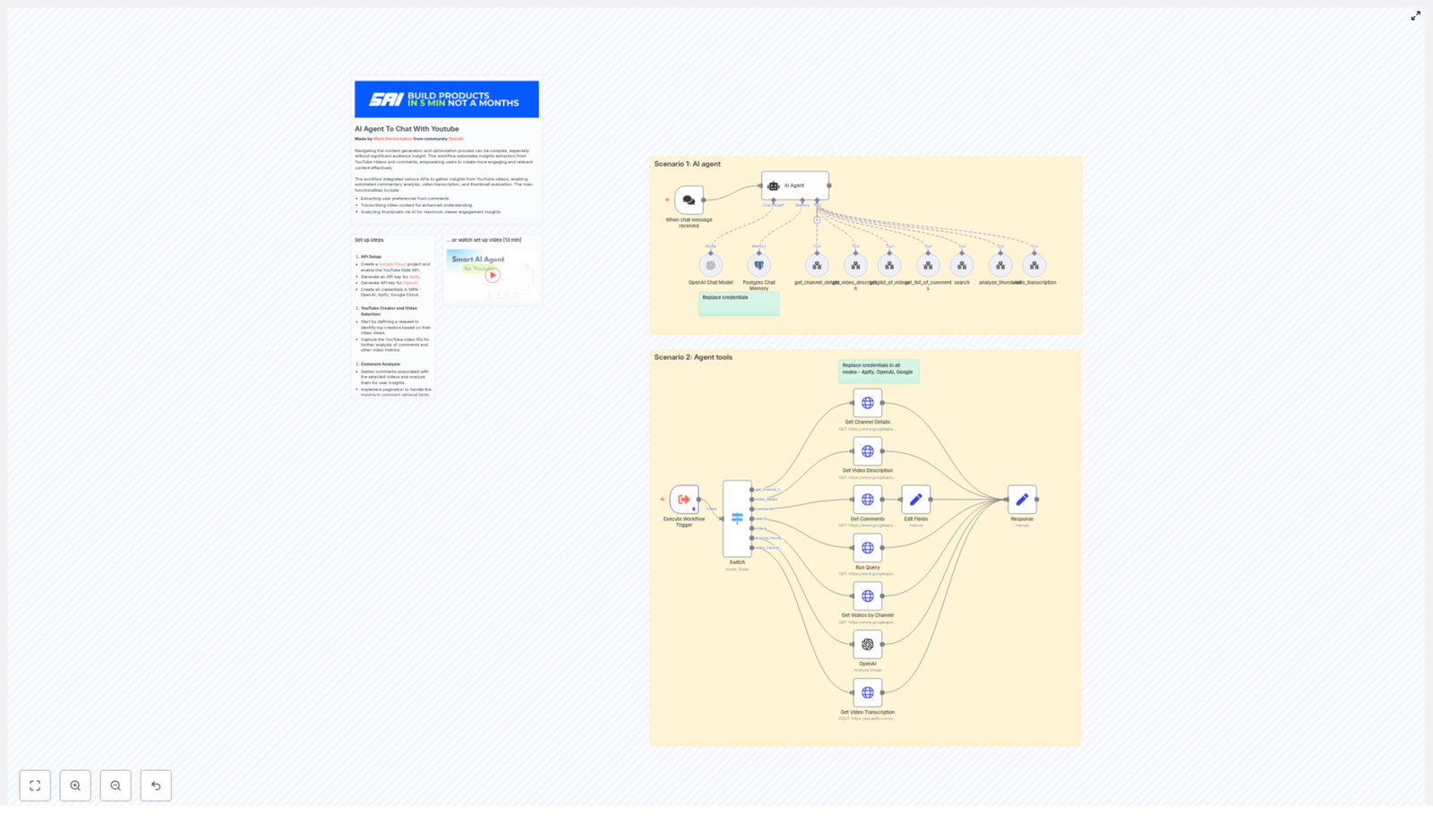
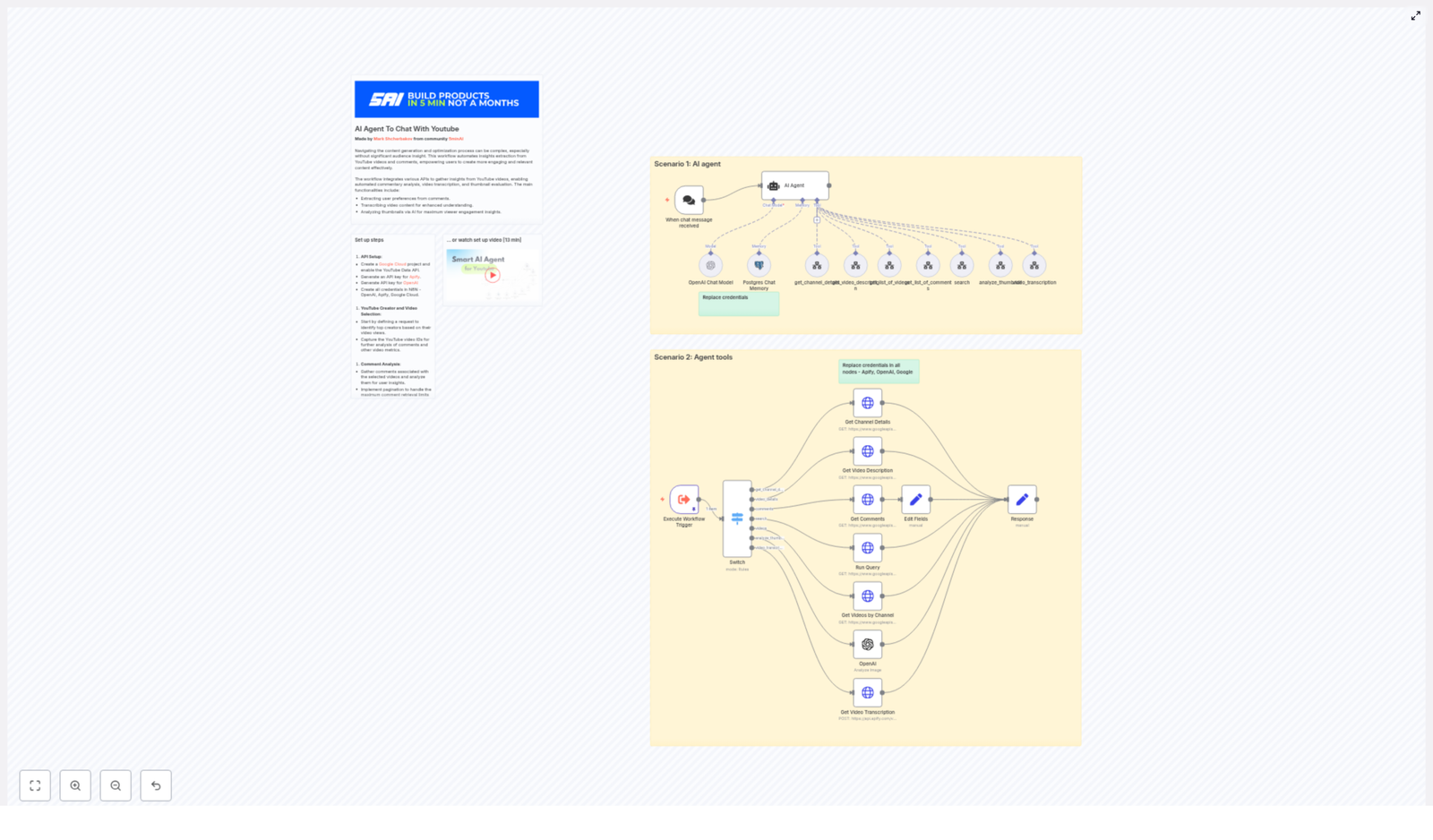
Learn how to automate insights from YouTube videos, comments, thumbnails, and transcripts using an n8n workflow that connects the YouTube Data API, Apify, and OpenAI. This guide walks you through the concepts and the step-by-step setup so you can build and understand your own YouTube AI agent.

What you will learn

By the end of this tutorial-style guide, you will be able to:

  • Explain what a YouTube AI agent is and why it is useful for creators and channel managers
  • Understand how n8n orchestrates YouTube Data API, Apify, and OpenAI in a single workflow
  • Set up all required API credentials and plug them into the n8n workflow template
  • Use the provided tools to:
    • Fetch channel and video data from YouTube
    • Collect and paginate comments
    • Generate video transcripts with Apify
    • Analyze thumbnails and text content with OpenAI
  • Interact with a conversational AI agent inside n8n that chooses the right tools automatically
  • Apply best practices for quotas, privacy, storage, and cost control

Why build a YouTube AI agent?

If you publish on YouTube or support creators, you are constantly trying to understand what works. Audience signals like comments, thumbnail performance, and the video transcript can reveal:

  • Which topics resonate most with viewers
  • Common questions and objections in the comments
  • Opportunities to improve thumbnails and titles
  • Content that can be repurposed into blogs, shorts, or social posts

Doing this manually across many videos or channels is time-consuming. A YouTube AI agent built in n8n automates the collection and analysis so you can:

  • Discover high-impact topics from comments and transcripts
  • Evaluate thumbnails with AI-driven design feedback
  • Generate repurposed content from transcripts (blogs, short clips, social captions)
  • Scale research across multiple channels and videos without extra manual work

Key concepts: how the n8n YouTube AI agent works

Before jumping into setup, it helps to understand the building blocks of the workflow. n8n acts as the orchestrator that connects three main services:

  • YouTube Data API for channel, video, and comment data
  • Apify (or a similar service) for video transcription
  • OpenAI for natural language processing and thumbnail analysis

Agent tools inside the workflow

In the template, these capabilities are exposed as “tools” that the AI agent can call. Each tool is backed by one or more n8n nodes. The most important tools are:

  • get_channel_details
    Resolves a channel ID from a handle or channel link. This is often the first step when a user types something like “analyze @channel_handle”.
  • get_list_of_videos
    Retrieves videos from a channel. Supports sorting by:
    • date to get the latest uploads
    • viewCount to get top-performing videos
  • get_video_description
    Fetches detailed information about a video, including:
    • Title and full description
    • contentDetails such as duration
    • Statistics like views and likes
  • get_list_of_comments
    Retrieves top-level comments and replies for a video. Supports pagination so you can go beyond the first page of results.
  • video_transcription
    Sends a video URL to Apify (or another transcription service) and returns the transcript text. Useful for content analysis and repurposing.
  • analyze_thumbnail
    Sends thumbnail image URLs to OpenAI for feedback on design and engagement. This can surface ideas about contrast, focus, layout, and readability.

Two main usage patterns

The workflow supports two complementary ways of working:

  1. Conversational AI agent
    You chat with the agent (through a chat trigger node). It interprets your request, decides which tools to call, runs them in sequence, and replies with a synthesized answer.
  2. Direct tool execution
    A switch node can call specific tools directly. This is useful when you want raw data, batch processing, or scheduled jobs without a conversation layer.

How the AI agent behaves in n8n

At the heart of the template is an “AI Agent” node configured as an OpenAI Functions-style agent. It behaves like a decision-maker that knows which n8n tools are available and when to use them.

End-to-end flow when a user sends a message

  1. Intent parsing
    The agent reads the chat message. For example, you might type:
    Analyze the latest videos from @example_handle and tell me what topics are trending.
    The agent identifies that it needs channel details, a list of videos, and probably comments or transcripts.
  2. Planning tool calls
    The agent decides which tools to call and in what order. A typical sequence could be:
    1. get_channel_details to resolve the handle
    2. get_list_of_videos to fetch recent or top videos
    3. get_video_description for metadata and stats
    4. get_list_of_comments for audience feedback
    5. video_transcription for deeper content analysis
    6. analyze_thumbnail to assess thumbnail quality
  3. Execution and aggregation
    The agent calls the tools via n8n nodes, collects all responses, and then uses OpenAI to:
    • Summarize findings
    • Highlight actionable insights
    • Suggest next steps, such as new video ideas or thumbnail improvements

    The final answer is sent back through the chat interface.

Filtering out YouTube Shorts

Sometimes you only want full-length videos. In that case, you can use the duration field from get_video_description (inside the contentDetails part) to filter out videos under one minute. This is a simple way to exclude Shorts from your analysis.

Step-by-step setup in n8n

In this section, you will configure your credentials, import the workflow, and adjust how the agent queries channels and videos.

Step 1 – Create and add API credentials

  1. Google Cloud (YouTube Data API)
    • In Google Cloud Console, enable the YouTube Data API v3.
    • Create an API key or OAuth client, depending on your security and usage needs.
    • Note any restrictions you set on the key, such as HTTP referrers or IPs.
  2. OpenAI
    • Generate an API key from your OpenAI account.
    • This key will be used for both text analysis and image (thumbnail) evaluation.
  3. Apify (or similar transcription service)
    • Create an API token for the transcription actor you plan to use.
    • Make sure the actor can receive a YouTube URL and return a transcript.
  4. n8n credentials
    • In your n8n instance, add credentials for:
      • OpenAI
      • Generic HTTP or dedicated credentials for Google / YouTube
      • Apify
    • Give each credential a clear name so it is easy to select in nodes.

Step 2 – Import the n8n workflow template

  1. Download or copy the provided JSON workflow template.
  2. In n8n, use the import option to bring the workflow into your workspace.
  3. Open the workflow and locate nodes that require credentials, such as:
    • Apify nodes for transcription
    • OpenAI nodes for text and image analysis
    • HTTP or YouTube nodes for Google API calls
  4. Replace any credential placeholders with the real credentials you created earlier.
  5. The template already includes a chat trigger node so you can interact with the agent live as soon as setup is complete.

Step 3 – Configure how the agent finds channels and videos

The workflow is flexible about how you identify what to analyze. Decide which of these patterns you want to support:

  • Channel handle (for example @example_handle)
  • Search query (for example “productivity tips” or “coding tutorials”)
  • Direct video URLs when you already know the exact videos

The search and video tools in the workflow support filters such as:

  • publishedAfter to limit analysis to recent content
  • order with options like viewCount or date

Adjust these parameters to match your use case. For example, you might:

  • Analyze only videos from the last 30 days
  • Focus on top 10 videos by views for long-term patterns

Step 4 – Plan transcripts and control costs

Transcribing long videos can be one of the most expensive parts of the pipeline, especially if you process many videos at once. To manage this:

  • Set thresholds
    Only send videos for transcription if they meet certain criteria, for example:
    • More than a specific number of views
    • Above a certain engagement rate
  • Chunk long recordings
    For very long videos, use timestamps or break the transcript into smaller chunks. This can:
    • Reduce processing time
    • Improve analysis accuracy

Best practices for a reliable YouTube AI workflow

Handling pagination and API quotas

YouTube APIs return results in pages. This affects both search results and comment threads. In n8n:

  • Implement cursor-based pagination or use the nextPageToken to fetch all pages.
  • Monitor your YouTube API quotas and add backoff or retry logic to handle HTTP 429 (rate limit) responses.
  • Consider limiting the number of comments or videos for each analysis run to stay within quotas.

Privacy, moderation, and responsible use

When you analyze comments, you are working with user-generated content. Keep in mind:

  • Respect YouTube and Google terms of service at all times.
  • Avoid storing or exposing personally identifiable information (PII) unless you have a clear reason and proper consent.
  • Use moderation filters to detect and remove toxic or abusive content before sending it to AI models.

Storing data and using memory

The template includes Postgres-based chat memory to store:

  • Conversation context
  • Processed video metadata
  • Summaries and analysis outputs

This storage helps in two ways:

  • Repeated queries become faster because you do not need to re-fetch or re-analyze the same videos.
  • The agent can answer in a more contextual way, remembering earlier parts of the conversation or previous analyses.

Common issues and how to fix them

Here are frequent problems you might encounter and what to check in n8n.

  • Authentication errors
    • Verify that all API keys are correctly entered in n8n credentials.
    • Check that the YouTube API key has the right API enabled and that any restrictions match your n8n server environment.
  • Missing or incomplete comments
    • Ensure you are calling the commentThreads resource with the correct part parameters.
    • Implement pagination so you fetch more than the default first page of comments.
  • Slow or delayed transcriptions
    • Apify runs can take time, especially on long videos.
    • Design your workflow to be asynchronous. For example, start the transcription, store the run ID, and poll for results instead of blocking the entire workflow.
  • OpenAI image analysis failures
    • Confirm that the thumbnail URL is publicly accessible, not behind authentication.
    • Use the highest resolution thumbnail available for better quality analysis.

Practical use cases for this template

Once the workflow is running, you can apply it in several repeatable ways.

  • Weekly content ideation
    Run the agent on your top-performing videos each week. Ask it to:
    • Extract recurring themes from comments and transcripts
    • List common viewer questions
    • Suggest new topics or series based on those patterns
  • Thumbnail optimization
    Batch analyze thumbnails from a set of videos. Use OpenAI feedback to:
    • Evaluate color contrast and visual hierarchy
    • Check focal points and clarity
    • Improve text readability for A/B tests
  • Repurposing long-form content
    Use transcripts to:
    • Generate blog post outlines or full drafts

n8n YouTube AI Agent Workflow Guide

n8n YouTube AI Agent Workflow Guide – Automate Deep Video Insights

Advanced YouTube operations increasingly rely on automation to extract, analyze, and act on audience signals at scale. By combining n8n with OpenAI, Apify, and the YouTube Data API, you can build a robust YouTube AI agent that centralizes video analytics, comment intelligence, transcription, and thumbnail evaluation into a single orchestrated workflow.

This guide explains how to use the n8n YouTube AI agent workflow template, how each node contributes to the overall automation, and how to adapt it for professional content operations, growth, and product research.

Strategic value of an n8n YouTube AI agent

Manual review of comments, video content, and thumbnails does not scale for serious channels or teams. An automated YouTube AI agent in n8n enables you to:

  • Systematically mine comments for recurring pain points, requests, objections, and sentiment trends.
  • Generate structured transcripts that can be repurposed into articles, social snippets, outlines, and chapter markers.
  • Evaluate thumbnails with computer vision to improve click-through rate (CTR), clarity, and visual hierarchy.
  • Maintain chat context in a database so your agent behaves like a stateful assistant across multiple interactions.

For automation professionals, this workflow is a reusable foundation for YouTube research, content optimization, and ongoing audience intelligence.

Architecture overview – how the workflow is structured

The template is built as a modular n8n workflow that can be run interactively through an AI agent or in a tool-only mode for scheduled or batch operations. At a high level, it provides:

  • Discovery capabilities for channels and videos via the YouTube Data API.
  • Data extraction for comments, video metadata, and transcripts.
  • AI analysis layers for text (OpenAI) and images (OpenAI vision models).
  • Orchestration logic using an OpenAI functions-style agent that decides which tools to call.
  • Persistent memory with Postgres to store conversation history and context.

All components are orchestrated inside n8n, making it easy to extend with additional integrations such as Slack, analytics platforms, or internal dashboards.

Prerequisites and credential setup

Before importing the template into n8n, you must provision and configure several external services. Ensure you have:

  • A Google Cloud project with the YouTube Data API enabled and a valid API key.
  • An OpenAI API key for chat-based reasoning and image analysis.
  • An Apify API key to run the Apify actor that performs video transcription.
  • Postgres database credentials if you plan to use persistent chat memory (recommended for production agents).

After importing the workflow template into n8n, replace placeholder credentials in all relevant nodes, including:

  • Apify
  • OpenAI
  • Google HTTP request nodes for YouTube Data API
  • Postgres (for chat memory)

The template includes a sticky note reminding you to update these credentials so the workflow can run reliably in your own environment.

Core capabilities of the YouTube AI agent workflow

Channel and video discovery

The workflow uses multiple YouTube HTTP Request nodes to interact with the YouTube Data API, including operations such as:

  • Get Channel Details to resolve handles to channel_id and fetch channel metadata.
  • Get Videos by Channel to list uploads and identify the latest or best-performing content.
  • Run Query to search YouTube for specific topics, keywords, or formats.
  • Get Video Description to access video-level details, including title, description, and statistics.

These nodes return structured JSON containing snippets, thumbnails, and statistics that can be further processed or fed into AI models.

Comment extraction and analysis

With the Get Comments node, the workflow retrieves top-level comments and replies for selected videos. This enables:

  • Sentiment analysis and theme extraction via OpenAI.
  • Identification of product feedback, feature requests, and recurring questions.
  • Automated content ideation based on viewer language and objections.

Video transcription via Apify

The Get Video Transcription (Apify) node sends the target video URL to a designated Apify actor, which returns a transcription dataset. This transcription can then be used for:

  • Summarization and key takeaway extraction.
  • Generating chapters and structured outlines.
  • Keyword and topic extraction for SEO and content planning.
  • Repurposing into long-form or short-form written content.

Thumbnail analysis with OpenAI image tools

The analyze_thumbnail node sends a thumbnail URL to OpenAI’s image analysis API along with a custom prompt. The model evaluates aspects such as:

  • Color contrast and visual hierarchy.
  • Text size, readability, and placement.
  • Emotional tone and alignment with the video topic.
  • Opportunities to improve CTR and clarity.

AI-driven orchestration and decision making

The AI Agent node, configured in a functions-style pattern with OpenAI, acts as the control layer for the workflow. It:

  • Parses the user’s natural language input.
  • Decides which tools (nodes) to call and in what sequence.
  • Can request clarifications if the user query is ambiguous or incomplete.
  • Aggregates results from multiple tools into a coherent, human-readable response.

Postgres-based chat memory

The Postgres Chat Memory node persists conversation context in a database. This enables:

  • Context-aware follow-up questions, for example referencing a previously analyzed channel or video.
  • Multi-turn analysis sessions that build on prior results.
  • More natural interactions for users who expect the agent to “remember” earlier steps.

Execution flow – key nodes and logic

1. Execute Workflow Trigger

The workflow entry point is the Execute Workflow Trigger node. It receives an incoming request, either from a chat interface or via webhook, containing a JSON payload. The payload typically includes:

  • A command field that specifies the action type, for example search, comments, video_transcription, or thumbnail analysis.
  • Additional parameters such as query, video_id, channel_handle, or pagination controls.

2. Switch node for routing commands

The Switch node examines the command value in the payload and routes the execution to the appropriate branch of the workflow. This design allows a single n8n workflow to support multiple tools and use cases, including:

  • Running YouTube searches.
  • Fetching channel details.
  • Pulling comments.
  • Triggering transcription or thumbnail analysis only.

3. YouTube Data API request nodes

Once routed, the workflow uses dedicated HTTP Request nodes to interact with the YouTube Data API. These nodes handle operations such as:

  • Resolving channel handles to IDs.
  • Listing recent uploads and filtering by type or length.
  • Retrieving video metadata and statistics.
  • Collecting comments and replies.

The returned JSON is then passed to the AI layer or to downstream nodes like Apify for transcription.

4. Apify-based transcription node

When transcription is requested, the workflow calls the Get Video Transcription (Apify) node. It:

  • Posts the video URL to a configured Apify actor.
  • Waits for the actor to complete the run.
  • Retrieves the transcript dataset and passes it back into the workflow for further analysis or summarization.

5. OpenAI image analysis for thumbnails

For thumbnail evaluation, the analyze_thumbnail node:

  • Takes the thumbnail URL as input.
  • Sends it to OpenAI’s image analysis endpoint with a targeted prompt focused on design quality, clarity, and CTR optimization.
  • Returns a structured critique and recommendations that can be surfaced to the user or stored for later review.

6. AI Agent decision layer

The AI Agent node acts as the “brain” of the workflow. It uses OpenAI to:

  • Interpret user intent from natural language queries.
  • Select and invoke the appropriate tool functions (search, comments, transcription, thumbnail analysis, etc.).
  • Combine multiple tool outputs into a single, synthesized answer.
  • Ask follow-up questions when necessary to refine the request.

7. Postgres Chat Memory integration

Finally, the Postgres Chat Memory node stores and retrieves conversation history. This allows the agent to handle requests like “analyze the latest video from the channel we looked at earlier” without requiring the user to repeat identifiers.

Usage scenarios

Scenario 1 – Fully interactive AI agent

In interactive mode, a user can issue a natural language instruction such as:

User: “Analyze the latest video from @example_handle for comment themes and thumbnail improvements.”

The AI agent then orchestrates the workflow as follows:

  1. Calls get_channel_details to resolve @example_handle into a channel_id.
  2. Uses get_list_of_videos to fetch the most recent uploads, optionally filtering out Shorts if requested.
  3. Invokes get_video_description and get_list_of_comments for the latest video to retrieve metadata and top comments.
  4. Submits the thumbnail URL to analyze_thumbnail and, if deeper analysis is required, sends the video URL to video_transcription for an Apify-based transcript.
  5. Aggregates all results into a synthesized report that includes:
    • Key comment themes and sentiment.
    • Suggestions for new videos based on viewer feedback.
    • Recommendations for improving titles and thumbnails to increase CTR.

Scenario 2 – Tool-only or scheduled execution

For batch processing or scheduled jobs, you can bypass the conversational layer and directly use the Execute Workflow Trigger with a predefined payload. For example, you might:

  • Run nightly comments pulls for a set of video IDs.
  • Trigger video_transcription for new uploads only.
  • Schedule periodic thumbnail reviews for top-performing videos.

In this mode, the workflow behaves like a classic n8n automation pipeline, focusing on specific commands rather than open-ended chat.

Example prompts and request payloads

Sample AI agent prompts

Here are some illustrative prompts you can use with the interactive agent:

  • “Find the top 5 themes in comments for video_id:dQw4w9WgXcQ and suggest video ideas.”
  • “Get channel details for @example_handle and return 3 high-performing video topics.”
  • “Analyze thumbnail URL:https://i.ytimg.com/vi/VIDEO_ID/maxresdefault.jpg for CTA and readability.”

Sample Execute Workflow Trigger JSON

For direct or scheduled execution, you can send a JSON payload like the following to the Execute Workflow Trigger node:

{  "command": "search",  "query": "web scraping n8n",  "order": "relevance",  "type": "video",  "number_of_videos": 10
}

This instructs the workflow to search YouTube for videos related to “web scraping n8n”, ordered by relevance, and return the specified number of results.

Best practices for reliable and cost-efficient automation

  • Respect YouTube API quotas: The YouTube Data API enforces rate limits. Implement pagination, batching, and backoff strategies when retrieving large volumes of comments or video data.
  • Filter Shorts when needed: Use the contentDetails duration field to exclude videos under 60 seconds if your use case focuses on long-form content.
  • Control OpenAI and transcription costs: Long videos and large comment sets can increase spend. Restrict analysis to priority videos or use excerpts and sampling where appropriate.
  • Sanitize and limit stored data: Avoid persisting personal identifiable information (PII) from comments. Only store what is necessary for analysis and comply with YouTube’s data usage rules.
  • Secure credential management: Use n8n’s credential manager, environment variables, or a dedicated secrets manager to protect API keys and database credentials. Do not hardcode secrets in workflow logic.

Key use cases and ROI for teams

Deploying this n8n YouTube AI agent can significantly accelerate research and production workflows. Typical applications include:

  • Audience intelligence: Identify recurring viewer questions and objections, then create FAQ videos, help content, or improved onboarding materials.
  • Thumbnail and title optimization: Use AI-generated critiques to refine messaging, visual design, and calls to action, improving CTR and watch time.
  • Content repurposing: Convert transcripts into blog posts, newsletters, documentation, or social media threads to expand distribution without extra recording.
  • Sentiment and risk monitoring: Track shifts in audience sentiment and detect emerging PR or community issues early through automated comment analysis.

Security, privacy, and compliance considerations

When automating analysis of user-generated content from YouTube, treat security and compliance as first-class requirements:

  • PII protection: Do not expose or publish personal data derived from comments. Minimize stored raw comments where possible.
  • Compliance with YouTube policies: Adhere to YouTube’s Terms of Service and API policies, especially around data retention, display, and sharing.
  • Credential security: Store all API keys and database credentials securely using n8n’s credential manager or an external secrets manager. Restrict database access to least privilege.

Getting started with the template

To deploy this workflow in your own environment:

  1. Import the n8n YouTube AI agent workflow template into your n8n instance.
  2. Configure credentials for Apify, OpenAI, Google (YouTube Data API), and Postgres in the respective nodes.
  3. Run a small test query using the Execute Workflow Trigger or the AI agent to validate connectivity and quotas.
  4. Iterate on prompts and node logic to align the workflow with your internal processes, reporting formats, and integration stack.

If you prefer a guided setup, you can watch the step-by-step walkthrough here: Setup video (13 min).

If you need to adapt the agent for alternative transcription providers, analytics tools, or notification channels (for example Slack alerts), you can extend the existing

Automate Pinterest Analysis & AI Content Suggestions

Automate Pinterest Analysis & AI-Powered Content Suggestions

Save time and scale your content strategy by automating Pinterest data collection and using AI to generate actionable pin suggestions. In this guide you’ll learn how to connect the Pinterest API to an n8n workflow, persist results in Airtable, and run an AI agent (OpenAI) to analyze trends and recommend new pins—then deliver a summarized report to your marketing team.

Why automate Pinterest analysis?

Manual reporting on Pinterest is slow and error-prone. Automation lets teams:

  • Collect fresh pin-level data on a schedule
  • Centralize organic vs. paid data in a single Airtable base
  • Use AI to detect trends and generate content ideas faster
  • Deliver concise, actionable recommendations to stakeholders

By combining the Pinterest API, n8n, Airtable, and OpenAI, you create an end-to-end system that turns raw metrics into content briefs and post suggestions.

Architecture overview

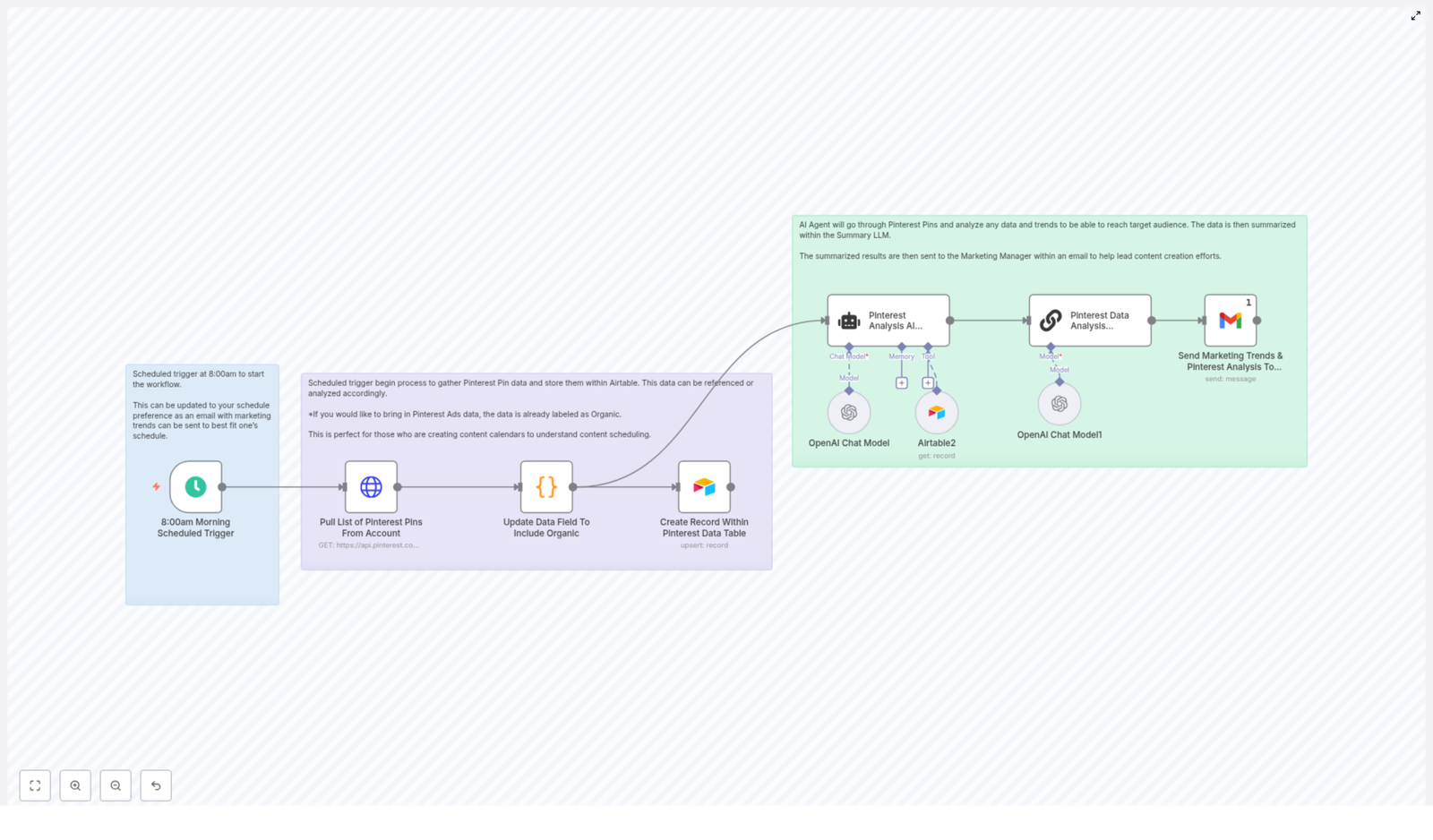
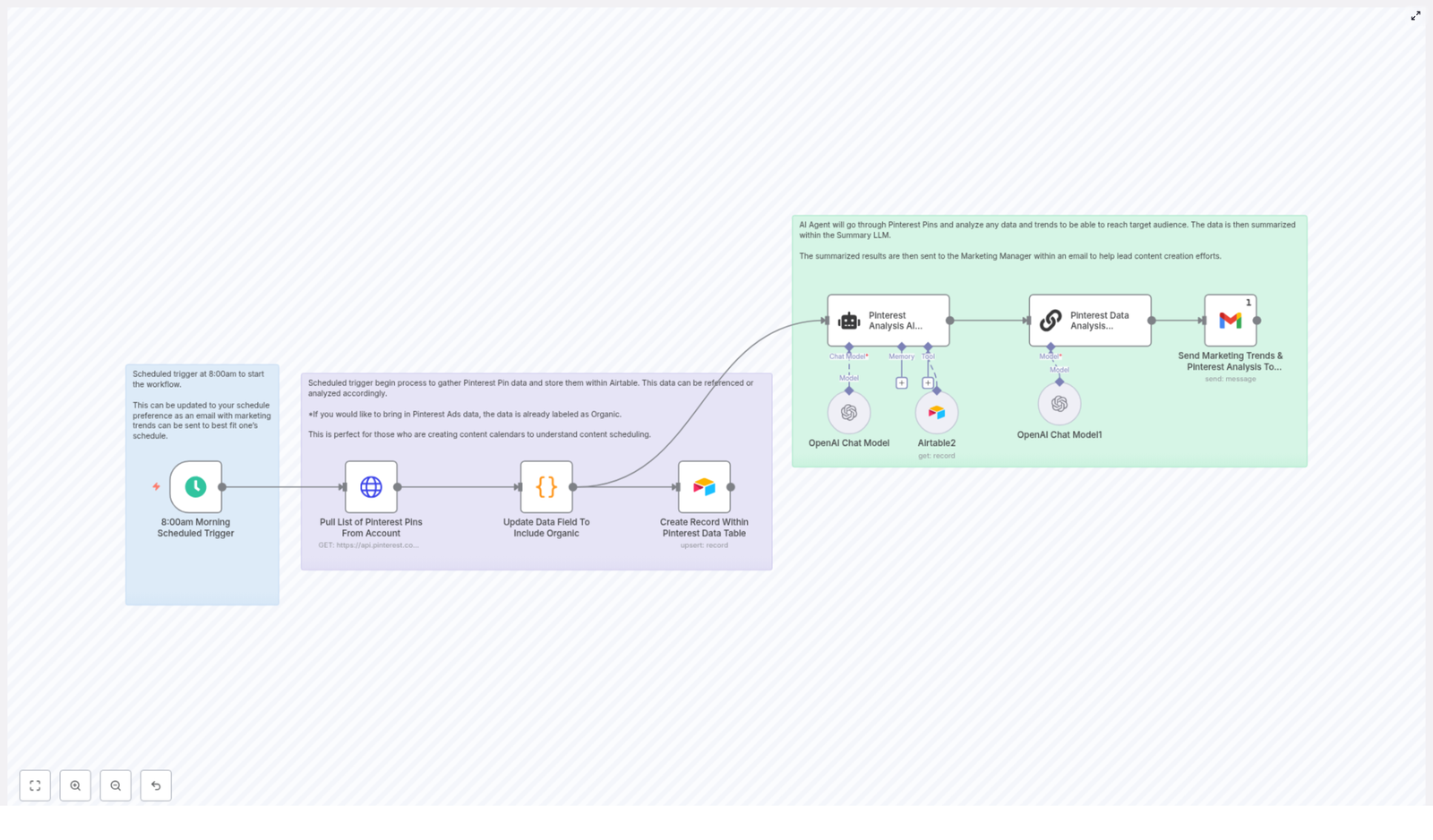
The sample workflow follows this flow:

  • Scheduled trigger (e.g., weekly at 8:00 AM)
  • HTTP request to Pinterest API to pull pins
  • Code node to normalize data and mark organic content
  • Upsert records into Airtable (store metadata and flags)
  • AI agent analyzes the Airtable data and produces pin suggestions
  • Summarization step formats a concise report
  • Email the results to the marketing manager

This design is modular: you can extend it to include Pinterest Ads, additional metrics, or Slack notifications.

Step-by-step walkthrough

1. Schedule Trigger

Start with a schedule trigger in n8n. Set it to run weekly (or daily) at your preferred time. This automated cadence ensures fresh data appears in Airtable and the AI agent can analyze trends continuously.

2. Pull pins using the Pinterest API

Use n8n’s HTTP Request node to call the Pinterest API endpoint (GET https://api.pinterest.com/v5/pins). Include your OAuth token in the Authorization header:

<Authorization: Bearer <YOUR_PINTEREST_TOKEN>>

Tip: paginate through results if you have lots of pins. Respect Pinterest rate limits and cache responses when practical.

3. Normalize data with a Code node

After receiving the API response, use a JavaScript code node to extract the fields you care about and tag records as Organic (or Paid if you bring ads in). The template includes a simple mapping routine that builds the output for Airtable upserts.

// Example code used in the workflow
const outputItems = [];
for (const item of $input.all()) {
  if (item.json.items && Array.isArray(item.json.items)) {
    for (const subItem of item.json.items) {
      outputItems.push({
        id: subItem.id || null,
        created_at: subItem.created_at || null,
        title: subItem.title || null,
        description: subItem.description || null,
        link: subItem.link || null,
        type: "Organic"
      });
    }
  }
}
return outputItems;

Customize this mapping to include other fields (impressions, saves, clicks) if your Pinterest response returns them.

4. Upsert into Airtable

Use the Airtable node to upsert each pin. Upserting (match by pin_id) avoids duplicates and keeps your table synchronized. Recommended fields:

  • pin_id (unique key)
  • title
  • description
  • link
  • created_at
  • type (Organic/Paid)
  • metrics (impressions, clicks, saves) — optional

Store timestamps and raw IDs to enable reliable backtracking and analysis.

5. AI analysis — Pinterest Analysis AI Agent

Once the data lands in Airtable, an AI agent (OpenAI via n8n LangChain nodes in the sample) reads the records and performs trend detection and content suggestion. The agent’s prompt should instruct the model to find patterns such as:

  • Highest performing pin formats (infographic, list, vertical image)
  • Common topics and keywords with high engagement
  • Underperforming but timely content to revisit
  • Suggested new pins tailored to top-performing audiences

Example responsibilities for the AI agent: summarize trend observations, propose 5–10 pin ideas (title, format, short description), and indicate suggested boards and posting cadence.

6. Summarize and deliver

Pass the agent output through a summarization LLM component to produce a concise, bullet-style report suitable for email. Finally, send the summary to the marketing manager by Gmail (or Slack/email webhook). The email should include suggested pin titles, creative notes, and priority scoring.

Implementation tips and best practices

Authentication and permissions

  • Keep your Pinterest OAuth token secure (use n8n credentials store).
  • Airtable Personal Access Token must have write permissions on the target base/table.
  • OpenAI keys should be limited by usage policy and rotated regularly.

Data quality

  • Filter out incomplete pins (no title or link) in the code node.
  • Normalize text (trim, remove special characters) before analysis to improve AI accuracy.
  • Store raw API payload separately if you want to re-run analysis with additional fields later.

Prompt engineering for better suggestions

Provide context to the model: include target audience personas, business goals, and timeframes. Use a structured prompt like:

"You are a data analysis expert. Analyze the exported Airtable pin data and recommend new pin concepts to reach target audiences. For each suggestion provide: title, format, one-sentence description, and why it will work based on trends."

Be explicit about the desired output format (JSON, bullets, or markdown) so downstream nodes can parse and send it reliably.

Monitoring, KPIs, and iteration

Automating analysis also allows you to track KPIs over time. Key metrics to monitor:

  • Weekly engagement growth (saves, likes, comments)
  • Impression-to-click conversion
  • Number of new qualified pin ideas produced per month
  • Time to produce a content brief (human hours saved)

Use Airtable views and dashboards to track trends and feed them back to the AI agent for more tailored suggestions.

Troubleshooting common issues

  • Empty API responses — check scopes and token expiry.
  • Rate limit errors — add retry logic and exponential backoff.
  • Airtable upsert failures — ensure matching column is correctly set (pin_id) and types align.
  • AI output too verbose — tighten the prompt and add summarization steps.

Extending the workflow

Once you have the basic pipeline, consider these enhancements:

  • Pull Pinterest Ads performance and compare organic vs. paid creative.
  • Auto-generate image briefs and alt text for designers.
  • Post suggested pins via the Pinterest API or a social scheduler (after human approval).
  • Integrate analytics from Google Analytics for real click-through performance.

Conclusion & call to action

Automating Pinterest analysis bridges the gap between raw metrics and repeatable creative output. With n8n orchestrating Pinterest API calls, Airtable storing normalized records, and an AI agent producing high-quality pin suggestions, marketing teams can run a continuous loop of insight-driven content creation.

Ready to reduce manual reporting and scale your Pinterest content engine? Try this workflow template in n8n, connect your Pinterest and Airtable accounts, and test the AI agent with a few weeks of data. Need help customizing the prompt or integrating ad metrics? Contact our team or subscribe below for an implementation guide and ongoing best practices.

Call to action: Deploy this workflow, run a 30-day test, and share the top AI-suggested pins with your creative team. Want a tailored setup — reply to this post or request a demo to get hands-on assistance.

Automate Pinterest Analysis & AI Content Ideas

Automate Pinterest Analysis & AI-Powered Content Suggestions

Use the Pinterest API, n8n automation, Airtable storage, and an LLM to turn pin performance into actionable content ideas.

Why automate Pinterest analytics?

Manual tracking of Pinterest pins is slow and error-prone. Automating data collection and analysis with the Pinterest API and an AI agent saves time, uncovers trends faster, and provides targeted, AI-powered content suggestions that help your marketing team plan better-performing pins.

Overview of the workflow

The proven automation pattern covered in this post uses these components:

  • Pinterest API: to pull a list of pins and metadata
  • n8n: to schedule, orchestrate requests, transform data, and call AI models
  • Airtable: to store structured pin records for historical analysis
  • OpenAI (LLM): to analyze trends and output short, actionable pin ideas
  • Email: to deliver summaries to your marketing manager automatically

Step-by-step: build the automation

1. Schedule the trigger

Start with a schedule trigger (for example, weekly at 8:00 AM). This keeps data fresh in Airtable and ensures your AI agent has up-to-date pins to analyze.

2. Pull pins using the Pinterest API

Use an HTTP GET request to the Pinterest API endpoint /v5/pins. Include an Authorization header (Bearer <token>). Handle pagination and rate limits — request only the fields you need to reduce payload size.

3. Normalize and tag the data

Transform the API response into a simplified record for Airtable. The template uses a small JavaScript node to map each pin into: id, created_at, title, description, link and a type field with the value “Organic”.

// Example transformation used in the workflow
const outputItems = [];
for (const item of $input.all()) {
  if (item.json.items && Array.isArray(item.json.items)) {
    for (const subItem of item.json.items) {
      outputItems.push({
        id: subItem.id || null,
        created_at: subItem.created_at || null,
        title: subItem.title || null,
        description: subItem.description || null,
        link: subItem.link || null,
        type: "Organic"
      });
    }
  }
}
return outputItems;

4. Upsert to Airtable

Upsert records by pin_id so duplicate pins aren’t created each run. Airtable becomes your single source of truth for historic performance and metadata.

5. AI analysis and content suggestions

Wire an AI agent to read the Airtable records. Provide a clear prompt asking the agent to:

  • Identify trends (topics, descriptions, posting cadence)
  • Recommend new pin ideas aimed at target audiences
  • Return concise suggestions that your creative team can act on

6. Summarize and notify

Use a summarization LLM node to compress the AI agent output into a short email-ready summary and send it to your marketing manager. Include suggested titles, short descriptions, and recommended publishing times.

Key prompts and example output

Give the AI agent clear constraints and format instructions. Example prompt:


You are a data analysis expert. Analyze the latest pins table and provide 6 concise pin ideas (title, short caption, target audience, suggested image style).
Output: JSON list of ideas with 4 fields each.
    

Example AI output (shortened):

  • Title: “5-Minute Morning Routine” — Caption: “Boost energy with a simple routine” — Audience: Busy parents — Image style: Flat-lay with step numbers
  • Title: “Cozy Fall Outfit Ideas” — Caption: “Layer up in style” — Audience: Fashion lovers — Image style: Lifestyle candid photos

Best practices and tips

Authentication & rate limits

Use a secure server-side token for the Pinterest API. Respect Pinterest rate limits — implement exponential backoff, caching, and incremental syncs.

Data to track

Store metrics that help the AI find signals:

  • Impressions, saves, clicks, and closeups
  • Board and topic/category tags
  • Creative attributes (text overlay, image style, aspect ratio)
  • Posting time and day

Quality and bias control

Use guardrails: ask the LLM for multiple suggestions and a confidence score. Human-review the top ideas before publishing to avoid off-brand content.

Monitoring and alerts

Add logging and error notifications into the workflow. If the Pinterest API changes structure or your token expires, a monitored alert helps fix issues fast.

Scaling the system

As your account grows:

  • Switch from weekly to daily updates for fast-moving accounts
  • Archive older records into a data warehouse for long-term trend analysis
  • Enrich data with Google Analytics or Ads performance to connect pins to conversions

Security and privacy

Never store long-lived API secrets in public repos. Use environment variables or n8n credentials. When emailing summaries, avoid including sensitive user data or personal identifiers.

Checklist before go-live

  1. Verify API access and permissions for the Pinterest account
  2. Test pagination and rate limit handling
  3. Confirm Airtable upsert keys and schema match your mapping
  4. Validate AI prompt and run a dry test with sample records
  5. Configure monitoring, retries, and email notifications

Wrap-up

Automating Pinterest analytics with n8n, Airtable, and an LLM transforms raw pin data into practical content ideas your team can execute quickly. This workflow reduces manual work, uncovers repeatable trends, and feeds creative calendars with higher-confidence concepts.

Ready to get started? Build this workflow in your n8n instance, connect your Pinterest account and Airtable base, then tune the prompts to your brand voice. If you’d like a starter template or a walkthrough, contact our team and we’ll help you deploy it.

Request a free setup call — or try the template yourself and iterate.

Automate Notion API Updates with n8n & RAG

Automate Notion API Updates with n8n & RAG

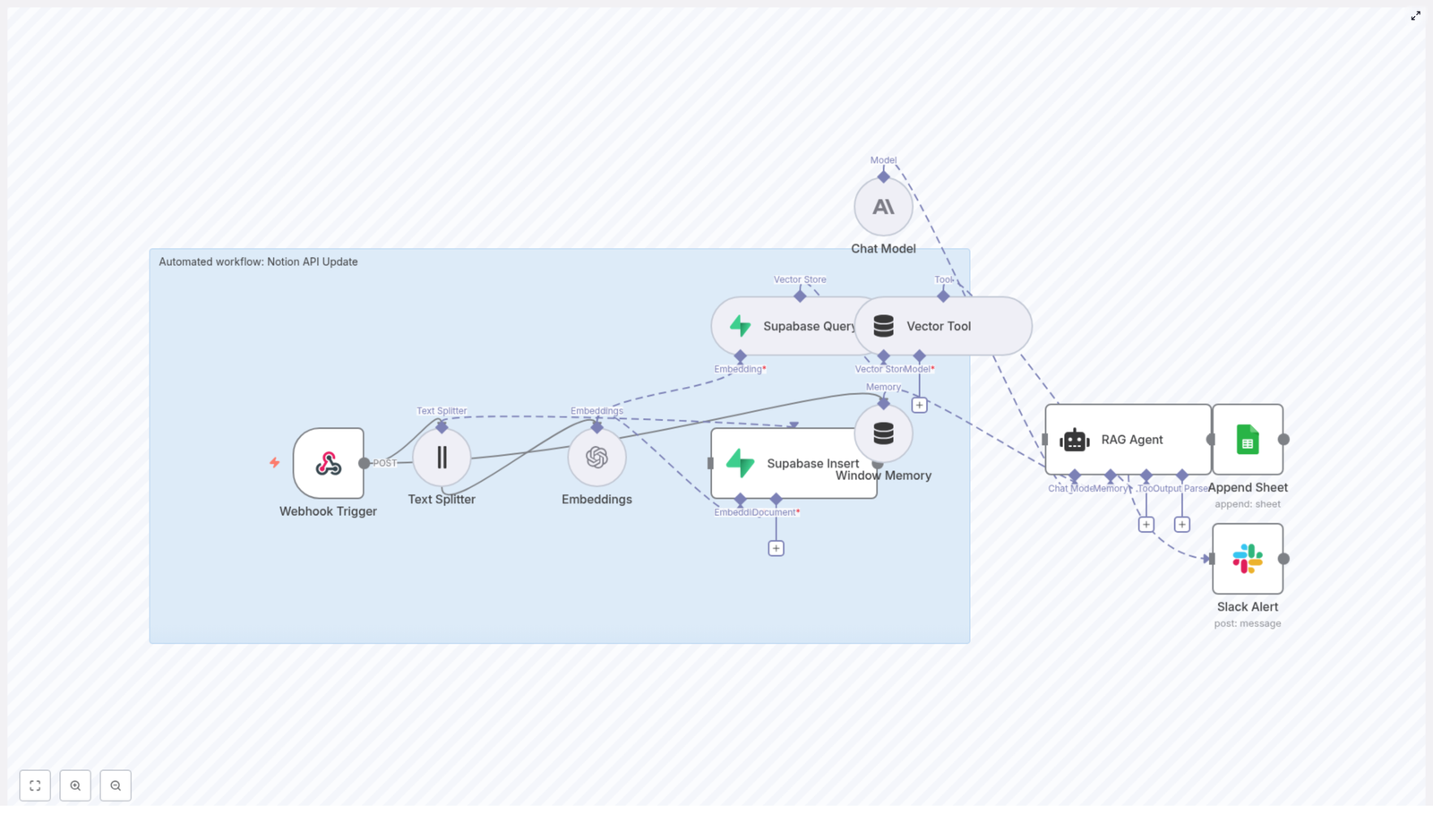
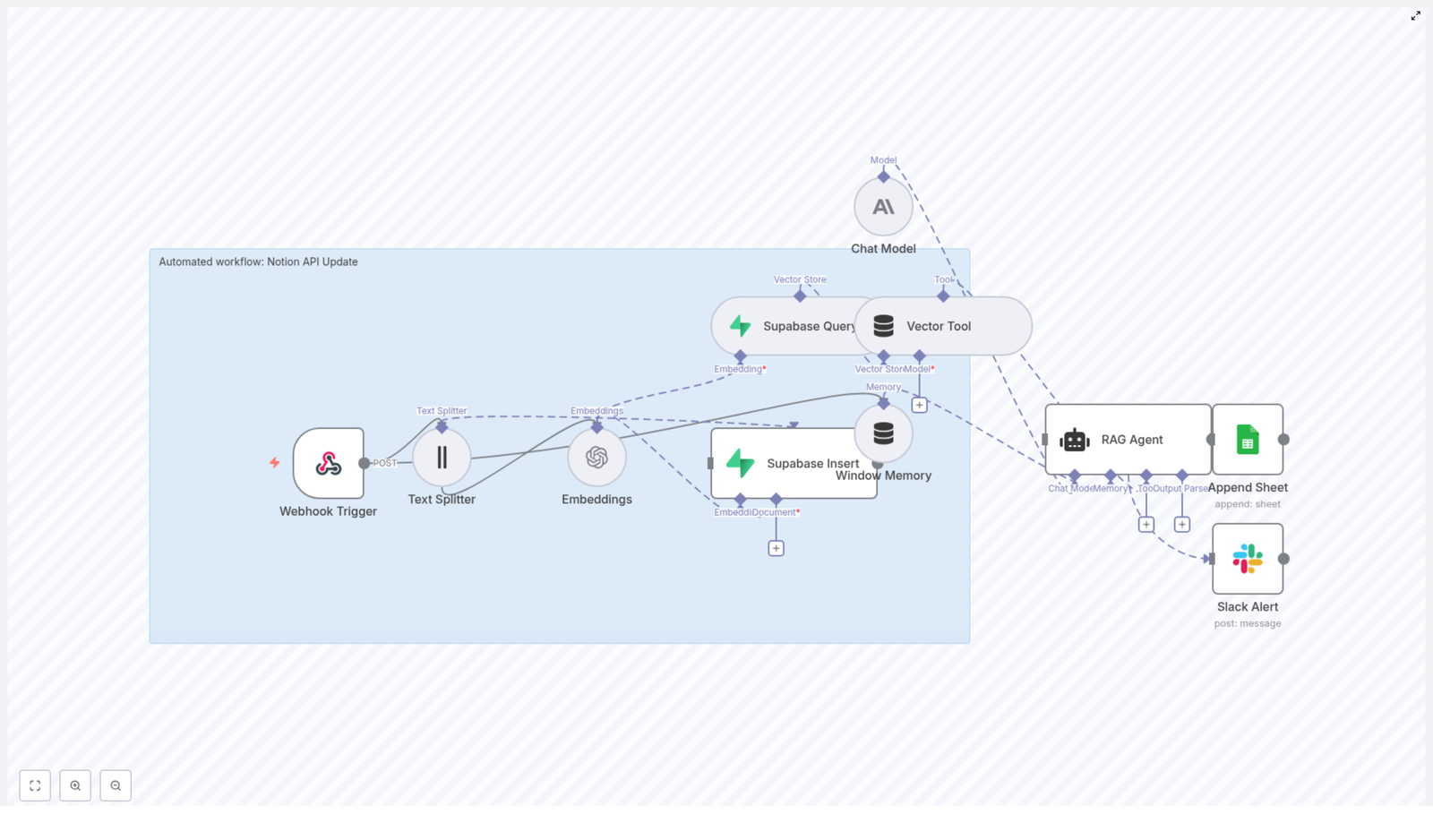
This reference guide describes a complete n8n workflow template, “Notion API Update”, that automates processing of incoming Notion-related data. The workflow accepts JSON payloads through a webhook, splits long text into chunks, generates embeddings, persists and queries vectors in Supabase, runs a retrieval-augmented generation (RAG) flow with Anthropic, logs outputs to Google Sheets, and sends Slack alerts on failures.

1. Workflow overview

The template is designed for teams that manage Notion content or other structured updates and want a reliable, reproducible pipeline for:

  • Receiving updates via a secure HTTP endpoint
  • Handling long text by chunking it before embedding
  • Indexing content in a vector database for semantic retrieval
  • Running a RAG-style agent using Anthropic’s chat model
  • Recording outcomes in Google Sheets and alerting on errors via Slack

At a high level, the workflow implements the following processing stages:

  1. Receive an HTTP POST payload via Webhook
  2. Split the payload content using a Text Splitter
  3. Generate embeddings with OpenAI
  4. Insert vectors and metadata into Supabase
  5. Query Supabase to retrieve relevant context
  6. Expose the vector store to a RAG Agent via a Vector Tool
  7. Maintain short-term state with Window Memory
  8. Run an Anthropic chat model to generate context-aware output
  9. Append results to a Google Sheet
  10. Send Slack alerts on workflow or agent errors

2. Architecture and data flow

The architecture follows a linear, event-driven pattern with a single webhook entry point and downstream processing nodes. Data flows as JSON through each node, with additional binary or vector representations handled by the embedding and Supabase layers.

2.1 High-level node sequence

  • Webhook Trigger (POST /notion-api-update)
  • Text Splitter (character-based chunking)
  • Embeddings (OpenAI text-embedding-3-small)
  • Supabase Insert (vector indexing into notion_api_update)
  • Supabase Query (semantic retrieval)
  • Vector Tool (tool interface for the agent)
  • Window Memory (short-term conversation or state buffer)
  • Chat Model (Anthropic)
  • RAG Agent (coordinates retrieval and generation)
  • Append Sheet (Google Sheets logging)
  • Slack Alert (error notifications)

Each node transforms or enriches the data, with clear separation between transport (webhook), preprocessing (splitter, embeddings), storage (Supabase), reasoning (RAG agent), and observability (Sheets, Slack).

3. Node-by-node breakdown

3.1 Webhook Trigger

Purpose: Expose an HTTP endpoint that external systems (for example, a Notion integration or middleware) can call to submit update payloads.

  • Method: POST
  • Path: /notion-api-update
  • Input format: JSON payload (see example below)

The webhook node is the entry point for the entire workflow. It receives the JSON body and passes it downstream as $json to subsequent nodes. Typical payload fields include a Notion page identifier, title, content, and timestamp.

Security considerations:

  • Protect the endpoint with a shared secret, IP allowlist, or HMAC verification header.
  • Reject requests that fail signature or token checks to avoid unauthorized ingestion.
  • Optionally validate payload structure (for example, required keys like notionPageId and content) before continuing.

3.2 Text Splitter

Purpose: Normalize long Notion content into smaller, overlapping segments suitable for embedding and vector search.

The node uses a character-based splitting strategy with the following configuration:

  • chunkSize: 400
  • chunkOverlap: 40

This configuration aims to:

  • Keep chunks small enough for cost-efficient embedding and performant retrieval.
  • Preserve local context between segments through a 40-character overlap.

Edge cases:

  • Very short content (fewer than 400 characters) will typically produce a single chunk.
  • Extremely large content will result in multiple chunks; ensure downstream nodes are configured to handle arrays of items.
  • Non-text fields should be filtered or preprocessed before reaching this node to avoid embedding irrelevant data.

3.3 Embeddings (OpenAI)

Purpose: Convert each text chunk into a high-dimensional vector representation for semantic similarity search.

  • Model: text-embedding-3-small (OpenAI)
  • Input: chunked text from the Text Splitter
  • Output: embedding vectors associated with each chunk

These embeddings are later stored in Supabase and used for semantic retrieval. The chosen model balances cost and performance for typical Notion content.

Configuration notes:

  • Ensure the OpenAI credentials are correctly configured in n8n (see credentials section).
  • Confirm that the node is set to process all items produced by the Text Splitter, not just the first item.

3.4 Supabase Insert

Purpose: Persist embedding vectors and their associated metadata into a Supabase vector table.

  • Target table: notion_api_update

The workflow stores:

  • The embedding vector for each chunk.
  • Source metadata, for example:
    • page_id (from notionPageId)
    • block_id or chunk identifier if applicable
    • title
    • timestamp or updatedAt

This metadata is critical for traceability, allowing you to map retrieved vectors back to the originating Notion page and segment.

Edge cases and behavior:

  • If the Supabase insert fails (for example, due to schema mismatch or network issues), the workflow should surface the error and trigger the Slack alert node via n8n’s error handling.
  • Ensure the table schema is compatible with the embedding size produced by text-embedding-3-small.

3.5 Supabase Query and Vector Tool

Purpose: Retrieve semantically relevant chunks from Supabase and expose them as a tool to the RAG agent.

The Supabase Query node performs a similarity search against the notion_api_update vector table. It uses the incoming request context or newly generated embeddings to find related chunks.

The Vector Tool node then wraps this Supabase-backed vector store as a callable tool for the agent. Within the RAG flow, the agent can invoke this tool to fetch context during generation.

Key aspects:

  • Configure the query to limit the number of retrieved chunks to a sensible value to avoid overwhelming the model context.
  • Make sure the Vector Tool is correctly wired to the Supabase Query node output so the agent sees it as an available tool.

3.6 Window Memory

Purpose: Maintain a short-term memory buffer across calls so the agent can reference recent state or conversation history.

The Window Memory node stores a limited window of previous interactions or processing steps. This is particularly useful if the workflow is extended to multi-turn interactions or if multiple calls occur in a sequence for the same Notion entity.

Typical behavior:

  • Stores recent messages or system state for a bounded number of turns or tokens.
  • Provides this memory back to the agent as part of the context during generation.

3.7 Chat Model and RAG Agent

Purpose: Run a retrieval-augmented generation loop using Anthropic’s chat model, vector tool, and memory to produce a final status or summary.

  • Chat model provider: Anthropic
  • Role: Core language model used by the RAG agent

The RAG Agent orchestrates:

  • Calls to the Vector Tool to fetch relevant context from Supabase.
  • Use of Window Memory to maintain short-term state.
  • Interaction with the Anthropic chat model to generate the final response.

Typical outputs include concise status messages, summaries of changes, or diagnostics about the incoming Notion update. The agent is guided by a system message and prompt template (see prompting section).

Error handling: If the chat model or agent encounters an error (for example, provider outage or invalid configuration), n8n’s error routing can direct execution to the Slack Alert node with the error payload.

3.8 Append Sheet (Google Sheets)

Purpose: Persist the agent’s output in a structured, human-readable log for auditing and reporting.

  • Spreadsheet: identified by SHEET_ID (environment variable)
  • Sheet name: Log
  • Target column: at least a Status column mapped from the agent output

The node appends a new row for each processed webhook request, making it easy to review historical automation actions or debug specific events.

Configuration notes:

  • Ensure the Google Sheets OAuth credentials are correctly set up in n8n.
  • Confirm that the column mapping matches the sheet structure (for example, Status column exists).

3.9 Slack Alert (Error Handling)

Purpose: Provide immediate visibility into failures via Slack notifications.

  • Channel: #alerts (or your preferred alerts channel)
  • Trigger: n8n onError execution path

On errors in the RAG agent or any upstream node configured with error routing, this node sends a message to Slack that includes the error payload. This helps operators quickly identify and triage issues such as API failures, schema mismatches, or invalid payloads.

4. Example webhook payload

The webhook endpoint expects a JSON object similar to the following:

{  "notionPageId": "abc123",  "title": "Quarterly Goals",  "content": "Long Notion page content goes here...",  "updatedAt": "2025-10-18T12:34:56Z"
}

The Webhook Trigger passes this JSON to the Text Splitter node. The content field is split into chunks, embedded, and indexed. The metadata fields such as notionPageId, title, and updatedAt are propagated and stored along with the vectors in Supabase and used by the agent for context.

5. Credentials and configuration

The workflow relies on several external services. Configure the following credentials in n8n before running the template:

  • OpenAI API Key – used by the Embeddings node for text-embedding-3-small.
  • Supabase Project URL and Service Key – used by Supabase Insert and Supabase Query nodes to access the vector table.
  • Anthropic API Key – used by the Chat Model node that powers the RAG agent.
  • Google Sheets OAuth credentials – required by the Append Sheet node. The spreadsheet is identified via a SHEET_ID environment variable.
  • Slack OAuth credentials – used by the Slack Alert node to send messages to the chosen channel.

Security best practices:

  • Store API keys and secrets in n8n’s credentials store or environment variables, not directly in node parameters for shared workflows.
  • Restrict access to the n8n instance and credentials configuration to authorized operators only.

6. Prompting and agent setup

The behavior of the RAG agent is largely controlled by its system message and prompt template. In the template, the agent receives the following configuration:

System: You are an assistant for Notion API Update
Prompt: Process the following data for task 'Notion API Update':

{{ $json }}

Key points:

  • The System message defines the agent’s role and high-level behavior.
  • The Prompt passes the entire webhook JSON ({{ $json }}) into the context, so the agent can reason about all incoming fields.

Customization ideas:

  • Enforce a specific output format, such as a JSON object with fields like status, summary, or actionRequired.
  • Instruct the agent to summarize changes, detect conflicts, or suggest deduplication steps for repeated or overlapping updates.
  • Specify constraints such as maximum length, tone, or inclusion of provenance details from Supabase metadata.

7. Best practices and tuning

7.1 Chunking strategy

  • Chunk size and overlap: Adjust chunkSize and chunkOverlap based on content type.
    • Long narrative content can benefit from slightly larger chunks.
    • Highly structured content (tables, lists) may require smaller chunks to avoid mixing unrelated sections.

7.2 Embedding model selection

  • text-embedding-3-small is cost-efficient and suitable for many Notion use cases.
  • If you need higher semantic accuracy, consider switching to a larger embedding model, taking into account cost and latency tradeoffs.

7.3 Vector schema design

  • Include metadata such as source_id, title, and created_at in the Supabase table.
  • Use these fields to display provenance in agent outputs or filter retrieval by date, page, or type.

7.4 Rate limiting and reliability

  • Monitor API usage for OpenAI and Anthropic to avoid hitting provider limits.
  • Configure retry or backoff strategies in n8n for transient failures where appropriate.

7.5 Error handling and observability

  • Route unexpected errors to the Slack Alert node, including structured error details for faster debugging.
  • Use Google Sheets logging

Automate Notion Updates with n8n & Supabase

Automate Notion Updates with n8n & Supabase

Imagine this: you are copying text out of Notion, pasting it into some other tool, checking context, updating a status, logging it somewhere else, then doing it all again for the next page. And the next. And the next. By the fifth time, you are questioning your life choices.

This workflow template is here to rescue you from that copy-paste purgatory. With n8n, Supabase, LangChain, OpenAI embeddings, and Anthropic chat, you can turn Notion-related chaos into a sensible, automated pipeline that actually understands context instead of just blindly moving text around.

In this guide, you will see how the template:

  • Listens for incoming events through a webhook
  • Splits and embeds your Notion content
  • Stores and retrieves vectors in Supabase
  • Uses a RAG (Retrieval-Augmented Generation) Agent to generate smart, context-aware responses
  • Logs everything neatly in Google Sheets and warns you in Slack if something breaks

By the end, you will know exactly what this “Notion API Update” workflow does, how it works, and how to set it up without losing your sanity.


What this n8n workflow actually does (in human terms)

The workflow is called Notion API Update, but it is more than just a basic sync. It is a production-ready automation that:

  • Receives incoming POST requests via a webhook
  • Splits big chunks of Notion content into smaller, embedding-friendly pieces
  • Turns those pieces into vector embeddings using OpenAI’s text-embedding-3-small
  • Saves those vectors in a Supabase vector index named notion_api_update
  • Queries that index later to pull relevant context for new events
  • Gives that context to a RAG Agent powered by Anthropic chat
  • Lets the agent generate a final output that actually respects your previous content
  • Logs the result in Google Sheets and sends Slack alerts if something fails

In short, it is a context-aware Notion automation that knows what has happened before, can “remember” related content via Supabase vectors, and uses that to produce smarter updates and logs.


Why bother automating Notion updates like this?

If you are already tired of repetitive manual updates, you probably know the answer. This workflow helps you:

  • Trigger updates in real time with webhook-driven events instead of periodic manual sweeps
  • Make your content searchable by meaning using text splitting and embeddings, not just keyword search
  • Use Supabase as a vector database so you can fetch the most relevant context in milliseconds
  • Leverage a RAG agent that combines stored context with a chat model to produce smart, grounded outputs
  • Stay informed using Google Sheets logging and Slack alerts so failures do not hide quietly in the background

Instead of juggling multiple tools and tabs, you get one pipeline that listens, understands, responds, and logs. You just get to look clever while it runs.


High-level architecture: how the pieces fit together

Here is the big picture of the Notion API Update workflow in n8n:

  1. Webhook Trigger receives a POST payload from Notion, another app, or your own script.
  2. Text Splitter breaks large content into smaller chunks with a configurable size and overlap.
  3. Embeddings (OpenAI) converts each chunk into a semantic vector using text-embedding-3-small.
  4. Supabase Insert stores those vectors plus metadata in the notion_api_update index.
  5. Supabase Query later retrieves similar vectors when context is needed.
  6. Vector Tool + Window Memory expose vector search and recent interaction history to the RAG Agent.
  7. RAG Agent (LangChain) with Anthropic chat uses that context to generate the final response.
  8. Append Sheet + Slack Alert log results to Google Sheets and send Slack alerts on failure.

Think of it as a pipeline that turns raw Notion events into structured, context-aware answers, then writes everything down so you can track what happened.


Quick setup guide: from zero to automated Notion updates

You do not need to be a full-time ML engineer to get this running. Here is how to wire it up in n8n, step by step.

1. Webhook Trigger – your front door for events

Start with a Webhook node in n8n and configure it to accept POST requests at a path like:

/notion-api-update

Any external system that can send HTTP requests can now feed this workflow. That includes:

  • Notion-related services
  • Other automation tools
  • Custom scripts or internal tools

For security, do not leave the door wide open. Protect the webhook URL with authentication, IP allowlisting, or a private network setup. Treat it like an API endpoint, not a public suggestion box.

2. Text Splitter – breaking big content into smart chunks

Large Notion pages are not ideal for embeddings as a single blob. The Text Splitter node chops content into smaller segments so the embedding model can focus and your vector search stays sharp.

Template defaults:

  • chunkSize: 400
  • chunkOverlap: 40

You can adjust these if your content is usually shorter or longer, or if your embedding model has specific token limits. Smaller chunks tend to improve recall but also increase the number of vectors stored and queried.

3. Embeddings (OpenAI) – turning text into vectors

Each chunk from the Text Splitter goes into an Embeddings node using OpenAI’s text-embedding-3-small model. The output is a vector for each chunk, which becomes the backbone of semantic search in Supabase.

Make sure you:

  • Store your OpenAI API key securely using n8n credentials
  • Monitor token usage and cost if you process a lot of content

The better your embeddings, the better your context retrieval and RAG responses will be.

4. Supabase Insert – building your Notion vector store

Next, the workflow uses a Supabase Insert node to store embeddings in a vector index called notion_api_update. Each record can include metadata such as:

  • Notion page ID
  • Block ID
  • Timestamp
  • Original text snippet

This metadata is what lets you trace results back to the exact Notion content they came from. It is incredibly useful when you are debugging or explaining why the RAG Agent produced a particular answer.

5. Supabase Query + Vector Tool – retrieving context on demand

When a new event comes in and the agent needs context, the workflow uses:

  • Supabase Query to pull the most similar vectors from notion_api_update
  • Vector Tool to expose that vector store as a usable tool for the RAG Agent

This is the “R” in RAG: Retrieval. Instead of the chat model guessing based on vibes, it gets real, stored context from your previous Notion content.

6. Window Memory – giving the agent short-term memory

The Window Memory node keeps a short history of recent interactions. When multiple updates arrive for the same Notion page or topic, the agent can look back at what it did or decided earlier.

This helps avoid responses that sound like the agent has amnesia every time a new event comes in.

7. Chat Model and RAG Agent – the brain of the operation

The RAG Agent node uses LangChain with an Anthropic chat model to combine:

  • Retrieved vectors from Supabase
  • Conversation history from Window Memory
  • Tools like the Vector Tool

You can configure the agent with a system message such as:

You are an assistant for Notion API Update

The agent then turns everything it knows about the incoming event plus stored context into a final, contextualized output. That might be a status message, a content summary, or another structured result suitable for logging or further updates.

8. Append Sheet and Slack Alert – logging and visibility

Finally, the workflow handles outcomes in two ways:

  • Append Sheet writes successful results into a Google Sheet, including a column named Status that stores the agent output for historical tracking and audits.
  • Slack Alert catches failures and sends them to a Slack channel so you can spot and fix issues in real time, instead of discovering them three weeks later.

Think of this as your “black box recorder” plus a friendly alarm system.


Configuration tips and best practices

To keep your Notion automation stable and maintainable, keep these guidelines in mind:

  • Use n8n credentials for all secrets Configure OpenAI, Supabase, Google Sheets, and Slack credentials in n8n. Avoid hard-coding API keys in the workflow itself.
  • Tune chunk size thoughtfully Start with chunkSize: 400 and chunkOverlap: 40. Smaller chunks improve recall but increase the number of vectors and query time. Iterate based on your content patterns.
  • Store rich metadata Include Notion IDs, timestamps, and any useful identifiers in each vector record. This makes reverse lookups and traceability much easier later.
  • Maintain your index If your Notion content changes frequently, plan periodic pruning or reindexing of older vectors so your retrieval stays relevant.
  • Handle errors explicitly Use the RAG Agent’s onError path to trigger Slack alerts. Silent failures are the worst kind of automation bug.

Security and compliance considerations

Automation is fun until sensitive data leaks. Keep things safe by:

  • Restricting webhook access with IP allowlists, shared secrets, or private network rules
  • Controlling who can access Supabase and Google Sheets where your data and logs live
  • Encrypting data at rest and anonymizing content before creating embeddings if your Notion workspace holds sensitive information
  • Reviewing the privacy policies of OpenAI and Anthropic, especially if you are processing PII in embeddings or chat prompts

With a bit of planning, you can have both powerful automation and a compliance team that still speaks to you.


Testing and debugging your Notion automation

Before pointing this at production data, run a few safe experiments.

  • Start with sample payloads Use Postman or curl to send test POST requests to the webhook. This helps you iterate quickly without touching real Notion pages.
  • Inspect intermediate nodes Check outputs from the Text Splitter and Embeddings nodes. Confirm that chunking looks reasonable and that vector shapes and metadata are correct.
  • Query Supabase directly Verify that vectors are stored in the notion_api_update index with the expected metadata. Make sure the index name is consistent everywhere.
  • Use the logging spreadsheet The Google Sheet populated by the Append Sheet node acts as a running history of agent behavior. It is great for spotting patterns or weird outputs over time.

Scaling and cost: keeping your bill under control

Most of the cost in this setup comes from embeddings and chat model usage. To keep things efficient:

  • Cache embeddings for identical content so you are not re-embedding the same text repeatedly.
  • Batch smaller updates where possible to reduce per-request overhead.
  • Use smaller embedding models for high-volume, non-critical text where ultra-precision is not required.

With a bit of tuning, you can scale this workflow without your finance team staging an intervention.


Example webhook payload

Here is a sample payload you might send into the Webhook Trigger to test the workflow:

{  "pageId": "notion-page-123",  "content": "Complete release notes and changelog for v1.2...",  "updatedBy": "jane@company.com",  "timestamp": "2025-10-01T15:03:00Z"
}

You can adjust these fields to match your own event format, as long as the workflow knows where to find the content it needs to split and embed.


Wrap-up: what you get from this Notion API Update workflow

With this n8n-based Notion automation in place, you get:

  • An extensible workflow that listens for events and updates intelligently
  • A searchable, semantic memory of your Notion content in Supabase
  • A RAG Agent that produces context-aware, explainable outputs instead of opaque, rule-based reactions
  • Structured logs and alerts so you can trust what is happening behind the scenes

It is a big upgrade from simple “if X then Y” rules, especially when your content and context actually matter.

Next steps to take this further

  • Customize the RAG Agent’s system message and prompt templates so it speaks your domain language.
  • Extend the workflow to write directly back to Notion via the Notion API, creating or updating pages and blocks automatically.
  • Add role-based access controls and auditing around your automation to satisfy organizational security requirements.

Call to action: make your Notion updates less painful

If you want a copy of this n8n template or help adapting it to your own Notion workspace, reach out to our automation team or subscribe to our newsletter for more templates and tutorials.

Ready to escape repetitive Notion updates?

  • Deploy the webhook in n8n
  • Connect your OpenAI, Supabase, Google Sheets, and Slack credentials
  • Send a test payload and watch the workflow do the tedious parts for you

Your Notion updates can be smarter, faster, and mostly hands-off in just a few minutes.

AI Logo Sheet Extractor to Airtable

AI Logo Sheet Extractor to Airtable – n8n Workflow Guide

This guide teaches you how to build and use an n8n workflow that turns a single logo-sheet image into structured records in Airtable with the help of an AI parsing agent. You will learn how to accept uploads through a form, send the image to an AI model, interpret the JSON output, and then create or update tools, attributes, and similarity links inside Airtable.

What you will learn

By the end of this tutorial you will be able to:

  • Use an n8n Form Trigger to accept logo-sheet uploads from a public form.
  • Configure a vision-capable AI agent that extracts tools and attributes from an image.
  • Parse and split the AI output so it is safe to process in batches.
  • Design a simple Airtable schema with Tools and Attributes tables.
  • Upsert tools and attributes in Airtable using deterministic hashes to avoid duplicates.
  • Map relationships such as attributes and similar tools using linked records.
  • Troubleshoot common issues and extend the workflow for review, analytics, or notifications.

Concept overview

What this n8n workflow does

At a high level, the workflow:

  1. Receives a logo-sheet image from a public form in n8n.
  2. Sends the image to an AI language-vision agent that returns structured JSON.
  3. Splits that JSON into individual tools and attributes so they can be processed safely.
  4. Creates or updates attributes in Airtable and links them to tools.
  5. Creates or updates tools in Airtable, including similarity relationships between tools.

The result is an automated pipeline that converts a visual logo sheet into a clean, queryable Airtable database.

Why use this workflow?

  • Automate manual data entry from product logo sheets, comparison charts, or vendor overviews.
  • Capture context such as categories, features, and similar tools from image layout and labels.
  • Maintain a living product database in Airtable with consistent upserts instead of duplicate records.
  • Extend and customize the AI prompt, add validations, or send data to downstream analytics tools.

Recommended Airtable structure

Before you build the n8n workflow, set up Airtable so it can store the extracted data in a clean, relational way. The workflow is designed around two tables: Tools and Attributes.

Tools table

Create a table named Tools with at least the following fields:

  • Name (single line text) – required. The human-readable tool name.
  • Hash (single line text) – a deterministic ID, for example an MD5 hash of the lowercased name. Used to avoid duplicates.
  • Attributes (linked records) – links to the Attributes table.
  • Similar (linked records) – links to the same Tools table to represent similar or competing tools.
  • Description, Website, Category (optional) – extra metadata you may fill in manually or via other automations.

Attributes table

Create a table named Attributes with:

  • Name (single line text) – required. The name of the attribute, such as a category or feature.
  • Tools (linked records) – a back-link to the Tools table. This will be populated automatically when tools reference attributes.

This schema lets you store each tool once, link it to many attributes, and track similarity relationships between tools.

How the workflow works in n8n

The n8n workflow can be understood in five main stages. In the next section we will walk through how to configure each stage step by step.

  1. Form submission (Trigger) – a public form collects the logo-sheet image and optional context.
  2. Retrieve and Parser Agent (AI) – a vision-capable LLM inspects the image and returns structured JSON.
  3. Structured parsing and splitting – the JSON is split into individual tools and attributes.
  4. Attribute creation and mapping – attributes are upserted in Airtable and mapped back to tools.
  5. Tool creation and similarity mapping – tools are upserted in Airtable, and similar tools are linked by record ID.

Step-by-step workflow setup

Step 1 – Set up the n8n Form Trigger

Start by creating the entry point for the automation.

  1. In n8n, create a new workflow or import the provided template.
  2. Add a Form Trigger node (often called FormTrigger in n8n).
  3. Configure the webhook path so it is accessible as a public URL.
  4. Define form fields:
    • Image – a file upload field where users submit the logo-sheet image.
    • Additional prompt (optional) – a text field where users can add context such as:
      • “This is a product comparison chart for enterprise AI tools.”
      • “Focus on developer tools and categorize them by primary use case.”

The Form Trigger webhook will fire whenever someone submits an image and optional context, and it will pass that data to the rest of the workflow.

Step 2 – Configure the AI parser agent

Next, you will use a language-vision agent to read the logo sheet and convert it into structured JSON.

  1. Add an AI node that supports images, such as a LangChain node or an OpenAI multimodal node.
  2. Connect it to the output of the Form Trigger so it receives:
    • The uploaded image.
    • The optional user prompt (if provided) as additional context.
  3. In the AI node, configure:
    • Model – choose a vision-capable LLM.
    • System prompt – instruct the model to:
      • Identify each product or tool in the logo sheet.
      • Extract attributes such as category, feature, or UI type.
      • Identify similar or competing tools when visible from layout or labels.
      • Return JSON only in a strict format.

The JSON returned by the agent should follow a structure similar to:

[{  "name": "ToolName",  "attributes": ["category", "feature", "ui type"],  "similar": ["otherTool1", "otherTool2"]
}]

You should tune the system prompt to match your logo-sheet style. For example, if your sheets always show categories in a specific column, mention that in the prompt so the model can extract more accurate attributes.

Step 3 – Parse and split the AI output

Once the AI node returns the JSON string, you need to prepare it for batch-safe processing.

  1. Use a node (for example a Function or Item Lists node) to parse the JSON string into an array of tool objects.
  2. Split the array so that each tool is handled as an individual item in the workflow. This allows you to:
    • Upsert each tool separately in Airtable.
    • Handle errors or edge cases per item.
  3. For each tool, split its attributes array into individual strings so they can be matched or created as separate attribute records.

By this point, your workflow should be iterating over tools, each with a name, a list of attribute strings, and a list of similar tool names.

Step 4 – Create and map attributes in Airtable

Before writing tools, you need to make sure that all attributes exist in the Attributes table and that you know their record IDs.

  1. For each attribute string extracted from a tool:
    • Check the Attributes table in Airtable to see if an attribute with the same name already exists.
    • If it does not exist, create a new record in the Attributes table with that name.
  2. Collect the Airtable record IDs for all attributes associated with the current tool.
  3. Map these IDs back into the tool object so that instead of plain text attributes, you now have a list of Airtable record IDs ready to be linked in the Tools table.

This step ensures that attributes are stored as linked records rather than simple text, which makes filtering and analytics in Airtable much easier.

Step 5 – Upsert tools and map similarity relationships

Finally, you will create or update tool records and set up similarity links.

  1. Generate a deterministic hash for each tool:
    • Take the tool name, sanitize it (for example, lowercased and trimmed).
    • Generate an MD5 or similar hash.
    • Use this hash as a unique key in the Hash field of the Tools table.
  2. Upsert the tool:
    • Search the Tools table for an existing record with the same hash.
    • If found, update the record with any new attributes or similar tools.
    • If not found, create a new record with:
      • Name
      • Hash
      • Attributes (linked record IDs from Step 4)
  3. Handle similar tools:
    • For each name in the similar array:
      • Ensure there is a corresponding record in the Tools table (creating it if necessary, using the same hash strategy).
      • Collect the Airtable record IDs of these similar tools.
    • Update the current tool record so that the Similar field contains linked record IDs pointing to these related tools.

After this step, each tool in Airtable will have links to its attributes and to similar tools, giving you a rich, interconnected dataset derived from a single logo sheet.

Initial configuration checklist

  1. Install and open n8n, then import the workflow template or recreate the nodes as described.
  2. Configure the Form Trigger webhook URL and add fields for the image and optional prompt.
  3. Set up a vision-capable AI agent node (such as LangChain or OpenAI multimodal) and tune the system prompt to your logo-sheet layout.
  4. Connect your Airtable nodes and authenticate using a personal access token.
  5. Select the Tools and Attributes tables you created earlier.
  6. Run test submissions with sample logo sheets and inspect:
    • The raw AI JSON output.
    • The parsed items in n8n.
    • The resulting records in Airtable.
  7. Adjust the AI prompt and parsing logic if tools are missing, misclassified, or attributes are not extracted as expected.
  8. Once satisfied, activate the workflow and, if needed, secure the form endpoint using API keys, authentication, or IP restrictions.

Prompt tips for better AI extraction

The quality of your AI output depends heavily on the prompt. Consider the following tips:

  • Give clear context about the sheet:
    • “This image is a grid of SaaS product logos grouped by category.”
    • “This is a comparison chart of AI tools; each column is a feature.”
  • Specify the exact JSON format you expect:
    • Ask for JSON only, no explanations or extra text.
    • Include a sample JSON object like the one shown above in the system message.
  • Use the additional prompt field in the form when images are ambiguous:
    • Allow users to clarify categories, target audience, or special groupings.
  • Plan for crowded sheets:
    • For very dense logo sheets, consider adding a second validation pass or a human review step before writing to Airtable.

Troubleshooting and common caveats

OCR and image quality issues

  • Problem: Small logos or low-resolution images lead to misread names or missing tools.
  • Solution: Ask users to upload higher-resolution images and avoid heavy compression. If possible, test your AI prompt with typical examples to see where it fails.

Ambiguous or duplicate names

  • Problem: Different tools with similar names or inconsistent capitalization can create duplicates.
  • Solution: Use deterministic hashing on a sanitized version of the name (for example, lowercased and trimmed) to generate the Hash field. Review potential hash collisions periodically.

Missing context for classification

  • Problem: The AI model does not know how to categorize a logo or cannot infer its function from the image alone.
  • Solution: Encourage use of the optional prompt field in the form to add context and classification hints. Update your system prompt to describe your typical sheet layout.

Rate limits and quotas

  • Problem: High upload volume can hit API rate limits on your LLM provider or Airtable.
  • Solution: Check your API limits and upgrade or throttle as needed. You can also add delays or batch processing nodes in n8n to stay within quotas.

Ideas for extending the workflow

Once the core pipeline is working, you can extend it to match your internal processes.

  • Add a human review queue:
    • Insert a step that sends extracted tools to a simple UI or a separate Airtable view where a human can approve or edit entries before final write-back.
  • Notify your team:
    • Integrate Slack or email nodes to alert a channel whenever a new batch of tools is processed.
  • Store raw AI responses:
    • Save the original JSON and any confidence scores to Airtable or another database for auditing and prompt tuning over time.
  • Build analytics:
    • Use Airtable views or a BI tool to analyze:
      • How many tools share a given attribute.
      • Which competitor pairings appear most often.
      • Trends across logo sheets over time.

AI Logo Sheet Extractor to Airtable

AI Logo Sheet Extractor to Airtable: A Story About Turning Chaos Into Clean Data

By the time the third “AI tools logo sheet” landed in her inbox that week, Lina had had enough.

Lina was a marketing operations lead at a fast-growing SaaS company. Every quarter, her team ran competitor and partner research. Every quarter, someone would send around a giant image packed with logos and tiny product names: “Here’s the latest AI tools grid,” “Here’s the updated competitor landscape,” “Here’s the new partner logo sheet.”

And every quarter, Lina’s team would zoom, squint, copy, paste, and manually type each tool name into Airtable. They would tag categories, add attributes, and try to keep a clean map of which tools were similar to which. It was slow, repetitive, and riddled with small errors that quietly broke their analysis.

One afternoon, while staring at yet another 40-logo sheet, Lina decided something had to change. That decision led her to an n8n workflow template that used AI vision, a LangChain agent, and deterministic hashing to turn a single uploaded logo sheet into structured Airtable records. What started as a small experiment became the backbone of her team’s research automation.

The problem: Static logo sheets, messy data, and endless manual work

Lina’s challenge was familiar to many marketing, product, and research teams. Their world revolved around static “logo sheets” – images that showed grids of tools, products, or vendors. On the surface, they were simple visuals. Underneath, they hid all the data her team actually needed:

  • Product names
  • Key attributes, such as category or features
  • Relationships between “similar” tools

Translating those images into a structured Airtable database was tedious and error-prone. People misread names, forgot attributes, or tagged tools inconsistently. Every new logo sheet meant repeating the same work from scratch.

Lina wanted something different. She wanted a repeatable automation that could:

  • Use AI vision to read product names and context from uploaded images
  • Turn the raw AI output into structured JSON
  • Create or link attributes in Airtable automatically
  • Map similar tools so their competitor analysis stayed up to date

What she found was an n8n workflow template called “AI Logo Sheet Extractor to Airtable.” It promised to do exactly that, and to do it deterministically so her Airtable base would not fill up with duplicates every time she ran the automation.

Discovering the n8n logo sheet workflow

One evening, Lina was browsing n8n templates looking for anything that mentioned “logo,” “Airtable,” or “vision.” That is when she came across a workflow that described itself as:

A way to turn a single uploaded logo-sheet image into structured Airtable records using AI vision, LangChain agent parsing, deterministic hashing, and safe upserts.

It sounded almost too good to be true. But as she dug into the details, she realized it was exactly the kind of system she had been trying to piece together in her head.

The workflow was designed to be deterministic and idempotent. In practice, that meant Lina could run it multiple times on similar or updated logo sheets without creating duplicate entries in Airtable. The core processing stages were clear:

  • Form trigger to accept an uploaded logo-sheet image and an optional prompt
  • LangChain agent parsing to combine AI vision and LLM reasoning
  • Structured parsing and JSON conversion for predictable downstream processing
  • Attribute creation in Airtable, with ID mapping
  • Tool creation and upsert using a stable hash per tool name

Instead of a vague promise of “AI magic,” the workflow offered a clear, auditable path from image to data. Lina decided to test it on the very logo sheet that had pushed her over the edge.

Setting the stage: Airtable and the schema that made it work

Before Lina even touched n8n, she needed to make sure her Airtable base could handle the structure this workflow expected. The template recommended two tables. She set them up carefully:

  • Tools table with at least:
    • Name (single line text)
    • Hash (single line text, used for deterministic matching)
    • Attributes (link to Attributes table, allow multiple)
    • Similar (link to Tools table, allow multiple)
    • Description (optional)
    • Website (optional)
    • Category (optional)
  • Attributes table with:
    • Name (single line text)
    • Tools (link to Tools table, back reference)

It was simple, but powerful enough to capture everything her team needed: which tools existed, what attributes they had, and how they related to similar products.

With the schema ready, she moved on to n8n.

Rising action: From a single form to a fully automated pipeline

Step 1 – The form that started it all

The first node in the n8n workflow was a form trigger. Lina configured a simple public or internal form at the path logo-sheet-feeder. It had two fields:

  • A file upload for the logo-sheet image
  • An optional prompt field for context

For her first test, she uploaded a grid of AI tools and entered a prompt: “These are AI enterprise tools grouped by category.” She learned quickly that this prompt field would become one of her main levers for improving extraction quality. The more context she gave, the more precise the AI became.

Step 2 – Mapping the agent input

Next, the workflow mapped the form fields into the payload that would be sent to the LangChain agent. This “Map Agent Input” step let Lina adjust how the agent perceived the problem.

Whenever she wanted different parsing behavior, she would tweak the prompt here. For example, she could emphasize categories, ask for specific attributes, or hint at how “similar” tools should be recognized.

Step 3 – The LangChain agent that read the image like a researcher

The heart of the workflow was the “Retrieve and Parser Agent” node. It combined AI vision with LLM reasoning to inspect the uploaded image and extract a structured list of tools.

The agent aimed to produce a JSON array with objects in a predictable format, something like:

[{ "name": "ToolName", "attributes": ["category","feature"], "similar": ["OtherTool"] }]

To make this reliable, the workflow used a carefully designed system message and a structured output parser. Lina learned that it was important to ask the agent explicitly for deterministic JSON, not free-form text. The parser node enforced the schema expectations, so malformed outputs would be caught early instead of silently corrupting her Airtable data.

Step 4 – Turning AI output into native n8n JSON

Once the agent finished, Lina watched as the workflow converted the raw output into native n8n JSON. The “JSON it & Split Out Tools” step took the agent’s array and split each tool into its own item.

This splitting was critical. It allowed the rest of the workflow to process tools and attributes in parallel, which made the whole pipeline faster and easier to reason about. Each tool now moved independently through the automation, but still shared the same original logo sheet context.

Step 5 – Attribute creation and mapping in Airtable

Before any tools were created, the workflow focused on attributes. For each attribute string that the agent returned, n8n checked the Attributes table in Airtable.

If an attribute already existed, it reused the existing record. If it was missing, the workflow upserted it, using the attribute text as the matching key. As it went, the workflow stored the Airtable record IDs and built a map from attribute name to attribute ID.

This meant that later, when tools were created, they could link directly to attribute record IDs instead of raw text. The result was a consistent, relational structure in Airtable instead of a messy list of unconnected tags.

Step 6 – Generating stable hashes and creating tools

Lina had always worried about duplicates. What if one logo sheet called a product “Acme AI” and another called it “AcmeAI”? Would they become two different tools in Airtable?

The workflow solved this with deterministic hashing. For each tool name, it created a hash (using MD5 or a similar algorithm) from the lowercased name. That hash became the unique matching column in the Tools table.

Because the hash was stable for the same name, the workflow could safely upsert tools. Small variations in capitalization would not create new records, and running the workflow multiple times would not pollute the base with duplicates.

Each tool record in Airtable received:

  • Name
  • Hash
  • Attributes (linked record IDs from the earlier map)
  • Other optional fields as Lina’s team expanded their schema

Step 7 – Mapping similar tools and final upsert

The last major step was to respect the relationships between tools. The agent had returned a similar list for each tool, containing names of related products. The workflow resolved those names to Airtable IDs, using either newly created records or existing ones.

Then, in a final upsert operation, it wrote the complete tool record to Airtable with:

  • Name
  • Hash
  • Attributes (linked records)
  • Similar (linked tool records)

For Lina, this was the turning point. Her Airtable base was no longer just a flat list of tools. It was a graph of products, attributes, and similarities that her analysts could query and explore.

The turning point: From manual drudgery to repeatable AI-powered automation

After the first successful run, Lina did not celebrate immediately. She knew that one good result could be a fluke. So she pushed the workflow harder.

  • She tested multiple logo sheets from different sources.
  • She varied the prompt, sometimes specifying categories, sometimes listing example tools.
  • She checked how the workflow behaved when the image quality was poor or logos were small.

She quickly saw patterns and learned how to tune the system.

Tuning prompts and inputs for better extraction

To make the AI extraction reliable, Lina followed a few practical guidelines:

  • Prompt specificity She added short descriptions like “These are AI enterprise tools grouped by category such as ‘Customer Support’ and ‘Analytics’” to reduce hallucinations and improve categorization.
  • Image quality She asked her team to provide high-resolution logo sheets. Clearer logos improved OCR and vision performance significantly.
  • Agent validation For critical datasets, she considered adding a second “validation agent” or a lightweight human review step in n8n for uncertain predictions, especially before major reports.
  • Batching for large sheets When dealing with very large grids of tools, she configured the workflow to process tools in batches. This kept Airtable rate limits in check.

Every iteration made the workflow feel less like an experiment and more like a robust internal product.

Keeping it safe: Error handling and security in the background

As the workflow became central to her team’s research, Lina turned her attention to reliability and security.

She added retry logic for network errors and explicit checks for malformed JSON. If the LangChain agent ever returned something that did not match the expected schema, the workflow would catch it and flag the issue instead of silently failing.

All sensitive credentials stayed inside n8n’s secure credential store:

  • Airtable Personal Access Token
  • OpenAI or other LLM and vision provider API keys

Nothing was hard-coded. For logo sheets that contained sensitive internal data, she restricted access to the public form and used an internal-only version instead.

How Lina’s team now uses the logo sheet extractor

Within a few weeks, the “AI Logo Sheet Extractor to Airtable” workflow had moved from experiment to everyday tool. Different teams found their own uses for it.

  • Marketing asset registry They built a searchable catalog of partner and competitor logos. New logo sheets from conferences or partner decks went straight through the workflow and into Airtable.
  • Research and analyst workflows Analysts tracked tools across categories and mapped direct competitors. The “Similar” relationships became a key input for landscape diagrams and strategy docs.
  • Product discovery The product team used the extracted tool names to feed discovery boards and roadmapping discussions. They could filter by attributes and explore gaps in the market.

What used to be a week of manual data entry turned into a few minutes of uploading an image and checking the results.

Deployment checklist: How Lina rolled it out to her team

When Lina documented the workflow for the rest of the company, she boiled the rollout down to a simple checklist:

  1. Configure the Airtable base and create the Tools and Attributes tables as described.
  2. Set the Airtable credential in n8n and confirm that the token has the right permissions.
  3. Configure LLM and vision provider credentials in n8n, such as OpenAI or another compatible provider.
  4. Run tests with multiple sample logo sheets and refine the agent prompt until the extraction quality is acceptable.
  5. Activate the workflow and monitor the first runs, especially focusing on attribute mapping and duplicate handling.

By the time she shared this checklist, most of the friction had already been removed. New team members could start using the workflow with almost no technical background, as long as they followed these steps.

Resolution: From cluttered visuals to a high-value Airtable asset

Looking back a few months later, Lina could barely remember how her team had lived without this automation. Their Airtable base had grown into a rich, queryable asset that powered marketing campaigns, research reports, and product decisions.

The real win was not just the time saved. It was the confidence that their data was consistent, structured, and easy to extend. The modular design of the n8n workflow made it simple to customize each part:

  • Swap or tune the LangChain agent for different types of logo sheets
  • Adjust attribute creation rules as new categories emerged
  • Modify the upsert logic if their Airtable schema evolved

For teams that needed even higher accuracy, Lina recommended adding a second-pass validation agent or a lightweight human-in-the-loop review step. But even without that, the workflow had transformed a frustrating manual chore into a clean, reliable automation.

Ready to automate your own logo sheets?

Upload a few example images, refine your agent prompt, and watch your Airtable base turn static logo grids into structured, searchable data. If you need help implementing or customizing this n8n workflow, you can reach out to a workflow automation specialist or explore detailed documentation.

Get implementation help →


Keywords: n8n workflow, Airtable, AI logo sheet extractor, LangChain agent, image parsing, automation, attribute mapping, logo sheet automation, AI vision, structured data