Automating an AI Newsletter Pipeline with n8n

Automating an AI Newsletter Pipeline with n8n

The modern newsletter needs to be fast, consistent, and operationally reliable. For most teams, that now means automating how content is collected, curated, and drafted. This reference-style guide describes a production-ready n8n workflow template for an AI-driven newsletter pipeline that integrates LLMs, S3-compatible storage, and Slack-based approvals. It is written for technical users who want a clear architecture, node responsibilities, and configuration patterns to support a repeatable weekly or daily newsletter.

1. Workflow overview

This n8n newsletter automation template implements a full content pipeline, from ingestion through approval and storage. At a high level, the workflow:

  • Ingests raw source material such as markdown files and tweet/X JSON exports
  • Normalizes and filters inputs before any LLM calls
  • Uses LLM nodes (LangChain-style orchestration) for story selection and section drafting
  • Generates email-ready subject lines and pre-header text
  • Assembles a complete newsletter document in markdown format
  • Publishes previews to Slack for human approval and collaboration
  • Stores the final approved newsletter in S3-style storage and optionally in Slack or a CMS

The template is modular, so you can change LLM providers, add new input sources, or adjust approval logic without restructuring the entire system.

2. Architecture and data flow

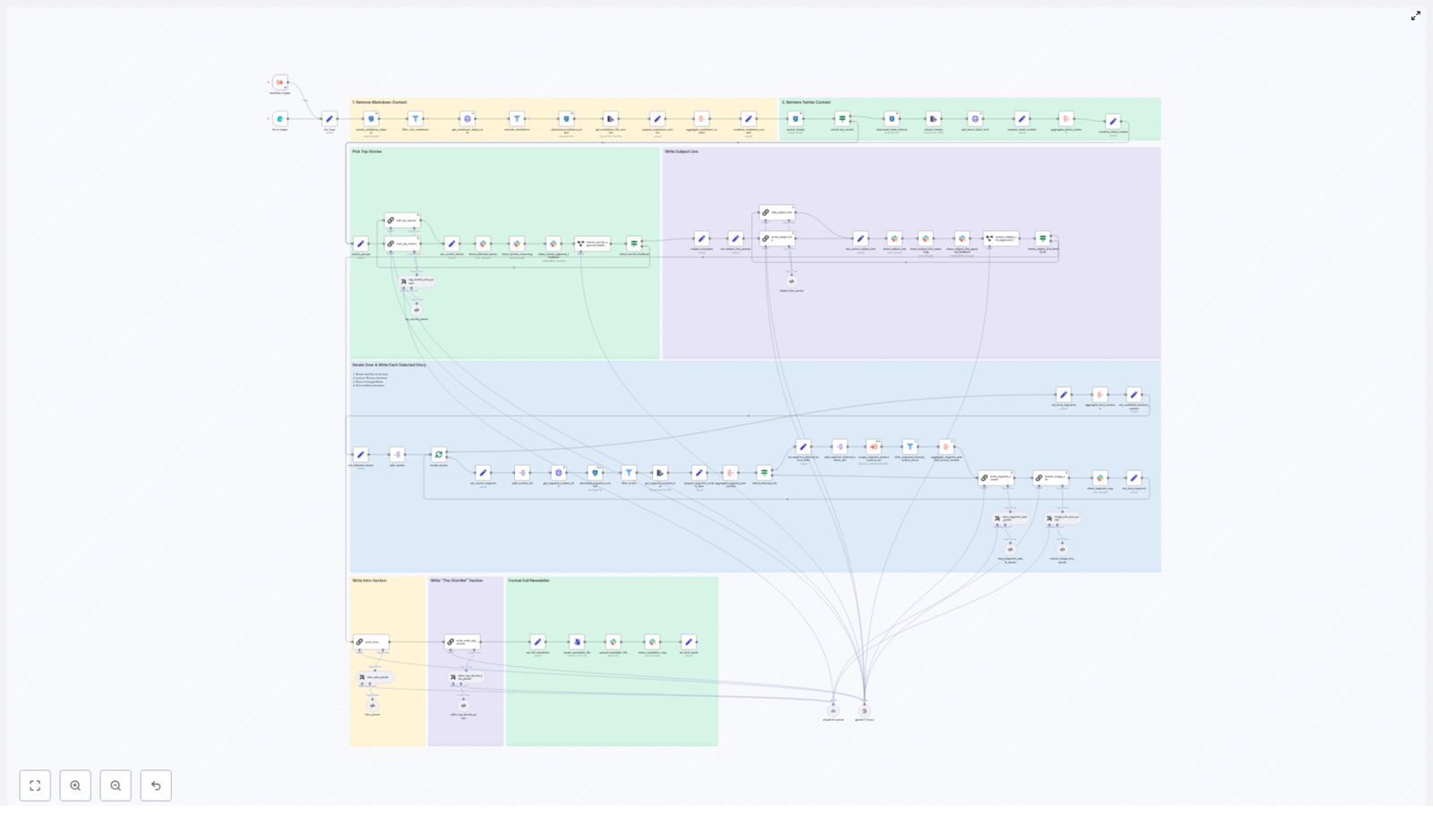
The workflow can be understood as a series of logical stages, each implemented with one or more n8n nodes:

  1. Input acquisition
    • Searches an S3-compatible bucket for markdown content
    • Loads tweet/X JSON objects and optional additional sources
  2. Preprocessing and filtering
    • Filters by file type and date prefix
    • Extracts plain text from markdown and tweet JSON
    • Removes previous newsletter editions from the candidate set
  3. Story selection (LLM)
    • Aggregates normalized content into a single payload
    • Invokes an LLM node with a structured-output prompt
    • Returns a JSON object containing reasoning and a curated story list
  4. Segment generation (LLM)
    • Iterates over selected stories
    • Loads all associated identifiers and source content
    • Optionally retrieves external URLs for deeper context
    • Generates structured newsletter sections: “The Recap”, “Unpacked” bullets, and “Bottom line”
  5. Subject line and pre-header generation (LLM)
    • Creates multiple subject line candidates
    • Generates pre-header text variants within strict length limits
  6. Assembly and Slack approval
    • Combines segments into a full markdown newsletter
    • Posts the draft to Slack with interactive approval options
    • Captures editor feedback and applies requested edits via LLM
  7. Finalization and storage
    • Converts the final version to a markdown file
    • Uploads to S3 and Slack or a CMS
    • Provides a permalink in Slack for downstream distribution

Each stage is encapsulated in specific nodes or sub-flows, which makes it easier to test, monitor, and extend the pipeline.

3. Node-by-node breakdown

3.1 Input sources

The workflow is designed to ingest multiple content types so that it can grow with your editorial strategy.

  • Markdown content in S3-compatible storage
    • Typical usage: long-form articles, blog posts, product or feature announcements, and internal or external writeups.
    • Implementation: an S3-compatible node searches for objects whose keys match a configurable date prefix. This keeps each run scoped to the current edition window.
  • Tweet/X JSON captures
    • Typical usage: social-first breaking news, short commentary, or timely reactions.
    • Implementation: JSON ingestion nodes load tweet exports, which are then transformed into readable text segments.
  • Optional sources
    • RSS feeds
    • Web-scraped pages
    • Curated Google Drive documents

    These are not required by the template but can be added as additional input nodes that feed into the same preprocessing pipeline.

3.2 Preprocessing and filtering

Before any LLM call, the workflow standardizes and filters data to reduce noise and cost.

  • Date-scoped search
    • The S3 search node uses a date prefix (for example, 2025-11-29-*) to only retrieve files relevant to the current edition.
  • File type filtering
    • A filter node enforces strict inclusion rules, typically allowing only .md objects for content ingestion.
    • Previous newsletter files are excluded explicitly to avoid re-summarizing past editions.
  • Text extraction
    • Markdown files are converted to raw text while preserving identifiers and URLs as metadata.
    • Tweet JSON records are parsed into readable content blocks, for example, tweet text plus author and timestamp.

At the end of this stage, each content item is represented as a normalized object that includes:

  • Plain text body
  • Source type (markdown, tweet, etc.)
  • Unique identifier
  • Associated URLs or external references

3.3 Story selection with LLM assistance

The next stage uses an LLM node to help identify the most relevant stories from the normalized content set.

  • Input payload
    • All candidate content items are aggregated into a single payload to keep context together and minimize token usage.
  • LLM node configuration
    • Uses a chain-of-thought prompting style to encourage explicit reasoning.
    • Employs a fixed JSON schema as the response format so downstream nodes can parse the output deterministically.
  • Structured output schema

    The LLM returns a JSON object that typically includes:

    • A chain-of-thought explanation describing how items were evaluated and why certain stories were selected or excluded.
    • A numbered list of selected stories, each containing:
      • Title
      • Short summary
      • Identifiers that map back to the source content
      • External links where applicable

This separation of reasoning and selection output improves transparency and allows the reasoning portion to be sent directly to Slack for editorial review without affecting the structured data used in subsequent nodes.

3.4 Deep-dive segment generation

Once the top stories are selected, the workflow generates fully structured newsletter segments for each story.

  • Source aggregation per story
    • For each selected story, the workflow resolves all associated identifiers to their underlying content.
    • Related markdown text, tweet threads, and any linked external resources can be combined into a single context block.
    • If configured, a web-scraping step can fetch external URLs to add more depth.
  • LLM segment generation
    • An LLM node receives the aggregated content and a prescriptive prompt that specifies:
      • Exact section structure
      • Formatting rules
      • Maximum number of links
    • The output is a tightly structured newsletter section with:
      • The Recap – a concise overview of the story
      • Unpacked – a bullet list explaining context, implications, and key details
      • Bottom line – a two-sentence conclusion summarizing why the story matters

By keeping prompts explicit about format, bullet usage, and link rules, the resulting content is consistent and email-ready, which reduces manual editing effort.

3.5 Subject line and pre-header generation

Subject lines and pre-headers are produced via a dedicated LLM node configured for short-form copywriting.

  • Constraints and variants
    • Subject lines are constrained to a specific word range, typically 7 to 9 words.
    • Pre-header text is limited to roughly 15 to 20 words.
    • The node generates multiple candidate options for both subject and pre-header.
  • Reasoning output
    • The prompt can request a short explanation of why each variant might perform well.
    • These explanations and alternatives are forwarded to Slack so editors can pick the most appropriate option.

3.6 Slack-based approval and collaboration

The workflow then exposes the draft newsletter to human reviewers using Slack.

  • Draft publication
    • The combined newsletter markdown, along with candidate subject lines and pre-headers, is posted to a designated Slack channel.
    • The Slack message includes interactive elements such as “Approve” and “Request changes” buttons.
  • Feedback interpretation
    • Reviewer responses are captured as Slack events.
    • A small information-extraction LLM node interprets the feedback to determine whether:
      • The newsletter is approved as-is.
      • Specific edits or changes are requested.
  • Applying edits
    • If changes are requested, an “editor” LLM node receives:
      • The current newsletter markdown
      • The reviewer’s instructions
    • The prompt is constrained so the editor node applies only the requested transformations and preserves:
      • Identifiers
      • Source references
      • Existing URLs

This human-in-the-loop step ensures that editorial judgment is preserved while still benefiting from automation.

3.7 Finalization and storage

Once approved, the workflow finalizes the newsletter and stores it for distribution and archival.

  • Markdown conversion
    • The finalized newsletter is formatted as a markdown file, suitable for email providers or CMS ingestion.
  • Storage targets
    • The file is uploaded to:
      • An S3-compatible bucket for archival and reproducibility.
      • Slack or a publishing CMS, depending on your integration preferences.
  • Permalink sharing
    • A permalink or object URL is posted back to Slack so stakeholders can access the final version and use it for downstream distribution workflows.

4. n8n configuration notes and best practices

4.1 Node configuration tips

  • Search scope
    • Use date-prefixed search patterns in S3 or similar storage nodes to limit ingestion to the specific newsletter edition.
  • File filters
    • Keep filters strict, for example, accept only .md files for long-form content.
    • Explicitly exclude known patterns for previous newsletters to avoid duplicates.
  • Payload aggregation
    • Where possible, aggregate related content into a single item before invoking LLM nodes. This:
      • Reduces token usage
      • Improves coherence of the generated text
  • Metadata preservation
    • Attach metadata to each content block, such as:
      • Unique identifiers
      • Source names
      • External URLs
    • This allows you to trace every claim in the newsletter back to its origin.
  • Safety filters
    • Insert validation or filter nodes after LLM calls to:
      • Screen for forbidden language
      • Ensure compliance with editorial standards

4.2 Prompt design and LLM orchestration

Reliable automation depends heavily on how prompts and outputs are structured.

  • Fixed JSON schemas
    • Require LLM nodes to return fixed JSON structures for:
      • Story selection
      • Segment generation
      • Feedback interpretation
    • This enables robust parsing in downstream n8n nodes and avoids ad hoc string parsing.
  • Formatting rules
    • Prompts should explicitly define:
      • Section headings
      • Bullet styles
      • Allowed bolding or emphasis rules
    • Clear formatting instructions reduce the risk of malformed markdown.
  • Reasoning and auditability
    • For chain-of-thought or reasoning nodes, instruct the model to:
      • Enumerate which sources were used
      • Explain why certain items were included or excluded
    • This improves auditability and provides context for editorial teams reviewing Slack messages.
  • Link handling
    • Limit link density, for example, at most one link per paragraph or bullet.
    • Require URLs to be copied verbatim from the provided metadata, not invented by the model.

5. Quality control and monitoring

Even with strong prompts, you should maintain automated checks and human oversight.

  • Markdown validation
    • Use simple validation rules to detect:
      • Overly long headlines
      • Malformed links
      • Missing identifiers or required sections
  • Approval gate
    • Keep the Slack approval step as a mandatory gate.
    • Avoid automatically pushing content
Automate Notion Updates with n8n & RAG

Automate Notion Updates with n8n & RAG

Modern teams increasingly rely on Notion as a central knowledge hub, yet manual updates, summarization, and logging quickly become operational bottlenecks. This workflow template for n8n provides an end-to-end automation pattern that connects webhooks, text chunking, vector embeddings, Supabase, and a retrieval-augmented generation (RAG) agent. The result is a robust pipeline for semantic indexing, contextual processing, and auditable logging of Notion content.

This article explains the full architecture of the template, how to deploy it in n8n, and how to configure each node for production-grade use, including security and observability best practices.

Business value of automating Notion updates

For organizations using Notion as a knowledge base, project workspace, or documentation layer, automation delivers several concrete benefits:

  • Automated ingestion – Capture page content or changes from Notion or intermediary systems via webhooks, without manual copy and paste.
  • Semantic search readiness – Convert long-form content into vector embeddings that can be stored and queried for advanced retrieval use cases.
  • Context-aware processing – Use a RAG agent with memory to generate summaries, enrichment, recommendations, or change logs based on both the new content and historical context.
  • Reliable audit trails – Persist outputs to Google Sheets for compliance, reporting, and traceability.
  • Operational resilience – Surface runtime issues immediately with Slack alerts to the appropriate incident or alerts channel.

Architecture overview of the n8n workflow

The template is designed as a modular pipeline that can be adapted to different content sources and LLM providers. At a high level, the workflow executes the following sequence:

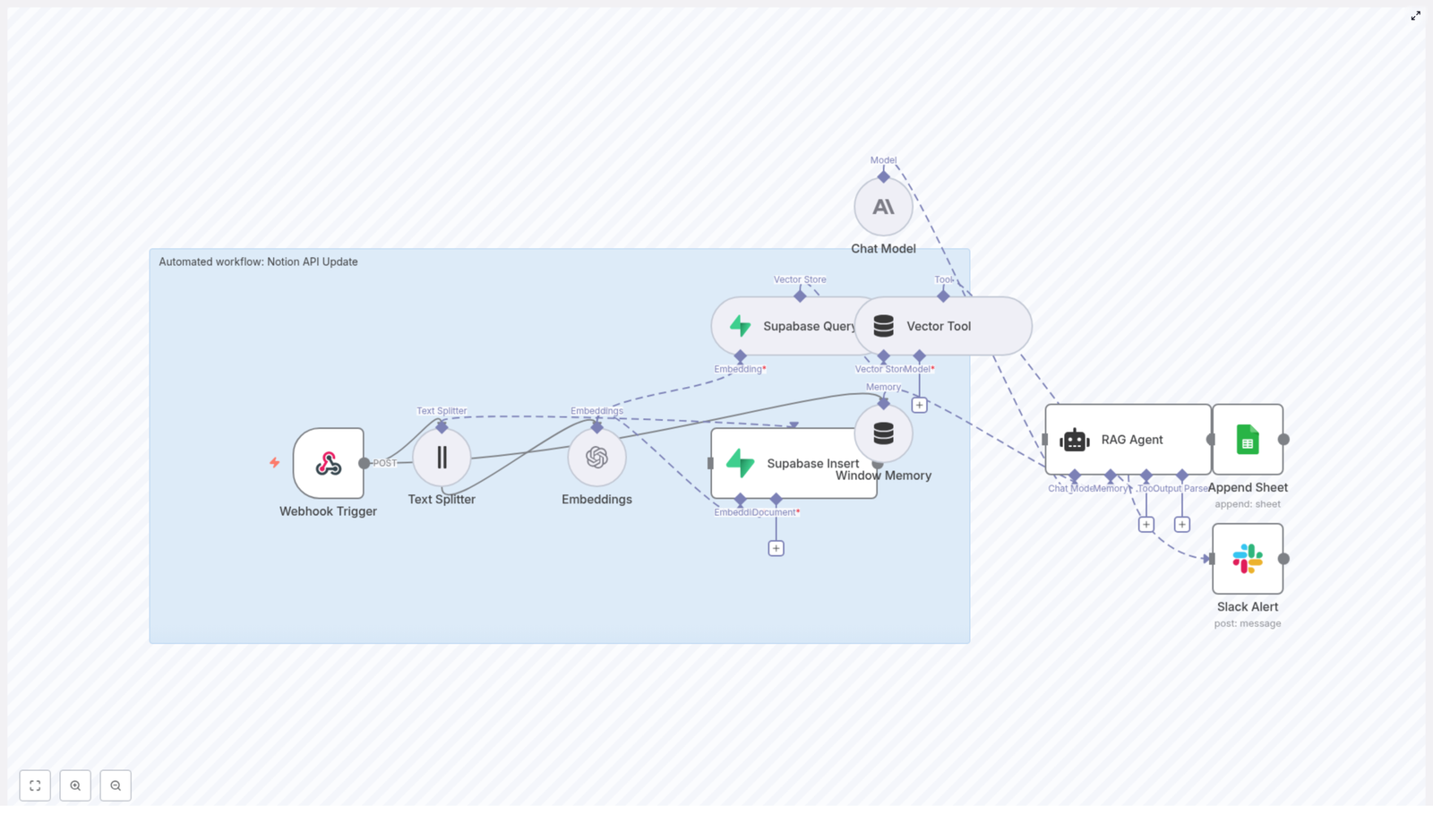
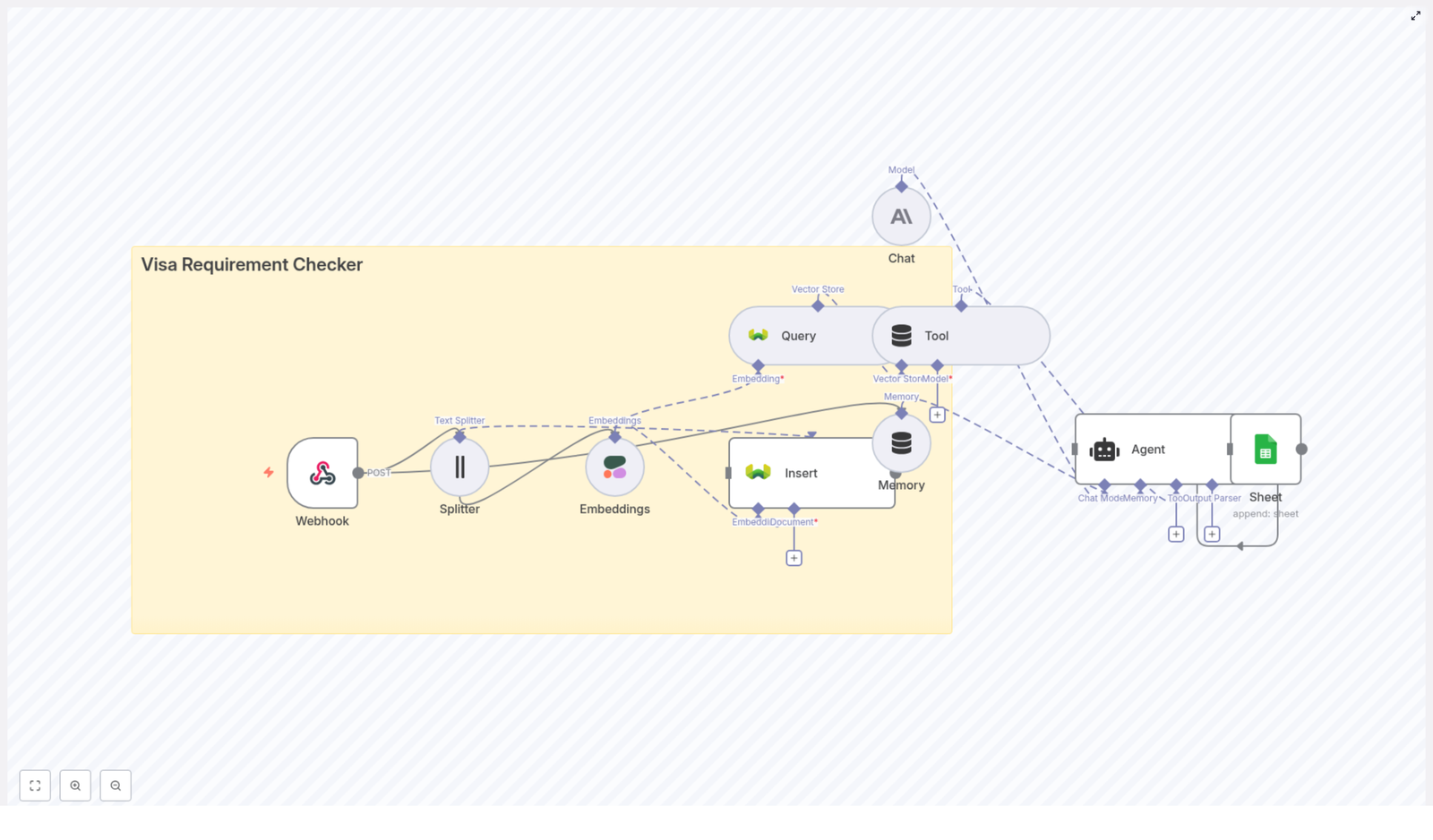
  1. Webhook Trigger receives a POST request containing Notion page data or change payloads.
  2. Text Splitter segments long text into overlapping chunks to optimize embedding and retrieval performance.
  3. Embeddings node converts each chunk into vector representations using the text-embedding-3-small model.
  4. Supabase Insert writes vectors and metadata into a Supabase-based vector index (for example, notion_api_update).
  5. Supabase Query and a Vector Tool provide semantic retrieval capabilities to the RAG layer.
  6. Window Memory maintains short-term conversational context for the agent.
  7. Chat Model (Anthropic in the template) generates responses using retrieved context and memory.
  8. RAG Agent orchestrates retrieval, memory, and generation to produce a final status or enriched output.
  9. Google Sheets Append logs the RAG result and metadata into a dedicated Log sheet.
  10. Slack Alert sends error notifications to #alerts when failures occur in the agent path.

The sections below walk through the configuration of each stage and how they work together in a production-ready Notion automation pattern.

Trigger and ingestion: configuring the webhook

1. Webhook Trigger setup

Start by creating an entry point for external systems to send Notion-related data into n8n.

  • Add a Webhook Trigger node in n8n.
  • Set the HTTP method to POST.
  • Use a path such as notion-api-update (for example /webhook/notion-api-update depending on your n8n deployment).

Configure your Notion integration or any intermediate service to POST JSON payloads to this endpoint. A typical payload might look like:

{  "page_id": "1234",  "title": "New Meeting Notes",  "content": "Long Notion page text..."
}

In subsequent nodes, you will map the content field to the text processing pipeline and use page_id and title as metadata for indexing and logging.

Preparing content for semantic indexing

2. Text chunking with Text Splitter

Long Notion pages are not ideal for direct embedding as single blocks. To optimize retrieval quality and LLM performance, the template uses a Text Splitter node.

  • Connect the Text Splitter node to the Webhook Trigger.
  • Map the incoming content field as the text input.
  • Set chunkSize to 400.
  • Set chunkOverlap to 40.

This configuration creates overlapping chunks that preserve context across boundaries. For larger, more narrative content, you can increase the chunk size. For highly granular retrieval, decrease chunk size while preserving some overlap.

3. Generating embeddings

Once the content is chunked, the next step is to convert each chunk into vector embeddings.

  • Add an Embeddings node and connect it to the Text Splitter output.
  • Select OpenAI as the provider and set the model to text-embedding-3-small.
  • Configure your OpenAI API credentials in n8n credentials management rather than hardcoding keys in the node.

The node will output a vector for each text chunk. These vectors are the basis for semantic search and retrieval in the RAG pipeline and will be persisted to Supabase in the next step.

Vector storage and retrieval with Supabase

4. Persisting vectors in Supabase

To support scalable semantic search, the template stores embeddings in a Supabase-hosted vector index.

  • Add a Supabase Insert node.
  • Configure Supabase credentials using secure n8n credentials or environment variables.
  • Specify the target index or table name, for example notion_api_update.

Along with the embedding vectors, store structured metadata that will be critical for traceability and downstream usage:

  • page_id (Notion page identifier)
  • title (Notion page title)
  • source_url or Notion URL, if available
  • timestamp of ingestion or last update

This metadata ensures that any retrieved chunk can be mapped back to the precise source content in Notion.

5. Enabling retrieval with Supabase Query and Vector Tool

For RAG workflows, retrieval quality is as important as the LLM itself. The template uses Supabase as the vector store and exposes it to the agent through:

  • A Supabase Query node to perform similarity search over the vector index.
  • A Vector Tool node that wraps the query as a tool usable by the RAG Agent.

Key configuration considerations:

  • Set a reasonable top-k value, typically in the range of 3 to 5, so the agent receives focused, relevant context instead of overwhelming noise.
  • Ensure the query uses the same embedding model and dimensionality as the stored vectors.

RAG agent, memory, and LLM configuration

6. Window Memory and Chat Model

To enable context-aware reasoning over time, the template uses Window Memory combined with a Chat Model node.

  • The Window Memory node maintains a configurable window of recent interactions or prior messages, allowing the agent to reference recent history without re-querying everything.
  • The Chat Model node is configured with an Anthropic model in the template, but you may substitute other providers if needed.

This combination allows the RAG Agent to integrate three inputs: the current webhook payload, relevant retrieved context from Supabase, and recent conversational memory.

7. Designing the RAG Agent and prompt

The RAG Agent node orchestrates retrieval, memory, and LLM generation. It uses the Vector Tool to pull relevant chunks from Supabase and then calls the Chat Model with a system prompt and user input.

A representative system prompt for this template is:

You are an assistant for Notion API Update. Process the provided data and return a concise Status describing what was done or recommended actions.

Feed the agent:

  • The raw webhook payload (for example, page ID, title, and content summary).
  • Retrieved vector context from Supabase.
  • Window Memory data where applicable.

The agent output is a concise status or enriched description that can be logged, used for monitoring, or integrated into downstream processes.

Observability and error handling

8. Logging results to Google Sheets

For auditability and reporting, the template appends each successful RAG Agent output to a Google Sheet.

  • Add a Google Sheets Append node.
  • Connect it to the success path of the RAG Agent.
  • Target a Log tab within your chosen spreadsheet.
  • Map fields such as:
    • Timestamp of processing
    • Notion page_id
    • Page title
    • The agent status text, for example {{$json["RAG Agent"].text}}

This creates an ongoing audit trail that can be used for compliance, analytics, or operational review.

9. Slack alerts for failures

To avoid silent failures, the template includes proactive error handling.

  • On the onError branch of the RAG Agent, add a Slack node.
  • Configure it to post to a dedicated channel such as #alerts.
  • Include a concise error summary, relevant identifiers (for example page_id), and optionally a link to the n8n execution log.

This pattern ensures that issues are visible to the operations or platform team as soon as they occur.

Best practices for production deployments

Chunking and embedding strategy

  • Use overlap (typically 20 to 40 tokens) to avoid cutting important sentences or paragraphs in half.
  • Adjust chunkSize based on content type. Larger chunks are suitable for narrative documents, smaller ones for FAQs or highly structured data.
  • Batch embedding requests where possible to stay within provider rate limits and reduce latency.

Metadata and traceability

  • Always store identifiers such as page_id, title, and timestamps alongside vectors.
  • Include source URLs or Notion links for quick navigation back to the original content.
  • Use consistent schemas across environments (dev, staging, prod) to simplify migration and testing.

Security, access control, and compliance

  • Store all API keys (OpenAI, Anthropic, Supabase, Google, Slack) in n8n credentials or environment secrets, not directly in nodes.
  • Use Supabase service roles carefully. Prefer:
    • Read-only keys for retrieval-only nodes.
    • Separate write-enabled roles for insert operations.
  • Enable and configure Supabase Row-Level Security (RLS) where appropriate.
  • Mask, redact, or exclude PII before sending text to third-party embedding providers when required by internal or regulatory policies.

Retention and lifecycle management

  • Implement a retention policy for old vectors if your Notion knowledge base grows rapidly.
  • Consider periodically re-indexing only current or frequently accessed content.
  • Clean up obsolete vectors when pages are archived or deleted in Notion.

Observability and monitoring

  • Use the Google Sheets log as a simple operational dashboard for processed events.
  • Monitor Slack alerts for repeated or clustered failures that may indicate configuration or provider issues.
  • Instrument additional logging within n8n (for example, using additional logging nodes) for deeper troubleshooting.

Troubleshooting common issues

Embeddings node failures

If the embeddings step fails:

  • Verify that the OpenAI API key is valid and correctly referenced in n8n credentials.
  • Confirm the model name is exactly text-embedding-3-small or your chosen alternative.
  • Check for rate limit errors and consider batching or backoff strategies.
  • Test the node with a single small text chunk to rule out malformed payloads.

Supabase insert errors

For issues writing vectors to Supabase:

  • Confirm that Supabase credentials are correct and have appropriate permissions.
  • Verify that the target table or index (for example notion_api_update) exists.
  • Check that the schema matches the insert payload, including the vector column type and dimensions.
  • Ensure network egress from your n8n environment to Supabase is allowed.

Low-quality or irrelevant RAG outputs

If the RAG Agent responses are weak or off-topic:

  • Adjust the retrieval top-k value to balance relevance and context volume.
  • Increase chunk overlap in the Text Splitter to preserve more context across chunks.
  • Refine the system prompt to give clearer, more specific instructions about the desired output format and behavior.
  • Verify that the correct and up-to-date vectors are present in Supabase by running manual similarity queries.

Typical use cases for this template

  • Automated summarization and digests – Generate concise summaries of new or updated Notion pages and log them for daily or weekly digests.
  • Knowledge base hygiene – Detect and flag outdated or potentially duplicate content based on semantic similarity.
  • Support and triage workflows – Ingest tickets or requests, summarize them, and attach the most relevant Notion documentation snippets.
  • Compliance and audit logging – Maintain a structured log of all automated Notion processing actions in Google Sheets for later review.

Security and compliance checklist

  • Use n8n vault or credentials management for all secrets, avoiding plain text keys in node parameters.
  • Separate read and write roles for Supabase access, and avoid over-privileged service keys.
  • Apply RLS policies where needed to constrain data access.
  • Redact or anonymize sensitive content before embedding when mandated by internal policies or regulatory frameworks.

Conclusion and next steps

This n8n workflow template offers a comprehensive pattern for automating Notion updates with semantic indexing and RAG-based processing. It is intentionally modular so that you can:

  • Swap embedding or chat providers without redesigning the entire pipeline.
  • Adjust chunking, retrieval parameters, and prompts to match your domain and quality requirements.
  • Add additional outputs such as email notifications, ticketing system integration, or data warehouse ingestion.

To get started, import the template into your n8n instance, configure your OpenAI/Anthropic, Supabase, Google Sheets, and Slack credentials, then send a test POST request to the webhook. From there, iterate on prompts, chunking, and retrieval parameters to align the workflow with your team’s specific Notion automation needs.

If you want the exact workflow definition, use the n8n import feature and paste the template JSON to begin customizing immediately.

Automated Job Application Parser with n8n & RAG

Automated Job Application Parser with n8n & RAG

If you spend a good chunk of your day opening resumes, skimming cover letters, and copy-pasting details into spreadsheets, this n8n workflow template is going to feel like a breath of fresh air.

In this guide, we will walk through a ready-to-use automated job application parser built with n8n, OpenAI embeddings, Pinecone vector search, and a RAG (Retrieval-Augmented Generation) agent. You will see how it:

  • Receives job applications via a webhook
  • Splits and embeds resume and cover letter text
  • Stores everything in a Pinecone vector index for semantic search
  • Uses a RAG agent to extract structured candidate data
  • Logs results to Google Sheets and pings Slack if something breaks

Think of it as your tireless assistant that never forgets a detail and always keeps your candidate log up to date.

What this n8n template actually does

At a high level, the automated job application parser takes raw applicant data and turns it into clean, structured information you can search, filter, and build workflows on top of.

Here is what happens behind the scenes when a new application comes in:

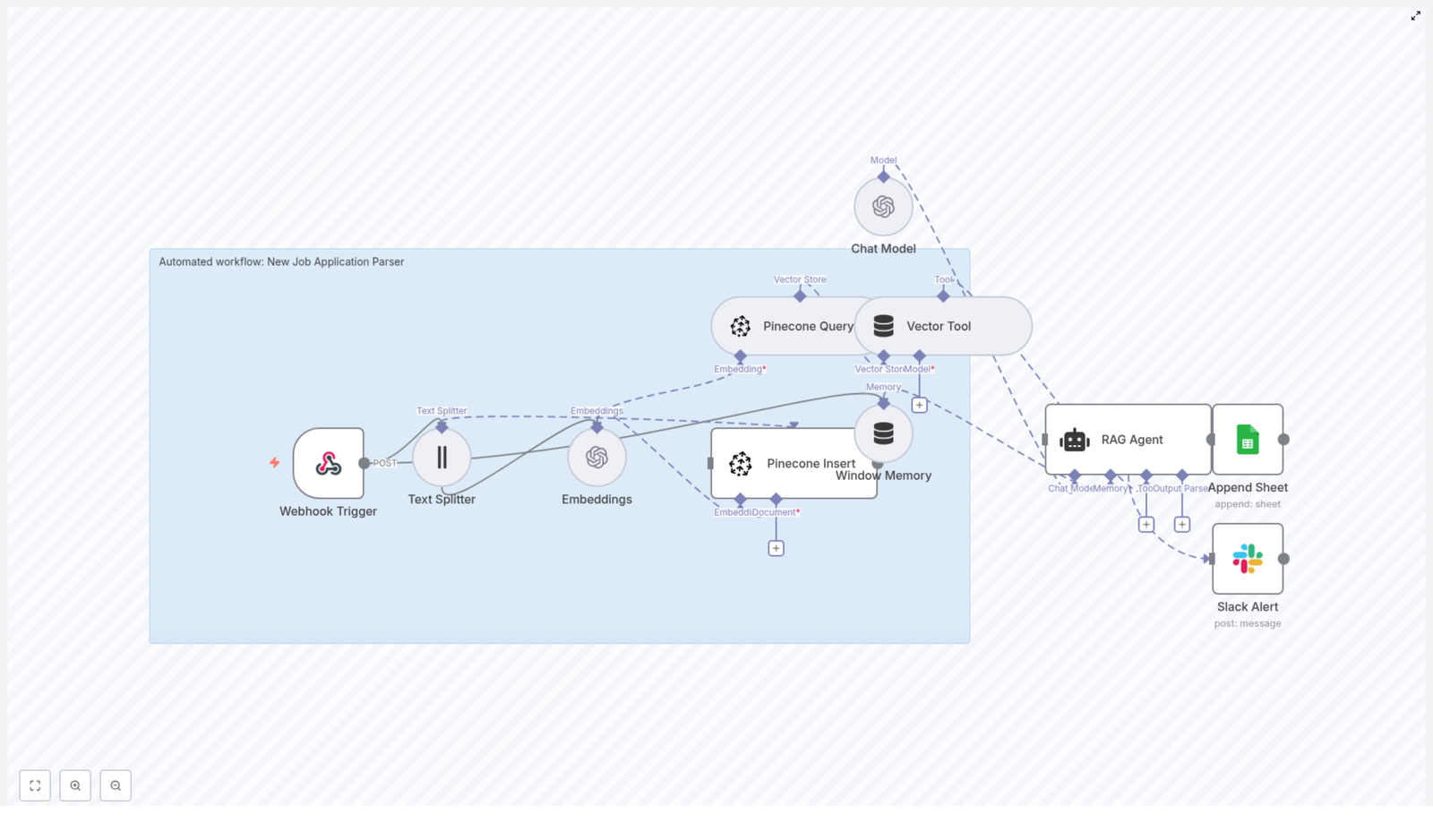
  1. A webhook in n8n receives a POST request with the applicant details.
  2. Resume and cover letter text are split into smaller chunks for better processing.
  3. Each chunk is turned into an embedding using OpenAI.
  4. The embeddings are stored in a Pinecone index named new_job_application_parser.
  5. When needed, the workflow queries Pinecone for relevant chunks.
  6. A RAG agent, powered by an OpenAI chat model, uses those chunks to extract key fields like name, email, skills, and experience.
  7. The parsed result is appended to a Google Sheet called Log.
  8. If anything fails, a Slack alert lets your team know.

So instead of manually parsing every application, you get a repeatable, traceable flow that does the heavy lifting for you.

Why use an automated job application parser?

Recruiting teams often juggle hundreds of applications across different roles and sources. It is easy for details to slip through the cracks, or for your team to get buried in manual tasks.

Automating the parsing and indexing of job applications gives you:

  • Faster screening – Quickly scan structured fields instead of reading every line.
  • Semantic search – Search across resumes and cover letters by meaning, not just keywords.
  • Consistent logging – Every application is logged in the same format in Google Sheets.
  • Traceability – Vectors in Pinecone keep a link back to the original text and metadata.
  • Easy automation – Parsed data can trigger downstream workflows like interview scheduling or tagging.

If you have ever thought, “There has to be a better way to manage this flood of resumes,” this workflow is exactly that.

When this template is a good fit

This n8n workflow template is especially useful if you:

  • Receive applications from multiple sources (job boards, referrals, forms, ATS exports).
  • Want to centralize candidate data in one place, like a Google Sheet or ATS.
  • Care about semantic search, for example, “find candidates with strong Python and data science experience.”
  • Need a flexible foundation you can extend with your own automations.

If you are starting from scratch with automation, this template is a solid base you can customize as your hiring process grows more sophisticated.

Architecture overview: how the pieces fit together

Let us break down the main components of the template so you know what each part is doing:

  • Webhook Trigger Accepts incoming POST requests at a path like new-job-application-parser. The payload includes the applicant’s name, email, resume text, cover letter, and optional metadata like job ID or source.
  • Text Splitter Splits long documents into smaller chunks to make embeddings more reliable. In this template, the splitter uses:
    • chunkSize = 400
    • chunkOverlap = 40

    This helps preserve context across chunks so important details are not cut off.

  • Embeddings Uses OpenAI’s text-embedding-3-small model to generate vector embeddings for each chunk of text.
  • Pinecone Insert Stores the embeddings in a Pinecone index called new_job_application_parser. Metadata like applicant ID, original field (resume or cover letter), and chunk ID are stored with each vector.
  • Pinecone Query + Vector Tool When the agent needs context, this part queries Pinecone for similar chunks and wraps the results in a format that the RAG agent can consume.
  • Window Memory Keeps a short memory buffer so the agent can handle multi-step reasoning or follow-up questions if you extend the workflow later.
  • Chat Model An OpenAI chat model that the agent uses for reasoning and extraction based on the retrieved context.
  • RAG Agent Combines the chat model, memory, and retrieved vectors to extract structured fields like:
    • Name
    • Email
    • Top skills
    • Total years of experience
    • A short summary

    It also produces a status message describing the parsing outcome.

  • Append Sheet Writes the parsed result into a Google Sheet, in a tab named Log, using the Append Sheet node.
  • Slack Alert If the agent or any connected node errors, a Slack notification is sent so your team can fix the issue quickly.

What you need to configure first

Before you hit “execute” in n8n, make sure you have your credentials and identifiers ready. You can store these as n8n credentials or environment variables:

  • OPENAI_API – Your OpenAI API key for embeddings and the chat model.
  • PINECONE_API – Pinecone API key and environment.
  • SHEETS_API – Google Sheets OAuth2 credential for writing to your spreadsheet.
  • SLACK_API – Slack webhook or OAuth token for sending alerts.
  • Pinecone index name: new_job_application_parser
  • Google Sheet name: Log (and the document ID configured in the Append Sheet node).

Once those are set, you are ready to walk through the workflow step by step.

Step-by-step: how the workflow runs

1. Receive the application via webhook

The workflow starts with a Webhook Trigger in n8n. You expose a POST endpoint with a path such as new-job-application-parser.

A typical payload might look like this:

{  "applicant": {  "name": "Jane Doe",  "email": "jane.doe@example.com",  "resumeText": "...full resume text...",  "coverLetter": "...cover letter text...",  "metadata": { "jobId": "1234", "source": "LinkedIn" }  }
}

You can adapt this schema to your own system, but keeping a consistent structure makes it easier to maintain and extend.

2. Split long text into chunks

Resumes and cover letters can be quite long. To avoid feeding huge blocks of text into the embeddings model, the Text Splitter node breaks them into smaller pieces.

The template uses:

  • chunkSize = 400 characters
  • chunkOverlap = 40 characters

This overlap helps preserve entities that might be split across boundaries, like multi-word skills or sentences that carry important context.

3. Create embeddings and store them in Pinecone

Next, each chunk goes through the Embeddings node. The template uses OpenAI’s text-embedding-3-small model, which is cost-efficient and works well for this type of semantic search use case.

After embeddings are generated, the Pinecone Insert node writes them into the new_job_application_parser index. Alongside each vector, you store metadata, for example:

  • Applicant ID
  • Which field it came from (resumeText or coverLetter)
  • Chunk ID or position

This metadata is important because when you retrieve similar chunks later, you will want to know exactly where they came from.

4. Retrieve relevant chunks with Pinecone

When it is time to actually parse and summarize the application, the workflow calls Pinecone again, this time to query for relevant chunks.

The Pinecone Query node searches the index, then the Vector Tool packages the results into a format that is easy for the RAG agent to consume as context. This is what lets the agent “see” the right parts of the resume and cover letter when extracting structured information.

5. Use the RAG agent and memory for structured extraction

Now comes the fun part. The RAG agent uses:

  • The retrieved chunks from Pinecone
  • A window of memory (if you extend the workflow into a multi-turn conversation)
  • The OpenAI chat model

You configure a system message to set its role, such as:

“You are an assistant for New Job Application Parser”

Based on the context you provide, the agent extracts structured fields like name, email, top skills, total years of experience, and a one-sentence summary. It also returns a short status message that you can log or display elsewhere.

6. Append parsed results to Google Sheets

Once the agent returns its structured output, the Append Sheet node writes everything into a Google Sheet. In this template, the sheet is named Log.

The “Status” column, for example, is mapped like this:

={{$json["RAG Agent"].text}}

You can extend the mapping to include other fields the agent extracts, such as:

  • Name
  • Email
  • Skills
  • Years of experience
  • Job ID from the metadata

This turns your Google Sheet into a living log of all parsed candidates that you can filter, sort, or connect to other tools.

7. Handle errors with Slack alerts

Things occasionally go wrong: an API key expires, a payload is malformed, or a node fails. To avoid silent failures, the workflow wires the RAG Agent’s onError connection to a Slack node.

When an error occurs, a Slack alert is sent to your chosen channel with the error message, so your team can investigate and fix the issue before it affects too many applications.

Sample RAG agent prompt template

The quality of your results depends a lot on how you prompt the agent. Here is a simple but effective template you can use or adapt:

System: You are an assistant for New Job Application Parser.
User: Using the context chunks below, extract the applicant's name, email, top 5 skills, total years of experience, and a one-sentence summary. Output valid JSON only.
Context: {{retrieved_chunks}}

Expected JSON:
{  "name": "",  "email": "",  "skills": ["", "", ""],  "years_experience": 0,  "summary": ""
}

You can tweak this to match your hiring taxonomy, add more fields, or tighten the instructions if you notice malformed outputs.

Best practices for a reliable job application parser

To keep your n8n workflow stable, efficient, and trustworthy, keep these tips in mind:

  • Use chunk overlap A bit of overlap between chunks helps preserve entities that might be split otherwise.
  • Store provenance metadata Include fields like applicantId and the source field name with each vector. This makes it easy to reconstruct context later.
  • Control costs Rate limit embedding calls and batch inserts where possible. This keeps OpenAI and Pinecone usage under control.
  • Validate JSON outputs Before writing to Sheets, validate the agent’s JSON against a schema or use an intermediate validation node to catch malformed data.
  • Secure your credentials Rotate API keys periodically and restrict access to Pinecone and Google Sheets so only the workflow’s service account can use them.

Costs, scaling, and performance

As you scale up the number of applications, it helps to know where your costs come from and how to optimize.

Costs are mainly from:

  • OpenAI – Embedding and chat model usage.
  • Pinecone – Vector storage and query operations.

To keep things performant and cost-effective:

  • Batch embedding requests when the API and your workload allow it.
  • Use smaller embedding models like text-embedding-3-small if they meet your quality needs.
  • Prune old vectors or compress metadata if the index size grows very large.
  • Scale n8n horizontally with multiple workers and use a persistent database for state when you reach higher volumes.

Troubleshooting checklist

If something is not working quite right, here is a quick checklist to run through:

  • No vectors showing up in Pinecone? Check that the Pinecone Insert node actually executed and that the index name new_job_application_parser exists and matches exactly.
  • Agent output is malformed or not valid JSON? Strengthen the system message and make the “return JSON only” instruction more explicit. You can also add a validation node to clean up or reject bad outputs.
  • Webhook not receiving payloads? Confirm that your n8n instance is publicly accessible. For local development, use a tunneling service like ngrok to expose the webhook URL.
  • Running into rate limit errors? Implement retry and backoff logic in n8n, or throttle incoming requests so you stay within API rate limits.

Testing and validating your setup

Before you roll this out to your whole team, it is worth doing a bit of hands-on testing.

  • Send a few sample application payloads through the webhook.
  • Inspect each node’s output in n8n to confirm data is flowing as expected.
  • Query Pinecone manually with a search phrase and check that the returned chunks match the content you expect.
  • Review the Google Sheet entries to confirm fields are mapped correctly and the JSON is parsed as intended.

Ideas for next steps and extensions

Once the core parser is working, you can build some nice extras on top of it. For example, you could:

<

Backup n8n Workflows to Gitea (Automated Guide)

Reliable backups are a critical part of any automation strategy. For n8n users, treating workflows as versioned, auditable assets is essential for resilience, disaster recovery, and team collaboration. This guide explains a production-ready n8n workflow template that automatically exports all workflows and commits them to a Gitea Git repository. You will learn how the template operates, how to configure Gitea authentication, and how to apply automation best practices for secure, incremental backups.

Why store n8n workflows in Gitea?

Persisting workflows only in the n8n database introduces risk and limits collaboration. By backing up n8n workflows to a Git repository such as Gitea, you gain the benefits of modern software lifecycle management for your automations.

Key advantages of using Gitea for n8n workflow backups include:

  • Full version history and diffs for every workflow change
  • Rollback capability through Git commits and branches
  • Centralized, access-controlled storage for teams and service accounts
  • Integration with CI/CD, code review, and governance workflows
  • Automated, scheduled backups that reduce manual export and import tasks

Architecture of the n8n-to-Gitea backup workflow

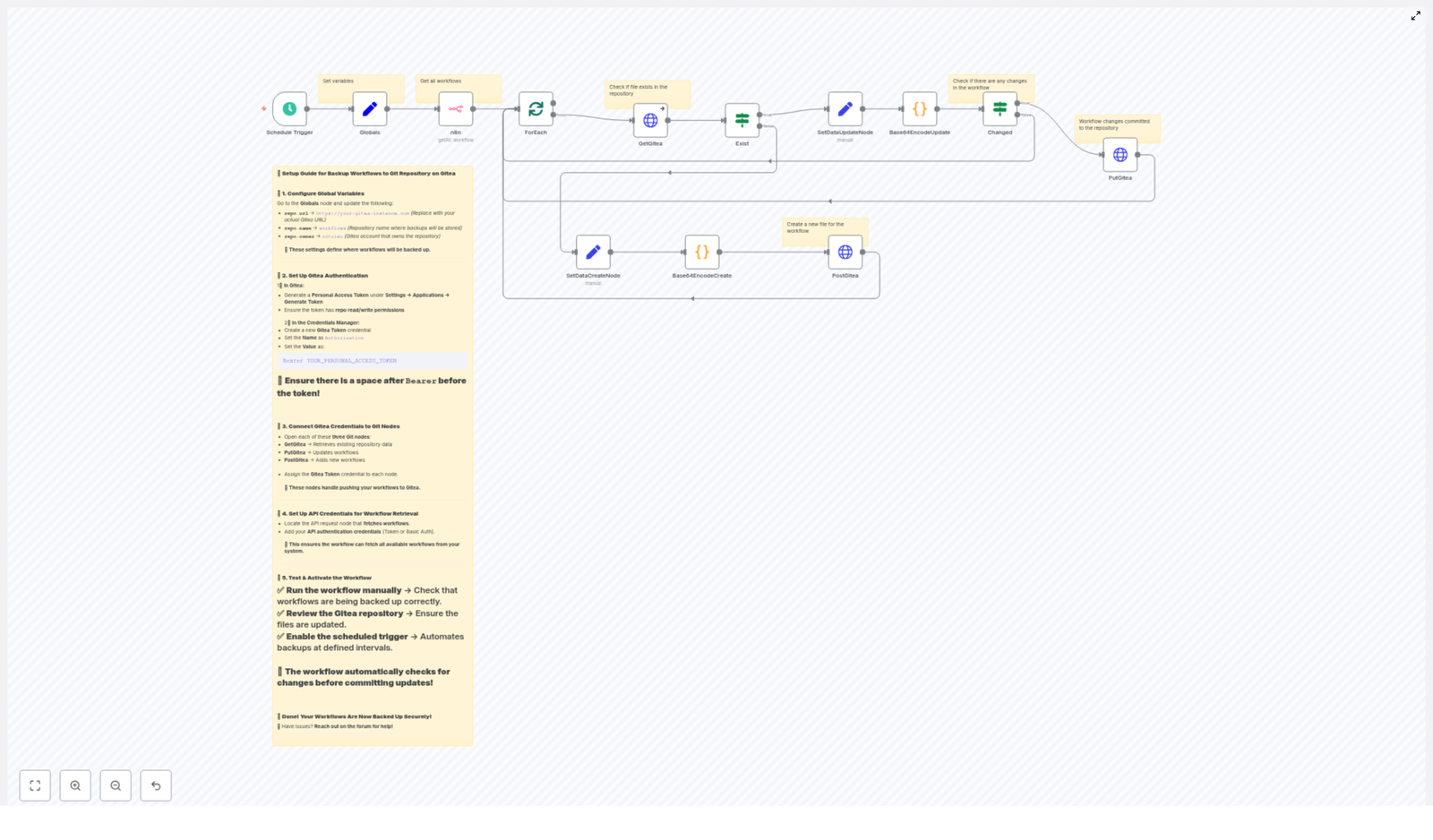
The provided n8n template implements a scheduled backup pipeline that synchronizes your n8n workflows with a Gitea repository. At a high level, the workflow:

  • Runs on a defined schedule via a trigger
  • Retrieves all workflows from the n8n instance
  • Iterates over each workflow individually
  • Checks whether a corresponding JSON file exists in Gitea
  • Creates the file if it does not exist, or updates it only when content has changed

File contents are pretty-printed JSON, then base64 encoded to comply with the Gitea Content API. To avoid unnecessary commits, the workflow compares content and uses the file SHA from Gitea to ensure safe, conditional updates.

Core components and n8n nodes

The workflow is built from a set of reusable, clearly scoped nodes. Understanding each node will help you customize or extend the template for your environment.

1. Schedule Trigger – controlling backup frequency

The Schedule Trigger node initiates the backup at regular intervals, for example every 45 minutes. You can align this interval with your operational policies, such as:

  • Frequent backups for rapidly changing development environments
  • Less frequent backups for stable production instances

Adjust the cron or interval configuration directly in the Schedule Trigger node to match your backup strategy.

2. Globals (Set) – centralized repository configuration

The Globals (Set) node acts as a configuration hub. It stores repository-related metadata that is reused across the workflow:

  • repo.url – base URL of your Gitea instance
  • repo.name – repository name (for example, workflows)
  • repo.owner – owner of the repository (user or organization)

Keeping these values in a single node simplifies maintenance and makes it easier to migrate between environments or repositories.

3. n8n API request – retrieving workflows

A dedicated n8n API request node fetches the list of workflows from your n8n instance. This node must be configured with valid API credentials, such as:

  • An n8n API token
  • Basic authentication credentials

Ensure that the credentials have sufficient permissions to read all workflows that you intend to back up. The node output is then used as the input for the iteration logic.

4. ForEach (Split In Batches) – iterating through workflows

The ForEach (Split In Batches) node processes each workflow individually. For each item in the list of workflows, the flow:

  • Builds the target file name in Gitea, typically <workflow-name>.json
  • Checks whether the file already exists in the repository
  • Prepares the workflow JSON for storage
  • Either creates a new file or updates an existing one

This pattern provides clear isolation per workflow and simplifies debugging, since each iteration represents a single workflow backup operation.

5. GetGitea (HTTP Request) – detecting existing files

The GetGitea node is an HTTP Request node configured to call the Gitea Content API. It attempts to retrieve the file that corresponds to the current workflow. Behavior:

  • If the file exists, the node returns the file metadata and content, including the SHA
  • If the file does not exist, Gitea returns a 404 response

This node uses a Personal Access Token via HTTP Header authentication so that all requests are properly authorized.

6. Exist (If) – branching on presence in the repository

The Exist (If) node inspects the result of the GetGitea call and branches the logic:

  • File missing (404) – route to the branch that creates a new file in Gitea
  • File present – route to the branch that compares contents and updates the file only when necessary

This conditional split ensures that the workflow handles initial backup and subsequent updates in a controlled manner.

7. Base64EncodeCreate / Base64EncodeUpdate (Code) – preparing content

Two Code nodes, typically named Base64EncodeCreate and Base64EncodeUpdate, handle content preparation:

  • Convert the workflow object into a pretty-printed JSON string
  • Encode the JSON string as base64

The Gitea Content API requires file content to be base64 encoded for both create and update operations. Pretty-printing ensures that the stored JSON is human-readable, which improves code review and troubleshooting.

8. Changed (If) – avoiding unnecessary commits

The Changed (If) node compares the newly encoded workflow content with the content currently stored in Gitea. If the base64 payloads differ, the workflow proceeds to update the file. If they are identical, the update is skipped.

This approach prevents noisy commit histories and reduces load on the Git server, resulting in a clean and meaningful version history.

9. PostGitea and PutGitea (HTTP Request) – creating and updating files

The workflow uses two HTTP Request nodes to write data to Gitea:

  • PostGitea – creates a new .json file in the repository when no file exists for the workflow
  • PutGitea – updates an existing file, including passing the file SHA returned from GetGitea to perform a safe, concurrent-aware update

Both nodes use the same HTTP Header Auth credential and send the base64-encoded content along with commit metadata (such as commit message and branch, depending on your configuration).

Configuring Gitea authentication

Secure integration with Gitea is handled via Personal Access Tokens and HTTP Header authentication in n8n. Follow these steps:

  1. In Gitea, create a Personal Access Token with repository read and write permissions:
    Settings → Applications → Generate Token.
  2. In n8n, create a new credential of type HTTP Header Auth and define a header:
    Authorization: Bearer YOUR_PERSONAL_ACCESS_TOKEN
    Ensure there is a space between Bearer and the token value.
  3. Attach this credential to the GetGitea, PostGitea, and PutGitea nodes so all Gitea API calls use the same authentication mechanism.

Deployment workflow and validation checklist

Before enabling the schedule in a production environment, validate the full backup pipeline end to end. A recommended checklist:

  • Run the workflow manually and confirm that the n8n API node successfully retrieves workflows.
  • Verify that GetGitea returns either the existing file content or a 404 when the file does not exist.
  • Check that PostGitea correctly creates new JSON files in the target repository by inspecting the Gitea web UI.
  • Modify one of your n8n workflows, then run the backup workflow again and verify that PutGitea updates the corresponding file only when the content has changed.
  • Review the Gitea commit history to confirm that commits have clear timestamps, meaningful changes, and no redundant updates.

Security considerations and best practices

When automating backups of production workflows, adhere to common security and governance practices:

  • Store Personal Access Tokens exclusively in n8n credentials, not in plain text within workflow variables or code nodes.
  • Restrict token scope to the minimum required permissions, ideally read and write access only to the specific backup repository.
  • Use a dedicated service account as repo.owner for automated backups instead of a personal user account, to improve traceability and reduce risk.
  • Adopt a branch strategy that aligns with your CI/CD and review processes, for example using a protected main branch and committing backups to a dedicated branch.
  • Keep workflow JSON human-readable via pretty-printing, but avoid storing secrets directly in workflows. If secrets are unavoidable, consider additional obfuscation or encryption strategies.

Troubleshooting common issues

Frequent error responses

  • 401 or 403 from Gitea – typically caused by invalid or missing credentials, or insufficient token scope. Recheck the Authorization header and confirm the token has the correct permissions.
  • 404 from GetGitea – expected behavior when a file does not yet exist. If unexpected, validate the repository path, branch, and constructed filename.
  • SHA mismatch on update – occurs when the SHA provided to PutGitea does not match the current file version in Gitea. Ensure the workflow uses the latest SHA returned from GetGitea for each update.

Debugging techniques

For accurate diagnosis, use n8n’s execution data and node outputs:

  • Enable full output on relevant nodes and execute the workflow manually.
  • Start with a small subset of workflows or a test repository to simplify inspection.
  • Inspect the base64-encoded payload and decode it to verify that it matches the expected pretty-printed JSON before committing to Gitea.

Extending and customizing the template

The template provides a robust foundation, but many teams extend it to meet specific compliance, governance, or resilience requirements. Common enhancements include:

  • Organizing backups into timestamped directories or including metadata files that record author, export time, and environment details.
  • Mirroring backups to multiple Git providers, such as GitHub or GitLab, for additional redundancy.
  • Integrating a diff or comparison step that generates a human-readable summary and includes it in commit messages or notifications.
  • Encrypting sensitive fields before storing workflows in Git and managing encryption keys outside of n8n.

Conclusion and recommended next steps

Automating n8n workflow backups to a Gitea repository transforms your automations into fully versioned, auditable assets. With the described template, a properly scoped token, and a clear schedule, you gain reliable, incremental backups that only commit when workflows change.

To implement this in your environment:

  • Import the template into your n8n instance.
  • Configure the Globals node with repo.url, repo.name, and repo.owner.
  • Create the Gitea Personal Access Token and set up the HTTP Header Auth credential.
  • Attach the credential to the Gitea-related nodes and run the workflow manually to validate behavior.
  • Once validated, enable the Schedule Trigger to activate automated backups.

If you require more advanced customization, consult the Gitea API documentation for additional repository operations or engage with the n8n community forum for patterns and best practices used by other automation teams.

Call to action: Import the template today, put your n8n workflows under version control, and subscribe for more expert n8n automation patterns and templates.

n8n Developer Agent: Build Workflows Automatically

n8n Developer Agent: How One Developer Started Building Workflows Automatically

By the time Alex opened their laptop that Monday morning, they were already behind.

As the only automation-focused developer in a fast-growing team, Alex was drowning in requests. Marketing wanted a lead-enrichment workflow. HR needed a new onboarding flow. Product asked for an alerting pipeline for their latest service. Every request started the same way: a vague natural language description in a chat thread, followed by hours of manual workflow building in n8n.

Alex loved n8n, but hated repeating the same boilerplate over and over. They kept thinking: “If the team can describe what they want in plain language, why can’t something just turn that into a real workflow?”

That question is what led Alex to discover the n8n Developer Agent template, a pre-built multi-agent system that promised to do exactly that: listen to natural language requests and turn them into fully importable n8n workflows, created automatically via the n8n API.

The Problem: Manual Workflow Building At Scale

Alex’s situation was familiar to many automation developers and technical founders:

  • Stakeholders described automations in chat, not in JSON or node configurations.
  • Alex spent hours translating those descriptions into valid n8n workflows.
  • Every new flow started with the same boilerplate nodes and patterns.
  • Programmatic workflow creation was possible via the n8n API, but wiring it up felt like one more project.

What Alex needed was a way to bridge that gap automatically. Something that could:

  • Understand natural language requests.
  • Generate complete n8n workflow JSON that followed internal standards.
  • Create and link those workflows directly in their n8n instance.
  • Stay flexible enough to swap LLM providers or tools over time.

They did not want another “AI demo.” They wanted a production-ready n8n developer agent that could build real workflows on demand.

The Discovery: A Template Built For Workflow Developers

After some searching, Alex landed on the n8n Developer Agent template. It was not just a single node or a trivial example. It was a full, opinionated architecture that combined:

  • A chat-based trigger so non-technical teammates could make requests.
  • Multiple LLM agents (OpenRouter GPT 4.1 mini by default, plus optional Claude Opus 4) for reasoning and orchestration.
  • A dedicated Developer Tool sub-workflow that produced valid n8n workflow JSON.
  • Integration with the n8n API to create workflows programmatically and return direct links.
  • Support for internal documentation, so the agent could follow Alex’s own n8n standards.

In short, it was exactly what Alex had been sketching on whiteboards for months, only already implemented as a reusable template.

Inside The n8n Developer Agent: How The Architecture Works

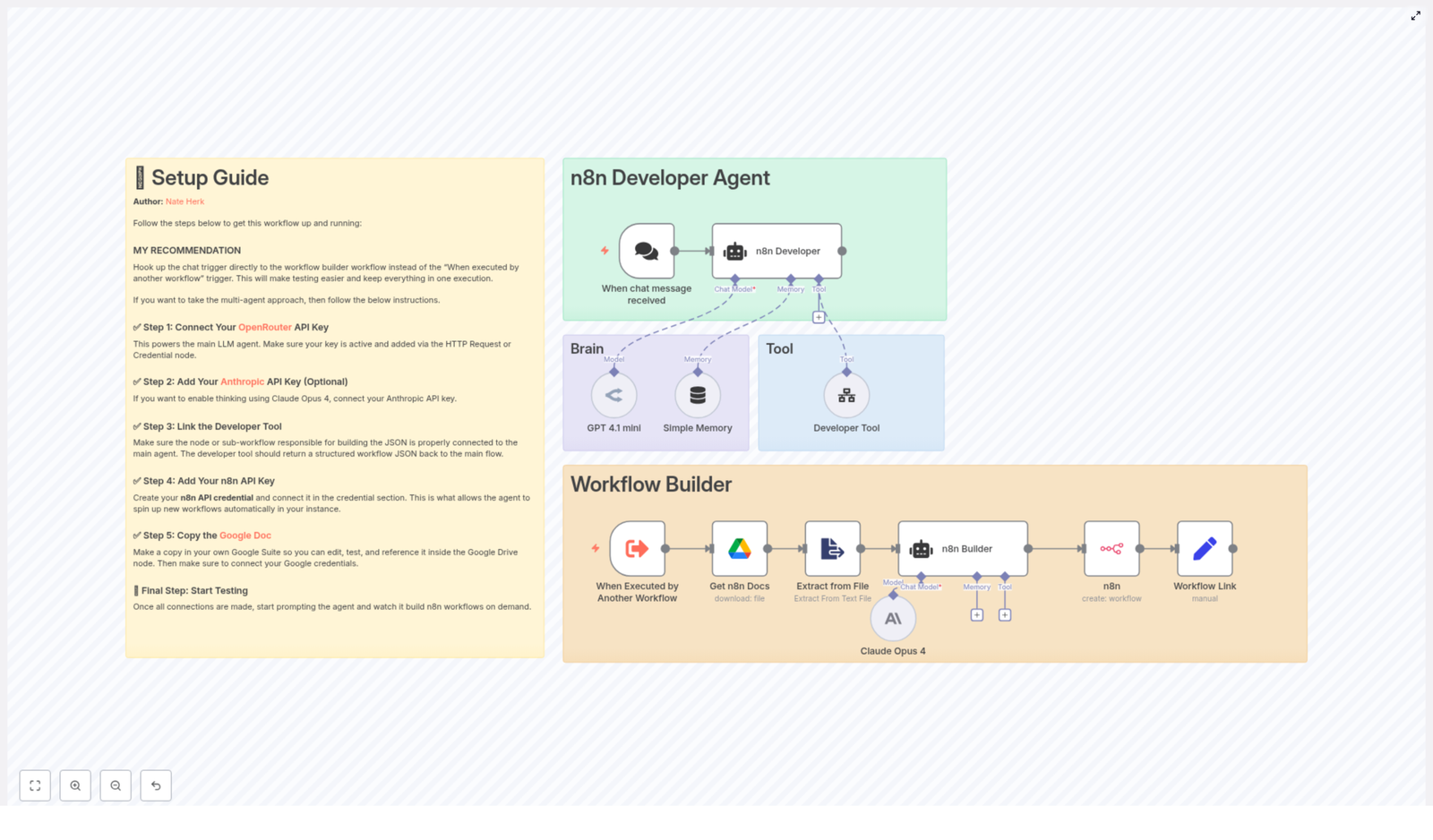
Before trusting it in production, Alex wanted to understand exactly how this agent worked. On the canvas, the template was split into two main zones:

  • n8n Developer Agent (top-right) – the “brain” that talks to users, manages memory, and calls tools.
  • Workflow Builder (bottom) – the specialist that constructs valid workflow JSON and hands it off to the n8n API.

Alex followed the flow step by step:

  1. A chat trigger receives a user’s request, such as “Create an onboarding workflow that sends a welcome email, creates a Trello card, and assigns a Slack channel.”
  2. The request is forwarded to an AI agent powered by OpenRouter’s GPT 4.1 mini by default.
  3. An optional Claude Opus 4 node is available as an auxiliary model for deeper “thinking” or complex code generation.
  4. The agent calls the Developer Tool sub-workflow, which assembles a full, valid n8n workflow JSON object.
  5. The n8n API node receives that JSON, creates the workflow in Alex’s n8n instance, and a final node constructs a sharable workflow link.

If everything worked, Alex’s teammates would be able to describe what they wanted in plain language and get a direct link to a newly created workflow, all within a single automated pipeline.

Meet The Cast: Key Nodes As Characters In The Story

When Chat Message Received: The Doorway

For Alex, the chat trigger node became the front door to the entire system. It listened for incoming messages from a chat UI or webhook and passed the raw request into the agent pipeline. No forms, no complex UI, just a natural language message that kicked everything off.

n8n Developer (Agent): The Orchestrator

The n8n Developer (Agent) node acted like a conductor. It took the user’s message, applied system instructions, used memory if needed, and decided when to call tools such as the Developer Tool or documentation reference. Alex configured strict system messages here to enforce one critical rule: when the agent returned workflow JSON, it had to be pure JSON only, with no extra commentary that could break imports.

Developer Tool (toolWorkflow): The Builder

The Developer Tool node was where the actual workflow took shape. It pointed to a sub-workflow that received the agent’s structured instructions and produced the final n8n workflow JSON. The output had to match n8n’s API requirements, including:

  • name for the workflow.
  • A nodes array with configured nodes.
  • A connections object linking nodes correctly.
  • Optional settings and metadata for internal standards.

Alex liked that this part was modular. If they wanted to swap in a different JSON generator or add validation logic, they could do it here without touching the rest of the agent.

Claude Opus 4 / GPT 4.1 mini: The Brains

The template used two models for different roles:

  • GPT 4.1 mini via OpenRouter for conversational orchestration, tool calling, and general reasoning.
  • Claude Opus 4 as an optional, more advanced reasoning engine for complex code or workflow logic.

Alex appreciated that both were pluggable. If costs changed or a new provider came along, they could swap models without rewriting the entire workflow.

Get n8n Docs & Extract from File: The Librarian

Alex’s team had internal rules for how workflows should be named, tagged, and documented. The template anticipated that. A Google Drive node called Get n8n Docs pulled a reference document, and an Extract from File node converted it into plain text. The agent could then read and follow those internal standards while generating workflows.

n8n (API) & Workflow Link: The Final Delivery

Finally, the n8n API node used Alex’s n8n API credential to create the workflow programmatically. A downstream node then built a clean, user-facing URL so the person who made the request could click straight into their new workflow.

In theory, this meant Alex could go from “describe the automation in chat” to “here is your live workflow link” in a single run.

Rising Action: Setting Up The Developer Agent

Understanding the architecture was one thing. Getting it running in Alex’s own n8n instance was the real test. They followed a series of setup steps, each unlocking another piece of the system.

Step 1 – Connect OpenRouter For The Main Agent

First, Alex added their OpenRouter API key as a credential in n8n. This powered the main LLM agent that handled conversation and orchestration. Without it, the Developer Agent would have no way to understand requests or decide which tools to call.

Step 2 – (Optional) Enable Anthropic For Deep Reasoning

Because some of Alex’s workflows were complex, they decided to enable Claude Opus 4 as well. They added an Anthropic API key in the Anthropic credential node. This gave the template access to a more advanced reasoning model when needed, while still keeping GPT 4.1 mini as the default conversational engine.

Step 3 – Configure The Developer Tool

Next, Alex opened the Developer Tool configuration. The template expected this node to either:

  • Call a sub-workflow that assembled workflow JSON, or
  • Connect to an external generator that returned a JSON object.

Alex made sure the tool always returned a single, valid JSON object that started with { and ended with }, with no extra text. This constraint was crucial for smooth imports through the n8n API.

Step 4 – Add n8n API Credentials

To let the agent actually create workflows, Alex added an n8n API credential. They used either the HTTP node or the dedicated n8n API node credential, depending on their setup. Before letting the agent run autonomously, Alex tested the API node manually with a sample payload to confirm authentication, base URL, and permissions were all correct.

Step 5 – Connect Internal n8n Documentation

Finally, Alex made a copy of the included Google Doc that served as an n8n documentation reference. They saved it in their own Drive and attached a Google Drive credential to the Get n8n Docs node. Now, the agent could pull internal policies, naming conventions, and examples, then apply them when generating workflows.

With these steps complete, the Developer Agent was technically ready. The real question was whether it could handle a real request from Alex’s team.

The Turning Point: The First Real Workflow Request

Later that week, HR pinged Alex with a familiar message: “Can we get a new onboarding workflow that sends a welcome email, creates a Trello card, and assigns a Slack channel for each new hire?”

Instead of opening the n8n canvas and starting from scratch, Alex pointed HR to the chat interface connected to the Developer Agent and asked them to describe what they wanted in their own words.

HR typed:

Create an onboarding workflow that sends a welcome email, creates a Trello card, and assigns a Slack channel for every new employee we add.

Behind the scenes, the following happened:

  1. The chat trigger node captured the message and sent it to the n8n Developer (Agent).
  2. The agent parsed the request, checked its memory, and optionally consulted the internal docs from Google Drive.
  3. It then called the Developer Tool, passing a structured description of the desired workflow, including triggers, actions, and any relevant standards.
  4. The Developer Tool built a complete workflow JSON object with nodes for email, Trello, and Slack, plus connections that defined the execution order.
  5. The n8n API node received that JSON, created a new workflow in Alex’s instance, and the final node returned a clean workflow link back to HR.

Within a single run, HR had a real, editable n8n workflow instead of a ticket in a backlog. Alex opened the link to review it and found that the structure matched their expectations, right down to naming conventions pulled from the internal docs.

Refining The Agent: Best Practices Alex Adopted

That first success was a turning point, but Alex knew automation at this level needed guardrails. They tweaked the template using a few best practices that made the Developer Agent more reliable and production ready.

Enforcing Pure JSON Output

In the agent’s system messages, Alex required that the Developer Tool return only JSON. No explanations, no markdown, no comments. This avoided a common issue where the n8n API import would fail because of extra text around the JSON object.

Adding JSON Validation

Before calling the n8n API node, Alex inserted a small safety step that attempted to parse the JSON and perform basic schema checks. If the JSON failed validation, the workflow could respond with an error message instead of trying to create a broken workflow.

Controlling Model Costs

Since Claude Opus 4 was powerful but more expensive, Alex limited its use to specific reasoning steps and set token limits where appropriate. Most conversational orchestration remained with GPT 4.1 mini to keep costs predictable.

Versioning And Logging

Alex added a simple version field inside the generated workflow JSON and logged each created workflow. This made it easier to audit changes over time and roll back if a particular generation did not meet expectations.

When Things Go Wrong: Troubleshooting In Practice

Not every run was perfect. During the first week, Alex ran into a few common issues and used the template’s structure to debug them quickly.

Invalid JSON From The Developer Tool

Occasionally, the Developer Tool slipped in extra whitespace or text. Alex tightened the system instructions and kept the validation step in place. If the JSON failed parsing, the workflow would log the issue and respond with a clear error instead of silently failing.

n8n API Authentication Errors

When the n8n API node threw authentication errors, Alex double checked the API key, base URL, and permission scopes. Running a manual execution of the API node with a known-good payload helped isolate configuration issues quickly.

Truncated Model Responses

For very large workflows, some model responses were truncated. Alex increased the maximum token settings where needed and, in a few cases, considered splitting generation into smaller steps for complex flows.

Debugging With Manual Executions

Whenever something looked off, Alex ran the Developer Tool in isolation with manual executions, inspected intermediate outputs, and used sticky notes on the n8n canvas to document assumptions and mark nodes that still needed credentials or configuration.

Security And Governance: Keeping Automation Under Control

Programmatic workflow creation is powerful, but Alex knew it could be risky if left wide open. They added a few governance measures around the Developer Agent:

  • Restricted who could trigger the agent, using authenticated chat users only.
  • Configured the agent to create workflows in a controlled sandbox workspace first, not directly in production.
  • Set up a periodic review process to inspect generated workflows for security and compliance risks before promoting them.

With these safeguards in place, Alex felt confident letting more teammates use the system without sacrificing control.

How Alex’s Team Uses The Developer Agent Today

Within a few weeks, the Developer Agent had moved from experiment to everyday tool. Different teams used it in different ways:

  • HR used it to generate onboarding automation workflows for new employees, starting from a short prompt that described their ideal process.
  • Product and engineering used it to create webhook or API based integrations from natural language descriptions, then fine tuned the generated flows manually.
  • Ops and SRE used it to auto generate monitoring or alerting flows whenever a new service was launched, based on a quick summary of the service’s behavior.

Alex was no longer the bottleneck for every new automation idea. Instead, they

AI Logo Sheet Extractor to Airtable

AI Logo Sheet Extractor to Airtable – Turn One Image Into a Clean Database

Imagine your teammate drops a giant logo sheet into Slack and says, “Can you put all of these into Airtable?” Suddenly you are copy-pasting tiny logo names like it is 2009 and spreadsheets are your full-time job. If that scenario makes your eye twitch a little, this n8n workflow template is for you.

With this AI-powered logo sheet extractor, you upload a single image, grab a coffee, and come back to neatly structured Airtable records. The workflow uses n8n, AI vision, and a bit of smart post-processing to turn messy visual lists into a searchable catalog of tools, attributes, and competitor relationships.

In this guide you will learn what the template does, how the nodes fit together, how to structure your Airtable base, and how to write prompts that keep your AI from inventing random tools. By the end, you will have an almost “upload-and-forget” system for cataloging logos, products, and tools.

What this n8n logo extractor workflow actually does

At a high level, this n8n workflow takes a logo sheet image and turns it into structured Airtable records. The magic combo is:

  • An n8n form trigger that collects your logo sheet image and an optional prompt
  • An AI agent with vision that reads the image and extracts tools, attributes, and similar tools
  • A structured parser that forces everything into clean JSON
  • Airtable upserts that create or update tools and attributes, and link similar tools

The result is a database where each tool has:

  • A name pulled from the image
  • Attributes like category, function, or visible tags
  • Links to related or competitor tools

All this happens automatically once you upload the image. No more zooming in on pixelated slides to guess if that logo says “DataBox” or “DataBoxx.”

Why automate logo-sheet extraction instead of doing it by hand?

Teams constantly receive visual lists of products and services: conference slides, vendor comparison charts, product roundups, partner sheets, and so on. Manually turning those into structured data is:

  • Slow – especially when there are dozens (or hundreds) of logos
  • Error-prone – typos, missed entries, inconsistent naming
  • Boring – the kind of work that makes you question your career choices

By combining AI vision, an extraction agent, and n8n automation, you can:

  • Extract product or tool names and their attributes directly from an image
  • Automatically create attributes in Airtable if they do not exist and link them to tools
  • Map similar or competitor relationships between tools in one pass
  • Scale with a simple web form: upload an image, let the workflow run, move on with your life

How the workflow is structured in n8n

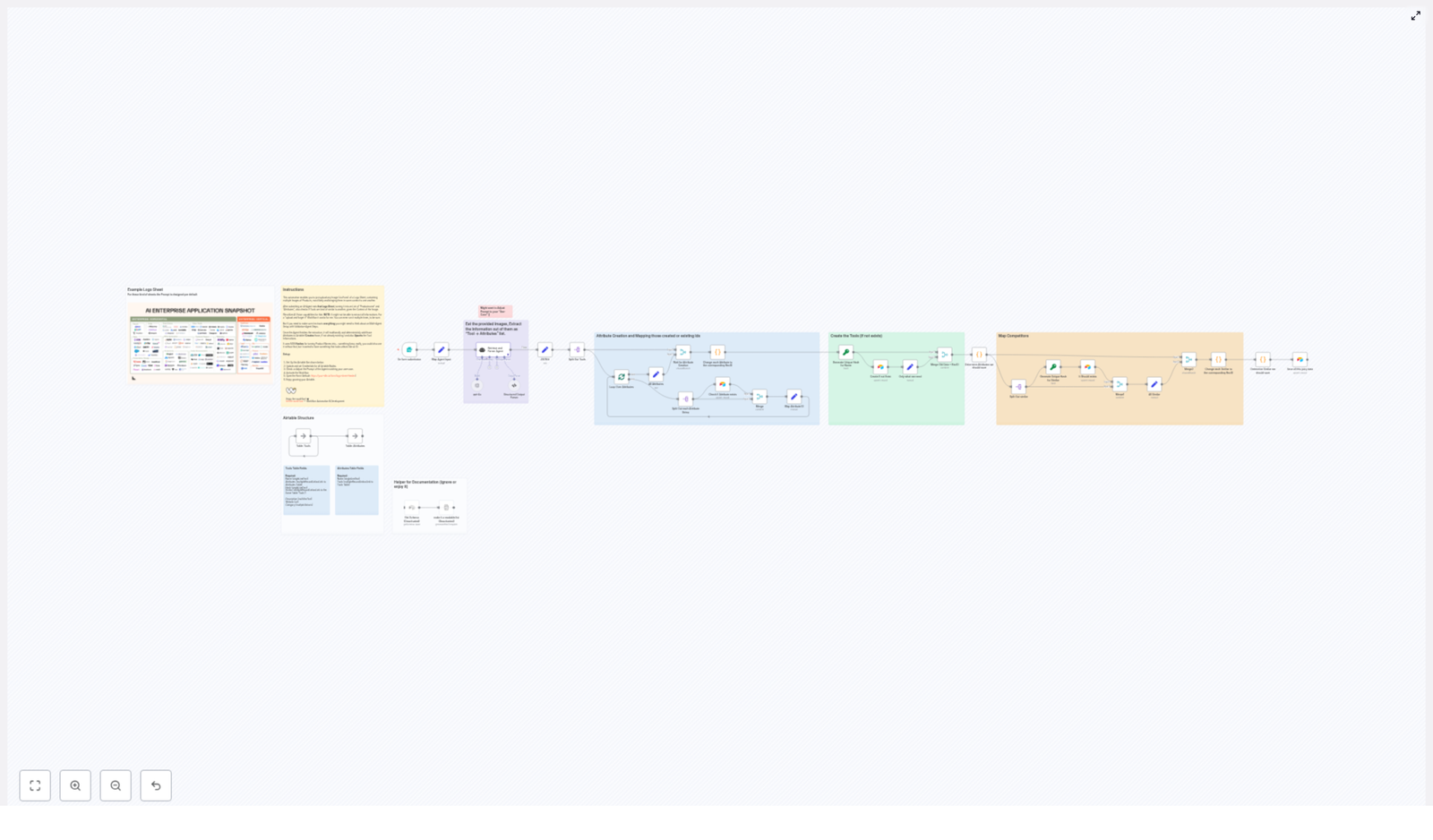
The template is broken into a series of stages so you can understand and customize each part. In plain language, here is what happens:

  1. Form Trigger – A web form receives the logo sheet image and an optional prompt from the user.
  2. Agent (LangChain / LLM + Vision) – An AI agent reads the image, groups logos into tools or products, and extracts attributes and similar tools.
  3. Structured Output Parser – The agent output is validated and coerced into a strict JSON schema.
  4. Attribute Creation & Mapping – Attributes are upserted into Airtable and linked to tools.
  5. Tool Creation / Upsert – Tools are created or updated in Airtable using a deterministic hash so you avoid duplicates.
  6. Mapping Similar Tools – Tools listed as “similar” are resolved to Airtable record IDs and linked back to the main tool.

Let us walk through the important nodes in a more human-friendly way.

Key n8n nodes and what they are responsible for

1. Form Trigger – the front door of the workflow

The workflow starts with a form trigger node. This is where users upload the image and, if they want, give the AI a bit of extra context.

Your form should include at least:

  • File: The logo sheet as an image (required)
  • Optional prompt: Something like “These are AI tools, extract names and categories” or “What is the meaning of this graphic?” for extra context

Once the form is submitted, the workflow takes over and the user can go back to doing literally anything more interesting than data entry.

2. Retrieve and Parser Agent – the AI with vision

This node uses a LangChain-powered agent with an LLM that supports vision. Its job is to look at the image and produce a structured list of tools. Specifically, it will:

  • Read text and logos from the image
  • Group logos into distinct tools or product entries
  • Produce an array of objects in JSON with fields:
    • name
    • attributes[]
    • similar[]

The system prompt you give this agent is important. You want it to:

  • Be conservative and avoid hallucinating tool names
  • Extract all visible tools from the image
  • List clear attributes like category, function (for example “Browser Infrastructure”), or visible taglines

Think of the agent as an intern that only reports what it can actually see, not what it wishes was on the slide.

3. Structured Output Parser – keeping the JSON clean

AI output can be a little… creative. The structured output parser node steps in to make sure everything follows a strict JSON schema so downstream nodes do not break.

This node:

  • Validates the agent output against a defined schema
  • Coerces values into the expected types (for example, ensuring attributes are always arrays, not sometimes a string)
  • Prevents parsing errors that could crash the workflow later

The template already includes an example schema. Keep it strict so your Airtable upserts stay predictable.

4. Attribute creation and mapping – building your attributes table

Once the tools array is clean, the workflow splits it and processes each tool individually. For each tool, it then splits its attribute strings and handles them one by one.

For every attribute the workflow will:

  • Upsert the attribute into the Attributes table in Airtable, matching by Name
  • Store the returned Airtable record ID (RecID)
  • Use that RecID to link the attribute back to the tool in the Tools table

This is how you end up with a clean many-to-many relationship between tools and their attributes without manually creating records.

5. Tool creation / upsert – avoiding duplicate tools

To keep your Airtable base from turning into a duplicate-filled mess, the workflow uses deterministic hashing. For each tool, it:

  • Generates a hash from the tool name, such as an MD5 or similar
  • Uses that hash as a unique key to upsert the tool into the Tools table

This approach makes the workflow idempotent. If you upload the same image again later, you will not get duplicate tools, just updates where needed.

6. Mapping similar tools – connecting competitors

Each tool can include a similar[] array in the AI output. This is used to map related or competitor tools inside Airtable.

The workflow:

  • Ensures each “similar” tool exists in Airtable (create or upsert if needed)
  • Resolves those tools to their Airtable record IDs
  • Links those RecIDs to the primary tool in the Similar field

The end result is a self-linked tools table where you can browse related tools without manually building all those relationships.

Airtable schema setup: recommended structure

To keep the workflow simple and flexible, the template assumes a minimal Airtable schema with two tables.

Tools table (required fields)

Create a Tools table with at least these fields:

  • Name – single line text
  • Attributes – multiple record links to the Attributes table
  • Hash – single line text, used as the unique match key for upserts
  • Similar – multiple record links to the Tools table (self-link)
  • Optional: Description, Website, Category

Attributes table (required fields)

Create an Attributes table with at least:

  • Name – single line text
  • Tools – multiple record links to the Tools table

With just these two tables you can store tools, their attributes, and their relationships in a clean, normalized way.

Prompt tips to keep your AI agent under control

Good prompts are the difference between “useful assistant” and “creative fiction writer.” To reduce hallucinations and keep output structured, you can use patterns like:

  • System prompt example:
    “You are an extractor that only reports text seen in the image. Output JSON with tools[], each tool must have name (exact text), attributes[], similar[]. If you are uncertain about a name mark it as uncertain and try alternative spellings.”
  • User prompt example:
    “Image attached. Extract product names and visible tags. Group logos that clearly belong to the same product. Provide categories if obvious (for example ‘Storage Tool’, ‘Agent Hosting’).”

Feel free to tweak the wording for your specific logo sheets, but keep the structure requirements very explicit.

Quick setup guide: from image upload to Airtable records

  1. Install or open the n8n template for the AI Logo Sheet Extractor.
  2. Connect your Airtable account and set your API token or credentials.
  3. Create the Tools and Attributes tables in Airtable using the schema above.
  4. Configure the form trigger node to accept:
    • A required image file field
    • An optional text field for a custom prompt
  5. Configure the LangChain / LLM + Vision agent with:
    • Your preferred LLM provider and model
    • A strong system prompt that enforces JSON output and “no hallucination” rules
  6. Review the structured output parser node and confirm the JSON schema matches:
    • tools[] with name, attributes[], similar[]
  7. Check the Airtable nodes for:
    • Attribute upserts into the Attributes table using Name as the match field
    • Tool upserts into the Tools table using Hash as the unique key
  8. Activate the workflow and test it with a sample logo sheet image.

Once it runs successfully, you can share the form link with your team so they can upload logo sheets without ever touching the n8n editor.

Best practices for smoother logo-to-database automation

  • Run multiple passes if needed – If the first run misses a few tools, try again with slightly different LLM settings, such as temperature or seed.
  • Use high-resolution images – Better resolution improves OCR and logo recognition, which means fewer mistakes.
  • Add a human review step for high-value data – For critical inputs, you can insert a manual approval or validation agent before final Airtable upserts.
  • Respect Airtable rate limits – Large logo sheets with hundreds of attributes can hit API limits. Batch operations or add short delays between upserts.
  • Stick to deterministic hashing – Use a consistent hashing method for tool names to keep upserts idempotent and avoid duplicates.

Troubleshooting common issues

1. Agent misses text or misreads names

If the AI keeps confusing “CloudBox” with “CloudB0x,” try:

  • Using a higher-resolution or cleaner version of the image
  • Adding a more explicit prompt to clarify what should be extracted
  • Running a two-stage process: first an OCR-only step to pull text, then a separate agent for name normalization

2. Duplicate attributes or tools in Airtable

Duplicates often come from small spelling variations, extra spaces, or inconsistent capitalization. To reduce this, you can:

  • Implement a normalization routine in the agent (for example, lowercase, trim punctuation)
  • Use the hashed name as the primary match key for tools
  • Optionally add a fuzzy-merge cleanup step in Airtable for near-duplicates

3. Airtable rate limit or 429 errors

If Airtable starts sending 429 responses, you are going a bit too fast for its liking. Fix it by:

  • Batching upserts into smaller groups
  • Adding delays between operations
  • Using Airtable bulk endpoints where available for large imports

Security and privacy considerations

Logo sheets can include private, internal, or trademarked images. Before you automate everything, make sure to:

  • Confirm you have consent to process and store the data
  • Limit access to the upload form to trusted users
  • Secure your n8n instance and Airtable API keys
  • Use private or self-hosted LLM endpoints if you are dealing with sensitive material, instead of public AI endpoints

Ideas for extending the workflow

Once the core logo-to-Airtable flow is working, you can keep leveling it up:

  • Notifications: Send a Slack or email message after each import with a summary and a link to the Airtable view.
  • Human-in-the-loop validation: Add a validation agent or manual approval step for ambiguous tool names before creating records.
  • Automatic enrichment: After tools are created, trigger a web-scraping or enrichment flow to fetch websites, logos, or taglines.

Wrapping up: from logo chaos to structured Airtable bliss

This n8n workflow turns a single uploaded logo sheet into a structured Airtable catalog of tools, attributes, and competitor mappings. With deterministic upserts

Build a Production KPI Dashboard with n8n & Vector Search

Build a Production KPI Dashboard with n8n & Vector Search

This reference guide describes a complete n8n workflow template for building a Production KPI Dashboard pipeline. The workflow accepts incoming KPI events via webhook, converts free-text notes or incident logs into embeddings, persists them in a Weaviate vector database, retrieves similar incidents on demand, augments analysis with an LLM, and logs agent output to Google Sheets.

The implementation combines webhook ingestion, text splitting, Cohere embeddings, Weaviate vector storage and search, an OpenAI-based chat agent with memory, and a Google Sheets audit log. The result is a production-ready KPI monitoring and analysis pipeline that supports semantic search and LLM-assisted reasoning.


1. Solution Overview

1.1 Objectives

The workflow is designed for production operations teams that need more than traditional time series dashboards. It enables:

  • Context-aware analysis of KPI anomalies using historical incident data
  • Similarity search across past events and incident notes
  • LLM-powered summarization and root-cause hypotheses
  • Lightweight, auditable logging of all automated analyses

1.2 Core Components

The architecture leverages the following services and n8n nodes:

  • n8n for low-code orchestration of the entire pipeline
  • Cohere (or another embedding provider) to generate vector embeddings from text
  • Weaviate as a vector database for fast similarity search
  • OpenAI Chat (or a compatible LLM) to reason over retrieved context and current events
  • Google Sheets for append-only audit logs and lightweight reporting

2. High-Level Architecture

The n8n workflow implements the following logical sequence:

  1. Webhook receives KPI events or free-text notes via HTTP POST.
  2. Text Splitter breaks longer notes or logs into overlapping chunks.
  3. Embeddings node calls Cohere to transform each chunk into a dense vector.
  4. Weaviate Insert node writes vectors and metadata into the production_kpi_dashboard index.
  5. Weaviate Query node retrieves semantically similar incidents when analysis is requested.
  6. Tool node exposes vector search as a callable tool to the LLM Agent.
  7. Memory node maintains a buffer of recent interactions for multi-turn context.
  8. Chat node (OpenAI) provides the LLM used by the Agent.
  9. Agent orchestrates tool calls, uses memory, and composes responses.
  10. Google Sheets node appends an audit log of each analysis and recommendation.

This architecture supports both continuous ingestion of KPI events and on-demand querying of historical incidents, with the LLM acting as a reasoning layer over vector search results and current event data.


3. Data Flow and Payload Structure

3.1 Inbound KPI Payload

The entry point is an n8n Webhook node that accepts JSON payloads via HTTP POST on a dedicated path. Example payload:

{  "timestamp": "2025-10-15T14:23:00Z",  "source": "line-7-packaging",  "kpi": "throughput",  "value": 420,  "notes": "Line slowed due to jam; manual restart at 14:18"
}

Key fields:

  • timestamp – ISO 8601 timestamp for the event.
  • source – Identifier for the machine, line, or subsystem.
  • kpi – KPI name such as throughput, scrap rate, OEE, etc.
  • value – Numeric KPI value at the given time.
  • notes – Free-text description or incident log associated with the event.

The workflow assumes the presence of these fields for metadata enrichment. If your schema differs, you can adapt the mapping in the nodes that follow, especially the Embeddings and Weaviate Insert nodes.


4. Node-by-Node Breakdown

4.1 Webhook Node

Purpose

Expose an HTTP endpoint that receives KPI events in JSON format and triggers the pipeline for each POST request.

Key Configuration

  • HTTP Method: POST
  • Path: production_kpi_dashboard (for example /webhook/production_kpi_dashboard)
  • Response: Typically a simple acknowledgment (for example a JSON success flag) to confirm receipt.

Behavior & Edge Cases

  • Ensure the webhook is set to production mode in n8n before exposing it externally.
  • On upstream retries (for example from monitoring systems), you may receive duplicate payloads. Idempotency considerations are handled later via metadata or document IDs in Weaviate.
  • Validate JSON structure at this stage if your downstream nodes assume specific fields. You can add a simple validation or IF node between Webhook and Splitter for stricter schemas.

4.2 Text Splitter Node

Purpose

Chunk free-text notes or incident logs into segments that are suitable for embedding and vector search.

Suggested Configuration

  • Splitter type: Character-based text splitter
  • chunkSize: 400
  • chunkOverlap: 40

These values keep each chunk compact for embedding model limits while preserving local context via overlap. Adjust them based on your typical note length and embedding provider constraints.

Input & Output

  • Input text: Typically the notes field from the webhook payload.
  • Output: An item per chunk, each containing the chunk text and any copied metadata (for example timestamp, source, kpi).

Considerations

  • If notes is empty or very short, the splitter will yield a single chunk. The workflow still proceeds, and vector search remains valid, just with fewer documents.
  • For multi-paragraph incident reports, character-based splitting avoids splitting mid-word but may still split mid-sentence. Increase overlap if sentence continuity is critical for your use case.

4.3 Embeddings Node (Cohere)

Purpose

Transform each text chunk into a dense vector representation using Cohere or another supported embedding provider.

Key Configuration

  • Provider: Cohere (via the n8n Embeddings node)
  • Model: Choose a Cohere embedding model that fits your cost and quality requirements.
  • Input: Chunk text from the Splitter node.

Metadata Handling

Alongside the embedding vector, store the following metadata for each chunk:

  • timestamp
  • source
  • kpi
  • original_text (full notes or original content if needed)
  • chunk_index (position of the chunk in the original text)

This metadata is critical for downstream filtering in Weaviate. It enables queries such as:

  • Filter by machine or line (source)
  • Filter by KPI type (kpi)
  • Restrict to a time window (timestamp)

Error Handling

  • Embedding API calls may fail due to rate limits or transient errors. In n8n, configure retry logic or wrap the Embeddings node with error handling to implement backoff.
  • If an embedding call fails for a single chunk, you can either drop that chunk or mark it with an error flag in metadata and continue processing others.

4.4 Weaviate Insert Node

Purpose

Persist embeddings and associated metadata in a Weaviate vector index for later similarity search.

Index Configuration

  • Target class / index name: production_kpi_dashboard
  • Mode: Insert (create new objects)

Schema Considerations

In Weaviate, define a class that includes at least the following properties:

  • source – string
  • kpi – string
  • timestamp – date/time
  • raw_text – string (optional if you choose to store raw text)
  • chunk_index – integer

Enable text plus vector search as appropriate for your Weaviate deployment. The n8n Insert node will map embeddings and metadata fields into this schema.

Idempotency & Duplicates

  • To avoid inserting the same event multiple times (for example due to webhook retries), consider including a deterministic documentId or checksum in the metadata and use it as a unique identifier in Weaviate.
  • If you do not enforce uniqueness, repeated inserts will create multiple similar objects that may appear in search results.

4.5 Weaviate Query Node & Tool Node

Purpose

Provide semantic search over stored incidents and expose this search capability as a tool to the LLM Agent.

Weaviate Query Node

  • Input: A search query or vector, typically derived from the current KPI event or user prompt.
  • Operation: Similarity search against the production_kpi_dashboard index.
  • Filters: Optional filters on metadata such as source, kpi, or timestamp.

Example usage scenario: A user or automated system asks, “Why did throughput drop on line 7 yesterday?”. The query node retrieves historical incidents with similar descriptions or metrics from line 7 around the relevant time window.

Tool Node

  • Purpose: Wrap the Weaviate query capability as a tool so that the Agent can invoke it dynamically during reasoning.
  • Integration: The Tool node is configured to call the Weaviate Query node and return results in a format the LLM can consume (for example JSON text with relevant fields).

Behavior

  • The Agent decides when to call the tool based on the prompt and its internal reasoning.
  • Retrieved passages (such as raw_text and associated metadata) are included in the Agent context for final answer generation.

4.6 Memory Node

Purpose

Maintain short-term conversational context for multi-turn analysis and follow-up questions.

Configuration

  • Memory type: Buffer window memory (commonly used for recent message history).
  • Scope: Store recent user queries, Agent responses, and relevant tool outputs.

Usage

  • When operators ask follow-up questions like “Compare that with last week” or “What changed after the last maintenance?”, the Memory node provides the necessary context so the Agent does not lose track of previous steps.

4.7 Chat Node & Agent

Chat Node (OpenAI)

  • Provider: OpenAI Chat (or compatible LLM)
  • Role: Base language model used by the Agent for reasoning and response generation.

Agent Orchestration

The Agent sits on top of the Chat node and coordinates:

  • Calls to the Weaviate Tool for vector search
  • Use of Memory for recent context
  • Construction of the final natural language response

Typical Agent Capabilities

  • Query the vector store for similar incidents given a new KPI event
  • Summarize retrieved incidents and highlight patterns
  • Propose root-cause hypotheses and remediation steps
  • Generate human-friendly summaries for shift handovers or reports

Example Prompt Template

A simplified system and user prompt configuration might look like:

System: You are an operations analyst. Use the provided context to explain KPI anomalies.
User: Analyze the following KPI event and find similar incidents. Provide root-cause hypotheses and an action list.
Context: {{weaviate_results}} \nEvent: {{event_json}}

In the actual n8n configuration, {{weaviate_results}} and {{event_json}} are populated using expression syntax, pulling data from the Weaviate Query node and the original webhook payload.


4.8 Google Sheets Logging Node

Purpose

Append an audit record for each Agent response so that operations teams and stakeholders can review historical analyses and recommendations.

Configuration

  • Mode: Append
  • Target: A dedicated Google Sheet used as an audit log

Suggested Columns

  • timestamp – Time of the analysis or Agent response
  • query – Original user query or event description
  • summary – Agent-generated summary of the situation
  • recommended_actions – Proposed remediation steps
  • event_link or raw_event – Reference to the original KPI event

Google Sheets is suitable for lightweight reporting and can be easily integrated with BI tools or exported for further analysis.


5. Configuration & Deployment Notes

5.1 Credentials & Secrets

  • Store all API keys (Cohere, Weaviate, OpenAI, Google) in n8n Credentials, not in node parameters or code.
  • Restrict access to credentials to only the workflows and users that require them.

5.2 Weaviate Schema

  • Define a class (for example production_kpi_dashboard) with fields for source, kpi, timestamp, raw_text, and chunk_index.
  • Enable hybrid or vector search as supported by your Weaviate deployment to combine metadata filtering with vector similarity.

5.3 Chunking Strategy

  • Start with chunkSize = 400 and chunkOverlap = 40, then adjust based on average note length and embedding token limits.
  • For very long incident logs, consider smaller chunk sizes to reduce per-request token usage at the cost of slightly more fragmentation.

5.4 Rate Limiting & Retries

  • Embedding and LLM APIs may throttle requests. Configure n8n retry policies or add dedicated error-handling branches

AI Visa Requirement Checker with n8n & Weaviate

AI Visa Requirement Checker with n8n & Weaviate

This reference guide documents the Visa Requirement Checker n8n template, which automates visa eligibility checks using Cohere embeddings, a Weaviate vector database, and an Anthropic-powered agent. It explains the overall architecture, node-by-node behavior, configuration details, and operational considerations so you can deploy, audit, and customize the workflow with confidence.

1. Solution Overview

The Visa Requirement Checker workflow turns unstructured visa rules and immigration guidance into a searchable knowledge base that can be queried using natural language. It is designed for use cases such as travel agencies, internal compliance tools, or customer-facing visa guidance assistants.

1.1 Key capabilities

  • Semantic search over large visa and immigration documents using vector embeddings.
  • Natural-language query handling via an HTTP webhook or chat-style front end.
  • Context-aware reasoning with Anthropic Chat and an n8n Agent node.
  • Structured logging of interactions to Google Sheets for auditing and workflow integration.
  • Incremental updates by adding or refreshing documents in the Weaviate vector store.

1.2 Typical data flow

  1. A client system (web app, chatbot, internal tool) sends a POST request to the n8n Webhook node with traveler details and a free-text question.
  2. The workflow retrieves relevant visa rules from Weaviate using Cohere embeddings and a semantic search query.
  3. The Anthropic Chat node, orchestrated by an Agent, reasons over the retrieved snippets and the conversation history.
  4. The Agent returns a concise, actionable answer and logs the interaction to Google Sheets for traceability.

2. Architecture & Components

The workflow is structured around several core components:

  • Webhook node for inbound visa queries.
  • Text Splitter node for preprocessing source documents.
  • Embeddings node (Cohere) to generate vector representations.
  • Weaviate Insert and Query nodes for vector storage and retrieval.
  • Tool node to expose Weaviate search as a tool to the Agent.
  • Memory (Buffer Window) node to persist recent conversation context.
  • Chat (Anthropic) node and Agent for reasoning and response generation.
  • Google Sheets integration (within the Agent flow) for logging.

The vector index is typically named visa_requirement_checker and stores both embeddings and metadata so that the LLM can ground its answers in authoritative sources.

3. Node-by-Node Breakdown

3.1 Webhook node

The Webhook node is the entry point for all user queries. It accepts HTTP POST requests and can be integrated with:

  • Web or mobile front ends.
  • Chat interfaces or bots.
  • Backend services that need automated visa checks.

A typical JSON payload includes structured traveler attributes and can also include a free-text question. For example:

{  "nationality": "India",  "destination": "Germany",  "passportType": "Ordinary",  "purpose": "Tourism",  "departureDate": "2025-05-20",  "returnDate": "2025-05-30"
}

In production, it is recommended to:

  • Secure the webhook with a secret token, IP allowlist, or both.
  • Validate the incoming JSON schema to avoid malformed payloads.
  • Return appropriate HTTP status codes (for example 400 for invalid input, 200 for success) from the workflow.

3.2 Text Splitter node

The Text Splitter node processes long visa or immigration documents before they are embedded. It divides each document into smaller chunks, which:

  • Improves embedding efficiency and retrieval performance.
  • Helps preserve local context while avoiding overly large vector payloads.

Typical configuration:

  • Chunk size: around 400 characters.
  • Chunk overlap: around 40 characters.

This overlap is important so that clauses or sentences that cross chunk boundaries still have enough shared context. For very long legal texts, you can slightly increase overlap to reduce the chance of splitting critical sentences mid-way. Avoid extremely small chunk sizes, which can fragment the rules and reduce semantic coherence.

3.3 Embeddings node (Cohere)

The Embeddings node uses Cohere to transform text chunks and user queries into high-dimensional vectors. These embeddings are then stored in, or used to query, the Weaviate vector index.

Core responsibilities:

  • Generate embeddings for each chunk of the source documents during ingestion.
  • Generate an embedding for each incoming user query at runtime.

Configuration considerations:

  • Credentials: set a valid Cohere API key in n8n credentials.
  • Model selection: choose a model that balances latency, cost, and semantic accuracy for your document set.
  • Error handling: monitor for rate-limit or authentication errors and handle them gracefully in n8n (for example, by using error workflows or retries where appropriate).

3.4 Weaviate Insert node (vector store)

The Weaviate Insert node populates the vector store with document chunks and their associated metadata. Each record typically includes:

  • The embedding vector generated by Cohere.
  • The original text chunk.
  • Metadata fields such as:
    • country
    • doc_title
    • effective_date
    • source_url

The template uses a Weaviate class or index named visa_requirement_checker. Before inserting data:

  • Ensure the Weaviate instance is reachable (self-hosted or managed).
  • Define the schema with the required properties and vectorization settings.
  • Verify that authentication and any TLS settings are correctly configured in the n8n Weaviate credentials.

3.5 Weaviate Query node & Tool node

At query time, the workflow uses the Weaviate Query node to perform semantic search against the visa_requirement_checker index using the embedding of the user question.

The retrieved snippets are then exposed to the Agent via a Tool node:

  • The Weaviate Query node returns the most similar chunks along with their metadata.
  • The Tool node wraps this retrieval capability so that the Anthropic-based agent can invoke it as needed.

If the query returns no results, typical causes include:

  • No documents were inserted into Weaviate.
  • Embeddings were not generated or stored correctly.
  • Schema or index name mismatches between Insert and Query nodes.

3.6 Memory (Buffer Window) node

The Memory node maintains a rolling context window of recent messages. This enables multi-turn interactions such as:

  • Agent follow-up questions about missing details (for example, passport type, travel dates).
  • User clarifications or corrections.

Configuration usually involves:

  • Choosing the number of past messages to retain.
  • Defining which fields are treated as user messages vs. assistant messages.

Keep the window size within the token limits of the Anthropic model you are using. Oversized memory windows can increase latency and cost, and may push out the most relevant parts of the context.

3.7 Chat (Anthropic) node & Agent

The Anthropic Chat node provides the language model that interprets the user question, reasons over the retrieved visa rules, and generates the final answer. The n8n Agent orchestrates:

  • Tool usage (Weaviate search).
  • Memory integration (Buffer Window).
  • Prompting and response formatting.

Typical configuration steps:

  • Set Anthropic API credentials in n8n.
  • Configure the Chat node with the desired model and temperature settings.
  • Define a system prompt that instructs the model to:
    • Rely primarily on retrieved Weaviate sources.
    • Cite source URLs and effective dates when available.
    • Avoid speculating beyond the provided documents.

The Agent also typically appends a structured log entry to Google Sheets after each interaction. This log can contain:

  • Input parameters (for example, nationality, destination, purpose).
  • The final answer text.
  • Timestamps and any relevant metadata.

4. Setup & Configuration Steps

4.1 Deploy the n8n workflow

  1. Import the provided workflow JSON into your n8n instance, or recreate the nodes manually following the template diagram.
  2. Enable the workflow and expose the Webhook node URL.
  3. Secure the webhook using a secret path segment, headers, or network-level controls.

4.2 Configure the embedding provider (Cohere)

  1. Obtain a Cohere API key and add it as an n8n credential.
  2. Select an embedding model suitable for your language and document characteristics.
  3. Run a small test set of documents and queries to verify embedding quality and latency.

4.3 Configure Weaviate

  1. Provision a Weaviate instance, either self-hosted or via a managed service.
  2. Create a class or index named visa_requirement_checker with fields such as:
    • country
    • doc_title
    • effective_date
    • source_url
  3. Connect n8n to Weaviate using the appropriate credentials and endpoint.
  4. Insert your initial corpus of visa and immigration documents using the Text Splitter, Embeddings, and Insert nodes.

4.4 Connect Anthropic

  1. Add your Anthropic API key to n8n credentials.
  2. Configure the Chat node with your preferred model and safety settings.
  3. Craft a system prompt that:
    • Explains the tool’s purpose (visa requirement guidance).
    • Instructs the model to ask for missing essential details.
    • Requires citation of sources from Weaviate when possible.

5. Best Practices for Accuracy & Compliance

5.1 Source selection and versioning

For reliable visa guidance, only ingest:

  • Official government immigration and consular websites.
  • Embassy or consulate advisories.
  • Other validated, authoritative immigration sources.

Always store metadata such as effective_date and source_url in Weaviate so that:

  • The agent can surface how recent the information is.
  • Users can click through to verify the original source.

5.2 Chunking and embedding strategy

Recommended baseline:

  • Chunk size around 400 characters.
  • Overlap around 40 characters.

For especially dense legal sections, increasing overlap slightly can help preserve context. Avoid overly large chunks which can dilute the semantic signal and make retrieval less precise.

5.3 Handling sensitive personal data

Traveler data can be sensitive. To reduce risk:

  • Avoid storing personally identifiable information (PII) in plaintext in external services unless strictly necessary.
  • If logging PII in Google Sheets or other systems, ensure:
    • Data is encrypted at rest where possible.
    • Access is restricted to authorized personnel.
  • Consider hashing or pseudonymizing identifiers in logs.

6. Customization & Extensions

6.1 Front-end integration

  • Embed a chat widget that sends user messages and traveler details to the webhook.
  • Display the agent’s response along with cited source URLs and effective dates.

6.2 Multilingual support

To handle non-English queries:

  • Add a language detection step before embedding.
  • Translate non-English input into the language of your corpus prior to generating embeddings.
  • Optionally translate the final answer back to the user’s original language.

6.3 Output formats and checklists

  • Generate downloadable pre-travel checklists based on the agent’s recommendations, such as:
    • Required documents.
    • Vaccination requirements.
    • Applicable fees or appointment steps.

6.4 Admin tooling

  • Build an internal UI to upload or refresh source documents.
  • Trigger re-indexing workflows that re-run the Text Splitter, Embeddings, and Weaviate Insert steps automatically.

7. Troubleshooting & Diagnostics

  • Empty search results
    Verify that:
    • Documents have been successfully inserted into Weaviate.
    • Embeddings were generated and stored without errors.
    • The class/index name in the Query node matches the Insert node configuration.
  • Inaccurate or hallucinated answers
    Check that:
    • The system prompt clearly instructs the model to rely on retrieved documents.
    • The agent is required to cite sources and to avoid guessing when no relevant documents are found.
    • Your underlying corpus is up to date and contains the jurisdictions in question.
  • Slow performance
    Investigate:
    • Embedding latency from Cohere.
    • Weaviate instance sizing and query time.
    • Anthropic model choice and context length

Automate Pinterest Analysis & AI-Powered Content Suggestions

Automate Pinterest Analysis & AI-Powered Content Suggestions

Introduction

Scaling a high-performing Pinterest program requires more than visually appealing pins. To consistently drive results, teams need reliable performance data, automated collection pipelines, and structured, AI-assisted content ideation. This article outlines a production-ready n8n workflow template that automates Pinterest data collection, centralizes it in Airtable, and leverages OpenAI to generate targeted pin concepts that feed directly into your content planning process.

The workflow combines the Pinterest API, n8n as the orchestration layer, Airtable as a lightweight analytics and storage hub, and an OpenAI-powered agent for trend analysis and content suggestions. The result is a repeatable system that delivers a concise, weekly Pinterest insights report to your marketing leads.

Why Automate Pinterest Analysis?

Manual Pinterest reporting quickly becomes unsustainable as accounts grow. Copying data into spreadsheets, updating dashboards, and manually brainstorming new pin ideas introduces delays and errors. An automated workflow addresses these challenges by providing:

  • Consistent, scheduled data collection directly from the Pinterest API
  • Centralized storage in Airtable for filtering, enrichment, and analysis
  • AI-driven insights that translate performance data into audience-relevant content ideas
  • Faster decision-making for content calendars, campaigns, and creative direction

For automation professionals, this template illustrates how to combine n8n, third-party APIs, and LLMs into a cohesive analytics and ideation pipeline that runs on a fixed schedule with minimal maintenance.

Solution Architecture Overview

The n8n workflow is organized around a simple yet extensible architecture:

  • n8n orchestrates the entire workflow, handles scheduling, and manages credentials.
  • Pinterest API (HTTP Request node) retrieves a list of pins and associated metadata.
  • Airtable stores normalized pin data and serves as the source of truth for analysis.
  • OpenAI (LLM) acts as an AI analysis agent that detects trends and proposes new pin ideas.
  • Email (Gmail) distributes the final summary and recommendations to stakeholders.

The core loop consists of: scheduled trigger → Pinterest data extraction → normalization and tagging → Airtable upsert → AI analysis → email delivery.

Workflow Implementation in n8n

1. Configure the Scheduled Trigger

Begin by setting up a Schedule Trigger node in n8n. Define the cadence that aligns with your planning cycles. Many teams prefer a weekly digest, for example every Monday at 08:00, so that marketing and content teams receive fresh insights before their planning meetings.

The schedule node will be the single entry point for the workflow and controls when the Pinterest data collection and AI analysis are executed.

2. Integrate with the Pinterest API

Next, use an HTTP Request node to connect to the Pinterest API. The workflow relies on the GET /v5/pins endpoint to retrieve pin data.

Key configuration details:

  • Method: GET
  • URL: https://api.pinterest.com/v5/pins
  • Authentication: Pinterest access token included as a Bearer token

Set the Authorization header in the HTTP node:

Authorization: Bearer <YOUR_PINTEREST_ACCESS_TOKEN>

Ensure that the access token is stored securely using n8n credentials or environment variables. Avoid hard-coding tokens in the workflow JSON or any shared repository.

The response from Pinterest will be in JSON format. Configure the node to return JSON so that subsequent nodes can parse fields such as id, title, description, link, and created_at.

3. Normalize and Enrich Pin Data

Raw API responses are rarely suitable for direct storage or analysis. Insert a transformation step using either a Function or Set node to standardize the structure of each pin object.

Typical normalization actions include:

  • Mapping Pinterest fields to consistent internal keys (for example: pin_id, title, description, link, created_at).
  • Adding a Type field with a value such as Organic to differentiate these records from future ad data.
  • Ensuring dates are in a consistent format for downstream analysis.

This standardized schema simplifies Airtable mapping and enables future extensions, such as merging organic and paid performance data.

4. Persist Pins in Airtable

With normalized data prepared, connect an Airtable node to store or update records in a table, for example Pinterest_Organic_Data.

Key configuration steps:

  • Select your Airtable base and table.
  • Map n8n fields to Airtable columns such as:
    • pin_id
    • title
    • description
    • link
    • created_at
    • type
  • Use an upsert strategy, matching on pin_id, to prevent duplicates and keep the workflow idempotent.

Design your Airtable schema with future enrichment in mind. Reserve columns for performance metrics, engagement data, or campaign tags that you may want to add later from Pinterest Ads or analytics platforms.

5. Execute the AI Analysis Agent

Once the latest pin data is stored, the workflow hands off analysis to an AI agent powered by OpenAI. Typically, this involves:

  1. Reading the most recent records from Airtable (for example, pins created or updated within the last week).
  2. Passing those records into an OpenAI node configured as a text completion or chat-based LLM call.

The AI agent is instructed to perform two primary tasks:

  • Identify trends and audience signals such as high-performing topics, formats, or calls-to-action.
  • Generate concise pin suggestions that the creative team can directly convert into new assets.

An example prompt structure might look like this:

You are a data analysis expert. Review the recent Pinterest pin records provided.
1) Summarize key performance trends and audience behavior.
2) Propose 6 new pin ideas. For each idea, include:
- Title
- 1-line description
- Target audience
- Suggested visual style.

Focus on concise, actionable recommendations.

Keep the prompt focused and specify a clear output format so that downstream nodes can parse the AI response reliably.

6. Summarize Insights and Distribute via Email

After the OpenAI node returns its analysis, the workflow prepares a digest suitable for stakeholders. Depending on your needs, you can either:

  • Use a Function or Set node to format the AI output into a structured text or HTML summary.
  • Optionally apply an additional summarization step if the response is long, to ensure the email remains concise.

Finally, connect a Gmail (or generic Email) node to send the report to relevant recipients, such as the marketing manager or content lead. The email typically includes:

  • A brief overview of key trends.
  • The list of AI-generated pin ideas.
  • Any notable anomalies or recommendations for testing.

Once configured, the entire cycle runs automatically at the schedule defined in the trigger node.

Designing the AI Agent Output

To maximize the usefulness of the AI-generated suggestions, define a clear, structured output that maps directly to your creative workflow. Each suggested pin should include:

  • Proposed title for the pin.
  • One-line description or caption that can be refined by copywriters.
  • Reasoning for why the idea will resonate with the target audience, grounded in recent performance data.
  • Recommended visual style or hook such as:
    • Short carousel
    • Step-by-step infographic
    • Before/after comparison
    • Static image with text overlay

Example short-form output:

1) Title: "5-Minute Morning Routine for Busy Parents"
Description: Quick visual checklist for stress-free mornings.
Audience: Parents aged 25-40.
Why: Morning routine content generated high saves and clicks last month.
Visual: 5-slide carousel with bold numbers and lifestyle photography.

2) Title: "Before & After: Tiny Kitchen Makeover"
Description: Compact transformation story highlighting small-space upgrades.
Audience: Renters and home decor enthusiasts.
Why: Transformation pins show strong engagement and share rates.
Visual: Split-screen before/after image with clear overlay text.

... (4 additional suggestions)

By constraining the format, you make it easier to parse, store, or even push these ideas into other systems such as project management tools or design pipelines.

Best Practices for a Robust Automation

  • Credential management: Use n8n credentials and environment variables for Pinterest, Airtable, OpenAI, and email integrations. Avoid plain-text tokens in workflow exports.
  • API rate limits: Respect Pinterest API limits. Implement pagination or incremental pulls, and cache results where appropriate to minimize redundant calls.
  • Airtable schema design: Plan for future metrics by including fields for impressions, saves, clicks, CTR, or campaign tags so you can enrich records later.
  • Prompt engineering: Keep prompts concise, specify the expected structure, and define clear boundaries. This improves consistency and reduces post-processing overhead.
  • Testing and validation: Run the workflow on a small dataset or test account before enabling the full schedule. Validate that AI outputs are usable and aligned with brand guidelines.

Extending the Workflow

Once the core pipeline is stable, you can extend the automation to cover more advanced use cases:

  • Ads performance integration: Pull data from the Pinterest Ads API and store it alongside organic records, using the type field to distinguish between organic and paid pins.
  • Cross-channel enrichment: Enrich Airtable with Google Analytics or on-site engagement metrics to move from vanity metrics to conversion-oriented analysis.
  • Creative system integration: Use APIs such as Figma to automatically generate draft layouts or templates based on AI suggestions.
  • A/B testing automation: Generate multiple caption variants, push them into your publishing stack, and write performance results back into Airtable for iterative learning.

These extensions turn a simple reporting workflow into a continuous optimization loop for your Pinterest strategy.

Security, Governance, and Reliability

For production-grade automation, treat this workflow as part of your broader data and marketing infrastructure:

  • Access control: Restrict who can view or edit credentials within n8n. Use role-based permissions where available.
  • Workflow governance: Align the automation cadence and email recipients with internal approval processes. Document the workflow and its dependencies.
  • Error handling: Implement retry logic for HTTP nodes, log errors, and optionally send failure alerts so transient issues do not silently break the pipeline.

Pre-Launch Checklist

Before enabling the schedule in production, verify the following:

  • Pinterest API access and token scopes are correctly configured.
  • HTTP Request node handles pagination or result limits as needed.
  • Airtable schema and field mappings are accurate and tested.
  • The OpenAI prompt and expected output structure are validated with sample runs.
  • Email node is configured with the correct sender, recipients, and subject lines.
  • End-to-end test runs complete successfully without manual intervention.

Conclusion & Next Steps

By combining n8n, the Pinterest API, Airtable, and an OpenAI agent, you can transform raw pin data into actionable, AI-powered content recommendations with minimal manual effort. This workflow reduces reporting overhead, accelerates insight delivery, and enables your content team to produce data-backed pins that are better aligned with audience behavior.

If you want a copy of the n8n workflow template or support tailoring the AI prompts and Airtable schema to your brand, reach out to our team. We can help you deploy the automation, integrate it with your existing stack, and calibrate the AI agent to match your tone, visual identity, and strategic goals.

Ready to automate your Pinterest strategy? Contact us to get started with a customized workflow, deployment guidance, and expert onboarding.

How to Fix ‘No Available Server’ Errors Quickly

How to Fix “No Available Server” Errors Quickly

Technical troubleshooting guidance for diagnosing and resolving “no available server” errors across web applications, databases, load balancers, Kubernetes clusters, and cloud environments.

Overview

The message “no available server” is a generic connectivity failure, not a single product-specific error. It indicates that a client (application, driver, or service) attempted to connect to a backend but was unable to find any endpoint that reported itself as healthy and ready to accept traffic.

This condition can originate at multiple layers of your stack, including:

  • Network routing and firewalls
  • DNS and hostname resolution
  • Load balancers and reverse proxies
  • Application or API processes
  • Database servers and connection pools
  • Container orchestration platforms such as Kubernetes
  • TLS/SSL termination and certificate validation
  • Client configuration and connection strings

This reference-style guide is structured to help you quickly isolate where the failure occurs, then drill into targeted checks for each layer.

Architecture & Typical Failure Points

In a typical modern deployment, a client request flows through several components before it reaches the actual service process:

  1. Client (browser, mobile app, service, database driver)
  2. DNS resolution for the service hostname
  3. Network path (VPCs, security groups, firewalls, routing)
  4. Load balancer or proxy (NGINX, HAProxy, AWS ALB/NLB, GCP LB, Azure LB)
  5. Service endpoint (VM, container, pod, or serverless function)
  6. Optional backend (database, cache, message broker)

A “no available server” error typically means that at some point in this chain, the component that should forward or handle the request has zero healthy targets or cannot establish a TCP/TLS connection at all.

Common Root Causes

While the exact wording varies by platform, most “no available server” errors map to one or more of the following conditions:

  • Network connectivity failures or blocked ports (firewalls, security groups, routing rules)
  • DNS lookup failures, stale records, or misconfigured hostnames
  • Load balancer or proxy with no healthy backends in its target pool
  • Application process crashed, out-of-memory, or stuck during startup
  • Database server unreachable or connection pool fully exhausted
  • Kubernetes pods not ready, failing probes, or CrashLoopBackOff states
  • Expired or invalid TLS/SSL certificates, SNI issues, or protocol mismatches
  • Incorrect endpoint URLs, ports, or connection string parameters

Rapid Triage Checklist (First 5 Minutes)

Use this fast path to determine whether the problem is client-side, network-related, or backend-related before you dive into detailed diagnostics:

  1. Capture the exact error and timestamp from client logs or monitoring tools.
  2. Check provider status pages for any known outages on cloud or managed services.
  3. Test reachability from a host in the same network:
    curl -v https://service.example.com/health
  4. Verify DNS resolution:
    dig service.example.com
    nslookup service.example.com
  5. Inspect load balancer or proxy health and backend pool status in your console or logs.

If you confirm that DNS works and the endpoint is reachable from another host, the issue is likely higher up the stack (load balancer configuration, application process, or database).

Layer-by-Layer Troubleshooting

1. Client & Application Logs

Start at the edge where the error is observed:

  • Inspect client-side logs for:
    • Connection timeouts
    • Socket errors or refused connections
    • Authentication or TLS handshake failures
    • High retry counts or exponential backoff behavior
  • Correlate error timestamps with:
    • Recent deployments or configuration changes
    • Service restarts or failovers
    • Traffic spikes or incidents reported by monitoring

This correlation often tells you whether the issue is transient, deployment-related, or systemic.

2. Network Connectivity & DNS Resolution

From the host where the client or application runs, verify connectivity to the target hostname and port:

ping -c 4 service.example.com
dig +short service.example.com
curl -v http://service.example.com:PORT/health

# Direct TCP connectivity test
nc -vz service.example.com 5432

Interpretation guidelines:

  • Ping fails, dig/nslookup fail:
    • DNS record missing, misconfigured, or not propagated
    • Split-horizon DNS inconsistencies between environments
  • DNS resolves but nc/curl fail:
    • Firewall, security group, or network ACL blocking the port
    • Route misconfiguration or wrong target IP

If DNS returns unexpected IP addresses, verify your DNS zone configuration, TTLs, and any conditional forwarding or private zones that might override public records.

3. Load Balancer or Proxy Health

When a load balancer or proxy reports “no available server”, it usually means there are zero healthy targets in its backend pool.

Check the following:

  • Backend health status:
    • For managed LBs (AWS ALB/NLB, GCP, Azure), inspect the console for target health.
    • For NGINX/HAProxy, review status pages or metrics endpoints if enabled.
  • Health check configuration:
    • Verify the health check path or command (for example, /health or /ready).
    • Confirm port, protocol (HTTP/HTTPS/TCP), and expected status codes.
    • Ensure the health endpoint responds quickly and does not require authentication.
  • Recent changes:
    • Did you deploy a new version that removed or changed the health endpoint?
    • Did TLS termination move from the LB to the app or vice versa?

4. Service Process & Resource Limits

On the server or instance that should handle the request, verify that the service is actually running and healthy:

systemctl status my-service
journalctl -u my-service -n 200
ps aux | grep myapp
free -m  # check available memory

Key checks:

  • Process not running:
    • Investigate recent deploys, configuration changes, or crashes.
    • Look for OOM kill messages or segmentation faults in logs.
  • High resource usage:
    • CPU or memory saturation can slow responses and cause health checks to fail.
    • Consider horizontal scaling or performance optimizations.

5. Database-specific Diagnostics

Many client libraries for databases raise messages similar to “no available servers” when they cannot select a suitable node or when connection pools are exhausted.

MongoDB

Typical indicators:

  • Errors mentioning server selection or timeout, such as MongoTimeoutError.
  • Replica set hostnames or ports misconfigured in the connection string.

Checks:

  • Validate the connection string, including replica set name and node list.
  • Confirm that each host and port is reachable from the client.
  • Review MongoDB logs for stepdowns, elections, or network partitions.
  • Use the Mongo shell or client with verbose logging:
    mongo --host your-mongo-host:27017

PostgreSQL

Postgres errors can surface if the server is unreachable or if max_connections is reached.

From a connected session or admin tool, inspect active connections:

SELECT count(*) FROM pg_stat_activity;

If the count approaches or equals max_connections:

  • Review application connection pool sizes.
  • Shorten idle timeouts and close unused connections.
  • Increase max_connections cautiously if resources allow.

Redis

To confirm Redis availability:

redis-cli -h host -p port ping

A successful response should be PONG. If you cannot connect:

  • Check firewall rules and security groups.
  • Verify the Redis instance is running and bound to the expected interface.

For all databases, if connection pools are exhausted, adjust pool sizes carefully and optimize query duration and connection reuse to avoid resource starvation.

6. Kubernetes Environments

In Kubernetes, “no available server” often maps to services with no ready pods behind them, or to pods that fail readiness checks.

Useful commands:

kubectl get pods -n your-namespace
kubectl describe pod <pod-name> -n your-namespace
kubectl get svc -n your-namespace
kubectl get endpoints -n your-namespace
kubectl logs <pod-name> -n your-namespace

Focus on:

  • Pod status:
    • CrashLoopBackOff, ImagePullBackOff, or similar indicates pods are not healthy.
  • Readiness and liveness probes:
    • If readiness probes fail, pods will not be added to service endpoints, which looks like “no available server” to clients.
    • Check probe paths, ports, and timing parameters such as initialDelaySeconds and timeoutSeconds.
  • Endpoints objects:
    • If kubectl get endpoints shows zero addresses, the service has no ready pods behind it.
  • NetworkPolicy:
    • Overly restrictive policies can block traffic between pods or from ingress controllers.

7. TLS / SSL & Certificate Validation

Some clients report generic connectivity errors when the TLS handshake fails due to certificate problems or SNI mismatches.

Inspect the certificate chain and handshake using:

openssl s_client -connect host:443 -servername host

Review:

  • Certificate expiration dates
  • Common Name (CN) and Subject Alternative Name (SAN) entries
  • Whether the presented certificate matches the hostname you are connecting to

Expired or mismatched certificates can cause clients to abort connections, which may surface as “no available server” from the application perspective.

8. Authentication & Authorization

Even if the network path is open, invalid credentials or revoked permissions can prevent establishing a usable session.

  • Verify client credentials, API keys, or service account tokens.
  • Check IAM roles, database roles, and any relevant policies for recent changes.
  • Review service provider logs for authentication failures or access denials.

9. Rate Limiting, DDoS Protection & Provider Outages

High traffic levels or security protections can also result in connection failures:

  • Inspect metrics from WAFs, API gateways, or DDoS protection services.
  • Look for throttling, rate limiting, or blocking rules that might apply to your clients.
  • Confirm cloud provider and managed service status pages for ongoing incidents.

Scenario-Based Examples & Fixes

Scenario 1: MongoDB Driver Reports “No Available Servers”

Likely cause: Incorrect replica set hostnames or a network partition.

Targeted checks and remediation:

  • Validate the MongoDB connection string:
    • Replica set name matches the server configuration.
    • All hosts and ports are correct and reachable.
  • Test connectivity to each member from the application host.
  • Review MongoDB logs for elections, primary stepdowns, or connectivity issues.

Scenario 2: Load Balancer Shows No Healthy Backends

Likely cause: Misconfigured health check path or unhealthy backend instances.

Targeted checks and remediation:

  • Ensure the health check path and port map to a lightweight endpoint that returns HTTP 200 when the app is ready.
  • Avoid heavy authentication or long-running logic in health endpoints.
  • Restart or redeploy backend instances that have crashed or are stuck.

Scenario 3: Kubernetes Readiness Probe Failing

Likely cause: Application startup time longer than probe configuration, or incorrect probe endpoint.

Targeted checks and remediation:

  • Increase initialDelaySeconds and timeoutSeconds to accommodate actual startup time.
  • Ensure the readiness endpoint only returns success when the application is fully initialized.
  • Monitor pod startup logs to identify slow initialization tasks or blocking operations.

Preventive Practices

To reduce the likelihood and impact of “no available server” incidents, adopt the following practices:

  • Robust health checks and graceful shutdowns:
    • Implement separate readiness and liveness endpoints.
    • Ensure services signal unavailability before shutdown so load balancers stop routing traffic.
  • Autoscaling and capacity planning:
    • Use autoscaling to handle traffic spikes and avoid saturating connection pools.
    • Track utilization metrics to plan capacity ahead of peak loads.
  • Monitoring and alerting:
    • Instrument metrics for error rates, latency, connection pool usage, and backend health.
    • Use tools like Prometheus, Grafana, or CloudWatch to set actionable alerts.
  • Resilient client behavior:
    • Implement retries with exponential backoff and jitter.
    • Use circuit breakers to avoid overwhelming unhealthy services.