n8n Developer Agent: Setup & Workflow Builder Guide

n8n Developer Agent: Setup & Workflow Builder Guide

The n8n Developer Agent workflow template provides a repeatable way to generate and deploy new n8n workflows programmatically from natural language prompts. This documentation-style guide explains the overall architecture, each node’s role, required credentials, configuration details, and common troubleshooting patterns for using the template with OpenRouter, Anthropic (optional), Google Drive, and the n8n API.

1. Overview

The n8n Developer Agent is a multi-agent, LLM-driven workflow that:

  • Accepts a natural language request via a chat-based trigger.
  • Uses one or more LLMs to translate the request into a complete n8n workflow definition.
  • Builds a valid n8n workflow JSON, including nodes, connections, and workflow settings.
  • Creates the workflow automatically in your n8n instance using the n8n API.

This template is designed for teams that want to:

  • Prototype automations quickly.
  • Let non-technical users describe workflows in plain language.
  • Automate creation of recurring or standardized workflows.

2. Architecture and Data Flow

At a high level, the Developer Agent template consists of:

  • A chat trigger that receives user prompts.
  • An AI agent layer that orchestrates LLM calls and tool usage.
  • A “brain and memory” component for interpretation and conversational context.
  • A Developer Tool that generates final workflow JSON.
  • An n8n API integration that creates the workflow and returns a link.
  • (Optional) A Google Drive integration to inject documentation or examples into the context.

2.1 High-level execution sequence

  1. User submits a chat message describing the desired automation.
  2. The chat trigger node emits the prompt as input to the Developer Agent logic.
  3. The Developer Agent coordinates LLM calls (OpenRouter, and optionally Anthropic) and invokes the Developer Tool to build full workflow JSON.
  4. The n8n node calls the n8n API to create a workflow from the JSON definition.
  5. A Set node constructs a user-facing link to the newly created workflow and returns it to the requester.

3. Node-by-node Breakdown

3.1 Chat Trigger: Entry Point

Node type: Chat message trigger (e.g. “When chat message received”)
Purpose: Capture the user’s natural language request and pass it into the Developer Agent logic.

The chat trigger node:

  • Listens for incoming chat messages from a configured channel or interface.
  • Emits the raw text of the user’s message as the primary input field.
  • Acts as the single source of truth for the original prompt that all downstream nodes use.

For best results, do not modify or rephrase the text between this node and the Developer Tool. This preserves prompt fidelity and ensures the generated workflow matches the user’s original intent.

3.2 n8n Developer Agent (AI Orchestrator)

Node type: AI agent / multi-agent logic
Purpose: Route the user prompt through one or more LLMs and tools, and supervise construction of the final workflow JSON.

The Developer Agent:

  • Receives the prompt from the chat trigger.
  • Uses OpenRouter (GPT 4.1 mini in the template) for general reasoning and workflow design.
  • Optionally calls Anthropic Claude Opus 4 for deeper “thinking” or analysis steps.
  • Invokes the Developer Tool node to output a fully specified n8n workflow JSON object.

OpenRouter is configured as the primary LLM provider, and Anthropic is optional. The agent can be set up so that:

  • GPT 4.1 mini interprets the request, identifies necessary integrations, and outlines nodes.
  • Claude Opus 4, if enabled, refines complex logic or validates the design before JSON generation.

3.3 Brain and Memory

Node types: LLM node(s) + memory buffer
Purpose: Interpret the prompt, maintain conversational state, and support iterative refinement.

In the template:

  • A smaller, cost-efficient model (GPT 4.1 mini) handles immediate natural language understanding.
  • An optional memory buffer stores previous messages and intermediate decisions for multi-step sessions.

Memory is not strictly required, but it is beneficial when:

  • The same user iterates on a workflow (“Add another step”, “Change the trigger”, etc.).
  • You want the agent to recall earlier constraints or preferences within a single session.

If you disable memory, each request is treated as a stateless, single-shot generation. This can be safer for production environments where you want strict isolation per request.

3.4 Developer Tool (Workflow Builder)

Node type: Tool node or sub-workflow
Purpose: Convert the interpreted specification into a valid, importable n8n workflow JSON.

The Developer Tool is the component responsible for returning:

  • A complete JSON object that starts with { and ends with }.
  • All required workflow-level settings (name, active flag, etc.).
  • The full set of nodes, their parameters, and any credentials placeholders.
  • Connections between nodes, including trigger relationships and data flows.

Implementation details:

  • The tool must accept the exact user prompt and any relevant context as inputs.
  • The output must be pure JSON with no surrounding markdown, code fences, or commentary.
  • Sticky notes should be embedded into the generated workflow to explain each node and highlight credential requirements or manual configuration steps.

JSON validation is critical. The Developer Tool should verify:

  • That the JSON structure is syntactically valid.
  • That required keys for nodes and connections are present.
  • That there is no extraneous text outside the JSON object.

3.5 n8n Node (Create Workflow)

Node type: n8n API node (create workflow action)
Purpose: Call your n8n instance API to create a new workflow from the generated JSON.

The n8n node:

  • Uses an n8n API credential to authenticate against your instance.
  • Receives the workflow JSON from the Developer Tool.
  • Performs the “create workflow” action via the n8n REST API.

After successful creation, the node returns the newly created workflow’s metadata, such as:

  • Workflow ID.
  • Workflow name.
  • Other API response fields relevant to your instance.

3.6 Set Node (Workflow Link Builder)

Node type: Set node
Purpose: Generate a user-friendly, clickable link to the newly created workflow.

The Set node typically:

  • Reads the workflow ID and base URL of your n8n instance.
  • Constructs a direct link to the workflow editor.
  • Outputs this link back to the chat or calling system so the requester can open, test, and iterate on the workflow immediately.

3.7 Google Drive Node (Optional Context Provider)

Node type: Google Drive node
Purpose: Supply documentation or example workflows as additional context for the LLM.

When enabled, the Google Drive node can:

  • Fetch internal documentation, such as a “n8n internal docs” file or reference workflows.
  • Provide this content as context to the LLM to improve accuracy and adherence to internal standards.

This integration is optional but recommended if you want the Developer Agent to:

  • Align generated workflows with internal conventions.
  • Leverage existing documentation as a knowledge base.

4. Configuration and Setup

The following steps describe how to configure and run the template in your environment. Perform them in order to ensure all dependencies are satisfied.

4.1 Configure OpenRouter (Required)

Role: Primary LLM provider for GPT 4.1 mini.

  1. Obtain an OpenRouter API key from your OpenRouter account.
  2. In n8n, create a new credential for OpenRouter and add your API key.
  3. Attach this credential to the LLM node(s) that use GPT 4.1 mini within the Developer Agent.

Without a valid OpenRouter credential, the core reasoning and prompt interpretation will fail, and the Developer Agent will not be able to generate workflows.

4.2 (Optional) Configure Anthropic for Claude Opus 4

Role: Secondary LLM for deeper reasoning or complex “thinking” steps.

  1. Obtain an Anthropic API key from your Anthropic account.
  2. Create an Anthropic credential in n8n and store the API key.
  3. Assign this credential to the node configured to call Claude Opus 4.

This step is optional. If you skip it, the template can still function using only OpenRouter, but you will not be able to use Claude Opus 4 for additional analysis.

4.3 Configure the Developer Tool

Role: Generate final n8n workflow JSON.

  1. Set up the Developer Tool as a sub-workflow or specialized node that:
    • Accepts the original user prompt and any contextual data as input.
    • Outputs a single, syntactically valid JSON object representing the workflow.
  2. Ensure the JSON:
    • Begins with { and ends with }.
    • Contains all nodes, connections, and workflow-level settings required by the n8n API.
  3. Include sticky notes in the generated workflow to:
    • Explain what each node does.
    • Highlight any credentials that must be configured manually after creation.

Any additional text around the JSON (for example markdown, comments, or code fences) will cause the create workflow call to fail. Configure the Developer Tool to strip such content or avoid generating it entirely.

4.4 Connect Google Drive (Optional but Recommended)

Role: Provide documentation and examples as context.

  1. Create a Google Drive OAuth credential in n8n.
  2. Authorize the credential with appropriate scopes to read the relevant files (for example internal docs or example workflows).
  3. Attach this credential to the Google Drive node used in the template.

When configured, the LLM can reference these documents during generation to produce workflows that follow your internal best practices.

4.5 Configure n8n API Credentials

Role: Enable programmatic workflow creation in your n8n instance.

  1. Create an n8n API credential in your instance (for example a personal access token or API key).
  2. Ensure the credential has permissions to create workflows.
  3. Attach this credential to the n8n node configured for the “create workflow” action.

Also verify that:

  • The base URL of the n8n instance is correct.
  • Any HTTPS configuration, including self-signed certificates, is correctly handled in your environment.

5. Example Execution Flow

The following example illustrates how a typical request is processed by the template.

  1. User prompt: “Build a workflow that watches a Google Drive folder and sends a Slack message when a new file is added.”
  2. The chat trigger node receives this message and forwards the raw text to the n8n Developer Agent.
  3. The Developer Agent:
    • Uses the configured LLMs (OpenRouter GPT 4.1 mini, and optionally Claude Opus 4) to design the workflow.
    • Invokes the Developer Tool to generate a complete workflow JSON with:
      • A Google Drive trigger node watching a folder.
      • A Slack node sending a message on new file events.
      • Any required intermediate nodes and connections.
  4. The n8n node calls your n8n API endpoint, passing the generated JSON to create the workflow in your instance.
  5. A Set node constructs a direct link to the new workflow in your n8n UI and returns it to the requester for immediate testing and iteration.

6. Best Practices and Operational Tips

6.1 Prompt Handling

  • Prompt fidelity: Pass the user prompt to the Developer Tool exactly as received. Avoid summarizing, translating, or rewording it, as this can change the user’s intent and lead to incorrect workflow generation.
  • Context enrichment: If you add extra context (for example from Google Drive docs), clearly separate it from the original prompt so the LLM can distinguish requirements from examples.

6.2 JSON Validation

  • Pre-validation: Have the Developer Tool validate the JSON structure before returning it. Common issues include missing keys, malformed arrays, or incorrect connection definitions.
  • Pure JSON only: Ensure the response is a single JSON object with no markdown formatting, comments, or additional text. The n8n API expects a clean JSON body.

6.3 Environment Strategy

  • Staging first: Test the Developer Agent in a sandbox or staging n8n instance before enabling it in production. This reduces the risk of unexpected or unsafe workflows being created.
  • Template review: Manually review generated workflows in staging, confirm node configuration and credential usage, then promote to production patterns once you are satisfied.

6.4 Access Control and Governance

  • Restrict who can trigger the Developer Agent, especially in environments where workflows can perform sensitive actions or incur costs.
Build Automated n8n Workflows with the Developer Agent

Build Automated n8n Workflows with the Developer Agent

The n8n Developer Agent is a multi-agent workflow template that helps you design, test, and deploy n8n workflows automatically using large language models (LLMs). Instead of manually wiring nodes together, you describe what you want in plain language, and the agent generates ready-to-import n8n workflow JSON for you.

This guide explains how the template works, how to configure it step by step, and how to use it safely in your own n8n instance.

What you will learn

By the end of this tutorial-style walkthrough, you will be able to:

  • Explain the high-level architecture of the n8n Developer Agent template
  • Identify the key nodes and what each one does in the workflow
  • Connect the required API keys and configure LLMs and tools
  • Use natural language prompts to generate new n8n workflows automatically
  • Apply best practices, safety checks, and troubleshooting steps

Why use the n8n Developer Agent template?

Building production-grade automations in n8n usually involves a lot of iteration. You typically need to:

  • Define triggers (webhooks, schedules, app events)
  • Extract and transform data from payloads
  • Connect to external APIs and services
  • Document the workflow for your team

The n8n Developer Agent template speeds this up by combining:

  • Language models that understand natural language requirements
  • Memory and tools that turn those requirements into structured workflow designs
  • A workflow builder that converts the design into importable n8n workflow JSON

In practice, you can use the template to:

  • Prototype n8n workflows quickly from plain language prompts
  • Automate repetitive workflow scaffolding and documentation
  • Standardize how your team creates and documents workflows

Concept overview: How the template is structured

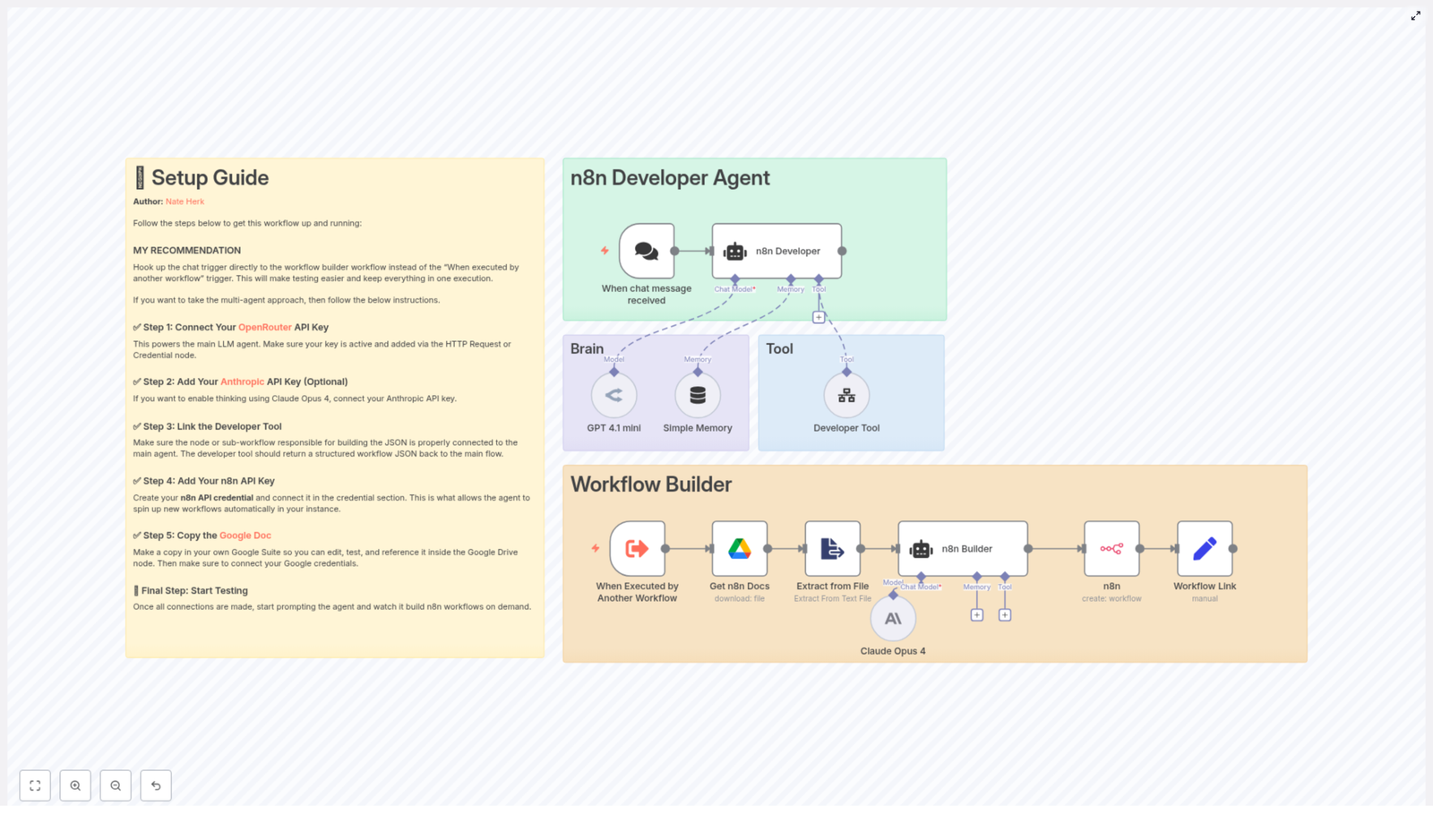
The template is organized into two main zones that work together:

1. n8n Developer Agent (the “brain”)

This part of the template interprets what you ask for and plans the workflow. It includes:

  • Trigger node that starts the process when a message or event arrives
  • LLM nodes such as GPT 4.1 mini or Claude Opus 4 that reason about your request
  • Developer Tool that enforces strict JSON output rules and returns valid workflow JSON

2. Workflow Builder (the “hands”)

This secondary flow takes the JSON produced by the Developer Agent and turns it into an actual workflow inside your n8n instance. It can:

  • Download supporting documentation (for example, from Google Drive)
  • Extract relevant text or context if needed
  • Use the n8n API to create a new workflow and return a Workflow Link

Thinking in these two layers makes it easier to understand and extend the template: first plan and generate the workflow, then create and store it.

Key components explained

Trigger: “When chat message received”

This trigger is the entry point for your prompts. When a user sends a message, the node:

  • Captures the natural language request
  • Passes the text to the n8n Developer Agent

You are not limited to chat. You can replace this with other triggers, for example:

  • Webhook trigger to accept HTTP requests
  • Schedule trigger to run regularly
  • Execute Workflow trigger to call the agent from other workflows

n8n Developer (Agent) node

This is the central orchestrator. It:

  • Receives the raw user prompt from the trigger
  • Routes the request to the appropriate language model node or nodes
  • Calls the Developer Tool to generate final n8n workflow JSON

The system messages inside this agent are preconfigured to instruct the LLMs to:

  • Produce a single, valid n8n workflow JSON object
  • Return JSON that can be imported directly into n8n or sent to the n8n API

Language model nodes

The template shows two example LLM configurations:

  • GPT 4.1 mini via OpenRouter for general reasoning and coding tasks
  • Claude Opus 4 via Anthropic for deeper planning or evaluation

These are examples only. You can:

  • Swap them for different OpenAI-compatible models
  • Use only one model if that suits your use case
  • Adjust temperature, token limits, and prompts to match your workflow complexity

Developer Tool

The Developer Tool is either:

  • An agent tool node inside the same workflow, or
  • A sub-workflow that the agent calls

Its job is to:

  • Take the structured request from the Developer Agent
  • Apply strict formatting rules
  • Return exactly one JSON object that starts with { and ends with }

This strict formatting is important so that the output:

  • Can be imported directly into n8n as a workflow
  • Can be posted to the n8n API without extra cleanup

If the Developer Tool is implemented as a sub-workflow, configure its outputs so that the workflow JSON is returned as a single string field.

n8n API node (create workflow)

Once you have valid JSON, the template uses an n8n API node to:

  • Send the workflow JSON to your n8n instance
  • Create a new workflow programmatically
  • Return a user-friendly Workflow Link so you can open it directly

This is part of the Workflow Builder zone that turns the agent’s design into a real, runnable automation.

Step-by-step setup in n8n

Step 1: Connect required credentials and API keys

Before you run the template, set up the necessary credentials in your n8n instance. At minimum, you will typically need:

  • OpenRouter API key or another OpenAI-compatible LLM provider
  • Anthropic API key if you want to use Claude Opus 4
  • n8n API key to allow the workflow to create new workflows via the API
  • Google Drive OAuth if you use the built-in documentation download node

Attach these credentials to the appropriate nodes in the template so the agent and builder can communicate with external services.

Step 2: Configure the Developer Tool output

The most important rule for the Developer Tool is that it must return exactly one JSON object. To achieve this:

  • Use a system prompt that clearly instructs the LLM to output only JSON
  • Ensure the response starts with { and ends with }, with no extra text
  • If using a sub-workflow, configure the output so the JSON is provided in a single string field

The template already includes strict output rules in the system messages, but you can tighten or adapt them if you notice formatting issues.

Step 3: Connect the Developer Agent to the Workflow Builder

There are two main patterns you can follow when connecting the agent to the builder flow.

Option A: Single-flow pattern

In this simpler approach:

  • The chat trigger receives the prompt
  • The Developer Agent and Developer Tool generate workflow JSON
  • The same workflow passes the JSON directly to the n8n API node to create the workflow

This is ideal for testing and smaller setups because everything happens in a single workflow.

Option B: Multi-agent pattern

In this more modular approach:

  • The Developer Agent runs in one workflow
  • The Workflow Builder runs in a separate workflow
  • You connect them using the Execute Workflow node or trigger

This pattern is useful when you:

  • Want to orchestrate multiple agents across sub-workflows
  • Need clear separation of concerns between planning and creation
  • Plan to reuse the builder flow for other automation-generating agents

Step 4: Test with small, simple prompts

Start with a narrow request so you can inspect the output easily. For example:

“Create a workflow that has a Webhook trigger and an HTTP Request node that sends form data to Slack.”

Then:

  • Check the JSON that the Developer Tool returns
  • Confirm that it is valid JSON and that the nodes match your request
  • Let the template create the workflow in n8n and open the Workflow Link

The template often includes sticky note nodes inside the generated workflow. These notes explain:

  • What each part of the workflow does
  • Which credentials you need to configure (for example, Slack or HTTP credentials)

Example prompt and what to expect

Here is a more detailed example of how you might use the n8n Developer Agent.

Example prompt

“Build a workflow that listens to a webhook, parses incoming JSON, extracts customer email and order ID, and sends a formatted message to Slack. Include a sticky note documenting required credentials.”

Expected behavior of the agent

When you send this prompt to the chat trigger (or other entry point), the template should:

  • Generate a valid n8n workflow JSON that includes:
    • A Webhook node to receive the request
    • A Set node or similar to extract customer email and order ID
    • An HTTP Request node configured for Slack
    • A Sticky Note node that explains which credentials and environment variables are required
  • Return the JSON unwrapped, starting with { and ending with }
  • If the builder is connected, create the workflow in your n8n instance and provide a clickable Workflow Link

Best practices and safety checks

Validate generated workflows before production

  • Always test in a sandbox or staging environment first
  • Preview the JSON, or import it into a test n8n instance, before enabling it in production

Use minimal and scoped permissions

  • Configure the n8n API key with only the permissions it needs, such as creating workflows
  • Apply scoped permissions to Google Drive and other external services to reduce risk

Version control your workflows

  • Export generated workflows and store them in a code repository or backup system
  • Consider having the agent include metadata in the JSON, such as author, timestamp, or project name

Manage LLM usage and cost

  • Set sensible token limits in LLM nodes, especially for complex workflows
  • Configure retry logic and rate limits to avoid unexpected costs or throttling

Troubleshooting common issues

Issue: Agent returns malformed or non-JSON output

If the Developer Tool sometimes returns invalid JSON:

  • Double-check that the system prompt clearly states:
    • Output only one JSON object
    • No extra comments, markdown, or explanations
  • Add an intermediate validation step:
    • Use a node to parse the JSON string
    • If parsing fails, stop execution and return a clear error message

Issue: Workflow creation fails with 401 or 403

Authentication or authorization errors usually mean:

  • The n8n API credential is not configured correctly
  • The API user does not have permission to create workflows
  • The API base URL or token has changed or expired

Check the API node configuration, confirm the token is valid, and verify the user permissions inside your n8n instance.

Issue: LLM responses are low quality or incomplete

If the generated workflows are not meeting your expectations:

  • Improve the system messages with clearer instructions and examples
  • Increase token budgets for more complex prompts that need longer reasoning
  • Optionally add a quality-check step, for example a second LLM node (such as Claude) that evaluates and refines the proposed workflow before creation

Extending the template for advanced use cases

The n8n Developer Agent template is intentionally modular, so you can adapt it to your own development workflow. Some ideas include:

  • Git integration:
    • Automatically tag generated workflows with git commit metadata
    • Push exported workflow JSON to GitHub or another repository
  • Organizational standards:
    • Add a validation node that checks naming conventions, node types, or required notes
    • Reject or flag workflows that do not meet your internal standards
  • Automated testing:
    • Run a dry-run execution of the new workflow in a sandbox instance
    • Only promote workflows that pass basic checks

Quick recap

To summarize how to use the n8n Developer Agent template effectively:

  1. Understand the architecture: Separate the Developer Agent (planning) from the Workflow Builder (creation).
  2. Connect credentials: Configure LLM

Build a Visa Requirement Checker with n8n & Weaviate

Build a Visa Requirement Checker with n8n & Weaviate

Every trip starts with a dream, but too often it gets blocked by a simple, frustrating question: “Do I need a visa for this?” Hunting through embassy websites, outdated blog posts, and confusing rules steals time and energy from the journey you actually care about.

What if that work could quietly happen in the background, on autopilot, while you focus on building your product, serving your customers, or planning your next big expansion?

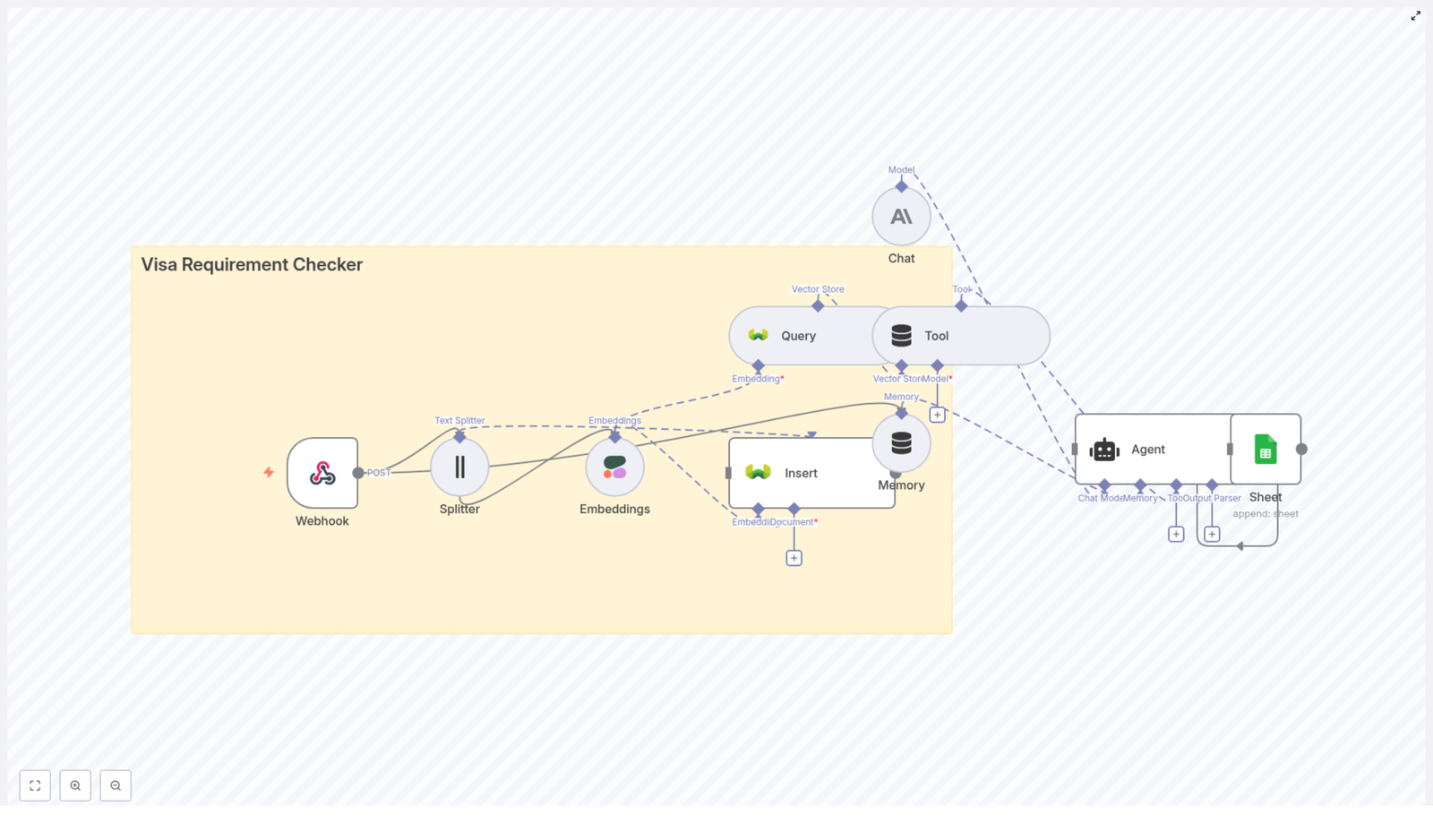
In this guide, you will turn that idea into reality. You will build a scalable, automation-friendly Visa Requirement Checker using:

  • n8n for orchestration and workflow automation
  • Cohere embeddings to convert policy text into searchable vectors
  • Weaviate as a vector database to store and retrieve relevant chunks
  • Anthropic as the chat model behind an n8n Agent
  • Google Sheets for logging, analytics, and continuous improvement

This is more than a one-off tool. It is a stepping stone toward a more automated, focused workflow where your systems do the heavy lifting and you stay free to think strategically.


From manual research to automated clarity

Traditional visa checks often rely on static tables or hardcoded rules. They are brittle, time-consuming to maintain, and easy to break every time regulations shift. When you are trying to grow a product or organization, that kind of manual work quietly drains momentum.

By moving to an LLM-driven, vector-search-based workflow, you unlock a different way of working:

  • Fast, context-aware answers directly from your curated source documents
  • Flexible knowledge base that grows as you add or update documents
  • Automation-ready endpoints via a webhook and n8n flow that can plug into any app
  • Transparent logging in Google Sheets so you can review, audit, and improve over time

Instead of chasing rules, you design a system that learns from your data and scales with your ambitions.


Mindset shift: treating automation as a growth partner

This template is not just a clever trick with AI tools. It represents a mindset shift:

  • From reactive visa checks to a proactive knowledge system
  • From scattered scripts to a single, orchestrated workflow in n8n
  • From “I have to remember to check this” to “my system checks it for me”

Once you have one workflow like this in place, it becomes easier to imagine others: eligibility checkers, policy explainers, internal support assistants, and more. The Visa Requirement Checker is your practical starting point.


Solution overview: how the workflow fits together

At the heart of this solution is an n8n workflow that:

  1. Receives a user’s travel details through a Webhook
  2. Searches a Weaviate vector store filled with Cohere embeddings of visa documents
  3. Uses an Anthropic chat model via an n8n Agent to interpret and respond
  4. Logs the entire interaction to Google Sheets for analytics and improvement

Key components in the architecture

  • Webhook: A public POST endpoint that accepts inputs such as passport country, destination, purpose, and travel dates.
  • Text Splitter: Breaks large policy documents into manageable chunks using chunkSize and chunkOverlap settings.
  • Cohere Embeddings: Transforms each chunk into a vector representation, ready for semantic search.
  • Weaviate Vector Store: Stores those vectors and retrieves the most relevant ones for each user query.
  • Agent + Anthropic Chat Model: Orchestrates tool calls, pulls in memory, and crafts a clear, user-friendly answer.
  • Google Sheets: Captures queries, answers, timestamps, and evidence so you can monitor and iterate.

Once this is in place, each new request flows through the system with minimal friction, turning a complex research task into a smooth, repeatable operation.


Step-by-step: build your n8n Visa Requirement Checker

Let’s walk through the workflow so you can recreate and then extend it. Think of each step as another layer of automation you are adding to your toolkit.

1. Create the webhook endpoint that starts everything

Begin in n8n with a Webhook node:

  • Method: POST
  • Path: for example /visa_requirement_checker

Expect a JSON body like:

{  "passport_country": "India",  "destination_country": "Germany",  "purpose": "tourism",  "travel_dates": "2025-05-10 to 2025-05-20"
}

Validate and sanitize this data. These fields will drive both the search query and the log entry in Google Sheets later. Once this is in place, you already have a reusable API endpoint that any app or form can call.

2. Prepare your knowledge base with a Text Splitter

Your system is only as good as the documents behind it. Take your policy documents, embassy pages, or other official sources and feed them into an n8n Text Splitter node.

Recommended configuration:

  • chunkSize: 400
  • chunkOverlap: 40

This gives a strong balance between preserving context and keeping vector length efficient. Over time, you can adjust these values based on your documents and accuracy needs.

3. Turn text into vectors with Cohere embeddings

Next, connect your chunks to a Cohere Embeddings node.

  • Select the embedding model that fits your subscription and language requirements.
  • For each chunk, store metadata such as:
    • Source URL
    • Document title
    • Scrape or publication date
    • A unique document ID

This metadata becomes invaluable later for traceability, audits, and user trust. You are not just answering questions, you are building an explainable knowledge layer.

4. Insert your vectors into Weaviate

With embeddings in hand, use the Weaviate node in insert mode.

  • Create or reuse a class/index, for example visa_requirement_checker.
  • Insert the vector along with all associated metadata and IDs.

By including unique IDs, you make it easy to update or delete records later instead of duplicating them. This is what keeps your system maintainable as visa rules evolve.

5. Enable real-time search with a Weaviate query node

Once the data is inserted, you are ready to answer real questions. At runtime, add a Weaviate Query node to your workflow.

Use the webhook payload to craft a natural language search query such as:

“visa requirement for an Indian passport holder traveling to Germany for tourism”

Configure the node to:

  • Perform a similarity search over your visa_requirement_checker index
  • Return the top N chunks, for example between 3 and 10, depending on the breadth of your documents

This step turns raw text into targeted evidence that your agent can reason over.

6. Wrap the query as a tool and add memory

To give your system more intelligence, wrap the Weaviate query as a tool that an n8n Agent can call.

Then add a Memory node, typically a buffer window, so the agent can:

  • Remember recent user questions in a session
  • Provide consistent follow-ups
  • Build context instead of treating each query as isolated

This moves your workflow closer to a conversational assistant that can handle clarifications and repeated checks without losing track.

7. Use an Anthropic chat model through an Agent

Now connect an Anthropic chat model via an n8n Agent node. Configure the Agent to:

  • Call the Weaviate tool to fetch the most relevant chunks
  • Combine retrieved documents with the current memory context
  • Generate a concise, user-friendly answer that:
    • References the underlying sources
    • Outlines next steps or official links where appropriate

This is where your workflow becomes truly transformative. Instead of returning raw data, it returns clear guidance, backed by evidence, that your users can act on immediately.

8. Log everything to Google Sheets for learning and growth

Finally, connect a Google Sheets node to append each interaction to a sheet named, for example, Log.

Capture fields such as:

  • Original query payload (passport country, destination, purpose, dates)
  • System response
  • Timestamp
  • Evidence URLs or document IDs used

This log becomes your feedback loop. You can:

  • Review responses for quality and accuracy
  • Identify missing documents or edge cases
  • Spot trends in user questions that inform product decisions

Over time, this turns your visa checker into an evolving, data-driven asset rather than a static tool.


Best practices to keep your system accurate and trustworthy

Designing a smart chunking strategy

Chunking is a small configuration choice that has a big impact:

  • Too small and you lose context, which can weaken search results.
  • Too large and you dilute relevancy and increase embedding costs.

Start with chunkSize = 400 and chunkOverlap = 40, then test and adjust. Use your Google Sheets logs to see where answers feel too vague or too narrow and refine accordingly.

Metadata and provenance as a trust signal

Always store source metadata with each vector:

  • Official URL or source name
  • Scraped or publication date
  • Document title

When you present answers, you can surface this information or at least keep it accessible internally. This helps users verify information and gives you a clear audit trail if a rule changes.

Keeping your data fresh with scheduled updates

Visa rules change and your system should keep up without constant manual intervention. Use n8n to create a scheduled workflow that:

  • Re-scrapes embassy or policy pages on a regular cadence
  • Re-ingests updated documents
  • Uses your vector IDs to upsert rather than duplicate content

This keeps your checker reliable and significantly reduces the maintenance burden over time.

Safety, disclaimers, and human review

LLMs are powerful, but they can still hallucinate. To stay responsible:

  • Add an automatic disclaimer such as:
    “This tool provides guidance based on indexed documents, please confirm with the official embassy or consulate before travel.”
  • Consider implementing a confidence threshold where low-confidence answers are flagged for human review.
  • Use your Google Sheets log to spot and correct problematic outputs.

This balance of automation and oversight builds trust with users and stakeholders.


Testing, monitoring, and scaling your workflow

Once your visa checker is running, treat it like a living system you can refine.

  • Test thoroughly:
    • Unit-test webhook payloads.
    • Run synthetic queries based on known visa rules.
    • Compare agent outputs with a ground-truth dataset where possible.
  • Monitor usage and cost:
    • Track Cohere, Anthropic, and Weaviate usage.
    • Implement caching for common queries to reduce repeated calls.
  • Scale when traffic grows:
    • Scale Weaviate with additional replicas.
    • Isolate the inference layer to handle higher concurrency.

With these habits in place, your visa checker can grow from a prototype into a dependable service that supports your users at scale.


A quick look at the end-to-end webhook flow

To recap the journey a single request takes:

  1. The user sends a POST request with passport, destination, purpose, and dates.
  2. The Agent turns that payload into a search query.
  3. The Weaviate Query node fetches the top relevant chunks from your vector store.
  4. The Anthropic chat model summarizes the evidence into a clear answer with citations or references.
  5. Google Sheets logs the entire exchange for analysis and improvement.

What once took minutes of manual research now completes in seconds, consistently and at scale.


Costs and practical considerations

As with any AI-powered workflow, it helps to understand where your main costs come from:

  • Embedding generation with Cohere when you ingest or update documents
  • Chat completions with Anthropic at runtime for each user query

To keep things efficient:

  • Use batching when generating embeddings in bulk.
  • At runtime, retrieve only as many chunks as you need for good coverage.
  • Favor shorter prompts and responses when they still answer the question clearly.

This lets you scale responsibly without sacrificing user experience.


Turning this template into your automation launchpad

By combining n8n, Cohere, Weaviate, and Anthropic, you are not just building a visa requirement checker. You are building a reusable pattern for AI-powered, explainable automation that can adapt as your needs grow.

A simple path to get started:

  1. Begin with a limited dataset, such as the top 50 countries or embassies your users care about most.
  2. Validate the workflow’s answers against official sources.
  3. Iterate on chunking, prompts, and metadata based on your Google Sheets logs.
  4. Gradually expand coverage and add new features as your confidence grows.

Each improvement you make here strengthens your broader automation capabilities and frees more time for deep work and strategic decisions.

Call to action: Ready to build your own Visa Requirement Checker and start automating more of your research work? Export this n8n template, connect your Cohere, Weaviate, and Anthropic credentials, and deploy the webhook.

If you would like, I can help you with a sample n8n export (JSON) tailored to your document sources or with webhook validation code. Just share which countries or data sources you want to support first, and we can shape the workflow around

AI Logo Sheet Extractor to Airtable (n8n Workflow)

AI Logo Sheet Extractor to Airtable – Automate Logo-to-Database with n8n

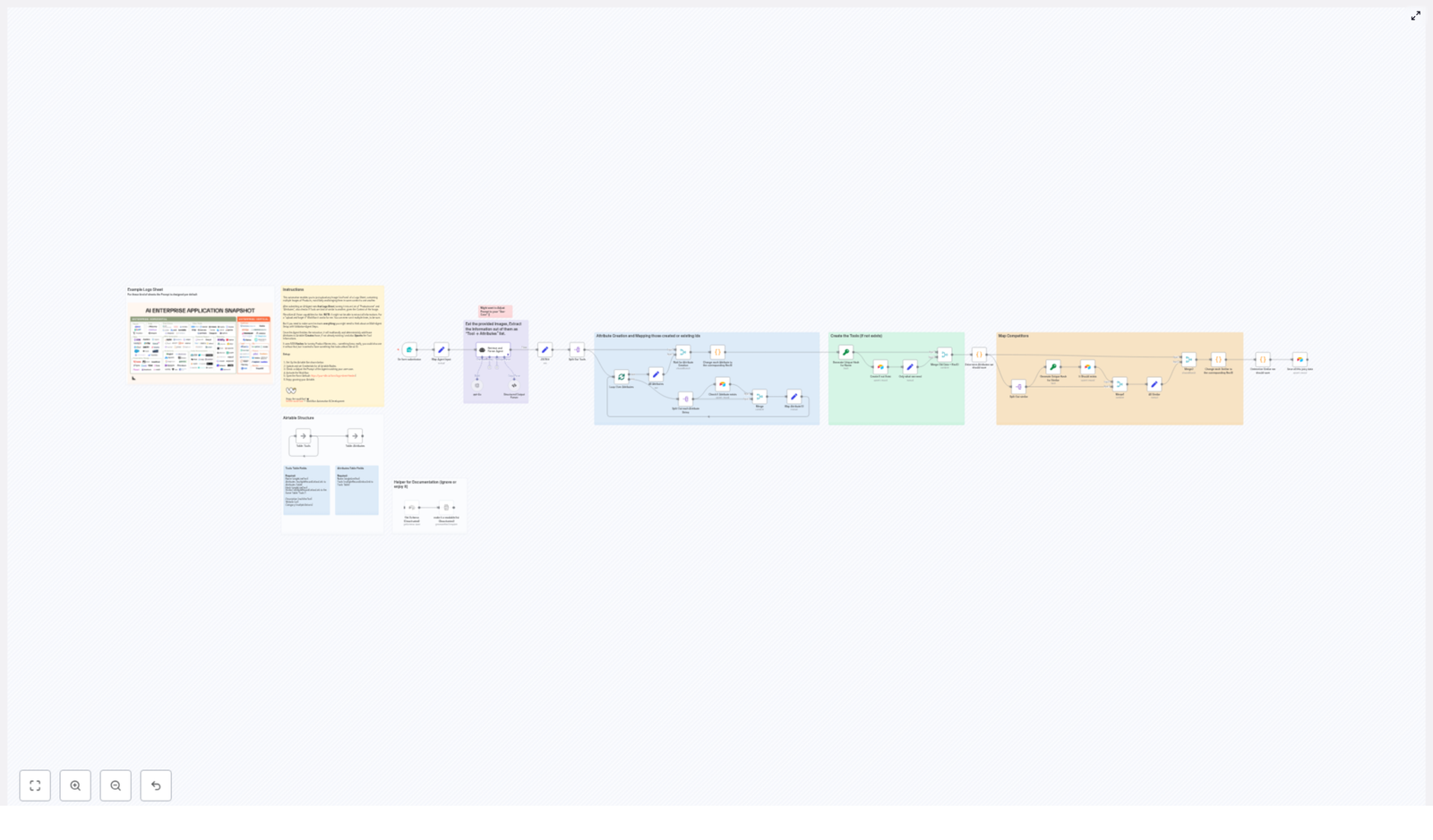
What if that giant logo collage your team keeps passing around could magically turn into a clean Airtable database – without anyone sacrificing a weekend to data entry? This n8n + AI vision workflow does exactly that: it takes a single uploaded logo sheet image and converts it into structured Airtable records with tools, attributes, and competitor links.

From “who’s updating the spreadsheet?” to “it’s already done”

If your marketing, product, or BD team lives in a world of:

  • Conference one-pagers full of logos
  • Competitive grids and landscape diagrams
  • Marketplace screenshots saved as images or PDFs

then you probably also live in a world of:

  • Endless copy-paste from images into spreadsheets
  • Half-finished competitor lists
  • That one “master sheet” nobody wants to maintain

The AI Logo Sheet Extractor to Airtable workflow is built to fix that. It uses AI vision plus a parsing agent to read logo sheets, extract tool names, group attributes, map similar tools, and then upsert everything directly into Airtable. The result is a living product and competitor database that stays current without manual data entry misery.

What this n8n workflow actually does

At a high level, the workflow takes a logo sheet image from a simple form and runs it through a series of automated steps:

  • Form upload – A Form Trigger node receives a logo sheet image and an optional hint prompt.
  • AI extraction – A LangChain/OpenAI agent with vision enabled analyzes the image.
  • Structured parsing – An Output Parser normalizes the result into clean JSON.
  • Attribute upsert – Attributes are deduplicated and synced into an Airtable Attributes table.
  • Tool upsert – Tools are created or updated in an Airtable Tools table with attributes and competitor links.

The whole thing runs inside n8n, so you can tweak, extend, or plug it into the rest of your automation stack.

How the AI Logo Sheet Extractor works (simplified walkthrough)

Let us walk through the main stages so you know exactly what is happening behind the scenes.

1. Upload form trigger – the starting line

The workflow begins with a public or internal form built on the Form Trigger node in n8n. A user uploads a logo sheet image and can optionally add a short prompt like “These are AI infra tools” to give the AI more context.

Once submitted, the form:

  • Stores the uploaded file
  • Passes the image (and optional hint) into the workflow
  • Kicks off the AI processing automatically

2. AI retrieval and parsing agent – letting vision do the heavy lifting

Next, an n8n LangChain agent takes over. In the reference template, it uses a model like gpt-4o with vision enabled. This agent has two main jobs:

  1. Visual recognition – It reads the image, identifies logos, and understands the grouped context (for example “these are AI infrastructure companies”).
  2. JSON output – It returns a deterministic JSON array of tools with a clear structure:
    • name – the tool or company name
    • attributes – categories or features
    • similar – competitors or related tools listed on the same sheet

So instead of squinting at logos and typing them into a spreadsheet, you get a ready-to-process JSON payload.

3. Structured output parser and normalization – keeping data tidy

AI is powerful, but occasionally a bit “creative” with formats. To keep your Airtable base safe, the workflow uses a Structured Output Parser step.

This parser:

  • Validates that the agent output is valid JSON
  • Normalizes the structure so each tool has the required fields
  • Prevents malformed records from going straight into Airtable

Think of it as a bouncer for your data. If the JSON is not formatted correctly, it does not get in.

4. Attribute deduplication and creation – one attribute, many tools

Once the JSON is clean, the workflow extracts all attributes from the tools and splits them into individual records.

For each attribute, n8n:

  • Checks the Attributes table in Airtable
  • Upserts the attribute by name, so you do not get duplicates
  • Creates canonical attribute records that can link to multiple tools

The result is a normalized attributes layer you can reuse across your entire tooling or vendor landscape.

5. Tool creation and linking – upserting the actual tools

Next up, the workflow turns each tool into a predictable, matchable record.

To do this, it:

  • Creates a unique hash for each tool name (an MD5-style approach) to use as a stable matching key
  • Upserts the tool into the Airtable Tools table using that hash
  • Merges existing attribute links with any new attributes, so previously entered data is not overwritten incorrectly

This means if a tool appears on multiple logo sheets over time, it still lands in the same record instead of creating messy duplicates.

6. Similar and competitor mapping – building relationships

Finally, the workflow handles the similar field for each tool. This is where competitor and related-tool relationships get mapped.

The workflow:

  • Looks up each name listed in the similar field
  • Creates a new tool record if it does not already exist
  • Stores record links in Airtable so you have a network of competitor relationships

Inside Airtable, this behaves like a bidirectional-style mapping you can use for analysis, dashboards, or “who are we really competing with here?” conversations.

Recommended Airtable setup for this workflow

To get the most from the template, set up two Airtable tables that work together.

Tools table (suggested fields)

  • Name – single line text
  • Attributes – link to Attributes table, allow multiple values
  • Hash – single line text, used as the upsert key
  • Similar – link to Tools table, multiple values for competitor mapping
  • Description (optional)
  • Website (optional)
  • Category (optional)

Attributes table (suggested fields)

  • Name – single line text
  • Tools – backlink to Tools table

Once this schema is in place, the n8n workflow can safely upsert tools and attributes without cluttering your base with near-duplicates.

Prompt tips to get better AI logo extraction

The AI agent is smart, but a bit of guidance goes a long way. When you upload a logo sheet through the form, you can include an optional prompt. Here is how to use it effectively:

  • Add context in plain language
    Example: “This sheet groups agentic AI infra providers.”
  • Specify the expected JSON structure
    Encourage the agent to respond with the exact fields your parser expects.
  • Use the Structured Output Parser
    Configure it in n8n to enforce the exact JSON schema and catch formatting issues.
  • Help with tiny or dense images
    For complex logo walls, upload higher-resolution images or crop zoomed sections into separate submissions.

Real-world use cases for this n8n logo sheet workflow

Once everything is wired up, this template becomes a surprisingly flexible automation building block.

  • Competitive intelligence Turn conference one-pagers and market landscape charts into structured data you can filter, sort, and dashboard.
  • Vendor discovery Bulk import vendor logos from slide decks, then quickly map features and categories for procurement or partner teams.
  • Product catalogs Convert product grids from images or PDFs into Airtable records that your whole team can search and update.

Limitations, edge cases, and best practices

AI vision is impressive, but it is not a mind reader. There are a few situations where things can get weird:

  • Logos that are clipped, rotated, or partially hidden might be misread.
  • Companies with very similar typography or iconography can be confused with each other.

To reduce headaches:

  • Keep a human in the loop for critical databases or high-stakes decisions.
  • Re-run extraction or crop and zoom problem areas if a logo is especially hard to read.
  • Store a “raw” column with the original agent string in Airtable so you can audit or correct conversions later.

Troubleshooting common n8n and Airtable issues

Malformed JSON from the agent

  • Tighten the system prompt so it clearly instructs the model to output strict JSON only.
  • Enable and configure the Structured Output Parser to enforce the schema.

Airtable upserts are failing

  • Verify your Airtable API token is valid and has access to the correct base.
  • Double check field names and mappings in the Airtable nodes inside n8n.

Duplicate attributes appearing

  • Confirm the attribute upsert logic is using the attribute name as the matching key.
  • Make sure there are no subtle naming differences, such as spacing or casing, that create near-duplicates.

Security and privacy for logo sheet automation

If you are uploading internal logo sheets, supplier lists, or partner overviews, treat them as sensitive data.

Best practices include:

  • Confirm your AI provider and Airtable access keys align with your company compliance requirements.
  • Encrypt stored image blobs where appropriate.
  • Restrict the public form or add authentication if this workflow is for internal use only.

How to get started: setup and next steps

You can go from “logo wall” to “searchable Airtable base” in a few steps:

  1. Clone or recreate the n8n workflow and plug in your OpenAI / LangChain credentials.
  2. Configure your Airtable base with the recommended Tools and Attributes tables, then add your Airtable API token to the n8n nodes.
  3. Test with a few logo sheets and review the resulting records in Airtable for accuracy.
  4. Add a human validation step in n8n if you need someone to approve or correct entries before they go live.

If you want help customizing the template, tuning prompts, or adding extra validation agents, you can reach out for support or just try the template and iterate.

Call to action: Import this n8n workflow, connect your Airtable API token, and start turning logo sheets into structured, searchable data in minutes. If you need custom fields, special prompts, or a more advanced Airtable schema, an automation specialist can help tailor the setup to your stack.

Backup n8n Workflows to Gitea

Backup n8n Workflows to Gitea: A Story of Lost Work and Automatic Safety Nets

On a quiet Tuesday evening, Mia, a marketing operations lead, watched her n8n dashboard with a sinking feeling. A misconfigured update had broken several of her carefully crafted workflows. One of them powered the company’s lead routing, another handled reporting, and both had been tweaked endlessly over the last few months.

There was no easy way to roll back. No history of changes. No simple “undo.”

That was the night Mia decided she would never trust her memory alone again. She needed automated backups of every n8n workflow, stored safely in Git, with real version history. A colleague mentioned a ready-made n8n template that could back up all workflows to a Gitea repository. Curious and a bit desperate, she opened it up.

The Problem: Fragile Workflows and No Version History

Mia’s team relied heavily on n8n automations. They pushed experiments quickly, adjusted workflows on the fly, and shipped changes multiple times per week. It was fast, but fragile.

Her pain points were clear:

  • No built-in version history for every small workflow tweak
  • No simple rollback when a change broke something
  • No central place for the team to review or audit workflow changes
  • Anxious late nights whenever she edited a critical workflow

She already used Gitea for code and documentation. What she wanted was simple in theory: “Back up my n8n workflows to Gitea automatically, keep versions, and only commit when something actually changes.”

The n8n template she found promised exactly that: automated Git-based backups of all workflows to a Gitea repository, with change detection and minimal noise in the commit history.

The Discovery: An n8n Template Built for Git-based Backups

As Mia explored the template, she realized it was designed for her exact problem. The workflow would:

  • Fetch all workflows from her n8n instance using the n8n API
  • Export each one as a JSON file
  • Check Gitea to see if that file already existed
  • Create or update the file via the Gitea API
  • Skip commits when nothing had changed to keep the Git history clean

In other words, it would turn her n8n instance into a source-controlled, auditable system, with every workflow stored as a JSON file in a private Gitea repository.

How the Workflow Operates Behind the Scenes

Mia liked understanding how things worked before trusting them. So she walked through the high-level flow of the template. It looked like this:

  1. Schedule Trigger – Runs every N minutes, for example every 45 minutes, to back up workflows on a regular schedule.
  2. Globals node – Stores the Gitea repository URL, the owner, and the repository name in one place.
  3. n8n API node – Calls the n8n API to fetch all workflows from her instance.
  4. ForEach / Split node – Iterates through each workflow returned by the API.
  5. GetGitea – Checks if the JSON file for that workflow already exists in the Gitea repo.
  6. Exist If node – Branches logic based on whether the file exists or not.
  7. Base64 encode nodes (create/update) – Converts the workflow JSON into base64, which is what the Gitea API expects.
  8. PostGitea / PutGitea – Creates a new file or updates an existing one using the encoded content.
  9. Changed If node – Compares old and new content to avoid unnecessary commits when nothing has changed.

This was not just a backup. It was a disciplined Git-based safety net with version history, easy rollback, and a clean audit trail of every workflow change.

Rising Action: Mia Sets Up Her Automated n8n to Gitea Backups

Convinced this could save her from future disasters, Mia decided to set up the template in her own environment. The process was straightforward, but she followed it carefully.

1. Defining the Global Repository Settings

First, she opened the Globals node. This node would keep all key Git-related details in one place, so she would not need to hard-code URLs or repo names in multiple nodes.

She filled in:

  • repo.url – Her Gitea instance URL, such as https://git.example.com
  • repo.owner – The account or organization that owned the repository
  • repo.name – The repository name, for example workflows

By centralizing these values, she made the workflow easier to maintain. If the repo ever moved, she would only change it here.

2. Creating a Gitea Personal Access Token

Next, she needed a way for n8n to talk securely to Gitea. In her Gitea UI, Mia went to Settings → Applications → Generate Token and created a new personal access token with repository read and write permissions.

She copied the token once, knowing she would not see it again, and went back to n8n to store it safely.

Inside n8n, she created an HTTP header credential and named it something clear, such as Gitea Token. In the header, she added:

Authorization: Bearer YOUR_PERSONAL_ACCESS_TOKEN

She double-checked that there was a space after Bearer, a small detail that often causes 401 errors when forgotten.

3. Wiring Up the Gitea Credentials to the Right Nodes

With the token stored, Mia attached these credentials to each node that would call the Gitea API. In the template, those nodes were:

  • GetGitea – To read file metadata and check if a workflow backup already existed
  • PostGitea – To create new JSON files when a workflow backup did not exist yet
  • PutGitea – To update existing JSON files when a workflow had changed

By connecting the same credential to all three, she ensured consistent authentication for every API call.

4. Connecting n8n to Its Own API

Now she needed n8n to list all of its workflows. The template included an n8n API node dedicated to this task.

Mia configured it to point to her n8n instance. Since her instance required authentication, she added the appropriate token or credentials so the node could successfully call the n8n API and retrieve the full list of workflows.

This was the heart of the backup process. Without this node, there would be nothing to export.

5. Deciding on File Names and Repository Layout

Before letting the workflow run, Mia took a moment to think about how her backups would be organized in Gitea.

The template wrote each workflow as a single JSON file, typically using a safe filename pattern like:

{workflowName}.json

She considered a few best practices:

  • Sanitizing workflow names to remove invalid characters that Git or the file system might not accept
  • Including the workflow ID in the filename to avoid collisions, for example {workflowName}-{workflowId}.json
  • Optionally including timestamps in filenames if she ever wanted immutable snapshots

For now, she chose a naming scheme that included both the name and the ID, which gave her uniqueness and clarity.

The Turning Point: Smart Change Detection That Keeps History Clean

One feature impressed Mia more than anything else: the workflow did not blindly commit every time it ran. Instead, it checked whether anything had actually changed.

Here is how the change detection logic worked for each workflow:

  1. The workflow retrieved the existing file from Gitea, including its base64 content and SHA if it existed.
  2. It encoded the current workflow JSON from n8n as base64.
  3. It compared the stored base64 content in Gitea with the freshly encoded content from n8n.
  4. If the content was different, the workflow called the Gitea API with a PUT request to update the file, passing along the new base64 content and the repository SHA.
  5. If the file did not exist yet, the workflow created it with a POST request and the encoded content.
  6. If there was no difference, the Changed If node prevented any update, which reduced noise in the Git history and saved unnecessary API calls.

This was the turning point for Mia. She realized she would not be drowning in hundreds of meaningless commits. Instead, each commit would represent a real change in a workflow, making audits and rollbacks much easier.

Staying Safe: Security and Best Practices Mia Adopted

As someone responsible for marketing data and automation, Mia was careful about security. The template aligned well with common best practices, and she followed them closely:

  • She granted the Gitea token only the permissions it needed, specifically repository read and write.
  • She stored the token as an n8n credential instead of hard-coding it into any node.
  • She used a private Gitea repository for the backups so no internal workflow logic leaked publicly.
  • She considered adding signed commit messages or a signature file later if her team required stronger verification.

With these safeguards, she felt confident that the automated backup process would not introduce new risks.

When Things Go Wrong: How Mia Handled Issues

Mia knew that even the best setups can run into problems. She kept a small checklist handy for common pitfalls.

Authentication Errors

If a Gitea node returned a 401 or 403, she verified:

  • That the personal access token was correct and had the right scopes
  • That the Authorization header followed the exact pattern Bearer YOUR_TOKEN
  • That every Gitea node, including GetGitea, PostGitea, and PutGitea, used the same credential

File Name Collisions

She discovered that workflows with identical names could overwrite each other if they shared the same filename. To avoid this, she included the workflow ID in the filename or used a slugified version of the workflow name to ensure uniqueness.

Large Workflows

Some of her more complex automations were quite large. She knew that very large workflows created larger base64 payloads, which could hit size limits in the Gitea API.

If that ever became a real issue, she planned to compress the content, for example with gzip, before encoding it. She would then store a small metadata file in the repository describing the compression method, so future readers would know how to decode it.

Testing the Waters: How Mia Validated Her Setup

Before trusting the workflow on a schedule, Mia decided to run a few careful tests.

  1. She ran the template manually for a single workflow and confirmed that the PostGitea path created a new JSON file in the repository.
  2. She made a small change to that workflow in n8n, for example updating a node description, then ran the workflow again and verified that the PutGitea path updated the existing file.
  3. She opened the Gitea repository, inspected file contents, and checked commit messages and authors to ensure everything looked correct.
  4. Once satisfied, she enabled the Schedule Trigger with an interval of around 45 minutes, which gave her frequent backups without overusing the API. A range of 30 to 60 minutes worked well for her pace of changes.

After a day of successful test runs, she finally relaxed. Her workflows were no longer a fragile black box. They were versioned assets in Git.

Going Further: How Mia Extended the Template

As her confidence grew, Mia started thinking about how to extend the template for even better visibility and control. The template made it easy to add extra steps.

  • She customized commit messages to include the workflow name and a timestamp, which made audits much easier.
  • For major changes, she experimented with storing historical snapshots in timestamped folders, so she could browse past states of key workflows.
  • She considered adding Slack or email notifications to alert her team when a backup failed or when a significant change was detected.
  • For workflows that touched sensitive data, she looked into encrypting specific fields before committing them, especially for any repository that might not be fully private.

One of her favorite commit message patterns looked like this:

Backup: Update workflow "Order Processing" (workflow-id-1234) - 2025-04-15T09:30:00Z

At a glance, anyone on the team could see exactly what changed and when.

The Resolution: From Anxiety to Confidence

A few weeks later, another risky change went wrong. A new node in a critical workflow broke a key integration. Instead of panicking, Mia opened her Gitea repository, browsed the commit history, and pulled up the last working version of the workflow JSON.

Within minutes, she restored the workflow in n8n. No late-night rebuild. No guesswork. No lost experiments.

By backing up her n8n workflows to a Gitea repository, she had:

  • Git-based version control for every workflow
  • Automated, scheduled backups that ran every 30 to 60 minutes
  • Change detection that prevented noisy, redundant commits
  • A clear audit trail of who changed what and when

The template had quietly taken care of the heavy lifting: fetching workflows via the n8n API, encoding them in base64, checking the repository state, and creating or updating files only when needed.

Start Your Own Story: Put Your n8n Workflows Under Git Protection

You do not have to wait for a broken workflow to feel the pain Mia did. If you run anything important on n8n, putting your workflows under Git-based backups is one of the simplest ways to protect your work and gain peace of mind.

Use this template to:

  • Automate backups of all n8n workflows to a private Gitea repository
  • Gain full version history and easy rollback
  • Collaborate with your team by reviewing JSON files and commit logs
  • Keep your Git history clean with smart change detection

If you need help tailoring the setup to your environment, such as filename conventions, encryption strategies, or notification rules, you can adapt the template or extend it with additional n8n nodes.

Call to action: Download the template, configure your Gitea token, run a manual backup today, and give your n8n workflows the safety net they deserve. Subscribe for more n8n automation templates, implementation stories, and deep dives.

Visa Requirement Checker with n8n and AI

Visa Requirement Checker with n8n and AI

Overview

This reference guide explains how to implement a scalable Visa Requirement Checker using n8n, vector search, and LLM-based conversational agents. The workflow template combines a webhook-based entry point, text splitting, semantic embeddings, a Weaviate vector database, an Anthropic-powered agent, and Google Sheets logging to deliver accurate and auditable visa guidance.

The automation pipeline:

  • Accepts structured user queries via a Webhook
  • Splits and embeds policy text or query content using a Text Splitter and Cohere embeddings
  • Persists and retrieves visa policy knowledge from Weaviate as a vector store
  • Uses an Agent + Tool setup to inject relevant context into an Anthropic chat model
  • Logs the full interaction lifecycle into Google Sheets for analytics and compliance

Use Case Rationale

Visa and entry rules change frequently and depend on multiple parameters such as nationality, destination, purpose of travel, and passport validity. A dedicated Visa Requirement Checker built on n8n and AI helps:

  • Travel agencies validate eligibility before bookings
  • Customer support teams respond faster with consistent answers
  • Enterprise mobility teams manage employee travel compliance

Using n8n and AI-driven vector search makes the solution:

  • Fast to deploy with minimal custom code
  • Context-aware, handling natural-language questions and follow-ups
  • Scalable via webhook-based concurrent request handling
  • Auditable through structured logging in Google Sheets

Workflow Architecture

At a high level, the n8n workflow template follows this architecture:

  1. Webhook receives POST requests from a front-end or external API client.
  2. Text Splitter segments long text into manageable chunks with overlap.
  3. Embeddings (Cohere) convert each chunk into a vector representation.
  4. Weaviate Insert stores embeddings and metadata in the vector database.
  5. Weaviate Query retrieves the most relevant policy chunks for a given query.
  6. Vector Store Tool exposes Weaviate search to the Agent as a tool.
  7. Memory (Buffer Window) preserves recent conversation state for follow-ups.
  8. Agent + Chat (Anthropic) generate the final user-facing response.
  9. Google Sheets appends a log entry for each interaction.

Node-by-Node Breakdown

1. Webhook (n8n Trigger)

The Webhook node is the entry point for all user queries. It listens for incoming HTTP POST requests from your UI, form, or back-end service.

Typical configuration

  • HTTP Method: POST
  • Path: for example /visa_requirement_checker
  • Response Mode: usually On Received or Last Node depending on whether you want to return the AI answer directly

Expected request payload

The workflow expects structured JSON with user and trip parameters, for example:

{  "name": "John Doe",  "nationality": "India",  "destination": "Germany",  "purpose": "tourism",  "passport_validity_months": 6
}

You can enforce required fields either:

  • Upstream in your client or API gateway (recommended), or
  • Downstream in n8n using additional nodes (e.g. IF nodes for validation and error responses)

Make sure the Webhook node is configured to accept application/json and that your client sends a valid JSON body. For production, consider validating types and value ranges (for example, passport_validity_months >= 0).

2. Text Splitter

The Text Splitter node prepares text for embedding by splitting it into smaller, overlapping segments. This is important both for:

  • Long visa policy documents that you index into Weaviate
  • Complex multi-field user inputs that may be combined into a single text string

Key parameters

  • Chunk Size: for example 400 tokens or characters
  • Chunk Overlap: for example 40, to preserve context between adjacent chunks

Choosing appropriate chunk sizes helps mitigate tokenization issues and improves retrieval quality. If chunks are too large, you may hit token limits in the LLM. If they are too small, you risk losing contextual meaning.

3. Embeddings (Cohere)

The Embeddings node calls Cohere to transform each text chunk into a high-dimensional vector. These embeddings are later used by Weaviate to perform semantic similarity search.

Configuration details

  • Credentials: Cohere API key configured in n8n credentials
  • Model: choose a Cohere embedding model optimized for semantic search
  • Input: array of text chunks from the Text Splitter node

All embeddings generated here should be consistent with those used at query time. Avoid switching models mid-way, as it will degrade vector similarity results.

4. Weaviate Vector Store (Insert & Query)

4.1 Insert node

The Insert operation writes embeddings and associated metadata into Weaviate. This step is usually used when:

  • Seeding the vector store with visa policy documents
  • Updating or extending existing policies

Typical metadata fields include:

  • country or destination
  • date_updated or version information
  • source (for example, official government site URL)

This metadata is crucial for filtering and auditing, and it can also be surfaced to the LLM as part of the context.

4.2 Query node

At query time, the workflow:

  1. Computes an embedding for the user question using the same Cohere model
  2. Executes a Weaviate Query to retrieve the top-N most similar chunks

The query node typically returns:

  • The matched text snippets
  • Associated metadata (country, source, last updated date, etc.)
  • Similarity scores

The top-N results, sometimes referred to as top_snippets, are passed downstream to the Agent to ground its response in real policy data.

5. Vector Store Tool Layer

The Tool node wraps the Weaviate Query so that the Agent can call it as a tool. In n8n, this layer:

  • Defines an interface for the Agent, for example a “search_visa_policies” tool
  • Maps tool inputs to Weaviate query parameters
  • Formats tool outputs into a structure the Agent can consume in its reasoning loop

This abstraction allows the LLM to request additional context from the vector store when needed, instead of embedding all data into the prompt upfront.

6. Memory (Buffer Window)

The Memory node, configured as a Buffer Window, stores recent conversation turns so the Agent can handle follow-up queries such as:

“What about family members?”

Rather than re-sending all previous messages, the buffer window:

  • Maintains only the last N messages
  • Controls prompt size and cost
  • Preserves enough context for coherent multi-turn interactions

Choose a window size that balances context richness with token usage. For one-shot or stateless queries, you can keep this small or even disable multi-turn memory.

7. Chat & Agent (Anthropic)

The Agent node orchestrates:

  • The Anthropic chat model
  • The Vector Store Tool
  • The Memory buffer
  • The prompt template that structures the task

Anthropic (or another supported LLM) generates the final natural-language answer by combining:

  • User-provided parameters (nationality, destination, purpose, passport validity)
  • Retrieved policy snippets from Weaviate
  • Conversation history stored in the Memory node

Prompting guidelines

When configuring the Agent, ensure that the system and user prompts instruct the model to:

  • Prioritize official policy text and authoritative sources
  • Clearly state assumptions or uncertainties when policies conflict
  • Optionally return structured JSON if your UI needs machine-readable output

8. Google Sheets (Logging and Analytics)

The final node in the workflow appends a row to a Google Sheets spreadsheet for each interaction. This provides:

  • Traceability for compliance and audits
  • Data for analytics and quality monitoring
  • A simple way to review or correct answers manually

Typical columns include:

  • Raw user input
  • Parsed or normalized parameters (nationality, destination, purpose, validity)
  • Retrieved policy snippets or document IDs
  • Model response text
  • Timestamp and any relevant request IDs

Configure Google Sheets credentials in n8n and ensure the target sheet has a stable schema to avoid write errors.

Prompt Template Example

Below is a sample prompt template that can be used within the Agent node to structure the LLM’s behavior:

You are an assistant that determines visa requirements. Use the user data and the policy snippets below. If policies conflict, prioritize official government sources and state uncertainty.

User data:
- Nationality: {nationality}
- Destination: {destination}
- Purpose: {purpose}
- Passport validity: {passport_validity_months} months

Policy snippets:
{top_snippets}

Answer with:
1) Short recommendation
2) Required documents
3) Any notes and source citations

You can adapt this template for your UI needs, for example by adding a requirement to return JSON keys such as recommendation, required_documents, and notes.

Configuration Notes & Integration Details

Credentials

  • Cohere: API key for embeddings
  • Weaviate: endpoint URL, API key or auth token, and any TLS settings
  • Anthropic: API key for the chat model
  • Google Sheets: OAuth or service account credentials

All credentials should be stored in n8n’s credential manager, not hard-coded in nodes.

Data flow and mapping

  • Webhook JSON fields are mapped into the Agent prompt variables and, if needed, into the text that is embedded.
  • Weaviate metadata fields should align with how you filter or display results (for example, destination matching the user’s chosen country).
  • Google Sheets columns should be mapped explicitly from node outputs to avoid schema drift.

Error handling and edge cases

Typical scenarios to consider:

  • Missing or invalid input: handle via conditional nodes (IF / Switch) after the Webhook and return a clear error payload.
  • No relevant policy snippets found: define Agent behavior for an empty or low-confidence Weaviate result set, for example instruct the model to say that information is unavailable.
  • Timeouts or API errors: configure retry strategies or send a fallback message to the user, and log the error to Google Sheets or an additional error log.

Advanced Customization

Scaling and performance

  • Place a reverse proxy with TLS in front of n8n for secure public access.
  • Use rate limiting at the proxy or API gateway to prevent abuse and control external API costs.
  • Batch insert documents when seeding or refreshing large policy sets to speed up indexing in Weaviate.
  • Monitor vector store usage and tune chunk size, overlap, and top-K retrieval parameters for accuracy and latency.

Security, compliance, and data handling

Visa-related queries can contain personally identifiable information. Apply the following practices:

  • Avoid embedding unnecessary PII in the vector store. Prefer storing a reference ID as metadata and keeping PII in a separate, secured system if needed.
  • Enable access controls for both n8n and Weaviate, and use encryption at rest where supported.
  • Define a log retention policy for Google Sheets, periodically removing or anonymizing old entries.
  • Display a clear disclaimer to users indicating that the checker provides guidance and not legal or immigration advice.

Testing and troubleshooting

Before going live, test the workflow with a broad range of scenarios:

  • Different nationalities and destinations
  • Dual nationality, diplomatic or service passports
  • Short layovers, transit-only trips, and long stays

Common issues and how to address them:

  • Outdated or incorrect information: verify the underlying sources in Weaviate and refresh the index with updated policy documents.
  • Poor retrieval quality: experiment with a different embedding model, adjust chunk size and overlap, or increase top-K in Weaviate queries.
  • Unexpected cost spikes: cache frequent queries upstream, limit model response length, or configure usage quotas in your LLM provider account.

Business Impact and Typical Deployments

Organizations commonly use this Visa Requirement Checker pattern to:

  • Automate pre-booking eligibility checks in travel portals
  • Provide suggested answers to customer support agents for faster response times
  • Standardize travel compliance checks for employees across multiple regions

Because the solution is built on n8n with a no-code / low-code approach, it is easier to maintain and extend than a fully custom-coded system.

Getting Started with the Template

To implement this workflow in your own environment:

  1. Import the provided n8n workflow template.
  2. Configure credentials for Cohere, Weaviate, Anthropic, and Google Sheets.
  3. Seed the Weaviate index with authoritative visa

Build a Visa Requirement Checker with n8n

Build a Visa Requirement Checker with n8n, Embeddings and Weaviate

This guide describes how to implement a production-ready Visa Requirement Checker using n8n as the workflow engine, an embeddings provider and Weaviate as the vector database, and an AI agent for reasoning over retrieved policies. The workflow also logs all queries and responses to Google Sheets for auditing and analytics.

1. Solution overview

The Visa Requirement Checker automates the evaluation of visa rules based on structured input such as nationality, destination, passport type, trip purpose, and stay duration. The n8n workflow exposes a webhook endpoint, retrieves relevant regulations from a vector store, uses an AI agent to interpret the rules, then returns a structured answer and records the interaction.

1.1 Core capabilities

  • Automated visa requirement evaluation based on traveler and trip attributes
  • Semantic search over a centralized corpus of visa policies stored as embeddings
  • AI agent that interprets retrieved policy text and generates clear, actionable responses
  • Persistent logging of all queries and answers in Google Sheets for audit trails and reporting
  • Extensible design that can accommodate new countries, document types, or policy changes

1.2 Typical use cases

  • Travel platforms providing instant visa guidance at checkout or trip planning stages
  • Corporate HR and mobility teams supporting employee travel compliance
  • Internal tools for support teams to quickly answer visa-related questions

2. High-level architecture

At a high level, the workflow follows this sequence:

  1. Incoming POST request hits an n8n Webhook node.
  2. Visa policy documents are pre-processed, split into chunks, and converted into embeddings.
  3. Embeddings and associated metadata are stored in Weaviate as a vector store.
  4. For each request, n8n queries Weaviate to retrieve the most relevant policy chunks.
  5. An AI agent consumes the retrieved content, applies domain logic, and produces a final answer.
  6. n8n appends the request and response to Google Sheets for logging, then returns the answer to the caller.

2.1 Main workflow components

  • n8n Webhook node – Exposes an HTTP endpoint for POST requests from your UI or API.
  • Text splitting logic – Breaks large policy documents into embedding-friendly segments with controlled overlap.
  • Embeddings provider – Generates vector representations of each text chunk using a model such as Cohere or OpenAI.
  • Weaviate vector store – Persists vectors and metadata and provides semantic search capabilities.
  • AI agent – Uses the vector store as a tool, plus optional memory, to answer queries using retrieved context.
  • Google Sheets integration – Stores query parameters, AI responses, and citations for analysis and compliance.

3. Data model and request format

3.1 Incoming request payload

The Webhook node is configured to receive a JSON payload with traveler and trip details. A typical POST body looks like:

{  "nationality": "India",  "destination": "Germany",  "passport_type": "Ordinary",  "purpose": "Tourism",  "arrival_date": "2025-11-01",  "stay_days": 10
}

You can extend this schema with additional attributes (for example, transit-only flag, dual nationality, or vaccination status) as needed, but the core workflow assumes at least nationality, destination, passport type, purpose, and stay duration.

3.2 Policy document representation

Source regulations such as country rules, bilateral agreements, and exemptions are stored as text documents. Before insertion into Weaviate, each document is:

  • Split into chunks based on character length and overlap.
  • Converted to embeddings.
  • Enriched with metadata such as country, document type, effective date, and source URL.

Example metadata object:

{  "country": "Germany",  "type": "visa_policy",  "source": "gov.de"
}

4. Node-by-node workflow breakdown in n8n

4.1 Webhook node – Request entry point

Purpose: Receive visa check requests from your front end or API clients.

  • Method: POST
  • Path: for example /visa_requirement_checker
  • Response mode: Typically “On Received” or “Last Node” depending on how you want to control the HTTP response.
  • Expected content type: application/json

The Webhook node parses the JSON payload and makes the fields (such as nationality and destination) available to subsequent nodes via item data. You can add basic validation here, for example checking that required fields are present before proceeding.

4.2 Text splitting for embeddings

Purpose: Pre-process long policy documents into segments suitable for embedding models and vector search.

The template uses a character-based text splitter with:

  • chunkSize: 400 characters
  • chunkOverlap: 40 characters

These parameters balance context preservation with embedding length and cost. You can tune them according to your corpus:

  • Chunk size: typically 300-800 characters depending on how dense and structured the source text is.
  • Overlap: typically 20-100 characters to avoid breaking sentences and to carry context across chunks.

In n8n, this logic is usually implemented via a dedicated text-splitting node or a combination of Function nodes and the built-in text splitter integration, depending on your setup. The important aspect is that each resulting item contains:

  • The text chunk.
  • Identifiers linking back to the original document.
  • Any static or derived metadata you want to store with the embedding.

4.3 Embeddings node – Vector generation

Purpose: Convert each text chunk into a numeric vector using an external embeddings API.

You can use an embeddings node configured with providers such as:

  • Cohere – via the Cohere credentials in n8n.
  • OpenAI – via the OpenAI credentials in n8n.
  • Any other embeddings-capable provider supported by your n8n instance.

Configuration points:

  • Select the appropriate model name based on your provider.
  • Map the input field to the text chunk property produced by the text splitter.
  • Ensure your API keys are stored in n8n credentials and not hard-coded in nodes.

The node returns vectors that are then paired with the original text and metadata for insertion into Weaviate.

4.4 Weaviate insertion – Building the vector store

Purpose: Persist embeddings and metadata in Weaviate for later semantic search.

Each item sent to Weaviate typically includes:

  • The embedding vector generated by the embeddings node.
  • The original text chunk.
  • Metadata such as country, type, effective_date, and source.

Storing metadata is important for:

  • Filtering searches by destination country or policy type.
  • Tracking which source and version of the policy a result came from.
  • Supporting future analytics and debugging.

This ingestion process usually runs as a separate one-time or scheduled workflow to keep the Weaviate corpus updated, independent from the real-time visa check requests.

4.5 Weaviate query – Retrieving relevant policies

Purpose: For each incoming visa check request, retrieve the most relevant policy chunks from Weaviate.

After the Webhook receives a query, the workflow constructs a search prompt or query vector that reflects:

  • Nationality.
  • Destination.
  • Passport type.
  • Trip purpose and stay duration.

The Weaviate query node then:

  • Performs a semantic search against the stored embeddings.
  • Returns the top K results (typically K = 3-5) that are most relevant to the query.

The template treats the vector store as a tool that the AI agent can call to fetch these policy passages. The retrieved items, including their text and metadata, are passed forward to the agent node as context.

4.6 AI agent configuration and memory

Purpose: Interpret the retrieved policy text, apply domain logic, and generate a user-friendly answer.

The AI agent is configured to:

  • Read the policy chunks returned from Weaviate.
  • Reason about rules such as visa-free durations, distinctions between transit and entry, and differences by passport type.
  • Produce a structured, concise explanation of whether a visa is required and what the next steps are.

The template uses a memory buffer to maintain short-term conversation history. This is useful if your UI supports follow-up questions, for example clarifying stay duration or purpose after the initial answer.

When designing the agent prompt, instruct it to:

  • Always cite sources based on the metadata (for example, government website or official document name).
  • Include the effective date of the policy if available in the metadata.
  • Provide clear next steps, such as links to embassy application pages or a list of required supporting documents.

While the agent can handle a range of scenarios, it is important not to overstate certainty. For ambiguous or conflicting policy text, you can instruct the agent to highlight uncertainty and recommend contacting an embassy.

4.7 Google Sheets node – Logging and auditing

Purpose: Persist each interaction for monitoring, analytics, and compliance.

After the AI agent generates a response, the workflow appends a new row to a Google Sheet. Typical columns include:

  • Timestamp of the request.
  • Nationality.
  • Destination.
  • Passport type and trip purpose.
  • Stay duration.
  • Recommended visa action (for example, “No visa required for stays up to X days”, “Apply for Schengen tourist visa”).
  • Source citations or URLs returned by the agent.

This log supports:

  • Quality checks by sampling responses and verifying them against official sources.
  • Internal reporting on query volume and patterns.
  • Regulatory or compliance audits where you must show how advice was generated.

5. Configuration and security considerations

5.1 Credentials and access control

  • Store embeddings provider keys (Cohere, OpenAI, etc.) in n8n credentials, not in plain text within nodes.
  • Restrict access to the Weaviate instance using appropriate authentication and network controls.
  • Use IAM roles or service accounts where possible and rotate API keys regularly.

5.2 Webhook security

  • Expose the webhook endpoint only over HTTPS.
  • Validate incoming payloads, including content type and required fields.
  • Implement rate limiting and basic abuse detection to mitigate misuse or automated attacks.

5.3 Data privacy and compliance

  • Avoid storing unnecessary personally identifiable information (PII) in logs or vector stores.
  • Mask or anonymize data in Google Sheets where feasible.
  • Ensure that your data handling practices align with regulations such as GDPR, particularly if logs contain identifiers that could be linked back to individuals.

6. Testing, edge cases, and monitoring

6.1 Functional test coverage

Before deploying to production, run comprehensive tests across a range of scenarios:

  • Different nationality-destination combinations, including:
    • Visa-free entries.
    • Visa-on-arrival cases.
    • eVisa availability.
    • Embassy or consulate-issued visas required in advance.
  • Transit-only itineraries and multi-leg trips where the traveler may not technically “enter” a country.
  • Special passport types, such as diplomatic or service passports, and expired or soon-to-expire passports where rules may differ.

6.2 Edge cases and error handling

Consider how the workflow responds when:

  • No relevant documents are returned from Weaviate (for example, new country not yet in the corpus).
  • The embeddings provider or Weaviate is temporarily unavailable.
  • The input payload is incomplete or malformed.

In these cases, you can:

  • Return a fallback message that indicates manual review is required.
  • Log the failure in Google Sheets for later investigation.
  • Trigger alerts or notifications via separate n8n workflows if needed.

6.3 Monitoring and quality assurance

Use the Google Sheets log or a dedicated logging system to:

  • Monitor query volume and response times.
  • Track error rates or empty results from Weaviate.
  • Periodically sample agent outputs and verify their accuracy against official government sources.

7. Enhancements and advanced customization

7.1 Automated policy ingestion

Once the core checker is stable, you can build additional n8n workflows to:

  • Regularly fetch updated visa policies from official websites or APIs.
  • Re-split and re-embed documents when changes are detected.
  • Update or upsert records in Weaviate on a schedule.

7.2 Domain-specific extensions

  • Create country-specific modules or microservices that monitor legal changes and push updates into your corpus.
  • Add a UI layer or integrations with Slack, WhatsApp, or internal chat tools to make visa checks easily accessible to end users or staff.
  • Introduce structured forms that capture additional parameters such as vaccination requirements or dual nationality.

Build a Visa Requirement Checker with n8n

Build a Visa Requirement Checker with n8n

Visa regulations evolve quickly and vary by nationality, passport category, travel purpose, and duration of stay. This guide explains how to implement a production-ready Visa Requirement Checker in n8n that combines automation, embeddings, a vector database, and an AI agent. You will learn how the workflow is structured, how each node contributes to the overall logic, and how to operate the system reliably at scale.

Use case overview: automated visa requirement intelligence

Manual visa research is time-consuming, error-prone, and difficult to keep current. By centralizing authoritative policy documents and enriching them with embeddings, you can automate visa requirement lookups and provide tailored responses to users in real time.

The Visa Requirement Checker workflow in n8n is designed to:

  • Ingest and index official immigration and embassy content in a vector store
  • Accept structured user queries via a webhook endpoint
  • Retrieve the most relevant policy snippets with semantic search
  • Use an AI agent to synthesize clear, context-aware answers
  • Log all interactions for auditability and analytics

This architecture suits travel platforms, relocation services, corporate mobility teams, and any organization that needs consistent and scalable visa information delivery.

Core architecture and technologies

The template relies on a set of interoperable components orchestrated by n8n:

  • Webhook (n8n) – Receives POST requests from a web form, chatbot, or external system.
  • Text Splitter – Breaks long policy documents into smaller chunks for embedding and indexing.
  • Cohere Embeddings – Converts each text chunk into a dense vector for semantic similarity search.
  • Weaviate Vector Store – Stores embeddings and associated metadata, and executes semantic queries.
  • Agent (Anthropic or similar LLM) – Interprets user questions, consumes retrieved context, and generates human-readable answers.
  • Optional Memory – Persists conversation state for multi-turn interactions and follow-up questions.
  • Google Sheets – Captures query and response data for monitoring, reporting, and iterative improvement.

Each of these components is encapsulated in an n8n node or group of nodes, which makes the workflow transparent, maintainable, and easy to extend.

End-to-end workflow: from request to response

The Visa Requirement Checker follows a clear sequence from data ingestion to user response.

1. User request intake

A client application sends a POST request to the n8n Webhook endpoint, for example /visa_requirement_checker. The payload should be standardized to capture the critical parameters that affect visa rules:

{  "origin_country": "India",  "destination_country": "United States",  "passport_type": "regular",  "purpose": "tourism",  "length_of_stay_days": 14,  "user_id": "12345"
}

Normalizing these fields early simplifies downstream logic and makes analytics more consistent.

2. Document ingestion and preparation

Before queries can be answered, the system needs a corpus of authoritative documents, such as:

  • Official immigration portals
  • Embassy and consulate websites
  • Government travel advisories

These documents are processed through a Text Splitter node. A typical configuration is to split content into chunks of about 400 characters with an overlap of around 40 characters. This approach:

  • Keeps chunks within model token limits
  • Preserves local context across boundaries via overlap
  • Improves retrieval quality for dense regulatory text

3. Embedding generation

Each chunk is then passed to a Cohere Embeddings node (or an equivalent embedding provider). The embedding model transforms the text into a numerical vector that captures semantic meaning. For regulatory and legal-style content, Cohere models are well suited to semantic search and similarity tasks.

4. Indexing in Weaviate

Once vectors are generated, the workflow inserts them into a Weaviate vector store. Alongside the embedding, it is good practice to persist rich metadata such as:

  • Source URL
  • Document identifier
  • Jurisdiction or country
  • Last updated timestamp

Weaviate uses this information to support semantic queries and to return the top N most relevant chunks for any given question. The metadata also supports traceability, compliance checks, and user-facing citations.

5. Query execution and context assembly

When a user query arrives via the Webhook, the workflow constructs a search prompt that incorporates the structured fields (origin, destination, passport type, purpose, and stay length). A Query node then issues a semantic search against Weaviate using this prompt.

The results are passed into a Tool node, which formats the retrieved chunks into a structured context object. This object is optimized for consumption by the AI Agent, for example by including:

  • Relevant excerpts of policy text
  • Associated metadata (sources, dates)
  • Ranking or similarity scores

6. Agent reasoning and optional memory

The Agent node uses a chat-capable language model such as Anthropic to interpret the user query in light of the retrieved context. Its responsibilities include:

  • Reconciling potentially overlapping or conflicting snippets
  • Summarizing policy conditions in clear language
  • Highlighting key constraints such as maximum stay, visa categories, or exceptions
  • Incorporating a standard disclaimer encouraging verification with official authorities

An optional Memory node can be added for multi-turn conversations. This is useful when the user refines their question, changes travel dates, or asks follow-up questions about the same trip. The memory layer retains prior messages and responses so the Agent can maintain continuity.

7. Logging to Google Sheets and response delivery

Before returning the answer, the workflow writes a log entry to Google Sheets. Typical fields include:

  • Timestamp
  • User origin and destination countries
  • Passport type and purpose of travel
  • Length of stay
  • User query text
  • Final response generated by the Agent

This logging step supports auditing, quality review, and analytics such as query volume by route or common edge cases. Finally, the Agent returns the response payload to the caller through the Webhook, ready to be displayed in a UI or passed back to an upstream system.

Node-by-node reference

Webhook (n8n)

Exposes a POST endpoint such as /visa_requirement_checker. Normalize and validate incoming fields (origin_country, destination_country, passport_type, purpose, length_of_stay_days, user_id) to reduce downstream branching and error handling.

Text Splitter

Splits large policy documents into overlapping segments, for example:

  • Chunk size: ~400 characters
  • Overlap: ~40 characters

This configuration avoids truncation in the embedding model and preserves logical context across adjacent chunks.

Embeddings (Cohere)

Transforms each text chunk into a vector representation. Cohere models are suitable for semantic search across legal, regulatory, and advisory content, which often includes nuanced conditions and exceptions.

Weaviate Vector Store

Stores both embeddings and metadata. The node is configured to:

  • Insert new chunks and update existing ones when documents change
  • Support queries that return the top N similar chunks for a given question
  • Leverage metadata filters if you want to restrict results by country or document type

Query and Tool nodes

The Query node runs semantic searches against Weaviate using the constructed prompt. The Tool node then:

  • Normalizes the structure of retrieved results
  • Filters or reorders chunks if required
  • Prepares a concise context object that can be passed directly to the Agent

Memory and Agent

The Memory node, if used, stores conversation history keyed by user_id or session identifier. The Agent node then receives:

  • The latest user query
  • Relevant context from the vector store
  • Optional prior conversation turns from Memory

It responds with a concise, accurate summary of visa requirements tailored to the query parameters.

Google Sheets logging

Appends each interaction as a row in a Google Sheet. This makes it easy to:

  • Audit responses for compliance and correctness
  • Identify frequently asked routes and scenarios
  • Feed real-world examples back into prompt and retrieval tuning

Best practices for accuracy and compliance

Visa guidance carries legal and financial implications for travelers. To maintain reliability and mitigate risk, follow these practices:

  • Use authoritative sources only – Ingest content from official immigration websites, embassy and consulate pages, and government advisories.
  • Capture detailed metadata – Store the source URL, last updated date, and jurisdiction with every chunk so answers can reference their origin.
  • Regularly refresh the index – Schedule a cron-based workflow in n8n to periodically re-fetch and re-ingest policy pages, then regenerate embeddings as needed.
  • Include clear disclaimers – Ensure the Agent always adds a short disclaimer that users must verify final requirements with the relevant embassy or immigration authority.

Security and privacy considerations

Even if the payload seems simple, travel-related data can be sensitive. Design the workflow with security and privacy in mind:

  • Transport security – Expose webhook endpoints only over HTTPS and secure all external API calls.
  • Access control and least privilege – Use scoped credentials for Weaviate and Google Sheets, and restrict access to only what each component requires.
  • Data protection – Encrypt sensitive logs at rest and consider anonymizing or tokenizing user identifiers before storage, especially in Memory or Sheets.

Testing and validation strategy

Before deploying to production, validate the workflow with a diverse set of scenarios:

  • Short trips vs extended stays, transit-only visits, tourism, business, and study purposes.
  • Different passport categories, such as regular, diplomatic, or official passports.
  • Routes involving complex bilateral or multilateral arrangements, for example Schengen states.
  • Performance tests to assess vector store query latency under realistic traffic patterns and rate-limit constraints.

Capture test results in your logging sheet and refine prompts, retrieval parameters, and chunking strategy based on observed issues.

Scaling and cost optimization

As query volume and document coverage grow, pay attention to operational costs and scalability:

  • Batch embedding generation – Process documents in batches during off-peak ingest windows to minimize API overhead.
  • Caching – Cache responses for common origin-destination-purpose combinations and short intervals to reduce repeated vector queries and model calls.
  • Monitoring and budget controls – Track usage of Cohere, Weaviate, and Anthropic (or equivalent) and configure budget alerts or rate limits where possible.

Enhancement ideas and roadmap

Once the core workflow is stable, you can extend it with additional capabilities:

  • Frontend or chat widget – Build a lightweight UI that submits structured requests to the Webhook and displays responses with source links.
  • Fallback mechanisms – When confidence is low or data is incomplete, provide direct links to the relevant embassy or government pages for legal confirmation.
  • Reranking – Use the Agent to score retrieved chunks and promote the most authoritative or up-to-date passages before answer generation.
  • Multilingual support – Ingest documents in multiple languages and store language metadata in Weaviate, then route queries to language-appropriate content.

Getting started with the template

The n8n Visa Requirement Checker template packages this architecture into a reusable workflow. To implement it in your environment:

  • Clone the template in n8n and configure credentials for Cohere, Weaviate, Anthropic (or your chosen LLM provider), and Google Sheets.
  • Ingest a curated set of authoritative visa and immigration documents, then run the Text Splitter and Embeddings steps to populate Weaviate.
  • Trigger test requests using sample webhook payloads and validate the responses against official sources.
  • Iterate on prompt design, chunking parameters, and retrieval settings based on observed accuracy and coverage.

Try it now: Deploy the template, index your first batch of documents, and run a series of test queries that mirror real user journeys. If you need a copy of the template or support with provider configuration, reach out to the team or request a guided walkthrough.

Disclaimer: This workflow provides informational guidance only and does not replace official government advice. Always confirm visa and entry requirements with the relevant embassy, consulate, or immigration authority before travel.

Job Application Parser with n8n, OpenAI & Pinecone

Job Application Parser with n8n, OpenAI & Pinecone

Ever opened your inbox, seen 300 new resumes for one role, and briefly considered running away to live in the woods? This workflow exists so you do not have to.

With n8n, OpenAI embeddings, Pinecone vector search, and a tidy little RAG agent, you can turn resume chaos into clean, structured candidate data. No more copy-pasting into spreadsheets, no more “wait, did I already review this person?” moments.

In this guide, you will see what the “New Job Application Parser” template actually does, how the pieces fit together, and how to get it running in your own stack without losing your mind in the process.


What this n8n job application parser actually does

This workflow is your automated screening assistant. It takes incoming job applications, parses resumes and cover letters, and turns them into structured, searchable data that your HR team can actually use.

At a high level, the template:

  • Receives new applications via a Webhook Trigger
  • Splits long resume text into useful chunks
  • Generates OpenAI embeddings for each chunk
  • Stores everything in a Pinecone vector index for fast semantic search
  • Uses a RAG Agent to extract key candidate details and recommendations
  • Logs results to Google Sheets (or your ATS) and sends Slack alerts for errors or special cases

The result: faster screening, more consistent decisions, and a lot less “staring at PDFs until your eyes blur.”


Why automate job application parsing in the first place?

Hiring teams rarely suffer from a shortage of resumes. The real problem is the time it takes to sift through them. Manual review is:

  • Slow, because humans cannot skim 200 resumes in 10 minutes
  • Inconsistent, because fatigue and bias creep in
  • Error-prone, because details get missed or miscopied

An automated job application parser built with n8n, OpenAI, and Pinecone:

  • Speeds up screening so you can focus on interviews, not data entry
  • Surfaces the most relevant candidates based on semantic matching
  • Preserves structured data for downstream workflows like ATS updates and interview scheduling

In short, you get to spend more time talking to people and less time wrestling with documents.


How the workflow is wired together

Let us walk through the full pipeline so you know what is happening behind the scenes every time a new candidate hits “submit.”

1. Webhook Trigger – the front door

The workflow starts with an n8n Webhook Trigger. This is the public HTTP endpoint that receives new job applications.

  • Configure an HTTP POST endpoint with the path: new-job-application-parser
  • Send application payloads from:
    • Form submissions
    • Email-to-webhook integrations
    • Custom app or ATS API calls

The payload typically includes:

  • Resume text and cover letter text
  • Candidate metadata like name, email, job ID
  • Optional file attachments such as PDF or DOCX resumes

If you receive attachments, add a preprocessing step before the splitter to extract text (for example PDF to text or DOCX to text). That way the rest of the workflow can work with plain text instead of binary files.

2. Text Splitter – chopping long resumes into bite-sized pieces

Resumes can be long, repetitive, and creatively formatted. To make them easier for the model to handle, the workflow uses a character-based Text Splitter.

Recommended starting settings:

  • chunkSize = 400
  • chunkOverlap = 40

This breaks the document into overlapping chunks that are:

  • Small enough for reliable embeddings
  • Large enough to preserve context and meaning

You can tune these values based on typical resume length and how your embedding model tokenizes text. If your resumes are consistently long or short, adjust chunk size and overlap accordingly.

3. OpenAI Embeddings – turning text into vectors

Next, each chunk goes through the OpenAI Embeddings node. The template uses the text-embedding-3-small model to convert text into dense numeric vectors.

Why embeddings matter:

  • They enable semantic search like “find candidates with AWS experience” even if the exact phrase does not appear
  • They form the backbone of the vector search in Pinecone

Make sure to:

  • Store your OpenAI API key securely in n8n credentials
  • Monitor usage and costs
  • Choose a model that balances cost and performance for your volume

4. Pinecone vector store – your searchable candidate brain

Once you have embeddings, the workflow stores them in a Pinecone vector index. Think of this as a smart, searchable memory of all resume chunks.

Typical configuration:

  • Index name: new_job_application_parser
  • Metadata fields to store:
    • candidateId
    • source
    • fileName
    • Chunk index or other identifiers as needed

By storing metadata with each chunk, you can later retrieve context for questions like:

  • “Does this candidate have AWS experience?”
  • “What are their main skills?”
  • “Which file did this information come from?”

5. Vector Tool + Pinecone Query – feeding the RAG Agent

The workflow uses a Vector Tool that wraps Pinecone queries into a format the RAG Agent can easily consume.

When the RAG Agent is asked to:

  • Parse a new application
  • Extract contact information
  • Summarize experience
  • Check for specific skills

it uses the Vector Tool to query Pinecone, retrieve the most relevant chunks, and reason over them instead of guessing in a vacuum.

6. Window Memory, Chat Model, and the RAG Agent

The “brain” of the workflow is a combination of:

  • Window Memory to maintain short-term context during parsing
  • An OpenAI Chat Model to generate structured responses
  • A RAG (Retrieval-Augmented Generation) Agent that mixes model reasoning with vector retrieval

Window Memory keeps track of what has already been processed for a given application so the agent can handle multi-step parsing or clarifications without forgetting earlier details.

The RAG Agent uses the retrieved context plus a clear system prompt to produce structured, consistent outputs such as:

  • Extracted fields like name, email, phone
  • Key skills and years of experience
  • Education and certifications
  • A 1 to 2 sentence candidate summary
  • A screening recommendation like “Proceed to phone screen” or “No match”

What you get from each parsed application

After running through the workflow, each candidate application can be distilled into a clean record. Typical outputs from the RAG Agent include:

  • Candidate name, email, phone number
  • Top skills and approximate years of experience
  • Education history and relevant certifications
  • A short summary of the candidate profile
  • A suggested status or recommendation for next steps

In other words, the agent does the first pass of triage so your team does not have to manually skim every line of every resume.


Saving results and getting alerts where you work

Once the RAG Agent has done its job, the workflow takes care of record-keeping and alerting so nothing falls through the cracks.

Appending results to Google Sheets or your datastore

The template uses the Append Sheet node to add a new row to a Google Sheet for each parsed application. This gives you:

  • An audit trail of all parsed candidates
  • A simple interface for recruiters to review and filter results
  • A quick way to export or sync data somewhere else

Suggested setup:

  • Use a dedicated sheet, for example named “Log”
  • Secure OAuth credentials in n8n
  • Limit access to only the people and services that need it

Slack alerts for errors or flagged candidates

If something goes wrong, or if a candidate triggers specific conditions you care about, the workflow can send a message to a Slack Alert node.

  • Configure a channel such as #alerts
  • Route errors and important events there for quick visibility

That way, you find out about issues immediately instead of discovering a silent failure two weeks into a hiring sprint.


Practical configuration details

Here is a quick configuration cheat sheet for the main components in this n8n job application parser template:

  • Text Splitter
    • chunkSize = 400
    • chunkOverlap = 40
    • Adjust based on typical document length and model behavior
  • Embeddings
    • Model: text-embedding-3-small
  • Pinecone
    • Index name: new_job_application_parser
    • Store metadata such as:
      • candidateId
      • source
      • fileName
  • RAG Agent
    • Provide a clear system prompt that:
      • Defines the extraction schema
      • Specifies formatting expectations
      • Sets quality and reliability guidelines
  • Google Sheets
    • Use a dedicated sheet such as “Log”
    • Secure OAuth credentials in n8n

Privacy, security, and not upsetting your legal team

This workflow handles personal data, so a bit of security hygiene goes a long way. Before you unleash it on real candidates, make sure you:

  • Mask or remove sensitive fields unless they are strictly required for processing
  • Use encryption for all API keys and credentials stored in n8n
  • Restrict access to the Google Sheet and Pinecone index to necessary users and service accounts only
  • Log the minimum amount of PII and keep it only as long as necessary for compliance

Extending the parser for your hiring stack

Once the basic workflow is running smoothly, you can start adding more automation on top. Some popular extensions include:

  • ATS integration Use your ATS API to automatically create candidate records and even trigger interview scheduling workflows.
  • Classification layer Tag candidates by seniority, department fit, or remote vs on-site preference to speed up filtering.
  • Skill taxonomies Map free-text skills to standardized tags so “JS”, “JavaScript”, and “frontend scripting” do not live as three separate concepts.
  • Automated outreach Once top candidates are flagged, trigger personalized email sequences so you can follow up quickly and consistently.

Think of this template as the core engine you can keep bolting new features onto as your hiring process matures.


Troubleshooting and monitoring

Even well-behaved workflows sometimes act up. Here are common issues and quick fixes:

  • Low-quality extractions Refine the RAG Agent system prompt, provide clearer instructions, and add example outputs. Better guidance usually means better results.
  • Too many or too few chunks Adjust chunkSize and chunkOverlap in the Text Splitter. If context feels fragmented, increase overlap. If performance is slow, reduce chunk count.
  • Embedding rate limits Batch requests and implement exponential backoff for retries so your workflow does not fail when traffic spikes.
  • Missing context in retrieval Enrich metadata when inserting into Pinecone so queries can filter by candidate, file, or other relevant fields.

Security checklist before going live

Before you point real candidates at this workflow, run through this quick security checklist:

  • Rotate API keys regularly for OpenAI, Pinecone, and Google
  • Enable role-based access control in n8n and all third-party services
  • Review Google Sheet and Pinecone index access logs periodically
  • Protect the webhook endpoint by validating incoming signatures or tokens

Your future self, and your security team, will be grateful.


Wrapping up: from resume chaos to structured data

This n8n-based “New Job Application Parser” uses modern retrieval and generation techniques to turn unstructured resumes and cover letters into clean, structured candidate data.

By combining:

  • OpenAI embeddings for semantic understanding
  • Pinecone for vector search and retrieval
  • A RAG Agent for context-aware extraction
  • Google Sheets and Slack for logging and alerts

you can dramatically reduce manual screening time and improve consistency across your hiring process. The annoying, repetitive parts get automated, and your team gets to focus on actual decision-making instead of copy-paste marathons.

Ready to deploy? Import the n8n template, plug in your API keys for OpenAI, Pinecone, Google Sheets, and Slack, then run a few test submissions to validate extraction quality before going full production.


Next steps and call to action

If you want a copy of this n8n workflow or help tailoring it to your specific ATS and hiring process, reach out for a consultation or grab the template and start experimenting.

Want more automation recipes for HR and beyond? Subscribe to our newsletter and keep your workflows as productive as your best recruiter on their third coffee.

Automated Job Application Parser with n8n & RAG

Automated Job Application Parser with n8n & RAG

Efficient handling of inbound job applications is a core requirement for any modern talent acquisition function. Manual review does not scale, introduces inconsistency, and delays engagement with high quality candidates. This article presents a production-grade n8n workflow template, “New Job Application Parser”, that automates resume parsing and enrichment using OpenAI embeddings, Pinecone vector search, and a Retrieval-Augmented Generation (RAG) agent.

The guide is written for automation engineers, operations teams, and talent tech practitioners who want a robust, explainable, and secure workflow that integrates with existing ATS, forms, and collaboration tools.

Business case for automating job application parsing

Automated parsing is not only about speed. It is about creating a consistent, queryable representation of candidate data that can be enriched and reused across hiring workflows.

Key advantages of using n8n for this use case include:

  • Faster intake of applications via webhook-based ingestion from forms, ATS, or email gateways
  • Standardized extraction of core candidate attributes such as skills, experience, education, and contact details
  • Semantic search capabilities powered by embeddings and a vector database for contextual matching
  • Operational visibility through structured logging to Google Sheets and Slack-based incident alerts

Combined with a RAG agent, this approach supports richer analysis such as fit summaries, gap detection, and context-aware Q&A on candidate profiles.

Architecture overview of the n8n workflow

The “New Job Application Parser” workflow orchestrates multiple n8n nodes and external services into a cohesive pipeline. At a high level, the workflow:

  • Receives application data through an HTTP Webhook (POST)
  • Splits long resume and cover letter text using a Text Splitter
  • Generates OpenAI embeddings for each chunk
  • Stores vectors and metadata in a Pinecone index for semantic retrieval
  • Uses Pinecone queries as tools for a RAG Agent backed by an OpenAI chat model
  • Persists parsed results to Google Sheets and surfaces Slack alerts on errors

The following sections explain how each component contributes to the overall design, along with configuration recommendations and best practices for deployment.

Triggering and ingesting applications

Webhook Trigger (entry point)

The workflow begins with an n8n Webhook Trigger configured to accept POST requests on a path such as:

/new-job-application-parser

Connect this endpoint to your preferred intake source:

  • Applicant Tracking System (ATS) outbound webhooks
  • Form providers (career site forms, landing pages)
  • Email-to-webhook services that convert attachments or body content into text

The webhook payload can contain raw text, OCR-processed resume content, or structured JSON. For best results, design the payload to include both unstructured text (resume, cover letter) and structured metadata (name, email, source, document ID). This metadata will later be stored in Pinecone for filtered retrieval.

Preprocessing and embedding candidate data

Text Splitter (chunking for embeddings)

Resumes and cover letters are often lengthy and exceed typical token limits for embedding models. The Text Splitter node segments the text into overlapping chunks, for example:

  • chunkSize = 400
  • overlap = 40

This strategy preserves semantic continuity while respecting model constraints and improves retrieval precision. Each chunk maintains enough context for the RAG agent to reason about skills, experience, and role alignment.

Embeddings (OpenAI)

Each text chunk is converted into a dense vector representation using an OpenAI embedding model, such as:

text-embedding-3-small

These embeddings enable semantic similarity search across candidate records. Instead of relying solely on keyword matching, the system can match on concepts like “backend engineering with Python” or “enterprise B2B sales” even if phrased differently in resumes.

Best practices for the embedding step:

  • Select a model that balances cost and quality for your application volume
  • Retain identifiers such as chunk index and source document reference so the full resume can be reconstructed when necessary

Vector storage and retrieval with Pinecone

Pinecone Insert (indexing candidates)

Once embeddings are generated, the workflow writes them into a Pinecone index, for example:

index name: new_job_application_parser

For each chunk, store:

  • The embedding vector
  • The text chunk itself
  • Rich metadata, such as:
    • Candidate name
    • Email address
    • Application source (career site, referral, agency)
    • Original document or application ID
    • Job requisition ID or role tag, if available

Metadata-aware indexing allows you to filter candidate records by role, date range, or source, which is critical when the same Pinecone index serves multiple pipelines or job families.

Pinecone Query & Vector Tool (context retrieval)

When the workflow needs to parse, enrich, or answer questions about a specific application, it performs a Pinecone query to retrieve the top-k most relevant chunks.

Typical configuration parameters include:

  • top-k in the range of 3 to 10, depending on corpus size and desired context breadth
  • Similarity threshold to filter low-relevance results
  • Metadata filters to constrain retrieval to the correct role, time period, or application source

The retrieved chunks are then packaged by a Vector Tool node, which makes this context available as a tool to the RAG agent. This ensures that the downstream language model has direct access to precise candidate information instead of relying solely on the raw webhook payload.

RAG-based parsing and enrichment

Window Memory and Chat Model

To support multi-step analysis and follow-up reasoning, the workflow uses a Window Memory node. This node stores a short history of interactions for the current session, which is particularly helpful if you extend the workflow to handle multiple queries about the same candidate.

The Chat Model node (using an OpenAI chat model) serves as the core reasoning engine. It consumes:

  • Incoming application data
  • Retrieved context from Pinecone
  • Session memory from the Window Memory node

RAG Agent configuration

The Retrieval-Augmented Generation (RAG) Agent coordinates the chat model and vector tool. It is configured with a system-level instruction such as:

Process the following data for task 'New Job Application Parser'.
You are an assistant for New Job Application Parser.

Within this framework, the RAG agent performs tasks including:

  • Extracting structured fields:
    • Name
    • Email
    • Phone number
    • Skills and technologies
    • Work experience and seniority indicators
    • Educational background
  • Summarizing candidate fit against a target job description
  • Highlighting missing, ambiguous, or inconsistent information

To facilitate downstream automation, instruct the RAG agent to emit structured JSON output. For example:

{  "name": "",  "email": "",  "phone": "",  "skills": [],  "summary": "",  "fit_score": ""
}

This schema simplifies mapping to Google Sheets columns, ATS fields, or additional workflows. Adjust the schema to match your internal data model and reporting requirements.

Logging, monitoring, and alerting

Google Sheets: Append Sheet node

After the RAG agent has produced structured results, the workflow uses a Google Sheets Append node to log each processed application. Typical configuration:

  • Sheet name: Log
  • Defined columns that align with the JSON schema emitted by the RAG agent

This log provides a simple, shareable view for recruiters and hiring managers, and can act as a backup audit trail. For advanced teams, this sheet can also feed dashboards or be periodically ingested into a data warehouse.

Slack Alert node

Reliability is critical in high-volume hiring pipelines. The workflow includes a Slack node that sends alerts to a dedicated channel, for example:

#alerts

Whenever an error occurs in any part of the pipeline, the node posts a message with the relevant error details. This enables fast triage of issues such as:

  • Webhook connectivity failures
  • Credential or quota problems with OpenAI or Pinecone
  • Schema mismatches when writing to Google Sheets

Payload and schema design best practices

Webhook payload design

Designing the payload from your source systems is a foundational step. Recommended fields include:

  • Candidate metadata: name, email, phone (if available)
  • Application metadata: source, job requisition ID, submission timestamp
  • Document identifiers: resume ID, cover letter ID, or combined application ID
  • Text content: full resume text, cover letter text, or pre-processed OCR output

Attach this metadata to Pinecone records as metadata fields so that you can later filter results by role, source, or time period without reprocessing the entire corpus.

Embedding strategy

  • Use a compact model such as text-embedding-3-small for cost-sensitive, high-volume pipelines and upgrade only if retrieval quality is insufficient.
  • Store chunk indices and original document references so you can reconstruct full documents or debug parsing behavior.
  • Consider batching embedding requests where possible to reduce overhead and improve throughput.

Retrieval tuning

Effective retrieval is central to RAG quality. When tuning Pinecone queries:

  • Experiment with top-k values in the range of 3 to 10 to balance context richness with noise
  • Use metadata filters to restrict results to the relevant job or segment of your candidate pool
  • Adjust similarity thresholds if you observe irrelevant chunks appearing in the context

Prompt engineering for the RAG agent

Clear and constrained instructions significantly improve output consistency. Recommended practices:

  • Provide a concise system message that defines the agent’s role and the “New Job Application Parser” task
  • Include explicit instructions to:
    • Return JSON with a predefined schema
    • Use nulls or empty strings when data is missing, instead of hallucinating values
    • Summarize candidate fit in a short, recruiter-friendly paragraph
  • Add a few example inputs and outputs to demonstrate desired behavior and formatting

Structured outputs not only simplify logging but also make it easier to integrate with ATS APIs, CRM updates, or further automation steps.

Security, compliance, and privacy considerations

Job applications contain personally identifiable information and often sensitive career history. Any production deployment must be designed with security and regulatory compliance in mind.

  • Use HTTPS for all webhook endpoints and ensure TLS is properly configured.
  • Enable encryption at rest in Pinecone and enforce strict access controls on Google Sheets.
  • Limit access to n8n credentials and API keys using scoped service accounts and role-based access control.
  • Define and implement data retention policies, including automated deletion or anonymization, to comply with GDPR, CCPA, and local privacy regulations.

Review your legal and security requirements before onboarding real candidate data and document your processing activities for audit readiness.

Scaling and cost optimization

As application volume grows, embedding generation and vector storage become material cost components. To manage this effectively:

  • Batch embeddings where possible instead of issuing one request per chunk.
  • Reuse embeddings for identical or previously processed content, especially for reapplications or duplicate submissions.
  • Start with a compact embedding model and only move to larger models if you observe clear retrieval quality issues.
  • Monitor Pinecone vector counts and introduce a retention policy to remove stale or irrelevant candidate data after a defined period.

Regularly review logs and metrics to identify optimization opportunities in top-k values, chunking strategy, and index design.

Troubleshooting guide

If you encounter issues when deploying or operating the workflow, use the following checklist:

  • Webhook not receiving data:
    • Verify that the n8n endpoint is publicly reachable and secured as required.
    • Check authentication or signing configuration between the source system and n8n.
    • Confirm that the source system is correctly configured to send POST requests to the specified path.
  • Embeddings failing:
    • Validate the OpenAI API key, model name, and region settings.
    • Check for rate limit errors or quota exhaustion.
    • Inspect payload sizes to ensure they do not exceed model limits.
  • Pinecone insert or query errors:
    • Confirm index name, region, and API key configuration.
    • Verify that the vector dimension matches the embedding model used.
    • Review index schema and metadata fields for consistency.
  • Low quality RAG output:
    • Improve system and user prompts with clearer instructions and examples.
    • Increase top-k or refine metadata filters to provide better context.
    • Add curated, high quality documents to the index to supplement sparse resumes.

Example implementation scenarios

This n8n template can be applied in multiple hiring contexts, including:

  • High-volume career site pipelines where thousands of applications arrive via web forms
  • Referral and agency submissions that need to be normalized before entering the ATS
  • Pre-screening workflows that auto-fill ATS fields and generate recruiter-ready summaries

By centralizing parsing and enrichment in n8n, you gain a single, auditable automation layer that can integrate with any downstream system via APIs or native connectors.

Getting started with the template

To deploy the “New Job Application Parser” workflow in your environment:

  1. Clone the n8n workflow template from the provided link.
  2. Provision required services:
    • OpenAI API key for embeddings and chat models
    • Pinecone index configured with the