n8n Tutorial: Create, Update & Get e-goi Subscribers

n8n Tutorial: Create, Update & Get e-goi Subscribers

Imagine this: you are copying the same subscriber info into e-goi for the 14th time today. Your coffee is cold, your patience is gone, and if one more person updates their email address, you might just throw your keyboard out the window.

Or, you could let n8n do it for you.

This tutorial walks you through an n8n workflow template that handles three very repetitive tasks in e-goi for you:

  • Create a new subscriber
  • Update that subscriber’s details
  • Fetch the subscriber to confirm everything looks right

We will configure e-goi nodes, wire them together with expressions, test the workflow, and sprinkle in a few best practices so your automation behaves better than a human on a Monday morning.

What this n8n + e-goi workflow actually does

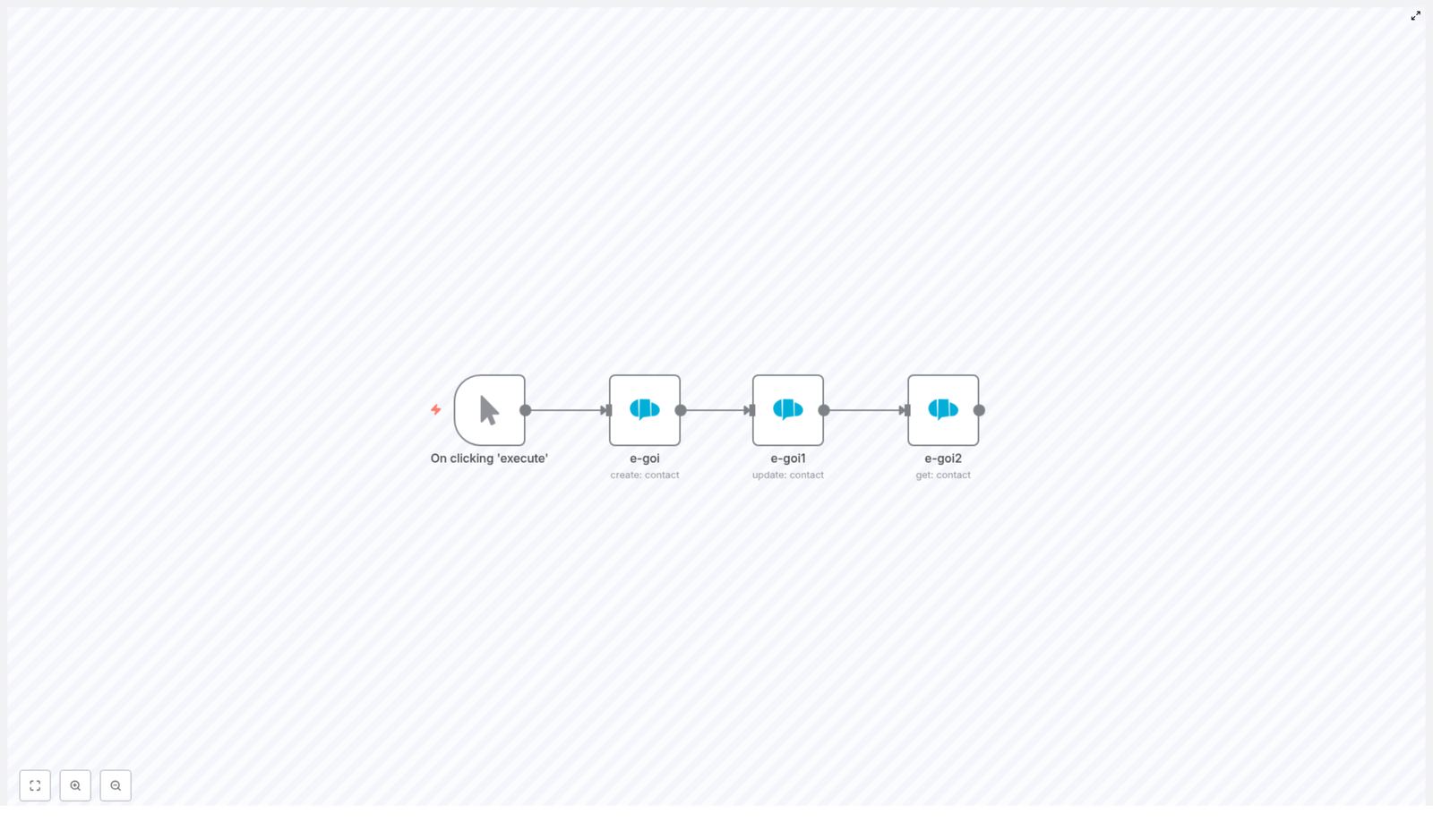
The workflow is a simple 4-node assembly line:

  • Manual Trigger – lets you run the workflow on demand while testing
  • e-goi (create contact) – creates a brand new contact in a specific list
  • e-goi1 (update contact) – updates selected fields for that contact
  • e-goi2 (get contact) – retrieves the contact so you can verify the changes

In practice, this pattern becomes the backbone for things like onboarding flows, syncing profile changes from your app, or pulling subscriber data into other tools for personalization.

Why automate e-goi subscriber management with n8n?

Manual data entry is a special kind of punishment. Automation with n8n and e-goi fixes that by:

  • Eliminating repetitive typing – no more copy-paste marathons
  • Keeping data consistent – the same values flow across systems automatically
  • Connecting tools in real time – plug e-goi into CRMs, forms, and e-commerce platforms

Common real-world use cases include:

  • Onboarding new users into your email list the moment they sign up
  • Syncing profile updates so personalization stays accurate
  • Fetching subscriber details on demand for targeted campaigns

What you need before starting

  • An n8n instance (cloud or self-hosted)
  • An e-goi account with API credentials (API key and any required setup)
  • Basic familiarity with n8n nodes and expressions

Once you have those, you are ready to retire a few repetitive tasks from your daily routine.

Quick overview of the workflow structure

Here is the high-level flow so you know where we are going before we dive into the details:

  1. Start the workflow with a manual trigger while you test.
  2. Use an e-goi node to create a contact in a specific list.
  3. Use another e-goi node to update that contact using the contact ID from step 2.
  4. Use a final e-goi node to get the contact and confirm the updates.

The magic is in how you pass data between nodes with expressions so n8n always knows which contact to update and retrieve.

Step 1: Add a Manual Trigger node

First, give yourself a safe testing environment.

Add a Manual Trigger node and label it something like On clicking ‘execute’. This lets you run the workflow manually while you fine-tune everything.

Later, when you are confident it works, you can swap this trigger for something more automated, for example:

  • A Webhook that fires when someone submits a form
  • A Schedule that runs at specific times
  • Any other trigger node that fits your use case

Step 2: Create a contact in e-goi

Next, we create the actual subscriber in e-goi.

Add an e-goi node and set the operation to create (create contact). Configure the following fields:

  • List: choose the numeric list ID where the contact should live, for example 1
  • Email: the subscriber’s email address (you can hard-code it for testing or map it from incoming data later)
  • Additional Fields: map fields such as first_name, last_name, phone, and so on
  • Credentials: select your configured e-goi Credentials in the credentials panel

Example values from the template:

list: 1
email: nathan@testmail.com
additionalFields.first_name: Nathan

When this node runs successfully, e-goi responds with JSON that includes the new contact’s ID. In many setups you will find it under something like:

base.contact_id

That contact_id is important. We will use it in the next nodes to update and retrieve the same subscriber, so no one gets lost in the system.

Step 3: Update the contact using expressions

Now that you have a contact, let us pretend they decided their name should be slightly cooler. Time to update.

Add another e-goi node and set the operation to update. To update the correct contact, you must pass two pieces of information:

  • The same list ID used in the create node
  • The contact ID returned by the create node

This is where n8n expressions save you from manual copy-paste. In the example workflow, the expressions look like this:

// Use the same list id from the create node's parameters
list: ={{$node["e-goi"].parameter["list"]}}

// Use the contact id from the create node's JSON output
contactId: ={{$node["e-goi"].json["base"]["contact_id"]}}

// Fields to update
updateFields.first_name: Nat

A couple of important notes:

  • If your create node returns the contact ID under a slightly different path, open the execution log, inspect the JSON, and adjust the expression accordingly.
  • Only include the fields you want to change in updateFields. Fields you do not send are typically left untouched by the API.

With this node in place, your workflow can react to changes in your app or CRM and keep e-goi aligned automatically.

Step 4: Get the contact to verify the changes

Finally, let us make sure everything worked and that the subscriber really is called Nat now.

Add a third e-goi node and set the operation to get. Configure it to use:

  • The same list ID from the first e-goi node
  • The contact ID returned by the update node

Example expressions:

list: ={{$node["e-goi"].parameter["list"]}}
contactId: ={{$node["e-goi1"].json["base"]["contact_id"]}}

When this node runs, it returns the full contact object as stored in e-goi. In the execution results, check the fields you updated, for example first_name, to confirm the changes are reflected correctly.

How to test the workflow end to end

Before you set this loose in production, run a quick test cycle:

  1. Save the workflow in n8n.
  2. Open the credentials panel or execution log and verify your e-goi credentials are valid.
  3. Click the Manual Trigger node’s execute button to run the whole workflow.
  4. Inspect each node’s output:
    • The create node should return a contact_id.
    • The update node should show your changed fields.
    • The get node should display the final state of the contact.

If everything lines up, congratulations, you have successfully automated a task that used to drain your soul one record at a time.

Troubleshooting: when the robots complain

If something breaks, do not panic. Check these common issues first:

  • Invalid credentials or API endpoint
    Double-check your e-goi API key and account configuration. If authentication fails, no node in the chain will behave.
  • Contact not found during update
    Make sure the contactId expression is pointing to the correct path in the create node’s output. Inspect the JSON in the execution log and confirm the structure.
  • Field mapping problems
    If fields do not update as expected, open the execution output viewer, look at the full response, and confirm you are using the correct field names and paths in your expressions.

Best practices for a reliable n8n + e-goi setup

To keep your workflow tidy and future proof, consider these habits:

  • Use descriptive node names
    Rename nodes to something like Create Subscriber, Update Subscriber, and Get Subscriber. Your future self will thank you when writing expressions.
  • Validate inputs
    Check email formats and required fields before calling the e-goi API. Garbage in, garbage out still applies in automation.
  • Handle errors gracefully
    Use the Error Trigger or dedicated error branches to log failures, send alerts, or retry operations instead of silently failing.
  • Avoid hard-coding in production
    While test values like list: 1 and nathan@testmail.com are fine for learning, in real workflows you should pass list IDs and emails dynamically from webhooks, forms, or CRMs.

Ideas for extending this template in real projects

Once you have the basic create-update-get pattern working, you can expand it into more powerful automations:

  • Onboard new customers
    Capture signups from a form, create an e-goi contact, add tags, and trigger a welcome email sequence.
  • Sync profile updates
    When a user updates their profile in your app, call this workflow to update their e-goi contact so personalization stays accurate.
  • Segment and tag users
    After creating a contact, add tags or custom fields in e-goi so you can build segments and automation flows tailored to user behavior.

Security and data privacy basics

Subscriber data is sensitive, so treat it with care:

  • Follow GDPR and any other regional regulations that apply to your audience.
  • Store your e-goi API credentials securely in n8n’s credentials manager, not in plain text inside nodes.
  • Minimize logging of personal data in public or shared logs. Only log what you truly need for debugging.

Wrapping up: from manual grind to smooth automation

With a small chain of e-goi nodes in n8n, you can create, update, and verify subscriber records in just a few clicks. This simple pattern becomes a building block for:

  • Multi-step onboarding journeys
  • CRM and email list synchronization
  • Campaign triggers and personalized messaging

Ready to try it in your own n8n instance?

Set up the nodes as described, connect your e-goi credentials, and run the workflow using the Manual Trigger. Once it works, export the template from your n8n canvas, adjust the list ID and fields to match your account, and plug it into your real processes.

If you have questions or want a more customized workflow for your stack, reach out or leave a comment. Automation should feel like a helpful assistant, not a mystery.

Call to action: Bookmark this tutorial, test the workflow in your n8n instance, and subscribe for more n8n automation templates and integration guides.
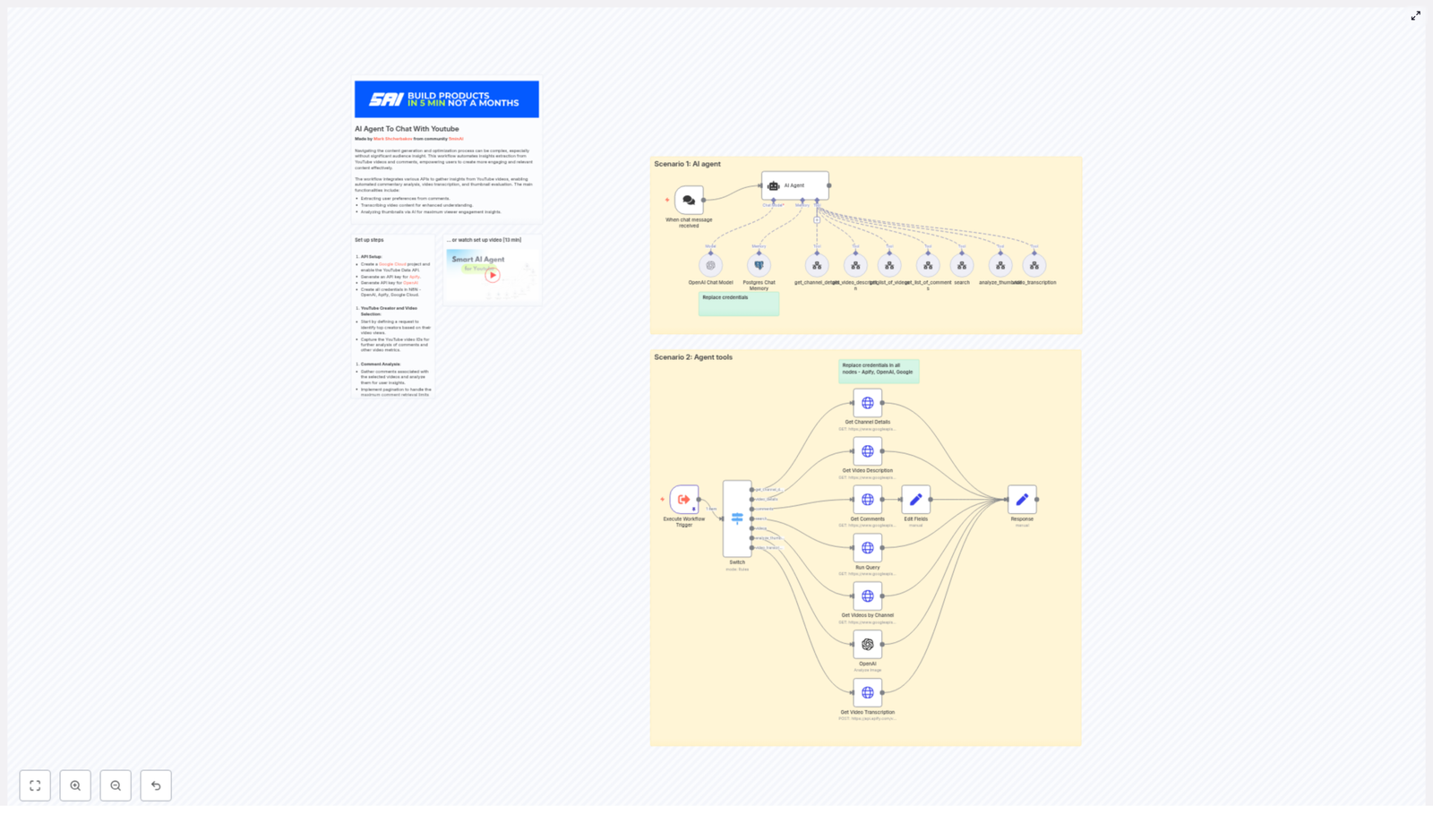
Build a YouTube AI Agent with n8n

Build a YouTube AI Agent with n8n

Imagine having a YouTube research assistant on autopilot

Imagine this: instead of spending hours digging through YouTube comments, skimming video descriptions, and guessing which thumbnails will perform better, you just ask an AI agent, “What are my viewers asking for?” or “How can I improve this video’s thumbnail?”

That is exactly what this n8n workflow template is designed to do for you.

Using n8n, the YouTube Data API, OpenAI, Apify, and an optional Postgres memory store, this workflow turns raw YouTube data into clear, actionable insights. It can:

  • Analyze comments at scale
  • Transcribe videos and pull out key ideas
  • Review thumbnails and suggest improvements
  • Store context so you can have multi-turn chats with your AI assistant

Let’s walk through what it does, when to use it, and how to get everything set up without getting lost in the weeds.

Why you might want a YouTube AI agent in the first place

If you are a creator, marketer, or part of a content team, you already know the pain:

  • Comment sections are noisy and hard to summarize
  • Long videos are tough to analyze manually
  • Thumbnail tweaks often feel like guesswork

This YouTube AI agent helps with all of that. It automatically:

  • Transcribes videos so you can search and repurpose content
  • Pulls and analyzes comments to surface themes, questions, and sentiment
  • Evaluates thumbnails with AI to suggest design changes
  • Stores results in a database so you can keep chatting with your agent over time

The result is a more data-driven content strategy without the manual grind.

What the n8n YouTube AI workflow actually does

At a high level, this workflow template acts like a toolbox your AI agent can call on. In a single conversation, it can:

  • Find channels and videos by handle, channel ID, or search query
  • Fetch video details and filter out unwanted content, like shorts under 1 minute
  • Pull comments with pagination and summarize what people are saying
  • Send a video for transcription using Apify or another transcription API
  • Analyze thumbnail images with OpenAI’s image tools and recommend improvements
  • Save chat context in Postgres so your agent remembers previous queries

Think of it as your YouTube research pipeline, all wired together inside n8n.

Tools, APIs, and accounts you will need

Before you import the template, make sure you have these lined up:

  • n8n account – either self-hosted or n8n cloud
  • Google Cloud project with the YouTube Data API enabled and an API key
  • OpenAI API key for both text and image analysis
  • Apify account + API token for transcription or scraping actors
  • Postgres database for chat memory (optional but highly recommended if you want multi-turn conversations)

Quick setup checklist

Here is the setup flow in a nutshell so you can get to the fun part faster:

  1. Create a Google Cloud project, enable the YouTube Data API, and generate an API key.
  2. Generate an OpenAI API key that can access both text and image models.
  3. Create an Apify API token for your transcription or scraping actors.
  4. In n8n, configure credentials:
    • OpenAI
    • Apify (via generic HTTP credentials)
    • YouTube (using HTTP query auth with your API key)
  5. Set up a Postgres instance and configure the Postgres Chat Memory credential in n8n if you want your AI agent to remember previous messages.

How the workflow is structured in n8n

The template is organized into two main scenarios that work together:

  • Scenario 1 – AI Agent: A chat trigger receives user messages and passes them to an AI agent node. The agent decides which tool to run based on the request. It can:
    • Get channel details
    • List videos
    • Fetch video descriptions
    • Pull and analyze comments
    • Transcribe a video
    • Analyze a thumbnail
  • Scenario 2 – Agent tools: An Execute Workflow Trigger kicks off the underlying tools. These are mostly HTTP request nodes that:
    • Call the YouTube Data API
    • Send text and images to OpenAI
    • Trigger an Apify transcription actor
    • Write and read memory from Postgres for multi-turn chats

From your perspective, you just talk to the agent. Behind the scenes, these tool workflows do the heavy lifting.

Key workflow components, step by step

1. Chat trigger and AI agent logic

Everything starts with a chat trigger. A user sends a message such as:

  • “Show me the most recent videos from this channel and what people are asking for.”
  • “Analyze the thumbnail of this video.”
  • “Summarize what viewers are complaining about in the comments.”

The AI agent node reads that request, figures out the intent, and calls the appropriate tool workflow. In a single conversation, the agent can:

  • Find a channel
  • List videos
  • Fetch and analyze comments
  • Transcribe a video
  • Evaluate a thumbnail

If you have Postgres memory enabled, the agent can also remember previous steps, like which channel you are focused on or which video you just discussed.

2. Channel and video discovery with YouTube Data API

To explore YouTube content, the workflow uses various YouTube Data API endpoints. It can:

  • Get channel details by handle or channel_id
  • Search for videos based on a text query
  • Retrieve recent videos from a channel and order them by:
    • date
    • viewCount
    • relevance

You can also add logic to skip content you do not care about. For example, if you only want long-form videos, filter out YouTube Shorts by checking contentDetails.duration and ignoring anything shorter than 1 minute.

3. Comment extraction and sentiment analysis

Once you know which video you care about, the workflow pulls comments using the commentThreads endpoint. Since YouTube returns comments in pages, the template includes pagination logic so you can fetch up to the maximum allowed, for example 100 per request, and keep going with nextPageToken.

After comments are fetched, the workflow:

  • Aggregates top-level comments and replies into a single text corpus
  • Sends the combined text to OpenAI for summarization
  • Extracts:
    • Recurring questions
    • Overall sentiment
    • Frequently requested features or topics

This is where you start seeing patterns, like “viewers keep asking for a beginner-friendly series” or “people love the pacing but want more examples.”

4. Video transcription for deeper analysis

For long-form videos, comments only tell part of the story. The workflow can also send a video URL to an Apify transcription actor or any speech-to-text API you configure.

Once you have a transcript, you can:

  • Search within the spoken content for topics and timestamps
  • Pull out highlights to repurpose as shorts or social content
  • Feed the transcript to an LLM to:
    • Generate chapters
    • Create summaries
    • Brainstorm new content ideas

One thing to keep in mind: transcribing long videos can get expensive. To control costs, you might:

  • Transcribe only the most important videos
  • Sample sections instead of full videos
  • Prioritize videos that get a lot of comments or views

5. Thumbnail analysis with OpenAI image tools

Thumbnails can make or break click-through rate, but it is not always obvious what to change. This workflow sends the max-resolution thumbnail URL to OpenAI’s image analysis endpoint, or another image evaluation model, with a custom prompt.

The model can look at things like:

  • Overall composition
  • Color contrast and readability
  • Face prominence and expression
  • Text clarity and size
  • Likely click-through performance

In response, your agent can give practical suggestions such as:

  • “Reduce the amount of text and make the main word larger.”
  • “Increase contrast between the subject and the background.”
  • “Use a more expressive facial reaction to draw attention.”

Practical tips and best practices

To keep your YouTube AI agent running smoothly and cost-effectively, a few guidelines help a lot:

  • Respect rate limits and quotas: Cache YouTube API responses where possible and avoid re-fetching data for the same video over and over.
  • Use pagination correctly: Handle nextPageToken for both search results and commentThreads so you do not miss data.
  • Filter out shorts: Check contentDetails.duration and skip clips shorter than your chosen threshold if you are focusing on long-form content.
  • Craft targeted prompts: For comment summarization, explicitly ask the model for:
    • Frequently requested features or topics
    • Sentiment distribution
    • Three concrete content ideas based on viewer feedback
  • Protect user privacy: Instead of storing raw comments with usernames, store aggregated summaries, themes, and anonymized insights.
  • Manage costs: Sample long comment threads instead of sending every single comment to the LLM, and transcribe only the videos that matter most.

Troubleshooting common issues

Authentication problems

If a node starts failing, double-check that:

  • Your API keys for Google, OpenAI, and Apify are valid and not expired
  • Each HTTP node in n8n is using the correct credential type
  • You updated credentials in all nodes after cloning or moving the workflow to a new environment

Empty or missing comments

If you are not seeing any comments in the results:

  • Verify that the video_id you are using is correct
  • Make sure comments are enabled and public for that video
  • Check that you are requesting the correct parts in commentThreads, such as id,snippet,replies

Transcription does not look right

If the transcript quality is poor or incomplete:

  • Check the audio quality of the video and its language settings
  • Try a more robust transcription actor or service if the audio is noisy
  • Consider pre-processing audio where possible

How to actually use the insights as a creator

Once your workflow is running and your data is neatly structured, here are a few practical ways to put it to work:

  • Weekly content brief: Generate a summary of:
    • Top audience questions
    • Emerging themes in comments
    • Key timestamps for high engagement moments
  • Smarter thumbnail experiments: Use AI suggestions to design A/B tests for thumbnails and refine your style over time.
  • Content repurposing on autopilot: Turn transcripts and AI summaries into:
    • Short clips
    • Social media posts
    • SEO-focused descriptions and titles

Security and data governance basics

Since you are working with external APIs and user-generated content, it is worth putting some guardrails in place:

  • Keep API keys secure and rotate them regularly.
  • Limit who can access your n8n instance and credentials.
  • Store aggregated insights instead of raw, personally identifiable comment data if privacy or compliance is a concern.
  • Use Postgres roles and encryption for production deployments.

Ready to try the YouTube AI agent template?

Once everything is configured, getting started is straightforward:

  1. Import the workflow template into your n8n instance.
  2. Plug in your credentials for Apify, OpenAI, and Google (YouTube Data API).
  3. Run the chat trigger and start with something simple, like a channel handle or a single video URL.
  4. Optionally, run the Execute Workflow Trigger directly with a sample video to see the tool chain in action.

From there, you can tweak prompts, adjust filters for shorts or specific video lengths, and customize how results are summarized.

Try the template now: import it into n8n, connect your API keys, and run the Execute Workflow Trigger for a test video. Once you see the first insights come back, you can refine prompts and filtering logic to match your channel’s style and goals.

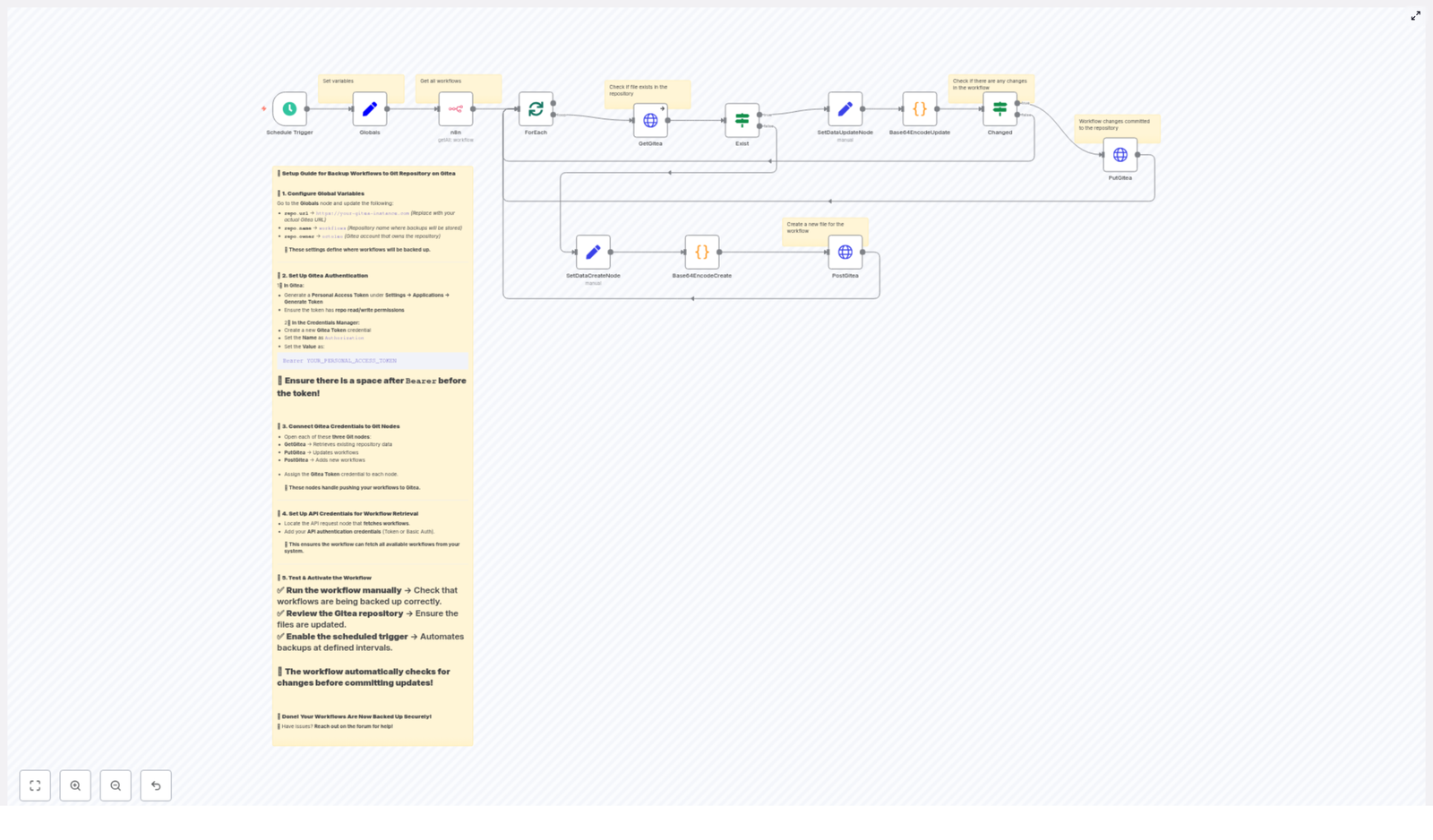
Backup n8n Workflows to Gitea (Automated Guide)

Backup n8n Workflows to Gitea (Automated Guide)

Every powerful automation you build in n8n represents time saved, problems solved, and ideas turned into reality. Losing that work or not knowing what changed between versions can slow your momentum and make you cautious about experimenting.

Imagine instead that every workflow you create is safely versioned, backed up, and ready to roll back at any time. You can iterate boldly, refine your automations, and scale your systems with confidence.

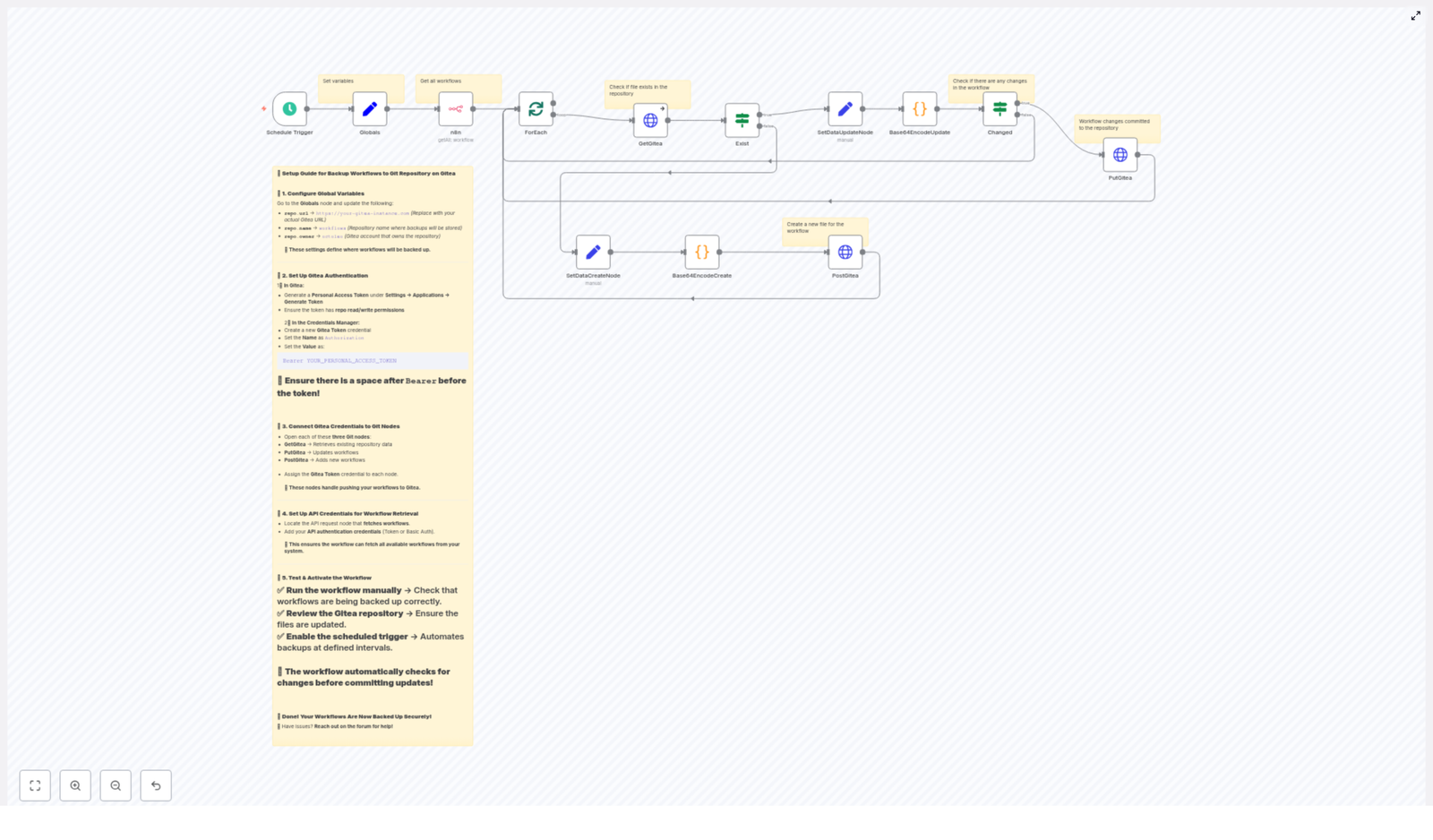
This guide walks you through an n8n workflow template that automatically backs up all your n8n workflows to a Gitea Git repository. It runs on a schedule, checks for changes, encodes workflow JSON, and either creates or updates files in your Gitea repo. Think of it as a safety net for your automations and a foundation for more advanced workflow management.

The problem: fragile automations and invisible changes

As your n8n usage grows, so does the risk of:

  • Accidental deletions or overwrites
  • Breaking changes that are hard to undo
  • No clear history of who changed what and when
  • Manual exports that take time and are easy to forget

Without a reliable backup and version control strategy, you may hesitate to improve existing workflows or try new ideas. That hesitation costs time and slows your growth.

The mindset shift: treat workflows like code

When you start treating n8n workflows as valuable assets, not disposable experiments, everything changes. Version control, backups, and repeatable processes become part of your automation culture.

By exporting workflows to Gitea, you:

  • Gain a complete version history for every automation
  • Create a transparent audit trail for teams and stakeholders
  • Make it easy to roll back or compare versions
  • Lay the groundwork for CI/CD and more advanced DevOps practices

This template is not just about backup. It is about giving yourself permission to build, experiment, and iterate with confidence because you know your work is safely stored and tracked.

Why Gitea is a powerful home for your n8n workflows

Gitea is a lightweight, self-hosted Git service that fits perfectly for teams and individuals who want control over their own infrastructure. When you store n8n workflows as JSON files in a Gitea repository, you unlock:

  • Version history and diffs to see exactly how workflows evolve over time
  • Secure, off-instance backups so your automations survive instance failures or migrations
  • Easy rollback and change review through standard Git tooling
  • Integration with CI/CD and team workflows so automations become part of your broader engineering practices

In short, Gitea turns your n8n workflows into a managed, traceable asset library instead of a black box.

The template: an automated n8n to Gitea backup workflow

The supplied n8n workflow acts as your automated archivist. On a schedule, it:

  • Retrieves all workflows from your n8n instance
  • Checks if a corresponding .json file exists in your Gitea repository
  • Base64-encodes the workflow JSON for API compatibility
  • Creates a new file in Gitea if it does not exist
  • Updates the existing file only if the content has changed
  • Commits changes using a Gitea personal access token

The pattern is simple but powerful: fetch → encode → compare → create or update. This keeps your repository clean and focused on meaningful changes, not noisy commits.

What you need before you start

To use this template, set up a few essentials first. These are quick wins that pay off every time your backup runs.

  • An n8n instance with access to the workflows API (or the built-in n8n node)
  • A Gitea instance and repository, for example a repo named workflows
  • A Gitea personal access token with repository read and write permissions
  • n8n credentials configured:
    • Gitea Token as an HTTP header: Authorization: Bearer <TOKEN>
    • Optionally, API credentials for fetching workflows if required by your setup

Once this is in place, you are ready to connect your n8n instance to your Gitea backup repo and let the automation work for you.

How the workflow is structured in n8n

The workflow is built from a set of focused nodes that each handle a small part of the process. Together, they create a reliable pipeline from n8n to Gitea.

Key nodes and their roles

  • Schedule Trigger – Runs the workflow every X minutes (default is 45). This keeps your backups current without manual effort.
  • Globals – Stores settings like repo.url, repo.owner, and repo.name so you only change them in one place if you move repositories or instances.
  • n8n / API node – Fetches all workflows from your n8n instance as JSON.
  • ForEach (splitInBatches) – Iterates through each workflow so they can be processed one by one.
  • GetGitea (HTTP Request) – Checks if <workflow-name>.json already exists in the repository.
  • Exist (If) – Decides whether to follow the create path or the update path based on the HTTP response from Gitea.
  • Base64EncodeCreate / Base64EncodeUpdate – Encodes the workflow JSON and prepares it for the Gitea API.
  • Changed (If) – Compares the newly encoded content with the current file content returned by Gitea and only proceeds when they differ.
  • PostGitea / PutGitea (HTTP Request) – Creates or updates files in the Gitea repository.

This modular structure makes it easy to understand, debug, and extend. You can modify or swap nodes as your needs evolve without losing the core functionality.

How workflows are stored in Gitea

By default, each workflow is stored as a JSON file named after the workflow:

<workflow-name>.json

The workflow JSON is first pretty-printed, then Base64-encoded to match Gitea’s contents API requirements. The API expects file content in Base64 format, so this step is essential.

If you want more structure, you can adjust the naming convention. For example:

  • id-name.json to include the workflow ID
  • File paths that include folders or environments, such as prod/id-name.json or teamA/id-name.json

These small changes can make your repository more organized and easier to navigate as your automation library grows.

Important configuration details for key nodes

Globals

Use the Globals node to centralize your repository settings:

  • repo.url
  • repo.name
  • repo.owner

With this approach, migrating to a new Gitea instance or repository is as simple as editing a single node.

GetGitea (check file existence)

The GetGitea HTTP Request node checks if a given workflow file already exists.

Endpoint:

{{repo.url}}/api/v1/repos/{{repo.owner}}/{{repo.name}}/contents/{{workflowName}}.json

Configure this node to continue on error. A 404 response (file not found) should not break the workflow. Instead, it signals that the workflow is new and should follow the create path.

Base64EncodeCreate / Base64EncodeUpdate

These code nodes take the workflow object, convert it to a nicely formatted JSON string, then encode it to Base64. The behavior looks like this:

json_string = json.dumps(workflow_object, indent=4)
base64_string = base64.b64encode(json_string.encode('utf-8')).decode('utf-8')

This ensures that what you store in Gitea is both human-readable (once decoded) and API-compliant.

Changed (compare before committing)

To avoid noisy commits, the Changed node compares:

  • The newly encoded content you just produced
  • The existing file content returned by the GetGitea node

If they differ, the workflow triggers the PUT update node. If they are the same, it skips to the next workflow. This keeps your Git history clean and meaningful.

Using the Gitea HTTP API for create and update

The workflow uses Gitea’s repository contents API for both creating and updating workflow files.

  • Create
    HTTP method: POST
    Endpoint: /api/v1/repos/:owner/:repo/contents/:filepath
    Body example:
    {  "content": "<base64>",  "message": "Add workflow ..."
    }
  • Update
    HTTP method: PUT
    Same endpoint as create
    Body example:
    {  "content": "<base64>",  "sha": "<existing file sha>",  "message": "Update workflow ..."
    }

In both cases, make sure your HTTP Request nodes include the Authorization header:

Authorization: Bearer <YOUR_TOKEN>

This token is what allows n8n to write directly to your Gitea repository.

From idea to automation: schedule, test, and activate

Here is a simple path to bring this backup workflow to life.

  1. Configure Globals and credentials Set up the Globals node with your repo.url, repo.owner, and repo.name. Add your Gitea token as a credential and reference it in the HTTP Request nodes.
  2. Run a manual test for creation Execute the workflow manually once. Check your Gitea repository and confirm that new .json files have been created for your n8n workflows.
  3. Validate updates with a small change Make a small edit to one workflow in n8n, then run the backup workflow again. Confirm that the corresponding file in Gitea is updated and that the PUT path and sha handling work correctly.
  4. Enable the Schedule Trigger Once you are confident in both create and update paths, turn on the Schedule Trigger so your backups run automatically at your chosen interval.

With this done, your n8n workflows are no longer fragile. They are part of a living, versioned system that supports your growth.

Security and best practices

As you automate more, protecting your access and data becomes even more important. Follow these guidelines to keep your setup secure and maintainable:

  • Use a scoped Gitea token limited to the specific repository instead of a broad admin token.
  • Store tokens in n8n credentials only. Avoid hard-coding secrets directly in nodes.
  • Create a dedicated backup repository and consider branch protection if multiple people will push backups.
  • Rotate your personal access token periodically and track changes in your internal secret store.

These small steps safeguard your automation infrastructure as it becomes more central to your operations.

Troubleshooting: turning blockers into learning moments

If something does not work the first time, that is an opportunity to refine your understanding and strengthen your setup. Here are common issues and how to resolve them:

  • 404 on GetGitea This is expected for new workflows. Make sure the GetGitea node is configured to continue on error so the create path runs instead of failing the entire workflow.
  • 401 or 403 from Gitea Double-check the Authorization header. Confirm that the token has repository write permission and that it is formatted as Bearer <TOKEN> with a space.
  • Conflicting SHAs when updating Ensure your workflow reads the current file sha from the GetGitea response and passes it correctly to the PutGitea node.
  • Binary or invalid JSON content in Gitea Verify that you are Base64-encoding the pretty-printed JSON string using UTF-8, not a binary object or a different encoding.

Each fix you apply makes your automation more robust and repeatable, which pays off in every future project.

Ideas to extend and customize the template

Once the core backup is running, you can build on it to match your workflow style and team processes. Here are some enhancements you can try:

  • Organize workflows into folders in the repository, for example by environment, owner, or project.
  • Include workflow ID and timestamp in commit messages for easier search and analysis.
  • Commit to branches instead of main and use pull requests for review before merging.
  • Trigger notifications via Slack, email, or another channel whenever backups create or update files.

Each enhancement is a small step that increases visibility, collaboration, and control over your automations.

Example commit message format

A consistent commit message pattern makes it easier to search logs, build dashboards, or trigger downstream automations.

message: "Backup: update workflow 'My Workflow' (id: 12345) - automated backup on 2025-10-05T12:34:56Z"

Adapt this structure to include the details your team cares about most, such as environment, owner, or ticket references.

From backup to growth: your next step

Exporting n8n workflows to a Git repository on Gitea gives you durability, auditability, and version control for your automation assets. More importantly, it frees your mind to focus on higher value work.

With this workflow template in place, you can:

  • Experiment without fear of losing work
  • Collaborate on workflows with clear history and review
  • Integrate your automations into a broader DevOps and CI/CD strategy

You are not just backing up JSON files. You are building a foundation for a more automated, resilient, and focused way of working.

Take action now:

  • Configure your Globals node and Gitea token.
  • Run a manual test and watch your first workflows appear in Gitea.
  • Enable the scheduler so backups become a habit that runs in the background.

If you need help tailoring this template to your naming conventions, branching strategy, or team structure, reach out in the n8n community or talk with your DevOps team. This workflow can be your starting point for an entire ecosystem of automation best practices.

Call to action: Export your first workflow to Gitea today and tag your repository with backup so you can start tracking changes over time. If you would like the JSON for this n8n workflow adapted to your environment, share your repo URL and preferred naming scheme, and build from there.

Automate Logo-Sheet Extraction to Airtable with n8n

Automate Logo-Sheet Extraction to Airtable with n8n

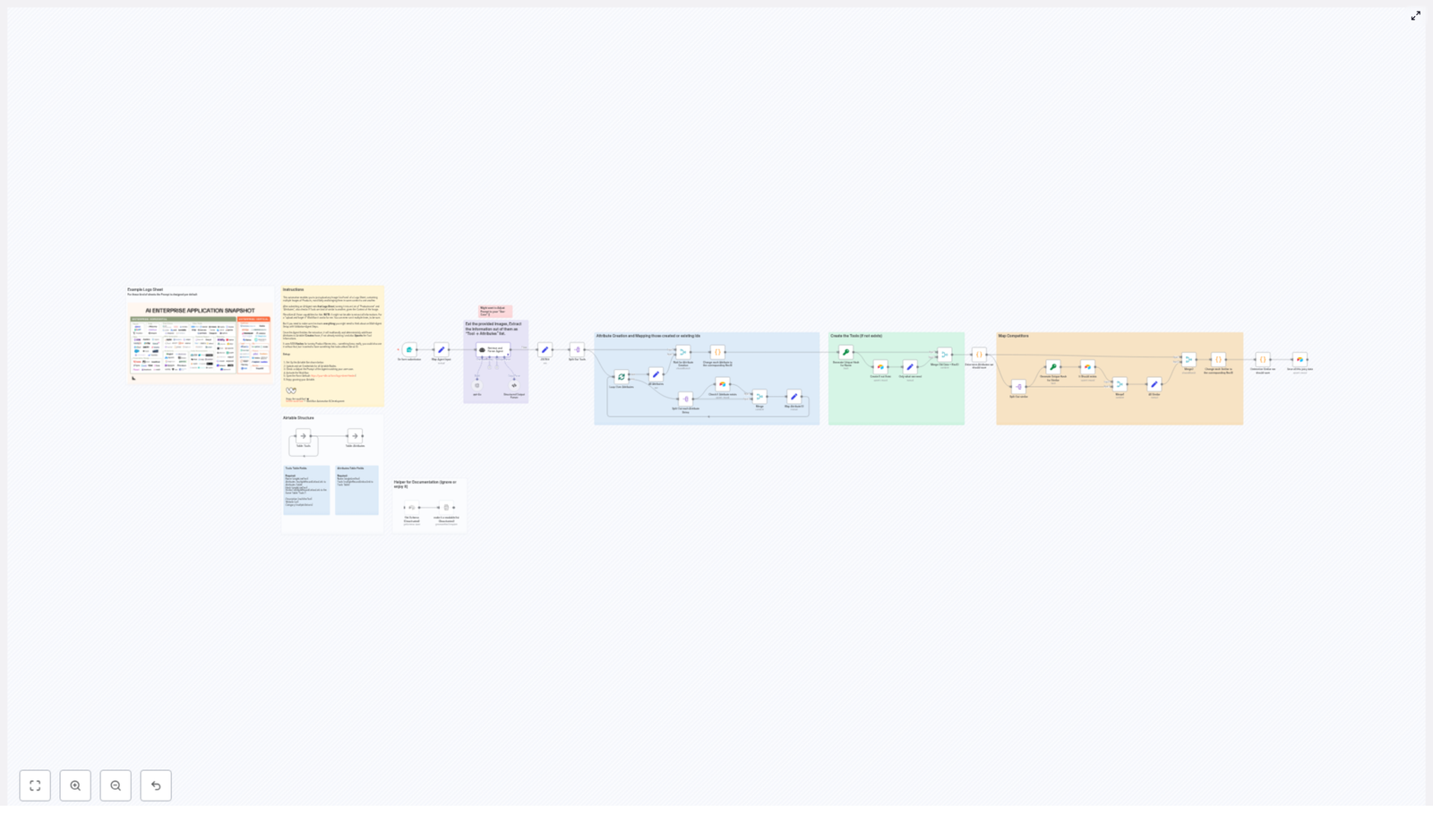
Use n8n to convert any logo sheet or product matrix image into structured, queryable Airtable records. This reference-style guide explains the workflow architecture, node configuration, data flow, and prompt strategy so you can build a reliable upload-to-Airtable automation that scales from a few screenshots to large AI tooling catalogs.

1. Workflow Overview

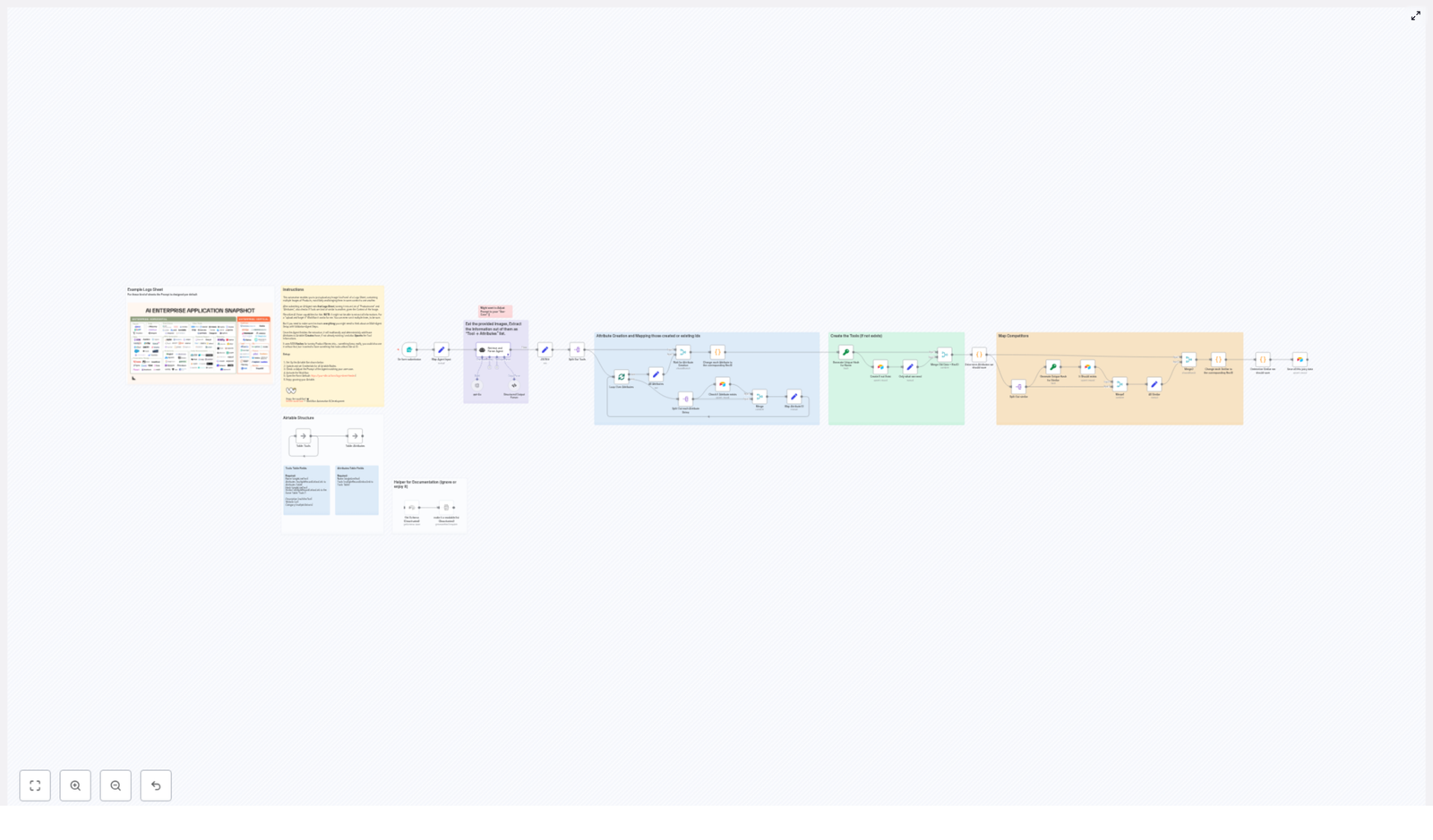
This n8n workflow automates the full pipeline from image upload to normalized Airtable records. It:

  • Accepts a logo-sheet image via a form trigger, along with an optional text prompt.
  • Uses an AI agent (vision + LLM) to detect tool names and contextual attributes.
  • Parses and validates the agent output into a strict JSON schema.
  • Upserts attributes into an Airtable Attributes table and collects their record IDs.
  • Upserts tools into an Airtable Tools table using a deterministic hash for deduplication.
  • Links tools to attributes and similar or competing tools using Airtable record relationships.

The result is a repeatable ingestion pipeline that converts logo sheets, comparison slides, or competitive matrices into structured Airtable data suitable for search, analysis, and reporting.

2. Architecture & Data Flow

At a high level, the workflow follows this sequence:

  1. Form Trigger Capture image binary + optional user prompt from a public or internal form.
  2. Agent (LangChain / LLM) Run a vision-enabled agent that identifies tools, infers attributes, and suggests similar tools.
  3. Structured Output Parsing Enforce a JSON schema for the agent output and map it into n8n item fields.
  4. Attribute Extraction & Upsert Split attributes, upsert them into Airtable, and store their Airtable record IDs.
  5. Tool Creation & Linking Generate normalized hashes, upsert tools, and link attributes and similar tools by record ID.

The workflow is designed around two Airtable tables:

  • Tools – stores each tool with a unique hash, name, and linked attributes/similar tools.
  • Attributes – stores attribute records (for example, categories or capabilities) referenced by tools.

3. Node-by-Node Breakdown

3.1 Form Trigger Node

Purpose: Entry point for the workflow. Handles image upload and optional context prompt.

  • Node type: Form Trigger (for example, the built-in n8n Form Trigger node).
  • Inputs:
    • image – file upload field containing the logo-sheet image (binary data).
    • prompt (optional) – free-text field to guide the AI agent.
  • Outputs:
    • Binary data for the uploaded image.
    • Text prompt string (may be empty if the user does not provide context).

Use this node if you want a simple, user-friendly entry point without requiring users to manage file hosting or external storage. The optional prompt is especially useful when logos are ambiguous, for example:

  • “This image compares AI data stores and retrieval tools.”
  • “These are AI infrastructure vendors grouped by feature category.”

3.2 Agent Node (Vision + LLM)

Purpose: Perform agentic extraction from the image, rather than raw OCR, and produce structured tool data.

  • Node type: Agent node using LangChain or a similar LLM integration with vision support.
  • Inputs:
    • Image binary from the Form Trigger.
    • User prompt text (optional).
  • Core behavior:
    • Detects logos and tool names in the image.
    • Groups tools by inferred categories or attributes.
    • Infers attributes such as:
      • Agentic Application
      • Browser Infrastructure
      • Memory management
    • Identifies similar or competing tools in the same image.
  • Expected output schema (per tool):
[  {  "name": "ToolName",  "attributes": ["Attribute A", "Attribute B"],  "similar": ["OtherTool1", "OtherTool2"]  }
]

Compared to raw OCR, this agentic approach lets the model reason about layout and semantics, not just text fragments. It reduces issues like cropped logo text or stray artifacts that OCR often returns.

3.3 Structured Output Parser

Purpose: Validate and normalize the agent output into a predictable JSON structure that downstream nodes can rely on.

  • Node type: Structured Output Parser or equivalent JSON parsing node.
  • Inputs: Raw string or JSON from the Agent node.
  • Outputs:
    • A strict array of tool objects, often under a top-level key such as tools.

Example final schema used downstream:

{  "tools": [  {  "name": "Pinecone",  "attributes": ["Storage Tool","Memory management"],  "similar": ["Chroma","Weaviate"]  }  ]
}

This node is critical for catching malformed responses. If the agent output is not valid JSON, you can configure the parser to throw an error and optionally route to an error-handling branch or manual review.

3.4 JSON Mapping & Splitting

Purpose: Convert the parsed JSON into n8n items and control processing granularity for attributes and tools.

  • Node type: Set, Split Out, and Split In Batches nodes.
  • Steps:
    1. Set Node Map the parsed tools array into the workflow’s item data model. For example:
      • Ensure each item has fields like name, attributes, and similar.
    2. splitOut Node Expand the tools array so that each tool becomes its own n8n item. This simplifies per-tool operations like hashing and Airtable upserts.
    3. splitInBatches Node When iterating over attributes or tools, use splitInBatches to:
      • Respect Airtable API rate limits.
      • Throttle calls to OpenAI, LangChain, or any other external APIs if you add additional processing.

3.5 Attribute Upsert to Airtable

Purpose: Normalize attributes into a dedicated Airtable table and collect their record IDs for later linking.

  • Node type: Airtable node configured for the Attributes table.
  • Inputs:
    • Attribute names extracted from each tool’s attributes array.
  • Process:
    1. Extract all attribute strings from the tools.
    2. Upsert each attribute into the Attributes table, typically matching on the Name field.
    3. Store the returned Airtable record IDs for each attribute.
    4. Use a small Code node (or Function node) to build a mapping from attribute name to Airtable record ID, for example:
      • {"Storage Tool": "recXXXX", "Memory management": "recYYYY"}
  • Outputs:
    • A complete attribute map that downstream tool upsert nodes can use to create linked records.

This two-pass attribute creation guarantees that when you later create or update tools, all referenced attributes already exist in Airtable and can be linked by record ID. It also prevents accidental creation of duplicate attribute values that differ only by capitalization or minor spelling differences, assuming you normalize names consistently.

3.6 Tool Hashing & Upsert

Purpose: Create or update tool records in Airtable with deterministic deduplication and correct relationships.

  • Node types:
    • Code/Function node to generate hashes.
    • Airtable node configured for the Tools table.
  • Deterministic hash strategy:
    • Compute a hash from the normalized tool name, for example:
      • Lowercase the name.
      • Trim whitespace.
      • Generate an MD5 hash of the result.
    • Store this hash in a dedicated Hash field in Airtable.
  • Upsert process per tool:
    1. Generate the normalized hash for the tool name.
    2. Query the Tools table by Hash to check if the tool already exists.
    3. If it exists, load current attributes and similar tool links.
    4. Map the tool’s attribute names to Airtable attribute record IDs using the previously built attribute map.
    5. Resolve similar tool names to their corresponding tool records if they exist, or prepare them for linking when they are created.
    6. Compute the final sets of:
      • Attributes to associate with this tool.
      • Similar tools to link.
    7. Perform an upsert:
      • If the tool does not exist, create a new record with Name, Hash, and linked attributes/similar tools.
      • If the tool exists, update the record, merging existing links with any new attributes or similar tools.

By using a deterministic hash, you avoid duplicate tool records caused by minor naming variations such as capitalization, spacing, or trailing characters. This is especially important when ingesting multiple logo sheets over time that may reference the same tools.

4. Key Design Decisions & Rationale

4.1 Form Trigger for Simplified Input

Using a form trigger node keeps the workflow accessible to non-technical users and avoids the complexity of separate upload services. The form can be public or restricted internally, depending on your use case.

The optional prompt parameter provides additional context that improves extraction quality in edge cases, for example when:

  • Logos are stylized and not easily readable.
  • The image contains multiple logical sections or categories.
  • You want the agent to focus on a specific interpretation, such as “AI infrastructure vendors” or “LLM tooling”.

4.2 Agentic Extraction vs Raw OCR

Traditional OCR produces unstructured text fragments. This often includes partial logo text, cropped characters, and layout noise. An agent built on a vision model plus an LLM can:

  • Interpret the visual layout of the logo sheet.
  • Group tools into inferred categories.
  • Infer higher-level attributes like “Browser Infrastructure” instead of just reading the label text.
  • Identify similar or competing tools based on proximity or grouping in the image.

The workflow expects the agent to output an array of structured tool objects, which makes downstream processing deterministic and reduces the need for ad hoc text parsing.

4.3 Deterministic Deduplication with Hashes

Relying solely on the tool name for uniqueness is fragile. Variants like Pinecone vs pinecone vs Pinecone can create duplicate records. A normalized hash strategy solves this:

  • Normalize the name (lowercase + trim).
  • Generate a hash (for example, MD5) of the normalized string.
  • Use this hash as the unique identifier for Airtable upserts.

This approach keeps the workflow idempotent. Re-ingesting the same tool from different logo sheets will consistently resolve to the same Airtable record.

4.4 Two-Pass Attribute Creation

Attributes are handled separately from tools to maintain referential integrity:

  1. First pass: extract and upsert all attributes into the Attributes table and capture their Airtable record IDs.
  2. Second pass: create or update tools, linking them to attributes using those record IDs.

This separation ensures that when a tool is written to Airtable, all referenced attributes already exist and can be linked reliably. It also centralizes attribute management, which is useful if you later want to standardize naming or add metadata to attributes themselves.

5. Prompt Design & Configuration Tips

5.1 Agent Prompt Guidelines

  • Explicitly require a strict JSON array with fields:
    • name
    • attributes (array of strings)
    • similar (array of strings)
  • Include context in the optional form prompt, for example:
    • “This image shows AI infrastructure vendors grouped by category.”
    • “Each column represents a category of AI tools. Extract tools, attributes, and any similar competitors.”
  • Ask the agent to prefer concise, categorical attributes instead of long descriptions. For example:
    • Browser Infrastructure, Storage Tool, Memory management
    • Avoid multi-sentence free-text fields.
  • Include a sample JSON output in the system message to reduce hallucinations and formatting errors.

5.2 Example Output Schema

The workflow assumes an output similar to:

{  "tools": [  {  "name": "Pinecone",  "attributes": ["Storage Tool","Memory management"],  "similar": ["Chroma","Weaviate"]  }  ]
}

Ensuring the agent consistently adheres to this schema significantly reduces error handling complexity in n8n.

6. Troubleshooting & Operational Considerations

6.1 Image Quality Constraints

Extraction accuracy is sensitive to image quality. Common issues include:

  • Low-resolution images where text is blurry.
  • Overlapping logos or text that are hard to segment.
  • Heavily stylized fonts that obscure tool names.

To mitigate this, encourage users to:

  • Upload high-resolution images.
  • Crop images to the relevant sections before upload.
  • Avoid screenshots with heavy compression artifacts when possible.

6.2 Validation & Manual Review

For production workflows where data quality is critical, consider adding a manual review loop:

Build a Visa Requirement Checker with n8n & Vector AI

Build a Visa Requirement Checker with n8n & Vector AI

Imagine never again trawling through embassy sites, PDFs, and FAQ pages just to answer a simple visa question. With n8n and vector AI, you can turn scattered information into a reliable, conversational assistant that works for you around the clock.

This guide walks you through building a Visa Requirement Checker in n8n that accepts traveler details through a webhook, indexes your visa policy content with embeddings, runs vector search to find the right rules, and uses an AI agent to return clear, actionable guidance. Every interaction is logged to Google Sheets, so you can learn, improve, and scale.

Think of this template as a starting point for a more automated, focused workflow. Once it is in place, you can adapt it, extend it, and use the same pattern to automate other knowledge-heavy tasks in your business.

The problem: Constantly changing visa rules and scattered information

Travel and immigration policies do not stand still. They change often, differ by country and passport type, and are buried in:

  • Embassy and consulate websites
  • PDF policy documents
  • Help centers and FAQ pages

For travel teams, HR departments, and customer support, this creates a daily challenge:

  • Checking whether a traveler needs a visa
  • Identifying required documents and conditions
  • Finding and sharing the correct official references

Doing this manually is slow, repetitive, and prone to mistakes. It also keeps your team stuck in low-leverage work instead of focusing on higher-value tasks, like improving traveler experience or optimizing processes.

The shift: From manual lookups to an automated knowledge assistant

Automation is not just about saving time. It is about creating systems that support you and your team as you grow. An automated Visa Requirement Checker built with n8n and vector AI gives you:

  • Consistency – The same question always goes through the same logic and sources.
  • Speed – Answers are generated in seconds, not minutes.
  • Scalability – Handle more requests without burning out your team.
  • Insight – Logged interactions reveal common questions and gaps in your content.

This workflow is a practical example of what is possible when you combine n8n automation with vector databases and LLMs. Once you understand the pattern, you can reuse it for other domains like HR policies, product documentation, or internal knowledge bases.

The solution: A Visa Requirement Checker workflow in n8n

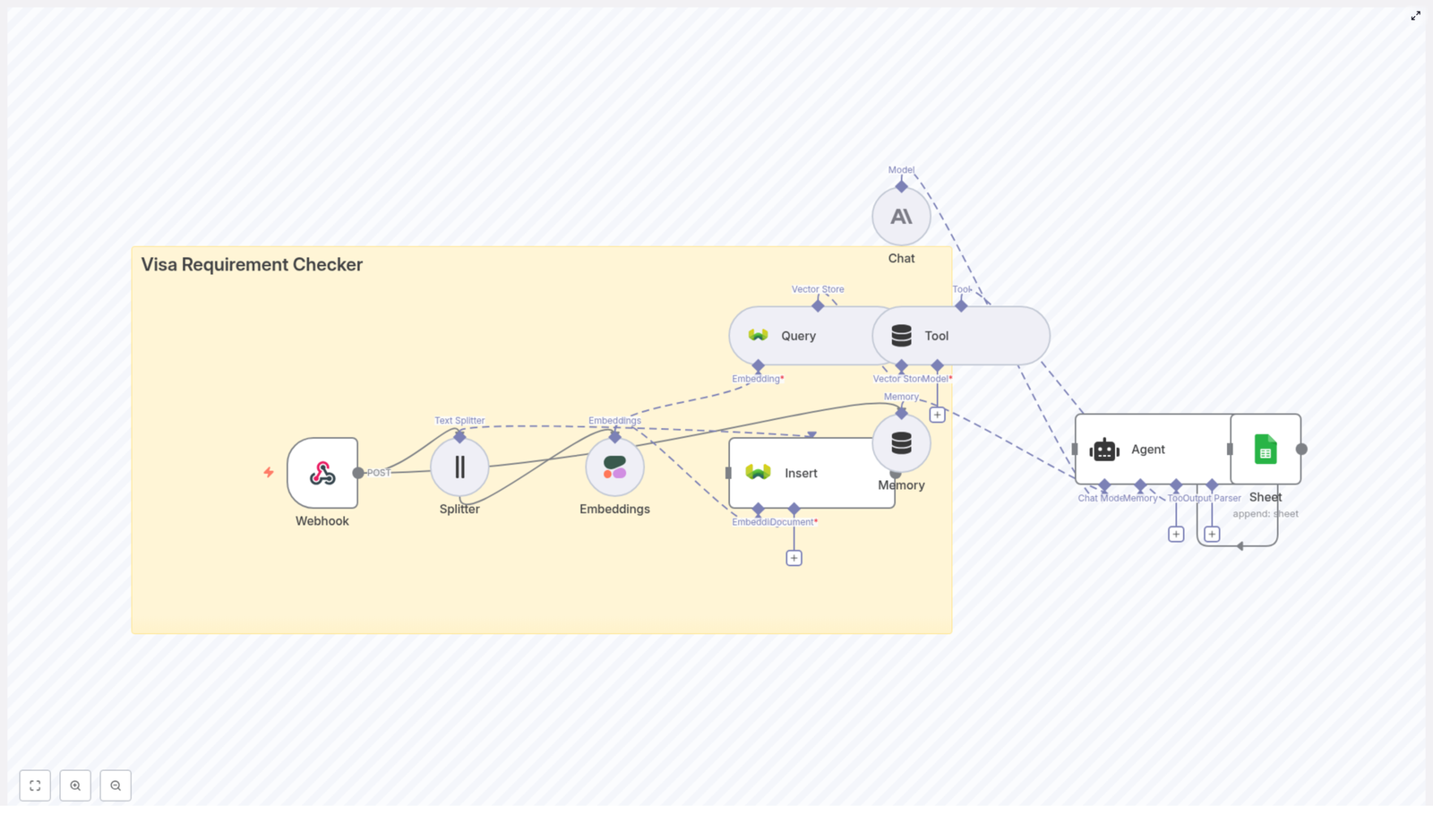
The workflow you will build brings together several powerful components into a single, cohesive system:

  • Webhook – Receives traveler details via HTTP POST.
  • Text Splitter – Breaks long policy documents into smaller, indexable chunks.
  • Embeddings (Cohere) – Converts those chunks into vector representations.
  • Weaviate Vector Store – Stores and retrieves vectors with semantic search.
  • Vector Tool – Exposes the vector store as a tool the agent can call.
  • Memory buffer – Keeps recent conversation context for follow-up questions.
  • Chat model & Agent – Uses an LLM (Anthropic, OpenAI, or similar) to reason over retrieved policies and format the final answer.
  • Google Sheets – Logs queries, responses, and citations for auditing and optimization.

Let us walk through the workflow step by step, and you will see how each piece contributes to a more automated and focused way of working.

Step 1 – Capture traveler details with a Webhook

Your journey starts with a simple entrypoint: the n8n Webhook node. This is how external systems, forms, or internal tools send visa queries into your workflow.

Configure the Webhook node to accept HTTP POST requests. A typical payload might look like this:

{  "traveler_country": "India",  "destination_country": "Germany",  "passport_type": "Ordinary",  "purpose": "tourism",  "stay_days": 10
}

This payload triggers the rest of the workflow. At this step, you can already take control of data quality:

  • Validate that required fields are present.
  • Reject or flag invalid requests early.
  • Optionally normalize values (for example, lowercasing country names).

Once the webhook is in place, you have a reliable way to feed real-world questions into your automated assistant.

Step 2 – Turn policy documents into searchable chunks

Prepare your reference content

To answer visa questions accurately, your workflow needs a solid base of reference material. This typically includes:

  • Official embassy or consulate pages
  • Visa policy PDFs and guidelines
  • Frequently asked questions and help articles

These documents are usually long and not directly suitable for vector search. That is where the Text Splitter node comes in.

Split documents with the Text Splitter node

Use a character-based splitter to break large documents into smaller segments. A common setup is:

  • Chunk size: around 400 characters
  • Overlap: around 40 characters

The overlap helps preserve context across chunk boundaries, while the limited chunk size keeps each piece manageable for your embeddings model. This step transforms messy, monolithic documents into clean, indexable units that your AI agent can work with.

Step 3 – Create embeddings for each text chunk

Next, you convert each chunk into a vector, a numerical representation that captures its meaning. In this template, you use a provider like Cohere through the n8n Embeddings node.

Key points when configuring embeddings:

  • Use a consistent model across all chunks.
  • Keep normalization settings consistent to ensure comparable vectors.

Alongside each embedding, store useful metadata, such as:

  • Source URL
  • Document title
  • Chunk index or ID
  • Original text content

This metadata is essential later when your agent needs to show citations, share links, or explain where its answer came from. You are not just building a smart system, you are also building a transparent one.

Step 4 – Insert vectors into Weaviate

With embeddings created, you are ready to store them in a vector database. The workflow uses Weaviate as the vector store.

In n8n, configure the node that inserts embeddings into Weaviate with a named index, for example:

visa_requirement_checker

Set up the Weaviate class schema to include:

  • Vector fields for the embeddings
  • Metadata fields like URL, title, and original text

Enable semantic search so you can later query the store using embeddings derived from user questions. The goal is simple: fast, accurate retrieval of the most relevant chunks whenever a traveler asks a question.

Step 5 – Query the vector store at runtime

When a new query arrives through the webhook, the workflow repeats part of the embedding process for the question itself. The query is turned into an embedding and sent to Weaviate to find relevant chunks.

In this step, you:

  • Convert the user question into an embedding.
  • Query Weaviate for the top k most similar chunks.
  • Return both text segments and their metadata.

These retrieved chunks are then exposed to the AI agent as a vector store tool. The agent can call this tool when it needs context, which keeps the model grounded in your actual policy documents rather than guessing.

Step 6 – Maintain context with a memory buffer

Real conversations rarely end with a single question. Travelers might ask follow-ups like:

  • “What about transit visas?”
  • “Does this change if I stay 30 days instead of 10?”

To handle this gracefully, the workflow uses a memory buffer. This node stores a short window of recent messages, for example the last three turns, and feeds them back into the agent prompt.

The result is a more natural, conversational experience where the system remembers what was said and can respond accordingly, instead of treating every message as a completely new request.

Step 7 – Use a Chat Model and Agent to craft the final answer

Now you bring everything together with an LLM-powered agent. In the template, the Chat node uses an LLM such as Anthropic, but you can also connect OpenAI or other compatible providers.

The Agent node orchestrates how the model uses tools, including the vector store and memory buffer. To get reliable, helpful answers, give the LLM a clear prompt template that emphasizes:

  • Use vector store results as the primary factual source.
  • Cite sources, including URL and document title, whenever possible.
  • Handle uncertainty honestly, for example by saying, “For official confirmation, consult the embassy website.”

Design the agent to:

  • First call the vector tool to retrieve relevant policy chunks.
  • Then generate a concise, tailored answer based on:
  • Traveler country
  • Destination country
  • Passport type
  • Purpose of travel
  • Length of stay

If the data is ambiguous or incomplete, instruct the model to ask clarifying questions rather than making assumptions. This keeps the experience both user friendly and trustworthy.

Step 8 – Log every interaction to Google Sheets

To continuously improve your workflow, you need visibility into how it is being used. The final step in the template is a Google Sheets node that appends each interaction to a spreadsheet.

Useful fields to log include:

  • Timestamp
  • Incoming payload (traveler details and question)
  • Agent response text
  • Top cited sources (URLs and titles)
  • Any confidence notes or uncertainty signals

This simple logging strategy turns your Visa Requirement Checker into an ongoing learning system. You can spot patterns, refine your content, and identify where the model needs better instructions or more data.

Keep it robust: Deployment considerations

Security & privacy

As you move from experiment to production, build in strong safeguards:

  • Use HTTPS for your webhook endpoints.
  • Restrict access with API keys or IP allowlists.
  • Mask or remove personally identifiable information when not needed.
  • Avoid storing personal data unless it is required and ensure it is encrypted.
  • Protect access to your vector index and embedding provider keys.

Data freshness

Visa policies change, so your knowledge base must evolve with them. To keep your system up to date:

  • Automate content refreshes by crawling or importing from official sources.
  • Schedule re-embedding whenever documents change significantly.
  • Store a last-updated timestamp in your metadata so the agent can warn users when information may be outdated.

Relevance and ranking

To get high quality answers, tune your retrieval strategy:

  • Adjust top_k to balance depth and noise.
  • Experiment with distance metrics and similarity thresholds.
  • Use rule-based filters, for example by traveler country or passport type, before running semantic search to remove clearly irrelevant results.

These optimizations help your agent focus on the most meaningful context, which improves answer quality and user trust.

Prompt engineering tips for better answers

Your prompt is where you set expectations for the model. A few practical guidelines:

  • Templatize the agent request to always include traveler details and a short instruction to answer clearly and list sources.
  • Ask the model to format output with:
  • A short summary
  • Required steps or actions
  • A list of required documents
  • Official links or citations
  • Reduce hallucinations by explicitly instructing the model to say “I do not know” when the retrieved sources do not support a claim.

Clear prompts lead to more reliable automation, and they make your workflow easier to maintain as you iterate.

Example of a structured response

Here is a sample of what a well formatted answer from your agent might look like:

Summary: Indian passport holders traveling to Germany for tourism (<=90 days) do not require a visa for short stays in the Schengen area.

Required documents:
- Valid passport (at least 3 months beyond the planned stay)
- Round-trip ticket
- Proof of accommodation

Source: German Embassy - Visa Info (https://example.gov)

Note: Always verify with the embassy for transit visas and long-term stays, as rules can change.

This kind of structure makes it easy for your team and your travelers to act on the information quickly.

Testing, monitoring, and continuous improvement

To turn this template into a dependable part of your operations, build habits around testing and monitoring:

  • Create end-to-end tests that send sample payloads through the webhook and verify output patterns and citations.
  • Review Google Sheets logs regularly for anomalies or confusing answers.
  • Track metrics such as:
  • Average response time
  • Percentage of answers marked as “uncertain”
  • Top sources and documents used

These insights help you refine your prompts, improve your content, and decide where to invest next in your automation roadmap.

Scaling and extending your Visa Requirement Checker

Once your first version is running, you can evolve it into a more powerful, global assistant. Some natural extensions include:

  • Multi-lingual support – Embed and index documents in multiple languages, and add language detection on input to respond in the traveler’s preferred language.
  • Self-serve admin UI – Build a simple dashboard where content owners can upload new documents and trigger re-indexing without touching n8n directly.
  • Structured rules integration – Combine vector-based retrieval with a policy engine or rule set for deterministic checks, such as visa-free country lists.

Each improvement not only makes your Visa Requirement Checker more capable, it also strengthens your broader automation skills in n8n.

Next steps: Turn this template into your own growth engine

You now have a clear path from scattered visa information to an AI-powered Visa Requirement Checker that runs inside n8n. The next step is to put it into action and adapt it to your reality.

To get started:

  • Clone a base n8n workflow that includes the nodes described above.
  • Populate your vector index with official embassy and consulate pages.
  • Configure your credentials for Cohere, Weaviate, and Anthropic or OpenAI.
  • Connect a Google Sheet for logging and iteration.

Once everything is wired up, deploy your webhook endpoint and send a sample POST request with traveler details. Watch as the agent retrieves relevant policies, composes a sourced recommendation, and logs the entire interaction for review.

This template is not just a one-off tool. It is a stepping stone toward a more automated, insight-driven way of working. As you gain confidence, you can reuse the same pattern for other use cases, automate more of your knowledge work, and free your team to focus on strategy and creativity.

Try it now: Deploy the workflow, run a test query, and see how much time and effort you can save. If you would like a ready-to-run template or support customizing the flow for your geography, data sources, or internal tools, reach out or subscribe for more n8n

New Job Application Parser with n8n & Pinecone

Automate Applicant Intake: New Job Application Parser with n8n, OpenAI, and Pinecone

Every new job application is a potential game changer for your team. Yet when resumes are buried in inboxes or scattered across tools, it is hard to give every candidate the attention they deserve. Manual screening eats into your day, slows hiring decisions, and pulls you away from the strategic work that really moves the business forward.

This is where thoughtful automation becomes a catalyst for growth. In this guide, you will walk through a complete journey: from the pain of manual intake, to a new mindset about automation, to a concrete n8n workflow template that turns resume chaos into structured, searchable insight. By the end, you will not just understand how this “New Job Application Parser” works, you will see how it can be a stepping stone toward a more focused, scalable workflow for your entire hiring process.

From Manual Chaos to Intentional Automation

Most recruiting teams start in the same place. Applications arrive through forms, email, or job boards, and someone has to:

  • Open each resume and copy key fields into a tracking sheet
  • Scan for skills, experience, and role fit
  • Notify hiring managers when a promising candidate appears
  • Keep some form of audit log for compliance and reporting

This approach is familiar, but it does not scale. It is time-consuming, error-prone, and mentally draining. The more applications you receive, the more you are forced to choose between speed and quality.

Automating job application parsing with n8n lets you step out of that loop. Instead of acting as a human data pipeline, you become the architect of a system that:

  • Extracts structured fields like name, email, skills, and experience automatically
  • Makes resumes searchable with semantic embeddings instead of brittle keyword filters
  • Triggers follow-up actions, such as Slack alerts and Google Sheets logs, in real time
  • Preserves context and audit trails for analytics and compliance

When you shift this work to an automated workflow, you reclaim hours every week and gain a clear, consistent view of your talent pipeline. That is the mindset shift: you are not just saving time, you are building a repeatable hiring engine.

Reimagining Your Hiring Workflow With n8n

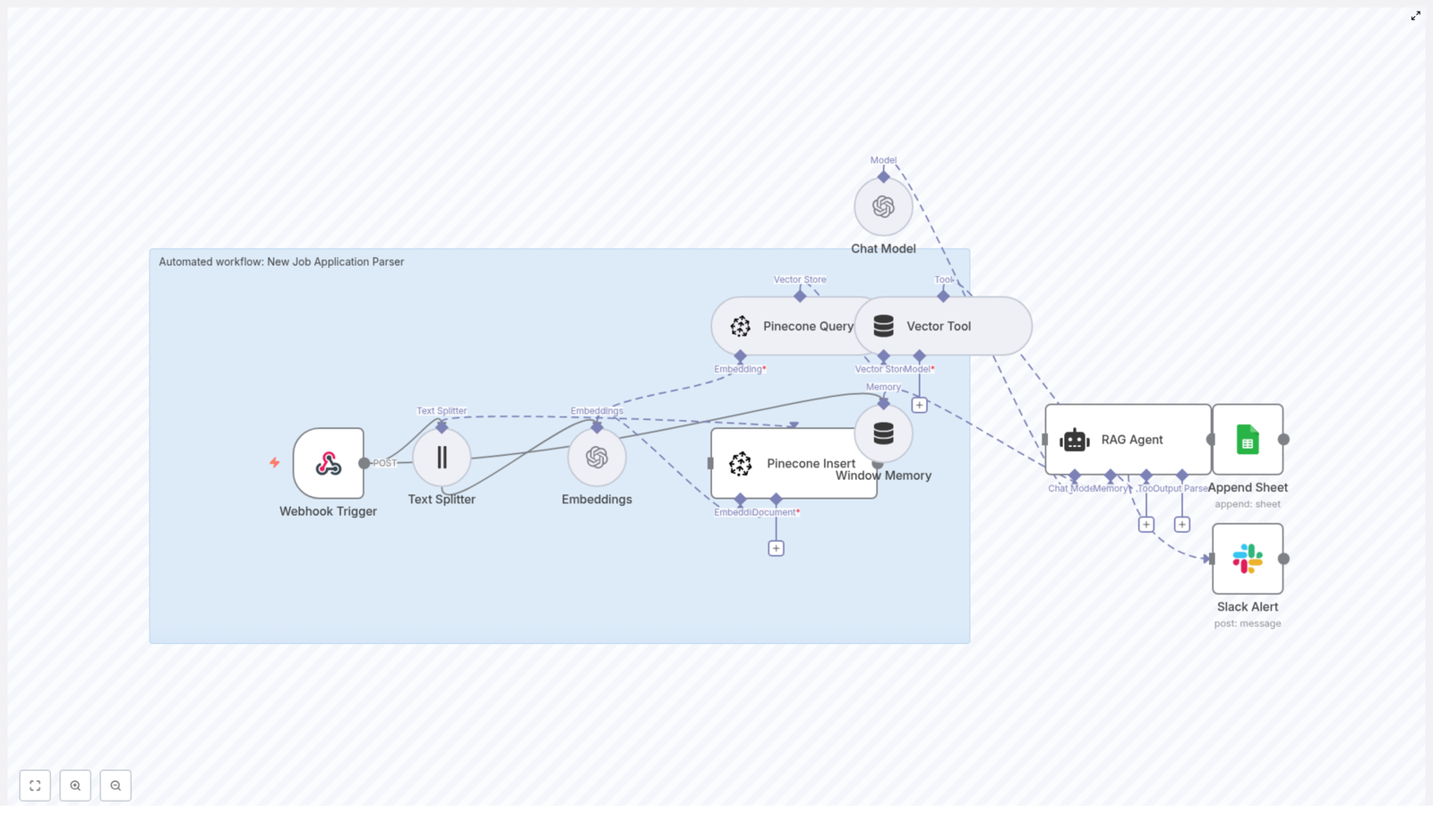
n8n is the backbone of this transformation. It lets you orchestrate each step of your job application pipeline with visual, configurable nodes. In this “New Job Application Parser” template, n8n connects:

  • A Webhook Trigger that receives new job applications
  • A Text Splitter that prepares resume content for embeddings
  • OpenAI Embeddings that convert text into semantic vectors
  • Pinecone for scalable vector storage and retrieval
  • A RAG Agent (Retrieval Augmented Generation) that uses stored context to summarize and classify candidates
  • Google Sheets for logging and tracking
  • Slack for alerts and notifications

Each component plays a specific role, but together they create something more powerful: a living knowledge base of your applicants that you can query, analyze, and improve over time.

The Journey of a Job Application Through the Workflow

1. A Candidate Applies, Your Webhook Listens

The moment a candidate submits their resume through your career site or a third-party form, the journey begins. n8n’s Webhook Trigger node receives a POST request that contains either the raw text of the application or a resume file that you convert to text before sending into the workflow.

This webhook is your automated intake door. Instead of landing in an inbox, every application enters a structured pipeline that you control and can monitor.

2. Normalize and Split the Text for Better Understanding

Resumes and cover letters can be long and varied in format. To prepare them for semantic search, the Text Splitter node breaks the content into smaller chunks, such as a chunk size of 400 characters with an overlap of 40.

This chunking strategy helps in two ways:

  • It keeps embeddings accurate by preserving local context
  • It prevents long documents from exceeding model token limits

By normalizing and splitting text thoughtfully, you set the stage for high-quality embeddings and reliable retrieval later on.

3. Generate Semantic Embeddings With OpenAI

Each chunk of text is sent to an OpenAI embeddings model, such as text-embedding-3-small. The model returns dense vector representations that capture the meaning of the content, not just the exact words used.

These vectors are what make semantic search possible. Instead of asking “Does this resume contain the word Python” you can ask “Who has strong Python and AWS experience” and retrieve candidates whose profiles genuinely match that skill set, even if they phrase it differently.

4. Store Vectors in Pinecone With Rich Metadata

Once embeddings are generated, the workflow uses the Pinecone Insert node to store them in a Pinecone index, such as one named new_job_application_parser.

Each vector is saved along with metadata like:

  • Applicant ID
  • Name and email
  • Job applied for
  • Submission date
  • Link to the original resume file

This metadata turns raw vectors into actionable records. Later, you can filter by job_id, restrict searches to a specific role, or quickly jump back to the original document when you find a promising candidate.

5. Use a RAG Agent for Context-Aware Insights

The real power of this setup appears when you start asking questions of your candidate data. When you or a hiring manager queries the system, for example:

“Show me top candidates with Python and AWS experience”

The workflow uses a Pinecone Query node to retrieve the most relevant chunks from your index. A Vector Tool passes those chunks to a RAG Agent, which combines them with a Chat Model.

The result is a concise, human-ready summary or classification that is grounded in the actual resume content. This retrieval-augmented generation process reduces hallucinations and keeps answers tied to your stored data.

6. Log Everything and Keep Your Team in the Loop

Every processed application is then appended to a Google Sheet. Typical columns might include:

  • Timestamp
  • Applicant name
  • Job ID or role
  • Status
  • RAG agent summary

This sheet becomes your lightweight applicant tracking and reporting layer. At the same time, a Slack Alert node keeps your team informed. You can configure it to send messages to a channel such as #alerts whenever critical events occur, especially errors that need quick attention from engineering or operations.

Instead of quietly failing in the background, your automation becomes transparent and trustworthy.

Designing a Reliable n8n Job Application Parser

Building a workflow that feels effortless on the surface requires a few deliberate design choices. Here are key areas to focus on as you implement or adapt this n8n template.

Data Normalization

  • Convert PDFs and DOCX resumes to clean plain text using reliable libraries
  • Avoid noisy OCR when possible, since it can introduce errors into embeddings
  • Strip boilerplate sections, such as legal disclaimers, to reduce noise in your vector store

Clean input leads to better semantic search and more meaningful summaries.

Chunking Strategy

  • Use overlapping chunks, for example 10 to 20 percent overlap, to preserve context around boundaries
  • Keep chunk sizes aligned with your embedding model’s token limits
  • Maintain consistent settings across the workflow for predictable results

A thoughtful chunking strategy improves both the accuracy of retrieval and the quality of RAG outputs.

Metadata Design

  • Include identifiers such as applicant_id, email, job_id, submission_date, source_url
  • Use metadata filters during Pinecone queries, for example restrict results to job_id=123
  • Think ahead about what attributes will matter for analytics and routing

Good metadata design makes your vector store not just powerful, but truly usable in day-to-day recruiting decisions.

Rate Limits and Batching

  • Batch embedding calls where possible to reduce latency and API costs
  • Monitor OpenAI and Pinecone rate limits as your application volume grows
  • Use n8n’s configurable chunk processing and throttling to stay within quotas

Planning for scale early helps your automation grow with your hiring needs instead of becoming a bottleneck.

Privacy and Compliance

  • Store only the personal data you truly need in metadata
  • Implement deletion workflows to honor GDPR and CCPA requests
  • Encrypt sensitive fields where appropriate and control who can access your n8n instance, Google Sheets, and Pinecone data
  • Set retention policies for raw text so you are not keeping data longer than required

Responsible automation builds trust with candidates and aligns your growth with regulatory expectations.

Common Issues and How to Overcome Them

As you experiment and refine this workflow, you may run into a few predictable challenges. Treat them as part of the learning curve rather than blockers.

  • Embedding failures: Check that the input text length is within model limits and that your OpenAI API key has access to the embedding model you are using.
  • Pinecone insert errors: Verify the index name, namespace, and API credentials. Confirm that the vector dimension matches the embedding model’s output size.
  • Webhook not firing: Make sure your form or integration is posting to the correct public n8n webhook URL, and that the workflow is active.
  • RAG agent hallucinations: Increase the amount of retrieved context, refine your system prompts, and ensure the agent is instructed to base answers only on evidence from the vector store.

Each issue you solve makes your automation more robust and gives you confidence to automate even more of your process.

Scaling Your Automated Hiring Pipeline

Once your first version is running, you can start thinking about scale and performance. This is where your n8n workflow shifts from “helpful tool” to “core infrastructure” for recruiting.

  • Horizontal scaling: Run n8n in a cluster with queue-backed execution to handle large volumes of applications.
  • Index sharding: Split your Pinecone index by job, region, or business unit to keep search latency low as data grows.
  • Model mix: Use more cost-effective embedding models for initial indexing and reserve higher-quality models for on-demand summarization or executive-ready reports.

These tweaks help you serve more candidates, more teams, and more roles without sacrificing responsiveness.

Security You Can Trust as You Automate

As your workflow becomes central to hiring, security matters even more.

  • Store API keys inside n8n credentials and rotate them regularly
  • Limit access to your Google Sheets document and Slack channels that receive alerts
  • Add authentication or secret tokens to your webhook endpoint to prevent spam or unauthorized submissions

Secure foundations let you scale automation with confidence.

Real-World Ways to Use This n8n Job Application Template

Once your New Job Application Parser is live, you can extend it in multiple directions. For example, you can:

  • Automatically classify candidate seniority and route promising profiles to the right recruiter
  • Search across your historical applicants for niche skills using semantic search in Pinecone
  • Generate quick summaries of candidate strengths and build one-click shortlists for hiring managers

Each of these use cases frees your team from repetitive work and lets you spend more time on conversations, not copy-paste.

Your Next Step: Turn This Template Into Your Own Growth Engine

Building a “New Job Application Parser” with n8n, OpenAI embeddings, and Pinecone is more than a technical exercise. It is a shift in how you work. Instead of reacting to a flood of resumes, you create a structured, searchable, and intelligent system that grows with your hiring needs.

With Google Sheets logging and Slack alerts, your team stays informed and aligned. With a RAG agent and semantic search, you gain a deeper understanding of your talent pool. Most importantly, you reclaim time and focus for the strategic parts of recruiting that only humans can do.

You do not have to build everything from scratch. Start small, then iterate:

  1. Deploy n8n and create your webhook trigger.
  2. Wire up the Text Splitter, Embeddings, and Pinecone Insert nodes.
  3. Add the Pinecone Query, Vector Tool, Chat Model, and RAG Agent for context-aware answers.
  4. Connect Google Sheets and Slack to close the loop with logging and alerts.

From there, keep experimenting. Adjust chunk sizes, refine prompts, expand metadata, or plug in additional tools. Every improvement you make today compounds into a smoother, smarter hiring process tomorrow.

Call to Action

If you are ready to accelerate your applicant intake and build a more automated recruiting workflow, take the next step now. Download the n8n workflow template or book a free demo to see this parser in action and learn how to adapt it to your own hiring stack. Click below to get the template and your next steps.

n8n Developer Agent: Build Workflows with AI

n8n Developer Agent: Build Workflows with AI

Every automation builder hits the same wall at some point. You have more ideas than time, more requests than capacity, and a growing list of “I’ll build this workflow later.” The n8n Developer Agent template is designed to help you break through that wall.

By combining a chat-triggered AI agent with the n8n API, OpenRouter, Anthropic Claude Opus 4, and Google Drive, this template turns natural language into ready-to-import n8n workflows. It is not just a convenience feature, it is a way to reclaim time, move faster, and open the door to a more automated, focused way of working.

This guide walks you through that journey: from the problem of manual workflow creation, to a new mindset about automation, and finally to the concrete steps for using the n8n Developer Agent template as your practical tool for growth.

SEO keywords: n8n Developer Agent, n8n workflow, workflow automation, AI agents, OpenRouter, Claude Opus 4, n8n template.

The problem: Manual workflows slow you down

Building n8n workflows by hand is powerful, but it can also be slow. You need to:

  • Translate vague requests into clear automation logic
  • Wire up nodes, connections, and credentials
  • Iterate through multiple versions before something feels right

Over time, this can turn into a bottleneck. Product teams wait on automation. Operations teams stay stuck in repetitive tasks. You know automation can help, but the friction of starting each new workflow from scratch holds you back.

The n8n Developer Agent template is built to change this dynamic. Instead of manually crafting every workflow, you describe what you want in plain language and let an AI agent generate a complete n8n workflow JSON that you can review, refine, and import.

The shift in mindset: From “builder of everything” to “designer and reviewer”

Using AI to generate n8n workflows is more than a technical trick. It is a mindset shift.

Instead of spending your time on repetitive configuration, you spend it on:

  • Clarifying what the business really needs
  • Designing the logic and guardrails of your automations
  • Reviewing and improving workflows generated by the agent

This is where your expertise creates the most value. The n8n Developer Agent template becomes your assistant, not your replacement. It handles the boilerplate so you can focus on strategy, quality, and impact.

Think of this template as a starting point that you can customize, extend, and refine over time. Each workflow you generate is a chance to learn, improve your prompts, and gradually build a library of automations that reflect your best practices.

What the n8n Developer Agent actually does

At its core, the n8n Developer Agent template accepts a natural-language request via a chat trigger and converts that request into a fully formed, importable n8n workflow JSON. From there, it can automatically create the workflow in your n8n instance and give you a direct link to review it.

Key capabilities include:

  • Chat-triggered workflow generation using an AI agent
  • Optional deeper reasoning and refinement using Anthropic Claude Opus 4 or GPT 4.1 mini
  • Integration with Google Drive so the agent can reference documentation or internal templates
  • Automatic creation of a new workflow in your n8n instance via the n8n API
  • Generation of a clickable link to open and review the created workflow

The result is a faster, more fluid way to move from “idea” to “working n8n workflow.”

Inside the template: Nodes, roles, and how they work together

To understand how this template unlocks that speed, it helps to see the main building blocks and how each contributes to the overall flow.

Primary nodes and their roles

  • When chat message received – This is your entry point. A user sends a natural-language request through chat, and this trigger starts the automation.
  • n8n Developer (AI agent) – This is the central LLM-powered agent. It reads the user’s request, coordinates with tools, and ensures that the final output is a valid n8n workflow JSON.
  • Developer Tool – A sub-workflow or tool node dedicated to generating developer-grade n8n workflow JSON. Its job is to return a single, valid JSON object representing the complete workflow, ready for import.
  • Get n8n Docs (Google Drive) – This node fetches reference documentation or template files from Google Drive so the agent can align the generated workflows with your internal best practices.
  • Extract from File – Converts Google Docs into plaintext that the AI agent can easily read and use.
  • Claude Opus 4 / GPT 4.1 mini – Optional “thinking” nodes that can provide deeper reasoning, validation, or interpretation of reference docs. These are especially useful for complex or multi-step workflows.
  • n8n (create workflow) – Uses your n8n API credentials to automatically create a new workflow from the generated JSON.
  • Workflow Link – Produces a direct, clickable link to the newly created workflow so a human can review, test, and refine it.

Visual guide and sticky notes for smooth setup

The template includes visual sticky notes that act as an internal guide. You will find:

  • Setup instructions for each key integration
  • Recommended credential connections
  • Common troubleshooting tips

These notes are there to help you move from “template imported” to “template working” as quickly and safely as possible.

From idea to workflow: How the generation flow works

Once the template is configured, the magic is in the flow. Here is what happens behind the scenes when someone makes a request.

  • The user sends a natural-language request through the chat trigger.
  • The request is passed as-is to the n8n Developer agent.
  • The agent forwards the request to the Developer Tool, which constructs a complete n8n workflow JSON with nodes, connections, and key settings.
  • Optional LLM nodes such as Claude Opus 4 or GPT 4.1 mini can refine or validate the JSON and extract additional context from Google Drive docs if needed.
  • The n8n (create workflow) node calls your n8n API and creates a new workflow record using the generated JSON.
  • The Workflow Link node returns a URL that lets the user open and review the workflow in the n8n UI.

In practice, this means you can say something like “Create a workflow that reads a Google Sheet and sends an email when a new row is added” and receive a ready-made workflow that you can immediately inspect and adjust.

Step-by-step setup: Turning potential into reality

To unlock this capability, you only need to walk through a few configuration steps. Treat this as the foundational work that will pay off every time you generate a new workflow.

  1. Connect OpenRouter (recommended)

    Add your OpenRouter API key. This powers the main conversational model used by the n8n Developer agent. Once connected, the agent can understand your natural-language prompts and coordinate the Developer Tool.

  2. Connect Anthropic (optional, but powerful)

    If you want deeper reasoning for more complex automations, add your Anthropic API credentials and enable Claude Opus 4. This is especially helpful when you expect multi-step planning or nuanced logic in your workflows.

  3. Link the Developer Tool

    Make sure the Developer Tool node or sub-workflow is configured to output a single, valid JSON object representing the entire workflow. In the system message for the agent, clearly instruct the tool to return only the final JSON, wrapped from { to }, without extra commentary.

  4. Add your n8n API credentials

    Create an n8n API key or set up an n8n credential, then connect it to the n8n (create workflow) node. This is what allows the template to programmatically create workflows in your n8n instance.

  5. Connect Google Drive

    Copy the provided n8n documentation or your own internal docs to Google Drive. Authorize the Google Drive node so the agent can read these files. The more aligned your docs are with your standards, the more your generated workflows will reflect those best practices.

  6. Test with a sandbox prompt

    Start in a safe environment. Use a simple request such as “Create a workflow that reads a Google Sheet and sends an email when a new row is added” and iterate until the generated JSON imports cleanly into n8n. This is where you fine-tune prompts and verify that the Developer Tool is behaving as expected.

Best practices: Build confidence as you automate faster

As you move from experimentation to real use, a few best practices will help you keep things safe, reliable, and maintainable.

Validate and test incrementally

Always validate generated JSON in a development or test environment before enabling automatic creation in production. A practical workflow might look like this:

  • Start with small, contained tasks
  • Export the generated JSON and inspect node parameters and credentials
  • Import into a test n8n instance and run controlled test executions
  • Only then, promote the workflow to production with appropriate checks

Isolate credentials for safety

Use separate credentials for development and production n8n environments. Limit the scope of your n8n API keys to only what is necessary, and rotate keys regularly. This keeps experimentation safe while you scale up your use of the Developer Agent.

Handle ambiguous prompts with clarification

AI agents work best with clear instructions. If the agent receives a vague or incomplete request, add a clarification step. Have the system respond to the user with follow-up questions before generating the workflow JSON. This simple pattern reduces invalid outputs and rework.

Common errors and how to fix them

  • Invalid JSON: Tighten validation in the Developer Tool. Make sure the agent is instructed to return only valid JSON, wrapped from { to }, with no additional text.
  • Missing credentials in generated nodes: Configure the Developer Tool to insert placeholders or clear instructions where credentials must be set manually after import.
  • Permission denied when creating workflows: Double-check that your n8n API key has the correct permissions and that the n8n base URL in the node configuration is correct.

Use cases: Where this template can transform your work

Once the n8n Developer Agent template is running, you can apply it across many parts of your organization.

  • Rapid prototyping of automations – Turn product or operations requests into working workflows in minutes instead of days. Quickly explore ideas, then refine the best ones.
  • Internal developer productivity – Let non-technical stakeholders describe what they need in plain language. Developers can then review, adjust, and approve the generated workflows instead of building every detail from scratch.
  • Template generation – Produce standardized starter workflows for onboarding, monitoring, alerts, and recurring processes. Use the agent to generate variations that all follow your core patterns.
  • Documentation-driven workflows – Connect the Google Drive docs to your internal guidelines. The agent can reference these documents to align new workflows with your best practices and architecture decisions.

Security and governance: Automate with intention

Because this template can programmatically create workflows, good governance is essential. The goal is not just speed, but safe and sustainable automation.

  • Review generated workflows before granting production permissions, especially for high-impact automations.
  • Implement an approval or human-in-the-loop step where needed, for example for workflows that touch sensitive data or perform critical actions.
  • Log all generation requests and created workflow IDs so you have an audit trail of what was generated, when, and by whom.

With these guardrails in place, you can confidently expand your use of AI-generated workflows across the organization.

Your next step: Turn this template into your automation ally

The n8n Developer Agent template is more than a demo. It is a practical foundation for a more automated way of working. By connecting OpenRouter, optionally Anthropic Claude Opus 4, Google Drive, and your n8n API credentials, you give yourself a repeatable way to turn ideas into workflows at high speed.

From there, every new prompt is an opportunity to:

  • Save time on repetitive configuration
  • Empower teammates to request automations directly
  • Refine your internal standards and encode them into the system

Ready to try it? Import the template into a sandbox n8n instance, connect your API keys, and start with simple prompts. Use each run as a learning loop: improve your instructions, tweak the Developer Tool, and gradually expand to more complex workflows.

If you want a guided walkthrough or help customizing the Developer Tool to match your stack and standards, contact our team or download the template to get started.

Call-to-action: Import the n8n Developer Agent template, then run a test prompt like “Create a workflow that watches a Google Sheet and posts to Slack when a new row is added.” Review the generated workflow, adjust anything you like, and iterate until it feels exactly right. Each iteration brings you closer to a fully automated, distraction-free workflow environment.

Backup n8n Workflows to Gitea (Automated Guide)

Backup n8n Workflows to Gitea: A Story of One Near-Miss

On a quiet Tuesday morning, Lena, a marketing operations manager at a fast-growing startup, opened her n8n dashboard and froze. The workflow that handled all lead routing from their website, CRM, and email platform was gone.

She had been tweaking a few nodes the night before. Somewhere between refactoring and testing, she had overwritten the wrong version. No backup, no Git history, no easy way back. The only option was to rebuild from memory.

That was the moment Lena decided this would never happen again.

The Problem: Fragile Automation Without Version Control

Lena was responsible for a growing network of n8n workflows. They synced leads, cleaned data, updated sales dashboards, and triggered campaigns. Every new experiment meant another tweak, another node, another risk of breaking something that used to work.

She knew Git could solve this. Her engineering teammates used Git daily for code, but her automations lived only inside n8n. No version history, no pull requests, no way to see what changed last week or last month.

She wrote a list of what she wanted for her n8n workflows:

  • Version history for every workflow change
  • Centralized storage with team access and permissions
  • Automatic, scheduled backups so she did not have to remember
  • Easy rollback if a workflow was deleted or misconfigured

Her team already hosted a self-managed Gitea instance for internal projects. If she could back up n8n workflows to Gitea automatically, she would get all the benefits of Git without manual exports.

That is when she discovered an n8n workflow template that did exactly that.

The Discovery: An n8n Template for Automated Gitea Backups

Late that afternoon, Lena found an n8n template titled “Backup n8n Workflows to Gitea.” It promised exactly what she needed: a scheduled backup process that would export all workflows from her n8n instance and push them into a Gitea repository.

Reading through the template description, she realized it was not just a simple export. It was a complete, automated backup strategy:

  • Trigger on a schedule, for example every 45 minutes
  • Fetch all workflows from the n8n API
  • Check Gitea to see if each workflow file already existed
  • Base64-encode workflow JSON and create or update files through the Gitea API
  • Commit only when a workflow had actually changed

It sounded like the kind of safety net she wished she had the night before. She decided to set it up the same day.

Setting the Stage: How the Template Works Behind the Scenes

Before touching any settings, Lena wanted to understand the moving parts. The template was built from a handful of key n8n nodes, each playing a specific role in the backup story.

The Schedule Trigger: The Metronome

At the start of the workflow sat a Schedule Trigger node. It was the metronome of the system, kicking off a backup run every 45 minutes by default. She liked that she could change this interval later, maybe to hourly or daily, once she saw how often her workflows changed.

Globals (Set Node): The Single Source of Truth

Next was a Set node labeled Globals. This node stored the core configuration for the Gitea repository:

  • repo.url – for example https://git.your-domain.com
  • repo.owner – the repository owner or organization
  • repo.name – the repository name, such as workflows

By centralizing these values, the rest of the workflow could reference them without hardcoding URLs or repo names in multiple places. If she ever moved the repository, she would only have to update this single node.

n8n API Node: The Archivist

Further down, Lena found the n8n (API node). This node authenticated against the n8n API and requested the list of workflows along with their JSON definitions. It was the archivist of her system, responsible for collecting the exact state of every workflow at the time of backup.

She noted that it needed valid n8n API credentials with permission to read and export workflows, either via an API key or Basic Auth, depending on how the server was configured.

ForEach / splitInBatches: The Workflow Loop

Once the workflows were fetched, the template used a combination of ForEach or splitInBatches logic. This allowed the workflow to process one n8n workflow at a time, which made it easier to check the corresponding file in Gitea, update it, or create it if it did not exist.

Instead of pushing everything in one huge request, it carefully walked through each workflow individually, which also helped with error handling and logging.

GetGitea, PutGitea, PostGitea: The Bridge to Git

The most critical pieces for Gitea integration were three HTTP Request nodes:

  • GetGitea – checked if a file for the current workflow already existed in the repository
  • PutGitea – updated an existing file, using the file’s SHA to create a correct commit
  • PostGitea – created a new file if one was missing

These nodes talked to the Gitea REST API. Together, they allowed the template to behave like a careful Git user: look for the file, update it if present, or create it if it was new.

Code Nodes for Base64: The Translators

Finally, there were two Code nodes with names like Base64EncodeCreate and Base64EncodeUpdate. They took the raw workflow JSON, formatted it as pretty-printed JSON, and then converted it into a Base64 string.

This Base64 output was exactly what the Gitea API expected in its content field when creating or updating files. Encoding the content ensured binary-safe transfers and matched Gitea’s format requirements for these endpoints.

Now that Lena understood the architecture, she was ready to wire it to her own Gitea instance.

Rising Action: Turning a Template into a Lifesaver

With a clear goal and a working template, Lena started configuring the workflow. Each step moved her further away from fragile, manual backups and closer to automated version control for every n8n workflow.

1. Configuring Global Repository Settings

She opened the Globals node and filled in the fields:

  • repo.url: https://git.example.com
  • repo.owner: the internal organization that owned their repos
  • repo.name: workflows, a new repository she had created just for n8n backups

This single node now defined where every backup would be stored.

2. Creating a Gitea Personal Access Token

Next, she logged into Gitea and navigated to Settings → Applications → Generate Token. She created a new personal access token with repo-level read and write permissions, just enough to create and update files in the target repository.

She copied the token immediately, knowing she would not be able to view it again.

3. Storing Credentials Securely in n8n

Back in n8n, Lena created a new HTTP Header Auth credential. She set:

  • Header Name: Authorization
  • Header Value: Bearer YOUR_PERSONAL_ACCESS_TOKEN (with a space after Bearer)

This ensured that all calls to the Gitea API would be authenticated securely, without exposing the token in plain text inside workflow nodes.

4. Wiring the Credentials to Gitea Nodes

She then opened each of the Gitea-related HTTP Request nodes: GetGitea, PutGitea, and PostGitea. In each one, she selected the new HTTP Header Auth credential she had just created.

Now every interaction with Gitea, from checking for existing files to pushing updates, would use the same secure token.

5. Configuring the n8n API Node

To complete the loop, Lena needed to make sure the n8n API node could actually read workflows. She created or selected an existing n8n API credential, configured it with an API key or Basic Auth, and tested the connection.

The test returned a list of workflows in JSON format. That was the confirmation she needed that the node could act as the archivist for her automations.

6. The First Manual Test

With everything wired, Lena ran the workflow manually. She watched the execution logs step by step:

  • The Schedule Trigger was bypassed for manual execution, but the rest of the flow started.
  • The n8n API node fetched all workflows successfully.
  • The ForEach logic looped through each workflow.
  • GetGitea returned a 404 for each workflow, which made sense because the files did not exist yet.
  • The template recognized the 404 as an expected case and used PostGitea to create new files.
  • The Code nodes encoded each workflow JSON into Base64 and passed it to the Gitea API.

When she opened the Gitea repository, there they were: every n8n workflow saved as a JSON file, each with its own commit. The near-miss from the night before suddenly felt like a turning point rather than a disaster.

The Turning Point: From One-Off Fix to Reliable System

Over the next few days, Lena let the Schedule Trigger take over. Every 45 minutes, the workflow ran quietly in the background, checking for changes and syncing them to Gitea.

She noticed something important: the template only committed when a workflow had changed. That meant no unnecessary noise in the Git history. Each commit actually represented a meaningful update, making it easier to track when and how workflows evolved.

With backups now running automatically, she started thinking not just about recovery, but about collaboration, security, and optimization.

Security Practices Lena Put in Place

Because the new system touched both automation and source control, Lena made sure it followed security best practices:

  • She stored the Gitea token only in n8n credentials and never in plain text nodes or logs.
  • The token had the minimum required scope, only repo read and write access.
  • She restricted repository access using Gitea team and repo permissions so only the right people could see and modify workflow backups.
  • For particularly sensitive workflows, she considered keeping them in a private repository and avoided storing secrets in the workflows themselves, using n8n credentials instead.

With these measures in place, she felt confident that automating backups did not mean compromising on security.

When Things Go Wrong: Troubleshooting in the Real World

Not everything was perfect from day one. A few issues popped up during the first week, but the template design and n8n logs made them manageable.

Common Issues She Encountered

  • HTTP 401 / 403: When she accidentally used an old Gitea token, the Gitea nodes returned 401 and 403 errors. Updating the token and checking its permissions fixed it.
  • 404 on GetGitea: At first, these errors looked alarming, but they were actually expected for new workflows. The template caught the 404 and used PostGitea to create the missing files.
  • Encoding mistakes: During a test change to the Code node, she briefly broke the Base64 output. The result was that Gitea rejected the content. She reverted to the original logic, ensuring the Code nodes produced valid Base64 strings and that the content field in the API calls used that value.

Each time, the combination of clear error messages, execution logs, and the predictable structure of the template helped her track down the issue quickly.

Optimizations: Making the Backup Flow Work for the Team

Once the system was stable, Lena started refining it to better fit her team’s workflow.

  • Adjusting frequency: Since most workflows only changed a few times a day, she increased the backup interval to reduce API calls and repository noise.
  • Commit messages: She extended the HTTP body parameters in the Gitea nodes to include descriptive commit messages, like “Update workflow: Lead Routing (2025-03-10 14:30 UTC)”. It made the Git history easier to read.
  • Diff and audit ideas: For future iterations, she considered saving diffs in a separate directory or enabling more verbose change logs for auditing, especially for workflows tied to compliance-sensitive processes.

Looking Ahead: Advanced Options She Is Planning

With the core backup system running smoothly, Lena started exploring more advanced options that the template could support.

  • Environment branches: She planned to introduce a branch per environment, such as dev, staging, and production, so each n8n instance would push its workflows to the correct branch in the same repo.
  • Webhook-triggered backups: Instead of relying solely on a fixed schedule, she considered triggering backups whenever a workflow changed, using webhooks for near-real-time backups.
  • Compression or encryption: For particularly sensitive setups, she thought about compressing or encrypting workflow JSON before pushing to Gitea, while still keeping secrets in n8n credentials rather than in the workflows themselves.

The template had become more than a safety net. It was now part of a broader strategy for how her team managed automation as a first-class asset.

Resolution: From Panic to Confidence

Weeks later, someone on Lena’s team accidentally changed a critical workflow and broke a key integration. In the past, that would have meant hours of guesswork. This time, Lena calmly opened the Gitea repository, browsed the workflow’s history, and restored the last known good version.

What used to be a crisis was now just another small task.

By backing up n8n workflows to a Gitea repository, she had gained:

  • A robust, versioned history of every workflow
  • An easy recovery path for accidental deletions or bad edits
  • Team visibility and collaboration through Git
  • Confidence that her automation logic was as safe as the application code her engineers wrote

All of it powered by a single n8n template that automated the entire process: fetching workflows, encoding them, checking for existing files, and creating or updating them only when needed.

Take the Next Step: Secure Your Own n8n Workflows

If you are running n8n in production, you are one unexpected change away from the same panic Lena felt that Tuesday morning. You do not have to wait for a near-miss to fix it.

Import the n8n template, configure the Globals node with your Gitea URL, owner, and repo name, set up your credentials, run a manual test, and then enable the scheduled trigger. From that point on, your workflows will quietly back themselves up to Gitea.

Need help customizing it for branches, commit messages, or multiple environments? Reach out to your team, contact support, or post a question in the n8n community forum. Share this guide with your teammates so everyone’s automations are backed up reliably and versioned like any other critical part of your stack.

AI Logo Sheet Extractor to Airtable

Summary: Transform static logo sheets into a structured, queryable product catalog in Airtable using an n8n workflow that combines AI vision, agents, and deterministic upserts to extract tool names, attributes, and competitive relationships automatically.

Overview: From logo sheets to structured product intelligence

Teams in product, partnerships, and competitive intelligence often receive vendor landscapes, partner lists, and comparison grids as images or PDFs. Converting those logo sheets into a normalized database typically requires manual transcription, ad hoc spreadsheets, and repeated clean-up work. This is slow, error-prone, and difficult to scale.

The AI Logo Sheet Extractor to Airtable n8n template automates this ingestion process. It accepts a logo sheet through a simple form, uses an AI vision agent to interpret the content, then writes standardized records into Airtable. The result is a clean, extensible dataset of tools, attributes, and relationships that can be searched, analyzed, and integrated with downstream systems.

Core capabilities of the workflow

This n8n workflow implements an end-to-end ingestion pipeline that:

  • Captures logo sheet images via a public n8n form.
  • Uses an AI vision agent (LangChain with OpenAI or a similar stack) to identify tools and contextual information from the image.
  • Extracts tool names, multiple attributes per tool (such as categories and features), and similar or competitive tools inferred from the sheet.
  • Upserts attributes into a dedicated Airtable Attributes table, creating missing records automatically.
  • Upserts tools into an Airtable Tools table using deterministic hashes, then links each tool to its attributes and similar tools using Airtable record IDs.

Architecture and key components

The solution is built around a few core technologies that work together as a robust ingestion pipeline:

  • n8n – Orchestrates the workflow, manages the form trigger, coordinates the AI call, and handles branching, mapping, and upsert logic.
  • AI Agent (LangChain / OpenAI) – Processes the uploaded logo sheet image and returns a structured JSON representation of tools, attributes, and similar tools.
  • Airtable – Serves as the system of record with two linked tables, Tools and Attributes, where all extracted data is stored, updated, and related.
  • MD5 / Hashing – Generates deterministic hashes for tools based on normalized names, enabling reliable deduplication and idempotent upserts.

Data model: Airtable schema design

To support consistent ingestion and linking, the workflow expects an Airtable base with two main tables.

Tools table

This table represents individual products or tools extracted from the logo sheet.

  • Name (Single line text)
  • Hash (Single line text) – Deterministic key used for upsert and matching.
  • Attributes (Linked records to Attributes table)
  • Similar (Linked records to Tools table)
  • Description, Website, Category (optional fields that you can enrich later)

Attributes table

This table stores reusable, normalized attributes that can be linked to multiple tools.

  • Name (Single line text)
  • Tools (Linked records to Tools table)

Workflow lifecycle: How the template operates

1. Intake via public form

The process starts with an n8n form trigger configured on a public path, for example logo-sheet-feeder. A user uploads a logo sheet image and can optionally provide an additional prompt or context string. This prompt can specify the domain or intent, such as “This sheet compares enterprise AI infrastructure tools”, which helps the AI agent disambiguate logos and interpret the sheet correctly.

2. AI vision and agent-based extraction

The uploaded file is passed to an AI agent built on LangChain with an OpenAI model or equivalent. The agent analyzes the image, reads any text near logos, and infers a structured representation of the content. The workflow expects a JSON array with the following shape:

[{  "name": "ToolName",  "attributes": ["attribute1", "attribute2"],  "similar": ["otherTool"]
}]

For each tool, the agent aims to extract multiple granular attributes, such as:

  • Category or product type
  • Deployment model
  • Key features or tags
  • Likely competitors or similar tools shown on the same sheet

3. Normalization and attribute upsert

Once the JSON is returned, n8n nodes iterate through the extracted attributes. For each attribute string, the workflow checks whether a corresponding record already exists in the Airtable Attributes table. If it does not exist, a new attribute record is created.

After attribute creation, the workflow maps attribute names to their Airtable record IDs. This mapping is essential for linking tools to attributes later in the process without creating duplicates.

4. Tool hashing and upsert logic

Each tool name is normalized and used to generate a deterministic hash, typically via MD5. This hash functions as a stable identifier for upsert operations. The workflow then:

  • Searches the Tools table for an existing record with the same hash.
  • Creates a new tool record if no match is found.
  • Updates the existing record if a match is found, while preserving existing relationships.

The upsert strategy is designed to avoid overwriting current links or metadata. New attributes and similar tool relationships are appended without erasing what is already stored, which is important for incremental enrichment over time.

5. Linking similar and competitive tools

The workflow also processes the similar field for each tool. Similar tool names are normalized, hashed, and matched against the Tools table using the same deterministic hashing approach. For each similar tool:

  • If the tool already exists (hash match), the workflow links the two tools together via their Airtable record IDs.
  • If it does not exist, the workflow creates a new tool record, then establishes the relationship.

Reciprocal links can be created to keep competitive relationships symmetric, so that both tools reference each other as similar or competing products.

Implementation checklist

To deploy this template in a production or near-production environment, follow these setup steps:

  1. Install and host n8n, either via n8n cloud or self-hosted, and ensure the form trigger feature is enabled.
  2. Set up an Airtable base with the Tools and Attributes tables, including at least the fields listed in the schema above.
  3. Configure Airtable credentials (API token) in the relevant n8n Airtable nodes so the workflow can read and write records.
  4. Review and refine the AI agent’s system message and prompts to reflect your specific domain, such as SaaS tools, infrastructure vendors, or marketing technologies.
  5. Activate the workflow and test with several representative logo sheets, iterating on prompts and schema as necessary to improve extraction accuracy.

Best practices to improve extraction quality

AI-driven extraction is highly dependent on input quality and context. To maximize performance:

  • Provide rich context in the form prompt such as the industry, audience, or type of comparison represented in the sheet.
  • Use high-resolution images with clear, readable text near each logo. Avoid heavily compressed screenshots where labels are blurred.
  • Iterate and validate by running the workflow multiple times on sample sheets and manually reviewing records, especially for critical datasets.
  • Refine the system message to explicitly list the attributes you care about, such as category, deployment model, primary use cases, or pricing tier.
  • Consider a validation layer for production use, such as a human review step or a secondary agent that checks for missing or inconsistent entries.

Limitations and considerations

While the workflow significantly accelerates ingestion, it is important to recognize the constraints of AI vision and large language models:

  • Accuracy will vary with image quality, layout complexity, and how clearly logos are labeled.
  • Small fonts or crowded designs may lead to missed or misinterpreted tools.
  • Logos without accompanying text are harder to identify reliably, especially for less-known brands.

For high-stakes or compliance-sensitive datasets, incorporate a human validation step or a multi-agent verification loop before treating the extracted data as authoritative.

High-value use cases

This pattern is particularly useful for teams that routinely work with visual vendor or product landscapes, such as:

  • Competitive intelligence – Convert conference “market maps” or industry cheat sheets into a searchable database of competitors and adjacent tools.
  • Partner management – Ingest partner lists from PDFs or one-pagers directly into a partner CRM or Airtable base without manual data entry.
  • Product and GTM enablement – Populate internal knowledge bases with categorized tools, attributes, and competitive relationships to support sales and product strategy.

Conclusion: A reusable pattern for AI-assisted data ingestion

The AI Logo Sheet Extractor to Airtable workflow illustrates a repeatable pattern for modern data operations: simple form-based intake, an AI vision and agent step for structured extraction, and deterministic upserts into Airtable for clean, incremental data management. For organizations that frequently handle visual product lists, this approach can eliminate hours of manual transcription and unlock richer analytics and integrations.

Ready to implement it? Deploy the n8n workflow, connect it to your Airtable base, and upload a sample logo sheet to validate the pipeline. If you need assistance with prompt engineering, schema design, or adding a validation step, work with an automation specialist or explore the n8n community for examples and extensions.

Call to action: Download or clone the workflow, deploy it in n8n, and run your first logo sheet ingestion. If you need guidance, request a guided setup or an implementation review to ensure the workflow aligns with your data quality and governance standards.

n8n Developer Agent: AI Workflow Builder

n8n Developer Agent: AI Workflow Builder

Imagine turning a rough idea for an automation into a working n8n workflow in just a few minutes. No more wrestling with JSON, copying settings from one workflow to another, or losing time on repetitive setup. The n8n Developer Agent is designed to help you do exactly that, using AI to build, test, and deploy workflows so you can focus on higher-value work.

This guide walks you through the journey from manual, time-consuming workflow building to a more automated, scalable way of working. You will see how the template works, how to set it up, and how to use it as a stepping stone toward a more focused, automation-first mindset.

From manual grind to automation mindset

Building complex n8n workflows by hand can be powerful, but it can also be slow. Every new idea often means:

  • Recreating similar node patterns again and again
  • Carefully assembling valid workflow JSON for imports
  • Manually wiring connections, notes, and configuration

Over time, these small tasks add up. They eat into the time you could spend designing better systems, refining your data flows, or experimenting with new automations.

The n8n Developer Agent helps you break that cycle. Instead of starting from a blank canvas, you describe what you want in natural language and let the agent generate an importable workflow JSON for you. You still stay in control, but you are no longer stuck doing all the repetitive work yourself.

What becomes possible with the n8n Developer Agent

Once you start thinking of workflow creation as something that can be automated, new possibilities open up. The n8n Developer Agent template combines a conversational interface, AI models, memory, and a dedicated developer tool so you can:

  • Turn natural language prompts into complete, importable n8n workflow JSON
  • Prototype workflows rapidly without constant manual JSON editing
  • Scale your internal automation efforts by offloading repetitive build tasks to an AI agent

Instead of painstakingly configuring each node, you can focus on the bigger picture: what you want to automate, how it should behave, and how it fits into your wider systems. The agent becomes your automation assistant, helping you ship more ideas in less time.

Inside the template: how the n8n Developer Agent works

This template uses a multi-agent architecture. Each part of the system has a clear purpose, and together they form a powerful loop that starts with a chat message and ends with a ready-to-use workflow in your n8n instance.

1. Chat trigger – the starting point of your idea

Your journey begins when a chat message is received. The trigger node can be connected to:

  • A chat UI
  • A webhook
  • Any front-end that can send your request

You might type something like: “Create a workflow that syncs new Google Sheets rows to Airtable.” This message kicks off the entire agent chain and becomes the blueprint for the workflow the agent will build.

2. n8n Developer – the main coordinating agent

The n8n Developer node is the central brain of the system. It receives your request and decides how to turn it into a workflow. It routes the prompt to the developer tool, chooses which models to use, and orchestrates the steps that lead to the final workflow JSON.

3. Brain – model and memory working together

The Brain combines a large language model, such as GPT 4.1 mini or Claude Opus 4, with a memory node. This pairing is what allows the agent to:

  • Reason about your request and make design decisions
  • Retain context across multiple prompts
  • Remember preferences or previous design patterns for consistency

Over time, this memory can help you build a more coherent library of workflows that share structure and best practices.

4. Developer Tool – generating the workflow JSON

The Developer Tool is where your idea turns into a concrete n8n workflow. Based on the instructions and context from the Brain, it constructs a complete JSON object that n8n can import. This JSON includes:

  • All nodes required for the workflow
  • Connections between nodes
  • Workflow settings
  • Sticky notes that describe each step and explain assumptions

The result is not just a technical artifact, but also a documented starting point you can refine and extend.

5. Workflow creation – pushing into your n8n instance

Once the developer tool has produced the JSON, the template uses an n8n API node to create a new workflow directly in your instance. After creation, the flow generates a manual workflow link so you can:

  • Open the workflow in your n8n UI
  • Review the structure and notes
  • Run tests and make adjustments

6. Optional power-ups: Google Drive and Extract from File

To make the agent even smarter, the template can pull in additional context from your own documentation. It uses:

  • Google Drive to access a Google Doc with your n8n guidelines or templates
  • Extract from File to read that documentation and feed it into the Brain

With this setup, the agent can generate workflows that better follow your internal standards, naming conventions, and credential practices.

Setting up the n8n Developer Agent template

Once you have imported the template into your n8n instance (using the template id from the original package), you are ready to connect your tools and bring the agent to life. The steps below assume you have admin access to your n8n instance and the necessary cloud APIs.

  1. Connect OpenRouter or your preferred LLM provider

    Add your OpenRouter API key to the n8n credential store. This will power the main LLM agent. If you prefer another provider, simply replace the model node with the LLM you want to use, then update the credentials accordingly.

  2. Add Anthropic for deeper reasoning (optional)

    If you plan to create complex or long-form workflows, you can connect an Anthropic credential and use Claude Opus 4 for more advanced reasoning. This node is optional but can be very helpful for intricate generation tasks or multi-step automations.

  3. Link the Developer Tool to the main agent

    Verify that the sub-workflow or tool responsible for building the JSON is correctly connected to the n8n Developer agent. The developer tool must always return a single, valid JSON object that represents the complete n8n workflow, including nodes and connections.

  4. Configure the n8n API credential

    Create an n8n API credential inside your instance and assign it to the “n8n” node in the template. This credential allows the agent to create workflows programmatically in your environment, which is key to making the process fully automated.

  5. Connect the Google Doc for documentation-aware workflows

    Make a copy of the Google Doc referenced in the template (the doc id is included in the package). Then, connect your Google Drive OAuth credential to the “Get n8n Docs” node. This lets the agent read your documentation and follow your guidelines when building workflows.

  6. Test the flow with a simple prompt

    Start small. For example, ask the agent for a simple webhook-to-Google-Sheets workflow. Review the JSON that the developer tool returns, then either import it manually into n8n or let the template create the workflow automatically via the API.

With this foundation in place, you now have a reusable, AI-assisted workflow builder that can accelerate almost any automation idea you have.

Working with the agent effectively: best practices

To get the most value from the n8n Developer Agent and keep your automations reliable, it helps to establish a few habits.

  • Use clear, constrained prompts
    Be specific about the nodes, services, and credentials you want to use. For example, mention if you want to use a particular Google Drive credential or a specific Slack workspace.
  • Enable saveManualExecutions during testing
    In your workflow settings, turn on saveManualExecutions while you are experimenting. This lets you inspect what the agent did step by step and understand its behavior.
  • Leverage sticky notes inside generated workflows
    The agent can add sticky notes to explain assumptions, required credentials, and configuration steps that still need manual input. Use these notes as a checklist before you move a workflow into production.
  • Maintain a central Google Doc of patterns
    Keep a shared document with reusable node patterns, naming rules, and credential instructions. Point the template at this doc so the agent can reuse your best practices automatically.

Troubleshooting and learning from issues

Even with a smart agent, you may occasionally run into errors. Treat these moments as learning opportunities that help you improve both the template and your prompts.

Handling JSON validation errors

If a generated workflow fails to import into n8n, inspect the JSON for:

  • Missing required fields on nodes
  • Malformed connections or references to non-existent nodes

The developer tool usually adds sticky notes with explanations. Read these notes carefully, fix the issues, and consider refining your prompt so future generations are more accurate.

Resolving API permission problems

If the n8n node returns 401 or 403 errors, your API credential may not have the correct permissions. Double-check that:

  • The API key is valid and active
  • The scope allows workflow creation
  • The credential is assigned to the correct n8n node in the template

Security, governance, and responsible automation

As the agent starts generating fully functional workflows for you, it becomes even more important to manage credentials and access carefully. A strong security mindset will help you scale automation without sacrificing control.

  • Limit API credential scope
    Give the n8n API credential only the permissions it needs and rotate keys regularly.
  • Store secrets securely
    Always keep API keys and passwords in secure credential stores. Never hardcode secrets directly in workflow JSON or sticky notes.
  • Review before production
    Treat generated workflows like code. Review them, test them, and adjust environment-specific settings before enabling them in production.

Real-world ways to apply the template

Once your n8n Developer Agent is up and running, you can start using it to accelerate real business or personal workflows. Here are a few examples of how teams are putting similar setups to work:

  • Onboarding automations
    Ask the agent to build workflows that collect new user or employee data, create records in your systems, and notify the right teams automatically.
  • Custom integrations for internal tools
    Quickly generate n8n workflows that connect internal tools or services without hand-writing every node from scratch.
  • Prototyping ETL pipelines
    Describe your data sources and transformations, then let the agent assemble an initial extraction and transformation flow that you can refine.

Each workflow you generate and improve becomes another step in building a more automated, resilient operation.

A prompt to start your journey

To experience the template in action, try this example prompt:

“Create an n8n workflow that listens to a webhook, saves incoming JSON to a Google Sheet, and sends a Slack notification to #alerts with row details. Include required credential nodes and a sticky note explaining where to add the credentials.”

Run this through your n8n Developer Agent, inspect the resulting JSON, and explore how the agent structured nodes, connections, and settings. This is a great way to understand how the system thinks and how you can guide it with better prompts.

From single workflow to automation ecosystem

The n8n Developer Agent template is more than a shortcut. It can be the foundation for a new way of working with automation, where you:

  • Spend less time wiring nodes and more time designing systems
  • Move from idea to working prototype in minutes
  • Continuously refine your prompts, docs, and patterns to improve every new workflow

With the right configuration of your LLM keys, n8n API credentials, and documentation access, you can build a repeatable automation engine that grows with your needs.

Ready to put it into practice? Import the template into your n8n instance, connect OpenRouter or your preferred LLM provider, add your n8n API credential, and run a simple test prompt. As you gain confidence, challenge the agent with more complex automations and refine your documentation so each new workflow is better than the last.

If your team wants to standardize on this approach, share the template internally, involve your automation lead, or start a discussion in your developer channel about how to integrate the agent into your existing workflow-building process.

Want more automation templates and in-depth walkthroughs? Subscribe to the project newsletter or follow the documentation to get new templates, advanced configuration ideas, and examples of how other teams are scaling their n8n automation efforts.

Next step: Ask the agent to build a simple webhook-to-spreadsheet workflow, then open the generated JSON to see exactly how it represents nodes, connections, and settings. Use that insight to guide your next, more ambitious automation.