Auto-Tag Photos With n8n & AI (Nano Banana)
Managing large photo collections across cloud storage quickly becomes unmanageable without automation. The Nano Banana workflow template for n8n provides an end-to-end automation that analyzes images stored in Google Drive, generates descriptive filenames using an image-capable AI model, and uses an AI agent to decide how files should be organized or removed.
This reference-style guide documents the workflow in a technical, implementation-focused way. It covers the overall architecture, each node in the pipeline, configuration details, and operational considerations for running the workflow at scale.
1. Workflow Overview
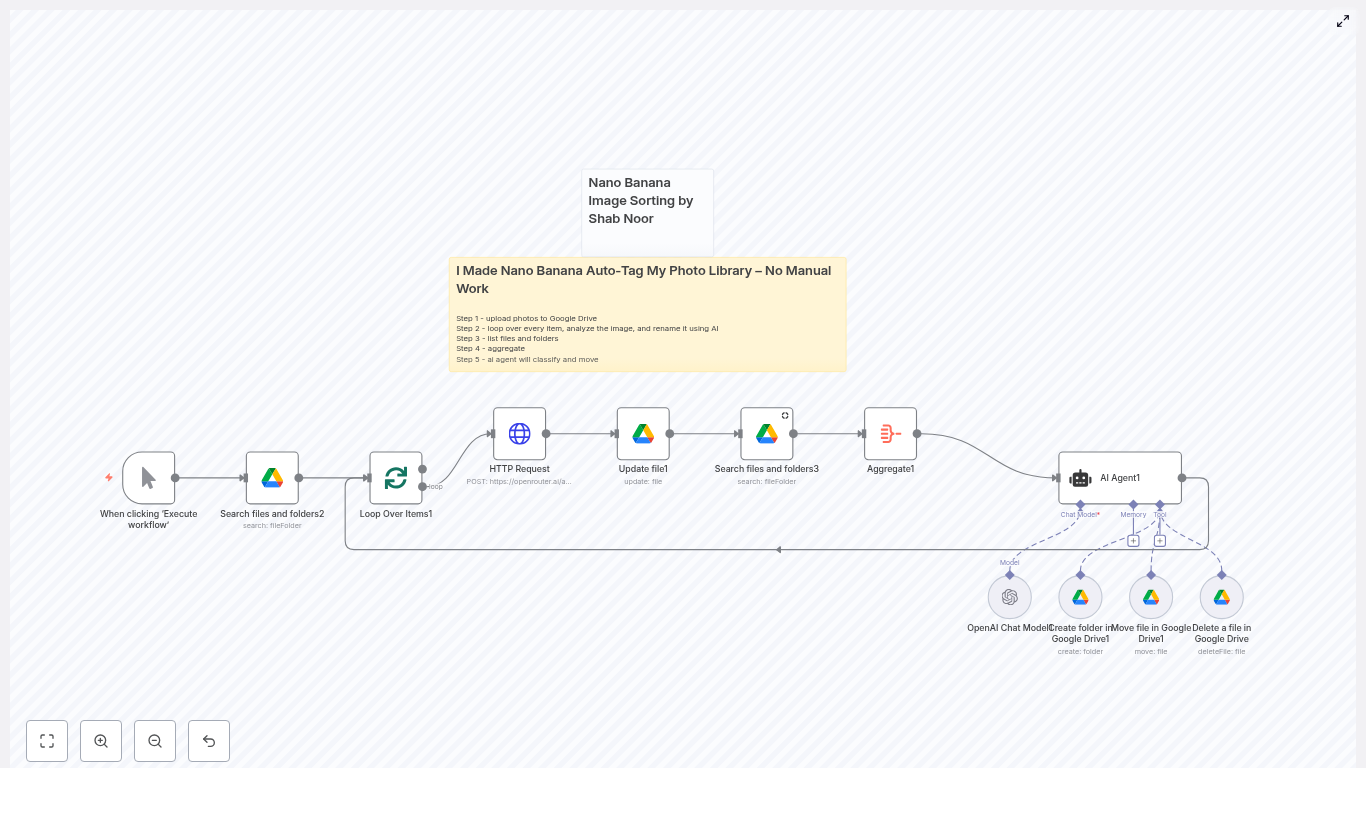
The Nano Banana workflow is an n8n automation that:
- Scans a target folder in Google Drive for image files.
- Processes files in batches to respect API rate limits.
- Calls an image-capable large language model (LLM) via HTTP to:
- Generate a concise, descriptive filename for each image, or
- Return a deletion signal for low-quality or unusable images.
- Renames files in Google Drive according to the model output.
- Aggregates existing folder metadata and passes it to an AI agent.
- Uses the agent to decide whether to:
- Move files into existing folders,
- Create new folders and move files there, or
- Delete files that should not be kept.
The design separates concerns between:
- Vision model (image-capable LLM) for content understanding and filename generation.
- Reasoning agent for folder selection, folder creation, and delete/move decisions.
2. Architecture & Data Flow
2.1 High-Level Execution Flow
- Trigger workflow manually or on a schedule.
- Query Google Drive for files in a specified root folder.
- Split the file list into batches.
- For each file in a batch:
- Generate a public or accessible download URL.
- Send the URL and instructions to an image-capable LLM.
- Receive a suggested filename or a DELETE signal.
- Rename the file or mark it for deletion.
- Aggregate current folder IDs and names under the photo root.
- Invoke an AI agent with:
- Updated filename,
- File ID,
- Existing folder metadata.
- Allow the agent to:
- Move the file to a matching folder,
- Create a new folder and move the file, or
- Delete the file entirely.
2.2 Core Components
- Trigger layer: Manual Trigger or Cron node.
- Storage integration: Google Drive nodes for listing, updating, moving, creating folders, and deleting files.
- Batch control: SplitInBatches node to process files in controlled chunks.
- Vision model integration: HTTP Request node calling an image-capable model (for example,
google/gemini-2.5-flash-image-preview:freevia OpenRouter). - Aggregation: Aggregate node to collect folder metadata.
- Decisioning agent: AI agent node with tools for folder creation, file move, and file deletion, using a reasoning model (for example,
gpt-4.1-mini).
3. Node-by-Node Breakdown
3.1 Trigger: Manual or Scheduled Execution
Node type: Manual Trigger or Cron
The workflow is typically developed and tested with the Manual Trigger node. For production use, replace or supplement it with a Cron node to execute on a fixed schedule.
- Manual Trigger:
- Useful for initial setup, debugging, and one-off runs.
- Runs the entire pipeline on demand.
- Cron:
- Configure to run every few minutes, hourly, or daily depending on ingestion rate.
- Ensures newly added photos are processed without manual intervention.
Scheduled execution keeps the Google Drive photo library continuously organized with near real-time tagging and sorting.
3.2 Google Drive: Search Files and Folders
Node type: Google Drive
Operation: List or Search Files
This node retrieves the list of files to process from a specific Google Drive folder that acts as the photo root.
- Key configuration:
- Resource: File
- Operation: List or Search
- Folder ID: Set to your photos root folder. Cache or hard-code this ID for consistency.
- Filters: Restrict results to files only and, optionally, to image MIME types if desired.
- Output:
- Each item represents a file, typically including:
id(file ID in Drive)name(current filename)mimeType- Folder or parent references
- Each item represents a file, typically including:
Ensure that the Google Drive credentials used by this node have at least read access to the target folder and write access if you plan to rename or move files.
3.3 SplitInBatches: Batch Processing Control
Node type: SplitInBatches
The SplitInBatches node takes the list of files returned by the Google Drive node and processes them in configurable chunks. This is essential for:
- Preventing workflow timeouts.
- Respecting rate limits for:
- OpenRouter or other LLM providers, and
- Google Drive API quotas.
Configuration suggestions:
- Batch size: Start with 5 to 10 files per batch.
- Increase gradually once you have observed typical latency and error rates.
The node iterates over batches, feeding each group of items into the image-analysis portion of the workflow before continuing to the next batch.
3.4 HTTP Request: Image-Capable LLM Call
Node type: HTTP Request
This node integrates with an image-capable LLM via HTTP. In the provided template, it uses OpenRouter with the model google/gemini-2.5-flash-image-preview:free. The model receives:
- A textual instruction (prompt) specifying filename rules.
- An image URL pointing to the file in Google Drive.
Example JSON request body:
{  "model": "google/gemini-2.5-flash-image-preview:free",  "messages": [  {  "role": "user",  "content": [  {  "type": "text",  "text": "Analyze this image, and based on what you find, output a suggested file name in this format: blah-blah-blah - the file name should be descriptive enough to find in search, and use up to 6 or 7 words. If the main subject is too blurry, output DELETE"  },  {  "type": "image_url",  "image_url": {  "url": "https://drive.google.com/uc?export=download&id={{ $json.id }}"  }  }  ]  }  ]
}
Key points:
- Model: You can substitute another image-capable model, but keep the prompt semantics consistent.
- Image URL:
- Uses Google Drive’s download URL pattern:
https://drive.google.com/uc?export=download&id={{ $json.id }}. - Requires that the Drive file be accessible via the configured credentials or link-sharing configuration.
- Uses Google Drive’s download URL pattern:
- Prompt behavior:
- The model is instructed to:
- Return a descriptive filename with hyphen-separated words, up to 6 or 7 words.
- Return exactly
DELETEwhen the main subject is too blurry or the image is unusable.
- The model is instructed to:
Error handling considerations:
- Handle HTTP errors (4xx/5xx) with retries or a fallback path.
- Deal with permission issues if the generated URL is not accessible to the model provider.
- Guard against malformed responses by validating that the model output is a single string and not empty.
3.5 Google Drive: Rename File
Node type: Google Drive
Operation: Update or Rename File
This node takes the filename suggested by the image model and updates the corresponding file in Google Drive. The logic typically looks like:
- If the model response is
DELETE(case-insensitive), mark the file for deletion instead of renaming. - Otherwise, use the response as the new filename.
Configuration notes:
- File ID: Map from the previous node’s output (for example,
{{$json["id"]}}). - New name: Use the model output, which should already be:
- Lowercase,
- Hyphen-separated,
- Short (up to 6 or 7 words).
To avoid accidental deletions, you can implement a conditional branch:
- If result equals
DELETE, route the item to a delete or review path. - Else, route it to the rename path.
3.6 Aggregate: Folder IDs and Names
Node type: Aggregate
The Aggregate node collects metadata about existing folders under the photo root in Google Drive. This gives the AI agent a complete view of possible destinations for each file.
Typical aggregated fields:
folderIdfolderName
The output is usually a single item containing an array of folder objects. This single aggregated structure is then passed to the AI agent node together with each file’s updated filename and file ID.
3.7 AI Agent: Folder & Deletion Decisions
Node type: AI Agent (LangChain-style in n8n)
This node orchestrates higher-level decisions using a reasoning model and a set of tools. It receives:
- The file’s updated descriptive filename.
- The file ID.
- The list of existing folder names and IDs.
Typical agent rules:
- If the filename contains location or category keywords that match an existing folder name:
- Move the file to that folder.
- If there is no strong match:
- Create a new folder with a generic but meaningful category name (for example,
beach-trips,receipts-2024). - Move the file into that new folder.
- Create a new folder with a generic but meaningful category name (for example,
- If the filename is exactly
DELETE:- Delete the file using the Delete File tool.
Tools exposed to the agent typically include:
- Create Folder (Google Drive).
- Move File (Google Drive).
- Delete File (Google Drive).
- Language model for reasoning, such as
gpt-4.1-mini.
This hybrid approach lets the vision model focus purely on image understanding, while the agent handles longer-context reasoning and file system operations.
4. Configuration Notes & Best Practices
4.1 Prompt Engineering for the Image Model
Precise prompts significantly impact filename quality and consistency. Recommended guidelines:
- Specify the exact format:
- Hyphen-separated words.
- All lowercase.
- Limit to 6 or 7 words.
- Be explicit about deletion criteria:
- Instruct the model to return the single word
DELETEif the main subject is too blurry or the image is unusable.
- Instruct the model to return the single word
- Optionally, include instructions for category tokens or confidence scores if the model supports them, though the core template uses a simple single-string output.
Concise example prompt:
Analyze this image and return a single proposed filename using up to 6 dashed words, all lowercase. If image is unusable or main subject is too blurry, return exactly DELETE.
4.2 Batch Sizes & Rate Limits
Since the workflow calls both an LLM API and the Google Drive API, you should tune the SplitInBatches node with rate limits in mind:
- Start with 5 to 10 files per batch.
- Measure:
- Average LLM response time.
- Google Drive API latency and error responses.
- Increase batch size only if:
- You stay within rate limits.
- Workflow execution time remains acceptable.
4.3 Security & Permissions
- Google Drive credentials:
- Use a service account or OAuth client with the minimal scopes required.
- Restrict access to only the folders involved in the workflow where possible.
- Auditing:
- Log transitions such as:
- Old filename → new filename.
- Original folder → new folder.
- Deletion decisions.
- Keep logs in a separate system (for example, a spreadsheet, database, or logging service) to enable rollbacks or manual review.
- Log transitions such as:
4.4 Error Handling & Retries
Real-world environments require robust error handling. Recommended patterns:
- Network and API errors:
- Add retry logic for transient failures from OpenRouter or Google Drive.
- Use exponential backoff where supported by n8n.
- Dead-letter handling:
- Route items that fail repeatedly to a dedicated “review” folder or queue.
- Allow manual inspection and reprocessing after issues are resolved.
- Classification failures