How to Stop Your Mirror from Fogging Up – Science Tips

How a Steamy Morning Turned Into a Simple Science Fix for Foggy Mirrors

The Morning That Pushed Alex Over the Edge

Alex had a routine. Wake up early, jump in a hot shower, get ready fast, and be out the door in time for the morning commute. It was a solid plan, except for one recurring villain in this daily story: the bathroom mirror.

Every morning, as soon as Alex stepped out of the shower, the mirror was covered in fog. No matter how carefully the day was planned, the same scene played out: wiping the mirror with a towel, streaks everywhere, trying to shave or do makeup through a hazy reflection, and losing precious minutes waiting for the glass to clear.

One particularly rushed morning, as Alex tried to draw a straight eyeliner line through a blurry reflection, frustration finally peaked. “There has to be a smarter way than fighting with this mirror every day,” Alex thought.

What Was Really Happening To The Mirror?

That evening, curiosity kicked in. Alex decided to finally understand the science behind this daily annoyance. Why do bathroom mirrors fog up anyway?

After a bit of research, the answer turned out to be simple and surprisingly satisfying. When you take a hot shower, warm steam rises and spreads through the bathroom. The mirror, which is cooler than the steam-filled air, becomes a perfect surface for water vapor to condense on. Tiny droplets form on the glass, and suddenly your clear reflection turns into a foggy blur.

Alex realized it was not magic or bad luck, just basic physics. The temperature difference between the air and the mirror was causing condensation. But understanding the problem only made one question louder: how do you stop it?

The Science Behind Those Tiny Droplets

Alex dug a bit deeper and discovered that the fog was more than just “steam on glass.” It was actually made up of countless tiny water droplets sitting on the mirror surface.

Because of surface tension, those droplets like to stay in little beads, similar to how water sits on a freshly waxed car. Instead of forming a smooth, clear layer, the droplets scatter light in many directions. That scattered light is what makes your reflection look cloudy and distorted.

So the problem was not only the water itself, but how the water behaved on the surface of the mirror.

The Unexpected Hero: Shaving Cream

One day, while scrolling through science tips and home hacks, Alex stumbled on a short line that changed everything: “Use shaving cream to keep your mirror from fogging up.”

At first, it sounded too good to be true. Shaving cream? On a mirror? But curiosity won. The next morning, armed with a can of shaving cream and a sense of experimentation, Alex decided to try it.

The key idea, as Alex learned, was all about surface tension again. Shaving cream can change the way water behaves on glass. When applied and then wiped off, it leaves behind a very thin, invisible film. That film helps water spread out evenly into a smooth, continuous layer instead of separating into tiny beads. A smooth layer of water does not scatter light in the same way, so the mirror stays clear and usable, even in a steamy bathroom.

Alex’s First Experiment With a Fogless Mirror

Before the next shower, Alex turned the bathroom into a mini science lab and followed a simple process:

  1. First, Alex made sure the mirror was clean and dry. No dust, no streaks, just a clear surface to work with.
  2. Then, a thin layer of shaving cream was spread gently across the entire mirror. Not a huge foam mountain, just enough to cover the glass.
  3. The shaving cream was left alone for about 30 seconds. This short wait allowed it to coat the surface properly.
  4. Finally, Alex wiped the shaving cream off thoroughly with a clean cloth, leaving the mirror looking normal again, with no visible residue.

With the mirror looking spotless, Alex stepped into a hot shower and waited for the familiar fog to appear.

The Turning Point: Steam, Meet Science

As the bathroom filled with warm steam, Alex peeked out, expecting the usual milky-white mirror. This time, something was different.

The glass stayed clear.

There was moisture in the air, the shower was as hot as ever, but the mirror still reflected a sharp, fog-free image. Instead of a thick blur, there was only a slight sheen, almost like a very light film of water spread evenly across the surface. No beaded droplets, no light scattering, and no frantic wiping with a towel.

That invisible layer left behind by the shaving cream had done its job. It had changed the surface tension of the mirror just enough so that the water no longer formed little beads. The science was working in Alex’s favor now.

Living With a Fog-Free Mirror

Over the next few weeks, Alex kept an eye on the mirror to see how long the effect would last. Day after day, shower after shower, the glass stayed mostly fog-free.

There were a few small observations that made the trick even more effective:

  • The mirror stayed clear for several weeks before any real fogging started to return. That meant this was not a daily chore, just an occasional refresh.
  • Whenever the mirror was cleaned thoroughly before reapplying shaving cream, the results were better and lasted longer. A clean surface helped the thin film form more evenly.
  • The hack was incredibly cost-effective. Shaving cream was already in the bathroom cabinet, and only a small amount was needed each time.

What started as a small experiment turned into a reliable part of Alex’s routine. No more wasting time waiting for the mirror to clear, no more streaks from wiping it with a towel, and no more guessing while shaving or doing makeup.

Why This Simple Trick Works So Well

Alex liked understanding the “why” behind things, so the explanation stuck:

The fog consists of tiny water droplets that form because of condensation on a cooler surface. Surface tension makes those droplets bead up, and the beads scatter light so your reflection looks blurry. Shaving cream changes the surface properties of the mirror. When it is applied and wiped off after about 30 seconds, it leaves a very thin, nearly invisible film. This film encourages water to spread into a smooth layer instead of forming beads, which greatly reduces fogging and keeps the mirror usable even in a steamy bathroom.

It was not magic, just simple science applied in a clever way.

Your Turn To Try the Fogless Mirror Trick

Alex’s story could easily be yours. If you are tired of stepping out of the shower to a useless, fogged-up mirror, you do not need special gadgets or expensive coatings. A can of shaving cream and a few minutes of preparation are enough to transform your morning routine.

To recap the process in a quick checklist:

  • Start with a clean, dry bathroom mirror.
  • Spread a thin layer of shaving cream over the surface.
  • Let it sit for about 30 seconds.
  • Wipe it off completely with a clean cloth or paper towel.
  • Enjoy a clear, fog-free reflection after your next hot shower.

A Clearer Start To Every Day

What began as a daily frustration for Alex turned into a simple, science-backed solution that saved time and removed one small but persistent annoyance from the morning routine.

You can do the same. The next time you step into a hot shower, let science work for you instead of against you. A quick application of shaving cream can keep your bathroom mirror clear for weeks, giving you a sharp reflection when you need it most.

Try this trick today and enjoy fog-free mirrors every morning. If it helps, share the tip with friends and family so their mornings can be a bit clearer too.
Automate Your Quality Control Documentation & Compliance

Automate Your Quality Control Documentation & Compliance

Why Bother Automating Quality Control In The First Place?

If you work in manufacturing, you already know how much time quality control can eat up. There are forms to fill out, specs to check, reports to send, and someone always has to chase down missing data. It adds up quickly, right?

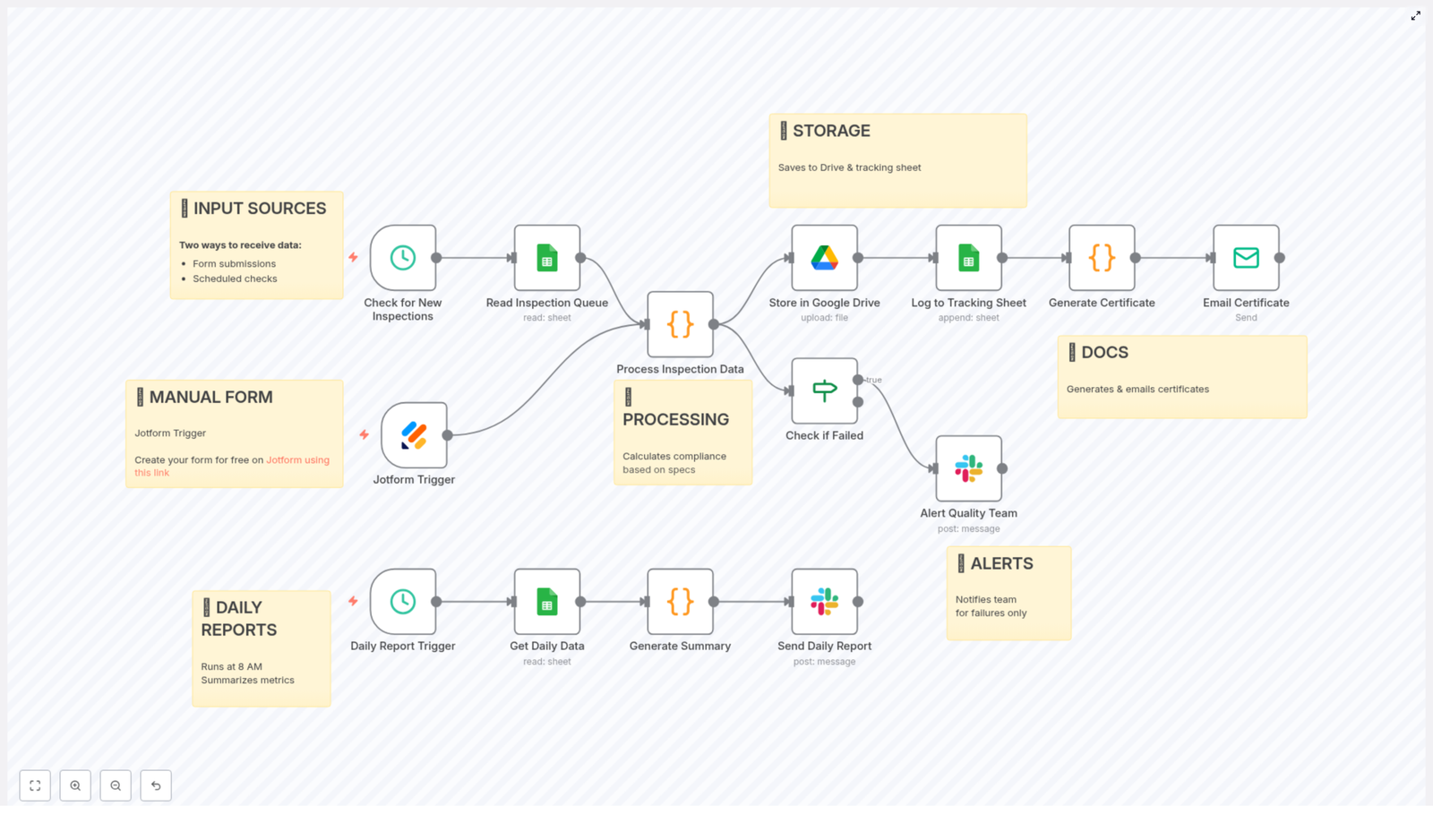
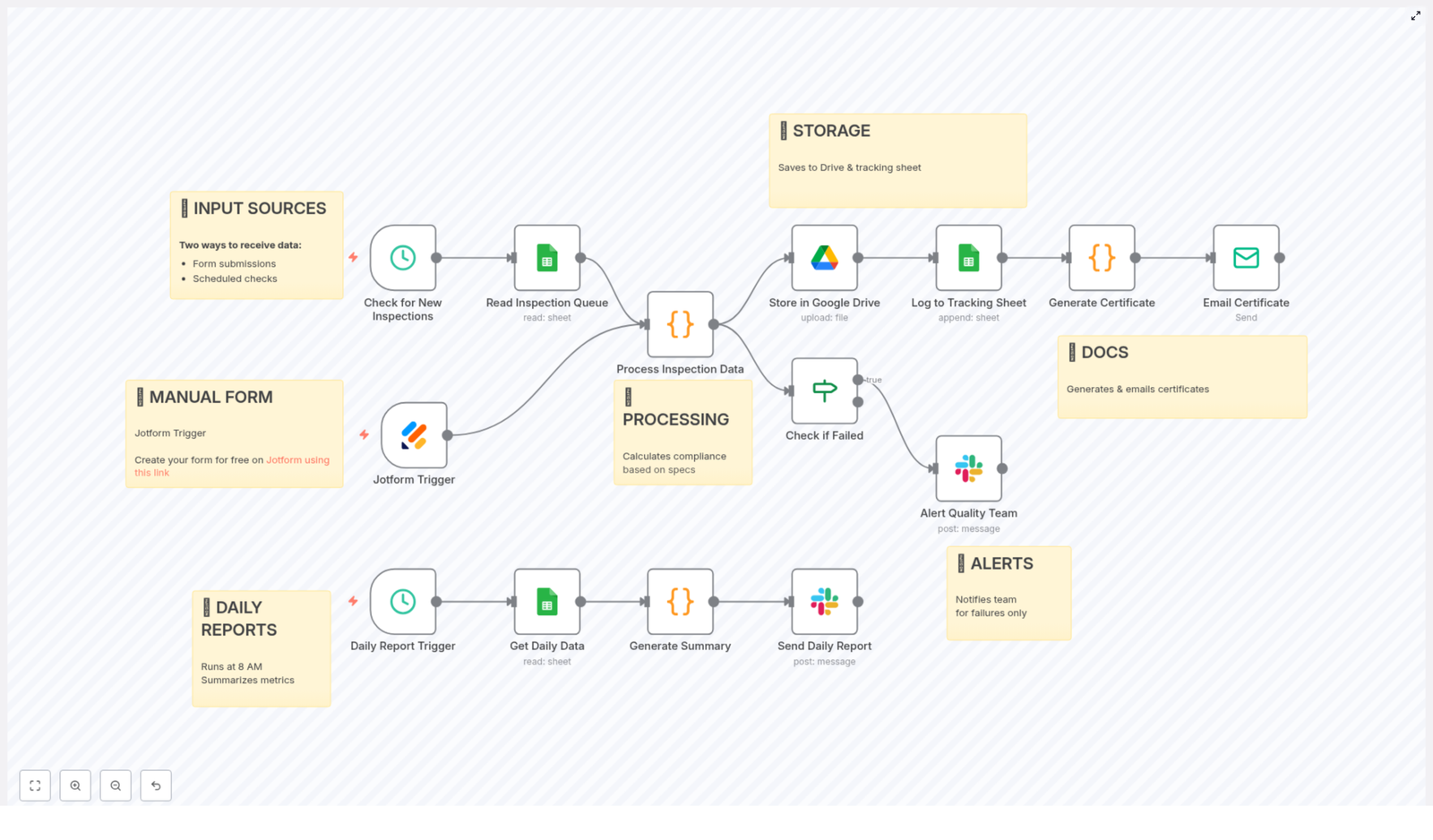
That is exactly where this n8n quality control workflow template comes in. It pulls together inspection data, checks it against your standards, alerts the right people when something is off, and keeps your documentation tidy and traceable. All automatically.

In this guide, we will walk through what the template does, when you would want to use it, and how it makes your day smoother by handling the repetitive parts of quality control for you.

What This n8n Workflow Template Actually Does

At a high level, this automation connects your inspection inputs, runs checks on them, and then handles:

  • Data intake from forms and spreadsheets
  • Validation and compliance checks against your specifications
  • Automatic documentation in Google Drive and Google Sheets
  • Real-time alerts for non-compliant inspections via Slack
  • Daily summary reports so your team knows what is going on

Think of it as a digital assistant that quietly sits in the background, making sure every inspection is captured, checked, stored, and reported without you having to babysit the process.

When Is This Template A Good Fit?

You will get the most value out of this workflow if:

  • You run regular product inspections with defined specs for dimensions, weight, and appearance.
  • Your team uses or can use Jotform and Google Sheets for collecting inspection data.
  • You want Slack notifications when something fails compliance so issues do not slip by.
  • Documentation and traceability are important for audits or customer requirements.

If that sounds like your world, this template can remove a lot of manual work and reduce the risk of something getting missed.

How The Data Flows Into The Workflow

The automation is designed to catch inspection data from two main sources, so nothing falls through the cracks.

1. Manual Inspections With Jotform

Whenever an inspector submits a form, a Jotform Trigger in n8n kicks off the workflow. This is great for:

  • On-the-floor inspections
  • Visual checks
  • Any manual data entry done by your quality team

The form data is sent directly into the workflow, which means no copy-pasting and fewer chances for typing mistakes.

2. Scheduled Checks From Google Sheets

In addition to real-time form submissions, the workflow also runs on a schedule. Every 15 minutes, it checks a Google Sheets queue for new inspection entries.

This is especially handy if:

  • Inspection data is imported from machines or other systems into a sheet
  • Your team logs batch inspections in a spreadsheet

By combining both triggers, you get a flexible setup that works with both manual and semi-automated data sources.

What Happens After The Inspection Data Arrives

Once the workflow receives inspection data, it does not just store it and move on. It actually processes it in a smart, structured way.

Inspection Data Processing & Compliance Checks

Each inspection record goes through a detailed processing step where the workflow:

  • Parses and validates measurements and visual inspection results to make sure the data is usable.
  • Calculates compliance based on your predefined specifications for:
    • Dimensions
    • Weight
    • Appearance
  • Flags non-conformities when any value falls outside the allowed range or criteria.

The result is a clear pass or fail outcome for each inspection, plus details about what did not match the required specs.

Automatic Storage, Documentation & Certificates

Once the workflow knows whether an inspection is compliant or not, it handles the documentation for you.

Structured Storage In Google Drive

Every inspection, whether it passes or fails, is saved as a JSON file on Google Drive. That gives you:

  • Secure, centralized storage
  • Easy access for audits or reviews
  • A consistent format for all inspection records

Tracking All Inspections In Google Sheets

Alongside Drive storage, the workflow also logs each inspection in a Google Sheets tracking sheet. This sheet becomes your quick snapshot of:

  • Which inspections were done
  • Who performed them
  • Pass or fail status
  • Overall trends in quality over time

Instead of digging through folders, you can just open the sheet and see what is happening at a glance.

Automatic Certificates Of Compliance

For inspections that meet your requirements, the workflow automatically generates a certificate of compliance in HTML format. It then emails this certificate to the relevant stakeholders.

This keeps your formal documentation up to date without anyone having to manually draft or send certificates. Helpful for customers, internal teams, and compliance checks.

Real-Time Alerts When Something Fails

No one wants non-conforming products moving further down the line. That is why the template includes instant alerts.

  • If an inspection fails compliance, the workflow immediately sends a detailed message to your Quality Team on Slack.
  • The alert includes information about the non-conformities so the team knows exactly what went wrong.

This targeted, real-time notification helps your team react quickly, correct issues, and prevent quality problems from spreading through production or reaching customers.

Daily Quality Control Summary At 8 AM

Beyond real-time alerts, it is also useful to step back and see the bigger picture. That is where the daily report comes in.

Every day at 8 AM, the workflow automatically:

  • Retrieves all inspection data from the previous day.
  • Builds a summary that includes:
    • Total number of inspections
    • Pass and fail counts
    • Overall pass rate
    • List of inspected products
    • Inspectors involved
    • Common or recurring issues
  • Sends this summary to your team via Slack, so everyone starts the day informed.

It is a simple habit boost: your team gets a quick, automated briefing that helps guide decisions and improvements.

How This Automation Makes Your Life Easier

You might be wondering if setting up an n8n workflow is worth it. Here is what you gain once it is in place:

  • Less manual data entry and fewer errors from copying, pasting, or retyping inspection results.
  • Consistent compliance tracking that always applies the same specifications and rules.
  • Better communication through real-time Slack alerts and automatically emailed certificates.
  • Actionable daily insights from the 8 AM summary report that highlight trends and recurring issues.
  • Improved traceability with inspection data neatly stored in Drive and logged in Sheets.

In short, the workflow handles the repetitive, administrative side of quality control so your team can focus on solving problems and improving processes.

Ready To Try This n8n Quality Control Workflow?

If you are looking to tighten up your quality control process while saving your team time, this template is a solid starting point. It already covers:

  • Data intake from Jotform and Google Sheets
  • Automated validation and compliance checks
  • Structured storage and tracking
  • Real-time Slack alerts for failed inspections
  • Daily reporting with key quality metrics

You can customize it further to match your exact specs, products, and team structure, but the core logic is ready to go.

Start building your quality control automation today, and see how much easier compliance and documentation can feel when the workflow is doing the heavy lifting for you.

Automate Quality Control Documentation & Compliance

Automate Quality Control Documentation & Compliance (Without Losing Your Mind)

Ever feel like quality control paperwork is slowly taking over your day? Between inspections, compliance checks, reports, and chasing down certificates, it can start to feel like a full-time job on its own.

That is exactly where this n8n workflow template comes in. It quietly handles your quality control documentation and compliance tracking in the background, so you and your team can focus on actually improving quality, not just recording it.

In this guide, we will walk through what the template does, when it is worth using, and how each part of the workflow fits together. Think of it like sitting down with a friend who has already set it up and is showing you how it works step by step.

What This n8n Workflow Actually Does

At a high level, this automation takes care of your entire quality control documentation loop, from data capture to reporting. Here is what it covers:

  • Collects inspection data from forms and spreadsheets
  • Checks each inspection against your product specifications
  • Decides if a batch passes or fails, and logs non-conformities
  • Stores all results and generates documentation
  • Sends alerts when something fails
  • Creates a daily quality report for your team

Instead of juggling forms, sheets, and Slack messages manually, this workflow connects everything into a single, reliable system.

When Should You Use This Template?

This n8n workflow is especially useful if:

  • You run manufacturing or quality assurance processes with regular inspections
  • You need to prove compliance to internal specs or external regulations
  • Your team uses tools like Jotform, Google Sheets, Google Drive, and Slack
  • You are tired of manually updating sheets, writing reports, and emailing results

If you are dealing with recurring inspections, repeated measurements, and ongoing quality checks, this template can become your daily companion.

Step 1: Collecting Inspection Data From Multiple Sources

The workflow starts where your inspections start: with data. It combines two input methods so nothing slips through the cracks.

1. Jotform submissions for live inspections

When an inspector finishes an inspection, they can submit results through a Jotform. That Jotform acts as a trigger in n8n.

As soon as the form is submitted, the workflow picks up the data instantly. This is perfect for on-the-floor inspections where you want results processed right away.

2. Scheduled Google Sheets checks every 15 minutes

Not all inspection data comes from a form in real time. Sometimes it lands in a spreadsheet first, especially if you have:

  • Legacy systems exporting to Google Sheets
  • Operators entering data in batches
  • Integrations that log inspection entries into a sheet

To handle that, the workflow includes a scheduled check that runs every 15 minutes. It looks at a specific Google Sheet queue and reads any new inspection entries.

By combining Jotform submissions and scheduled sheet polling, the workflow makes sure both manual and semi-automated data flows are captured without you having to babysit them.

Step 2: Turning Raw Data Into Compliance Decisions

Once the inspection data hits the workflow, the real magic starts. The system evaluates each record against your defined specifications and decides if the batch passes or fails.

Checking measurements against specs

The workflow uses your product specifications as the reference point. For each inspection, it checks things like:

  • Dimensions:
    • Length: 100 to 102 mm
    • Width: 50 to 52 mm
    • Height: 25 to 27 mm
  • Weight:
    • Acceptable range: 450 g to 550 g
  • Visual criteria:
    • Surface finish
    • Color match
    • Visible defects or irregularities

The workflow evaluates each of these parameters and determines if they are within the allowed range or not.

Calculating overall compliance status

Based on those checks, the system assigns an overall compliance status:

  • PASS if everything meets the specifications
  • FAIL if any dimension, weight, or visual criteria is outside the defined limits

It also records detailed notes about any non-conformities it finds. That way, you do not just know that a batch failed, you know exactly why.

Step 3: Storing Data & Generating Documentation Automatically

Once a batch is evaluated, the workflow does not just stop at a pass or fail flag. It creates and organizes the documentation you need for audits, customers, and internal tracking.

Saving inspection data to Google Drive & Sheets

Every processed inspection is stored in two key places:

  • Google Drive JSON reports The workflow saves a structured JSON report for each inspection in Google Drive. This gives you a precise, machine-readable record for long-term storage, integrations, or deeper analysis.
  • Google Sheets tracking log The same inspection data is appended to a tracking Google Sheet. This sheet becomes your running log of all inspections, perfect for quick reviews, trend analysis, and audits.

Having both detailed JSON files and a human-friendly sheet means you get flexibility without extra work.

Creating an HTML certificate of compliance

For each inspected batch, the workflow also generates an HTML certificate of compliance. This certificate includes:

  • Measurement results for key dimensions and weight
  • Overall compliance status (PASS or FAIL)
  • Inspector details
  • Batch or product information

This is incredibly useful when customers or internal stakeholders request proof that a batch met your quality standards. Instead of manually typing up a certificate, you already have a standardized document ready to share.

Step 4: Instant Slack Alerts For Failed Inspections

Now for the part that really helps you stay ahead of problems: alerts.

Whenever the workflow flags a batch as FAIL, it immediately notifies your quality team via Slack.

The Slack alert usually includes:

  • Product or batch details
  • Compliance status
  • Specific non-conformities detected

Instead of discovering issues hours or days later in a spreadsheet, your team sees them in real time. That means faster corrective action, fewer escapes to customers, and less time hunting for the root cause.

Step 5: Daily Quality Report At 8 AM

To keep everyone aligned on quality trends, the workflow also generates a daily summary report.

Every morning at 8 AM, a scheduled job runs and compiles key metrics, such as:

  • Total number of inspections performed
  • Number of passes and fails
  • Overall pass rate
  • Products or batches inspected
  • Inspectors involved
  • Common issues or recurring non-conformities

This summary is then shared with your team via Slack. It is a simple way to start the day with a clear picture of how quality is trending, where problems might be forming, and which areas deserve attention.

Why This Automated Workflow Makes Life Easier

So why bother wiring all this up in n8n? Because once it is running, it quietly solves a lot of everyday headaches.

  • Better accuracy and consistency Automated compliance checks use the same rules every time, which reduces human error and keeps your decisions consistent.
  • Real-time visibility With instant Slack alerts, you do not have to dig through spreadsheets to find issues. Problems come to you as they happen.
  • Centralized, tidy data Google Drive and Google Sheets become your single source of truth for inspection data, certificates, and audit trails.
  • Stronger customer confidence Automatically generated certificates of compliance show customers that your process is controlled and documented.
  • Serious time savings No more copy-pasting values, manually writing reports, or chasing inspectors for missing data. The workflow does the repetitive work for you.

How This Fits Into Your Overall Quality Strategy

This template is not about replacing your quality process. It is about supporting it.

You still define the specifications, train inspectors, and decide on corrective actions. The workflow simply makes sure that:

  • Data is captured reliably
  • Compliance is calculated the same way every time
  • Documentation is created and stored automatically
  • Your team hears about issues fast

That combination is what really strengthens your quality control system and your compliance story.

Ready To Try It In Your Own Environment?

If you are looking to tighten up your quality control documentation and reduce manual work, this n8n workflow template is a great place to start. You can adapt it to your own dimensions, weight ranges, and visual checks, and plug it into your existing Jotform, Google Sheets, Google Drive, and Slack setup.

Once it is running, you get clearer oversight, fewer errors, and much smoother compliance tracking, all without adding more to your daily to-do list.

Curious to see how it looks in practice?

Give it a try, customize it to your process, and let automation handle the repetitive parts of your quality inspections and documentation.

How to Automate Email Replies and Save to Google Sheets

How to Automate Email Replies and Save to Google Sheets in n8n

What You Will Learn

In this guide, you will learn how to use an n8n workflow template to:

  • Automatically detect and process incoming emails
  • Clean and extract the main message content
  • Send the content to ChatGPT (OpenAI) to generate a reply
  • Send the AI-generated response back to the original sender
  • Store both the incoming message and the reply in Google Sheets
  • Collect feedback on the AI reply through links in the email
  • Update the Google Sheet with feedback for later analysis

By the end, you will understand how each part of the n8n workflow fits together and how you can adapt it to your own use case.

Concept Overview: How the Automation Works

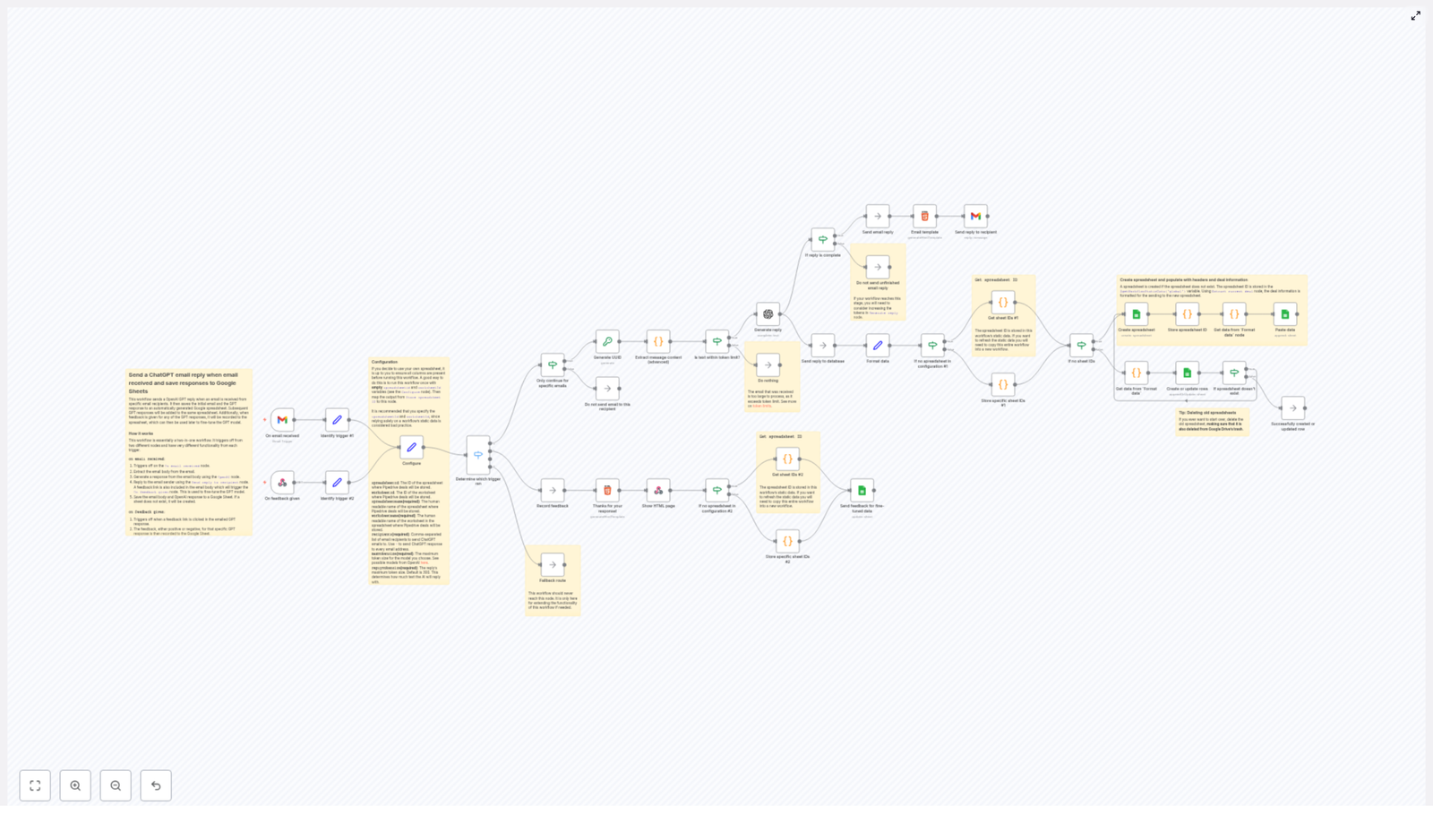
This n8n workflow connects Gmail, OpenAI (ChatGPT), and Google Sheets to create a complete loop:

  • Trigger: A Gmail trigger listens for new emails, and a webhook trigger listens for feedback.
  • Processing: The email content is extracted, cleaned, and validated against token limits.
  • AI Reply: ChatGPT generates a response based on the cleaned email text.
  • Storage: A unique ID (UUID) is created, and all data is stored in a Google Sheet.
  • Reply & Feedback: The AI reply is emailed back to the sender with feedback links. When feedback is submitted, the workflow updates the corresponding row in the sheet.

This setup is ideal for handling common support questions, FAQs, or repetitive email tasks while keeping a full record of every interaction.

Key Components of the n8n Workflow

1. Email Trigger and Feedback Webhook

The workflow begins with two separate triggers:

  • Gmail trigger node: Watches for incoming emails that match your filter rules.
  • Webhook node: Receives feedback when users click on feedback links in the reply email.

These two triggers allow the same workflow to handle both the initial conversation and the later feedback update.

2. Recipient Filtering

Not every email that hits your inbox should be processed. To control which emails are handled by the automation, the workflow uses a filtering node that checks the sender address.

  • You can specify a list of allowed email addresses.
  • You can use a wildcard to process all emails if needed.

Only emails that match your configuration move on to the next steps in the workflow.

3. Email Content Extraction and Cleanup

Real emails often contain signatures, quoted messages, or disclaimers. To ensure ChatGPT receives a clear prompt, the workflow uses an advanced email parser node to:

  • Extract the main body of the email
  • Remove signatures and footers
  • Strip out quoted previous messages and irrelevant fragments

The result is a concise and focused text that is much easier for the AI model to interpret.

4. Token Length Check for OpenAI

OpenAI models have token limits for each request. To avoid errors, the workflow checks the length of the email content before sending it to ChatGPT.

  • If the message is within the configured token limit, the workflow continues.
  • If the message is too long, the workflow skips the AI generation step to prevent API errors.

This step ensures your automation stays stable and respects your OpenAI configuration.

5. Generating the ChatGPT Reply

Once the content is validated, it is passed to the OpenAI node in n8n. This node:

  • Sends the cleaned email body as a prompt to the selected language model
  • Generates a reply that is relevant to the original message
  • Limits the number of tokens used in the response according to your settings

The AI-generated response is then captured and prepared for both emailing back to the user and logging in Google Sheets.

6. UUID Creation and Data Structuring

To keep track of each conversation, the workflow generates a unique identifier (UUID) for every interaction.

This UUID, along with:

  • The original email content
  • The ChatGPT-generated reply
  • Sender information

is combined into a structured data object. This structure makes it easy to store and later retrieve the information from Google Sheets.

7. Google Sheets Setup and Data Storage

The workflow integrates with Google Sheets to create a persistent log of all conversations. It works as follows:

  • The workflow first tries to read an existing spreadsheet ID from static data storage.
  • If no spreadsheet exists yet, it automatically creates a new Google Spreadsheet.
  • The new spreadsheet ID is saved for future runs so the workflow can reuse it.

After that, the structured data (including the UUID, email content, and AI reply) is:

  • Appended as a new row, or
  • Updated in a specific worksheet, depending on your configuration.

This creates a complete and searchable history of all automated email conversations.

8. Sending the Reply Email with Feedback Links

Once the AI response is ready and stored, the workflow sends a reply email back to the original sender using Gmail.

The reply email typically includes:

  • The AI-generated answer
  • Feedback links that allow the recipient to rate or comment on the quality of the response

Each feedback link is usually tied to the UUID so that the workflow can connect the feedback to the correct row in the Google Sheet.

9. Receiving and Logging Feedback

The feedback mechanism is handled through the webhook trigger node. When a recipient clicks a feedback link:

  • The webhook receives the feedback data, often including the UUID and rating or comment.
  • The workflow locates the matching row in the Google Sheet using the UUID.
  • The feedback fields in that row are updated with the new information.

This creates a feedback loop that you can later use to evaluate response quality or improve how you prompt the AI model.

Step-by-Step: Using This n8n Workflow Template

Step 1: Prepare Your Accounts and Credentials

Before importing or using the template, make sure you have:

  • Gmail access for the account that will send and receive emails
  • A Google Cloud project with Google Sheets API enabled
  • OAuth credentials for Gmail and Google Sheets configured in n8n
  • An OpenAI API key with token limits that fit your expected usage

Step 2: Import the Template into n8n

Use the provided template link to load the workflow into your n8n instance:

Once imported, open the workflow editor to review the nodes and connections.

Step 3: Configure the Gmail Trigger and Filters

  • Open the Gmail trigger node and connect it to your Gmail credentials.
  • Specify the mailbox or label you want to monitor.
  • Adjust the filtering node so it only processes emails from:
    • A list of specific sender addresses, or
    • All senders using a wildcard if you want broad coverage.

Step 4: Review the Email Parsing and Token Check Nodes

  • Inspect the email parser node to confirm it is extracting the correct body content.
  • Check any settings that control removal of signatures or quoted text.
  • Verify the token size check node configuration so it matches your OpenAI plan and model limits.

Step 5: Configure the OpenAI Node

  • Connect your OpenAI credentials in the OpenAI node.
  • Select the language model you want to use.
  • Set the maximum tokens for responses so they are concise but useful.
  • Optionally adjust system or prompt instructions to match your tone and use case.

Step 6: Set Up Google Sheets Integration

  • Connect the Google Sheets node to your Google account.
  • Review the logic that reads or creates the spreadsheet ID from static data.
  • Confirm the name of the spreadsheet and worksheet where rows will be stored.
  • Check the mapping of fields so that:
    • UUID
    • Original email
    • AI reply
    • Sender details
    • Feedback fields (rating, comments)

    are correctly assigned to columns.

Step 7: Customize the Reply Email and Feedback Links

  • Edit the Gmail node that sends the reply to include your desired subject and body format.
  • Insert the AI-generated reply into the email body.
  • Ensure feedback links include the UUID so the webhook can identify the correct row.
  • Adjust the wording of the feedback request so it fits your brand voice.

Step 8: Test the Workflow

  • Send a sample email from an allowed address.
  • Check that:
    • The email is detected by the Gmail trigger.
    • The content is correctly parsed and cleaned.
    • A ChatGPT reply is generated without hitting token limits.
    • A new row appears in the Google Sheet with all expected data.
    • A reply email is sent back with working feedback links.
  • Click a feedback link to confirm the webhook updates the correct row in the sheet.

Step 9: Move to Production and Monitor

  • Once testing looks good, enable the workflow in n8n.
  • Monitor:
    • Google Sheets logs for accuracy and completeness
    • Feedback entries to see how users rate the AI responses
    • Any errors in the n8n execution log, especially around token limits or API credentials
  • Iterate on your filters, prompts, and reply templates based on real-world feedback.

Benefits of This n8n Email Automation Workflow

  • Time savings: Common or repetitive queries are answered automatically, reducing manual work.
  • Consistent tone: ChatGPT-generated replies follow a uniform style and level of professionalism.
  • Complete data history: Google Sheets stores every message, reply, and feedback entry for later review.
  • Built-in feedback loop: Feedback links let you measure and improve AI response quality over time.
  • Scalability: The workflow can handle large volumes of emails without adding new team members.

Setup Tips and Best Practices

  • Double-check your Gmail and Google Sheets OAuth credentials in n8n before going live.
  • Start with a small group of allowed recipient addresses to test behavior safely.
  • Align OpenAI token limits with your subscription to avoid unexpected costs or errors.
  • Use clear and concise prompts in the OpenAI node to guide the tone and structure of replies.
  • Review Google Sheets regularly to identify patterns in questions and improve your automation.
  • Use feedback data to adjust prompts or routing if certain types of questions need human review.

FAQ: Common Questions About This Workflow

Can I process all incoming emails automatically?

Yes, you can configure the recipient filter to use a wildcard so that all emails are processed. However, it is usually better to start with a restricted list of senders or a specific mailbox to keep control over what is automated.

What happens if an email is too long for the OpenAI token limit?

The workflow includes a token size check. If the email body exceeds your configured limit, the workflow skips the AI generation step to prevent API errors. You can then decide whether to handle those cases manually or adjust your limits.

Do I need to manually create the Google Sheet?

No, the workflow attempts to read a stored spreadsheet ID. If it cannot find one, it automatically creates a new Google Spreadsheet and stores its ID for future runs.

How is feedback linked to the correct conversation?

Each interaction gets a UUID. This UUID is stored in the Google Sheet and also embedded in the feedback links. When feedback is submitted, the webhook uses the UUID to find and update the correct row.

Can I customize the AI’s tone and style?

Yes, you can modify the prompt and settings in the OpenAI node to instruct the model to respond in a particular tone, level of formality, or language.

Conclusion

This n8n workflow template combines Gmail, OpenAI, and Google Sheets to create a powerful automated email system. It not only generates ChatGPT-based replies and sends them back to users, it also records every interaction and captures feedback for continuous improvement.

By putting this automation in place, you can improve customer communication, reduce repetitive email work, and gain data-driven insights from the logs and feedback stored in Google Sheets.

Get Started With the Template

If you are ready to automate your email replies with AI and keep everything organized in Google Sheets, start by exploring the template below, then adapt it to your needs inside n8n.

Automate Gmail Replies and Save to Google Sheets Workflow

Automate Gmail Replies and Save to Google Sheets Workflow

What You Will Learn

In this guide, you will learn how to use an n8n workflow template that:

  • Automatically replies to incoming Gmail messages using OpenAI GPT
  • Saves both the original email and the AI-generated reply to Google Sheets
  • Adds simple feedback links to each reply and records the feedback
  • Keeps a structured history of all conversations for analysis and improvement

By the end, you will understand each part of the workflow, how the trigger works, how data flows through n8n, and what you need to configure to make it run reliably.

Concept Overview: What This n8n Workflow Does

This n8n template connects three main tools:

  • Gmail – receives incoming emails and sends replies
  • OpenAI GPT – generates intelligent, context-based responses
  • Google Sheets – stores each email, reply, and feedback result

The workflow is designed to help you:

  • Handle repetitive email replies automatically
  • Keep a clear record of what was received and how the AI responded
  • Collect user feedback on each reply to see what works and what needs improvement

Two Ways the Workflow Is Triggered

This automation has two main trigger points. Understanding these is key before you dive into the steps.

1. When a New Email Is Received

The first trigger activates when a new email arrives in Gmail. At this point, the workflow:

  • Reads the email content and sender information
  • Generates a unique ID (UUID) to track this specific conversation
  • Sends the email content to OpenAI GPT to create a reply
  • Sends the AI-generated reply back to the sender
  • Includes feedback links in the reply email, such as “Yes” or “No” to rate the response
  • Logs the original email, the reply, and metadata into a Google Sheet

2. When Feedback Is Submitted

The second trigger activates when a recipient clicks one of the feedback links in the reply email. When this happens, the workflow:

  • Receives the feedback signal (for example, “Yes” for a good reply or “No” for a poor one)
  • Finds the matching row in Google Sheets using the unique ID
  • Updates the corresponding row to record whether the response was good or needs improvement

This creates a simple feedback loop that lets you track how well the AI replies are performing over time.

Step-by-Step: How the Workflow Runs in n8n

Now let us walk through the main steps of the workflow in the order they typically run, starting from the trigger.

Step 1 – Identify What Triggered the Workflow

The first logic block in the workflow checks whether it was triggered by:

  • A new email arriving in Gmail
  • A feedback link being clicked

This “identify trigger” step is important because it decides which path the workflow should follow next. It ensures that email processing and feedback handling are clearly separated but still part of the same automation.

Step 2 – Process the Incoming Email

When the workflow is triggered by a new email, it performs several actions to prepare the content for OpenAI:

  • Extract email content – The workflow reads the body of the email, the subject line, and the sender address.
  • Generate a UUID – It creates a unique identifier for this conversation, which is later used to match feedback and Google Sheets rows.

This step ensures that every email and reply pair can be tracked independently, even if many emails arrive at once.

Step 3 – Check Token Limits for OpenAI

Before sending the email content to OpenAI GPT, the workflow checks the text length against configured token limits.

  • Token limit check – The workflow makes sure the combined size of the prompt and the expected reply fits within the model’s maximum token capacity.
  • If the email is too long, the workflow trims or adjusts the content so that it can be processed safely.

This prevents errors from OpenAI and also helps control costs and performance by avoiding overly long prompts.

Step 4 – Generate an AI Reply with OpenAI GPT

Once the content is validated against token limits, the workflow sends the processed email text to OpenAI GPT.

  • Generate reply – GPT receives the email content as input and returns a relevant, context-aware response.
  • The workflow stores this AI-generated reply along with the UUID and other metadata.

At this stage, you have both the original email and an AI reply ready to send back to the user and to store in Google Sheets.

Step 5 – Send the Reply Email from Gmail

Next, the workflow sends the AI-generated reply back to the original sender using Gmail.

  • Send email reply – The workflow builds the reply email body, inserts the GPT-generated text, and includes feedback links such as “Yes” and “No”.
  • Each feedback link is configured to call the feedback webhook that triggers the second part of the workflow.

This makes it very easy for users to rate the response with a single click, without needing to fill out a form or send another email.

Step 6 – Store Email and Reply in Google Sheets

After sending the reply, the workflow logs all relevant information in Google Sheets. This step handles both creation and updates.

  • Create spreadsheet and worksheet if needed – If the configured Google Sheet or worksheet does not exist yet, the workflow creates them automatically.
  • Save conversation data – The workflow writes a new row that includes:
    • The unique ID (UUID)
    • The original email content
    • The AI-generated reply
    • Sender information and other metadata
  • Update rows by unique ID – The UUID is used as a stable key so that later feedback can update the correct row.

This creates a centralized, structured log of all automated conversations that you can filter, sort, or analyze later.

Step 7 – Record Feedback in Google Sheets

When the workflow is triggered by a feedback link click, it follows a shorter path focused on updating the existing data.

  • Locate the correct row – Using the UUID passed from the feedback link, the workflow finds the corresponding conversation in Google Sheets.
  • Update feedback fields – It marks the reply as either:
    • Good or accepted (for “Yes”)
    • Needing improvement (for “No”)

Over time, this gives you a clear picture of which kinds of replies are working and where you might want to refine prompts or logic.

Configuration Highlights in n8n

To get the most out of this template, you will configure a few key settings inside n8n.

Spreadsheet and Worksheet Naming

You can define human-readable names for both the Google spreadsheet and the worksheet. This helps keep your data organized, especially if you use multiple automations.

  • Spreadsheet name – The main file where all email and reply data is stored.
  • Worksheet name – The specific sheet inside the file where rows are added and updated.

Email Recipients Filter

The workflow allows you to control which incoming emails should receive an automated GPT reply.

  • You can specify particular sender email addresses that the workflow will respond to.
  • Alternatively, you can use * to respond to all senders.

This is useful if you want to limit automation to support inboxes, specific clients, or test accounts.

Token Limit Settings

To manage cost and performance when using OpenAI, the workflow includes configuration for token limits.

  • Maximum model token size – Controls how much total text (prompt plus reply) the model can process.
  • Maximum reply token size – Sets an upper bound on how long the AI-generated response can be.

Fine-tuning these values helps ensure that your automation is efficient while still producing useful replies.

Benefits of This n8n Gmail Automation

Using this workflow template provides several practical advantages:

  • Automated, personalized replies – OpenAI GPT generates context-aware responses without manual effort.
  • Complete conversation history – Every email and reply is stored in Google Sheets for later review or reporting.
  • Built-in feedback loop – Simple “Yes” and “No” links let users rate responses with minimal friction.
  • Scalable data storage – Google Sheets serves as a central, scalable place to store and manage all your interaction data.

How to Use This Template in Your Own Setup

To start using this workflow in your n8n instance:

  1. Open the template from the link below in your n8n environment.
  2. Connect your Gmail, OpenAI, and Google Sheets credentials.
  3. Configure spreadsheet and worksheet names that match your organization style.
  4. Set the email recipient filter to target the right senders.
  5. Adjust token limits for the OpenAI model and reply size if needed.
  6. Activate the workflow and test it with a sample email.

Once everything is working, you can gradually roll it out to handle more of your email traffic.

FAQ and Quick Recap

What problem does this workflow solve?

It reduces the time you spend manually replying to emails by using GPT to generate responses, while also keeping a complete log of all interactions and feedback in Google Sheets.

Where is the data stored?

All key information, including the original email, the AI reply, a unique ID, and feedback, is stored in a Google Sheet that you specify in the configuration.

Can I control who receives automated replies?

Yes. Use the email recipients filter to specify allowed sender addresses or set it to * if you want to respond to all incoming emails.

How does the workflow handle long emails?

The token limit check step ensures that the email content is trimmed or adjusted to fit within the OpenAI model’s token limits. This helps avoid errors and keeps usage efficient.

How is feedback recorded?

Each reply email includes “Yes” and “No” feedback links. When a user clicks one, the workflow is triggered again, finds the matching row in Google Sheets using the UUID, and updates the feedback status.

Final Summary

This n8n workflow template gives you an end-to-end Gmail automation that:

  • Uses OpenAI GPT to generate intelligent, automated email replies
  • Logs every email and response in Google Sheets for tracking and analysis
  • Includes a simple feedback loop so you can measure and improve AI reply quality

If you want to streamline your email handling with AI while keeping a clear, data-driven record of all conversations, this template provides a ready-made solution you can customize to your needs.

Automate Zendesk to Asana Task Integration

Automate Zendesk to Asana Task Integration

What You Will Learn

In this guide you will learn how to use an n8n workflow template to automatically connect Zendesk tickets with Asana tasks. By the end, you will understand how to:

  • Trigger an n8n workflow when a new Zendesk ticket is created or updated
  • Retrieve full ticket details from Zendesk
  • Check if a ticket already has a linked Asana task
  • Automatically create a new Asana task when needed
  • Sync Zendesk comments to an existing Asana task
  • Store and reuse the Asana task ID in a Zendesk custom field

This is ideal if you want to reduce manual copying between tools and keep your support and project teams in sync.

Concept Overview: How the Automation Works

The idea behind this n8n template is simple but powerful:

  • Zendesk is your customer support ticket system.
  • Asana is your task and project management tool.
  • n8n acts as the automation engine that listens to Zendesk events and talks to Asana.

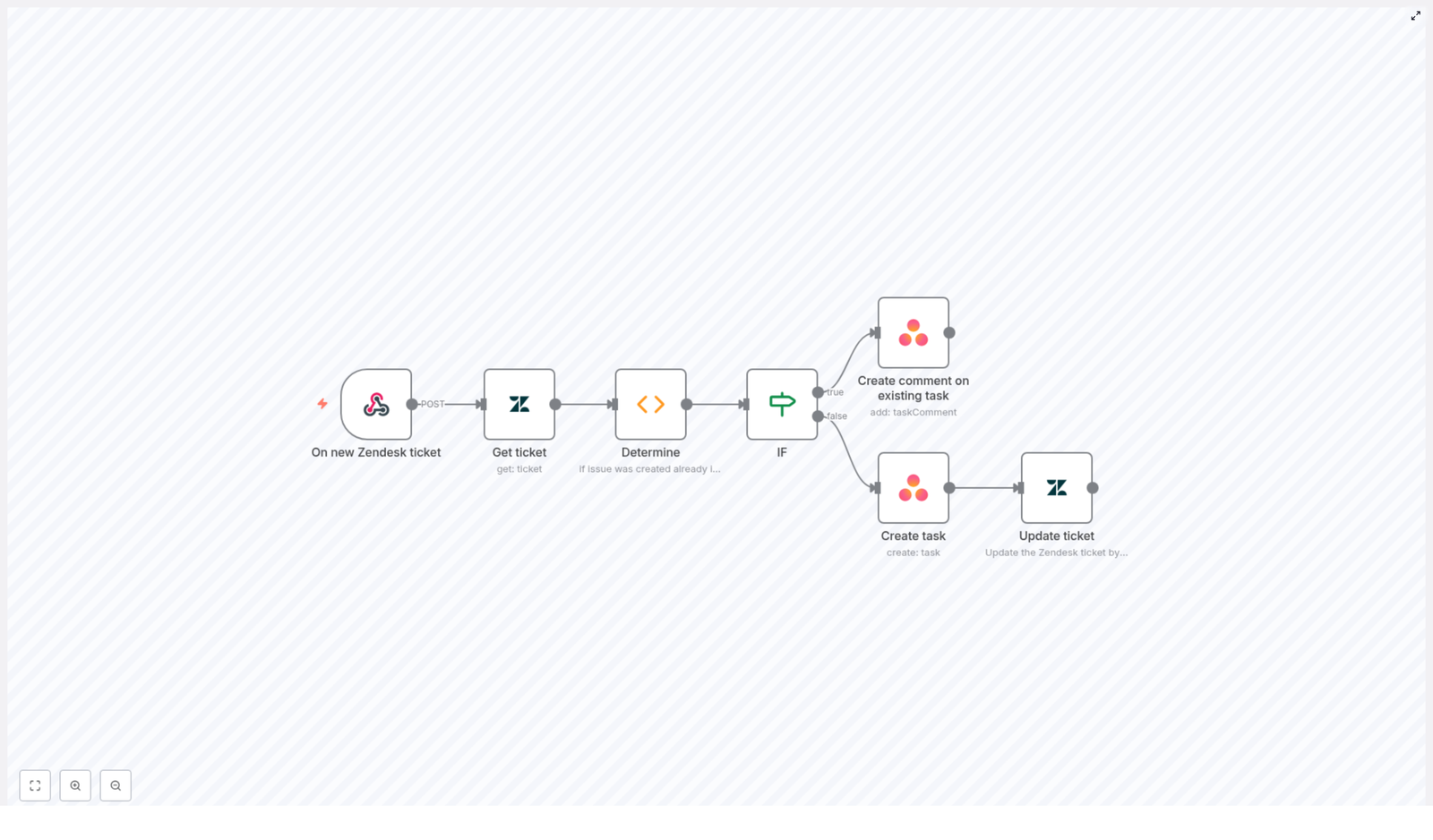
Whenever a ticket appears in Zendesk, the workflow checks if it has already been linked to an Asana task. It uses a Zendesk custom field to store the Asana task ID. Based on that, it follows one of two paths:

  1. If a task is already linked, n8n sends the latest Zendesk comments to the existing Asana task.
  2. If there is no linked task yet, n8n creates a new Asana task and then saves that task ID back in Zendesk.

This creates a closed loop between the two tools, so your support tickets and project tasks stay aligned.

Before You Start: Requirements & Setup

To use this n8n workflow template, you will need:

  • Zendesk API credentials with permission to read and update tickets
  • Asana API credentials with permission to create tasks and add comments
  • An n8n instance where you can import and run the template
  • A Zendesk custom field to store the Asana task ID (note the field ID)

In the n8n template you will need to replace placeholder values with your own:

  • Zendesk and Asana credential names or API keys
  • Asana workspace ID and assignee ID
  • Zendesk custom field ID used to store the Asana task ID

Step-by-Step: Understanding the n8n Workflow

Step 1 – Trigger on New or Updated Zendesk Ticket

The workflow begins with a Zendesk webhook trigger (or equivalent trigger node in n8n). This node listens for new or updated tickets in your Zendesk account.

When a ticket event occurs, the trigger passes key data into the workflow, such as:

  • The ticket ID
  • Basic ticket information, like subject and requester

This ticket ID is essential, as it is used in the next step to fetch detailed information.

Step 2 – Retrieve Full Ticket Details from Zendesk

Next, an n8n Zendesk node is used to pull the complete ticket data. It uses the ticket ID from the trigger to query Zendesk and returns:

  • The ticket subject
  • All comments associated with the ticket
  • Any custom fields, including the one that may store the Asana task ID

This detailed information is needed both to create a new Asana task and to decide whether a task already exists.

Step 3 – Check if an Asana Task Already Exists

To determine whether this Zendesk ticket is already linked to Asana, the workflow uses a Function node that runs custom JavaScript.

This Function node:

  • Looks at the Zendesk ticket custom fields
  • Searches for the specific custom field ID where the Asana task ID should be stored
  • Extracts the Asana task ID value if it is present

If a value is found, the workflow knows there is an existing task in Asana associated with this ticket. If not, it treats the ticket as new and unlinked.

Step 4 – Branch the Logic with an IF Node

The next node is an IF node that splits the workflow into two paths based on the result from the Function node.

  • IF Asana task ID exists: go to the path that updates an existing task.
  • IF Asana task ID does not exist: go to the path that creates a new Asana task.

This conditional branching is what keeps the workflow efficient and avoids creating duplicate tasks for the same Zendesk ticket.

Path A – Add Comment to an Existing Asana Task

If the IF node finds that an Asana task ID is already stored in the Zendesk custom field, the workflow moves to the “existing task” branch.

In this branch, an Asana node is used to:

  • Take the latest Zendesk comments from the ticket
  • Post them as comments on the existing Asana task, using the stored task ID

This keeps the conversation history in sync so your Asana users can see the relevant support context without opening Zendesk.

Path B – Create a New Asana Task

If the IF node determines that there is no Asana task ID in the custom field, the workflow follows the “new task” branch.

Here, another Asana node is used to create a fresh task. Typical configuration includes:

  • Using the Zendesk ticket subject as the Asana task title
  • Assigning the task to a specific assignee ID
  • Placing the task in the correct workspace or project
  • Setting an initial status, for example an “inbox” type status

Once the task is created, Asana returns a new task ID, which the workflow will then store back in Zendesk.

Step 7 – Update the Zendesk Ticket with the Asana Task ID

After a new Asana task is created, the workflow returns to Zendesk using another Zendesk node. This node:

  • Updates the original Zendesk ticket
  • Writes the newly created Asana task ID into the designated custom field

From this point on, future updates to the ticket will follow the “existing task” path, because the workflow will find a valid Asana task ID already stored.

Why This n8n Automation Is Useful

  • Efficiency: No more copying ticket details into Asana by hand. The workflow automatically creates and updates tasks for you.
  • Better collaboration: Support and project teams can see the same information. Asana tasks include Zendesk context, and Zendesk tickets know which task they belong to.
  • Clear accountability: Tasks are assigned to the right people, and updates from support are reflected in Asana comments, so nothing gets lost.

How to Get Started with the Template in n8n

To implement this workflow in your own environment:

  1. Open your n8n instance and import the Zendesk-to-Asana template.
  2. Configure your Zendesk credentials in the relevant nodes.
  3. Configure your Asana credentials, and set the correct workspace and assignee IDs.
  4. Update the custom field ID in the Function and Zendesk nodes so it matches the field where you store the Asana task ID.
  5. Set up the webhook or trigger integration in Zendesk so that new or updated tickets call your n8n webhook URL.
  6. Run a test by creating a new ticket in Zendesk and confirm that a task appears in Asana and that the ticket is updated with the task ID.

Quick Recap

  • The workflow starts when Zendesk sends a ticket event to n8n.
  • n8n fetches full ticket details and checks a custom field for an Asana task ID.
  • If the ID exists, comments are added to the existing Asana task.
  • If not, a new Asana task is created and the new task ID is written back to the Zendesk ticket.
  • This creates a continuous link between your support tickets and project tasks.

FAQ

Do I need coding skills to use this template?

You do not need to write the workflow from scratch, but there is a Function node that uses JavaScript to read the custom field. In most cases you only need to adjust field IDs, not the core logic.

Can I change which Zendesk events trigger the workflow?

Yes. In the trigger configuration you can decide whether to run the workflow on new tickets, updated tickets, or both, depending on your process.

Can I customize the Asana task fields?

Absolutely. You can edit the Asana node to set additional fields like due dates, projects, tags, or custom fields in Asana.

Final Thoughts

By connecting Zendesk and Asana through an n8n workflow, you remove repetitive manual work and keep your support and project teams aligned. Start with the basic template, test it with a few tickets, then gradually refine the logic and fields to match your exact process.

Try the Zendesk-to-Asana n8n Template

If you are ready to streamline your support workflow, load this template into your n8n instance and start experimenting. A few minutes of setup can significantly improve collaboration and response times.

How to Detect and Fix Workflow Connection Issues in n8n

How to Detect and Fix Workflow Connection Issues in n8n

What You Will Learn

In this guide, you will learn how to use a ready-made n8n workflow template to:

  • Understand a migration bug that can affect workflows with multiple-output nodes after upgrading to n8n 0.214.3
  • Scan all your workflows automatically using the n8n API
  • Detect nodes with missing or incorrect output connections
  • Include community or third-party nodes in the scan
  • Review the results and manually repair broken connections

This article is written as a step-by-step teaching resource. You will first understand the problem, then see how the template works, and finally follow a clear walkthrough to use it safely in your own n8n instance.


1. Understanding the Problem After Upgrading n8n

1.1 When this issue appears

If you recently upgraded your n8n instance to version 0.214.3, some workflows may start behaving in unexpected ways. The problems often appear in workflows that use nodes with more than one output, for example:

  • If node
  • Switch node
  • Compare Datasets node
  • Any community or custom node that exposes multiple outputs

1.2 What goes wrong

Due to a migration bug in this version, nodes that have multiple outputs can be rewired incorrectly during the upgrade. This can lead to situations where:

  • Some outputs are disconnected entirely
  • Connections get attached to the wrong output index
  • Only part of the expected outputs are still connected

As a result, your workflow logic might be broken, even though the workflow appears to load normally in the editor.

1.3 Why this is risky

The main risk is that these issues are not always obvious at first glance. A workflow might still run, but branches that should execute under certain conditions will never trigger, or data might flow through the wrong branch. This is especially critical for:

  • Conditional flows using If or Switch
  • Comparisons or branching based on datasets
  • Complex automations that depend on precise routing

2. How the Diagnostic Workflow Template Helps

2.1 Purpose of the template

The provided n8n workflow template acts as a diagnostic tool. Its goal is to:

  • Scan all workflows in your n8n instance through the n8n API
  • Identify workflows that might be affected by the multi-output migration bug
  • Highlight specific nodes that appear to have missing or partial output connections

2.2 What the workflow actually does

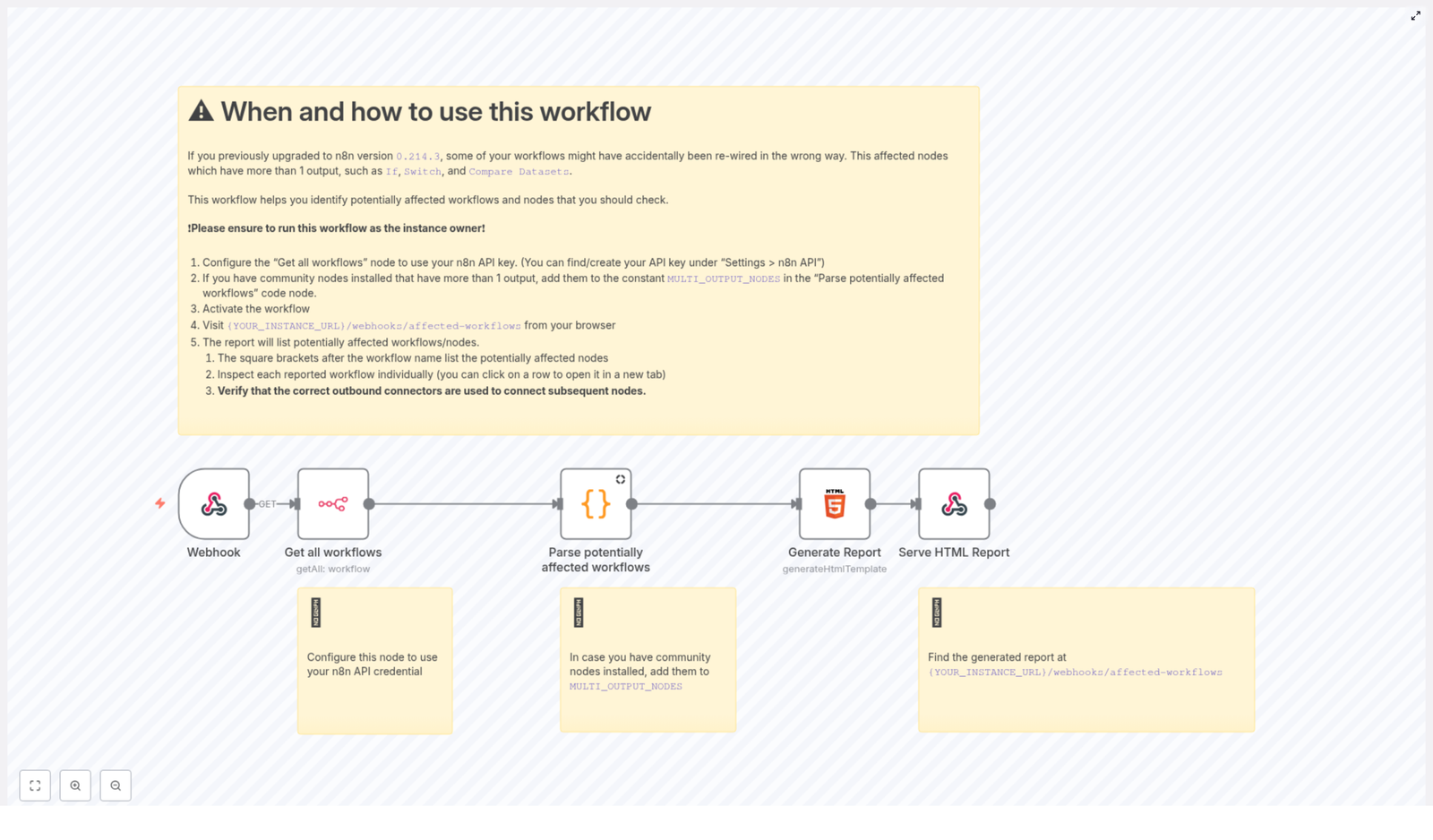
At a high level, the workflow:

  1. Calls the n8n API to retrieve a list of all workflows
  2. Parses each workflow’s JSON definition
  3. Looks for nodes that are known to have multiple outputs
  4. Checks whether all expected outputs are connected correctly
  5. Collects a report of workflows and nodes that look suspicious

The output is a clear list that includes:

  • The workflow ID
  • The workflow name
  • The nodes within that workflow that may have flawed or incomplete output connections

You can then use this report to manually inspect and fix each affected workflow.


3. Key Concepts Before You Start

3.1 Multi-output nodes in n8n

A multi-output node is any node that can send data to more than one path depending on conditions or configuration. For example:

  • If node – often has outputs for “true” and “false”
  • Switch node – can have many different outputs, each for a different case
  • Compare Datasets node – may output matched, unmatched, or other comparison results

These nodes rely on correct output indexing. If the order or mapping of outputs is changed during a migration, the logic of your automation can silently break.

3.2 The MULTI_OUTPUT_NODES constant

Inside the template, a Code node named something like Parse potentially affected workflows uses a constant called MULTI_OUTPUT_NODES. This constant is essentially a configuration list where you define:

  • The node types that have multiple outputs
  • How many outputs each type is expected to have

The built-in n8n nodes with multiple outputs are already handled. If you use community nodes or custom nodes with multiple outputs, you will need to add them here so the workflow can scan them correctly.

3.3 Using the n8n API

The template relies on the n8n API to fetch workflow definitions. To do this securely, it uses an API key configured in a node usually called Get all workflows. You must:

  • Enable and configure the n8n API in your instance
  • Use an API key with sufficient permissions to read all workflows
  • Preferably use instance owner credentials for complete coverage

4. Step-by-Step Guide to Using the Template

Step 1 – Configure n8n API credentials

  1. Open the diagnostic workflow template in your n8n editor.
  2. Locate the node named Get all workflows (or similarly named API node).
  3. In this node, select or create credentials for the n8n API.
  4. Generate or find your API key by going to:
    Settings > n8n API in your n8n instance.
  5. Paste the API key into the credentials configuration for the Get all workflows node.

Make sure that the account associated with this API key has access to all workflows you want to scan. Using the instance owner account is recommended for a complete audit.

Step 2 – Add community or custom nodes to the scan (if needed)

If you only use core n8n nodes, you can usually skip this step. However, if you have installed community or custom nodes that expose multiple outputs, you need to make sure they are included in the check.

  1. Find the Parse potentially affected workflows Code node in the template.
  2. Open the code editor for this node.
  3. Locate the MULTI_OUTPUT_NODES constant in the code. It will look like a list or object that describes node types and their output counts.
  4. Add entries for your community nodes, specifying:
    • The internal node type (for example, n8n-nodes-community.myMultiOutputNode)
    • The number of outputs that node is expected to have
  5. Save the changes to the node.

This ensures the workflow correctly checks those nodes for missing or miswired outputs.

Step 3 – Activate the diagnostic workflow

  1. Once your API credentials and optional community node list are set, turn on the workflow like any other n8n workflow.
  2. Ensure the workflow is saved and the status is set to active.

Activation allows the workflow to respond to its trigger, which in this case is a webhook.

Step 4 – Trigger the scan via webhook

The template uses a webhook trigger so you can manually start the scan whenever you like.

  1. Identify your n8n instance base URL. For example:
    • https://your-n8n-instance.com for a hosted setup
    • http://localhost:5678 for a local instance
  2. Open your browser and navigate to:
    {YOUR_INSTANCE_URL}/webhooks/affected-workflows
    For example:
    https://your-n8n-instance.com/webhooks/affected-workflows
  3. This URL call triggers the diagnostic workflow. The workflow will then:
    • Fetch all workflows via the n8n API
    • Analyze nodes with multiple outputs
    • Compile a list of potential issues

Step 5 – Review the generated report

After the scan finishes, the workflow produces a report of potentially affected workflows. Depending on how the template is built, you will typically see:

  • A list of workflows that might be impacted by the migration bug
  • For each workflow:
    • The workflow ID
    • The workflow name
    • A list of nodes within that workflow that have missing or partial output connections

Use this report as your checklist. Each listed workflow should be opened and inspected in the n8n editor.

Step 6 – Manually verify and repair connections

The diagnostic workflow does not automatically fix your workflows. Instead, it points you to where you need to look.

  1. Open the n8n editor for each workflow reported as affected.
  2. Locate the nodes that the report flagged as having problematic outputs.
  3. Inspect their outgoing connections:
    • Confirm that every expected output has the correct connection
    • Check that each branch (for example, “true” vs “false”, or each Switch case) points to the intended next node
    • Compare with a previous backup or your original design if available
  4. Reconnect any outputs that are missing or miswired:
    • Drag from the correct output index to the correct target node
    • Remove any connections that should not exist
  5. Save the workflow and run a test to confirm the logic behaves as expected.

5. Best Practices When Using This Template

  • Use instance owner credentials: Run the scan with credentials that can access all workflows in your instance. This ensures you do not miss any affected automations.
  • Perform manual verification: The diagnostic report highlights potential issues, but you should still manually confirm and fix each node in the editor. Do not assume every flagged node is broken, but treat it as a strong hint.
  • Keep the workflow for future audits: Store this workflow in your instance and reuse it:
    • After upgrading n8n in the future
    • After installing or updating community nodes with multiple outputs
    • As part of your regular workflow health checks
  • Maintain backups: Whenever possible, keep exports or backups of critical workflows before major upgrades so you can compare structures if something looks wrong.

6. Quick Recap

  • Upgrading to n8n 0.214.3 can introduce a migration bug that affects nodes with multiple outputs like If, Switch, and Compare Datasets.
  • The bug can disconnect or miswire outputs, which silently breaks workflow logic.
  • The provided diagnostic workflow template:
    • Uses the n8n API to fetch all workflows
    • Scans for multi-output nodes with missing or partial connections
    • Produces a report listing affected workflows and nodes
  • You configure:
    • API credentials in the Get all workflows node
    • Optional community node types in the MULTI_OUTPUT_NODES constant
  • You trigger the scan by visiting {YOUR_INSTANCE_URL}/webhooks/affected-workflows.
  • You then manually inspect each flagged workflow in the editor and repair any broken connections.

7. Frequently Asked Questions (FAQ)

Do I need to run this workflow if I have not upgraded to 0.214.3?

The workflow is primarily designed to address issues introduced by the migration bug in 0.214.3. However, it can also be useful as a general audit tool to verify that multi-output nodes are wired correctly, especially after any major upgrade.

Can this workflow automatically fix broken connections?

No. The template is intentionally designed as a diagnostic tool only. It identifies suspicious nodes and workflows, but you must manually confirm and reconnect outputs in the n8n editor. This avoids accidentally changing workflows that are already correct.

What happens if I do not add my community nodes to MULTI_OUTPUT_NODES?

If you skip this step, the diagnostic workflow will not check those community nodes for missing or partial connections. They may still be affected by the migration bug, but they will not appear in your report. For accurate results, always add multi-output community nodes to the MULTI_OUTPUT_NODES constant.

Is it safe to run this workflow on a production instance?

Yes. The workflow only reads workflow definitions using the n8n API and does not modify them. It is safe to run in production environments. Still, any changes you make afterward when fixing workflows should be tested carefully.

How often should I run this diagnostic?

At minimum, run it immediately after upgrading to version 0.214.3 or any later version where you suspect similar migration changes. You can also schedule periodic checks as part of your maintenance routine, especially in critical automation environments.


Take Action: Protect Your n8n Automations

Do not wait for broken logic to cause data issues or missed automations. Set up and run this diagnostic workflow to scan your n8n instance, identify affected multi-output nodes, and fix any problems before they impact your operations.

Keep the workflow available for future upgrades so you can quickly verify that all outputs are intact and your automations remain reliable.

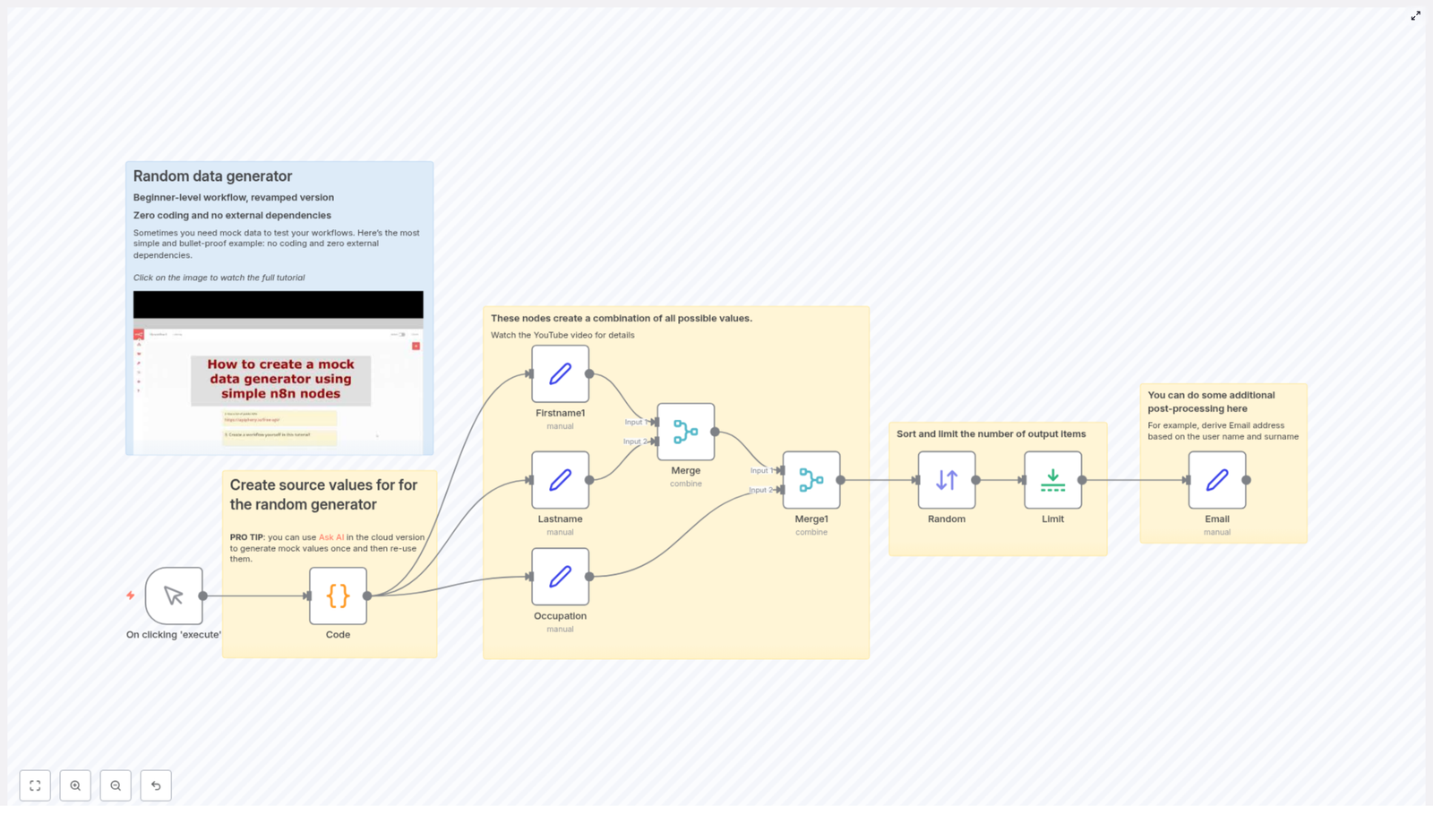
How to Build a Simple Random Data Generator in n8n

How to Build a Simple Random Data Generator in n8n

Why You Might Want a Random Data Generator in n8n

If you have ever tried to test a workflow without good sample data, you know how frustrating it can be. You tweak a node, hit execute, then realize you do not really have enough data to see how it behaves in real life.

That is where a random data generator in n8n comes in handy. With a simple workflow, you can spin up realistic mock data on demand, without writing complex scripts or connecting to external tools. It is perfect for:

  • Testing new n8n workflows before going live
  • Creating demo data for clients or teammates
  • Experimenting with different node setups and logic

In this guide, we will walk through a beginner-friendly n8n template that creates random combinations of first names, last names, and occupations, then lets you limit and post-process that data. You will still get all the technical details, but in a relaxed, step-by-step format you can follow while sipping your coffee.

What This n8n Template Actually Does

Let us zoom out for a second before diving into the nodes. This workflow:

  • Starts manually whenever you click execute
  • Uses a Code node to hold some simple seed data (like names and jobs)
  • Splits that data into separate fields so you can mix and match values
  • Combines all possible first name, last name, and occupation combinations
  • Randomizes the order of results
  • Limits how many items you get back
  • Optionally adds extra fields, like an email address based on the generated name

The result is a flexible, reusable random data generator in n8n that you can adapt to your own use cases.

Step 1: Start With a Manual Trigger

You begin the workflow with a Manual Trigger node, labeled something like "On clicking ‘execute’". This is the simplest way to control when your generator runs.

Whenever you want new mock data, you just open the workflow and hit Execute. No schedules, no webhooks, just a quick manual trigger that is perfect for testing and development.

Step 2: Define Your Seed Data in a Code Node

Next up is the heart of the generator: a Code node that holds your base data. Do not worry, you are not writing complex logic here. You are simply defining a small array of objects that represent people with a first name, last name, and occupation.

Here is the example used in the template:

return [  {firsname:"Name 1",lastname:"Surname 1", occupation:"Job 1"},  {firsname:"Name 2",lastname:"Surname 2", occupation:"Job 2"},  {firsname:"Name 3",lastname:"Surname 3", occupation:"Job 3"}
];

This little snippet is your source data. The workflow will later remix these values into many different combinations.

You can easily customize this node with your own fields, more items, or different types of data. The key idea is that the Code node stores the raw values that all your random results will be built from.

Step 3: Split Out Individual Fields With Set Nodes

Once the Code node returns its array of items, the workflow moves on to a few Set nodes that focus on specific properties. In the template, there are three Set nodes:

  • Firstname1
  • Lastname
  • Occupation

Each Set node pulls out one field from the Code node output and organizes it so n8n can later mix and match them. By separating first names, last names, and occupations, you are preparing the data for combinatorial magic in the next step.

This structure also makes it simple to add more fields later. Want departments, locations, or product names? Just add more seed values and more Set nodes as needed.

Step 4: Generate All Possible Combinations With Merge Nodes

Now for the fun part. To turn a few simple values into a large pool of mock data, the workflow uses Merge nodes in combineAll mode.

Here is what happens:

  • The first Merge node takes two sets of data (for example, first names and last names) and combines them so that every first name is paired with every last name.
  • The second Merge node then brings in the third field (occupations) and combines it in the same way.

Using the combineAll mode means n8n will generate every possible combination of first names, last names, and occupations. So even if your seed data is small, your output can be surprisingly rich.

This is incredibly useful for testing, because you can see how your workflow behaves with a variety of different input combinations without manually crafting each one.

Step 5: Shuffle the Results and Limit the Output

All combinations are great, but sometimes you do not need all of them at once. That is where a Sort node and a Limit node come in.

Randomizing the order

The Sort node is configured to sort items in a random order. This means each time you execute the workflow, the order of generated records changes, which makes your test data feel less predictable and more realistic.

Keeping the dataset manageable

After sorting, the Limit node caps how many items you actually keep. For example, you might limit the output to 10 items. You still get the benefit of a large combination pool, but you only work with a small slice at a time.

This is especially helpful when you are testing workflows that might send emails, create records, or trigger external calls. You do not want to accidentally flood your systems with hundreds of test entries.

Step 6: Post-process Your Mock Data (Example: Email Generation)

Once you have your random combinations, you can shape them into whatever format you need. In the template, there is an example of a simple post-processing step using an Email Set node.

This node creates an email address from the generated first name and last name. Typically, this involves:

  • Taking the first name and last name fields
  • Concatenating them into a single string
  • Formatting them (for example, lowercasing, removing spaces)
  • Appending a domain like @example.com

The result might look like name1.surname1@example.com. It is a simple touch, but it turns abstract mock data into something that looks much more like real user records.

You can extend this idea to generate usernames, IDs, display names, or any other derived fields your workflows need.

Why This n8n Random Data Generator Makes Your Life Easier

Let us recap why this template is so practical, especially if you are just getting comfortable with n8n automation.

  • No deep coding skills needed
    The Code node only holds basic JavaScript objects that act as seed data. You do not have to write loops, conditionals, or complex logic. Just edit the values and you are good to go.
  • Highly modular and easy to tweak
    Each field has its own Set node, and combinations are handled by Merge nodes. That modular setup means you can:
    • Add or remove fields
    • Insert extra processing steps wherever you like
  • Great with AI-generated values
    If you are using AI-powered assistance in n8n cloud, you can even generate your seed values dynamically and feed them into this same structure. That way, you can refresh your source data whenever you want while keeping the rest of the workflow intact.
  • Perfect for testing and demos
    Whether you are preparing a client demo, experimenting with new nodes, or stress testing a flow, having a ready-made random data generator saves you time and keeps things consistent.

When To Use This Template

You will find this template especially useful when you:

  • Need mock user or contact data to test a CRM or email integration
  • Want to validate logic that depends on different field combinations
  • Are building internal tools and need sample records to see how everything looks
  • Prefer to keep all test data generation inside n8n rather than relying on external services

Instead of manually creating test items over and over, you just click execute and let n8n handle the rest.

Want to See It in Action?

If you are more of a visual learner, you are covered. The workflow includes a link to a YouTube tutorial that walks you through the whole setup step by step. You can watch how each node is configured and follow along in your own n8n instance.

Try the Template Yourself

Ready to build your own mock data generator in n8n? Open the template, run it a few times, and start customizing the seed data so it matches your real-world scenarios.

If this kind of workflow helps you work faster, share it with your team and keep exploring more automation ideas. The more you experiment, the easier it becomes to prototype and test new flows.

Automate Invoices & Reminders with Jotform, QuickBooks & Gmail

Automate Invoices & Reminders with Jotform, QuickBooks & Gmail: A Founder’s Story

Introduction: The Invoice Pileup

On a rainy Tuesday evening, Maya, a founder of a fast-growing design studio, stared at her inbox with a familiar sense of dread. New project requests were pouring in through her Jotform order form, which was great for business, but every new submission meant the same tedious routine.

Copy the customer details. Check if they already exist in QuickBooks Online. Create or update their profile. Add the right product or service item. Generate the invoice. Send it manually through Gmail. Then, a week later, remember to follow up on unpaid invoices, one by one.

By the time Maya finished a batch of invoicing and reminders, it was often late at night. She was spending more time chasing payments than crafting designs. Mistakes slipped in, some clients never received reminders, and unpaid invoices quietly piled up.

Something had to change.

Discovering an Automated Workflow

Maya was already using Jotform for order intake, QuickBooks Online (QBO) for accounting, and Gmail for communication. The tools were there, but they were not talking to each other in a smart way.

One day, while searching for “automated invoice reminders with QuickBooks and Jotform,” she stumbled on an n8n workflow template that promised to connect all three tools into a single automated process. The idea was simple but powerful:

  • When a customer submits an order via Jotform, the workflow would automatically create or update the customer in QuickBooks.
  • An invoice would be generated and emailed without Maya lifting a finger.
  • Invoice details would be tracked in a database.
  • Daily, at a set time, the system would send reminder emails through Gmail until the invoice was paid.

It sounded like exactly what she needed. The only question was whether it would really handle all the messy details she usually had to manage by hand.

Rising Action: Turning Chaos Into a Workflow

Maya opened the template in n8n and began to explore how it worked. Instead of a tangled mess of steps, she found a clear, logical flow. Each part of her manual process had been translated into an automated sequence.

Step 1: Every Order Starts With a Jotform Submission

In her old routine, Maya would log into Jotform, export or copy the latest submission, and paste details into QuickBooks. The n8n workflow replaced all of that with a single trigger.

The workflow began with a webhook node connected to Jotform. Whenever a customer submitted an order form, the webhook instantly captured:

  • Customer name
  • Billing address
  • Email address
  • Phone number
  • Selected product or service

No more waiting, refreshing, or copying. The submission arrived in n8n in real time, ready for processing.

Step 2: Cleaning Up the Raw Data

Maya knew that addresses in form submissions could be messy. Sometimes customers wrote everything on one line, other times they mixed city and postal code. Previously, she had to fix this manually before QuickBooks would accept it.

The template handled this with a data formatting step. Using JavaScript inside a Code node, the workflow parsed the raw address field and extracted structured components like:

  • Street
  • City
  • State or region
  • Postal code
  • Country

This meant that by the time the data reached QuickBooks, it was consistently formatted and ready for seamless integration.

Step 3: Checking If the Customer Already Exists

One of Maya’s biggest pain points was duplicate customer records. Some clients used different spellings or alternate emails, and she often ended up with multiple entries in QuickBooks that referred to the same person.

The n8n workflow tackled this using QuickBooks API calls combined with If nodes for conditional logic. It searched QuickBooks based on the customer’s primary email address:

  • If the customer already existed, the workflow updated their information, including billing address, phone number, and name. Her records stayed accurate without manual edits.
  • If the customer did not exist, the workflow created a brand new customer record in QuickBooks using the details from Jotform.

What previously took several minutes per client now happened instantly and reliably.

Step 4: Matching the Right Product or Service

Maya offered different design packages, each mapped to a product item in QuickBooks. In the past, she had to carefully select the right item every time she created an invoice.

The template included a step to look up the product or service in QuickBooks using the choice the customer made in Jotform. The workflow fetched the correct item ID that QuickBooks needed for the invoice. No more guessing, no more misaligned line items.

Step 5: Automatically Creating and Sending the Invoice

This was the moment Maya really felt the power of automation. Once the customer and product were identified, the workflow moved on to generate the invoice in QuickBooks.

Using the QuickBooks node, it created an invoice that:

  • Referenced the correct customer record
  • Included the selected product or service as a line item
  • Added a descriptive note indicating that the invoice came from a Jotform submission

As soon as the invoice was created, QuickBooks automatically emailed it to the customer’s email address. Where Maya used to open Gmail, draft a message, attach or link the invoice, and double check everything, the workflow now did it in seconds.

Step 6: Logging Invoice Details for Future Reminders

Invoices sent was only half the story. Maya still needed a way to track unpaid invoices and follow up at the right time. The template handled this with a dedicated database table, using the DataTable node in n8n.

For each newly created invoice, the workflow stored key details, including:

  • Invoice ID
  • Balance amount
  • Currency
  • Number of reminders already sent
  • Timestamps for tracking activity

This database became the central source of truth for the reminder system. Maya no longer had to maintain spreadsheets or handwritten lists of “who to chase this week.”

The Turning Point: Automated Daily Reminders

Before using n8n, Maya would set calendar reminders to check unpaid invoices. She still missed some, and the timing was never consistent. Some clients got reminded too late, others too often.

The workflow template changed that with a scheduled reminder system.

Step 7: Scheduling and Sending Reminder Emails

Every morning at 8 AM, a scheduler node in n8n woke up the workflow. It scanned the database table for invoices that still had an outstanding balance.

For each invoice, the workflow:

  • Retrieved the latest invoice status from QuickBooks to ensure it was still unpaid.
  • Checked how many reminders had already been sent and when the last one went out.
  • Evaluated whether it was time to send another reminder, based on predefined intervals such as after 2, 3, and 5 days.

If the conditions were met, the workflow used Gmail to send a professionally formatted reminder email. The message included:

  • Invoice details
  • Outstanding balance
  • A clear payment link

After sending the reminder, the workflow updated the database, increasing the reminder count and recording the latest timestamp.

If an invoice had been fully paid or had already gone through all allowed reminder attempts, the workflow removed that record from the database. This prevented customers from receiving unnecessary or redundant emails and kept the system clean.

Configurable Intervals and Smart Branching

What impressed Maya most was how flexible the logic was. Using conditional branching in n8n, the workflow decided whether to:

  • Send a reminder
  • Skip for now and check again later
  • Delete the invoice record if it no longer needed attention

The reminder intervals were not hard coded. A dedicated configuration node allowed her to adjust the timing in a single place. If she wanted to change from reminders on days 2, 3, and 5 to a different schedule, she could do it in seconds without rewriting the whole workflow.

Technical Highlights Behind the Scenes

Although the story felt smooth on the surface, Maya knew a lot of smart engineering was working in the background. The template relied on several core n8n features to keep everything running reliably:

  • Use of If nodes and Code nodes for branching logic and custom JavaScript.
  • QuickBooks API calls to search customers, fetch products, create invoices, and check payment status.
  • A DataTable node to store invoice IDs, balances, currencies, and reminder metadata.
  • Dynamic data formatting to transform unstructured address inputs into structured fields that QuickBooks understands.
  • Conditional flows to decide when to create or update customers and when to send, skip, or stop reminders.
  • AI integration to generate a daily summary email for Maya’s internal team, listing which reminders went out and which invoices remained pending.

The result was not just automation, but a full orchestration of her invoicing and reminder lifecycle.

Resolution: From Late Nights to Predictable Cash Flow

A few weeks after turning on the n8n workflow, Maya noticed a quiet but dramatic shift in her business.

She was no longer spending evenings manually creating invoices or combing through QuickBooks to see who had not paid. New orders came in through Jotform, invoices were generated and sent automatically via QuickBooks, and reminders went out from Gmail at predictable intervals, all without her intervention.

Her customers appreciated the clear communication and timely reminders. Payments started arriving more consistently, and her cash flow stabilized. More importantly, Maya reclaimed hours each week to focus on the work that actually grew her studio.

Who This Workflow Helps

Maya’s story is not unique. This n8n template can transform the day to day operations of:

  • Freelancers and consultants who send frequent invoices to clients
  • Small business owners who want reliable billing automation without hiring extra staff
  • Service providers and agencies managing ongoing client projects and retainers
  • E commerce vendors who generate invoices for product orders

If you are juggling Jotform submissions, QuickBooks entries, and Gmail follow ups, this workflow can turn a scattered process into a clean, automated pipeline.

Start Your Own Automation Story

You do not need to be a developer to benefit from this setup. The template is ready to use, with all the core logic already in place. You can adapt it to your own forms, products, and reminder schedule with just a few configuration tweaks.

If you want to save time, reduce manual invoicing errors, and build a more predictable payment process, this n8n workflow can be the turning point in your own story.

Connect your form data to your financial and communication tools in a single automated flow and let the system handle the repetitive work for you.

Convert Web Series Episodes into RSS Feed with n8n

Convert Web Series Episodes into an RSS Feed with n8n: A Story

When Your Favorite Web Series Has No RSS Feed

On a rainy Tuesday evening, Lena, a podcast addict and part-time marketer, sat staring at her phone in frustration. Her favorite satirical radio show had a brilliant online archive, but there was one big problem: no RSS feed.

Every week she had to open the website, scroll through the episodes, guess which ones were new, and manually download the audio. It was annoying, time-consuming, and completely unnecessary in 2025.

“There has to be a better way,” she muttered, copying the URL of the series overview page from https://www.ardaudiothek.de/sendung/kalk-und-welk/10777871/ and pasting it into her notes for the hundredth time.

Lena did not want to wait for the publisher to add RSS support. She wanted every new episode to appear automatically in her podcast app, like every other show she followed. That was the moment she decided to turn this static web page into a living RSS feed using n8n.

Discovering n8n and the Hidden Power of Templates

Lena had heard of n8n before, mostly as a tool for marketers and developers to automate repetitive workflows. But until now, she had never thought about using it to convert a web series into an RSS feed.

While browsing automation ideas, she stumbled across an n8n workflow template designed specifically to:

  • Scrape a series overview page
  • Extract all episode links
  • Fetch detailed information for each episode
  • Compile everything into a valid RSS feed
  • Serve that feed through a simple HTTP endpoint

It sounded exactly like what she needed. The only question was whether she could actually understand and adapt it for her own series.

Setting the Stage: How the Workflow Gets Triggered

Lena opened the template in n8n and saw that everything started with two possible triggers. This was where her story with automation really began.

The Feed Webhook: A Custom RSS URL

The first trigger node was a feed webhook. It exposed an HTTP GET endpoint that looked like this:

/3fbd94de-2fb3-4b32-a46e-c237865479b9.rss

Whenever a podcast app or browser requested that URL, n8n would run the workflow and serve the freshly generated RSS feed. To Lena, this meant something magical: she could give her podcast app a stable RSS address, even though the original site did not support RSS at all.

The Manual Trigger: Testing Without Breaking Anything

The second entry point was a manual trigger. This one was for Lena, not for her podcast app. It let her run the entire workflow on demand from inside the n8n editor.

Before pointing any external app at the feed URL, she used the manual trigger to test the full process, step by step, and make sure the output looked like a valid RSS feed.

Rising Action: Teaching n8n to Read the Series Page

With the triggers in place, Lena needed to help n8n understand what the series overview page actually contained. The template already did this, but she wanted to see how it worked so she could adapt it later if needed.

Step 1: Fetching the Overview Page

The first active node after the trigger was an HTTP Request called something like “Get overview page”. It was configured to fetch the main series page from:

https://www.ardaudiothek.de/sendung/kalk-und-welk/10777871/

This single page contained links to all episodes in the series. In her mind, Lena pictured it as a table of contents that n8n needed to read carefully.

Step 2: Extracting Episode Links from HTML

Next came an HTML Extract node. This was where the raw HTML turned into something useful.

The node scanned the overview page and looked for all <a> tags whose href attributes matched the pattern /episode/. Every matching link was treated as a potential episode.

Instead of handing Lena a messy block of HTML, the node extracted just the href values and collected them into an array of episode links.

Step 3: Splitting and Cleaning the Link List

At this point, Lena had a list of episode URLs, but they were all bundled together. The next part of the workflow took that list and:

  • Split the array so each link became a separate item in the workflow stream
  • Removed duplicate links to avoid processing the same episode more than once

This was subtle but important. If the site reused links or if the HTML structure changed, duplicates could easily sneak in. The template handled that automatically, keeping the workflow clean and efficient.

The Turning Point: From Web Pages to Structured Episode Data

Now that each episode link was isolated, the real magic could happen. Lena needed detailed information for each episode: title, audio file URL, description, publication date, and more. The template had a clever way of extracting all of that from each individual episode page.

Step 4: Fetching Each Episode Page

For every unique episode link, n8n used another HTTP Request node called “Get episode page”. Instead of hardcoding full URLs, it dynamically built them by combining:

  • The base domain: https://www.ardaudiothek.de
  • The episode path: the /episode/... part extracted earlier

This way, if the site structure stayed consistent, Lena could reuse the same logic even for other shows on the same platform.

Step 5: Finding the Hidden JSON in a Script Tag

Once each episode page was fetched, the template used another HTML Extract node. This time, it was not looking for links. It was after a specific <script> tag.

On the episode page, the second script tag contained embedded JSON with all the episode details. The HTML Extract node pulled out the content of that script, which looked like a long JSON string.

In the next node, that JSON string was parsed, turning it into structured data that n8n could easily work with. Suddenly, all the important episode information became accessible: audio URL, title, description, publication date, and more.

Shaping the Story into an RSS Feed

At this point in her journey, Lena had everything she needed: a clean list of episodes, each with detailed metadata. Now she needed to turn that into an RSS feed that podcast apps could understand.

Step 6: Defining RSS Feed Items in a Function Node

The template used a Function node to assemble all of the episode data into proper RSS XML.

Inside this node, custom JavaScript code:

  • Created RSS <item> elements for each episode
  • Escaped any HTML entities so the feed would be valid XML
  • Populated key fields such as:
    • Title
    • Enclosure URL (the audio file link)
    • GUID (a unique identifier for each episode)
    • Publication date
    • Description
    • Other optional metadata used by podcast players
  • Built the RSS channel metadata based on the series information, including overall title, description, and other shared properties

For Lena, this was the turning point. Her messy collection of web pages was now being transformed into a clean, standards-compliant RSS feed.

Step 7: Serving the Finished RSS Feed

The final node in the workflow made the whole thing usable outside of n8n. Using the feed webhook entry point, n8n returned the compiled RSS XML as an HTTP response.

It also set the correct content-type header:

application/rss+xml

This told browsers and podcast apps that they were receiving a real RSS feed. Lena copied the webhook URL, pasted it into her podcast app as a custom feed, and held her breath.

Within seconds, all the episodes appeared, neatly listed and ready to play.

Customizing the Workflow for Any Web Series

Once Lena saw it working, she realized this template was not limited to one show. With a few adjustments, she could convert almost any web series or podcast archive into an RSS feed using n8n.

Change the Source URL

To adapt the workflow to a different show, she simply edited the “Get overview page” HTTP Request node and replaced the URL with the new series or podcast overview page.

Adjust HTML Selectors

If the target website had a different HTML structure, she could:

  • Modify the CSS selector in the “Extract links” HTML Extract node to correctly locate episode links
  • Update the selector in the “Extract script” HTML Extract node to grab the right script tag that contained the JSON data

These tweaks made the workflow flexible enough to handle a wide range of sites, as long as the necessary information was available in the page HTML or embedded JSON.

Modify Feed Metadata and Structure

Inside the Function node, Lena could customize how the RSS feed looked and behaved. For example, she could:

  • Change the channel title and description
  • Adjust how GUIDs were generated
  • Include or remove specific fields from each <item>
  • Modify how publication dates were formatted

This gave her full control over the feed output without touching the core scraping logic.

Automate Updates with Cron Triggers

At first, Lena used the manual trigger for testing. But she quickly realized she did not want to remember to run the workflow every week.

So she replaced the manual trigger with a time-based cron trigger. Now n8n would automatically:

  • Fetch the overview page on a schedule
  • Detect new episodes
  • Rebuild the RSS feed

Her podcast app would simply refresh the feed URL and show new episodes as they appeared, just like any other subscription.

Resolution: From Frustration to Fully Automated Listening

What started as a small annoyance turned into a complete automation win. By using this n8n workflow template, Lena:

  • Converted a web-only series into a proper RSS feed
  • Stopped manually checking for new episodes
  • Learned how to scrape, parse, and transform web content with n8n
  • Built a reusable pattern she could apply to other shows and sites

The same approach works for many podcasts or web series that do not provide RSS feeds. With n8n handling the scraping and transformation, any compatible series overview page can become a reliable feed for podcast apps or RSS readers.

For Lena, this workflow was not just a technical trick. It was a quiet upgrade to her daily routine, removing friction from something she loved.

Start Your Own Automation Story with n8n

If you are facing a similar problem, where a web series or podcast has no RSS feed, you can follow the same path:

  • Use n8n to fetch the overview page
  • Extract and clean episode links
  • Pull structured data from each episode page
  • Transform everything into a valid RSS feed
  • Serve the feed through a webhook endpoint

With a few adjustments to URLs, selectors, and metadata, this template can become the backbone of your own content automation system.

Want to explore further or need help customizing the workflow? The n8n community and automation experts are full of examples, tips, and support to help you refine your setup and build more advanced automations.