


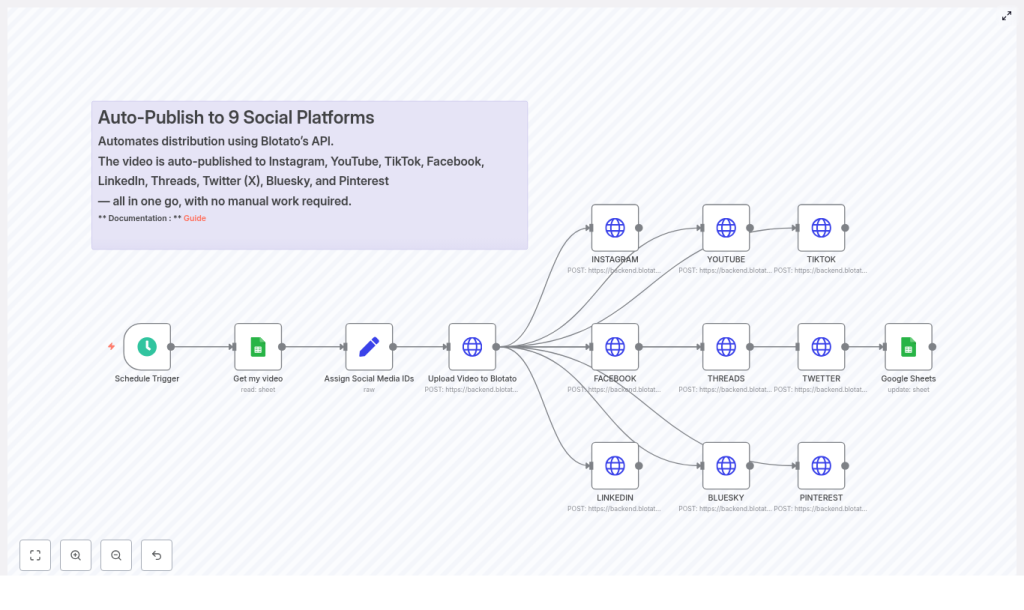
Auto-Publish to 9 Social Platforms with n8n: A Marketer’s Story
By Tuesday afternoon, Lena’s browser looked like a game of tab Tetris. Instagram, YouTube, TikTok, Facebook, LinkedIn, Threads, Twitter (X), Bluesky and Pinterest were all open, each waiting for the same video, the same caption and the same thumbnail.
She was the only marketer at a fast-growing startup, and every new campaign meant the same ritual: download the video, upload it nine times, tweak titles, paste descriptions, double check links, and hope she did not forget a platform. Her team wanted consistency. Her calendar wanted mercy.
What she really wanted was one thing: a way to publish once and have the rest happen on its own.
The Problem: One Video, Nine Platforms, Endless Repetition
Lena tracked everything in a Google Sheet – video URLs, titles, descriptions, and a quick note on whether a post was live or still pending. It worked, but only up to a point. Posting manually to nine social platforms was not just tedious, it was risky.
- She spent hours repeating the same steps for each video.
- Captions sometimes went over platform limits and were silently cut off.
- She occasionally missed a platform entirely or posted with the wrong title.
- There was no reliable audit trail of what had gone out where.
Her sheet was supposed to be the single source of truth, but in reality it was just a checklist she hoped she had followed correctly.
After one particularly long afternoon of copy-paste gymnastics, Lena decided she needed to automate social publishing. She did not want a black box tool that locked her into a specific platform. She wanted something flexible that could grow with her workflow.
That search led her to n8n and a workflow template that promised exactly what she needed: automated video distribution to all nine platforms, using Google Sheets and Blotato’s API.
Discovering an n8n Workflow Template That Changes Everything
Lena had heard of n8n, but she had never built a full automation in it. The idea of wiring together APIs for Instagram, YouTube, TikTok, Facebook, LinkedIn, Threads, Twitter (X), Bluesky and Pinterest sounded intimidating.
Then she found a prebuilt n8n workflow template that did almost all of it for her. The promise was simple:
Use a single Google Sheet as the source of truth, send each video to Blotato once, then auto-publish to nine platforms using a scheduled n8n workflow.
The template handled the heavy lifting:
- Trigger on a schedule.
- Read the next row from Google Sheets.
- Assign social media account IDs in one place.
- Upload the video to Blotato and get a unified media URL.
- Fan out POST requests to each social platform through Blotato’s
/v2/postsendpoint. - Update the Google Sheet status to mark the video as done.
If she could get this running, her daily grind would turn into a background process.
Setting the Stage: Preparing n8n, Google Sheets and Blotato
Before Lena could press play on her new automation, she needed to get a few pieces in place. The template was clear on the prerequisites, and she decided to tackle them one by one.
What She Needed Before Starting
- An n8n instance, either cloud or self-hosted, with enough execution limits for regular runs.
- Google Sheets API credentials configured inside n8n so it could read and write rows.
- A Blotato account and API key, with access to the media and post endpoints.
- Account IDs for each social network that she wanted to publish to.
- A Google Sheet with these columns:
- PROMPT (optional)
- DESCRIPTION
- URL VIDEO
- Titre
- STATUS
- row_number
Her sheet already had most of these, so she added STATUS and row_number to turn it into a proper control panel. From now on, she would let the sheet decide what was ready to publish and what was not.
Rising Action: Building the Automation Step by Step
With the groundwork in place, Lena imported the n8n workflow JSON into her n8n editor. The template unfolded into a series of nodes that looked surprisingly understandable. Each one mapped to a step in the story of her video.
1. Schedule Trigger – When the Story Starts
The first node was the Schedule Trigger. This was the heartbeat of the workflow. It controlled when the automation would wake up, check the sheet and push a new video out into the world.
Lena configured it to run once per day at a time that matched her audience’s peak engagement, and she set the correct timezone so she would not accidentally publish in the middle of the night. The template also mentioned that she could swap this for a webhook trigger later if she wanted on-demand publishing.
2. Get My Video – Reading From Google Sheets
The next node, Get my video, connected n8n to her Google Sheet. Here she entered her documentId and sheetName, then mapped the columns the workflow expected:
- PROMPT (optional, for creative hints or AI generated copy later)
- DESCRIPTION for the main caption text
- URL VIDEO pointing to the video file
- Titre for titles or headlines
- row_number to keep track of the exact row
- STATUS to mark each item as pending, test, done or failed
The workflow used this sheet as a single source of truth. Any row with the right status could be picked up, posted and then updated. That meant no more guessing what had already gone live.
3. Assign Social Media IDs – One Place for All Accounts
Next came a Set node labeled Assign Social Media IDs. This node stored the account IDs for Instagram, YouTube, TikTok, Facebook, LinkedIn, Threads, Twitter (X), Bluesky and Pinterest inside a JSON object.
Lena replaced the placeholder values with her real account IDs. If she ever needed to manage multiple brands or regions, she could extend this node to pull IDs from another sheet or a secure vault, but for now one set of IDs was enough.
By centralizing these IDs in a single node, she made it easy to reuse them across all platform POST requests that would follow.
4. Upload Video to Blotato – One Media Host to Rule Them All
The workflow then sent the video to Blotato using an HTTP Request node.
It called:
POST https://backend.blotato.com/v2/mediawith the video URL from her sheet. Blotato handled the upload and returned a media URL that could be reused for every platform.
This was a turning point in the workflow. Instead of juggling platform-specific upload rules, Lena relied on Blotato as a centralized media host. The video went up once, came back as a single URL, and every platform could use it.
5. Platform POST Nodes – Fanning Out to 9 Channels
With the media URL in hand, the workflow branched into multiple HTTP Request nodes, one per social platform. Each node called the same Blotato endpoint:
POST https://backend.blotato.com/v2/postsand sent a payload that looked like this:
{  "post": {  "accountId": "<ACCOUNT_ID>",  "target": { "targetType": "instagram" },  "content": {  "text": "<DESCRIPTION>",  "platform": "instagram",  "mediaUrls": ["<MEDIA_URL_FROM_BLOTATO>"]  }  }
}
The target object held platform specific metadata, like title, privacy settings, pageId or boardId when needed. The content object carried the text and the media URLs.
Lena repeated this pattern for each platform, adjusting the targetType and platform specific fields. All of them reused the same Blotato media URL, which made the whole setup dramatically simpler.
6. Google Sheets Update – Closing the Loop
The final step was a Google Sheets update node. Once the platform requests completed, the workflow wrote back to the same row it had read earlier.
It set:
- STATUS to
DONEwhen everything succeeded, or a failure note if something went wrong. - row_number to confirm which row had been processed.
This simple update created an audit trail and prevented duplicates. If she saw DONE in the sheet, she knew that video had already gone out across her channels.
The Turning Point: First Test Run
All the pieces were in place, but Lena was not ready to unleash the workflow on her live accounts yet. She followed the template’s recommendation and set up a careful test.
Step-by-Step Setup in Practice
- She imported the n8n workflow JSON into her n8n editor.
- She configured Google Sheets credentials and set the correct
documentIdandsheetNamein both the Get my video and update nodes. - She replaced all placeholder account IDs in the Assign Social Media IDs node with real IDs.
- In each HTTP Request node that called Blotato endpoints, she added her
blotato-api-keyheader value. - She created a single test row in her sheet, with a non-public description like
test, and set the STATUS to something that the workflow would recognize as ready to post. - She ran the workflow manually, watched the Execution view and verified that:
- The media upload to Blotato succeeded.
- A valid media URL came back.
- The platform POST requests used that URL correctly.
- Only after that did she switch the Schedule Trigger to the correct timezone and hour, and enable the workflow.
Her first successful test run felt like a small miracle. One row in a sheet had become nine posts across her staging accounts, without a single copy-paste.
Staying Safe: Best Practices Lena Adopted
Before moving to production, Lena took a moment to harden her setup based on the workflow’s best practices. She wanted automation, but not at the cost of broken posts or API bans.
Using Staging Accounts and Platform Limits
- She used a set of staging or test social accounts to validate format and length limits for each platform.
- She kept descriptions under known platform limits. TikTok and Instagram caption lengths differ, so she considered adding platform specific caption columns to her sheet for more control.
- She rate limited posting by staggering runs and making sure she did not hit API quotas.
Logging and Security
- She logged HTTP status codes and responses from Blotato and each platform to a separate sheet, so she could audit and debug later.
- She stored her API keys using n8n credentials and environment variables, not in the workflow JSON, to avoid exposing sensitive values.
Handling Errors: When Things Do Not Go as Planned
No automation is perfect. Lena knew that at some point a platform API would hiccup, a token would expire or a media file would be too large. The workflow template gave her a plan for that too.
Error Handling and Monitoring in n8n
- She added an Error Trigger node in n8n to catch runtime failures and send alerts to her via Slack or email.
- For transient errors, she used branch nodes to implement retries with exponential backoff, especially around upload or post steps.
- If a specific platform failed, the workflow updated the sheet with a message like
FAILED: instagram, so she could see at a glance which part had broken and re run only that item later.
With this in place, a single failed request no longer meant a mystery. It became a clear, traceable event.
From Pilot to Production: Rolling Out the Workflow
To avoid surprises on launch day, Lena rolled out her automation gradually.
Testing and Rollout Strategy
She started with just one platform, YouTube, and set the videos to unlisted. That gave her a safe way to verify that:
- The media URL from Blotato propagated correctly.
- The titles and descriptions looked right.
- The Google Sheet row was updated at the end of the process.
Once that flow was stable, she enabled the rest of the platforms in the workflow and ran a small pilot with a handful of videos. Only after that did she trust it with her main content calendar.
Security, Compliance and Peace of Mind
As the automation took over more of her posting, Lena made sure she was staying on the right side of platform rules and internal policies.
- She reviewed each platform’s terms of service and automation policies.
- She kept API keys and account IDs encrypted in n8n credentials and limited access to them.
- She was selective about what content went out automatically, especially branded or sponsored posts that might have extra rules.
The result was not just convenience, but a workflow she could defend to her team and leadership.
Scaling Up: Customizations That Took Her Workflow Further
Once the basic automation was solid, Lena started to see new possibilities. The same template could be extended and customized for more sophisticated campaigns.
Enhancements She Considered
- Reading multiple rows at once and queuing them with delays to spread posting over time.
- Adding extra columns in Google Sheets for platform specific captions, so Instagram, TikTok and LinkedIn could each get tailored messaging.
- Conditional branching in n8n, for example:
- Only post to Pinterest if a thumbnail image URL is present.
- Skip certain platforms for short teaser clips.
- Switching from Google Sheets to a database like Postgres or Airtable for higher throughput and better concurrency control once the content volume grew.
The template was no longer just a quick fix. It was the backbone of a scalable, multi platform distribution system.
When Things Break: Lena’s Troubleshooting Checklist
On the rare occasions when something did not work, she turned to a simple checklist that mirrored the template’s guidance.
- Blotato returns errors:
- Check the API key.
- Validate the media URL format.
- Confirm that the video size is within content limits.
- Google Sheets read or write fails:
