


Auto Reply to FAQs with n8n, Pinecone, Cohere & Anthropic
Imagine if your FAQ page could actually talk back to your users, give helpful answers, and never get tired. That is exactly what this n8n workflow template helps you do.
In this guide, we will walk through how the template uses n8n, Pinecone, Cohere, and Anthropic to turn your documentation into a smart, automated FAQ assistant. It converts questions into embeddings, stores them in Pinecone, pulls back the most relevant content, and uses a Retrieval-Augmented Generation (RAG) agent to answer with context. On top of that, it logs everything and alerts your team when something breaks.
We will cover what the workflow does, when to use it, and how each part fits together so you can confidently run it in production.
What this n8n FAQ auto-reply template actually does
At a high level, this template turns your existing FAQ or documentation into an intelligent auto-responder. Here is what it handles for you:
- Receives user questions from your site, chat widget, or support tools via a webhook
- Splits your FAQ content into smaller chunks for precise search
- Uses Cohere to generate embeddings for those chunks
- Stores and searches those embeddings in a Pinecone vector index
- Uses a RAG agent with Anthropic’s chat model to craft answers from the retrieved content
- Keeps short-term memory for follow-up questions
- Logs every interaction to Google Sheets
- Sends Slack alerts when something goes wrong
The result is a reliable, scalable FAQ auto-reply system that is far smarter than simple keyword search and much easier to maintain than a custom-coded solution.
Why use a vector-based FAQ auto-reply instead of keywords?
You have probably seen how keyword-based search can fail pretty badly. Users phrase questions differently, use synonyms, or write full sentences, and your system tries to match literal words. That is where vector search comes in.
With embeddings, you are not matching exact words. You are matching meaning. Vector search captures semantic similarity, so a question like “How do I reset my login details?” can still match an FAQ titled “Change your password” even if the wording is different.
By combining:
- Pinecone as the vector store
- Cohere as the embedding model
- Anthropic as the chat model for answers
- n8n as the orchestration layer
you get a production-ready RAG pipeline that can answer FAQs accurately, with context, and at scale.
When this template is a good fit
This workflow is ideal for you if:
- You have a decent amount of FAQ or documentation content
- Support teams are repeatedly answering similar questions
- You want quick, accurate auto-replies without hallucinated answers
- You care about traceability, logging, and error alerts
- You prefer a no-code or low-code approach over building everything from scratch
It works especially well for web apps, SaaS products, internal IT helpdesks, and knowledge bases where users ask variations of the same questions all day long.
How the architecture fits together
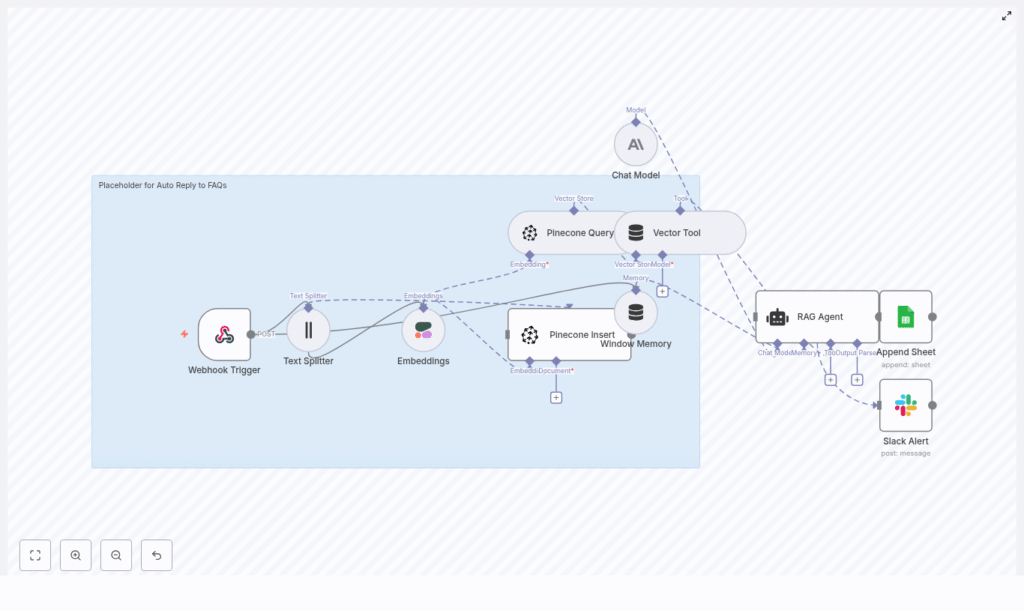
Let us zoom out for a second and look at the overall pipeline before diving into the steps. The template follows a clear flow:
- Webhook Trigger – receives incoming user questions with a POST request
- Text Splitter – chunks long FAQ docs into smaller pieces
- Embeddings (Cohere) – turns each chunk into a vector
- Pinecone Insert – stores those vectors and metadata in a Pinecone index
- Pinecone Query + Vector Tool – searches for the best matching chunks when a question comes in
- Window Memory – keeps a short history of the conversation
- Chat Model (Anthropic) + RAG Agent – builds the final answer using retrieved context
- Append Sheet (Google Sheets) – logs everything for review and analytics
- Slack Alert – pings your team if the agent fails
Now let us walk through how each of these pieces works in practice.
Step-by-step walkthrough of the n8n workflow
1. Webhook Trigger: catching the question
The whole workflow starts with an n8n Webhook node. This node listens for POST requests from your website, chat widget, or support system.
Your payload should at least include:
- A unique request ID
- The user’s question text
This makes it easy to plug the workflow into whatever front-end you are already using, and it gives you a clean entry point for every conversation.
2. Text Splitter: chunking your FAQ content
Long FAQ pages or documentation are not ideal for retrieval as a single block. That is why the workflow uses a Text Splitter node to break content into smaller chunks.
A typical configuration is:
- Chunk size of around 400 characters
- Overlap of about 40 characters
This chunking improves precision during search. Instead of pulling back an entire page, the system can surface the most relevant paragraph, which leads to more focused and accurate RAG responses.
3. Generating embeddings with Cohere
Once you have chunks, the next step is to turn them into vectors. The template uses Cohere’s English embedding model, specifically embed-english-v3.0, to generate dense embeddings for each chunk.
Along with the embedding itself, you should attach metadata such as:
- Source URL or document ID
- Chunk index
- The original text
- Product or feature tags
- Locale or language
This metadata is crucial later for filtering, debugging, and understanding where an answer came from.
4. Inserting vectors into Pinecone
Next, the workflow uses a Pinecone Insert node to store embeddings in a vector index, for example called auto_reply_to_faqs.
Best practice here is to:
- Use a consistent namespace for related content
- Store metadata like product, locale, document type, and last-updated timestamps
- Keep IDs consistent so you can easily re-index or update content later
By including locale or product in metadata, you can later scope queries to, say, “English only” or “billing-related docs only”.
5. Querying Pinecone and using the Vector Tool
When a user question comes in through the webhook, the workflow embeds the question in the same way as your FAQ chunks, then queries Pinecone for the closest matches.
In this step:
- The question is converted into an embedding
- Pinecone is queried for the nearest neighbors
- The Vector Tool in n8n maps those results into the RAG agent’s toolset
Typically you will return the top 3 to 5 matches. Each result includes:
- The similarity score
- The original text chunk
- Any metadata you stored earlier
The RAG agent can then pull these chunks as context while generating the answer.
6. Window Memory: keeping short-term context
Conversations are rarely one-and-done. Users often ask follow-ups like “What about on mobile?” or “Does that work for team accounts too?” without repeating the full context.
The Window Memory node solves this by storing a short history of the conversation. It lets the model understand that the follow-up question is connected to the previous one, which is especially helpful in chat interfaces.
7. RAG Agent with Anthropic’s chat model
This is where the answer gets crafted. The RAG agent coordinates between the retrieved context from Pinecone and the Anthropic chat model to produce a final response.
You control its behavior through the system prompt. A good example prompt is:
“You are an assistant for Auto Reply to FAQs. Use only the provided context to answer; if the answer is not in the context, indicate you don’t know and offer to escalate.”
With the right instructions, you can:
- Ask the model to cite sources or reference the original document
- Tell it to avoid hallucinations and stick to the given context
- Keep responses on-brand in tone and style
8. Logging to Google Sheets and sending Slack alerts
For observability and continuous improvement, the workflow logs each processed request to a Google Sheet. Useful fields to store include:
- Timestamp
- User question
- Top source or document used
- Agent response
- Status or error flags
On top of that, a Slack Alert node is configured to notify your team if the RAG agent fails or if something unexpected happens. That way, you can quickly troubleshoot issues instead of discovering them days later.
Configuration tips and best practices
Here are some practical settings and habits that tend to work well in real-world setups:
- Chunk size: 300 to 500 characters with about 10 to 15 percent overlap usually balances context and precision.
- Embedding model: use a model trained for semantic search. Cohere is a great starting point, but you can experiment with alternatives if you want to trade off cost and relevance.
- Top-k retrieval: start with
k = 3. Increase if questions are broad or users need more context in responses. - Metadata: store locale, document type, product area, and last-updated timestamps. This helps with filtered queries and avoiding stale content.
- System prompt: be explicit. Tell the model to rely on context, not invent facts, and to say “I don’t know” when the answer is missing.
Monitoring, costs, and security
Monitoring and cost awareness
There are three main cost drivers and monitoring points:
- Embedding generation (Cohere) – used when indexing and when embedding new questions
- Vector operations (Pinecone) – index size, inserts, and query volume all matter
- LLM calls (Anthropic) – usually the biggest cost factor per response
To keep costs under control, you can:
- Cache embeddings when possible
- Avoid re-indexing unchanged content
- Monitor query volume and set sensible limits
Security checklist
Since you may be dealing with user data or internal docs, security matters. At a minimum, you should:
- Secure webhook endpoints with API keys, auth tokens, and rate limiting
- Encrypt any sensitive metadata before inserting into Pinecone, especially if it contains PII
- Use proper IAM policies and rotate API keys for Pinecone, Cohere, and Anthropic
Scaling and running this in production
Once you are happy with the basic setup, you can start thinking about scale and operations. Here are some features that help production workloads:
- Batch indexing: schedule periodic re-indexing jobs so new FAQs or updated docs are automatically picked up.
- Human-in-the-loop: flag low-confidence or out-of-scope answers for manual review. You can use this feedback to refine prompts or improve your documentation.
- Rate limiting and queueing: use n8n’s queueing or an external message broker to handle traffic spikes gracefully.
- Multi-lingual support: either maintain separate indexes per language or store locale in metadata and filter at query time.
Quick reference: n8n node mapping
If you want a fast mental model of how nodes connect, here is a simplified mapping:
Webhook Trigger -> Text Splitter -> Embeddings -> Pinecone Insert

Webhook Trigger -> Text Splitter -> Embeddings -> Pinecone Query -> Vector Tool -> RAG Agent -> Append Sheet

RAG Agent.onError -> Slack Alert
Common pitfalls and how to avoid them
Even with a solid setup, a few common issues tend to show up. Here is how to stay ahead of them:
- Hallucinations: if the model starts making things up, tighten the system prompt and remind it to use only the retrieved context. Tell it to explicitly say “I don’t know” when information is missing.
- Stale content: outdated answers can be worse than no answer. Re-index regularly and use last-updated metadata to avoid serving old information.
- Poor relevance: if results feel off, experiment with chunk sizes, try different embedding models, and test using negative examples (queries that should not match certain docs).
Wrapping up
By combining n8n with Cohere embeddings, Pinecone vector search, and a RAG agent powered by Anthropic, you get a scalable, maintainable way to auto-reply to FAQs with high relevance and clear traceability.
This setup reduces repetitive work for your support team, improves response quality for users, and plugs neatly into tools you already know, like Google Sheets and Slack.
Ready to try it out? Export the n8n template, plug in your Cohere, Pinecone, and Anthropic credentials, and start indexing your FAQ content. You will have an intelligent FAQ assistant running much faster than if you built everything from scratch.
If you want a more guided setup or a custom implementation for your documentation, our team can help with a walkthrough and tailored consulting.
Contact us to schedule a demo or request a step-by-step implementation guide tuned to your specific docs.
Find template details here: https://n8nbazar.ai/template/automate-responses-to-faqs
