


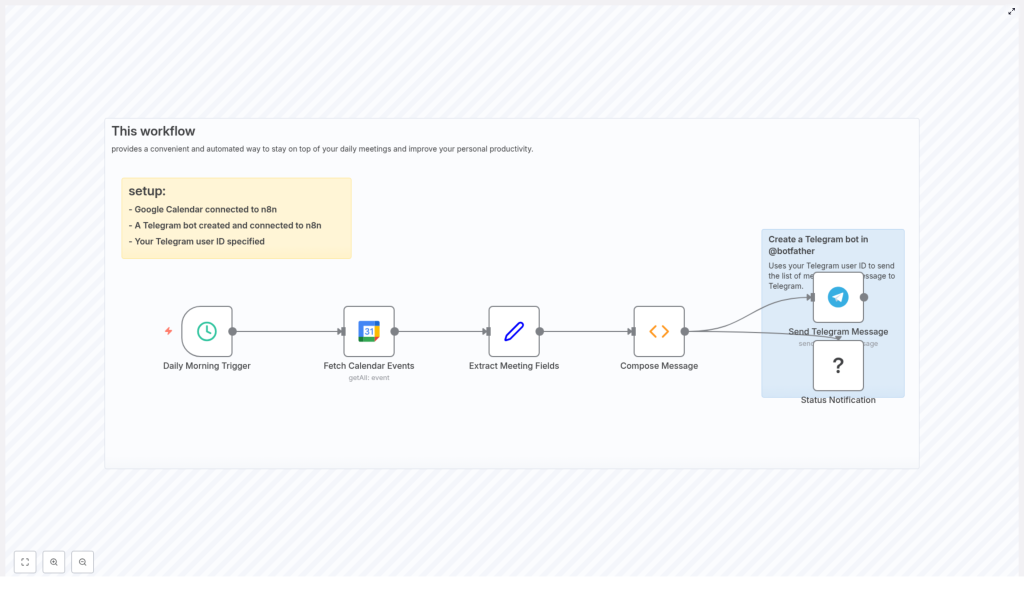
Automatically Send a Daily Google Calendar Meeting Summary to Telegram with n8n
Maintaining real-time visibility into your daily meetings is essential for efficient time management, especially in fast-paced, distributed teams. This guide demonstrates how to implement an n8n workflow that queries Google Calendar every morning, compiles a structured list of the day’s events, and delivers it to you via Telegram, with an optional Slack notification for status updates.
Use Case Overview
This automation is designed for professionals who rely heavily on calendar-driven workflows and want a concise, reliable snapshot of their schedule delivered to a messaging channel they already use. By integrating Google Calendar, Telegram, and optionally Slack, the workflow centralizes daily agenda visibility without any manual effort.
Core Capabilities
- Run on a fixed schedule every morning using the n8n Schedule Trigger.
- Retrieve all events from a specified Google Calendar between today and tomorrow.
- Normalize key fields such as event title, start time, and attendees.
- Generate a human-readable, Markdown-compatible message summarizing your meetings.
- Send the compiled agenda to a Telegram chat via a bot, with optional Slack delivery.
High-Level Workflow Architecture
The workflow is composed of a small set of well-defined nodes, each responsible for a specific part of the process. Understanding their roles helps when extending or troubleshooting the automation.
Key Nodes and Responsibilities
- Schedule Trigger – Initiates the workflow at a defined time each day.
- Google Calendar (getAll) – Fetches all events for the current day using timeMin and timeMax boundaries.
- Set – Normalizes and extracts relevant fields from each event (summary, start, attendees).
- Function – Composes the final message text, handling time zones, all-day events, and empty guest lists.
- Telegram – Sends the formatted message to a specified user or chat via a Telegram bot.
- Slack (optional) – Provides an additional notification channel for team visibility or status updates.
Step-by-Step Implementation in n8n
1. Configure the Schedule Trigger
Start by defining when this workflow should run. Typical configurations are early morning (for example 06:00) so that the agenda is ready before the workday starts.
- Add a Schedule Trigger node.
- Set the trigger to run daily at your desired time, such as
06:00. - Verify that the workflow timezone matches your locale. In the reference template, the timezone is set to
Asia/Tehran. Adjust this to your own region to avoid time discrepancies.
2. Connect Google Calendar and Retrieve Events
The Google Calendar node is responsible for pulling the events that will appear in your daily summary.
Create Google Calendar credentials:
- In n8n, set up an OAuth2 credential for Google Calendar.
- Grant the necessary scopes to read calendar events and attendees.
Configure the Google Calendar node:
- Operation:
getAll - Calendar: select or paste the calendar ID. This can be a personal calendar, a shared team calendar, or a room calendar.
- Options > timeMin:
= {{ $today }} - Options > timeMax:
= {{ $today.plus({ days: 1 }) }} - singleEvents:
trueto expand recurring events into individual instances.
This configuration restricts the results to events starting from the beginning of “today” up to the start of “tomorrow”, which effectively scopes the query to a single calendar day.
3. Normalize Event Data with a Set Node
To simplify downstream processing, the raw Google Calendar output should be mapped into a consistent structure using a Set node. This is an important best practice in n8n workflows, as it isolates external API responses from internal logic.
In the Set node, create fields such as:
Name=>= {{ $json.summary }}Time=>= {{ $json.start }}Guests=>= {{ $json.attendees }}
This mapping ensures that every event item entering the Function node has a predictable schema, which simplifies message composition and future enhancements.
4. Build a Human-Readable Agenda in a Function Node
The Function node composes the final text that will be sent to Telegram. The version below has been refined to correctly handle time zones, all-day events, character encoding, and scenarios where no guests are specified.
// Compose Message (Function node)
let message = '*Your meetings today are:*\n\n';
if (items.length === 0) {  message = 'You have no meetings scheduled for today.';  return [{ json: { message } }];
}
for (const item of items) {  const timeObj = item.json.Time || {};  let dateTimeStr = '';  if (timeObj.dateTime) {  const dt = new Date(timeObj.dateTime);  const tz = timeObj.timeZone || 'UTC';  dateTimeStr = new Intl.DateTimeFormat('en-US', { hour: 'numeric', minute: 'numeric', timeZone: tz }).format(dt);  } else if (timeObj.date) {  // all-day event  dateTimeStr = timeObj.date;  } else {  dateTimeStr = 'Time not available';  }  const name = item.json.Name || 'No title';  message += `• ${name} | ${dateTimeStr}\n`;  const guests = item.json.Guests || [];  if (Array.isArray(guests) && guests.length) {  message += '  - Guests: ' + guests.map(g => g.email || g).join(', ') + '\n';  } else {  message += '  - Guests: None\n';  }
}

return [{ json: { message } }];
Implementation notes:
- The output is Markdown-style text. In the Telegram node, you can enable Markdown parsing by setting the appropriate parse mode, or keep it as plain text if preferred.
- The
Intl.DateTimeFormatlocale is set toen-US. Adjust this to match your regional format or language. - All-day events are identified via
start.dateand printed as a date string instead of a specific time.
5. Integrate Telegram for Daily Delivery
With the message prepared, the next step is to send it to Telegram. This requires a bot token and your chat ID.
- In Telegram, start a conversation with @BotFather and create a new bot. Save the bot token provided.
- Send a message to your new bot from your personal Telegram account.
- Retrieve your chat ID, for example by using the Telegram
getUpdatesAPI or a helper/user-ID bot. - In n8n, create a Telegram credential using the bot token.
- Configure the Telegram node to:
- Use the created credential.
- Send the
messagefield from the Function node to your chat ID. - Optionally set the parse mode to Markdown if you want formatted output.
6. Optional: Add Slack as a Secondary Notification Channel
If your team collaborates in Slack, you can duplicate or adapt the message for a Slack channel or DM.
- Add a Slack node after the Function node.
- Connect it to your Slack workspace using an appropriate credential.
- Send the same
messagefield to a channel or user for visibility, for example as a daily status post.
Operational Considerations and Troubleshooting
Handling Time Zones Correctly
Google Calendar event start objects may include a timeZone field. If it is present, the Function node uses it when formatting the time. If it is absent, the code falls back to UTC by default, although you may wish to align this with your workflow timezone.
Most issues where meeting times appear incorrect can be traced back to inconsistent timezone settings between Google Calendar, n8n, and the formatting logic. Ensure that:
- The workflow timezone matches your primary working timezone.
- You understand whether events are stored in a specific timezone or as floating times.
All-Day Events
All-day events in Google Calendar expose start.date rather than start.dateTime. The provided Function code checks for this field and prints the date directly. If you prefer a custom label, you can prepend text like “All-day” to the output for those events.
Guest Visibility and Permissions
If attendee information is missing, it is usually due to either:
- Calendar permissions that do not allow reading attendees.
- Events that do not have any guests defined.
Verify that the connected Google account has sufficient access to the calendar and that you are allowed to view guest lists. The Function node safely handles empty or missing guest arrays and outputs “Guests: None” by default.
Formatting and Encoding in Telegram
For predictable rendering across platforms:
- Use either plain text or a single, consistent parse mode (for example Markdown) in the Telegram node.
- Avoid inserting special or non-breaking characters that may display incorrectly in some clients.
- Test a few sample messages manually to validate formatting before enabling the workflow in production.
Advanced Enhancements and Extensions
Once the core workflow is in place, there are several ways to refine it for more advanced scenarios.
- Keyword-based filtering: Add a filter node or additional logic to only include events whose summary matches specific patterns, such as “Meeting”, “Client”, or particular room names.
- Time-based grouping: Group events into segments such as morning, afternoon, or evening, or limit the output to the next 3 upcoming meetings.
- Pre-meeting reminders: Use additional scheduled workflows or logic that calculates offsets from event start times to send reminders X minutes before each meeting.
Security and Privacy Best Practices
Since this workflow processes calendar data, including attendee information, it is important to treat credentials and content with care.
- Store Google and Telegram credentials securely within n8n and avoid hard-coding tokens in Function nodes.
- Restrict your Telegram bot’s usage and avoid exposing it in public or shared environments without proper controls.
- Be cautious when sending summaries to group chats, especially if they include sensitive meeting titles or guest lists.
- Avoid logging full event payloads to public logs in production environments.
Practical Examples
- Shared room calendar: Automatically post daily room bookings to a Telegram or Slack group for office administrators.
- Personal agenda: Receive a private daily schedule on your phone each morning to assist with planning and prioritization.
- Consulting and client work: Summarize the day’s client calls and project meetings for quick review before starting work.
Getting Started with the Template
To implement this solution quickly:
- Import the provided n8n template into your instance.
- Connect your Google Calendar and Telegram credentials.
- Run the workflow manually once to validate the output and formatting.
- Adjust message wording, locale settings, or additional channels such as Slack or email as needed.
After validation, enable the workflow so it runs automatically at your chosen time every day.
