


Auto-Tag WordPress Posts with AI & n8n
Ever finished a blog post, felt proud, hit publish… then spent 15 minutes staring at the “Tags” box wondering if “productivity”, “productivity-tips”, or “productivity-hacks” is the “right” one?
If you run a busy WordPress site, manual tagging quickly turns into a full-time hobby you did not sign up for. It is tedious, inconsistent, and suspiciously good at breaking your SEO and site navigation when you are not looking.
That is where this n8n workflow template comes in. It quietly watches for new content, sends it to OpenAI for smart tag suggestions, syncs everything with your WordPress tags via the REST API, and updates your posts – all without you lifting a finger.
In this guide, you will see what the workflow does, how it works behind the scenes, how to set it up, and a few tips so your tags stay clean, consistent, and delightfully automatic.
Why bother automating WordPress tags?
Tags are not just decoration. Good tagging quietly powers:
- Better content discovery and recommendations
- Stronger internal linking and topic clusters
- Healthier long-term SEO and site structure
The problem: doing this by hand is boring, slow, and inconsistent. Different editors use different spellings, formats, and naming ideas, so your taxonomy slowly turns into a junk drawer of almost-duplicate tags.
Automating tagging with n8n and AI solves that by:
- Saving time on every single post
- Enforcing consistent tag formats and rules
- Reducing human error and duplicate tags
- Using AI to suggest contextual tags that reflect the real themes of your article, not just random keywords
In short, you get cleaner tags, better navigation, and fewer “why are there 11 versions of this tag” conversations.
What this n8n workflow template actually does
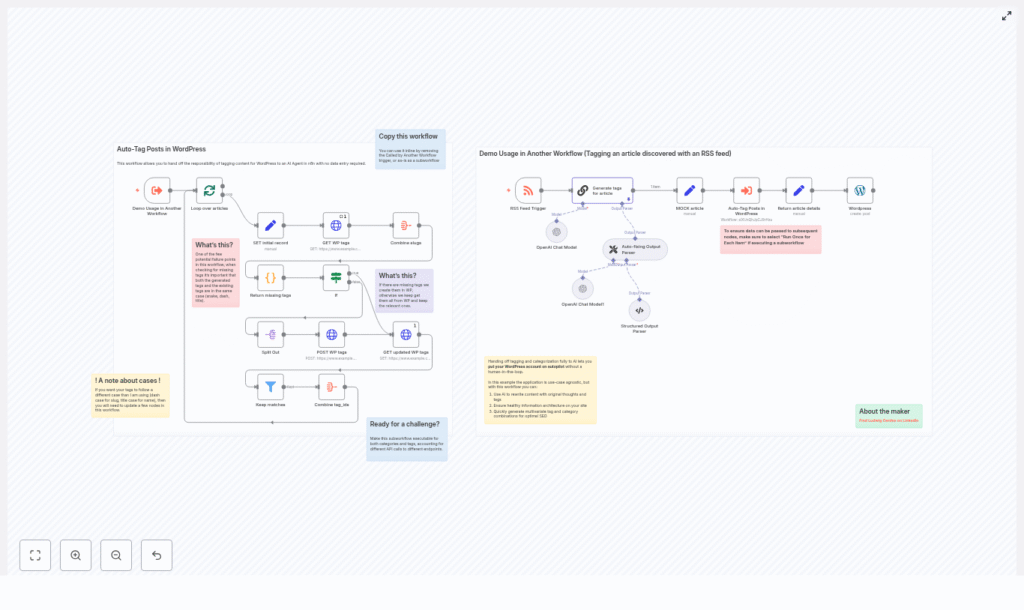
This workflow is a ready-to-use automation that connects an RSS feed, OpenAI, and your WordPress site. Here is the high-level flow:
- It detects new content via an RSS Feed Trigger (or another trigger you choose).
- It sends the article content to an OpenAI model and asks for 3-5 relevant tags.
- It parses and normalizes those tags (for example, title case names and dash-case slugs).
- It calls the WordPress REST API to fetch your existing tags.
- It creates any missing tags in WordPress when needed.
- It collects the correct tag IDs and updates or publishes the WordPress post with those tags attached.
Result: posts get consistent, AI-generated tags with zero manual typing, clicking, or second-guessing.
Meet the key n8n nodes (behind-the-scenes magic)
RSS Feed Trigger – your content watcher
The workflow starts with an RSS Feed Trigger that looks for new posts or articles in your feed. When something new appears, the workflow wakes up and gets to work.
If your content does not come from RSS, you can easily swap this out for:
- a Webhook trigger
- a Schedule trigger
- a Manual trigger while testing
OpenAI node – the tag idea machine
Next, an OpenAI node (using a Chain LLM or Chat model) reads the article content and suggests 3-5 tags.
The prompt in the template is crafted to:
- Return tags in a consistent format (for example, title case for display names)
- Provide slugs in dash-case so they are easy to compare and store
This consistent formatting is important so that later steps can reliably compare suggested tags with existing WordPress tags.
Structured & auto-fixing output parsers – your JSON bodyguards
AI models occasionally get creative with formatting, which is charming for poetry and terrible for workflows.
To prevent that, the template uses:
- Structured Output Parser to turn the model response into a clean JSON array of tags
- Auto-fixing Output Parser to repair malformed outputs and keep the workflow stable
End result: you always get predictable, machine-friendly tag data instead of mystery strings.
GET WordPress tags and comparison logic – “do we already have this?”
Once the AI has suggested tags, the workflow calls the WordPress REST API to fetch your existing tags.
It then:
- Normalizes slugs (for example, lowercase and dash-separated)
- Compares the normalized AI suggestions to your current tags
- Identifies which tags already exist and which ones are missing
This comparison step is what prevents your tag list from turning into a collection of nearly identical duplicates.
POST WordPress tags – creating missing tags
For tags that do not exist yet, the workflow uses the WordPress tags endpoint to create them.
After creating new tags, the workflow:
- Calls the WP tags endpoint again
- Retrieves the updated list with accurate tag IDs
Those IDs are required when you attach tags to a post, so getting them right is crucial.
Combine tag IDs and publish – the final handoff
Finally, the workflow:
- Combines the IDs of both existing and newly created tags
- Passes that list to the WordPress node
- Publishes or updates the post with the correct tag IDs attached
By the time this step finishes, your post is live with smart, consistent tags and you did not have to scroll through a tag list once.
How to set up the workflow (simplified guide)
Ready to retire from manual tagging? Here is how to get the template running in your n8n instance.
- Clone the n8n workflow template
Import the provided template into your n8n instance. It already includes:- Nodes wired up for OpenAI
- Nodes configured for WordPress REST API calls
- Parsing and comparison logic ready to go
- Configure your credentials
In n8n, add:- Your OpenAI API key
- Your WordPress credentials (application password or OAuth)
Make sure the WordPress user has permission to:
- Read and create tags
- Publish or update posts
- Adjust the trigger for your content source
By default, the workflow uses an RSS Feed Trigger. Point it to your own feed URL, or:- Swap in a webhook trigger if content comes from another system
- Use a schedule trigger to run checks periodically
- Use a manual trigger while experimenting
- Set your tag naming rules
The template is designed with:- Title case for display names
- Dash-case (kebab-case) for slugs
If you prefer
snake_case,camelCase, or another style, adjust:- The OpenAI prompt
- Any transformation nodes that handle casing or slug creation
Important: keep slug and name transformations consistent across all relevant nodes so comparisons work correctly.
- Test with a few posts
Before you let it run on everything:- Run the workflow in test mode
- Check which tags were created in WordPress
- Inspect slugs and tag names
- Verify that the correct tag IDs show up on the post
Once you are happy with the results, you can safely let it handle your regular publishing flow.
Best practices for clean, useful tags
To keep your tag system from drifting back into chaos, these practices help a lot:
- Normalize your casing and slug rules
For example:- Display:
Productivity Tips(title case) - Slug:
productivity-tips(dash-case)
This makes tag comparisons deterministic and easier to maintain.
- Display:
- Limit the number of tags per post
Aim for about 3-7 tags per article. Too many tags dilute relevance and clutter your taxonomy. - Respect API limits
Both WordPress and OpenAI can throttle you if you send too many requests at once. Use:- n8n wait nodes
- n8n retry logic
to keep calls rate-limited and stable.
- Use OpenAI output parsers for strict JSON
Configure the output to look like:{ "tags": ["Tag One", "Tag Two"] }This improves reliability and makes debugging far easier.
- Only create tags when truly needed
Let the workflow check existing slugs first. Only run the create-tag step for missing tags to avoid duplicates and clutter.
Troubleshooting common issues
1. Tags are not matching due to case or punctuation
Symptom: You see duplicates like Productivity-Tips and productivity-tips.
Fix: Apply a consistent slug normalization function before comparisons, for example:
- Convert to lowercase
- Replace spaces with dashes
- Strip extra punctuation where appropriate
2. OpenAI returns unexpected output format
Symptom: The model returns plain text, bullet points, or anything that is not valid JSON.
Fix:
- Use the Structured Output Parser node
- Add the Auto-fixing Output Parser node as a safety net
- Update your prompt to explicitly say: “Respond only in valid JSON with this structure…”
3. WordPress permission errors
Symptom: Requests to create tags or update posts fail with permission-related errors.
Fix:
- Double-check your WordPress credentials in n8n
- Ensure the API user has
edit_termsandpublish_postscapabilities or equivalent - If using application passwords, confirm they are configured for REST access
4. Duplicate tags keep appearing
Symptom: You end up with multiple tags that look almost identical, often differing only by case or punctuation.
Fix:
- Before creating a tag, compare normalized slugs against the full WordPress tag list
- If duplication persists, add a final dedupe step that checks both tag names and slugs before saving
Ideas for extending the workflow
Once you are happily auto-tagging posts, you can extend the same pattern to other parts of your content strategy.
- AI-generated categories
Duplicate the tagging subflow and point it at the WordPress categories endpoint. Adjust logic for any differences in how categories behave vs tags. - AI-assisted tag descriptions
Use the same OpenAI model to generate:- Short tag descriptions
- SEO-friendly metadata for tag archive pages
- Human-in-the-loop review
For high-value content, insert a manual approval step so editors can:- Approve or tweak suggested tags
- Reject irrelevant suggestions
- Multi-site or multisite tagging
Adapt the REST calls to target:- Multiple standalone WordPress sites
- Multisite installations with different endpoints
Security and governance tips
Automation is great, but you still want to keep your keys and site safe.
- Store credentials in n8n
Put your OpenAI and WordPress credentials in n8n’s secure credentials store. Avoid hard-coding keys directly into nodes. - Limit WordPress API permissions
Give the API user only what it needs, typically:- Tag and term-related capabilities
- Post publishing or editing capabilities
- Log actions for auditing
Keep a record of:- Which tags were created automatically
- Which posts were updated
This helps if automatic tag creation affects your information architecture and you need a changelog.
Real-world impact of automated tagging
Teams that adopt this kind of workflow usually notice results quickly:
- Publishing cycles get faster because no one is stuck in tag purgatory
- There are fewer tag collisions and near-duplicates
- Content becomes easier to discover and navigate
- Large sites, like newsrooms or learning platforms, remove a major manual bottleneck
In practice, you get a cleaner taxonomy, better SEO, and happier editors who can focus on writing instead of formatting slugs.
Try the template and retire manual tagging
If you are ready to put your WordPress tagging on autopilot, the next steps are simple:
- Import the n8n template into your instance
- Add your OpenAI and WordPress credentials
- Point the trigger at your content source
- Run a few tests and tweak casing rules to your taste
