


Automate Blog Publishing with n8n, Google Sheets and OpenRouter
Overview
This reference guide documents an n8n workflow template that automates a complete blog publishing pipeline.
The workflow reads rows from a Google Sheets-based editorial schedule, generates or refines article content via a configurable LLM (through OpenRouter or OpenAI), and publishes posts to WordPress using XML-RPC.
All key parameters such as prompts, model choices, and output formats are stored in a configuration sheet, which allows you to adjust behavior without editing the workflow itself.
The template is designed for teams and power users who want a repeatable, auditable process for content creation and publishing, while still retaining full control over when and how posts go live.
Architecture & Data Flow
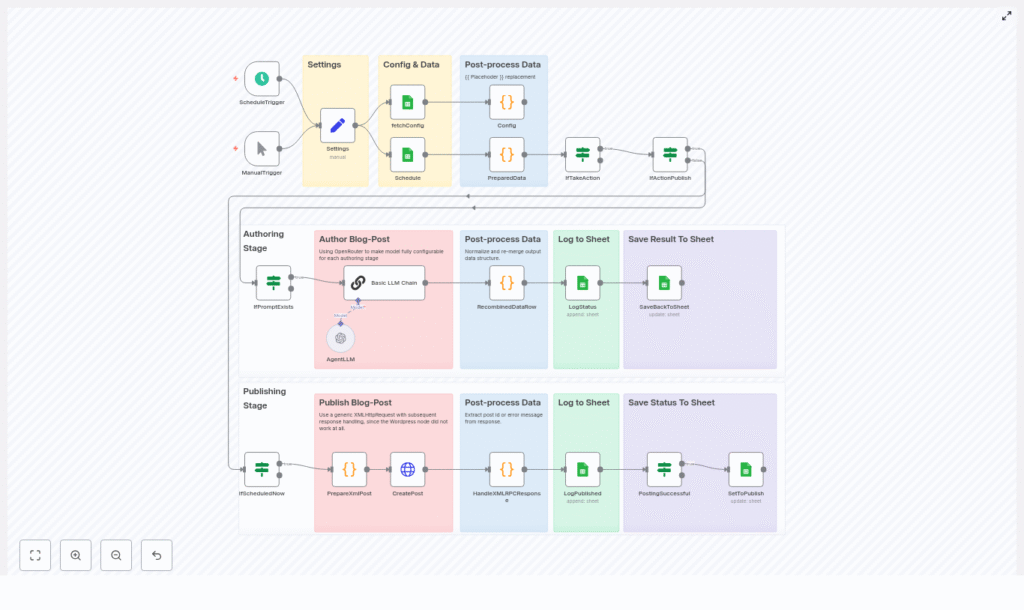
At a high level, the workflow follows this sequence:
- Trigger – Start the workflow on a schedule or manually.
- Settings & fetchConfig – Load static settings and dynamic configuration from Google Sheets.
- Schedule Google Sheet – Fetch rows that represent scheduled content to process.
- PreparedData – Resolve placeholders in prompt templates and determine what action to perform (draft, update, publish, etc.).
- LLM Chain (Basic LLM Chain + AgentLLM) – Generate or refine content using the chosen LLM model.
- RecombinedDataRow – Normalize model output, clean up formatting, and merge new content into the original row.
- SaveBackToSheet / LogStatus – Write generated content and status updates back into Google Sheets.
- PrepareXmlPost / CreatePost / HandleXMLRPCResponse – Construct an XML-RPC payload, send it to WordPress, and parse the result.
- Logging & Status Management – Append log entries and update post status and WordPress post IDs for traceability.
Node-by-Node Breakdown
1. Triggers
ScheduleTrigger
The ScheduleTrigger node is typically configured to run on an hourly cadence, although you can adjust it to any interval that matches your editorial workflow.
When it fires, it initiates a full run of the pipeline and processes all qualifying rows in the Schedule sheet.
ManualTrigger
The ManualTrigger node is used for ad-hoc or testing runs.
You can execute the workflow manually from within n8n, which is particularly useful when validating a new configuration, debugging prompt behavior, or processing a single row before enabling the scheduled execution.
2. Settings & Configuration
Settings node
The Settings node holds static configuration that rarely changes at runtime, for example:
- Google Spreadsheet URL or ID.
- Names of the sheets used for
Schedule,Config, andLog. - WordPress subdomain or base URL.
- WordPress username.
- WordPress application password (preferably passed via n8n credentials or environment variables).
These values are referenced by downstream nodes so that the workflow can locate the correct spreadsheet, sheets, and WordPress endpoint without hard-coding them multiple times.
fetchConfig node
The fetchConfig node reads the Config sheet from Google Sheets.
This sheet centralizes runtime configuration such as:
- Prompt templates (for example
prompt_draft,prompt_publish). - Model selections (for example
prompt_draft_model,prompt_publish_model). - Output format hints (for example
prompt_publish_outputFormat). - Any other parameters that influence how the LLM should behave for specific actions.
By storing these settings in a sheet, you can adjust prompts, switch models, or tweak formatting rules without modifying the n8n workflow.
Each action type (draft, edit, final, publish) can have its own prompt and model key.
3. Schedule Sheet Integration
Schedule Google Sheet node
The workflow reads from a dedicated Schedule sheet that acts as your editorial calendar and execution controller.
Typical columns include:
- Scheduled – Indicates if and when a row should be processed.
- Status – Current processing state (for example pending, drafted, published).
- Action – What the workflow should do with this row (for example draft, update, publish, ready_for_review).
- Title – Target blog post title.
- Context – Additional context, notes, or requirements for the LLM.
- final – A field that can hold finalized or combined content.
- row_number – Optional helper column to track the row index for updates.
These fields drive the decision logic in downstream nodes, especially in PreparedData, which decides if a row should be processed and how.
4. Placeholder Resolution & Action Logic (PreparedData)
The PreparedData node is responsible for building the effective prompts and model names that will be sent to the LLM.
It performs two main tasks:
- Placeholder replacement
- Action and status evaluation
Placeholder replacement
Prompt templates in the Config sheet can contain placeholders in the form {{PlaceholderName}}.
The PreparedData node:
- Scans the selected prompt template for
{{ ... }}tokens. - Replaces each placeholder with the corresponding value from:
- The current row (for example
{{Title}},{{Context}}). - The configuration sheet (for example
{{GuidingPrinciple}}or other shared parameters).
- The current row (for example
This mechanism enables reusable prompt templates that adapt per row, without duplicating prompts for each post.
Action decision logic
PreparedData also determines if the workflow should perform any action for a given row.
It typically:
- Compares the Action field with the current Status.
- Skips rows that are already in the desired state (for example Action is
publishbut Status is alreadypublished). - Builds the correct prompt and selects the corresponding model key, based on the action type (for example use
prompt_draftandprompt_draft_modelwhen Action isdraft).
If the resulting prompt is empty or the action is not applicable, the row can be filtered out before hitting the LLM, which conserves API usage and avoids unnecessary processing.
5. LLM Generation & Model Selection
Basic LLM Chain node
The Basic LLM Chain node is used for the core authoring tasks, for example:
- Generating first drafts.
- Expanding outlines into full posts.
- Refining or rewriting existing content for final publication.
It consumes:
- The fully resolved prompt text from PreparedData.
- The model identifier, which is retrieved from the
Configsheet (for example a specific OpenRouter route or OpenAI model name).
AgentLLM / OpenRouter integration
Model calls are routed through an AgentLLM node (or equivalent configuration) that connects to OpenRouter or OpenAI.
Because all model keys are stored in the Config sheet, you can:
- Assign different models for draft, edit, and finalization stages.
- Switch providers or models centrally without editing the workflow.
- Tune cost and latency by picking lighter models for simple tasks (for example titles) and more capable models for full drafts.
If credentials or model names are misconfigured, the LLM node will typically return an error, which can be inspected via n8n execution logs.
6. Post-processing & Normalization (RecombinedDataRow)
LLM responses can be inconsistent, especially when you request JSON or structured output.
The RecombinedDataRow node implements several strategies to normalize this output before merging it back into the original row.
Normalization strategies
RecombinedDataRow attempts to:
- Parse direct JSON when the response is valid JSON.
- Fix over-escaped quotes when the LLM double-escapes quotation marks.
- Strip escaped newlines (for example
\\n) to restore readable text. - Isolate JSON-like segments if the LLM wraps JSON in additional commentary or markdown.
If one strategy fails, the node falls back to the next, which improves resilience against minor formatting issues in the LLM output.
Merging with original row
After normalization, RecombinedDataRow merges the generated fields back into the corresponding Schedule row.
Important behavior:
- Generated content is typically appended rather than blindly overwriting existing text, so manual edits are preserved.
- Fields such as
finalcan hold the combined or finalized article body. - Other columns can be updated to reflect the current stage (for example switching Status from
draftingtoready_to_publish).
7. Persistence & Logging in Google Sheets
SaveBackToSheet node
The SaveBackToSheet node writes updated content and metadata back into the Schedule sheet.
Typical updates include:
- New or updated article content fields.
- Updated Status values after successful drafting or publishing.
- Any intermediate results that you want to retain for review.
LogStatus / Log sheet
The workflow appends log entries to a dedicated Log sheet at key steps, for example:
- When a row is picked up for processing.
- When an LLM call completes.
- When a WordPress publish attempt succeeds or fails.
Each log entry typically includes the row reference, action type, timestamp, and a short message or error description.
This makes it straightforward to audit what happened for each post and to debug failures.
8. WordPress Publishing via XML-RPC
PrepareXmlPost node
The PrepareXmlPost node constructs the XML-RPC payload for the wp.newPost method.
Key responsibilities:
- Escaping XML special characters in the post title and body.
- Embedding the final content (for example from the
finalcolumn) into the XML structure. - Setting WordPress fields such as title, content, and post status as required by your template.
Proper escaping is critical. If characters such as <, >, or & are not encoded correctly, WordPress will return an XML-RPC fault.
CreatePost node
The CreatePost node sends the XML-RPC request to the WordPress endpoint, typically:
https://your-subdomain.example.com/xmlrpc.php
This is implemented as a standard HTTP request rather than using the built-in WordPress node, which can be unreliable in some environments.
The request includes:
- Authentication using the WordPress username and application password.
- The prepared XML payload that wraps the
wp.newPostcall.
HandleXMLRPCResponse node
The HandleXMLRPCResponse node parses the XML-RPC response and extracts:
- postId on success, which is then stored back in the Schedule sheet.
- faultString and faultCode on error, which are logged for debugging.
If a fault is detected, the workflow can mark the row as failed or keep the status unchanged, depending on how you configure subsequent nodes.
9. Status Management & Post-Publish Updates
PostingSuccessful & SetToPublish nodes
After a successful publish:
- PostingSuccessful records that the WordPress post was created and captures the returned Post ID.
- SetToPublish updates the Status field in the Schedule sheet to reflect that the post is now live (for example setting Status to
published).
These updates, combined with the Log sheet, provide a full audit trail from initial scheduling to final publication.
Configuration & Setup
Prerequisites
- An n8n instance with access to Google Sheets and HTTP Request nodes.
- A Google Spreadsheet with at least three sheets:
Schedule,Config, andLog. - OpenRouter or OpenAI API access.
- A WordPress site with XML-RPC enabled and an application password configured.
Step-by-step setup
- Duplicate the workflow template
Import or duplicate the provided n8n template into your own n8n instance. - Prepare the Google Spreadsheet
Create a spreadsheet and define sheets with the names referenced in the Settings node, typically:Schedule– editorial rows and workflow state.Config– prompts, model keys, and output formats.Log– execution log entries.
In the Schedule sheet, include columns such as
Title,Context,Action,Status,row_number,final, and any other fields you reference in prompts. - Populate the Config sheet
Add rows for your prompt and model configuration, for example:prompt_publishprompt_draft_modelprompt_publish_outputFormat
Make sure that the keys used here match what the PreparedData node expects.
- Set credentials in n8n
Configure:- Google Sheets OAuth2 credentials for read/write access to your spreadsheet.
- OpenRouter / OpenAI API credentials used by the LLM node chain.
- Configure WordPress access
In the Settings node (or via n8n credentials), set:wordpressUsernamewordpressApplicationPassword(use an application password, not your main account password).- The WordPress subdomain or base URL used to construct the
