


Automate Customer Communication with n8n Workflow
What You Will Learn
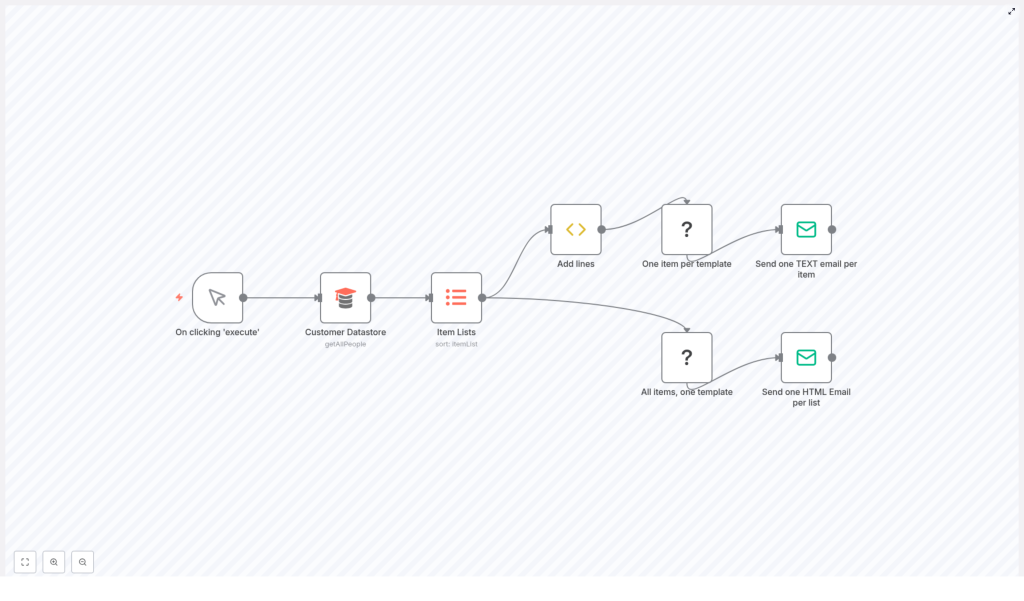
In this tutorial-style guide, you will learn how to use an n8n workflow template to automate customer communication with minimal manual effort. By the end, you will understand how to:
- Trigger an n8n workflow manually whenever you need to send updates
- Retrieve customer data from a datastore and sort it for clean reporting
- Enrich each customer with invoice line items, VAT, and totals
- Generate one personalized text invoice per customer using templates
- Send individual text emails that include each customer’s invoice
- Create one HTML summary document for all customers in the last 24 hours
- Send a single HTML summary email with an overview of new customers
- Customize templates, line items, and email settings for your own use case
Why Automate Customer Communication with n8n?
In a fast-paced business environment, manually creating and sending emails to each new customer quickly becomes slow and error prone. Automation with n8n helps you:
- Keep every new customer informed with consistent, timely messages
- Generate accurate invoices that include itemized services and tax
- Provide your team with a daily overview of new customers
- Scale communication as your customer base grows, without extra manual work
The workflow template described here brings all of this together in a single, easy-to-trigger automation.
Concepts You Need Before You Start
What is this n8n workflow doing?
This workflow runs when you manually click Execute in n8n. Once started, it:
- Retrieves all customers from a datastore
- Sorts them into a clean, ordered list
- Adds invoice line items to each customer record
- Generates one invoice document per customer using a text template
- Sends one text email per customer with their invoice content
- Generates one HTML document that summarizes all new customers
- Sends one HTML summary email with that customer list
Key n8n nodes used in this template
- Manual Trigger – lets you start the workflow on demand
- Customer Datastore – fetches all customer records using the
getAllPeopleoperation - Item Lists – sorts the retrieved customers by a specific field, such as
name - Function (Add lines) – enriches each customer item with invoice line items, VAT, and totals
- Document Generator (One item per template) – creates one text invoice per customer from a template
- Document Generator (All items, one template) – builds a single HTML document for a list of customers
- Email nodes – send the individual text emails and the HTML summary email
Step-by-Step: How the Workflow Runs in n8n
Step 1 – Start the workflow with a Manual Trigger
The workflow begins with a Manual Trigger node named On clicking 'execute'. This node does not run on a schedule. Instead, you or an operator open the workflow in n8n and click Execute when you want to:
- Send invoices for new customers
- Generate and send a daily summary of recent customers
This approach is useful when you want full control over when communication is sent, for example at the end of each workday.
Step 2 – Retrieve all customer data from the datastore
Next, the workflow uses the Customer Datastore node to pull customer information from your database. This node is configured to:
- Use the
getAllPeopleoperation - Return all customer records, not just a subset
The output of this node is a list of customer items, each containing fields such as name and contact details. These items will be used for both invoice generation and the summary email.
Step 3 – Sort customers using the Item Lists node
To keep emails and reports well organized, the workflow passes the retrieved customers into an Item Lists node. This node is configured to:
- Sort the list of customers by the
namefield
Sorting has two main benefits:
- Individual emails are sent in a consistent, predictable order
- The summary HTML document presents customers in a tidy list
Step 4 – Add invoice line items and pricing details
Once the customers are sorted, each item is processed by a Function node often labeled Add lines. This node enriches each customer with invoice-related data, such as:
- Line items that describe services or products
- Costs for each service or product
- VAT calculation based on your tax rules
- Total invoice amount that includes VAT
At this stage, every customer item now includes all the data needed to build a complete invoice document.
Step 5 – Generate one invoice document per customer
With invoice data in place, the workflow uses the Document Generator node named One item per template. This node creates a separate text invoice for each customer by:
- Taking one customer item at a time
- Filling a predefined text template with that customer’s data
The resulting invoice typically includes:
- The current date
- Recipient details, such as the customer’s name and contact information
- An itemized list of services or products
- VAT and total amount due
Each generated document is structured so that it can be inserted directly into the body of an email.
Step 6 – Send one text email per customer with their invoice
After the invoices are generated, the workflow uses an email node named Send one TEXT email per item. This node loops through each generated invoice and sends an individual email. Typical configuration includes:
- Subject line that includes the customer’s name, for example: “Your invoice, {{ $json.name }}”
- Email body that contains the text invoice produced by the document generator
- From address set to your business or billing email
- To address pulled from each customer record
This step ensures every customer receives a personalized text email with their own invoice content.
Step 7 – Create one HTML summary of all new customers
While individual invoices are being sent, the workflow also prepares a summary for internal use. The sorted list of customers is passed to another Document Generator node, named All items, one template. This node:
- Takes the complete list of customer items
- Applies a single HTML template to generate a combined document
The result is one HTML document that lists all new customers in the last 24 hours. This could include:
- Customer names
- Contact details
- Any other relevant fields you choose to include in the template
This HTML output is designed to be embedded directly into a summary email.
Step 8 – Send a single HTML summary email
Finally, the workflow uses the Send one HTML Email per list node to deliver the summary document. This node is configured to:
- Use the HTML generated in the previous step as the email body
- Send the email to a specific recipient, such as your sales or support team
The summary email provides a quick overview of all new customers in the last 24 hours, which helps your team stay informed without checking the database manually.
Benefits of Using This n8n Workflow
- Automation – No more manual invoice creation or copy-pasting email content. The workflow handles everything once you click Execute.
- Personalization – Each customer receives a customized invoice that includes their own services, VAT, and totals.
- Efficient communication – Customers get detailed individual emails, while your team receives a single HTML summary with all new customers.
- Scalability – The workflow processes all records returned by
getAllPeople, so it can handle a handful of customers or hundreds at a time.
How to Customize the Workflow for Your Needs
Adjust invoice line items and pricing
To change the invoice content, open the Add lines Function node. Here you can:
- Add or remove services and products
- Change pricing logic
- Modify how VAT and totals are calculated
This lets you adapt the invoice to match your real billing structure.
Modify document templates
Both Document Generator nodes use templates:
- One item per template for individual text invoices
- All items, one template for the HTML customer summary
You can update these templates to:
- Change the wording and layout of invoices
- Include or remove fields like address, phone number, or custom data
- Adjust HTML styling in the summary document to match your brand
Update email recipients and SMTP settings
In the email nodes:
- Set the From address to your main business email
- Map the To address to the customer email field for individual invoices
- Choose one or more recipients for the HTML summary email, such as a team mailing list
Make sure your SMTP credentials or email integration settings in n8n are configured correctly so that emails are delivered successfully.
Quick Recap
This workflow template in n8n helps you automate customer communication in a structured way:
- You manually trigger the workflow when you are ready.
- Customer data is retrieved from the datastore using
getAllPeople. - Customers are sorted by name for consistent processing.
- Invoice line items, VAT, and totals are added to each customer.
- One text invoice per customer is generated through a document template.
- Each customer receives an individual text email with their invoice.
- A single HTML document lists all new customers from the last 24 hours.
- Your team receives that HTML summary in one email.
With a few customizations, this template can match your exact invoicing and communication needs.
Frequently Asked Questions
Do I have to run this workflow manually?
In this template, the workflow starts with a Manual Trigger, so you run it by clicking Execute. If you prefer, you can replace the manual trigger with a scheduled trigger to run automatically, for example once per day. The core steps described here remain the same.
Can I change which customers are included?
Yes. The Customer Datastore node currently uses getAllPeople to fetch all customer records. You can adjust the query or add filters so that only specific customers, such as those created in the last 24 hours, are processed.
Is it possible to change the email content?
Absolutely. You can edit:
- The subject and body in the individual text email node
- The HTML template used by the summary Document Generator
This lets you match your brand voice and communication style.
What if my invoice structure is different?
Open the Add lines Function node and modify the logic that builds the invoice line items, VAT, and totals. You can adapt it to any pricing model as long as you keep the data structure consistent with what the document template expects.
Start Using the Template
This n8n workflow template is a practical example of how automation can simplify customer communication, reduce manual effort, and improve accuracy. By combining datastore queries, item processing, document generation, and email sending, you get a complete communication pipeline that is easy to maintain and scale.
Try building and running this workflow in your n8n instance today to experience streamlined customer communication.
