


Automate Daily Motivational Quotes to Slack with n8n
What You Will Learn
In this tutorial, you will learn how to build an n8n workflow template that automatically sends a daily motivational quote to a Slack channel at 8 AM. By the end, you will know how to:
- Create and configure a Slack app with the correct permissions
- Set up a cron trigger in n8n to run every day at a specific time
- Use the ZenQuotes API to fetch a random motivational quote
- Format the quote in a Code node so it looks great in Slack
- Send the formatted message to a Slack channel using OAuth 2.0
- Customize the channel, message style, and time settings
This guide is ideal if you want to keep your team engaged and motivated using n8n automation and Slack.
Concept Overview: How the n8n Workflow Works
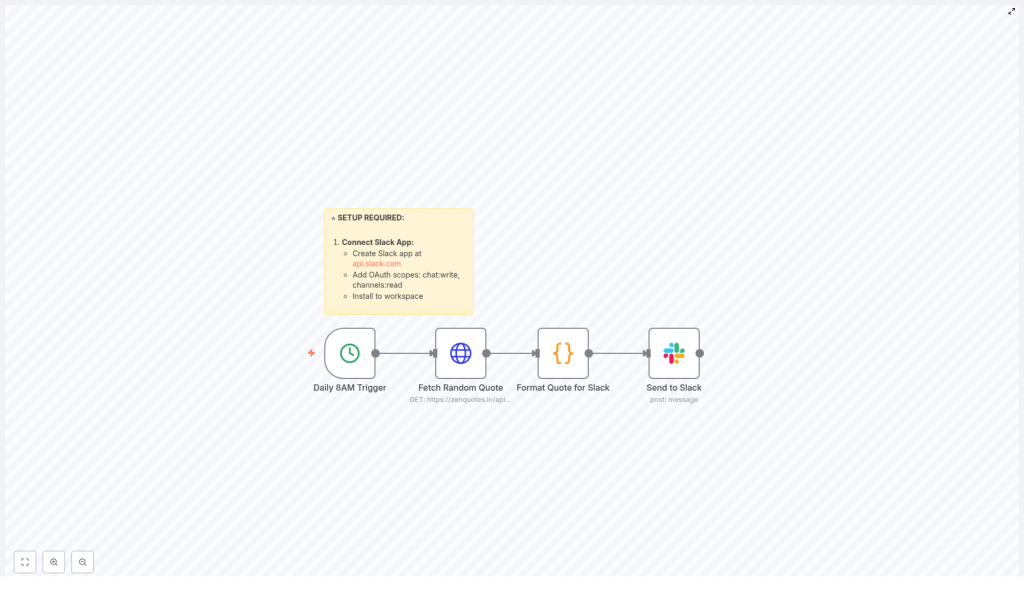
Before we dive into the steps, it helps to understand the overall flow. The workflow is made up of four key nodes that work together:
- Daily 8 AM Trigger (Cron node)
Starts the workflow automatically every day at 8 AM. - Fetch Random Quote (HTTP Request or similar)
Calls the free ZenQuotes API to get a motivational quote and its author. - Format Quote for Slack (Code node)
Takes the raw quote data and turns it into a nicely formatted Slack message. - Send to Slack (Slack node)
Uses your Slack app OAuth token to post the formatted message into a specific Slack channel.
Once activated, this workflow runs on its own. Every morning at 8 AM, your team receives a fresh motivational quote in Slack without any manual effort.
Prerequisite: Create and Configure Your Slack App
1. Create a Slack App
To let n8n post messages into Slack, you first need a Slack app with the right permissions:
- Go to api.slack.com.
- Create a new app for your workspace.
- Open the app settings and navigate to the OAuth & Permissions section.
2. Add Required OAuth Scopes
Under Scopes, add the following Bot Token Scopes so the app can read channels and post messages:
chat:write– allows the app to send messages to channelschannels:read– allows the app to access channel information
These scopes are essential for the n8n Slack node to work correctly.
3. Install the App to Your Workspace
After adding the scopes:
- Click Install App to Workspace from the app settings.
- Authorize the app for your Slack workspace.
- Copy the Bot User OAuth Token (this will be used later inside n8n as your Slack credentials).
Building the n8n Workflow Step by Step
Step 1: Create the Daily 8 AM Trigger
In n8n, the workflow starts with a Cron node that runs on a schedule.
- Add a new Cron node to your workflow.
- Set it to trigger Once per day.
- Configure the time to 8:00 AM in your desired timezone.
This node ensures your automation runs automatically at 8 AM every day. If you are in a different region, you can adjust the timezone in the n8n settings so the trigger fires at the correct local time.
Step 2: Fetch a Random Motivational Quote
Next, you need a node that calls the ZenQuotes API to get a quote.
- Add an HTTP Request or a similar node that can call an external API.
- Set the URL to the ZenQuotes endpoint that returns a random quote (for example from zenquotes.io documentation).
- Use the GET method.
The ZenQuotes API used in this workflow is free and does not require an API key, which makes it very quick to set up. The response typically includes the quote text and the author, which you will use in the next step.
Step 3: Format the Quote for Slack Using a Code Node
The raw API response is not yet in a friendly Slack format. To improve readability and engagement, you can use a Code node to build a custom message string.
- Add a Code node after the quote-fetching node.
- In the Code node, access the quote text and author from the previous node’s output.
- Create a formatted message, for example:
""Quote text here" - Author"
You can also customize this message further. For example, you might:
- Add emojis to make the message more fun
- Include a username-style prefix, like “Daily Motivation”
- Use Slack formatting, such as bold or italics, to highlight parts of the message
The Code node gives you full control over how your team sees the quote in Slack.
Step 4: Send the Formatted Message to Slack
Now that the quote is formatted, the final step is to post it into a Slack channel.
- Add a Slack node and connect it after the Code node.
- Configure the node to Send a message.
- Use your Slack app’s OAuth 2.0 token as the credentials.
- Set the Channel field to the channel where you want the quote to appear, for example
#generalor any custom channel. - Map the text field to the formatted message coming from the Code node.
You can change the channel at any time by updating the channel parameter in this Slack node. This makes it easy to move your daily quotes into a different team channel if needed.
Customizing and Improving Your Automation
Choose the Right Slack Channel
In the Send to Slack node, you can:
- Post to a public channel like
#team-updatesor#random - Target a private channel if your Slack app has access
- Adjust the channel name whenever your team structure changes
Adjust the Message Style
The Code node is where you can experiment with different message formats. For example:
- Prepend a title like
"Your daily motivation:" - Add emojis such as
:sunrise:or:sparkles: - Use line breaks to separate the quote and the author
These small tweaks help the quote stand out in busy Slack channels.
Configure Timezone and Scheduling
If you are not in the America/New_York timezone, you can:
- Open your n8n instance settings and change the default timezone
- Revisit the Cron node and confirm the 8 AM setting matches your local time
This ensures your team receives the quote at the right time of day, wherever they are.
Add Logging or Error Handling
To make the workflow more robust, you can:
- Add logging nodes to record when messages are sent
- Include error handling nodes so you are notified if the ZenQuotes API fails or if Slack returns an error
These additions are optional, but they are useful if you rely on this automation for daily engagement.
Running and Activating the Workflow
Once all four nodes are configured:
- Save your workflow in n8n.
- Test it manually once to confirm:
- The quote is fetched correctly from ZenQuotes
- The message is formatted the way you expect
- The Slack node posts to the correct channel
- Click Activate to turn on the workflow.
From now on, every day at 8 AM, n8n will automatically:
- Trigger the workflow
- Fetch a new motivational quote
- Format it for Slack
- Post it into your chosen channel
This creates a simple but powerful routine that encourages positivity and motivation in your workspace.
Quick FAQ and Recap
Do I need an API key for ZenQuotes?
No. The workflow uses the free ZenQuotes API, which does not require an API key. That makes setup fast and beginner friendly.
Can I change the time from 8 AM to something else?
Yes. Open the Cron node in n8n and adjust the schedule. You can choose any time of day, or even different days of the week if you prefer.
What if my team is in a different timezone?
Update the timezone in your n8n settings to match your region, then confirm the Cron node time. This ensures your “8 AM” really matches your local 8 AM.
Can I customize the quote message further?
Absolutely. Use the Code node to change wording, add emojis, adjust formatting, or include additional context. You have full control over the final Slack message.
Is this workflow free to run?
Yes. It uses:
- The free ZenQuotes API without an API key
- Your existing Slack workspace
- n8n, which can be self-hosted or run on a plan of your choice
Conclusion
Automating daily motivational quotes in Slack with n8n is a simple way to keep your team energized and connected. With a small number of nodes and a free quote API, you get a workflow that is:
- Easy to set up – only four main nodes
- Free to start – no API key required for ZenQuotes
- Highly customizable – adjust channels, timing, and formatting to fit your team
Set up this n8n workflow template today and bring a daily boost of positivity to your Slack workspace.
Have questions or want to tweak the automation for your own use case? Share your ideas or ask for help in the comments.
