


Automate Daily Weather SMS with n8n
Using n8n together with OpenWeatherMap and an SMS provider such as Plivo, you can implement a fully automated workflow that sends a daily weather update directly to your phone. This guide documents a ready-to-use n8n template in a technical, reference-style format, including its architecture, node configuration, data flow, and options for customization and error handling.
1. Workflow overview
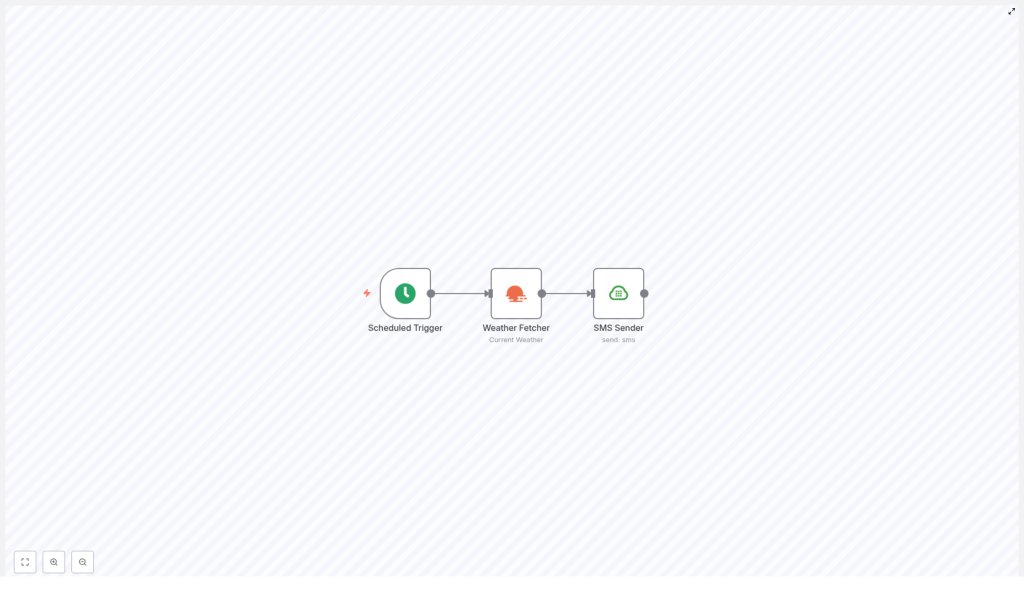
This n8n workflow is designed to run at a scheduled time every day, request current weather data for a specified city from the OpenWeatherMap API, and deliver the temperature via SMS using Plivo.
The template consists of three connected nodes:
- Scheduled Trigger (Cron) – initiates the workflow at a configured time each day
- Weather Fetcher (OpenWeatherMap) – queries OpenWeatherMap for current weather data
- SMS Sender (Plivo) – sends a text message containing the temperature to a target phone number
Typical use cases include daily personal reminders, weather checks for distributed teams, and integration into business processes that depend on local conditions. The workflow is lightweight, cost-aware, and straightforward to extend.
2. Architecture and data flow
2.1 High-level flow
- Cron node triggers the workflow at a fixed schedule (for example, every day at 09:00).
- OpenWeatherMap node receives the trigger, calls the OpenWeatherMap API with the configured city name and API key, and returns a JSON payload with current weather data.
- Plivo node reads the temperature from the OpenWeatherMap node output via an expression, formats the SMS body, and sends the message using your Plivo credentials.
2.2 Node linkage
- Scheduled Trigger → Weather Fetcher: The Cron node has a single main output that feeds into the OpenWeatherMap node. It does not require input data; it simply starts the chain.
- Weather Fetcher → SMS Sender: The JSON output from OpenWeatherMap is passed as input to the Plivo node. The Plivo node uses n8n expressions to reference specific fields, such as
main.temp.
The core temperature value is typically available at the JSON path main.temp in the OpenWeatherMap response. The workflow assumes that this field is present and correctly typed as a numeric value.
3. Prerequisites
Before importing and configuring the template, ensure you have:
- An n8n instance (cloud or self-hosted) with access to the internet
- An OpenWeatherMap API key
- A Plivo account with SMS capability (or an equivalent SMS provider; the conceptual steps are similar)
- A phone number that can receive SMS messages
All secrets such as API keys and account tokens should be stored in the n8n credentials manager, not directly in node parameters.
4. Node-by-node breakdown
4.1 Scheduled Trigger (Cron) node
Purpose
The Cron node is responsible for executing the workflow on a fixed schedule. In the template, it is configured for a single daily run.
Key parameters
- Trigger mode: Cron
- Trigger times:
- Example configuration: run daily at 09:00 (9 AM)
- Hour, minute, and day-of-week can be adjusted as needed
- Timezone:
- Set to your preferred timezone to ensure correct local time execution
Configuration notes
- You can add multiple trigger times if you want more than one SMS per day. Be aware that this increases API usage and SMS costs.
- For testing, you can temporarily adjust the schedule to a near-future time or run the workflow manually from the editor.
4.2 Weather Fetcher (OpenWeatherMap) node
Purpose
The OpenWeatherMap node queries the OpenWeatherMap API for current weather data for a given city and returns a JSON object containing temperature and other metadata.
Required parameters
- City name:
- Example:
berlin - Use a valid city name recognized by OpenWeatherMap; you can include country codes if needed (for example,
berlin,de) depending on your OpenWeatherMap node options.
- Example:
- API credentials:
- Reference your OpenWeatherMap API key via n8n credentials.
- Units:
- Recommended:
metric(returns temperature in Celsius) - If left unset, OpenWeatherMap defaults to Kelvin, which will require manual conversion in expressions.
- Recommended:
Output structure
The node returns a JSON payload similar to the standard OpenWeatherMap current weather response. The temperature is typically at:
main.tempOther useful fields include:
weather[0].description– a short textual description of the conditionsmain.humidity– humidity percentage
Edge cases
- If the city name is invalid or misspelled, the node may return an error response or an unexpected structure. Validate the output before using it in production.
- If units are not set to
metric, the value ofmain.tempwill be in Kelvin. Ensure you either:- Explicitly configure Units = metric, or
- Convert Kelvin to Celsius in the expression that builds your SMS text.
4.3 SMS Sender (Plivo) node
Purpose
The Plivo node sends the daily SMS message. It reads the temperature and other data from the OpenWeatherMap node and constructs the message body using n8n expressions.
Credentials
- Configure your Plivo credentials in the n8n credentials manager.
- Select those credentials in the Plivo node so that the node can authenticate against Plivo’s API.
Core parameters
- From:
- Your Plivo-enabled phone number or sender ID, depending on your Plivo setup and local regulations.
- To:
- The destination phone number that will receive the SMS.
- Message:
- Configured using an n8n expression that references the OpenWeatherMap node output.
Example message expression
In the Message field, use an expression starting with =:
=Hey! The temperature outside is {{$node["Weather Fetcher"].json["main"]["temp"]}}°C.This expression:
- Reads the
main.tempvalue from the node namedWeather Fetcher. - Inserts the numeric temperature into the message string.
- Assumes you configured the OpenWeatherMap node with Units = metric, so the value is already in Celsius.
Edge cases
- If the node name in the expression does not match the actual node name (for example, you rename the OpenWeatherMap node), the expression will fail. Update the node name in all related expressions if you rename nodes.
- If the OpenWeatherMap node fails or returns no
main.tempfield, the expression may evaluate toundefinedor cause an error. Use error handling patterns described later in this guide to handle such cases.
5. Template import and initial setup
5.1 Import the workflow template
- Open your n8n editor (cloud or self-hosted).
- Import the provided workflow JSON/template using the import function.
- Confirm that the workflow shows three nodes in sequence:
Scheduled Trigger→Weather Fetcher→SMS Sender
5.2 Configure the Cron node
- Open the Scheduled Trigger node.
- Set the desired daily time, for example:
- Hour:
9 - Minute:
0
- Hour:
- Adjust the timezone if necessary to match your local or business timezone.
- Optionally, define multiple trigger times for more frequent notifications, keeping cost and rate limits in mind.
5.3 Configure the OpenWeatherMap node
- Open the Weather Fetcher node.
- Set:
- City name: for example,
berlin - Credentials: select your OpenWeatherMap API key from the credentials list
- Units: choose
metricfor Celsius
- City name: for example,
- Save the node configuration.
5.4 Configure the Plivo node
- Open the SMS Sender node.
- Select your Plivo credentials from the credentials manager.
- Set the From and To numbers according to your Plivo account and target phone.
- In the Message field, insert the expression that references the temperature from the previous node, for example:
=Hey! The temperature outside is {{$node["Weather Fetcher"].json["main"]["temp"]}}°C.
6. Message formatting and data handling
6.1 Enhanced message formatting
To produce more readable or informative SMS messages, you can use more complex expressions or add a Set node to build a formatted string.
Example including description and rounding the temperature:
=Hey! In Berlin it's {{$node["Weather Fetcher"].json["weather"][0]["description"]}} and around {{$Math.round($node["Weather Fetcher"].json["main"]["temp"])}}°C.This expression:
- Reads the weather description at
weather[0].description. - Rounds the temperature to the nearest integer using
$Math.round().
6.2 Kelvin to Celsius conversion (if units are not metric)
If you do not set Units = metric, OpenWeatherMap returns temperatures in Kelvin. You can convert to Celsius directly in the expression:
=Hey! The temperature is {{( $node["Weather Fetcher"].json["main"]["temp"] - 273.15 ).toFixed(1)}}°C.Notes:
toFixed(1)formats the result to one decimal place.- Using
metricin the OpenWeatherMap node is simpler and reduces the chance of conversion errors.
6.3 Using a Set node for complex messages
For more complex templates, consider inserting a Set node between the OpenWeatherMap and Plivo nodes:
- Use the Set node to:
- Create a new field such as
smsTextthat holds the final message string. - Use expressions inside the Set node fields to assemble text from multiple JSON fields.
- Create a new field such as
- Then, in the Plivo node, reference
{{$json["smsText"]}}as the message body.
7. Testing and validation
7.1 Manual execution
- Save the workflow.
- Click Execute Workflow in the n8n editor to run it on demand.
- Open the Weather Fetcher node execution data and inspect the JSON output.
- Confirm that the temperature is available at
main.tempand that the value is in the expected unit (Celsius if using metric).
7.2 SMS test
- After validating the OpenWeatherMap output, execute the workflow again or manually execute the SMS Sender node (if supported by your n8n version).
- Check your phone to verify that the SMS is received and correctly formatted.
- Monitor your Plivo dashboard for:
- Delivery status
- Any reported errors
- SMS costs for the test and future runs
8. Error handling and retries
8.1 General patterns
To make this automation more resilient, integrate n8n’s error handling features:
- Use the workflow’s Settings → Run On Error behavior or dedicated error workflows to capture failures.
- Add an IF node after the OpenWeatherMap node to:
- Check for the presence of
main.tempor expected status codes. - Route to an alternative path if data is missing or invalid.
- Check for the presence of
- Use the node-level Retry settings or a custom loop to retry transient network or API errors, respecting OpenWeatherMap and Plivo rate limits.
- Send error notifications to Slack, email, or another monitoring endpoint so you can react quickly to repeated failures.
8.2 Typical failure scenarios
- Invalid API key:
- OpenWeatherMap or Plivo returns authentication errors. Verify credentials in n8n and in the respective provider dashboards.
- City not found:
- The OpenWeatherMap node returns an error or an unexpected structure. Validate the city name and add checks in an IF node.
- SMS delivery issues:
- Plivo may accept the message but fail to deliver due to carrier or destination-related problems. Monitor Plivo delivery reports for details.
9. Cost and rate-limit considerations
Both SMS and API calls can incur costs or hit rate limits, especially on free plans.
- Minimize frequency:
- Use a single daily SMS per recipient instead of frequent polling.
- Cache data for multiple recipients:
- If you plan to send similar messages to multiple numbers, consider fetching the weather once and reusing the result, rather than calling OpenWeatherMap repeatedly.
- Monitor usage:
