


Automate Email Attachment Analysis with n8n & Sublime
Imagine never opening another sketchy email again…
You know that feeling when your “phishing reports” inbox is overflowing, and someone says, “Can you just quickly check these suspicious emails?” Suddenly you are downloading .eml files, opening them one by one, squinting at headers, and hoping nothing explodes.
That is exactly the kind of repetitive, slightly soul-draining task that automation loves. Instead of manually poking at every suspicious message, you can let an n8n workflow grab those emails, send them to Sublime Security for analysis, and then post a neat summary into Slack. You get insights, alerts, and visibility, without the click-click-click misery.
In this guide, you will see how this ready-made n8n workflow template helps you automatically analyze phishing or suspicious emails that land in a dedicated inbox, then share results with your security team in real time.
What this n8n + Sublime workflow actually does
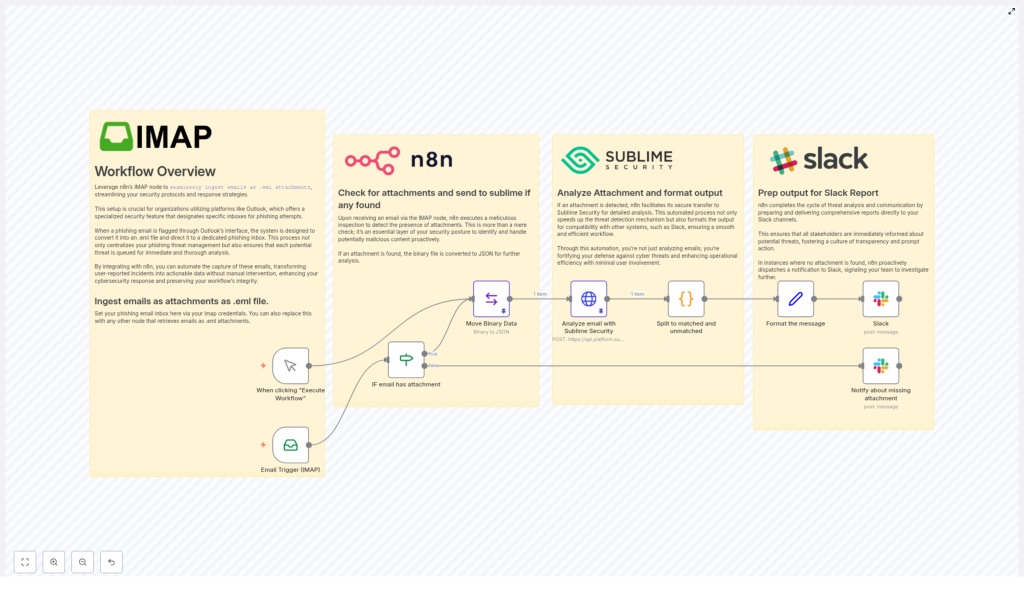
At a high level, this automation watches a mailbox, grabs suspicious emails as .eml attachments, sends them to Sublime Security for threat analysis, then reports the results in Slack. If something looks off, you know quickly. If there is no attachment at all, you still get a heads up so nothing slips through unnoticed.
Core capabilities in plain language
- IMAP email intake: Uses the n8n IMAP node to monitor a phishing or suspicious-email inbox, often fed by Outlook phishing reports, and ingests messages as
.emlattachments. - Attachment detection: Checks whether an incoming email actually has an attachment, specifically a
.emlfile, before doing any heavy lifting. - Safe data conversion: Converts the attachment from binary into JSON so it can be sent cleanly to the Sublime Security Analysis API.
- Threat analysis with Sublime Security: Runs the email through active detection rules to spot malicious patterns, suspicious behavior, or other threat indicators.
- Result separation: Splits the returned rules into two groups: rules that matched and rules that did not match, which makes review much easier.
- Slack reporting: Builds a readable summary, including counts and names of matched rules, and posts it straight to your chosen Slack channel.
- Attachment missing alerts: If an email arrives without an attachment, the workflow still notifies your team in Slack so you can investigate misclassifications or odd behavior.
Why bother automating this?
Besides saving your sanity, this workflow gives your security operations a noticeable upgrade.
- Speed: Threats are analyzed and reported in near real time, which shrinks your response window and helps you act faster.
- Accuracy: Sublime Security uses up-to-date detection rules, which reduces the chance of manual errors or missed signals.
- Efficiency: No more manual downloading, converting, and copy-pasting results. The workflow does that part for you.
- Transparency: Slack notifications keep the whole team in the loop, so everyone can see what is going on with phishing attempts and suspicious emails.
How the workflow runs behind the scenes
Let us walk through the actual flow from “email lands in inbox” to “Slack message pops up”. The steps below map directly to the nodes and logic inside the template, just explained in a more human-friendly way.
1. Email trigger with IMAP
The workflow starts with the IMAP node in n8n. You point it at your dedicated phishing or suspicious-email inbox, usually the one that Outlook or another platform forwards flagged messages to.
Once your IMAP credentials are configured, the node watches that mailbox and automatically pulls in new messages. These are received as .eml file attachments, which represent the full original email that was reported as suspicious.
2. Check if an attachment exists
As soon as a new email arrives, the workflow checks whether it contains an attachment. This is the first filter so you are not wasting resources on random emails that do not include the actual suspicious content.
If an attachment is present, the workflow continues with analysis. If not, it skips the heavy processing and jumps straight to a Slack alert so your team can decide what to do.
3. Convert binary data to JSON
For emails with attachments, n8n converts the binary attachment into JSON. Sublime Security expects structured data, not raw binary, so this step is essential for making the .eml usable by the API.
This conversion prepares the email content for safe, structured transmission to Sublime Security, without you having to manually handle file formats.
4. Analyze the email with Sublime Security
Next, the workflow sends the converted JSON to the Sublime Security Analysis API. Sublime runs the email through its active detection rules to identify:
- Potential phishing attempts
- Suspicious patterns or indicators of compromise
- Other threat signals defined in your detection rules
The result is a detailed analysis that tells you which rules fired and why the email might be dangerous.
5. Split matched and unmatched rule results
Once the analysis comes back, the workflow separates the response into two groups:
- Matched rules: Rules that detected something of interest or concern.
- Unmatched rules: Rules that did not detect anything in this particular email.
This split makes it easier to focus directly on what actually triggered during the analysis instead of digging through a long list of every possible rule.
6. Format the summary and send to Slack
With the results organized, the workflow formats a clear summary message. This typically includes:
- How many rules matched
- The names of the matched rules
- A concise overview of the findings
That summary is then sent to a designated Slack channel. Your team gets an instant, nicely formatted report without having to log into multiple tools or open the original email.
7. Notify Slack if there is no attachment
Not every suspicious email arrives with a proper .eml attachment. When the workflow detects that an incoming message is missing the expected file, it sends a Slack notification specifically about the missing attachment.
This helps your team catch potential misconfigurations, misclassifications, or user errors, and ensures nothing quietly slips through the cracks.
Quick setup guide for the template
This template is built so you can get up and running quickly. Here is a simplified setup path using all the steps above:
- Import the n8n template: Use the provided template link to add the workflow to your n8n instance.
- Configure the IMAP node:
- Enter your IMAP server details and credentials.
- Point it to the dedicated phishing or suspicious email inbox that receives
.emlreports.
- Confirm the attachment check logic: Make sure the node that checks for attachments is looking specifically for
.emlfiles, as expected by your setup. - Set up the Sublime Security connection:
- Provide the API endpoint for the Sublime Security Analysis API.
- Add your authentication details, such as API key or token, according to Sublime’s requirements.
- Review the binary-to-JSON conversion: Ensure the node that converts the attachment from binary to JSON is mapped correctly to the attachment field provided by the IMAP node.
- Configure Slack notifications:
- Connect your Slack account or webhook.
- Choose the channel where you want analysis results and alerts to appear.
- Review the message templates for matched results and missing attachments.
- Test with a sample suspicious email:
- Send a test phishing report into your monitored inbox.
- Watch the workflow run, confirm Sublime receives and analyzes the
.eml, and check that Slack messages look correct.
Tips, tweaks, and next steps
Once the workflow is running, you can refine it to match your team’s style and needs.
- Adjust Slack message formatting: Add more context, tags, or links to internal runbooks so responders know exactly what to do.
- Tune detection rules in Sublime: Refine your rules to reduce noise and highlight the threats that matter most to your environment.
- Add branching logic: In n8n, you can extend the workflow to create tickets, escalate severe findings, or store analysis data for later reporting.
- Control frequency and scope: Modify IMAP settings or filters so you only process the right kinds of messages, not every random inbox notification.
Turn your inbox into a threat detection hub
Instead of treating your phishing inbox as a chore list, you can turn it into an automated threat detection hub. With n8n handling the flow and Sublime Security doing the heavy analysis, your team can focus on mitigation, not manual triage.
If you want to strengthen your cybersecurity operations, reduce repetitive work, and get faster insight into suspicious emails, this n8n workflow template is a practical way to start. Integrate it, connect your tools, and let automation handle the boring parts.
For deeper customization or more complex incident response flows, consider working with a cybersecurity automation expert to extend this workflow and align it with your organization’s playbooks.
Final thoughts
Combining n8n automation with the Sublime Security API gives your security team a powerful, always-on assistant that never gets tired of checking phishing emails. You get timely analysis, clear Slack updates, and fewer manual steps in your day.
Do not let threatening emails sit quietly in an inbox. Automate your email attachment analysis with n8n and Sublime Security, and keep your organization one step ahead of attackers.
