


How One Founder Stopped Copy-Pasting Receipts And Let n8n Handle It
The Late-Night Spreadsheet Problem
On a Thursday night, long after her team had logged off, Maya was still staring at a Google Sheet.
She was the founder of a small but fast-growing agency, and like many founders, she wore too many hats. One of them was “unofficial bookkeeper.” Every week she dug through her inbox, opened dozens of receipt emails, and copied amounts, dates, and descriptions into a spreadsheet.
Some receipts were PDFs, others were blurry images. A few had confusing subjects like “Your order is on the way” or “Thanks for your purchase.” She tried to be careful, but every so often she would transpose digits, miss a receipt, or forget to categorize an expense. Her accountant would then ping her at the end of the month with questions she did not have time to answer.
That night, after pasting yet another receipt into her Google Sheet, she caught herself thinking: “There has to be a better way to track expenses from email to spreadsheet.”
The Search For An Automation That Actually Works
Maya had experimented with automation tools before, but most of them felt fragile. They worked until an email format changed or a receipt came in as an attachment instead of in the body of the message.
What she really wanted was simple:
- Read new emails from her inbox
- Detect which ones were receipts or expense related
- Extract key data like date, amount, currency, and category
- Send everything neatly into specific columns in Google Sheets
While browsing for “expense automation to Google Sheets,” she discovered an n8n workflow template that claimed to do exactly this. It promised to automate expense extraction from emails to Google Sheets using a combination of email filters, AI-based OCR, and a ready-made integration with Google Sheets.
Curious and slightly skeptical, she opened the template.
Meeting The n8n Expense Extraction Template
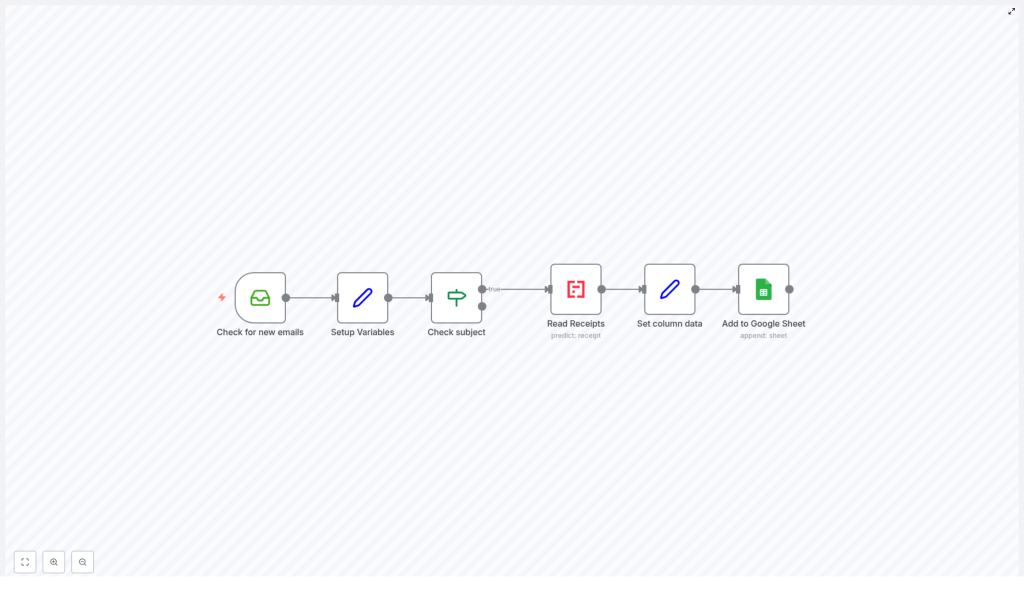
The template description read like a checklist of her pain points. It explained that the workflow would:
- Continuously check for new emails in her inbox
- Set up variables with keywords like “expenses” or “receipt” to identify relevant messages
- Filter email subjects using regex to catch only the right emails
- Read receipts from attachments with an AI-powered OCR tool
- Format the data into columns such as Date, Description, Category, Currency, and Amount
- Append everything straight into a Google Sheet
It was exactly the flow she had been trying to cobble together with manual copy-paste. The difference was that this template already had the logic built in, and it used tools designed for accuracy instead of relying on her tired eyes at 11 p.m.
Rising Action: Turning Chaos Into A Workflow
Step 1 – Letting n8n Watch The Inbox
The first step in the template was simple but powerful. An email node, configured with IMAP credentials, would monitor her inbox for new emails. For Maya, that meant connecting her Gmail account securely so n8n could scan incoming messages without her ever opening them.
Instead of her scrolling through a cluttered inbox, the workflow would quietly check for new messages in the background, ready to act whenever a receipt arrived.
Step 2 – Teaching The Workflow What “Expense” Means
Next, the template introduced a variables setup step. Here, Maya defined the keywords that typically appeared in her receipt emails, such as “expenses” and “receipt.”
These variables became the foundation for how the workflow would recognize relevant emails. She realized she could expand this list later with other patterns like “invoice” or “payment confirmation” if needed.
Step 3 – Filtering Subjects With Regex
The real turning point came with the subject check node. Instead of scanning every email, the workflow used regular expression (regex) pattern matching on the subject line.
If the subject contained any of the defined keywords, the email passed the filter and moved on to the next step. If not, the workflow simply ignored it.
This one check meant her personal emails, newsletters, and random notifications would never clutter her expense sheet again.
Step 4 – Reading Receipts With AI
Of course, recognizing a receipt email was only half the battle. The real challenge was extracting structured data from attachments.
That was where the template’s receipt reading step came in. It used Mindee’s AI-powered OCR to process attachments like PDFs or images. The tool extracted key information automatically, including:
- Date of the expense
- Total amount
- Currency
- Category-related details from the receipt
Maya no longer had to squint at pixelated receipts or retype numbers. The workflow handled recognition for her with an accuracy that quickly outperformed her late-night manual work.
Step 5 – Shaping Data For Google Sheets
Once the receipt data was extracted, the workflow moved into a data formatting step. Here, the template transformed the raw output into a structure that matched her Google Sheet.
It set specific fields, including:
- Date – taken from the receipt
- Description – often derived from the email subject so she could recognize the expense later
- Category – based on the receipt data
- Currency – captured directly from the receipt
- Amount – the total cost of the transaction
Everything was lined up to match the columns she was already using. No extra mapping in her head, no guessing which number belonged where.
Step 6 – The Moment It Hits Google Sheets
The final step was where the magic became visible. Using Google Sheets integration with OAuth2 API authentication, the workflow securely connected to her chosen spreadsheet.
Every time a relevant email arrived, the workflow would append a new row to the Google Sheet with all the formatted data. Maya watched as, in real time, her sheet updated itself without her touching a single cell.
The Turning Point: From Dread To “Done”
A week later, Maya noticed something strange. Her weekly “expense admin” session had quietly disappeared from her calendar. There was simply no need for it anymore.
Instead of digging through her inbox, she opened her Google Sheet and saw a clean, chronological list of expenses, each with date, description, category, currency, and amount already filled in. Receipts from different vendors and currencies were captured without her intervention.
For the first time in months, she handed her accountant a complete, accurate report without spending hours the night before.
What Changed For Maya With This n8n Template
Time Saved Every Single Week
The most obvious change was time. The workflow had automated manual data entry across all her expense emails. What used to take an hour or more each week now happened continuously in the background.
Accuracy Without Extra Effort
By relying on AI-based receipt recognition rather than manual typing, the number of mistakes dropped dramatically. No more missing receipts, mis-typed amounts, or forgotten currencies.
Better Organization In Google Sheets
Her expense data was now neatly stored in Google Sheets, ready for filtering, reporting, or sharing. She could quickly slice expenses by category or date, and everything was already in the correct columns.
Room To Grow And Scale
As her agency expanded, Maya realized she could easily adapt the workflow. She could connect additional email accounts, add more keywords, or even incorporate other data sources into the same expense tracking system. The template was not just a quick fix, it was a scalable backbone for her financial tracking.
Resolution: From Manual Chore To Reliable Automation
What began as a late-night frustration with spreadsheets turned into a reliable automation that quietly handled one of Maya’s most annoying recurring tasks. She no longer dreaded the end-of-month expense review. Instead, she trusted that her n8n workflow template was catching new receipts, extracting the data, and logging everything into Google Sheets with minimal oversight.
Her inbox was still busy, but her spreadsheet was always up to date.
Set Up The Same Workflow For Your Expenses
If you recognize yourself in Maya’s story, you do not need to rebuild her solution from scratch. You can use the same n8n automation template to:
- Connect your email inbox and check for new messages automatically
- Define variables and keywords like “expenses” or “receipt” to detect relevant emails
- Filter subjects with regex so only real receipts are processed
- Use AI-based OCR to read receipt attachments and extract structured data
- Format that data into columns for Date, Description, Category, Currency, and Amount
- Append each expense as a new row in your Google Sheet using secure OAuth2 authentication
Set it up once, then watch your expense tracking run itself while you focus on actual work instead of copy-pasting numbers.
