


Automate Feedback Collection and Reporting with n8n (So You Never Copy-Paste Again)
Picture This: You, Drowning in Feedback
Your inbox is full of feedback emails, your Google Sheet has more tabs than your browser, and someone just asked, “Can you send a quick summary of recent feedback?”
Sure, you could copy-paste, sort, filter, summarize, and then write a neat email digest. Again. For the 37th time this month.
Or you could let an n8n workflow quietly handle all of that while you enjoy coffee that is not yet cold.
What This n8n Workflow Actually Does
This workflow is your all-in-one helper for feedback. It:
- Collects feedback notes or emails into Google Sheets
- Uses an AI agent (Azure OpenAI Chat Model) to analyze and enrich that feedback
- Saves the processed insights back into Google Sheets for tracking
- Summarizes recent feedback
- Sends a clean, readable email digest with the latest insights
In other words, it turns a messy pile of comments into a structured, AI-enhanced report, then emails it to you or your team automatically. No more manual compiling or late-night spreadsheet archaeology.
Core Building Blocks of the Workflow
Here is a quick overview of the main parts inside the n8n template and what each one does behind the scenes.
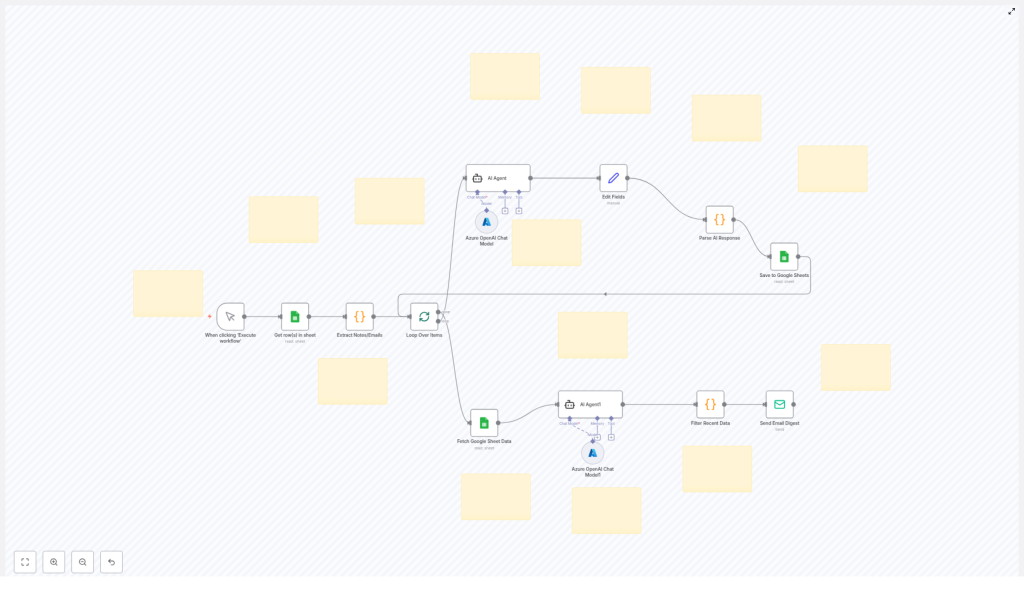
1. Manual Trigger
The workflow starts with a Manual Trigger. You can run it on demand from n8n, or later connect it to a schedule if you want regular digests (for example daily or weekly).
2. Google Sheets – Get Rows
Next, the workflow uses the Google Sheets – Get Rows node to pull in your existing feedback entries from a specific sheet. This is where all the raw notes or emails are stored.
3. Extract Notes/Emails
Then an Extract Notes/Emails step parses the relevant text from each row. It grabs the actual feedback content so the AI agent has something meaningful to work with.
4. Loop Over Items
The Loop Over Items logic processes each feedback entry one by one. Instead of dumping everything into the AI at once, it treats each piece of feedback individually, which makes the analysis more accurate and easier to store.
5. AI Agent (Azure OpenAI Chat Model)
Here is where the magic happens. The AI Agent uses the Azure OpenAI Chat Model to:
- Analyze the feedback content
- Generate insights or categorization
- Enrich the data with structured fields that are easier to report on
6. Edit Fields & Parse AI Response
After the AI responds, the Edit Fields & Parse AI Response step cleans things up. It refines the AI output, extracts the important parts, and formats them so they can be stored neatly in your spreadsheet.
7. Save to Google Sheets
The Save to Google Sheets node then writes this processed feedback back into your sheet. This gives you a living, structured database of feedback plus AI-generated insights, all in one place.
8. Fetch Google Sheet Data & AI Agent1
Once your feedback is processed and stored, the workflow uses another Fetch Google Sheet Data step to pull the latest entries. It then calls a second AI Agent interaction (often labeled as AI Agent1) to summarize this recent data into a digestible report.
9. Filter Recent Data
The Filter Recent Data step makes sure the email digest focuses on what is actually new. It filters the summarized results by recency, so you only see feedback from your chosen time window.
10. Send Email Digest
Finally, the Send Email Digest node sends out an email containing the summarized feedback. Your team gets a clear, up-to-date overview without anyone manually compiling it. Instant relief from report-building fatigue.
How the Whole n8n Workflow Flows Together
Here is the big picture of how everything connects inside n8n:
- You trigger the workflow manually, or via a schedule if you configure that later.
- n8n fetches all feedback entries from your designated Google Sheet.
- The workflow extracts the actual notes or email content from each row.
- Each feedback item is processed in a loop, one at a time.
- The Azure OpenAI Chat Model analyzes each item and generates insights or categorized responses.
- The AI output is parsed and cleaned up, then stored back into Google Sheets for tracking.
- Once the data is enriched, the workflow fetches the latest processed entries.
- A second AI step generates a summary report from this recent data.
- The workflow filters that summary to only include the most recent feedback.
- An email digest is sent, giving you and your team a concise, AI-enhanced feedback report.
The result is a smooth feedback automation loop that keeps everyone informed without constant manual effort.
Why Automate Feedback Collection and Reporting with n8n?
Aside from saving your sanity, this workflow has some very practical benefits.
- Time-Saving: Repetitive tasks like collecting, cleaning, and summarizing feedback are handled by n8n, not by you. That is hours back every week.
- AI-Enhanced Insights: The Azure OpenAI Chat Model helps surface patterns, summaries, and useful context that are hard to spot in raw text.
- Seamless Integration: It connects Google Sheets and your email service inside one workflow, so everything stays in sync.
- Customizable and Scalable: You can adapt the workflow to different data sources, additional fields, or new reporting formats as your feedback process grows.
Simple Setup Guide: Getting Started With the Template
Once you load this n8n template, you will mainly:
- Connect your Google Sheets credentials and select the sheet where feedback is stored
- Configure your Azure OpenAI credentials for the AI Agent nodes
- Point the Send Email Digest node to the right recipients and email service
- Optionally adjust filters or time ranges for what counts as “recent” feedback
After that, you can trigger the workflow manually to test it, review the results in Google Sheets and your inbox, then decide if you want to add a schedule so it runs automatically.
Tips, Tweaks, and Next Steps
- Fine-tune AI prompts: Inside the AI Agent nodes, you can adjust the prompt to change how feedback is analyzed or summarized.
- Expand your data sources: If your feedback comes from more than one place, you can add extra nodes before Google Sheets to pull data from other tools.
- Customize the digest: Edit the email template so the digest matches your brand voice or internal reporting style.
- Iterate as you go: Start simple, then refine filters, columns, and AI outputs once you see the workflow in action.
Ready to Let Automation Handle the Boring Parts?
If you are done manually wrangling feedback and stitching together reports, this n8n workflow is a straightforward way to upgrade your process. It combines Google Sheets, AI-powered analysis, and automated email digests into one smooth system that keeps your team informed and your time free for more important work.
Set it up once, then let it quietly run in the background while you focus on actually using the feedback instead of just organizing it.
