


Automate Feedback Management with AI and Google Sheets
Why Automating Feedback Feels Like a Superpower
If you have feedback scattered across spreadsheets, emails, and notes, you probably know how painful it can be to actually do something useful with it. Reading through comments, trying to spot trends, writing summaries for your team – it all takes time you probably do not have.
This is where an automated feedback workflow with n8n, Google Sheets, and Azure OpenAI really shines. Instead of manually copying, pasting, and analyzing, you can let automation pull in feedback, run it through AI for insights, and send you a neat email summary. All while keeping everything neatly stored in Google Sheets.
In this article, we will walk through an n8n workflow template that does exactly that, and we will talk about what it does, when to use it, and why it makes your life a lot easier.
What This n8n Workflow Template Actually Does
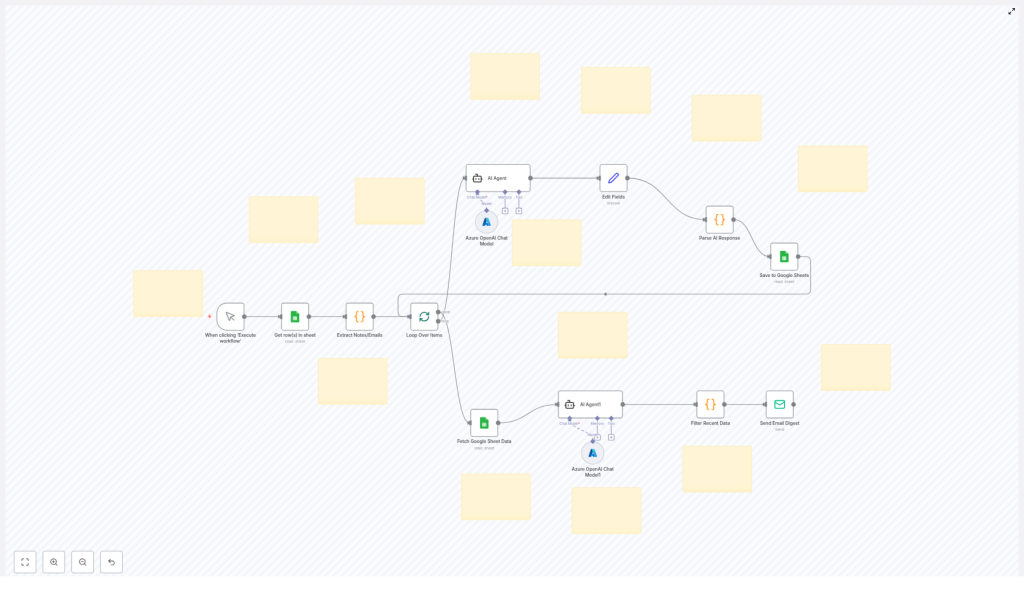
At a high level, this workflow:
- Pulls feedback from a Google Sheet
- Cleans and extracts the relevant text (like notes or email content)
- Loops through each feedback item and sends it to AI for analysis
- Formats and parses the AI results into structured data
- Saves everything back into Google Sheets
- Filters the most recent feedback and sends an email digest
It uses:
- n8n for automation and workflow orchestration
- Google Sheets for storing raw and processed feedback
- Azure OpenAI chat models for AI-powered analysis and summarization
So instead of spending your time digging through rows, you get a system that quietly does the heavy lifting in the background.
When Should You Use This Feedback Automation?
This workflow is perfect if you:
- Collect feedback in Google Sheets, whether from forms, support tickets, or manual input
- Want AI to help analyze and summarize customer comments
- Need regular email digests of what users are saying
- Are tired of manually updating spreadsheets and reports
It works especially well for product teams, customer support, marketing, or anyone running surveys and trying to make sense of the results.
How the Workflow Flows: From Raw Feedback to Email Digest
Step 1 – Manually trigger the workflow
You start things off with a manual trigger node called When clicking ‘Execute workflow’. This gives you full control over when the feedback processing runs.
Maybe you want to run it once a day after new responses come in, or only right before your weekly team meeting. In any case, you just hit execute and the workflow gets to work.
Step 2 – Pull feedback data from Google Sheets
Next, the workflow reaches into your spreadsheet using the Get row(s) in sheet node. This node grabs all the raw feedback stored in your Google Sheet.
Typically, this sheet includes things like user notes, comments, or email content. At this point, the data is still messy and unprocessed, but that is exactly what the later steps will fix.
Step 3 – Extract the actual feedback text
Not every column in your sheet is equally useful for analysis. That is where the Extract Notes/Emails code node comes in.
This node goes through the raw sheet data and pulls out the parts you really care about, such as:
- Free-text feedback fields
- Notes from support tickets
- Email body content
By the end of this step, the workflow has a clean list of feedback items that are ready for AI to analyze.
Step 4 – Loop through each feedback item
Instead of sending everything to the AI in one giant chunk, the workflow uses the Loop Over Items node to process each piece of feedback one by one.
This is helpful because it:
- Ensures each comment gets its own tailored AI analysis
- Makes it easier to store structured results per feedback item
- Prevents things from getting mixed up or misaligned in your sheet
Letting AI Do the Heavy Thinking
Step 5 – Analyze and summarize with Azure OpenAI
Here is where the magic happens. The workflow uses two AI agents powered by Azure OpenAI Chat Models:
- AI Agent
This agent receives each feedback item, analyzes it, and creates a refined output. The result is then passed into an Edit Fields node so you can format the AI response into clear, structured fields that fit neatly into your sheet. - AI Agent1
After the Google Sheet has been updated with processed feedback, this second AI agent can run additional analysis or filtering on the more recent data. This is useful if you want a higher level summary or extra insights on the latest comments.
In practice, these agents can help you quickly understand sentiment, themes, or key points from each piece of feedback without you having to read everything in detail.
Step 6 – Clean up and parse the AI responses
Once the AI has done its job, the workflow needs to turn those responses into something your spreadsheet can actually use.
Two nodes handle this part:
- Edit Fields adjusts the structure of the AI output. You can rename fields, map values, and make sure everything lines up with your Google Sheets columns.
- Parse AI Response is a code node that parses the AI’s text or JSON into a more structured format, preparing it for clean storage.
The result is nicely organized data that is easy to filter, sort, and review later.
Keeping Everything Organized in Google Sheets
Step 7 – Save processed feedback back into Google Sheets
After parsing, the workflow uses the Save to Google Sheets node to write the processed feedback and AI insights into a sheet.
You can store it in:
- The original Google Sheet that holds your raw feedback, or
- A dedicated sheet meant just for processed and enriched data
Either way, you end up with a central place where both the original comments and the AI-generated insights live side by side.
Step 8 – Filter recent feedback and send an email digest
Now for the part your stakeholders will love: the digest email.
The workflow:
- Fetches all updated data from the Google Sheet again
- Uses a code node called Filter Recent Data to pick out only the most recent records
- Sends this filtered information into the Send Email Digest node
The email digest can highlight:
- Recent trends in feedback
- Notable issues or praises
- Any patterns the AI has picked up
This means your team gets regular, easy-to-read updates without anyone needing to manually compile reports.
Why This Automated Feedback Workflow Makes Life Easier
- Huge time savings
No more copying feedback into documents, manually summarizing, or building reports from scratch. The workflow handles data extraction, processing, and reporting for you. - Smarter insights with AI
Azure OpenAI chat models help you interpret nuanced feedback, spot themes, and pull out key points that are easy to miss when you are skimming quickly. - Always up-to-date spreadsheets
Google Sheets stays in sync with the latest processed feedback and AI results, so your data is always current and accessible to your team. - Effortless reporting
Email digests keep stakeholders informed without extra work. Everyone stays aligned on what customers are saying, even if they never open the spreadsheet.
How to Set This Workflow Up in Your Own n8n Instance
Getting started is easier than it might sound. Here is the basic setup process:
- Prepare your Google Sheet
Make sure your feedback data is in a Google Sheet, with columns for things like notes, comments, or email content. Then configure your Google Sheets credentials in n8n so the workflow can read and write data. - Connect Azure OpenAI
Set up your Azure OpenAI credentials in n8n and link them to the AI Agent and AI Agent1 nodes. This is what enables the AI analysis and summarization. - Customize the email digest
Open the Send Email Digest node and add your preferred recipients, subject line, and message template. You can tailor the email content to match your team’s style or reporting needs.
Once everything is connected, you can manually trigger the workflow and watch the entire feedback pipeline run from start to finish.
Ready To Let AI Handle Your Feedback Loop?
Automating feedback management with n8n, Google Sheets, and Azure OpenAI takes a process that is usually tedious and turns it into something almost effortless.
You save time, reduce manual errors, and get richer insights that help you improve your product or service faster. Instead of wrestling with spreadsheets, you can focus on what really matters: acting on what your customers are telling you.
Connect your Google Sheets, plug in your Azure OpenAI setup, and give this AI-powered feedback workflow a try. It might just become your new favorite part of your automation stack.
