


Automate G2 Review Monitoring with n8n
Overview
Systematic monitoring of G2 reviews is critical for SaaS teams that want to protect brand reputation, track competitor perception, and act quickly on user feedback. Manual checking does not scale and often leads to delays or missed insights.
This article presents a production-ready n8n workflow template that automates G2 review monitoring using ScrapingBee for data extraction, Slack for real-time notifications, and Google Sheets for structured logging and analysis. The workflow is designed for automation professionals and can be easily adapted to different products or competitors.
Use Case and Workflow Behavior
The workflow performs a daily scan of G2 for new reviews related to a defined list of competitor products. For each new review it detects, it:
- Scrapes the latest review content from G2 using ScrapingBee
- Extracts structured data such as date, rating, user profile, review URL, and review text
- Checks against an existing log in Google Sheets to avoid duplicates
- Sends a formatted notification to a specified Slack channel
- Appends the new review as a new row in Google Sheets for long-term tracking
The result is a reliable, low-maintenance monitoring system that ensures your team never misses an important G2 review.
Requirements and Setup Prerequisites
Before implementing the workflow in n8n, ensure you have the following:
- Slack workspace and a dedicated channel for review alerts
- Google Sheets account and a prepared spreadsheet to store review data
- ScrapingBee account with API access: https://app.scrapingbee.com/
- n8n instance (self-hosted or cloud) with access to create and run workflows
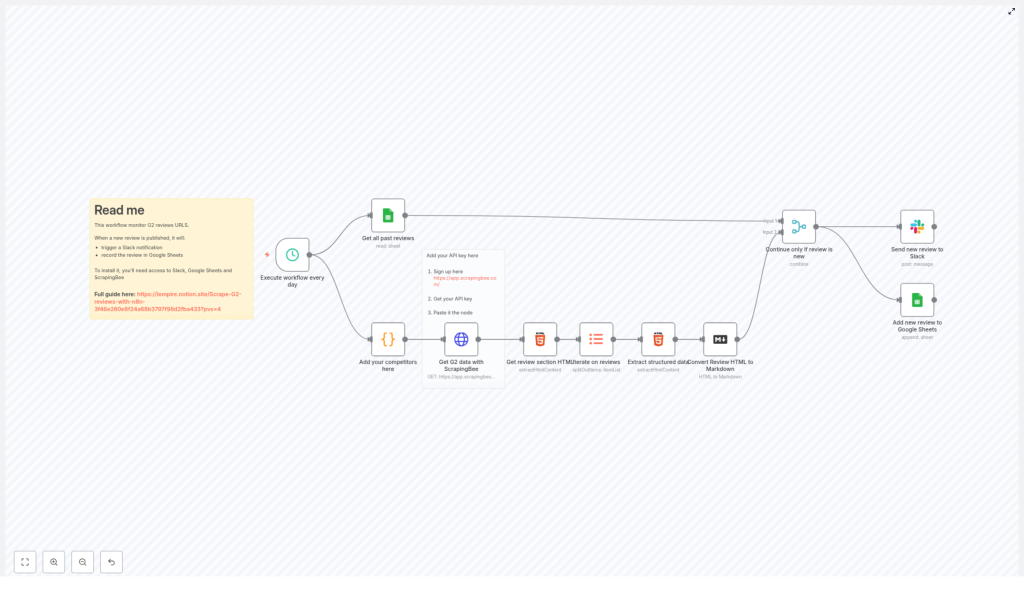
High-Level Architecture of the n8n Workflow
The workflow follows a clear, modular structure aligned with automation best practices:
- Trigger and configuration
- Schedule Trigger node
- Code node for competitor configuration
- Data acquisition from G2
- HTTP Request node using ScrapingBee
- HTML Extract nodes to isolate review elements
- Data transformation
- Item Lists node to iterate over reviews
- HTML to Markdown conversion for readable content
- De-duplication and persistence
- Google Sheets integration to read existing records
- Filtering logic to identify only new reviews
- Notification and logging
- Slack node to send notifications
- Google Sheets node to append new entries
Detailed Node-by-Node Breakdown
1. Schedule Trigger – Automated Daily Execution
The workflow starts with a Schedule Trigger node configured to run once per day, for example at 8:00 AM. This ensures consistent monitoring without manual intervention and provides a predictable cadence for review collection.
2. Code Node – Defining the Competitor List
A Code node stores a simple JavaScript array that lists the competitors you want to track on G2. Each entry typically corresponds to a G2 product identifier or URL fragment. To adjust the scope of monitoring, you only need to update this list in the Code node, which keeps configuration centralized and easy to maintain.
3. HTTP Request with ScrapingBee – Retrieving G2 Review Pages
For each competitor, the workflow uses an HTTP Request node to call the ScrapingBee API. The node is configured to:
- Pass the G2 review page URL as a query parameter
- Leverage ScrapingBee’s stealth proxies for more reliable scraping
- Optionally set country parameters to control geo-specific content
ScrapingBee returns the HTML of the G2 page that contains the most recent reviews for each specified competitor.
4. HTML Extract – Isolating the Review Section
The first HTML Extract node processes the returned HTML and uses CSS selectors to target the section of the page that contains the list of reviews. It isolates each individual review as a separate HTML block, typically corresponding to a specific review container element on the G2 page.
5. Item Lists – Iterating Over Individual Reviews
Since each G2 page can include multiple reviews, an Item Lists node is used to iterate over the extracted review elements. This node ensures that each review is handled as a separate item in the workflow, which simplifies downstream processing and avoids mixing data between different reviews.
6. Second HTML Extract – Structuring Review Data
A second HTML Extract node operates on each review item and extracts structured fields, such as:
- Review date
- Rating
- User profile link
- Direct review URL
- Raw review content in HTML format
This step converts unstructured HTML into clearly defined properties that can be used for analysis, notification formatting, and storage.
7. HTML to Markdown Conversion – Readable Output
The raw review body is then converted from HTML to Markdown. This makes the content more readable in Slack messages and ensures that text stored in Google Sheets is clean and easy to work with. Markdown formatting also improves legibility when reviews are referenced or shared internally.
8. Google Sheets Lookup – Identifying New Reviews
Before sending notifications, the workflow needs to ensure that only new reviews are processed. To achieve this, it:
- Uses a Google Sheets node to retrieve all previously logged reviews from the target spreadsheet
- Compares the current batch of reviews against these existing entries, typically using a unique field such as the review URL or a combination of date and user
- Filters out any review that has already been stored
Only reviews that are not present in the spreadsheet move forward in the workflow, which prevents duplicate notifications and maintains data integrity.
9. Slack Notifications and Google Sheets Logging
For each new review identified, the workflow executes two parallel actions:
- Slack notification A Slack node sends a well-formatted message to the chosen channel. The message typically includes:
- Rating
- Review date
- User profile link
- Direct link to the review on G2
- The review content in Markdown format
This ensures that product, marketing, and customer success teams receive timely, actionable information.
- Google Sheets logging A Google Sheets node appends each new review as a new row in the spreadsheet. Typical columns include:
dateratingreview(Markdown content)reviewUrluser_profile
This creates a historical dataset that can be used for trend analysis, reporting, or further automation.
Benefits and Best Practices
- Operational efficiency Daily automated checks remove the need for manual G2 visits and ad hoc monitoring.
- Immediate visibility Slack alerts provide near real-time awareness of new competitor or product reviews.
- Audit-ready history Centralized logging in Google Sheets facilitates longitudinal analysis and reporting.
- Configurable and scalable The JavaScript list in the Code node allows you to easily add or remove competitors as your monitoring strategy evolves.
- Separation of concerns Each node has a clear responsibility, which aligns with automation best practices and simplifies maintenance and troubleshooting.
Implementation Steps
To deploy this G2 review monitoring workflow in your n8n environment, follow these steps:
- Create a ScrapingBee account at https://app.scrapingbee.com/ and obtain your API key.
- Prepare a Google Sheets document with the required columns, for example:
date,rating,review,reviewUrl,user_profile. - Set up or select a Slack channel that will receive G2 review notifications.
- Import or recreate the n8n workflow template, then:
- Update the competitor list in the Code node with the G2 identifiers you want to track.
- Add your ScrapingBee API key to the HTTP Request node configuration.
- Configure and connect your Google Sheets and Slack credentials within n8n.
- Set the desired schedule in the Schedule Trigger node and activate the workflow.
Conclusion
This n8n workflow provides a robust and extensible solution for automated G2 review monitoring. By combining ScrapingBee for data extraction, n8n for orchestration, Slack for alerting, and Google Sheets for persistent storage, you gain a reliable system that captures new reviews, surfaces them to your team, and maintains a complete historical record.
If you want to operationalize review tracking and ensure you never miss a new G2 review again, implement this workflow and integrate it into your daily monitoring stack.
For detailed configuration screenshots, advanced customization options, and troubleshooting tips, refer to the full guide.
