


Automate GA Report Emails with n8n & a RAG Agent
Imagine never having to skim through another massive Google Analytics report just to figure out what actually matters. With this n8n workflow template, you can do exactly that.
This reusable automation takes your GA report data, turns it into embeddings, stores it in Pinecone for smart search, and then uses an OpenAI-powered RAG (Retrieval-Augmented Generation) agent to write clear, human-friendly summaries. It can even log outputs to Google Sheets and alert you in Slack if something breaks.
In this guide, we’ll walk through what the workflow does, how the pieces fit together, when to use it, and how to set it up step by step in n8n.
What this n8n GA report email template actually does
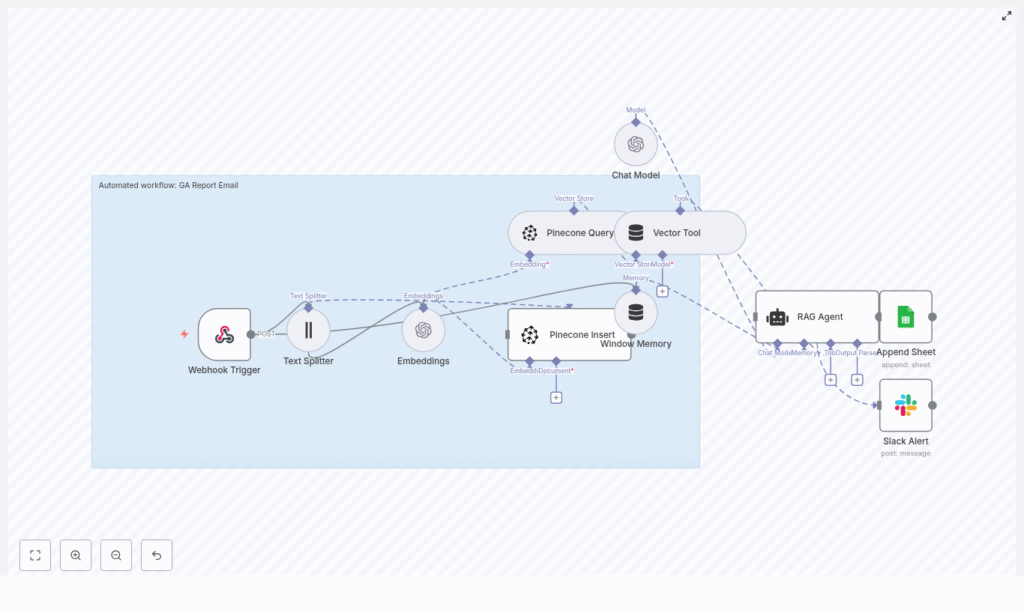
At a high level, this workflow takes incoming GA reports, breaks them into chunks, converts them into embeddings, stores those embeddings in Pinecone, and then uses a RAG agent to generate an email-style summary with insights, anomalies, and recommended actions.
Here is what’s included in the template:
- Webhook Trigger (path:
ga-report-email) to receive GA report payloads from an external system. - Text Splitter (character-based) that splits long reports into chunks with:
chunkSize = 400chunkOverlap = 40
- Embeddings node using OpenAI:
- Model:
text-embedding-3-small
- Model:
- Pinecone Insert that stores embeddings in a Pinecone index named
ga_report_email. - Pinecone Query + Vector Tool to retrieve the most relevant context for each new request.
- Window Memory to keep short-term context for the RAG agent.
- Chat Model & RAG Agent (OpenAI) that uses the retrieved context and current report to generate a summary or email body.
- Append Sheet (Google Sheets) to log the output in a sheet called
Log:Statuscolumn maps to{{$json["RAG Agent"].text}}
- Slack Alert that sends an error notification to a channel such as
#alertsif something fails.
In other words, the template handles the boring parts: ingestion, storage, retrieval, and summarization, so you can focus on the insights.
Why use n8n, embeddings, and a RAG agent for GA reports?
Standard report automation can feel pretty rigid. You often end up with:
- Fixed email templates that do not adapt to what actually happened in the data.
- Fragile parsing scripts that break when the format changes.
- No real context from historical reports.
By combining n8n, embeddings, and a RAG agent, you get something much smarter:
- Reports are semantically indexed, not just stored as plain text.
- The workflow can search historical context in Pinecone when generating new summaries.
- The RAG agent can produce tailored, concise email summaries that highlight what changed, where anomalies are, and what to do next.
This is especially handy if you send recurring GA reports that need interpretation instead of just raw numbers. Think weekly performance summaries, monthly stakeholder updates, or anomaly alerts.
How the data flows through the workflow
Let’s quickly walk through what happens from the moment a GA report hits the webhook to the moment you get a summary.
- An external system (for example, a script or another tool) sends a GA report payload to
/webhook/ga-report-email. - The Text Splitter breaks the report into overlapping text chunks so the embeddings preserve context.
- The Embeddings node generates vector embeddings for each chunk and inserts them into the Pinecone index
ga_report_emailfor long-term semantic search. - When a new summary is needed, the workflow queries Pinecone for the most relevant stored context related to the incoming payload.
- The RAG Agent uses:
- The retrieved context from Pinecone
- The short-term memory from the Window Memory node
- The current GA report payload
to generate a summary, suggested actions, or a nicely formatted email body.
- The generated output is logged to Google Sheets for auditing, and if something goes wrong, a Slack alert gets triggered.
So instead of manually reading and interpreting every report, you get a clean, AI-assisted summary that still respects your historical data.
Before you start: credentials checklist
To get this template running smoothly in n8n, you’ll want to prepare the following credentials first.
1. OpenAI
- Create an OpenAI API key.
- Add it to n8n credentials as
OPENAI_API.
2. Pinecone
- Sign up for Pinecone and create an index called
ga_report_email. - Add your Pinecone API credentials to n8n as
PINECONE_API.
3. Google Sheets
- Set up Google Sheets OAuth credentials.
- Add them to n8n as
SHEETS_API. - Create a spreadsheet with a sheet named
Logto store the outputs.
4. Slack
- Configure Slack API credentials in n8n as
SLACK_API. - Choose an alert channel, for example
#alerts, for error notifications.
Step-by-step: deploying the workflow in n8n
Step 1: Import and review the template
Start by importing the provided workflow JSON into your n8n instance. Once imported:
- Confirm the Webhook Trigger path is set to
ga-report-email. - Open the Text Splitter node and verify:
chunkSize = 400chunkOverlap = 40
- Check the Embeddings node:
- Model is
text-embedding-3-small - It uses your
OPENAI_APIcredential.
- Model is
Step 2: Confirm or create your Pinecone index
Make sure your Pinecone index ga_report_email exists and matches the embedding model’s dimension. If it is missing or misconfigured, create or adjust it via the Pinecone console or API so it aligns with text-embedding-3-small.
Step 3: Configure the RAG Agent and prompt
Next, open the RAG Agent node and set up the system message. A good starting point is:
“You are an assistant for GA Report Email. Summarize key metrics, anomalies, and recommended actions in 4-6 bullet points.”
You can tweak the temperature if you want more creative or more deterministic phrasing. Lower temperature gives you more consistent, predictable summaries.
Step 4: Verify Google Sheets and Slack nodes
- In the Append Sheet node:
- Set
documentIdto your spreadsheet ID. - Ensure
sheetNameisLog. - Confirm the mapping for the
Statuscolumn is:{ "Status": "={{$json[\"RAG Agent\"].text}}" }
- Set
- In the Slack node:
- Use your
SLACK_APIcredential. - Set the channel, such as
#alerts. - Connect this node to the RAG Agent’s
onErrorpath.
- Use your
Sample Google Sheets mapping
Here is the mapping used in the template for the Append Sheet node, so you can double-check your configuration:
{  "Append Sheet" : {  "operation": "append",  "documentId": "SHEET_ID",  "sheetName": "Log",  "columns": {  "mappingMode": "defineBelow",  "value": { "Status": "={{$json[\"RAG Agent\"].text}}" }  }  }
}
Ways to customize the workflow for your use case
Once you have the base template running, you can start tailoring it to your team’s needs. Here are a few practical ideas.
- Send emails directly
Add an SMTP or Gmail node after the RAG Agent to send the generated summary as an email to your stakeholders. - Tag metrics for richer retrieval
Pre-parse the GA payload to extract key metrics like sessions, bounce rate, or conversions, and store them as metadata alongside your embeddings. - Schedule recurring reports
Use a Cron node so you are not relying only on incoming webhooks. You can trigger daily or weekly runs that pull data directly from the GA API and then feed it into this workflow. - Support multiple languages
Add translation nodes or adjust the RAG agent prompt to generate summaries in different languages depending on the recipient.
Security, privacy, and compliance considerations
Since you might be dealing with sensitive analytics data, it is worth tightening up your security practices.
- Handle PII carefully
Remove or mask any personally identifiable information before sending content to OpenAI or storing it in Pinecone. - Use least-privilege access
Scope your API keys so they only have the permissions they truly need. Where possible, restrict IPs and keep write-only keys limited. - Encrypt and secure your stack
Make sure Pinecone and any storage you use have encryption at rest enabled. Protect your n8n instance with HTTPS, a firewall, and secure secrets storage. - Define a retention policy
If compliance requires it, regularly prune or delete old embeddings and logs from Pinecone and Google Sheets.
Costs and performance: what to watch
Most of your costs will come from:
- Embedding generation
- LLM (OpenAI Chat/Completion) calls
To keep things efficient and responsive:
- Use a cost-effective embedding model like
text-embedding-3-small. - Tune chunkSize and chunkOverlap so you have enough context without exploding the number of embeddings.
- Limit Pinecone reads by retrieving a reasonable top-k instead of pulling large result sets.
- Consider caching results for frequently repeated queries.
Troubleshooting common issues
If something is not working the way you expect, here are some quick checks that usually help.
- Webhook not firing
Make sure the webhook is active in n8n, that you are using the correct endpoint URL, and that the POST payload is valid JSON. - No results from Pinecone
Confirm that documents were actually inserted into thega_report_emailindex and that the embedding dimensions match the model you are using. - RAG Agent errors
Check the Chat Model node credentials, verify the system prompt, and try a lower temperature for more stable outputs. - Google Sheets append failures
Double-check the spreadsheet ID, theLogsheet name, and that the Google credential has write access. - Missing Slack alerts
Verify the Slack credential, channel name, and that the Slack node is properly connected to the RAG Agent’sonErrorpath.
Monitoring and scaling your setup
As usage grows, you will want to keep an eye on performance and resource usage.
- Monitor workflow run times directly in n8n.
- Set usage alerts for OpenAI and Pinecone so you are not surprised by costs.
- Scale your Pinecone index resources if query latency starts creeping up.
- For high-volume ingestion, consider batching or using asynchronous workers to stay under rate limits.
When this template is a perfect fit
You will get the most value from this n8n workflow if:
- You send recurring GA reports that need commentary, not just raw metrics.
- Stakeholders want quick, readable summaries with clear action items.
- You want to reuse historical context from previous reports, not reinvent the wheel every week.
If that sounds familiar, this RAG-powered automation can save you a lot of time and mental energy.
Wrap-up and next steps
This GA Report Email workflow gives you a solid, extensible foundation for turning raw Google Analytics payloads into clear, actionable summaries. With Pinecone and OpenAI embeddings behind the scenes, the RAG agent can pull in relevant historical context and produce much richer output than a simple static template.
Try it in your own n8n instance
Ready to see it in action?
- Import the workflow into n8n.
- Configure your credentials for OpenAI, Pinecone, Google Sheets, and Slack.
- Send a test POST request to
/webhook/ga-report-emailwith a GA report payload.
If you would like a pre-configured package or help tailoring this for your specific analytics setup, you can reply to this post to request a consultation or a downloadable workflow bundle.
Keywords: n8n, GA Report Email, RAG Agent, Pinecone, OpenAI embeddings, Google Sheets, Slack alert, automation template, GA report automation
