


Automate Google Sheets to MySQL with n8n
Moving data from spreadsheets into a relational database is a foundational automation use case. With n8n you can design a lightweight, maintainable ETL workflow that extracts rows from Google Sheets on a defined schedule and loads them into MySQL in a controlled, production-ready manner.
This article presents a refined n8n workflow template that:
- Runs on a schedule using a Cron trigger
- Reads data from Google Sheets using the Google Sheets – Read node
- Writes records into MySQL using the MySQL – Insert node
It also covers configuration details, hardening strategies, and best practices for automation professionals who want a robust Google Sheets to MySQL integration.
Why automate Google Sheets to MySQL?
Google Sheets is widely used for quick data collection, operational tracking, and ad-hoc reporting. However, it is not designed to act as a long-term system of record or as the primary data source for analytics and transactional workloads.
Automating a pipeline from Google Sheets to MySQL provides several advantages:
- Centralized, queryable data: Store information in a structured MySQL schema for reliable querying and joins.
- Reduced manual work: Eliminate copy-paste operations and reduce the risk of human error.
- Historical tracking and backups: Maintain a persistent history of changes in a database that can be backed up and versioned.
- Analytics and reporting: Connect BI tools and dashboards directly to MySQL for consistent reporting on clean data.
Architecture of the n8n workflow
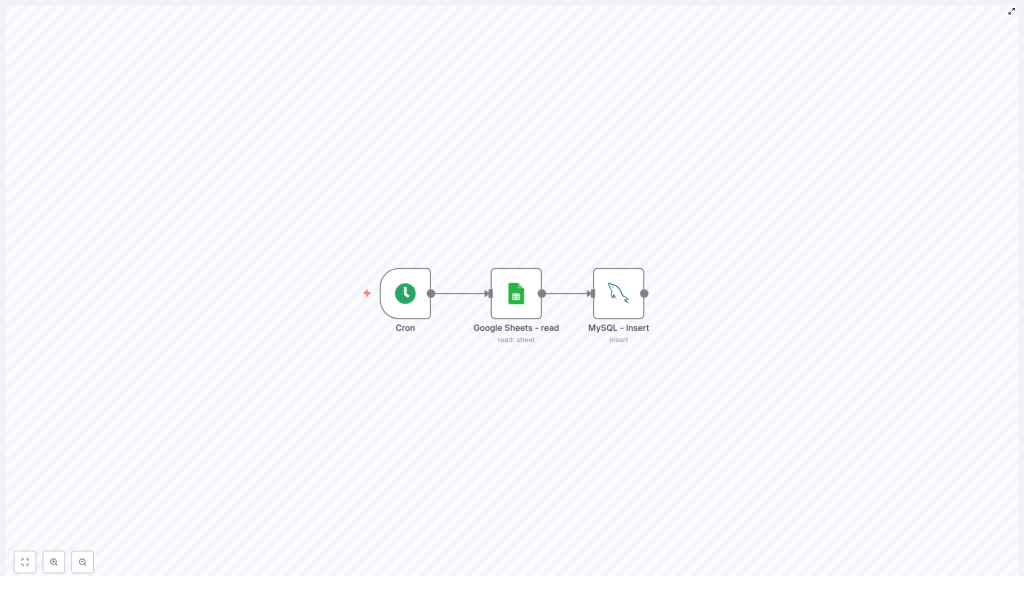
The template implements a straightforward pipeline that is easy to reason about and extend. At its core, the workflow consists of three primary nodes:
- Cron – schedules the workflow execution (weekly at 05:00 in the template).
- Google Sheets – Read – fetches spreadsheet rows via OAuth2 authentication.
- MySQL – Insert – inserts the rows into a MySQL table named
bookswith columnstitleandprice.
Conceptually, the flow is linear:
Cron -> Google Sheets - Read -> (optional transform) -> MySQL - Insert
While the basic template is intentionally minimal, you can insert additional nodes between Google Sheets and MySQL for validation, transformation, and monitoring.
Key configuration parameters
The following sections summarize the critical settings used in the template. These are the main values you will adapt for your own environment.
Cron node configuration
- triggerTimes: item
- mode:
everyWeek - hour:
5(runs at 05:00)
This schedule is suitable for low-frequency batch syncs. For nightly or higher frequency imports, adjust the mode and time according to your data freshness requirements and timezone.
Google Sheets – Read node configuration
- sheetId:
qwertz(placeholder, replace with your actual sheet ID) - authentication:
oAuth2 - credentials:
googleSheetsOAuth2Api(OAuth2 credentials stored in n8n)
The sheetId is the long identifier in the URL of your Google Sheet. The node uses OAuth2 to access the sheet through n8n’s credential manager, which keeps secrets out of the workflow definition itself.
In addition, you should:
- Configure the range to limit which rows are read, or read all rows for small sheets.
- Enable header usage if your first row contains column names, so output fields align with your schema.
MySQL – Insert node configuration
- table:
books - columns:
title, price - options:
- ignore:
true(skips rows that would cause errors, for example duplicates) - priority:
LOW_PRIORITY(allows MySQL to delay inserts if the server is under load)
- ignore:
- credentials:
mySql(MySQL connection saved in n8n)
The ignore option is valuable for idempotent workflows. Combined with unique constraints in MySQL, it prevents the workflow from failing on duplicate inserts.
Step-by-step workflow implementation
1. Configure the Cron trigger
Start by adding a Cron node to your n8n canvas.
- Set the mode to
Every Week. - Set the hour to
5to run at 05:00.
Align this schedule with your operational needs. For example:
- Nightly imports: run daily at 02:00 or during off-peak hours.
- Weekly reporting: run once per week before a reporting cycle.
2. Connect and read from Google Sheets
Next, add a Google Sheets – Read node and connect it to the Cron node.
- Authenticate using OAuth2 and select the saved credentials
googleSheetsOAuth2Api. - Set the sheetId to your Google Sheet’s ID from the URL.
- Define the range or use the default to read all rows.
- If the first row contains column names, enable the option to use the header row as field names.
This configuration ensures that the output JSON from the node has keys that correspond to your spreadsheet headers, which simplifies downstream mapping.
3. Normalize and transform data (recommended)
Before persisting data into MySQL, it is good practice to standardize and validate it. Insert a Set or Function node between Google Sheets and MySQL to:
- Align column names with your database schema, for example
titleandprice. - Clean input values, such as trimming whitespace and converting text to numeric types.
- Introduce derived fields, such as an
imported_attimestamp or asource_sheetidentifier.
Example pseudocode for a Function node:
items.map(item => {  return {  json: {  title: item.json['Title'].trim(),  price: parseFloat(item.json['Price']) || 0,  imported_at: new Date().toISOString()  }  }
})
This pattern enforces consistent types and structure before the data reaches MySQL, which significantly reduces insert failures and downstream issues.
4. Insert rows into MySQL
Finally, add a MySQL – Insert node and connect it to your transformation node (or directly to Google Sheets if you are not transforming).
- Set table to
books. - Set columns to
title, priceto match your MySQL table schema. - Enable the ignore option if you rely on unique constraints and want to skip duplicates rather than fail the run.
- Leave priority set to
LOW_PRIORITYif you want MySQL to defer inserts when the server is under heavy load.
For large imports, consider batching:
- Split items into batches of 100 to 1000 rows per insert to avoid extremely large SQL statements.
- Use n8n’s built-in batch or split features to control group sizes.
Best practices for a production-ready workflow
Error handling and observability
- Error workflows: Configure n8n’s error workflow feature or add a dedicated “Catch” branch to capture failures.
- Notifications: Send alerts via Slack, email, or another channel when inserts fail, including row context for faster diagnosis.
Retries and resilience
- Enable retry logic on nodes that are prone to transient errors, such as OAuth token refresh or database connections.
- Use controlled retry counts and backoff intervals to avoid overloading external systems.
Idempotency and deduplication
- Define a unique key in MySQL, for example a composite key or a natural key from the sheet.
- Keep the MySQL ignore option enabled so duplicate inserts are safely skipped.
- Optionally, insert a MySQL query node before the insert to check for existing rows and implement custom deduplication logic.
Data validation and quality
- Validate that required fields are present and non-empty before inserts.
- Ensure type consistency, for example, numeric fields are correctly parsed and not left as strings.
- Reject or log rows that fail validation to avoid polluting your database.
Performance and scalability
- For large Google Sheets, use pagination or batching to process data in manageable chunks.
- Leverage database transactions for multi-step update sequences where you require all-or-nothing behavior.
- Monitor MySQL for slow queries and optimize indexes where necessary.
Security considerations
- Store all credentials in n8n’s credential manager rather than in plain-text workflow fields.
- Limit MySQL user permissions to only the operations required, typically
INSERT(and possiblySELECTfor checks). - Rotate credentials periodically and remove unused accounts.
Testing and deployment checklist
Before enabling the workflow in production, validate each step in isolation.
- Google Sheets node: Execute manually and confirm that all expected rows and header mappings are correct.
- Transformation node: Test the Set or Function node, inspect the resulting JSON, and verify that types and field names match your MySQL schema.
- MySQL insert: Run a test with a single row, then query the database to confirm structure and values.
- Cron activation: Enable the Cron node and monitor the first scheduled run using n8n’s execution logs.
- Monitoring and alerts: Confirm that alerting is configured for runtime failures and monitor MySQL for slow or failing queries.
Troubleshooting common issues
Google Sheets authentication or permissions errors
If the Google Sheets node returns authentication or permission errors:
- Re-authorize the OAuth2 credentials in n8n.
- Verify that the authenticated Google account has at least read access to the target sheet.
Unexpected or changing column names
Spreadsheet headers often change over time, which can break field mappings.
- Normalize headers in your transformation node, mapping them explicitly to stable field names.
- Use a Set node to map from the current sheet header labels to the database column names you expect.
MySQL insert failures
When rows are rejected by MySQL:
- Check table constraints such as
NOT NULL, data types, and unique keys. - If ignore is enabled, invalid rows are silently skipped, so implement logging or counters to track how many rows were not inserted.
Advanced optimization tips
- Prepared statements: Use the MySQL node’s capability to execute prepared statements for safer, parameterized inserts.
- Selective imports: Combine the Google Sheets – Read node with a filter node to import only rows that meet specific criteria, such as a status column set to “Ready” or a
last_updatedvalue more recent than the last run. - High-volume workflows: For very large datasets, consider exporting the sheet to CSV and using MySQL’s bulk loading mechanisms for higher throughput.
Conclusion and next steps
Using n8n to automate the transfer of data from Google Sheets to MySQL provides a repeatable, auditable ETL pipeline that eliminates manual steps and centralizes your data in a robust relational database.
The core pattern – Cron -> Google Sheets – Read -> MySQL – Insert – is intentionally simple, yet it offers a solid foundation that you can extend with validation, transformation, error handling, and performance optimizations as your needs evolve.
If you prefer to start from a ready-made configuration, you can import the template directly into your n8n instance and adapt the sheet ID, table name, and column mappings to match your environment.
Recommended next actions:
- Import the template into your n8n instance.
- Test with a small Google Sheet to validate mappings and data quality.
- Iterate on transformations and error handling to align with your production standards.
- Subscribe for additional n8n automation templates and implementation guides.
