


Automate Gumroad Sales to MailerLite & Google Sheets with n8n
Manually copying every new Gumroad buyer into your email list and spreadsheet is a special kind of torture. You open Gumroad, copy the email, paste it into MailerLite, then into Google Sheets, then swear you will “totally automate this someday.” This guide is that someday.
We will walk through an n8n workflow that quietly does all the boring stuff for you in the background. Every sale becomes:
- a new subscriber in MailerLite,
- assigned to the right MailerLite group, and
- logged as a neat little row in your Google Sheets CRM.
You sip coffee, n8n does the admin. Fair trade.
What this n8n workflow actually does
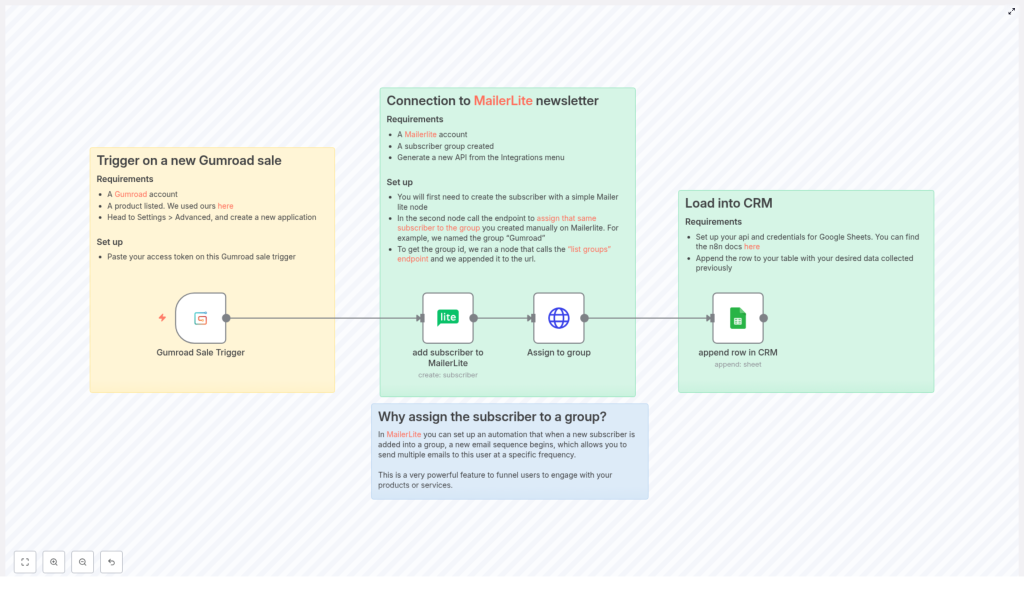
Here is the big picture of the automation you will build. Whenever a new Gumroad sale happens, your n8n workflow will:
- Listen for a Gumroad sale using a
Gumroad Triggernode. - Create a subscriber in MailerLite with the buyer’s email and country.
- Add that subscriber to a MailerLite group using the MailerLite API.
- Append a row to Google Sheets with sale timestamp, email, country, and product name.
The result is a fully automated flow from “someone bought your thing” to “they are in your email system and CRM, ready for follow-up and future marketing.”
Why bother automating Gumroad sales?
Aside from protecting your sanity, automating Gumroad sales with n8n gives you a few big advantages:
- Better follow-up – Instantly enroll buyers in MailerLite sequences, onboarding, or support flows.
- Always up-to-date CRM – Keep a searchable purchase log in Google Sheets without ever touching the keyboard.
- Hands-free marketing – Trigger upsells, nurture campaigns, and segmenting based on what people bought and where they are from.
Once this is running, every sale automatically plugs into your marketing and tracking system. No more “I forgot to add them to the list” moments.
What you need before starting
Before you fire up n8n, make sure you have these pieces ready:
- An n8n instance (cloud or self-hosted).
- A Gumroad account with an API access token.
- A MailerLite account plus your MailerLite API key.
- A Google account with:
- a Google Sheets file to act as your CRM, and
- Google credentials configured in n8n.
- A MailerLite group created for Gumroad buyers (you will need its
group_id).
Once you have those, you are ready to build the workflow or plug in the template.
Step-by-step: building the workflow in n8n
Step 1 – Catch new sales with a Gumroad Trigger node
First, you need n8n to know when someone buys from you on Gumroad.
- Add a Gumroad Trigger node to your workflow.
- Configure the webhook to listen for sale events.
- In the node credentials, paste in your Gumroad access token so n8n can validate incoming events.
From now on, every new Gumroad sale will fire this workflow without you lifting a finger.
Step 2 – Create the MailerLite subscriber
Next, you want your new buyer to land in MailerLite automatically.
- Add a MailerLite node right after the Gumroad Trigger.
- Set the operation to create subscriber.
- Map the fields from the Gumroad payload to MailerLite fields using n8n expressions.
Typical field mappings:
- Email:
{{$json.email}} - Custom field – country:
{{$json.ip_country}}
You can add extra custom fields if you like, but at minimum, email and a couple of useful attributes are enough to get started.
Step 3 – Add the subscriber to a MailerLite group
MailerLite works best when you use groups to trigger automations. So after creating the subscriber, you want to drop them into the right group.
To do that, use either:
- an HTTP Request node, or
- the MailerLite node if your version already supports group operations.
With the HTTP Request node, configure a POST request to:
https://connect.mailerlite.com/api/subscribers/{subscriber_id}/groups/{group_id}Where:
{subscriber_id}is theidreturned from the previous MailerLite node (the one that created the subscriber).{group_id}is the id of your Gumroad buyers group in MailerLite.
In n8n, use expression syntax to construct the URL and pass your MailerLite credentials so the call is authenticated. Once this is set, every new buyer gets instantly assigned to that group and can enter your automations.
Step 4 – Log the sale in Google Sheets
Now for your lightweight CRM. You want a simple, filterable history of every sale in Google Sheets.
- Add a Google Sheets node to the workflow.
- Choose the operation to append a row.
- Select your CRM sheet and map the values coming from the Gumroad Trigger node.
Typical columns and mappings:
- date: sale timestamp (convert the format if needed).
- email: buyer email.
- country: buyer country.
- product name:
product_namefrom Gumroad.
You end up with a clean historical log you can sort, filter, or export whenever you feel like analyzing your sales or bragging about them.
How to test your Gumroad – n8n – MailerLite – Sheets setup
Before trusting this workflow with your entire business, give it a proper test run.
- Activate the workflow in n8n so it listens for real events.
- Trigger a test sale:
- Either make a low-priced test purchase on Gumroad, or
- Use Gumroad’s webhook test tooling if available.
- Check MailerLite:
- Confirm the new subscriber appears in your audience.
- Verify they are assigned to the correct group.
- Open your Google Sheet:
- Make sure a new row was added.
- Check that the timestamp, email, country, and product name look correct.
If everything looks good, your manual copy-paste job has officially been retired.
Error handling, reliability, and best practices
APIs sometimes misbehave, networks get grumpy, and rate limits are a thing. A few tweaks in n8n can make your workflow much more robust.
- Retry logic: Enable n8n’s retry options on nodes that call external APIs (Gumroad, MailerLite, Google). This helps with temporary failures so a single bad request does not break your whole flow.
- Idempotency: Avoid creating duplicate MailerLite subscribers. Use MailerLite’s API features to search for existing subscribers or add logic in n8n to check if the email already exists before creating a new one.
- Respect rate limits: Gumroad and MailerLite both have rate limits. If you expect bursts of sales (nice problem to have), consider batching or throttling requests in n8n.
- Logging and debugging: Store the raw webhook payload in a separate Google Sheet or logging service. This makes it much easier to debug weird edge cases later.
Privacy, consent, and compliance
When you are collecting buyer data and sending it into tools like MailerLite and Google Sheets, you also need to stay on the right side of privacy regulations such as GDPR and CCPA.
Make sure to:
- Include clear privacy notices on your product pages.
- Get proper opt-in consent for marketing emails where required.
- Double-check that your MailerLite automations respect unsubscribe requests automatically.
It is your responsibility to configure everything in a compliant way, so take a moment to verify your setup before going all-in on automated sequences.
Troubleshooting common issues
If something does not work on the first try, you are not alone. Here are some quick checks:
- No webhook events arriving: Confirm that the Gumroad webhook is correctly configured and that your n8n webhook URL is publicly reachable.
- Subscriber not created in MailerLite: Open the n8n execution log, inspect the incoming Gumroad payload, and verify all required fields for the MailerLite node are mapped correctly.
- Wrong or missing MailerLite group: Use the MailerLite API to list groups and confirm you are using the correct
group_idin your HTTP Request or MailerLite node.
Most problems come down to a typo, a missing field, or a credential that did not save correctly, so the execution log is your best friend here.
Advanced ways to level up this workflow
Once the basic Gumroad to MailerLite to Google Sheets flow is running smoothly, you can start getting fancy.
- Enrich buyer data: Before adding people to MailerLite, call a geo-IP or enrichment API to add extra fields like city, company, or more detailed location.
- Conditional sequences: Add logic in n8n to route buyers to different MailerLite groups depending on:
- which product they bought, or
- which country they are in.
- Sync with a full CRM later: Keep using Google Sheets as a simple CRM, then later connect it (or your n8n workflow) to tools like Pipedrive or HubSpot when you are ready to upgrade.
n8n gives you a lot of room to grow, so this starter workflow can easily become the backbone of a more sophisticated automation setup.
Wrapping up
By wiring up Gumroad, n8n, MailerLite, and Google Sheets, you turn every sale into an automated chain of useful actions: subscriber creation, group assignment, and CRM logging, all without you opening a single tab.
This is a low-cost, high-impact upgrade to your creator toolkit. You improve customer experience, stay organized, and free up your time for making products instead of maintaining spreadsheets.
Ready to set this up? Fire up your n8n instance, follow the steps above, and run a test sale to make sure everything is connected. After that, you can safely retire your copy-paste routine.
If you want help customizing this workflow, like adding conditional routing or integrating with a dedicated CRM, reply with the behavior you want and I will share a tailored n8n workflow configuration.
