


Automate Hiring: AI HR Agent for Screening & Interview Questions
What You Will Learn
In this guide, you will learn how to use an n8n workflow template to:
- Collect candidate applications through a web form
- Store resumes in Google Drive for record-keeping
- Use an AI qualification agent to screen applicants against open roles
- Automatically score and shortlist candidates
- Generate tailored interview questions with AI
- Log all results in Google Sheets and notify your HR team via Telegram
By the end, you will understand each part of the workflow and how to adapt it to your own hiring process.
Why Automate Your Hiring With an AI HR Agent?
Modern hiring requires both speed and quality. Manual screening of resumes and preparing interview questions can be slow and inconsistent. This n8n workflow template uses AI to:
- Streamline the early stages of recruitment
- Evaluate candidate qualifications against your open roles
- Create personalized interview questions for each applicant
It is ideal for HR teams, recruiters, and hiring managers who want to use automation and AI to improve candidate evaluation and save time.
Key Concepts Before You Start
1. Candidate Application Form
The workflow starts with a web form where candidates submit their information. This form captures:
- Full name
- Email address
- Phone number
- Job role they are applying for
- CV or resume as a PDF upload
This data becomes the input that the rest of the n8n workflow uses.
2. Google Drive & Google Sheets Integration
The workflow uses two Google services:
- Google Drive to store uploaded CVs for documentation and future reference.
- Google Sheets to manage:
- A list of open positions
- A log of received applications, scores, and interview questions
Your Google Sheet should include at least two tabs:
Open_Positions– contains your current job openings and requirementsApplications– stores candidate details, scores, and generated questions
3. AI Qualification Agent
The core of the workflow is an AI assistant, referred to as the Qualification Agent. Using your OpenAI GPT-4 API key, this agent:
- Matches the candidate’s desired role with your open positions in Google Sheets
- Checks if the role is currently available
- Compares the candidate’s skills and experience from the CV to the job requirements
- Assigns a qualification score on a scale of 1 to 5
- Shortlists candidates who meet or exceed the criteria for open roles
4. Dynamic Interview Question Generator
For candidates who pass the qualification step, a second AI agent creates personalized interview questions. It uses:
- The candidate’s resume content
- The job description and requirements from the
Open_Positionstab
The agent can also generate probing questions about:
- Employment gaps
- Potential red flags or unclear parts of the CV
5. Notifications and Tracking
All processed information is stored and shared automatically:
- The
Applicationstab in Google Sheets is updated with:- Candidate data
- Qualification score
- Generated interview questions
- The HR team receives a Telegram notification when a new qualified candidate is ready for review.
How the n8n Workflow Works – Step by Step
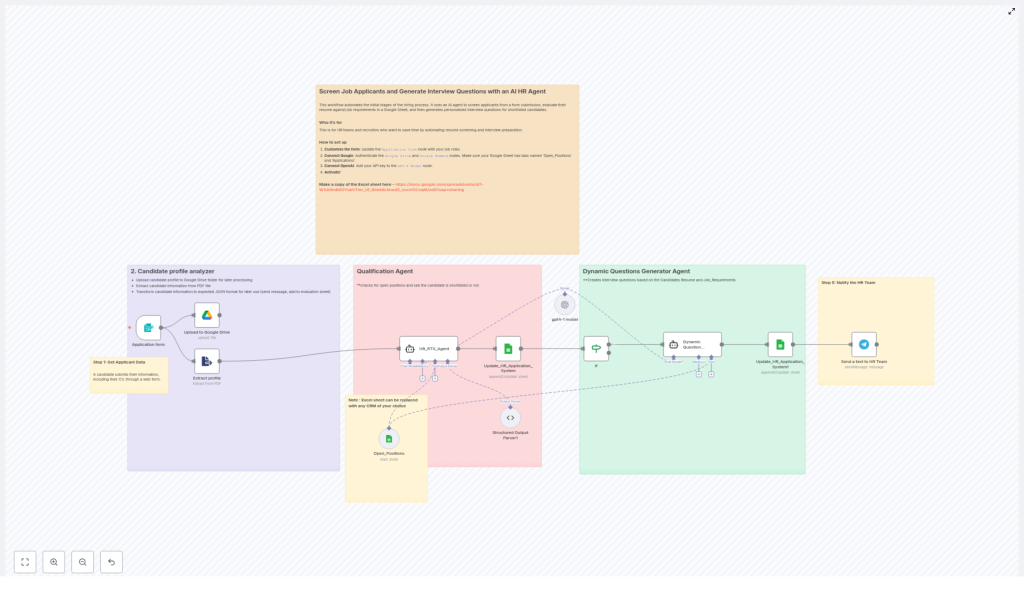
Step 1 – Candidate Profile Submission
The process begins when a candidate fills out your application form. In n8n, this is typically triggered by a form submission node or a webhook.
The form collects:
- Personal details (name, email, phone)
- The job role they are applying for
- A PDF version of their CV or resume
Once the form is submitted, n8n receives the data and passes it to the next steps in the workflow.
Step 2 – Save CV and Extract Resume Data
After submission, the workflow performs two main actions:
- Store the CV in Google Drive
The uploaded PDF file is saved to a specific Google Drive folder. This ensures every application has a stored copy for compliance and future reference. - Extract key details from the PDF
The system reads the resume content and extracts important information such as:- Skills
- Experience
- Education
- Relevant achievements
This structured data is prepared so the AI agents can evaluate the candidate automatically.
Step 3 – AI Qualification Agent Screening
Next, the Qualification Agent evaluates the candidate. In this part of the workflow, n8n:
- Looks up the candidate’s desired job role in the
Open_Positionstab of your Google Sheet. - Checks if the position is marked as open or closed.
- Feeds the job requirements and the extracted resume data into the AI model.
The AI Qualification Agent then:
- Compares the candidate’s qualifications with the job requirements
- Determines how well the candidate fits the role
- Assigns a score from 1 to 5, where higher is a better match
- Decides whether the candidate should be shortlisted for that position
Candidates who do not meet the requirements can be logged but not advanced, while qualified candidates move to the next step.
Step 4 – Dynamic Interview Question Generation
For shortlisted candidates, the workflow triggers the Dynamic Question Generator Agent. Using the candidate’s resume and the job description, the AI:
- Creates a tailored set of interview questions specific to:
- The candidate’s skills and experience
- The responsibilities and requirements of the role
- Adds follow-up questions where:
- There are employment gaps in the CV
- Information appears inconsistent or unclear
- Potential red flags are detected
The result is a list of practical, targeted questions that your HR team or hiring manager can use directly in interviews.
Step 5 – Record Results and Notify HR
Finally, the workflow updates your tracking tools and alerts your team:
- Update Google Sheets
TheApplicationstab is updated with:- Candidate details from the form
- Qualification score from the AI agent
- Generated interview questions
This turns your Google Sheet into a simple applicant tracking system.
- Send Telegram Notification
A Telegram message is sent to your HR or recruiting channel, informing the team that a new qualified candidate is ready for review, along with key details.
Setting Up the Workflow Template in n8n
1. Customize the Application Form
Start by adjusting the form that collects candidate data:
- Add or remove fields to match your company’s hiring process
- Ensure there is a field for the job role the candidate is applying for
- Confirm that the form supports PDF uploads for CVs
In n8n, connect this form to the workflow trigger so that each submission starts the automation.
2. Connect Google Drive and Google Sheets
Next, authenticate your Google services inside n8n:
- Set up credentials for Google Drive so the workflow can upload and store CVs in your chosen folder.
- Set up credentials for Google Sheets and link the workflow to your application management spreadsheet.
Make sure your Google Sheet has the following tab names exactly:
Open_PositionsApplications
Fill Open_Positions with your active roles, including titles, requirements, and an availability status column that indicates whether the role is open.
3. Integrate OpenAI (GPT-4)
To enable the AI agents, you need to connect your OpenAI account:
- Obtain your OpenAI GPT-4 API key from your OpenAI dashboard.
- Add this key as credentials in n8n.
- Confirm that the Qualification Agent and Dynamic Question Generator nodes are configured to use these credentials.
This integration allows n8n to send resume and job data to GPT-4 and receive structured evaluations and interview questions in response.
4. Activate and Test the Workflow
Before using the workflow in production, run a few tests:
- Submit a sample application through the form.
- Check that:
- The CV is stored correctly in Google Drive
- Data appears in the
Applicationstab - The AI generates a reasonable score and relevant interview questions
- The Telegram notification is delivered to the right channel
- Adjust prompts, scoring rules, or question styles in the AI nodes if needed.
Once you are satisfied with the results, activate the workflow in n8n to start automating your recruitment process.
Adapting the Template to Your Tools
Although this workflow uses Google Sheets as a simple application management system, you can adapt it:
- Replace Google Sheets with another spreadsheet tool or CRM system
- Sync data to your existing ATS using additional n8n nodes
- Adjust the structure of the
Open_PositionsandApplicationsdata to match your internal processes
The key idea is that the AI agents need access to structured job requirements and candidate data, regardless of which storage tool you use.
Benefits of Using This AI HR Agent Workflow
- Time savings – Reduce manual resume screening and question preparation.
- More consistent evaluation – Candidates are assessed using the same criteria and scoring scale.
- Better candidate experience – Faster responses and more relevant interview conversations.
- Improved hiring accuracy – AI highlights the best matches based on your defined requirements.
Quick FAQ
Do I have to use Google Sheets?
No. The template uses Google Sheets as an example, but you can replace it with any CRM or database that n8n can connect to. You will just need to adjust the nodes that read and write data.
Can I change the scoring system?
Yes. The default scale is 1 to 5, but you can modify the AI prompt or post-processing logic in n8n to use a different scoring method or to add more detailed labels.
What if I have multiple job openings?
The Open_Positions tab can contain multiple roles. The Qualification Agent checks the candidate’s chosen role against this list and evaluates them only for positions that are marked as open.
Is this suitable for non-technical roles?
Yes. The workflow is role agnostic. You simply need to provide clear job requirements in your Open_Positions sheet so the AI can compare them with each candidate’s CV.
Get Started With the Template
If you are ready to modernize your recruitment process, this n8n workflow template gives you a practical starting point. Customize the form, connect your Google services, plug in your OpenAI GPT-4 key, and activate the workflow to begin automated candidate screening and interview preparation.
