


Automate Hourly Weather Logs with n8n
Reliable hourly weather logging is critical for operations, forecasting models, and long-term climatological analysis. This article presents a production-grade n8n workflow template that automates the full pipeline: ingesting weather data through a webhook, generating vector embeddings, storing and querying context in Pinecone, applying a retrieval-augmented generation (RAG) agent for analysis, and persisting results into Google Sheets, with Slack notifications for operational visibility.
Why augment weather logs with vectors and RAG?
Conventional logging solutions typically capture structured metrics such as temperature, humidity, and wind speed. While this is useful for basic reporting, it is not optimized for semantic analysis or similarity search, for example:
- Identify historical hours with comparable temperature and humidity patterns.
- Detect anomalies relative to similar past conditions.
- Generate concise, context-aware summaries for operators.
By embedding each observation into a vector space and storing it in a vector database like Pinecone, you unlock semantic search and retrieval capabilities that are well suited for RAG workflows. n8n orchestrates this stack with a low-code interface, enabling automation professionals to iterate quickly without sacrificing robustness.
Architecture of the n8n workflow
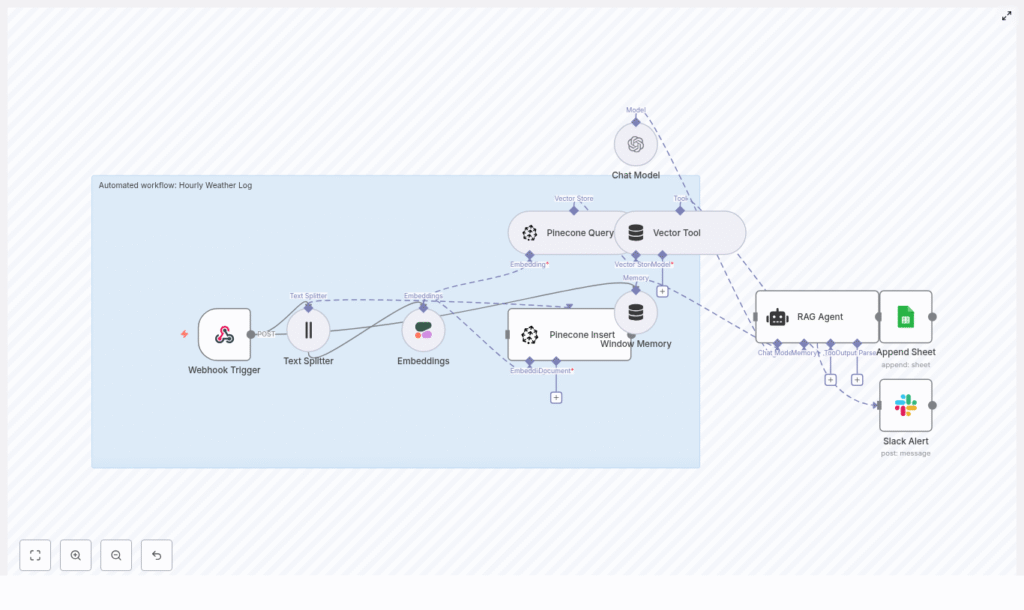
The template implements a complete, automated weather logging pipeline:
- Webhook Trigger – Receives hourly weather payloads via POST at
/hourly-weather-log. - Text Splitter – Normalizes and chunks verbose or batched payloads.
- Cohere Embeddings – Converts chunks into dense vectors for semantic search.
- Pinecone Insert – Stores vectors and metadata in the
hourly_weather_logindex. - Pinecone Query + Vector Tool – Retrieves relevant historical context for the RAG agent.
- Window Memory – Maintains short-term context across executions.
- Chat Model (OpenAI) with RAG Agent – Produces summaries, statuses, or insights.
- Google Sheets Append – Writes processed results into a log sheet.
- Slack Alert – Sends error notifications to an alert channel.
The following sections explain how to configure each component and highlight best practices for running this workflow in a production environment.
Configuring data ingestion and preprocessing
1. Webhook Trigger for hourly weather data
Start by adding an n8n Webhook node. Configure it as follows:
- HTTP Method:
POST - Path:
hourly-weather-log
Any external producer, such as a weather station, scheduler, or third-party API, can post JSON data to this endpoint. A representative payload might look like:
{  "timestamp": "2025-09-01T10:00:00Z",  "temperature_c": 22.5,  "humidity": 58,  "wind_speed_ms": 3.2,  "conditions": "Partly cloudy",  "station_id": "station-01"
}
This payload becomes the basis for embeddings, retrieval, and downstream analysis.
2. Text Splitter for verbose or batched inputs
In many environments, hourly updates may include extended textual descriptions or bundles of multiple observations. To ensure optimal embedding quality and LLM performance, add a Text Splitter node configured as a character splitter with:
- chunkSize:
400 - chunkOverlap:
40
This configuration keeps each segment within a reasonable token boundary while preserving enough overlap for contextual continuity. If your payloads are already small and structured, you can still use the splitter as a normalization step or selectively apply it only when payloads exceed a certain size.
Embedding and vector storage with Cohere and Pinecone
3. Generate embeddings using Cohere
To enable semantic search and RAG, the workflow converts text chunks into vector representations. Add an Embeddings node and configure it to use Cohere’s embed-english-v3.0 model.
Key configuration details:
- Connect the Text Splitter output to the Embeddings node.
- Provide your Cohere API credentials via n8n credentials or environment variables.
- Specify which field or fields from the JSON payload to embed. This can be a serialized subset of the JSON to reduce noise.
The result is a vector for each chunk, which will be written into Pinecone together with the original content and relevant metadata.
4. Insert embeddings into the Pinecone index
Next, add a Pinecone Insert node to persist the generated vectors. Configure the node to write to the hourly_weather_log index and include the following metadata fields:
timestampstation_id- Original or normalized text representation of the observation
Capturing this metadata enables powerful filtering and lifecycle management, for example querying by station, time range, or performing TTL-based cleanup of older vectors.
Retrieval and context for the RAG agent
5. Query Pinecone and expose a vector tool
To enrich each new observation with relevant historical context, add a Pinecone Query node that targets the same hourly_weather_log index. Configure it to perform similarity searches based on the current embedding. Typical parameters include:
- Number of nearest neighbors to retrieve (k).
- Optional filters on metadata such as
station_idor time windows.
Connect the query output to a Vector Tool node and name it, for example, Pinecone. This tool becomes available to the RAG agent, which can then call it to fetch relevant historical observations as context for summarization or anomaly detection.
6. Add short-term memory and LLM configuration
To maintain continuity across closely spaced runs, introduce a Window Memory node. This node keeps a bounded history of recent interactions so the agent can consider short-term trends and prior outputs.
Then configure a Chat Model node using OpenAI as the LLM provider. When defining the system prompt, keep it explicit and domain-specific, for example:
“You are an assistant for Hourly Weather Log.”
This ensures the model remains focused on meteorological context and operational reporting rather than drifting into generic conversation.
Designing the RAG agent and output format
7. Configure the RAG Agent node
The RAG Agent node orchestrates the LLM, vector tool, and memory. It uses the Pinecone vector tool to retrieve similar historical data and the Window Memory to incorporate recent context.
A typical prompt structure can be:
System: You are an assistant for Hourly Weather Log.

User: Process the following data for task 'Hourly Weather Log':

{{ $json }}
Best practices when designing the agent prompt:
- Clearly specify the expected output format, for example a JSON object with a
StatusorSummaryfield. - Instruct the agent to use retrieved historical context for comparisons or anomaly detection if relevant.
- Keep instructions concise and deterministic to reduce variability between runs.
Returning a named field such as Status or Summary makes it straightforward to map the result into downstream nodes like Google Sheets.
Persisting results and alerting
8. Append processed logs to Google Sheets
For reporting and downstream analytics, the workflow appends each processed result to a Google Sheet. Add a Google Sheets node in Append mode and configure:
- documentId: Your target
SHEET_ID. - Sheet name: Typically
Logor similar. - Column mappings, for example:
Timestamp→ originaltimestampfield.Station→station_id.StatusorSummary→ output from the RAG agent.
This creates a continuously growing log that can be consumed by BI tools, dashboards, or simple spreadsheet analysis.
9. Slack alerts for operational reliability
To ensure rapid response to failures, use the onError path of the RAG agent (or other critical nodes) and connect it to a Slack node.
Configure the Slack node to post to a channel such as #alerts with a message template similar to:
Hourly Weather Log error: {$json.error.message}
This pattern provides clear visibility into workflow issues and helps teams react promptly when something breaks, for example API failures, rate limits, or schema changes in incoming payloads.
Best practices for secure and scalable operation
Credentials and security
- API keys: Store all OpenAI, Cohere, Pinecone, Google, and Slack credentials using n8n’s credentials system or environment variables. Avoid hardcoding secrets in node parameters.
- Webhook protection: If the webhook is publicly reachable, implement IP allowlists, API keys, or signature verification to prevent unauthorized access and data pollution.
Index design and chunking strategy
- Metadata design: Include fields such as
timestamp,station_id, and geographic coordinates. This enables filtered queries (for example, by station or region) and supports index maintenance tasks. - Chunking: For purely structured, compact payloads, aggressive chunking may be unnecessary. When embedding JSON, consider serializing only the meaningful fields, such as key metrics and conditions, to reduce vector noise and cost.
Rate limiting and cost management
- Implement backoff or batching strategies when ingesting high-frequency updates from many stations.
- Monitor usage and costs for Cohere embeddings and Pinecone storage and queries.
- Consider downsampling less critical logs or aggregating multiple observations into hourly summaries before embedding to reduce volume.
Monitoring, scaling, and lifecycle management
For production deployments, continuous monitoring is essential:
- Pinecone index metrics: Track index size, query latency, and replica configuration. Adjust pod types and replicas to balance performance and cost.
- Embedding volume: Monitor the number of embedding calls to Cohere. Set budget alerts and adjust sampling or aggregation strategies if usage grows faster than expected.
- Retention policies: Implement deletion of vectors older than a defined threshold to control index size and maintain performance, especially when high-frequency logs accumulate over time.
Extensions and advanced use cases
Once the core workflow is operational, it can be extended in several ways:
- Direct integration with weather APIs such as OpenWeatherMap or Meteostat, or with IoT gateways that push directly into the webhook.
- Cron-based scheduling to periodically fetch weather data from multiple stations and feed it into the same pipeline.
- Dashboards and analytics using Google Data Studio, Apache Superset, or a custom web app that reads from the Google Sheet and leverages vector search to surface similar weather events.
- Anomaly detection by comparing current embeddings with historical nearest neighbors and flagging significant deviations in the RAG agent output or via dedicated logic.
- Retention and archival workflows that move older logs to cold storage while pruning the active Pinecone index.
Testing and validation workflow
- Send a test
POSTrequest with a sample payload to the webhook and observe the execution in the n8n UI. - Confirm that embeddings are created and inserted into the
hourly_weather_logindex in Pinecone. - Validate that the RAG agent returns a structured output containing the expected
StatusorSummaryfield. - Check that a new row is appended to the Google Sheet with correct field mappings.
- Simulate an error and verify that the Slack alert is triggered and contains the relevant error message.
Conclusion and next steps
This n8n workflow template provides a robust foundation for semantically enriched, hourly weather logging. By combining vector embeddings, Pinecone-based retrieval, RAG techniques with OpenAI, and practical integrations such as Google Sheets and Slack, it enables automation professionals to build a scalable, observable, and extensible weather data pipeline.
Deploy the template in your n8n instance, connect your API credentials (OpenAI, Cohere, Pinecone, Google Sheets, Slack), and route hourly weather POST requests to /webhook/hourly-weather-log. From there, you can tailor prompts, refine index design, and layer on advanced capabilities such as anomaly detection or custom dashboards.
If you require guidance on adapting the workflow to your infrastructure, tuning prompts, or optimizing indexing strategies, consider engaging your internal platform team or consulting with specialists who focus on LLM and vector-based automation patterns.
Ready to implement this in your stack? Deploy the template, run a few test payloads, and iterate based on your operational and analytical requirements.
