


Automate Image Generation with n8n and OpenAI: Turn Repetitive Design Work into a Creative Engine
Every growing project reaches a point where visuals become a bottleneck. Product photos, recipe images, marketing creatives – they all take time, coordination, and budget. If you have ever wished you could simply describe the image you need and have it appear, you are already thinking like an automation builder.
This guide walks you through a ready-to-use n8n workflow template that connects OpenAI image generation with Google Sheets and Google Drive. It turns plain text prompts into images, updates existing photos, and stores everything neatly in Drive. Along the way, you will see how this template can become a stepping stone toward a more automated, focused, and scalable workflow.
From Manual Design Chaos to Calm, Repeatable Systems
Manually creating or updating visual assets often feels like an endless loop of briefings, revisions, and file management. It is slow, it is expensive, and it rarely scales gracefully when your content or product catalog grows.
Automation changes that story. With n8n and OpenAI image models you can:
- Generate new images automatically from simple text prompts
- Edit existing images at scale with consistent style and branding
- Store results in a structured way in Google Drive
Instead of spending hours on repetitive tasks, you design a workflow once and let it work for you. That shift frees your time and attention for strategy, storytelling, and experimentation.
Adopting the Automation Mindset
Before we dive into nodes and endpoints, it helps to approach this template with a particular mindset: treat it as a launchpad, not a rigid tool.
As you explore this n8n workflow, notice where you currently copy-paste, manually upload, or tweak images one by one. Each of those friction points is an opportunity to:
- Translate a repeated step into an n8n node
- Replace manual judgment with a well-crafted prompt
- Turn a one-off task into a reusable, scalable process
The template you are about to use already covers common scenarios like recipe visuals and product photography. Once you understand how it works, you can customize prompts, folder structures, triggers, and data sources so it fits your exact workflow and brand.
What This n8n Template Unlocks
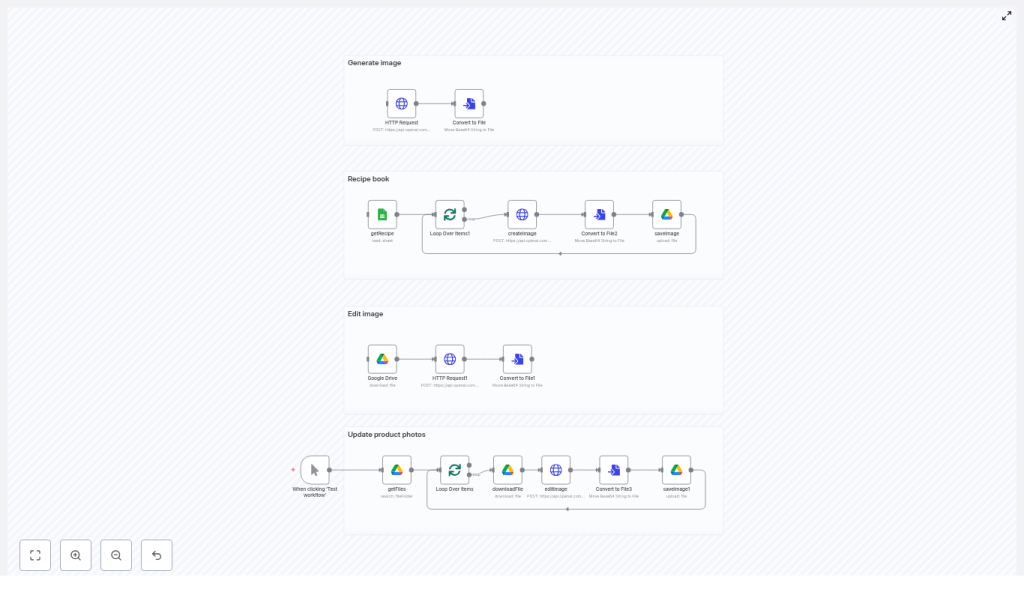
The supplied n8n template is divided into four powerful sections. Together, they form a practical toolkit for automated image generation and editing:
- Generate image – create a single image from a prompt for quick experiments or one-off needs.
- Recipe book – read rows from Google Sheets, generate a styled ingredients image for each recipe, and save the results to Google Drive.
- Edit image – download an existing file from Drive, apply edits using OpenAI, and store the updated version back in Drive.
- Update product photos – batch-edit all images in a Drive folder, add environments or props, and upload polished versions to a new folder.
Think of these as starting points. You can keep them as-is to save time right away or extend them into full creative pipelines that run daily, weekly, or whenever new data appears.
What You Need Before You Start
To use the template effectively, make sure you have:
- An n8n instance (cloud or self-hosted)
- An OpenAI API key with image capabilities enabled
- A Google account with access to Drive and Sheets
- Basic familiarity with n8n nodes and OAuth credential setup
Once these are in place, you are ready to connect everything and let the workflow start creating for you.
Core n8n Nodes That Power the Workflow
This template is built on a small set of reusable nodes. Understanding them will help you adapt and extend the workflow confidently:
- Google Sheets (getRecipe) – reads rows that contain recipe names, ingredients, or other descriptive fields.
- HTTP Request (createImage / editImage) – sends requests to OpenAI image generation and image edit endpoints.
- Convert to File – turns base64 image responses into binary files that n8n can handle and upload.
- Google Drive (saveImage / saveImage1) – uploads generated or edited images to specific folders in Drive.
- SplitInBatches / Loop Over Items – processes rows or files one by one so your workflow scales smoothly.
These nodes form a pattern you can reuse in other automations: read data, call an API, transform the response, then store the result. Once you grasp this pattern, you can build far beyond image workflows.
A Guided Tour of the Main Flows
1. Recipe Book: Turn Spreadsheet Rows into Styled Images
Imagine a Google Sheet full of recipes. Instead of manually briefing a designer for every new dish, this flow reads each row and generates a matching ingredients image.
- Read recipes from Sheets
The Google Sheets node (getRecipe) pulls each row, including the recipe name and fields likeIngredients. - Process rows one by one
SplitInBatches or Loop Over Items passes each row individually to the next step so you can scale to hundreds of recipes without overwhelming the API. - Generate images with OpenAI
An HTTP Request node callsimages/generationson OpenAI. The prompt includes theIngredientsfield and any style guidance you add, such as composition, lighting, and mood. - Convert base64 output to a file
The Convert to File node transforms the base64 response into a binary file object that n8n can upload. - Save images to Google Drive
A Google Drive node uploads each generated image with a dynamic file name, for example the recipe name. You end up with an organized folder of consistent, on-brand visuals.
This flow turns a simple spreadsheet into a living image library and it runs whenever you are ready to add more recipes.
2. Edit Image: Apply Targeted Changes to Existing Photos
Sometimes you do not need a brand new image, you just want to tweak an existing one. This flow lets you do that programmatically.
- Download the base image
A Google Drive node fetches the existing image you want to update. - Send it to OpenAI for editing
An HTTP Request node calls theimages/editsendpoint. The downloaded image is sent as multipart input, along with a prompt that explains the desired changes. - Convert and save the edited version
The Convert to File node turns the edited image response into a file, which is then saved back to Drive, either overwriting or alongside the original, depending on your configuration.
With this, you can standardize backgrounds, add subtle enhancements, or apply brand elements across many images without manual editing.
3. Update Product Photos: Batch-Edit an Entire Folder
If you manage a catalog of products, the real magic happens when you apply edits at scale. This flow updates all images in a Drive folder in a single automated run.
- Start the flow
A trigger (manual or scheduled) kicks off the workflow whenever you are ready to refresh your product visuals. - List product images
A Google Drive node lists all files in a designated products folder. - Iterate, edit, and save
SplitInBatches processes each file in turn:- Download the image
- Call the
images/editsAPI with a dynamic prompt that references product flavor or branding - Add complementary ingredients, water splashes, or props based on your prompt
- Save the edited result to a separate Drive folder for easy comparison and rollout
What used to be a long, repetitive design task becomes a repeatable, scalable pipeline that you can refine with better prompts over time.
Prompt Engineering Tips That Elevate Your Results
The quality of your images depends heavily on your prompts. Treat them as your creative direction notes to the model.
- Be clear about composition
For example: “top-down ingredients arranged neatly on a light, neutral background”. - Describe lighting, palette, and mood
Try prompts like: “natural lighting, soft color palette, modern aesthetic”. - For edits, define what stays and what changes
Example: “preserve label legibility, add splashes and fruit relevant to the flavor”. - Add small details for extra polish
Mention touches like handwritten labels, shallow depth of field, or subtle shadows for a more refined look.
As you test, adjust your prompts and rerun small batches. Over time, you will develop a library of prompts that reflect your brand and style perfectly.
Authentication and Credentials: Secure the Foundation
Automation should make your life easier, not risk your data. n8n helps you keep credentials safe while your workflows run in the background.
- OpenAI
Store your API key in an n8n HTTP Request credential or environment variable. Avoid hard-coding keys in public workflows or sharing them in screenshots. - Google OAuth
Use OAuth credentials to connect Google Drive and Google Sheets. This lets n8n read and write files securely without exposing your login details.
Error Handling, Retries, and Staying Resilient
Even the best workflows occasionally hit rate limits or network hiccups. Building in resilience means your automation keeps working without constant supervision.
- Use n8n Execute Workflow settings to retry failing nodes or wrap HTTP calls in try/catch logic.
- Log API responses and save intermediate files when failures occur so you can quickly debug issues.
- Watch for rate limits or very large image sizes and reduce batch sizes or add backoff where needed.
This kind of robustness lets you trust your workflow enough to run it on larger data sets and more critical projects.
Cost and Performance: Scale Smart, Not Just Big
OpenAI image endpoints are powerful, and like any powerful tool they come with costs. A few simple habits help you scale responsibly.
- Run small batches first and refine prompts locally before you commit to large bulk runs.
- Cache generated images and only re-generate when the underlying input actually changes.
- Use lower resolution outputs for previews, then reserve high quality renders for final assets.
This way, you protect your budget while still enjoying the benefits of automated image creation.
Practical Use Cases to Inspire Your Next Workflow
The same template can support many different projects. Here are a few concrete ideas:
- Recipe sites – automatically create ingredient spreads for new recipes added to Google Sheets.
- Ecommerce – refresh product photography with consistent branded backdrops, props, or environmental elements.
- Marketing teams – bulk-generate social media visuals that pair templated copy with on-brand imagery.
Once you see the results, you may find yourself thinking about every spreadsheet, folder, or content calendar as a potential automation source.
Security and Best Practices for Long-Term Confidence
As your automations grow, security matters more and more. A few simple practices go a long way.
- Limit your OpenAI key to only the services you actually use and rotate keys periodically.
- Restrict Google Drive access to the specific folders required by your workflows.
- Avoid exposing credentials in logs, screenshots, or public templates.
With this foundation, you can confidently scale your n8n and OpenAI usage across teams and projects.
Quick Troubleshooting Guide
If something does not work as expected, use this checklist to get back on track quickly:
- No image returned?
Check HTTP headers, authorization, and content-type. Confirm you are calling the correct endpoint (generationsvsedits) with all required parameters. - Image corrupt or cannot convert?
Make sure the response includes base64 JSON and that Convert to File points to the right property, such asdata[0].b64_jsonin the template. - Uploads failing?
Verify Google Drive folder IDs, your OAuth token validity, and that the Drive node is using the correct credentials.
Getting Started: Turn This Template into Your Own Automation Journey
You now have a clear view of what this n8n template can do and how it works. The next step is to put it into action and make it your own.
- Import the template into your n8n instance.
- Connect your credentials for OpenAI, Google Drive, and Google Sheets.
- Customize the prompts to match your brand, style, and use case.
- Run a small test using a sample Drive folder and a single spreadsheet row.
- Iterate and scale as you refine prompts, folder structures, and batch sizes.
As you gain confidence, experiment with new variations: different prompt styles, additional nodes, or triggers based on new rows in Sheets or new files in Drive. Every improvement compounds, and over time you build an ecosystem of workflows that quietly support your business or creative projects in the background.
Call to action: If you would like help tuning this to your specific niche, I can suggest prompts for your product category (beverages, baked goods, cosmetics, and more) or outline a short checklist to secure and optimize your n8n + OpenAI integration. Tell me which use case you want to automate next and I will share tailored prompts and recommended node settings.
Keywords: n8n, OpenAI, image generation, image editing, Google Drive, Google Sheets, workflow automation, n8n template, automate product photos, AI image workflows
