


Automate Industrial IoT KPI Emails with n8n
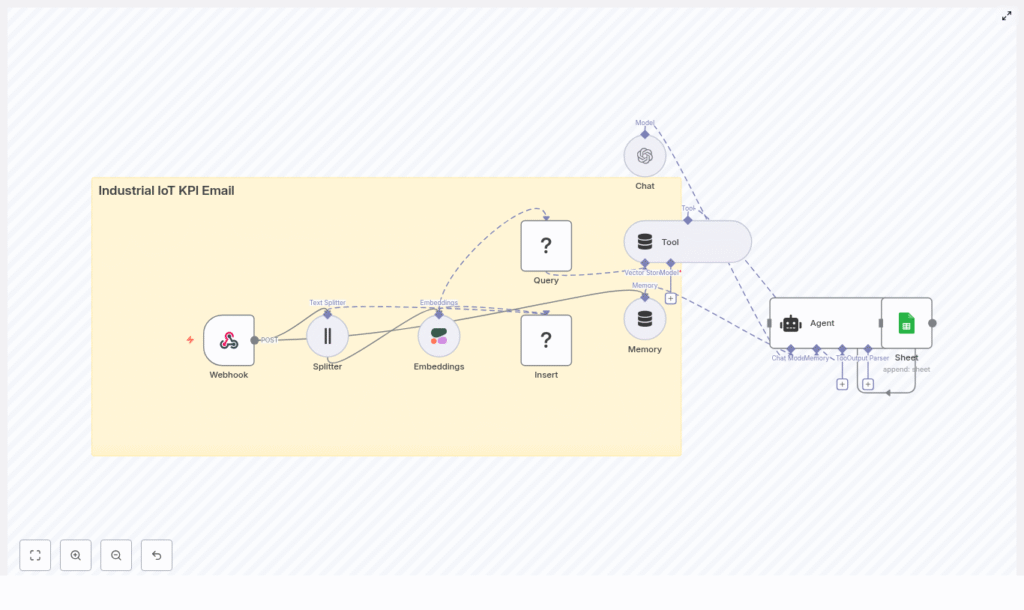
This tutorial walks you through how to build an Industrial IoT KPI email automation in n8n using embeddings, a Redis vector store, and an AI agent that logs results to Google Sheets. You will see how incoming telemetry or KPI payloads are captured, embedded, stored, searched semantically, and finally turned into clear KPI emails for your operations team.
What you will learn
By the end of this guide, you will be able to:
- Explain the architecture of an Industrial IoT KPI email workflow in n8n
- Configure a webhook to receive KPI or telemetry data from your IIoT platform
- Split and embed text, then store it in a Redis vector database
- Use semantic search to retrieve relevant historical context for new KPI events
- Set up an AI chat agent to generate KPI summary emails with recommendations
- Log every email and its metadata to Google Sheets for auditing and analysis
Core concepts and architecture
Why this architecture for Industrial IoT KPI emails?
Industrial environments generate a large amount of telemetry and KPI data. The goal of this workflow is to surface that data in the form of timely, context-aware KPI emails that operations teams can actually use.
To achieve this, the architecture combines several key building blocks:
- n8n for low-code workflow automation and orchestration
- Text splitting to break long KPI messages or logs into smaller chunks for accurate embeddings
- Embeddings (Cohere or similar) to convert KPI text into semantic vectors
- Redis vector store to store and query those vectors at high speed
- OpenAI or another LLM chat agent to generate or enrich KPI email content
- Google Sheets to log each email and its metadata for audit, compliance, and reporting
In short, n8n coordinates the flow, embeddings and Redis provide semantic memory, and the LLM turns that memory into actionable KPI summaries.
High level workflow overview
The complete n8n workflow follows this logical sequence:
- Webhook receives KPI or telemetry payloads via HTTP POST.
- Text Splitter breaks long KPI messages or logs into smaller chunks.
- Embeddings (Cohere) generates a vector for each text chunk.
- Insert into Redis vector store to index vectors along with metadata.
- Query Redis to find semantically similar past events when needed.
- Tool and memory nodes expose the vector store to the agent and keep short term conversation history.
- Chat model and agent use the retrieved context to write a KPI email and suggested actions.
- Google Sheets logs the generated email and metadata for auditing and tracking.
Prerequisites
Before you start building this in n8n, make sure you have:
- An n8n instance (self hosted or n8n cloud)
- API keys for Cohere (or another embedding provider) and OpenAI (or another LLM)
- A Redis instance that supports vector operations, or a compatible vector database endpoint
- A Google account with Sheets API credentials (OAuth) with permission to append rows
- Basic familiarity with webhooks and JSON payloads from your Industrial IoT platform
Step by step: building the workflow in n8n
This section walks through each major node in the n8n template and explains how to configure it. You can follow along in your own n8n instance or adapt these steps to your environment.
Step 1 – Capture KPI data with a Webhook node
The entry point of the workflow is a Webhook node that accepts KPI or telemetry payloads from your IIoT gateway or platform.
- HTTP method: set to
POST - Path: choose a clear path such as
/kpi-ingest - Authentication: configure IP allowlisting, header tokens, or signatures as required by your security policies
Your IIoT platform will send JSON payloads to this webhook whenever a KPI event or anomaly occurs.
Step 2 – Split long KPI messages into chunks
Many IIoT payloads include long text fields such as logs, descriptions, or alert messages. To embed these effectively, you first need to split them into smaller pieces.
Add a Text Splitter node connected to the Webhook:
- Select the text field to split, for example
messageorraw_message - Choose a splitting method such as character based or sentence based
- Use typical settings like:
- Chunk size: 400 characters
- Chunk overlap: 40 characters
The overlap helps maintain context between chunks so the embeddings preserve meaning across boundaries.
Step 3 – Generate embeddings for each chunk
Next, convert each chunk into a semantic vector using a Cohere embeddings node (or another embedding provider supported by n8n).
Connect the Text Splitter output to an Embeddings (Cohere) node and configure:
- The field that contains the chunk text
- The appropriate embedding model name or size
For each chunk, the node returns a dense vector that captures the semantic content of the text. Make sure to keep the original chunk text and important metadata (such as device ID, timestamp, KPI name) in the node output so you can store everything together in the vector database.
Step 4 – Store vectors in a Redis vector database
With embeddings generated, the next step is to index them in Redis so you can perform semantic searches later.
Add a node that inserts into your Redis vector store and configure it to:
- Use your Redis connection or credentials
- Specify the index or collection name for KPI vectors
- Store:
- The embedding vector
- The original chunk text
- Metadata such as:
device_idtimestampkpi_nameor KPI type
Indexing this metadata alongside the vectors is critical for later filtering and precise retrieval.
Step 5 – Query the vector store and expose it as a tool
Once your vector store has data, you can query it whenever a new KPI event arrives or on a schedule, for example for daily KPI summaries.
Add a Query (Redis) node that:
- Takes a new KPI text input, such as the latest anomaly message
- Embeds this input (often using the same embedding model) or uses a precomputed vector
- Performs a similarity search against the stored vectors
- Returns the most relevant historical events, descriptions, or documentation
In the n8n template, this vector store is exposed to the AI agent as a Tool. That means the agent can call this tool dynamically to retrieve supporting context whenever it needs more information to write a better KPI email.
Step 6 – Configure memory and the AI chat agent
To generate useful, context rich KPI emails, you will connect an LLM to an Agent node and give it access to both memory and the vector store tool.
Set up the following:
- Memory buffer:
- Use a memory node to keep a short history of recent messages and system prompts
- This helps the agent maintain continuity between multiple KPI events or follow up questions
- Chat model (OpenAI or similar):
- Configure your API credentials
- Choose a suitable chat model
- Provide a clear system prompt, for example:
- “You are an Industrial IoT KPI assistant. Generate concise, actionable KPI summaries and recommended next steps for operations teams.”
- Agent node:
- Connect the chat model
- Enable the vector store tool so the agent can query Redis for relevant context
- Attach the memory buffer so the agent can recall recent interactions
When triggered, the agent uses the incoming KPI data plus related historical context from the vector store to compose a clear KPI email with recommended actions.
Step 7 – Log generated emails to Google Sheets
The final step in the workflow is to keep an audit trail of all generated KPI emails and their key attributes.
Add a Google Sheets node configured to:
- Use OAuth credentials with at least append access
- Point to a specific spreadsheet and worksheet
- Append a new row for each generated email including:
- Email body or summary
- Recipient or distribution list
- Device ID and KPI name
- Timestamp and any action taken
This sheet becomes a simple but powerful log that operations, reliability, or compliance teams can review later.
Sample KPI payload structure
To get the most out of this workflow, design your IIoT payloads so they include the key fields that are useful for filtering, context, and reporting.
A typical JSON payload might look like:
device_idtimestampkpi_name(for examplebearing_temp_avg)kpi_valueand threshold valuesraw_messageorlog snippetfor embedding
{  "device_id": "pump-42",  "timestamp": "2025-08-01T12:00:00Z",  "kpi_name": "vibration_rms",  "kpi_value": 3.2,  "threshold": 2.5,  "message": "RMS vibration exceeded threshold for pump-42. Recent pattern: spike every 5 minutes."
}
Fields like device_id, timestamp, and kpi_name should be stored alongside embeddings in Redis so you can filter and interpret search results correctly.
Best practices for reliable KPI email automation
Metadata and indexing
- Always index metadata such as device IDs, timestamps, KPI names, and severity levels alongside embeddings.
- Use this metadata in your Redis queries to narrow results (for example, same device or similar time window).
Chunking strategy
- Start with a chunk size around 400 characters and an overlap of about 40 characters, then adjust based on your data.
- For very structured logs, you may experiment with line based or sentence based splitting instead of pure character based splitting.
Performance, rate limits, and batching
- Batch embedding requests where possible to reduce API overhead and costs.
- Monitor your embedding and LLM provider rate limits and back off or queue requests as needed.
Security considerations
- Secure your webhook with signatures, tokens, and IP restrictions.
- Store all API keys and secrets in environment variables or n8n credentials, not in plain text.
- Restrict Redis access to trusted networks or use authentication and TLS.
Monitoring and error handling
- Add error branches in n8n to capture failures in embedding generation, Redis operations, or Google Sheets writes.
- Log errors to a dedicated monitoring tool or a separate sheet for quick debugging.
Troubleshooting common issues
- Irrelevant embedding matches: Check the quality of the input text and your chunking settings. Noisy or very short chunks often produce poor matches. Increase overlap or clean up the text before embedding.
- Slow Redis inserts or queries: This often points to network latency. Consider deploying Redis close to your n8n instance or using a managed Redis service optimized for vector workloads.
- Missing rows in Google Sheets: Verify OAuth scopes, confirm you are using the correct spreadsheet and worksheet, and ensure the account has append permissions.
- Unexpected or low quality agent output: Refine the system prompt, give clearer instructions, and ensure the agent is actually retrieving useful context through the vector store tool.
Scaling and production readiness
For high volume Industrial IoT environments, consider these production focused enhancements:
- Managed vector database: Use Redis Enterprise or another managed vector database like Pinecone for higher throughput and resilience.
- Asynchronous processing: Accept webhook events quickly, then push heavy embedding and indexing work to background workers or queues.
- Cost optimization: Cache frequent queries, reuse embeddings when possible, and consider more cost efficient embedding models for high volume workloads.
- Observability: Instrument your workflow with metrics such as success rate, average latency, and cost per processed event.
Example Industrial IoT use case
Imagine a manufacturing operations team that wants a daily KPI email summarizing anomalies and recommended actions.
With this n8n workflow in place:
- The IIoT platform sends anomaly alerts to the webhook.
- The workflow embeds the anomaly descriptions and stores them in Redis with device and KPI metadata.
- For each new anomaly, the vector store is queried for similar past issues and their resolutions.
- The LLM agent uses this context to generate a concise KPI email that:
- Describes the current anomaly
- Highlights similar historical events
- Recommends immediate next steps for operators
- Each email and its underlying context are logged to Google Sheets for postmortem reviews and regulatory documentation.
Recap and next steps
What you have built
You have seen how to design and implement an Industrial IoT KPI email pipeline in n8n that:
- Ingests KPI payloads via a webhook
- Splits and embeds KPI messages into semantic vectors
- Stores and queries those vectors in a Redis based vector store
- Uses an AI agent to generate contextual KPI emails with recommended actions
- Logs every email and key metadata to Google Sheets for auditing
How to get started with the template
To try this in your own environment:
- Import the provided n8n workflow template into your n8n instance.
- Connect your Cohere (or other embedding) and OpenAI (or other LLM) API keys.
- Configure your Redis vector store connection and Google Sheets credentials.
- Send a sample KPI payload from your IIoT platform or a test tool to the webhook.
- Iterate on chunk sizes, prompts, and query filters until the KPI emails match your operational needs.
