


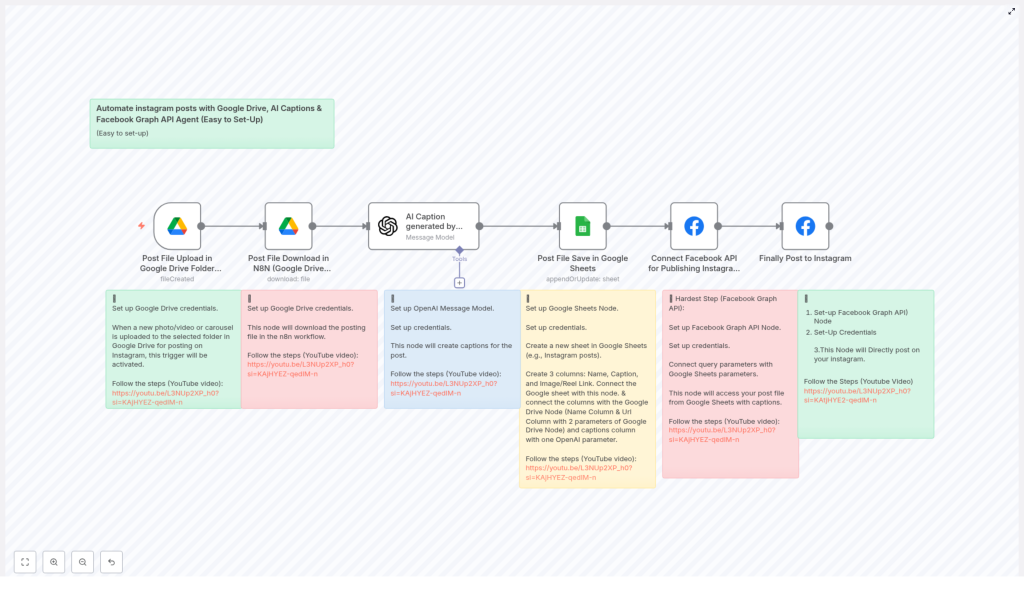
Automate Instagram Posts with n8n, Google Drive & AI Captions
Automating Instagram publishing with n8n enables marketing teams, agencies, and creators to run a scalable, auditable content pipeline. This workflow connects Google Drive, OpenAI, Google Sheets, and the Facebook Graph API so that new assets dropped into a folder are automatically captioned, logged, and published to Instagram with minimal manual intervention.
This article explains the end-to-end architecture, details each n8n node, and outlines best practices for reliability, security, and compliance with platform limits.
Business case for Instagram automation
Consistent posting is a key driver of reach and engagement on Instagram, yet manual workflows rarely scale. A well-designed n8n automation helps teams to:
- Save several hours per week on repetitive upload and publishing tasks
- Maintain a predictable posting cadence across multiple accounts
- Standardize captions, hashtags, and calls to action with AI assistance
- Maintain a structured content log in Google Sheets for auditing and reporting
By centralizing the process in n8n, you gain a single source of truth for media assets, captions, and publishing status, which is critical for professional content operations.
Solution architecture overview
The workflow uses a simple but robust architecture built around Google Drive as the content intake point. The high-level flow is:
- Ingestion: A Google Drive Trigger watches a specific folder for new media files.
- Media retrieval: The file is downloaded into the n8n runtime using the Google Drive node.
- Caption generation: OpenAI generates an Instagram-ready caption based on the file context.
- Bookkeeping: Google Sheets stores metadata such as file name, caption, and URLs.
- Media creation: The Facebook Graph API creates an Instagram media container for the image or video.
- Publishing: The created media is published to Instagram using the media_publish endpoint.
The following sections walk through each part of this pipeline in detail and describe how to configure the corresponding n8n nodes.
Core workflow in n8n
1. Triggering on new assets in Google Drive
Google Drive Trigger (fileCreated)
The workflow begins with a Google Drive Trigger configured to respond to the fileCreated event. This trigger monitors a specific folder that your team uses as a “drop zone” for Instagram-ready images and videos.
Key configuration points:
- Select the relevant folder that will receive uploads from creators or stakeholders.
- Define a polling interval, for example every minute, or adjust according to your operational needs.
- Use an OAuth credential in n8n that has read access to the target folder.
When a new file is detected, the trigger emits the file metadata, including the file id, which downstream nodes will use to fetch the actual media.
2. Downloading media from Google Drive
Google Drive (download file)
Next, a standard Google Drive node downloads the media file referenced by the trigger. Configure this node to:
- Use the file id from the trigger output as the input parameter.
- Store the binary data of the image or video in the n8n execution.
- Optionally capture Google Drive links such as
webViewLinkandthumbnailLinkfor logging and reporting.
This step ensures the media is available to both the AI caption node and the Facebook Graph API node, and also preserves useful links for your Google Sheets log.
3. Generating AI captions with OpenAI
OpenAI (caption generation)
To standardize and accelerate caption creation, the workflow uses OpenAI to generate an Instagram caption. In n8n, you can use either a message model or a text completion style node, depending on your OpenAI configuration.
Typical prompt design can include instructions such as:
- Write 2-3 concise, engaging sentences, optionally including emojis.
- Add 3-5 relevant hashtags aligned with the content.
- Include a clear call to action, for example “Follow for more” or “Save this post”.
- Keep the total length under a defined character limit, for instance 150 characters.
You can pass the file name and any short description or campaign context as variables into the prompt. Store the model output in the node’s JSON payload so it can be:
- Written to Google Sheets as part of your content log.
- Used directly as the caption parameter when creating the Instagram media object.
4. Logging content in Google Sheets
Google Sheets (append or update)
Google Sheets serves as a lightweight content database and audit trail. Configure a Google Sheets node to append or update a row for each processed file.
Recommended columns include:
- Name – original file name or post identifier
- Caption – AI generated or final approved caption
- Reel Urls – links to the published Instagram media or related resources
- Reel Thumbnail – thumbnail URL or Drive thumbnailLink
- Optional fields such as publish date, status, or reviewer
Ensure the Google Sheets credential in n8n has edit access to the spreadsheet. Over time, this log becomes invaluable for tracking what was posted, when it was published, and which captions were used.
5. Creating Instagram media containers
Facebook Graph API (media creation)
With the media and caption ready, the next step is to create an Instagram media container using the Facebook Graph API. In n8n, configure a Facebook Graph API node to call the appropriate /media edge.
Key considerations:
- For reels or video posts, use the graph-video host such as
https://graph-video.facebook.com. - Provide parameters like:
video_urlfor video assets orimage_urlfor imagescaptionusing the AI generated textimage_urlfor a thumbnail if applicable
- Authenticate with a valid access token associated with your Instagram Business or Creator account that is linked to a Facebook Page.
The response from this call includes a creation_id, which is required to publish the media in the next step.
6. Publishing the media to Instagram
Facebook Graph API (media_publish)
The final operational step is to publish the created container. Configure a second Facebook Graph API node to call the media_publish endpoint.
Configuration details:
- Use the same authenticated account and token as the media creation node.
- Pass the
creation_idreturned from the previous step as a parameter. - Use a POST request to initiate publishing.
On success, the media is live on Instagram and you can optionally capture the returned post id or permalink and write it back into Google Sheets for full traceability.
Prerequisites, setup checklist, and permissions
Before running this workflow in production, verify that all required services and permissions are in place:
- Google Drive: OAuth credential in n8n with read access to the upload folder.
- OpenAI: Valid API key or message model credentials configured in n8n.
- Google Sheets: OAuth credential with edit access to the target spreadsheet.
- Facebook Graph API:
- Instagram Business or Creator account connected to a Facebook Page.
- Long lived Page access token or app token with appropriate publish permissions.
- n8n instance: Properly secured, with credentials stored using n8n’s credential management and access restricted to authorized users.
Operational best practices for a robust workflow
Validate inputs before publishing
To avoid failed posts and API errors, validate media files early in the workflow. Typical checks include:
- File size within Instagram limits
- Supported file types (image or video formats)
- Aspect ratio and resolution within Instagram’s accepted ranges
If a file does not meet requirements, you can either route it to a resizing step or notify the uploader instead of attempting to publish.
Handle rate limits and errors gracefully
The Facebook Graph API enforces rate limits and can return transient errors. In n8n, implement:
- Retry logic for HTTP 429 and similar responses
- Exponential backoff or delays between retries
- Error logging to Google Sheets or a monitoring channel for quick diagnosis
Capturing error messages from the Graph API responses helps you identify issues such as unsupported media, invalid parameters, or permission problems.
Control caption quality with approvals
While AI captions can significantly speed up publishing, some teams require editorial review. You can introduce a human-in-the-loop step by:
- Writing AI generated captions to Google Sheets with a status column.
- Requiring a human reviewer to mark a “Ready” or “Approved” flag.
- Conditionally executing the Facebook Graph API nodes only when the flag is set.
This hybrid model keeps the benefits of automation while maintaining brand voice and compliance.
Secure credentials and access
Security is critical in production automations. Follow these practices:
- Never store API tokens or secrets in plain text within workflow nodes.
- Use n8n’s credential store and environment variables for all sensitive data.
- Rotate Facebook and OpenAI keys periodically and restrict scopes to the minimum required.
- Limit access to the n8n instance and workflow configuration to trusted users only.
Troubleshooting common issues
- Missing media errors: Confirm that the file id from the Google Drive Trigger is correctly passed to the download node and that the download completes successfully.
- Caption not appearing: Inspect the OpenAI node output and verify that your subsequent nodes reference the correct JSON path, for example
$json.choices[0].message.contentor the direct output field used by your model. - Facebook Graph API authentication failures: Check that your access token is valid, not expired, and has the necessary permissions. Ensure the Instagram Business account is correctly linked to a Facebook Page.
- Publishing failures: Review the Graph API response for user friendly error messages, such as unsupported formats, caption length limits, or invalid URLs, then adjust your media or parameters accordingly.
Advanced enhancements and scaling ideas
Once the basic workflow is stable, you can extend it to support more sophisticated content operations:
- Scheduled publishing: Insert a scheduler or wait node that holds the media until a specified publish timestamp, enabling planned content calendars.
- Automated image processing: Integrate an image processing node or external service to generate thumbnails, apply branding, or resize assets to Instagram’s recommended dimensions before upload.
- Multi account support: Maintain a mapping table in Google Sheets that links specific Google Drive folders to corresponding Instagram accounts and tokens, allowing a single workflow to manage multiple brands.
Conclusion and next steps
This n8n workflow provides a structured, scalable pipeline for Instagram publishing. Google Drive serves as the intake layer, OpenAI automates caption generation, Google Sheets maintains an auditable record, and the Facebook Graph API handles the final publishing step.
With the right credentials, input validation, and error handling, this pattern works well for individual creators, agencies, and larger marketing teams that need predictable and repeatable content operations.
To adopt this in your environment, start with a test setup: use a dedicated Drive folder, small sample files, and a test Instagram Business account to validate the end to end behavior before moving to production.
Call to action: If you want a ready to import n8n workflow and a one page setup checklist, click the link below or share your email to receive the workflow ZIP and a step by step video guide.
