


Automate Instagram Scheduling from Airtable
Keeping a consistent Instagram presence can feel like a full-time job. Ideas live in Airtable, images sit in folders, and publishing dates are scattered across calendars. As your team and content grow, the simple act of “getting posts out” can start to drain your focus and creativity.
It does not have to stay that way. With the right workflow, your content pipeline can move from manual juggling to a calm, predictable system that runs in the background. In this guide, you will walk through an n8n workflow template that turns Airtable rows into scheduled Instagram posts, complete with smart context, safety checks, and clear logging.
This template uses text splitting, OpenAI embeddings, a Pinecone vector store, RAG (retrieval-augmented generation) tooling, and straightforward alerts to Google Sheets and Slack. Think of it as your first step toward a more automated, focused, and scalable content operation.
The problem: manual Instagram scheduling slows you down
For many teams, Airtable is already the brain of their content system. Captions, assets, publish dates, tags, and status flags all live there. Yet the last mile – actually scheduling posts – often remains manual. Someone has to copy captions, double check dates, look for duplicates, and push everything into a scheduler or API.
That manual work costs more than time. It invites errors, breaks your flow, and makes it harder to scale your content output. When you are stuck in repetitive tasks, you have less energy for strategy, creativity, and experimentation.
The possibility: a smarter, calmer content pipeline
Automation with n8n lets you turn Airtable into a true command center for Instagram. By combining n8n with embeddings and a vector store, you unlock a more intelligent workflow that can:
- Reduce manual scheduling to a single action in Airtable, like setting a record to “Ready to Schedule”.
- Spot near-duplicate captions before they go live so your feed stays fresh.
- Use contextual retrieval to refine captions in line with your brand voice.
- Log every attempt and error so you always know what happened and why.
Instead of worrying about “Did that post go out?” you can trust the system and focus on higher value work. This template is designed as a practical, realistic step toward that kind of workflow.
Mindset shift: from one-off tasks to reusable systems
Building this n8n workflow is more than a technical exercise. It is a mindset shift from repeatedly doing the same tasks to designing a system that does them for you. Each node you connect, each check you add, becomes a reusable asset for your team.
You do not need to automate everything at once. Start with a simple path from Airtable to a log, then layer in intelligence, approvals, and direct posting. As you gain confidence, you will see more opportunities to remove friction and reclaim time.
The n8n workflow template at a glance
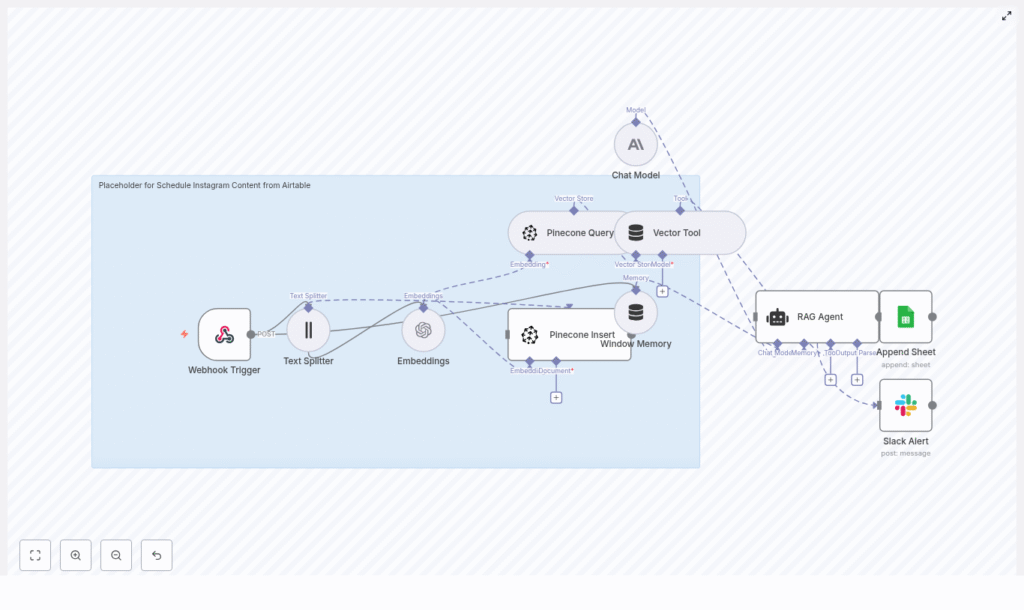
The n8n template organizes your Instagram scheduling flow into clear, modular stages. Here is an overview of the main nodes and what they handle:
- Webhook Trigger – Receives a POST request from Airtable or a scheduler.
- Text Splitter – Breaks long captions into smaller chunks.
- Embeddings (OpenAI) – Converts each text chunk into vector embeddings.
- Pinecone Insert – Stores embeddings in a Pinecone index for future retrieval.
- Pinecone Query + Vector Tool – Finds related content to provide context for caption evaluation and generation.
- Window Memory & Chat Model (Anthropic) – Supplies short-term context to the RAG Agent.
- RAG Agent – Uses the vector tool and language model to decide what to do next, such as refining captions or flagging issues.
- Append Sheet – Logs outcomes into Google Sheets for tracking and audits.
- Slack Alert – Sends alerts when something goes wrong so your team can act quickly.
Each of these stages is configurable, so you can adapt the workflow to your brand, team structure, and publishing tools.
From Airtable row to scheduled post: the journey
Step 1: Triggering the workflow from Airtable
The journey starts in Airtable, where your team already manages content. Use Airtable Automations or a third-party integration to send a POST request to your n8n Webhook Trigger whenever a record is marked as “Ready to Schedule”.
The webhook payload should include all the details needed to schedule a post:
recordId– The Airtable record id for traceability.caption– The main text for the Instagram post.imageUrl– A URL to the image asset.publishAt– The desired publish date and time in ISO format.- Optional metadata such as tags or campaign info.
This single event in Airtable becomes the starting point for your entire automated scheduling flow.
Sample webhook payload
When you connect Airtable to the n8n webhook, your JSON payload might look like this:
{  "recordId": "rec123456",  "caption": "Launch week: behind the scenes of our new product...",  "imageUrl": "https://cdn.example.com/images/post1.jpg",  "publishAt": "2025-09-15T14:00:00Z",  "tags": ["launch","product"]
}
Use this structure as a reference when setting up your Airtable Automation.
Step 2: Cleaning and splitting the caption text
Once the webhook fires, the Text Splitter node prepares your caption for embedding. Long captions or multi-section notes are split into manageable chunks so that embedding models stay within token limits and retrieval stays accurate.
The template typically uses:
- Chunk size of about 400 characters.
- Overlap of about 40 characters between chunks.
This approach keeps related ideas together and improves the quality of later vector searches.
Step 3: Creating embeddings and storing them in Pinecone
Next, each text chunk is sent to an OpenAI embedding model such as text-embedding-3-small. The Embeddings (OpenAI) node converts each chunk into a numeric vector representation.
The Pinecone Insert node then stores these embeddings in your Pinecone index. Indexing your captions enables powerful use cases:
- Searching for similar or duplicate captions.
- Seeding a RAG process with relevant past content.
- Building a memory of what you have previously published.
Over time, this index becomes a living library of your content, ready to support smarter decisions.
Step 4: Using vector search for context and quality
When the workflow evaluates or generates a caption, the Pinecone Query node retrieves related vectors from your index. The Vector Tool then passes these to your language model as contextual information.
This contextual retrieval helps you:
- Avoid near-duplicate captions that might make your feed feel repetitive.
- Leverage previously successful caption patterns for A/B testing and inspiration.
- Preserve your brand voice by grounding new suggestions in past content.
Instead of writing in isolation, your model writes with awareness of your history.
Step 5: RAG Agent – decide, refine, and route
The heart of this workflow is the RAG Agent node. It combines three key ingredients:
- Retrieved vectors from Pinecone via the Vector Tool.
- Short-term context from Window Memory.
- A chat model such as Anthropic (or another LLM you configure).
Using these, the RAG Agent can decide what to do with each incoming record. Typical outputs include:
- A final, refined caption or a newly generated one based on your input.
- Scheduling instructions such as date, time, and timezone.
- Status flags like Scheduled, Needs Approval, or Duplicate Found.
This is where your workflow starts to feel truly intelligent, not just automated. You can adjust prompts and logic to align with your brand standards and review process.
Step 6: Logging outcomes and surfacing issues
Once the agent decides on the next action, the workflow records what happened. The Append Sheet node writes a new row to a Google Sheet with key details, such as:
- Airtable record id.
- Final caption.
- Scheduled time.
- Status and any notes.
This creates a simple audit trail and a central place to review scheduling activity.
If something goes wrong, the Slack Alert node steps in. Issues like permission errors, missing images, or detected duplicates can trigger a message to a channel such as #alerts. Your team gets immediate visibility so they can correct problems before they impact your posting schedule.
Setup checklist: get your first automation live
To turn this template into a working system, walk through the following checklist:
- Create or access an n8n instance, either self-hosted or on n8n cloud.
- Set up required API credentials in n8n:
- OpenAI for embeddings.
- Pinecone for vector storage and search.
- Anthropic (optional) or another LLM provider for the chat model.
- Google Sheets OAuth for logging.
- Slack for alerts.
- Create and configure a Pinecone index named
schedule_instagram_content_from_airtableor similar. - Configure Airtable Automations to POST to the n8n Webhook Trigger when a record is marked as “Ready”.
- Run a test with a sample Airtable row to confirm:
- Text splitting works as expected.
- Embeddings are created and inserted into Pinecone.
- Validate the RAG Agent outputs. Check that captions, statuses, and decisions match your expectations.
- Finally, connect the workflow to your chosen scheduler or Instagram posting service such as Buffer, Hootsuite, or the Meta Graph API.
Once this is in place, your first automated posts can move from Airtable to your scheduler with minimal manual effort.
Growing with your needs: extending the workflow
As your content strategy matures, this n8n template can evolve with you. Here are some ways to extend it:
- Add an approval step Route agent-generated captions to Slack or back into Airtable for manual review before scheduling. This is ideal if you want automation plus human oversight.
- Integrate image moderation Connect an image moderation API to check for policy or brand issues before a post is approved.
- Publish directly Use the Meta Graph API or scheduling services like Buffer and Hootsuite to publish directly from your workflow, while respecting posting windows and rate limits.
- Close the loop with analytics After posts go live, pull engagement metrics back into your system, store them in Pinecone, and teach the RAG Agent to favor high performing caption patterns.
Each enhancement turns your scheduling flow into a more complete content engine that learns and improves over time.
Troubleshooting and fine tuning
As you experiment, you might hit a few bumps. Here are practical tips to keep things running smoothly:
- If embeddings hit token limits, reduce the chunk size in the Text Splitter or switch to a different embedding model.
- If you see connection errors with Pinecone, verify that your index name, API key, and region are correct.
- If the RAG Agent produces irrelevant or off brand suggestions, try:
- Increasing the number of retrieved vectors.
- Improving the system message or context in Window Memory.
- Use the Slack Alert node to surface uncaught errors so you can refine the workflow quickly.
Treat these adjustments as part of the journey. Each improvement makes your automation more reliable and aligned with your goals.
Security, compliance, and responsible automation
As you automate more of your publishing process, keep security and compliance in focus:
- Store all API keys in n8n credentials and restrict who can edit the workflow.
- If you process user-generated content or PII, add moderation steps and define data retention policies for Pinecone vectors.
- Follow Instagram and Meta API terms when automating posting or scheduling.
Responsible automation protects your audience, your brand, and your team.
Conclusion: your next step toward a scalable content system
This n8n template is more than a shortcut for Instagram scheduling from Airtable. It is a foundation you can build on, combining automation with contextual intelligence through embeddings and a vector store.
Start small and steady:
- Configure the webhook trigger and logging to Google Sheets.
- Validate how the RAG Agent handles real captions from your Airtable base.
- Once you trust the results, connect it to your scheduler or posting service.
From there, layer in approvals, moderation, analytics, and more advanced logic. Each improvement gives you back more time for strategy, creativity, and growth.
Ready to automate more of your work? Import this template into n8n, connect your credentials, and run a test webhook with a sample Airtable record. Use it as a starting point, then shape it into the content system your team needs.
Call to action: Try this workflow today, link it to your Airtable base, and watch your scheduling time drop dramatically. If you want support tailoring the workflow for direct Instagram posting or advanced moderation, reach out or schedule a demo.
