


Automate Invoices & Payment Reminders with Jotform, QuickBooks Online & Outlook
Overview
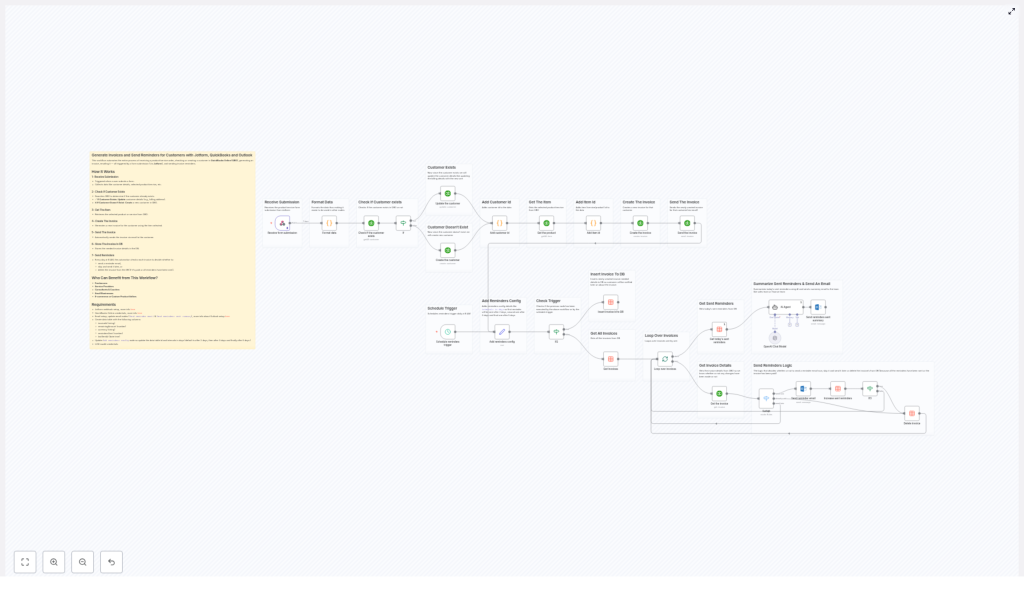
For teams that manage recurring invoices or a high volume of client orders, manual billing quickly becomes a bottleneck. This n8n workflow template connects Jotform, QuickBooks Online (QBO), and Microsoft Outlook to create a fully automated invoicing and reminder system. As soon as a customer submits an order form, the workflow generates a QuickBooks invoice, sends it, tracks its status, and then dispatches scheduled payment reminders until the invoice is paid or the reminder sequence is complete.
This article explains the architecture of the workflow, the key nodes involved, and how to configure it using automation best practices.
Use Case & Automation Goals
The template is designed for organizations that capture orders or service requests through online forms and manage accounting in QuickBooks Online. Typical users include agencies, consultants, freelancers, and small to mid-size businesses that want to:
- Eliminate manual data entry between Jotform and QuickBooks.
- Standardize invoice creation and email delivery.
- Automate payment reminder sequences based on invoice status.
- Maintain a structured record of invoices and reminders in a dedicated data table.
By centralizing this logic in n8n, you gain a repeatable, auditable workflow that improves cash flow and reduces operational overhead.
High-Level Workflow Design
The automation can be divided into two main flows that run on different triggers:
- Invoice creation flow – Triggered in real time by a Jotform submission.
- Reminder management flow – Triggered on a daily schedule to handle unpaid invoices.
Core Integrations
- Jotform – Captures customer and order data via forms and sends it to n8n via a webhook trigger.
- QuickBooks Online – Stores customer records, products or services, and invoices.
- Microsoft Outlook – Sends branded invoice reminders from your business email address.
- Data table – Persists invoice-related metadata, including reminder counts and outstanding amounts.
Flow 1: From Jotform Submission to QuickBooks Invoice
1. Webhook Trigger from Jotform
The process begins when a customer submits a Jotform order or service request. Jotform is configured to send the submission payload to n8n via a webhook. This payload typically includes:
- Customer name and email address.
- Billing address and phone number.
- Selected product or service details.
- Any additional order-specific fields you require.
2. Parsing and Normalizing Form Data
Once the webhook receives the data, a set of processing nodes prepares it for use across the workflow. Best practice is to normalize the structure at this stage so that downstream nodes work with predictable fields. Typical actions include:
- Extracting and restructuring address components (street, city, state, postal code, country).
- Standardizing customer contact details such as email and phone.
- Mapping Jotform field names to the field schema expected by QuickBooks.
This transformation step reduces the risk of mapping errors and simplifies future maintenance if the form changes.
3. Customer Lookup and Synchronization in QuickBooks
With clean data available, the workflow queries QuickBooks Online to determine whether the customer already exists. The lookup typically uses the email address as the unique identifier.
- If the customer exists, the workflow updates relevant fields such as billing address and phone number to ensure QuickBooks reflects the latest information from the form.
- If the customer does not exist, a new customer record is created in QuickBooks using the data extracted from Jotform.
This approach keeps your accounting system synchronized with your customer-facing forms and avoids duplicate customer records.
4. Retrieving Product or Service Item from QBO
Next, the workflow identifies the correct product or service in QuickBooks. Using the item selected in the Jotform submission, a QuickBooks node fetches the corresponding item record and retrieves its internal item ID. This ID is required to correctly associate the line items on the invoice with your predefined products or services in QBO.
5. Invoice Creation and Delivery
With the customer and item data resolved, the workflow creates a new invoice in QuickBooks Online. The invoice includes:
- The linked customer record.
- The appropriate product or service item(s) and quantities.
- Currency and pricing details per your QBO configuration.
After the invoice is created, QuickBooks uses its native email capabilities to send the invoice directly to the customer’s email address. This ensures that the document is formatted according to your QuickBooks template and includes any configured payment links.
6. Persisting Invoice Metadata in a Data Table
To enable robust reminder logic, the workflow stores key invoice metadata in a dedicated data table. Typical fields include:
- Invoice ID and customer reference.
- Outstanding or remaining payment amount.
- Currency used.
- Number of reminders already sent.
- Creation date or other timestamps needed for interval calculations.
This data table acts as the single source of truth for reminder scheduling and cleanup operations in the second flow.
Flow 2: Scheduled Payment Reminders & Record Maintenance
1. Daily Scheduler Trigger
A scheduler node is configured to run at a fixed time each day, for example at 8:00 AM. When triggered, it queries the data table to identify invoices that are:
- Unpaid or partially paid.
- Still within the configured reminder schedule.
This daily execution pattern centralizes reminder logic and avoids sending reminders at inconsistent times.
2. Evaluating Reminder Intervals
The workflow then evaluates whether each invoice is eligible for another reminder based on predefined business rules, such as:
- Number of days since invoice creation.
- Number of reminders already sent.
- Remaining balance on the invoice.
If the current date matches one of your configured reminder intervals, the invoice is flagged for follow-up. If not, it is skipped until the next eligible run.
3. Sending Outlook Reminder Emails
For invoices that meet the criteria, the workflow uses the Microsoft Outlook integration to send reminder emails from your organization’s email account. The email typically includes:
- Customer name and invoice reference.
- Outstanding amount and due date if applicable.
- A payment link or reference to the original QuickBooks invoice email.
- Your company branding and standardized messaging.
Each time a reminder is sent, the workflow updates the corresponding record in the data table, incrementing the reminder count and optionally logging timestamps for audit purposes.
4. Cleanup: Archiving or Removing Completed Records
The workflow also handles cleanup logic to prevent the data table from growing indefinitely. It checks whether:
- The invoice is fully paid, based on QuickBooks data, or
- The maximum configured number of reminders has already been sent.
In either case, the workflow removes or archives the invoice entry from the data table. This keeps the reminder queue focused only on actionable invoices and simplifies reporting.
Benefits of This n8n Invoice Automation
- Significant time savings – Invoices are generated and sent automatically at the moment of form submission, which eliminates manual data entry and repetitive tasks.
- Higher data accuracy – Customer records in QuickBooks are updated consistently from Jotform, reducing discrepancies between systems.
- Improved cash flow – Structured and timely reminder emails encourage faster payments and reduce overdue balances.
- Consistent, professional communication – Outlook sends branded, standardized reminder emails that align with your organization’s identity.
- Scalable architecture – The template supports freelancers and small teams as well as growing businesses without requiring major changes to the workflow logic.
Prerequisites & Configuration Requirements
Before deploying the template, ensure the following components are in place:
- Jotform with a webhook integration configured to send form submissions to the n8n webhook node.
- QuickBooks Online account with API access credentials set up in n8n for customer, item, and invoice operations.
- Microsoft Outlook connection in n8n, authorized to send emails from your company mailbox for reminders.
- Data table configured in n8n (or a connected database) to store invoice metadata, including invoice ID, remaining amount, currency, and reminder count.
- Reminder interval configuration, including the number of reminders, days after invoice creation to send each reminder, and the daily scheduler time.
Implementation Steps
To get started with this workflow in your own environment:
- Design your Jotform
Include all required fields for customer identification, billing details, and product or service selection. Ensure field names are clear so they can be easily mapped in n8n. - Connect Jotform to n8n via Webhook
Create a webhook trigger node in n8n and configure Jotform to send submissions to the generated webhook URL. - Set up QuickBooks Online credentials
In n8n, configure QBO credentials and connect nodes for customer lookup, customer creation or update, item retrieval, and invoice creation. - Configure the Outlook node
Authorize the Outlook integration with your business email account. Define the email templates for reminder messages, including dynamic fields such as customer name and invoice details. - Create and map the data table
Set up the table structure that will hold invoice metadata. Map fields from the QuickBooks invoice response to the corresponding columns in the table. - Define reminder logic and scheduler
Configure the scheduler node to run at 8 AM (or your preferred time). Implement the logic that checks invoice age, outstanding amount, and reminders sent before sending a new reminder or cleaning up records.
Next Steps
By combining Jotform, QuickBooks Online, and Outlook within n8n, you can transform invoicing from a manual, error-prone task into a controlled, automated process that runs reliably in the background.
If you are ready to streamline your invoicing operations and accelerate payments, deploy this template and adapt the configuration to your billing policies and communication style.
For expert guidance or a tailored implementation, reach out for a dedicated automation consultation.
