


Automate Job Applications with n8n & OpenAI
Job hunting can feel like a full-time job, right? You scroll through endless listings, copy details into a spreadsheet, try to decide if each role is worth your time, then write yet another customized cover letter. It gets old fast.
That is exactly where this n8n workflow template comes in. With a simple setup, you can:
- Automatically pull job listings from RSS feeds
- Use OpenAI to extract key details from each posting
- Score how well each job matches your resume
- Generate a personalized cover letter
- Save everything neatly into Google Sheets for tracking
In this guide, we will walk through what the “Job Seeking” n8n template does, when to use it, and how to set it up step by step. Think of it as your always-on assistant that never gets tired of job boards.
Why automate your job search in the first place?
If you have ever spent an evening copying job descriptions into a spreadsheet, you already know the answer. Most of job hunting is repetitive, not strategic. You:
- Scan job boards, RSS feeds, or curated lists
- Copy and paste job titles, companies, and links
- Skim descriptions to see if you are a good fit
- Write custom cover letters from scratch
Automation takes that repetitive part off your plate so you can focus on decisions, not data entry. With this n8n workflow, you can:
- Save time by letting n8n collect and parse new listings for you
- Standardize your data so you can filter and sort jobs easily in Google Sheets
- Generate tailored cover letters quickly using OpenAI
- Prioritize roles using a match score that compares the job to your resume
Instead of hunting for jobs manually every day, you can have a scheduled system that quietly builds a job pipeline in the background.
What this n8n “Job Seeking” template actually does
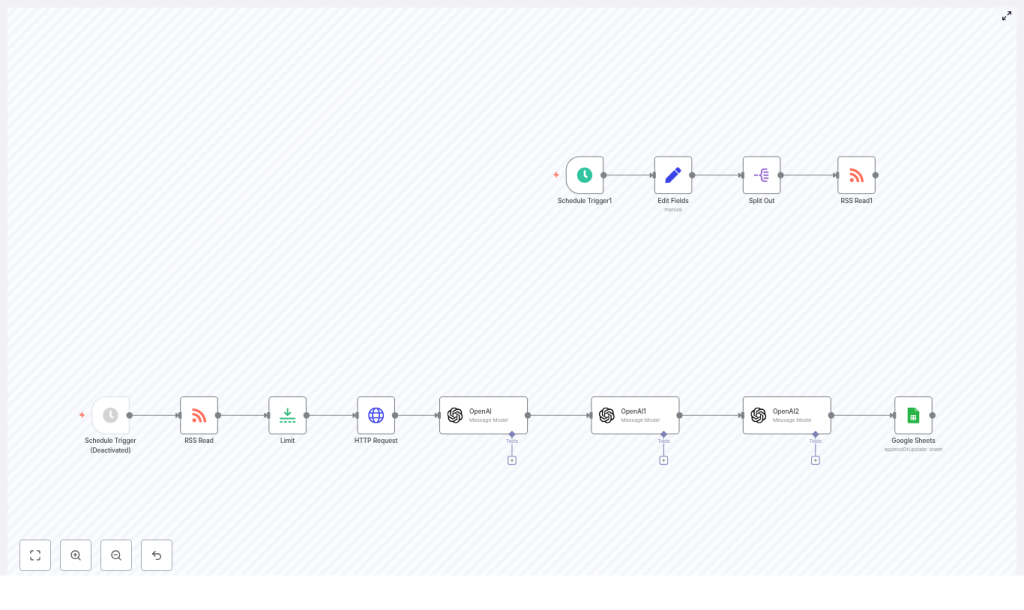
At a high level, the template is a complete job search pipeline. It starts with job listings from RSS feeds, enriches them with AI, then stores everything in Google Sheets. Here is what happens behind the scenes:
- Schedule Trigger runs your workflow on a set schedule (for example every hour or once a day).
- RSS Read pulls the latest job postings from your chosen RSS feed or feeds.
- Limit keeps each run under control by restricting how many jobs are processed at once.
- HTTP Request fetches the full job posting page when the RSS item only contains a short summary or a link.
- OpenAI (content extraction) parses the job content and extracts structured fields like company name, benefits, short description, and location.
- OpenAI1 (scoring) compares each job to your resume and returns a match score.
- OpenAI2 (cover letter) writes a personalized cover letter for each job based on the role and your resume.
- Google Sheets appends or updates a row with all of that information so you can review and track it.
You end up with a spreadsheet that might include columns like:
- Job title
- Company name
- Location
- Short job description
- Benefits
- Job link
- Match score
- Generated cover letter
From there, you can sort by score, read the most promising roles, tweak cover letters if needed, and apply in a fraction of the time.
How the data flows through the workflow
Let us walk through the data flow in a simple, story-like way so you can picture what is happening.
- The workflow wakes up
The Schedule Trigger node starts the workflow on your chosen interval. No more manually clicking “Execute workflow” every time you want new jobs. - Jobs are fetched from RSS
The RSS Read node reads your configured RSS feed URL or URLs and pulls in the latest items. - Batch size is controlled
The Limit node makes sure you do not process too many items at once, which helps avoid rate limits and large AI bills. - Full job content is retrieved
Some RSS feeds only give you a short snippet and a link. The HTTP Request node visits that link and grabs the full page content so OpenAI has enough text to work with. - Key fields are extracted with OpenAI
The first OpenAI node (content extraction) uses a carefully crafted prompt to pull out structured details and return JSON, including:company_namebenefitsjob_description(short, around 200 characters)location
- Each job is scored against your resume
The OpenAI1 node compares the extracted job details to your resume and outputs a numeric match score. You can then sort or filter by this number in Sheets. - A custom cover letter is written
The OpenAI2 node takes the job information plus your resume and generates a tailored cover letter. The prompt can be tuned to your tone and style. - Everything is saved to Google Sheets
Finally, the Google Sheets node appends or updates rows in your chosen spreadsheet, using the job link as a unique identifier so you do not get duplicates.
The result is a continuously updated job search dashboard that you can work from each day.
When this template is especially useful
This workflow is a great fit if you:
- Check the same job boards or RSS feeds regularly
- Apply to a lot of roles and want to keep everything organized
- Want an AI-powered n8n job search system without building it from scratch
- Need consistent, structured data to filter by location, benefits, or match score
It also works well in a few specific scenarios:
- Recent graduates automating applications to internships or junior roles
- Career switchers targeting niche roles and highlighting transferable skills
- Recruiters pre-screening job posts against candidate profiles
Step-by-step: setting up the n8n job application workflow
Ready to get this running? Here is how to set up the template in n8n.
1. Import the workflow template
Start in your n8n instance and import the provided JSON file for the “Job Seeking” workflow. Once imported, you should see all the nodes connected in sequence, roughly matching the flow we described above.
2. Add and configure your credentials
Next, connect the services that the workflow needs:
- OpenAI API
In n8n, create an OpenAI credential using your API key. The template uses several OpenAI nodes, and you can reuse the same credential for each one. - Google Sheets
Set up OAuth2 credentials for Google in n8n and connect your Google account. This lets the workflow write rows into your spreadsheet. - HTTP Request
For public job pages, you usually do not need credentials. If you are pulling from a site that requires headers or authentication, configure those details in the HTTP Request node.
3. Plug in your preferred RSS job feeds
Replace any sample RSS URL in the RSS Read node with the feeds you actually care about, such as:
- Job boards that provide RSS feeds
- Curated job lists in your niche
- Company career pages that expose RSS
The template also demonstrates how to handle multiple feeds and iterate over them if you want to scan several sources in one run.
4. Connect the Google Sheets node to your sheet
In the Google Sheets node, point to the spreadsheet where you want your job data stored:
- Set the Document ID (you can copy it from the Google Sheets URL)
- Choose the Sheet name where rows should be written
- Use the appendOrUpdate operation with the Link column as the matching key to avoid duplicate entries
5. Customize your OpenAI prompts
This is where you can make the workflow feel like it is truly “yours.” Each OpenAI node has a prompt that you can adapt.
- Content extraction prompt
The template asks OpenAI to return JSON in this exact format:
{"company_name":"","benefits":"","job_description":"","location":""}
Keeping this structure consistent is important so downstream nodes know where to find each field. - Scoring prompt
This prompt includes:- Your resume text
- The job description
- A clear scoring rubric
The goal is to output a numeric score that you can sort or filter by in Google Sheets.
- Cover letter prompt
The final OpenAI node uses:- Job title
- Short job_description
- Company_name
- Location
- Your resume
It then generates a concise, personalized cover letter. The template has it return this in JSON as well, which keeps everything easy to parse and store.
You can adjust tone, length, and level of detail so the cover letters sound like you and fit your target roles.
Template prompt examples in practice
To keep the workflow stable, the prompts are written to produce predictable, machine-readable output. Here is how each one is typically structured:
- Extraction prompt
Instructs the model to analyze the job posting and return exactly:
{"company_name":"","benefits":"","job_description":"","location":""}
This makes it easy to map fields in subsequent nodes. - Scoring prompt
Provides:- A description of your background (resume text)
- The job description or extracted details
- A scoring scale and criteria, so the model returns a clear numeric score
- Cover letter prompt
Combines the job details and your resume, then tells the model to output a short, tailored cover letter in JSON. This keeps the workflow consistent and makes it easy to store the letter in Google Sheets.
Ideas to customize and extend the workflow
Once the basic template is running, you can start making it your own. Here are some practical ways to extend it:
- Get alerts for top matches
Add an Email or Slack node so that jobs above a certain match score are pushed directly to your inbox or a Slack channel. - Create follow-up tasks
Connect Trello or Notion and automatically create a card or page for high-score roles so you remember to apply or follow up. - Save on AI costs
Insert a Filter node before the cover letter generation step. Only jobs with a decent match score get a cover letter, which keeps OpenAI usage in check. - Tag job types
Extend the benefits or description parsing to detect and tag roles as remote, on-site, full-time, contract, or part-time. This makes filtering in Sheets even more powerful.
Troubleshooting tips and best practices
As with any automation, a few small tweaks can make the workflow more reliable and cost effective.
- Handling rate limits
Use the Limit node to cap how many jobs you process per run. If you run into throttling from RSS or job sites, add Delay or Wait nodes between HTTP requests. - Improving prompt reliability
Be explicit about the JSON format you expect. Including a schema and one or two examples in the prompt can dramatically reduce parsing errors. - Avoiding duplicates
Configure the Google Sheets node to use the job Link field as the matching column in appendOrUpdate mode. That way, if a job appears again in the feed, the existing row is updated instead of duplicated. - Protecting sensitive data
Avoid storing resumes with personal identifying information in public or shared documents. Keep your Google Sheet private and limit access to trusted accounts.
Security and cost considerations
OpenAI usage is not free, so it helps to be intentional about when you call the API.
- Minimize unnecessary requests
Filter out obviously irrelevant roles before sending them to OpenAI nodes. For example, you might skip jobs outside your location or salary range. - Secure your API keys
Store OpenAI keys and other credentials securely in n8n, rotate them periodically, and avoid hard-coding them in workflows. - Use least-privilege access
For Google Sheets, grant only the access that is needed for the workflow, and restrict who can open or edit the document.
Real-world use cases
To give you a sense of how flexible this template is, here are a few ways people might use it:
- Recent grads setting up a daily feed of internships and entry-level roles, then auto-generating first-draft cover letters.
- Career changers scanning niche job lists and using the scoring step to highlight where their transferable skills stand out.
- Recruiters feeding in new job postings and scoring them against candidate profiles for faster pre-screening.
Getting started: your next steps
If you are ready to make your job search a lot less manual, here is a simple way to begin:
- Import the “Job Seeking” template into n8n.
- Connect your OpenAI and Google Sheets credentials.
- Swap in your own RSS job feed URLs.
- Run a small test with 2 to 5 jobs to check the prompts and field mappings.
- Adjust prompts for tone, length, and scoring until the results feel right.
- Increase the Limit and let the workflow run on a schedule.
Try it now: Import the template, point it at your favorite job source, and run the workflow to see your first results appear in Google Sheets. If you want help tuning the cover letter prompts or adapting the workflow to your specific resume, feel free to reach out or leave a comment.
Tip: Keep a versioned record of your prompts and note any changes you make. As job sites and AI models evolve, having a history of what worked will make it much easier to keep your
