


Automate Jotform Feedback: Triage, Reply & Reporting
What You Will Learn
In this guide, you will learn how to use an n8n workflow template to:
- Automatically process new Jotform feedback in real time
- Classify submissions into comments, questions, and suggestions
- Run sentiment analysis on comments and alert your team about urgent issues
- Answer common questions using a Q&A agent and send email replies via Gmail
- Summarize suggestions, send them to Telegram, and log them in Google Sheets
- Build a feedback reporting system using Google Sheets for comments
This walkthrough is designed as a step-by-step teaching guide, so you can understand not only what the template does, but also how each part of the n8n workflow works.
Concept Overview: Automated Jotform Feedback System
Customer feedback is one of the most valuable inputs for improving your products and services, but manually reading every submission, deciding who should handle it, and responding quickly can be time consuming.
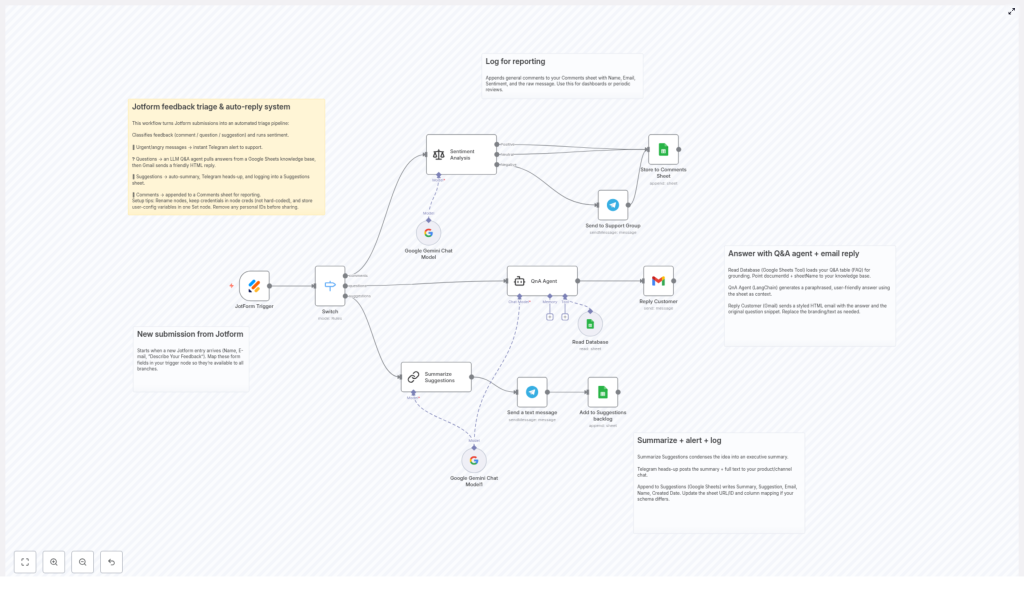
This n8n workflow template turns Jotform submissions into a fully automated feedback pipeline. It:
- Catches every new Jotform submission as it arrives
- Classifies the feedback type using a Switch node
- Uses AI and external tools to analyze, respond, and log information
- Routes different feedback types to different branches for tailored handling
The result is a system that triages feedback, replies to customers, and builds structured reports without manual effort.
How the Workflow Works in n8n
Let us walk through the full workflow from the moment a user submits a Jotform to the final logging and reporting steps.
Step 1 – Trigger on New Jotform Submission
The workflow begins with a trigger node that listens for new Jotform entries. Whenever a user submits your form, n8n receives the data and starts the workflow automatically.
Typical fields captured include:
- Name – used for personalization in alerts and emails
- Email – used to send replies to questions
- Feedback text – the main message from the user
This real-time trigger ensures that no feedback is missed and that each submission is immediately routed into the correct processing branch.
Step 2 – Classify Feedback Type with a Switch Node
After the trigger, the workflow uses a Switch node to categorize the feedback. The classification is usually based on a field in the form or on simple logic that you configure.
The Switch node routes submissions into three main types:
- Comments – general feedback, praise, or complaints
- Questions – requests for information or clarification
- Suggestions – ideas for improvements or new features
This branching is essential because each feedback type is handled differently in the next steps.
Branch 1: Handling Comments with Sentiment Analysis & Alerts
Step 3 – Run Sentiment Analysis on Comments
When the Switch node identifies a submission as a comment, the workflow sends the feedback text to a language model for sentiment analysis. The template uses the Google Gemini Chat Model to detect whether the comment is:
- Positive
- Neutral
- Negative
This automated analysis helps you understand the tone of user comments at scale, without manually reading each one.
Step 4 – Alert Support for Negative or Urgent Feedback
For comments that are negative or marked as urgent, the workflow automatically triggers an alert to your support team using Telegram. The alert can include:
- User name and email
- Original comment text
- Detected sentiment
- Submission date or time
By sending these alerts in real time, your team can respond within your defined SLA and quickly follow up on critical issues.
Step 5 – Log Comments in Google Sheets for Reporting
All comments, regardless of sentiment, are then appended to a dedicated Comments sheet in Google Sheets. Each row typically includes:
- Name
- Comment text
- Sentiment result
- Submission date
This structured log makes it easy to build dashboards, run periodic reports, and track trends in customer sentiment over time.
Branch 2: Answering Questions with a Q&A Agent and Email
Step 6 – Use a LangChain Q&A Agent with a Google Sheets FAQ
When the Switch node flags a submission as a question, the workflow sends it to a Q&A agent built with LangChain. This agent uses a Google Sheets document as a FAQ knowledge base.
Here is how this part works:
- The question from the Jotform submission is passed to the LangChain agent.
- The agent searches the FAQ content stored in Google Sheets.
- It finds the most relevant answer based on the question.
- The answer is then paraphrased into an easy-to-understand response.
This setup lets you keep your FAQ content in a simple spreadsheet while still delivering intelligent, context aware answers.
Step 7 – Send a Personalized HTML Email via Gmail
After the Q&A agent prepares the answer, the workflow uses a Gmail node to send a reply directly to the user.
The email typically includes:
- A personalized greeting using the user’s name
- The paraphrased answer generated by the agent
- Optional links to documentation, help center, or your website
The email is sent in HTML format, so you can style it with your brand colors, logo, and layout. This makes the automated response feel more professional and consistent with your other communications.
Branch 3: Summarizing and Logging Suggestions
Step 8 – Summarize Suggestions with AI
For submissions categorized as suggestions, the workflow uses an AI model to generate a concise summary. This summary captures the main idea of the suggestion in a short, executive friendly format.
The summarization step is useful when you receive long or detailed suggestions and want a quick overview for product managers or leadership.
Step 9 – Send Suggestions and Summaries to Telegram
Once the summary is created, the workflow sends a message to a designated Telegram channel. This message can include:
- The summarized suggestion
- The full original suggestion text
- User details such as name and email
This gives your team a real time feed of new ideas and improvement requests without needing to open spreadsheets or dashboards.
Step 10 – Log Suggestions in a Google Sheets Backlog
In addition to Telegram alerts, the workflow appends each suggestion to a Suggestions backlog in Google Sheets. The sheet typically stores:
- Original suggestion text
- AI generated summary
- User details
- Submission date
This backlog becomes a central place for product and UX teams to review, prioritize, and track suggestions over time.
Setup Tips for Reliable Operation in n8n
To keep this Jotform feedback automation stable and easy to maintain, follow these best practices when configuring the n8n template:
- Use clear node names
Rename nodes to reflect their purpose, for example, “Jotform Trigger”, “Comment Sentiment Analysis”, “Telegram Alert – Support”, or “Log to Google Sheets – Suggestions”. This makes the workflow easier to understand and debug. - Store credentials securely
Configure all credentials (Jotform, Gmail, Google Sheets, Telegram, AI providers) using n8n’s credentials system. Avoid hard coding API keys or tokens directly in nodes. - Centralize configuration variables
Keep user configurable values, such as sheet IDs, Telegram chat IDs, or email templates, in a dedicated configuration node or section. This simplifies updates and reduces the chance of missing a setting. - Remove sensitive data before sharing
If you plan to share your workflow publicly, make sure to remove or anonymize any personal data, API keys, and internal IDs from the template.
Quick Recap
This n8n workflow template turns raw Jotform feedback into an automated system that:
- Triggers on every new Jotform submission
- Classifies feedback into comments, questions, and suggestions
- Analyzes comment sentiment and alerts your team via Telegram for urgent issues
- Uses a LangChain Q&A agent with a Google Sheets FAQ to answer questions
- Sends personalized HTML email replies through Gmail
- Summarizes suggestions with AI and shares them in Telegram
- Logs both comments and suggestions in Google Sheets for reporting and backlog management
By combining Jotform, n8n, AI models, Telegram, Gmail, and Google Sheets, you get a complete feedback triage, response, and reporting pipeline with minimal manual work.
FAQ
Do I need coding skills to use this template?
No, the template is designed to work inside n8n’s visual editor. You mainly configure nodes, connect accounts, and adjust text or sheet references. Understanding basic automation concepts is helpful, but coding is not required.
Can I customize the email responses?
Yes. The Gmail node uses HTML content, so you can edit the template text, layout, and styling. You can also adjust how the Q&A agent’s answer is inserted into the email body.
What if I want to add more feedback categories?
You can extend the Switch node with additional cases, then create new branches for each category. For example, you might add “Bug reports” or “Billing issues” and connect them to different handling flows.
How can I improve the sentiment analysis accuracy?
Accuracy mainly depends on the language model configuration and the prompts you use. You can refine prompts, add examples, or adjust how the model is asked to label sentiment to better match your specific use case.
Get Started with the Template
Use this automated Jotform feedback triage system to:
- Improve customer experience with faster, consistent replies
- Ensure support teams see urgent issues right away
- Build a structured, searchable history of feedback for analysis
Set up the workflow in n8n, connect your Jotform, Google Sheets, Gmail, Telegram, and AI credentials, then adapt the branches to your exact process.
If you need help tailoring the workflow to your stack or feedback process, you can always seek personalized setup assistance or customization.
