


Automate Lead Calls & Scheduling with VAPI and Google Sheets
Picture this: your lead list keeps growing, your team is juggling calls, and your calendar looks like a game of Tetris gone wrong. You copy-paste numbers, dial manually, scribble call notes, then try to remember who wanted a callback “next Thursday afternoon, but not too late.”
That is the kind of repetitive chaos this n8n workflow template quietly destroys.
With a simple setup using Google Sheets, VAPI, and Google Calendar, you can automatically:
- Detect new leads as they land in your sheet
- Trigger personalized marketing calls with VAPI
- Capture rich call results and store them neatly
- Schedule follow-ups or bookings directly in your calendar
No more manual dialing, no more “Did we ever call this person?” and definitely fewer “Oops, I double-booked that slot” moments.
What This n8n Workflow Template Actually Does
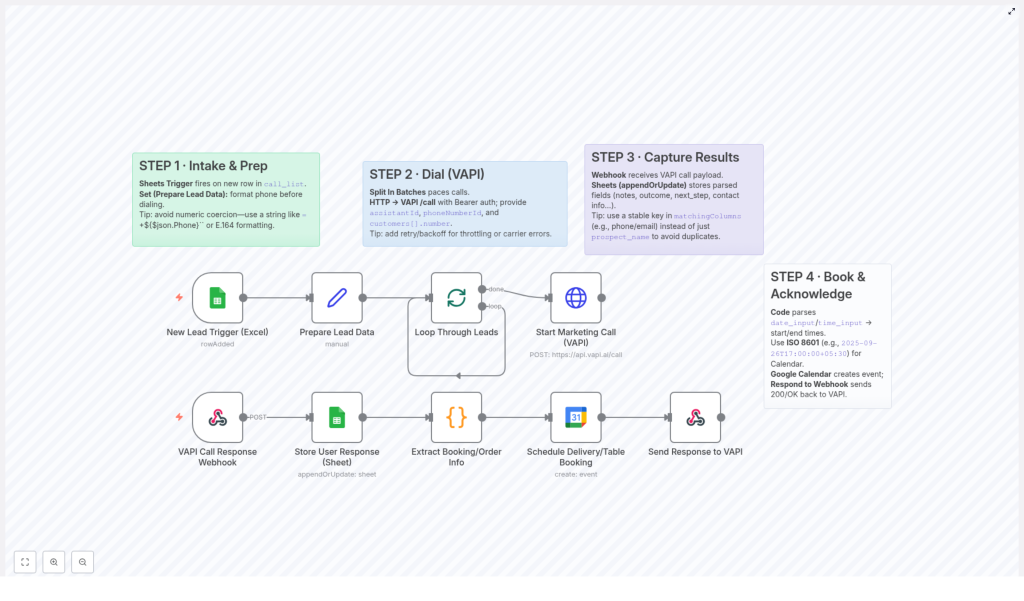
This template is built to streamline your lead handling from start to finish. Here is the big picture:
- Intake & prep: A Google Sheets Trigger watches your
call_listsheet. Whenever a new lead appears, the workflow grabs the data and cleans up the phone number formatting. - Call automation with VAPI: Leads are processed in batches, then VAPI is called via HTTP POST to place automated, personalized calls.
- Result tracking: A webhook collects detailed call outcomes from VAPI and logs them in a dedicated Google Sheet.
- Scheduling & confirmation: If there is a booking or follow-up, the workflow converts the time into IST, creates a Google Calendar event, and sends a 200 OK back to VAPI.
In short, the template turns your Google Sheet into a mini call center plus scheduling assistant, without needing a human glued to the phone all day.
Why Automate Lead Calls with n8n, VAPI, and Google Sheets?
Manual lead management is like doing dishes by hand when you own a dishwasher. It works, but why?
- Streamlined lead management: Every call and response is tracked in a single, tidy spreadsheet instead of scattered across notes, inboxes, and memories.
- Personalized outreach at scale: VAPI handles dynamic, human-like conversations with your leads, one by one, without your team burning out.
- Accurate scheduling: Follow-ups and bookings are automatically dropped into Google Calendar using the lead’s preferred date and time.
- Data consistency: Smart use of matching keys and proper phone number formatting keeps your data clean, accurate, and duplicate-free.
Now let us walk through how the template works step by step, so you know exactly what is happening behind the scenes.
Step 1 – Intake & Lead Preparation in Google Sheets
The whole automation starts in your spreadsheet, where your leads already live.
Google Sheets Trigger: Watching Your call_list
The workflow uses a Google Sheets Trigger that fires whenever a new row is added to your call_list sheet. That means every fresh lead is automatically fed into the n8n workflow without you clicking anything.
Preparing Lead Data: Fixing Those Tricky Phone Numbers
Next comes the Prepare Lead Data step. This is where you avoid one of the classic spreadsheet headaches: numeric coercion.
To keep phone numbers from getting mangled by Google Sheets (like dropping leading zeros or turning them into weird scientific notation), the template expects phone numbers to be stored as strings. A couple of safe options:
- Use a formula like
=+${json.Phone}so the value is treated as text - Store numbers in E.164 format for a clean, international standard
Once the numbers are nicely formatted, the workflow is ready to start dialing.
Step 2 – Automatically Dial Leads with VAPI
Now we get to the fun part: letting VAPI do the calling while you do literally anything else.
Split In Batches: Pacing Your Calls
Instead of hammering every lead at once, the template uses the Split In Batches node. This lets you process leads in manageable chunks, which helps:
- Keep your calling pace smooth
- Reduce the risk of hitting provider limits
- Make error handling and retries easier
HTTP POST to VAPI: Kicking Off the Call
For each lead in a batch, the workflow sends an HTTP POST request to VAPI’s /call endpoint. That request includes all the important details, such as:
assistantId– the VAPI assistant that will handle the conversationphoneNumberId– the number used to place the call- The lead’s phone number – pulled from your prepared data
- Any other required credentials and parameters
This is where the robot takes the phone and politely starts doing your outreach.
Retries & Backoff: Handling Real-World Call Issues
In the real world, calls can fail or get throttled by carriers. The template recommends using retries and backoff strategies so that:
- Temporary issues do not break your entire workflow
- Throttling is handled gracefully instead of spamming requests
- Your calling process stays resilient and reliable
Automation is great, but resilient automation is even better.
Step 3 – Capture Call Results with a Webhook
Once VAPI finishes a call, it does not just hang up and vanish. It sends back detailed information that your workflow can use.
Webhook: Receiving VAPI Call Data
A webhook in n8n is set up to receive the response from VAPI when a call completes. The payload typically includes:
- Call notes and summaries
- Call outcomes and next steps
- Contact details and any updated info
This gives you a rich record of what actually happened on the call, not just “answered” or “missed.”
Updating Google Sheets: Logging Interactions
After the webhook receives the data, the workflow appends or updates a dedicated Google Sheet with the call details. That sheet becomes your single source of truth for:
- Who was called
- What was discussed
- What should happen next
Pro tip: When configuring the sheet update, use a stable key like phone number or email in the matchingColumns field. This avoids duplicate records that can happen if you match only on names. “John Smith” is not as unique as your database might wish.
Step 4 – Book & Confirm with Google Calendar
If the call results in a booking, delivery, or follow-up time, the workflow takes care of the calendar side too.
Processing Date & Time in IST
A JavaScript function in the workflow processes the incoming date and time values and converts them into:
YYYY-MM-DD HH:mm:ss IST
That means your start and end times are correctly built in the IST timezone (Indian Standard Time), so your events land in the right slots.
Creating the Google Calendar Event
Those processed times are then used to create an event in Google Calendar. The workflow automatically:
- Sets the start and end time in IST
- Books the slot for the meeting, delivery, or follow-up
- Aligns with the lead’s preferred schedule
Sending a 200 OK Back to VAPI
Once the calendar event is created successfully, the workflow sends a 200 OK response back to VAPI through the webhook. That acknowledgment confirms the booking worked and keeps the integration in sync.
How to Get Started with This n8n Template
Setting this up is much easier than doing all these steps by hand every day. Here is the simplified path:
- Open the n8n workflow template that connects Google Sheets, VAPI, and Google Calendar.
- Plug in your credentials and IDs:
assistantIdfor your VAPI assistantphoneNumberIdfor the number used to call leads- Your Google Calendar ID for booking events
- Point the Google Sheets Trigger to your
call_listsheet. - Confirm that phone numbers are stored as strings or in E.164 format.
- Test with a sample lead, watch the call fire, see the sheet update, and check your calendar.
Once you are happy with the flow, you can let it run and stop babysitting your lead list.
Tips, Best Practices & Next Steps
- Secure your credentials: Always store API keys,
assistantId,phoneNumberId, and other sensitive data securely. Use environment variables or n8n credentials instead of hardcoding them. - Choose solid matching keys: Use phone numbers or emails in
matchingColumnsto keep your Google Sheet clean and avoid duplicates. - Monitor call performance: Keep an eye on your call logs to fine-tune your VAPI assistant and improve conversion over time.
- Iterate on your workflow: Once the basics work, you can extend the template with CRM updates, notifications, or additional follow-up logic.
Ready to Let Automation Handle the Boring Stuff?
If you are tired of repetitive dialing, messy notes, and missed follow-ups, this template is your shortcut to a calmer, more organized sales process.
Integrate Google Sheets, VAPI, and Google Calendar into your CRM workflow to:
- Save time on manual admin work
- Reduce human errors in scheduling and data entry
- Speed up your lead response and follow-up cycle
Ready to automate your lead calls and bookings? Fire up this VAPI-powered n8n workflow template, plug in your credentials, and let your outreach practically run itself.
Note: Always ensure your API credentials and sensitive data are securely stored.
