


Automate Leads to HubSpot With n8n and RAG: A Story From Chaos to Clarity
On a rainy Tuesday evening, Maya stared at her HubSpot dashboard and felt that familiar knot in her stomach. As the marketing operations lead at a fast-growing SaaS startup, she was drowning in inbound leads.
Forms from the website, replies to campaigns, chat transcripts, long emails packed with questions – they all flowed in. Yet, by the time those leads made it into HubSpot, they were often:
- Missing context from long messages
- Duplicated across multiple entries
- Stuck in “New” with no clear next step
Her sales team complained that leads were “thin” and hard to prioritize. Leadership complained that high-intent prospects slipped through the cracks. Maya knew the problem was not a lack of data. It was the way that data moved – or failed to move – into HubSpot.
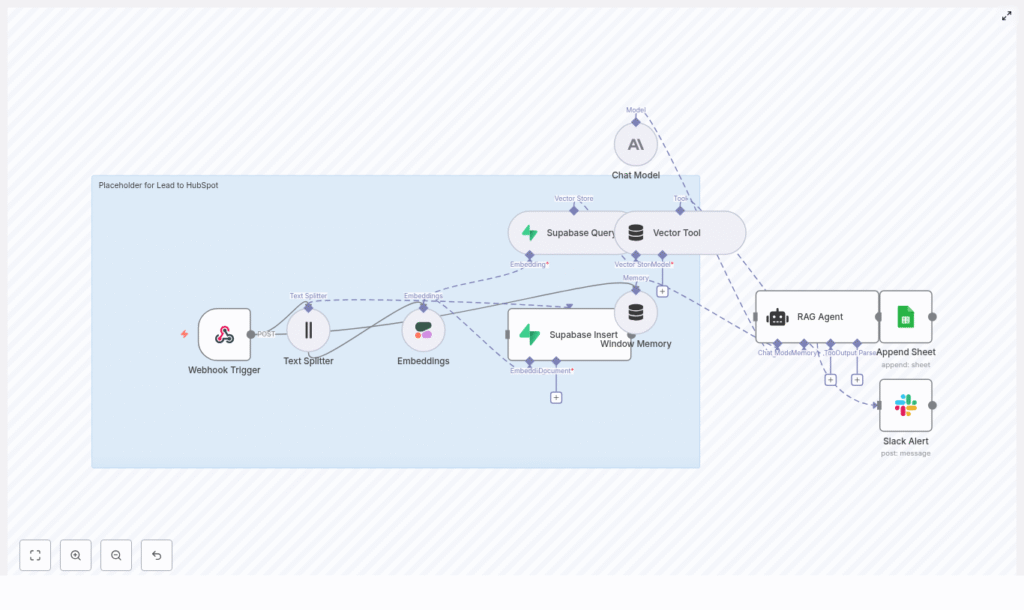
That night, she decided to build something better. The solution would eventually become an n8n workflow template that captured inbound leads, created semantic embeddings, stored them in a Supabase vector database, used a RAG (retrieval-augmented generation) agent to enrich and route them, logged everything in Google Sheets, and alerted her team in Slack when anything broke.
This is the story of how she did it.
The Breaking Point: Why Maya Needed n8n + RAG
The trouble started when the company’s lead volume doubled in a quarter. Maya’s “good enough” setup – a few simple integrations that pushed form data straight into HubSpot – began to crumble.
She saw three recurring problems:
- No semantic understanding – The system treated every message as plain text. It could not match “we are evaluating enterprise pricing” to a previous email from the same company or detect that “interested in a demo for 50 seats” was high intent.
- No context-aware automation – Automation rules only looked at static fields. They had no way to generate summaries, suggest next steps, or capture nuance from long, unstructured messages.
- No clear audit trail – When something broke, it was a black box. She had no simple log of which leads were processed, what the AI decided, or when a failure occurred.
Maya needed more than a direct CRM insert. She needed a context-aware lead pipeline that could:
- Use semantic similarity to find related leads, detect duplicates, and surface previous conversations
- Feed rich context into an AI agent that could decide what to do next
- Keep a transparent log of every decision and send instant alerts when errors appeared
That is when she turned to n8n, Cohere embeddings, Supabase pgvector, and a RAG agent powered by Anthropic.
The Plan: A Smarter Lead Pipeline, Not Just Another Integration
Maya sketched the high-level design on a whiteboard first. Instead of pushing raw text directly into HubSpot, she wanted a pipeline that would:
- Accept incoming leads via an HTTP POST webhook in n8n
- Split long messages into chunks for embeddings
- Create semantic embeddings with Cohere
- Store those vectors in a Supabase table for similarity search
- Feed relevant context into a RAG agent using Anthropic
- Let the agent enrich, summarize, and decide on next actions
- Log every processed lead to Google Sheets
- Send Slack alerts on any error or failed HubSpot call
In other words, she wanted a retrieval-augmented lead ingestion workflow that understood what prospects were saying, not just what fields they filled out.
Before she could build it, she gathered the tools and credentials she would need.
Setting the Stage: What Maya Needed Before Building
Maya made a checklist of prerequisites to avoid getting stuck halfway:
- n8n instance – either self-hosted or cloud, where the workflow would live
- Cohere API key – to generate text embeddings with the
embed-english-v3.0model - Supabase project with pgvector enabled – to store and query vectorized lead snippets in a table like
lead_to_hubspot - Anthropic API key – or another supported large language model to power the RAG agent
- Google OAuth credentials for Sheets – to maintain an audit log
- Slack app webhook or API token – for real-time error alerts
- HubSpot API key or access token – if she wanted the agent to trigger direct writes into HubSpot
With those in place, she opened n8n and started building the workflow node by node, weaving the technical pieces into a system that would finally make sense of her inbound leads.
Rising Action: Building the n8n Workflow, Step by Step
1. Catching Every Lead With a Webhook Trigger
The first node in Maya’s workflow was the gatekeeper: a Webhook Trigger.
She configured an HTTP POST webhook with the path:
/lead-to-hubspotMarketing forms, landing pages, and other systems would all send their payloads here. A typical JSON body included fields like name, email, message, and some metadata.
To test it, she ran a simple cURL command:
<!-- Example cURL to test webhook -->
curl -X POST https://your-n8n.example/webhook/lead-to-hubspot \  -H 'Content-Type: application/json' \  -d '{"name": "Jane Doe", "email": "jane@example.com", "message": "Interested in pricing and enterprise features"}'
When she saw the payload appear in n8n, she knew the first step was working. But the real magic would start after this node.
2. Taming Long Messages With a Text Splitter
Some leads wrote essays. Others pasted entire email threads into a single form field. If Maya tried to embed those huge blocks of text directly, costs would spike and context would blur.
So she added a Text Splitter node that broke the incoming message into manageable chunks. She used:
chunkSize: 400chunkOverlap: 40
These settings kept sentences mostly intact while overlapping enough to preserve context between chunks. Each piece would be easier and cheaper to embed, while still retaining the meaning of the full message.
3. Giving Text a Shape With Cohere Embeddings
Next, Maya connected a Cohere Embeddings node. She selected the model:
embed-english-v3.0
For each chunk from the splitter, the node called Cohere and converted the text into a vector. She stored her Cohere API key securely in n8n credentials to avoid exposing it in the workflow.
Now, instead of a blob of text, every message was represented as a set of embeddings that could be searched semantically.
4. Building Memory With Supabase as a Vector Store
Embeddings alone were not enough. Maya wanted to compare new leads against older ones, detect duplicates, and give the AI agent historical context.
She set up two Supabase nodes:
- Insert – to save embeddings into a Supabase table, using a vector index named
lead_to_hubspot - Query – to retrieve semantically similar entries when a new lead arrived
Each row in Supabase included:
- The embedding vector
- Original text snippet
- Metadata like
lead_id,email,source, andtimestamp
This gave her a persistent, searchable memory of all leads, powered by pgvector. When a new message looked similar to an older one, the system could detect it automatically.
5. Supplying Context With Vector Tool and Window Memory
To make the RAG agent useful, Maya needed a way to pass both retrieved vectors and recent conversation history into the model.
She added:
- A Vector Tool node that exposed Supabase similarity search results as context
- A Window Memory component that kept a short history of recent interactions inside the workflow
These pieces ensured that the AI agent would not operate in isolation. It would see relevant past leads, repeated questions, and previous decisions, which made its judgments more consistent and informed.
6. The Turning Point: Letting the RAG Agent Decide
Now came the heart of the system: the Chat Model + RAG Agent using Anthropic.
Maya configured the agent with a system message along the lines of:
“You are an assistant for Lead to HubSpot”
She passed in:
- Vector search results from Supabase
- Recent memory from the Window Memory node
- The raw lead payload and message text
With that context, the RAG agent could:
- Enrich the lead with a summary of intent
- Suggest or compute a lead score
- Decide if this was a duplicate or a net-new contact
- Prepare a structured payload for HubSpot
- Flag leads that required human review
Maya kept the prompts deterministic and added validation rules so the agent could not invent arbitrary fields or send malformed data. She treated it as a careful coworker, not a freewheeling chatbot.
7. Keeping an Audit Trail With Google Sheets
One of Maya’s biggest frustrations in the past was not knowing what happened to a lead once it entered the system. To fix that, she added a Google Sheets Append node.
Every time the workflow successfully processed a lead, it wrote a new row into a sheet called “Log” in a specific Google Sheet ID. Each row included:
- Timestamp
- Status (success, flagged, duplicate)
- HubSpot ID, if a record was created
- A short summary from the RAG agent
This gave her a simple, filterable audit log where she could trace every decision the workflow made.
8. Never Missing a Failure With Slack Alerts
Maya knew that no automation is perfect. APIs fail, keys expire, and models occasionally misbehave. So she wired in a Slack Alert node for error handling.
If the RAG agent threw an exception or the HubSpot API call returned an error, the workflow sent a message to a channel such as:
#alerts
The Slack message included the error details and, where possible, the lead email or ID. This meant her team could react quickly, fix the issue, and manually handle any affected leads.
Advanced Choices: How Maya Tuned and Secured Her Workflow
Once the basic flow was working, Maya turned to optimization and safety. She refined several parts of the setup to keep costs in check and protect data quality.
Chunk Size and Overlap
She experimented with chunkSize and chunkOverlap in the Text Splitter:
- Shorter chunks improved recall and detail in similarity search
- Larger chunks reduced the number of embedding calls but could blur context
She kept the defaults of 400 / 40 for most forms, but noted that longer enterprise messages might need tuning.
Indexing Strategy in Supabase
To make filtering easy, she added metadata columns to the lead_to_hubspot table, such as:
lead_idemailsourcetimestamp
With these fields, she could quickly slice the dataset by campaign, timeframe, or channel, and use them as filters in vector queries.
Rate Limits and Retries
To avoid hitting API limits, Maya:
- Batched embedding requests when possible
- Respected Cohere and Supabase rate limits
- Configured retry and backoff behavior in n8n so transient errors did not break the flow
Security and Validation
Security was non-negotiable. She:
- Stored all API keys in n8n credentials or environment variables
- Considered restricting the webhook endpoint with a shared secret or IP allowlist
- Validated incoming payloads in the Webhook node to ensure required fields were present before inserting anything into Supabase
This kept both the vector store and downstream systems clean and safe.
Optional Twist: Letting the RAG Agent Push Straight to HubSpot
Once Maya trusted the workflow, she added an optional final act: direct writes into HubSpot.
In this version, the RAG agent returned a structured object containing fields like:
nameemaillead_scoresummary
She then connected a dedicated HTTP Request node that called the HubSpot Contacts API. In pseudocode, the request looked like this:
<!-- Pseudocode -->
POST https://api.hubapi.com/crm/v3/objects/contacts?hapikey=YOUR_KEY
Content-Type: application/json
{  "properties": {  "email": "jane@example.com",  "firstname": "Jane",  "lastname": "Doe",  "lead_source": "website",  "hs_lead_status": "NEW",  "notes_summary": "Interested in enterprise features - asked about pricing"  }
}
For teams that preferred a more cautious approach, she kept the option to:
- Run the RAG step in dry-run mode without writing to HubSpot
- Trigger a separate n8n workflow to handle HubSpot inserts after review
Testing the Workflow: From First Request to Full Confidence
Before rolling it out company-wide, Maya tested the workflow methodically. Her checklist looked like this:
- Send sample POST requests to the webhook and verify that the Text Splitter produced sensible chunks.
- Confirm that embeddings were created correctly and that Supabase inserts returned success.
- Run a vector query in Supabase to see if similar leads were actually being retrieved.
- Execute the RAG Agent in dry-run mode, inspect the generated summaries and decisions, and tune prompts as needed.
- Trigger intentional failures, like invalid HubSpot credentials, to confirm that Slack alerts fired properly.
By the time she was done, she trusted the workflow enough to let it handle real leads.
When Things Go Wrong: How Maya Troubleshoots
Inevitably, issues did arise. Over time, Maya built a mental playbook for common problems:
- Missing embeddings – She checked the Cohere credentials and verified the model name
embed-english-v3.0. - Supabase insert errors – She confirmed that the table schema matched the workflow and that the
pgvectorextension was enabled. - RAG hallucinations or odd behavior
