


Automate Lemlist Reply Routing with n8n & OpenAI
If you are running any kind of cold outreach or nurture campaigns, you know the drill. Replies start rolling in, and suddenly your inbox is full of:
- People asking to unsubscribe
- Genuinely interested leads
- Out-of-office messages
- Random replies that do not fit any neat box
Now imagine not having to manually read and sort all of that. This n8n workflow template connects Lemlist, OpenAI, HubSpot, and Slack so replies get auto-classified and routed to the right action. No more inbox triage marathons, no more missed hot leads.
Let us walk through what this template does, when you would want to use it, and exactly how each piece fits together.
What this n8n + Lemlist + OpenAI workflow actually does
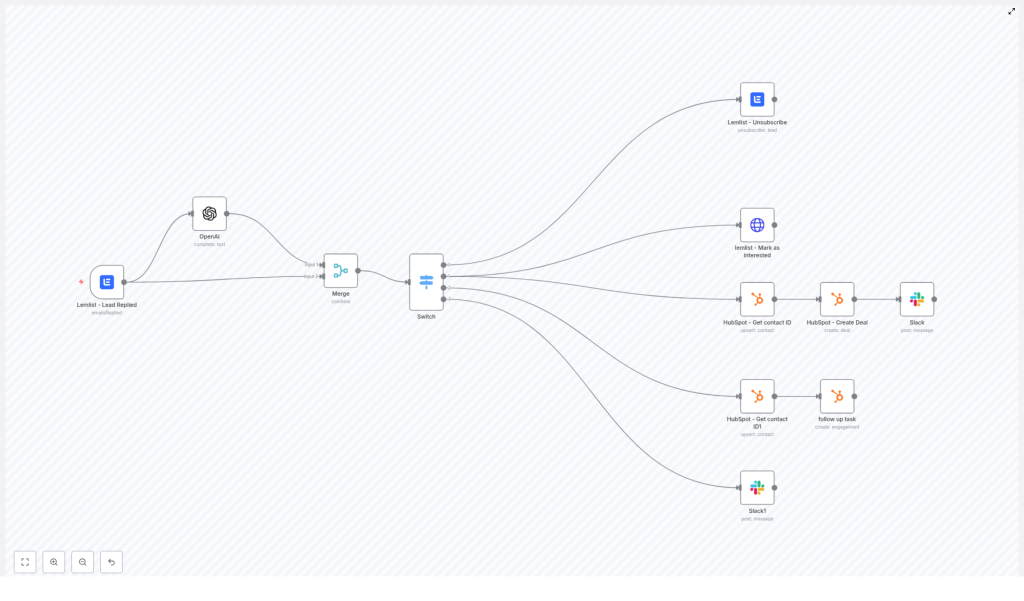
At a high level, the workflow listens for a reply in Lemlist, sends the text to OpenAI for classification, then uses that result to decide what to do next. Depending on the category, it can:
- Instantly unsubscribe someone from your Lemlist campaign
- Mark a lead as interested, create a HubSpot deal, and ping your team on Slack
- Create a follow-up task in HubSpot for out-of-office replies
- Send anything else to Slack for manual review
So instead of you skimming every reply, n8n quietly does the sorting for you in the background.
Why bother automating Lemlist reply routing?
If you are already getting replies, you might be thinking, “I can just do this manually.” You can, but here is what automation gives you:
- Immediate unsubscribe handling so you stay compliant and respectful
- Faster response to interested leads by pushing them straight into your CRM and Slack
- Structured follow-up on out-of-office replies instead of forgetting to circle back
- Fewer mistakes since you are not relying on a human skimming subject lines at 6 pm
In short, this workflow keeps your outreach clean, compliant, and fast, while freeing you from repetitive inbox admin.
How the workflow is structured in n8n
Here is the full journey of a reply, from Lemlist to the right destination:
- Lemlist detects a reply and triggers the n8n workflow.
- The reply text goes to OpenAI to be classified into one of four buckets.
- A Merge node combines the classification with the original Lemlist data.
- A Switch node routes the item into one of four branches:
- Unsubscribe
- Interested
- Out of Office
- Other
- Each branch runs its own set of actions in Lemlist, HubSpot, and Slack.
Let us go through each part so you know exactly what is happening and what can be customized.
Step-by-step n8n node breakdown
1) Lemlist – Lead Replied (Trigger)
Everything starts with the Lemlist trigger node. Configure it with the emailsReplied event so the workflow runs every time a lead replies to your campaign.
Key points when setting it up:
- Configure the webhook correctly in Lemlist so replies fire the trigger.
- Optionally enable
isFirstif you only want the first reply from each lead.
This node sends useful data into the workflow, including:
text– the reply bodyleadEmail– the lead’s email addresscampaignId– the campaign the reply belongs to- Other metadata like team and campaign details
You will use these fields later in HubSpot, Slack, and Lemlist actions.
2) OpenAI – classify the reply
Next, the reply text is sent to OpenAI to figure out what kind of message it is. The goal is to map each email into one of these categories:
interestedOut of officeunsubscribeother
To keep the model predictable, use a deterministic setup:
- temperature = 0
- topP = 1
- maxTokens = 6
Here is an example prompt used in the template:
The following is a list of emails and the categories they fall into:
Categories=["interested", "Out of office", "unsubscribe", "other"]

Interested is when the reply is positive.

{{$json["text"].replaceAll(/^\s+|\s+$/g, '').replace(/(\r\n|\n|\r)/gm, "")}}
Category:
The node responds with a short label like unsubscribe or interested. That tiny string is what drives the routing logic later on.
3) Merge – combine OpenAI result with the original Lemlist data
Now you have two streams of information in n8n:
- The original Lemlist reply payload
- The OpenAI classification result
The Merge node brings them together into a single item.
Configure the Merge node to:
- Use Combine mode
- Use mergeByPosition
This way, the output JSON has both the reply text and the classification in one place, which makes it easy for the Switch node to do its job.
4) Switch – route based on the reply category
The Switch node looks at the classification text and decides which branch to follow. You can set it up to do string matches on the category value.
An example configuration might look like this:
value1 = {{$json["text"].trim()}},
rules: ["Unsubscribe" -> output 1, "Interested" -> output 2, "Out of Office" -> output 3],
fallback -> output 4
One important detail: OpenAI may return lowercase values like unsubscribe instead of Unsubscribe. To avoid routing issues, you can:
- Normalize the text using
toLowerCase(), or - Add multiple rule variants, such as
"unsubscribe"and"Unsubscribe"
From here, each branch handles a specific type of reply.
Branch-by-branch actions
Unsubscribe branch
When the classification is “unsubscribe”, you want to act quickly and cleanly.
In this branch, the workflow calls a Lemlist node configured to unsubscribe the lead from the campaign. A typical configuration is:
email = {{$json["leadEmail"]}}This instantly removes the lead from your sequences and helps you stay on top of compliance and user trust.
Interested branch
This is the fun one. When someone replies with interest, you want them in your CRM and in front of your team as fast as possible.
The “Interested” branch performs two main actions:
- Mark the lead as interested in Lemlist
- Create or update a contact and deal in HubSpot, then send a Slack notification
1. Mark as interested in Lemlist
Use an HTTP Request node to call the Lemlist API and mark the lead as interested:
POST https://api.lemlist.com/api/campaigns/YOUR_CAMPAIGN_ID/leads/{{$json["leadEmail"]}}/interestedReplace YOUR_CAMPAIGN_ID with your actual campaign ID.
2. Create or update in HubSpot and notify Slack
Next, the workflow:
- Uses a HubSpot node to upsert or fetch a contact by email
- Creates a deal for that contact in your chosen pipeline
- Sends a Slack message with a direct link to the HubSpot deal
The HubSpot nodes in this template use OAuth2. When upserting the contact, you can pass first and last name via additionalFields. After the deal is created, the Slack node shares a link like:
https://app-eu1.hubspot.com/contacts/PORTAL_ID/deal/{{$json["dealId"]}}Make sure to adjust your HubSpot region and PORTAL_ID to match your account.
Out of Office branch
Out-of-office replies are not a “no”, they are a “not now”. This branch makes sure you do not forget to follow up.
Here is what happens:
- The workflow gets or upserts the contact in HubSpot, so the person exists as a contact.
- It then creates an engagement of type
taskin HubSpot.
You can set a task subject such as:
OOO - Follow up with {{firstname}} {{lastname}}Schedule the task for the appropriate follow-up date, based on how you want to handle out-of-office responses.
Other branch
Not every reply will fit nicely into “interested”, “unsubscribe”, or “out of office”. For everything else, the workflow routes the message into a Slack notification for manual review.
Typically this includes:
- The reply text itself
- Relevant Lemlist metadata
- A link back to the Lemlist campaign report
That way a human can scan the message and decide what to do, without you losing track of it.
Useful n8n expressions and snippets
A few expressions make this workflow more robust and cleaner to maintain.
Trim reply text to avoid whitespace issues
Leading or trailing spaces can cause Switch conditions or prompts to behave oddly. Use:
{{$json["text"].trim()}}You can use this in the Switch node or in the OpenAI prompt.
Upsert a HubSpot contact with name fields
When working with HubSpot, you often want to store the lead’s name along with their email. Here is a typical expression setup:
email = {{$json["leadEmail"]}}
additionalFields.lastName = {{$json["leadLastName"]}}
additionalFields.firstName = {{$json["leadFirstName"]}}
This ensures your CRM stays clean and properly populated.
Testing and debugging the workflow
Before you trust this with your live outreach, it is worth running a few tests. Here is a simple approach:
- Use Execute Workflow or Active Webhook mode in n8n and send test replies from Lemlist.
- Temporarily log OpenAI outputs into a Slack or Email node so you can see exactly what category is returned.
- Start with cautious routing, for example send “interested” replies to a QA Slack channel first, and only later move to full automation.
- Normalize OpenAI output by trimming and using
toLowerCase(), or define multiple Switch rules for common variations.
A bit of testing up front saves you from misrouted leads later.
Security, compliance, and reliability best practices
Because this workflow touches emails, PII, and external APIs, it is worth tightening up a few things.
- Use n8n credentials for all API keys instead of hardcoding them.
- Limit PII exposure by only sending the fields you truly need to external services, and follow GDPR or other privacy regulations.
- Implement error handling using n8n’s error workflow or retry logic to catch failed API calls and alert admins.
- Respect rate limits for OpenAI, Lemlist, and HubSpot. Add delays or concurrency limits if you are processing high volumes.
Ideas for advanced enhancements
Once the basic routing is working, you can gradually make the workflow smarter. For example, you could:
- Use embeddings or a small classifier model for more detailed categories like pricing questions or feature requests.
- Add sentiment scoring to highlight especially warm or urgent leads.
- Store every classified reply in a database such as Airtable or Postgres for reporting, trend analysis, and prompt improvements.
- Introduce a simple keyword-based allowlist or denylist for unsubscribe detection to reduce OpenAI calls and cut costs.
Think of the template as a strong starting point that you can layer more intelligence onto over time.
Troubleshooting common issues
Running into odd behavior? Here are a few quick checks:
- Inconsistent classification: Lower the temperature (keep it at 0) and add more explicit examples in your OpenAI prompt.
- Switch node not routing correctly: Inspect the Merge node output and confirm you are reading the correct property name. Also check for whitespace and casing issues.
- HubSpot deal creation errors: Double-check the deal stage ID and ensure your authenticated HubSpot account has the right scopes and permissions.
Wrap-up: what you get from this template
With this n8n + Lemlist + OpenAI workflow in place, you get:
- Automated triage of outreach replies
- Instant unsubscribe handling
- Faster routing of interested leads into HubSpot and Slack
- Structured follow-up for out-of-office messages
- A simple path for human review of edge cases
You can import the template into n8n, plug in your Lemlist, OpenAI, HubSpot, and Slack credentials, and be up and running quickly. From there, adjust the categories, prompts, and routing rules to match your tone and sales process.
Try the template now – import the workflow, connect your tools, and run it on a handful of test replies. If you want to adapt it for different HubSpot stages, more nuanced categories, or extra scoring logic, you can tweak the nodes or reach out for help.
Call-to-action: Ready to automate your reply handling and respond to leads faster? Import the template, run a 2-week experiment, and see the impact on your follow-up speed. If you get stuck or want a custom setup, reply to this post or contact us for a personalized walkthrough.
