


Automate Monthly Expense Reports with n8n & Weaviate
On the last working day of every month, Lena, a finance operations manager at a fast-growing startup, dreaded opening her laptop. It was not the numbers that bothered her. It was the chaos behind them.
Receipts arrived through email, chat, and shared folders. Expense notes were copy-pasted into spreadsheets. Managers pinged her on Slack asking, “Is my team over budget?” and “Can you see why travel costs jumped last month?” Every month, Lena spent hours stitching together raw data into something that resembled a monthly expense report.
What she really needed was a way to turn all that unstructured expense data into searchable, contextual insights, and to keep a clean, auditable log without manual effort. That is when she discovered an n8n workflow template that combined OpenAI embeddings, Weaviate, LangChain RAG, Google Sheets, and Slack alerts into a single automated pipeline.
The pain of manual monthly expense reports
Lena’s process looked like this:
- Collect exported CSVs and scattered notes from different tools
- Copy and paste descriptions into a central sheet
- Manually tag vendors, categories, and “suspicious” expenses
- Write short summaries for leadership about spikes and trends
It was slow, error-prone, and almost impossible to scale as the company grew. She knew that automation could help, but previous attempts had only moved the problem around. Scripts helped import data, yet they did not make the information easier to search, understand, or summarize.
What Lena wanted was a workflow that could:
- Reduce repetitive work and human error
- Turn messy, free-text expense notes into searchable, contextual data
- Automatically log every processed expense in a central sheet
- Trigger alerts when something failed instead of silently breaking
- Enable RAG (retrieval-augmented generation) queries so she could ask, “Why did travel increase in September?” and get a clear explanation
After some research, she landed on n8n and a specific workflow template that promised exactly that: an automated Monthly Expense Report pipeline powered by embeddings and a vector database.
The discovery: an n8n template built for expense automation
Lena found a template titled “Automate Monthly Expense Reports with n8n & Weaviate.” Instead of a simple import script, it described a complete flow, from data ingestion to storage, retrieval, and alerting.
At a high level, the workflow did four things:
- Received raw expense payloads through a webhook
- Transformed and embedded the text using OpenAI embeddings
- Stored everything in Weaviate as a vector index with rich metadata
- Used a RAG agent with a chat model to summarize and explain expenses, while logging results to Google Sheets and sending Slack alerts on errors
For Lena, this meant she could stop wrestling with spreadsheets and start asking questions of her expense data like it was a living knowledge base.
Inside the workflow: how the pieces fit together
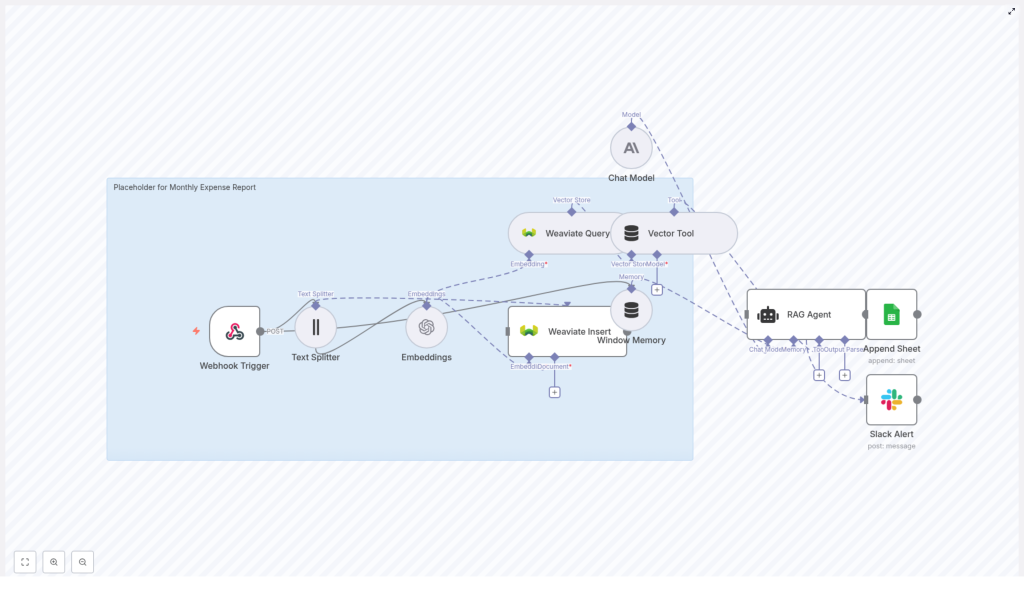
Before she imported anything, Lena wanted to understand how the n8n workflow actually worked. She opened the JSON template in n8n and saw a series of connected nodes, each with a clear responsibility.
The core nodes that power the pipeline
Here is what she found in the template:
- Webhook Trigger – Receives monthly expense payloads via POST requests. This is the entry point for each transaction.
- Text Splitter – Breaks long expense descriptions into smaller chunks so that embedding them is more efficient and accurate.
- Embeddings – Uses OpenAI, for example
text-embedding-3-small, to generate vector embeddings for each chunk of text. - Weaviate Insert – Stores those embeddings plus metadata into a Weaviate vector index named
monthly_expense_report. - Weaviate Query + Vector Tool – Retrieves relevant context from Weaviate for downstream RAG operations.
- Window Memory – Maintains short-term conversational context so the RAG agent can remember previous turns in an interaction.
- Chat Model (Anthropic) – Provides the language model that actually writes summaries and explanations based on retrieved context.
- RAG Agent – Orchestrates retrieval from Weaviate and the chat model to produce structured outputs, such as expense summaries or decisions.
- Append Sheet (Google Sheets) – Appends the final status and processed results into a Google Sheet called
Logfor audit and reporting. - Slack Alert – Sends an alert to Slack if the workflow hits an error path so Lena knows something went wrong immediately.
It was not just an integration. It was a small, specialized system for financial data that could grow with her company.
Rising action: from idea to working automation
Convinced this could solve her monthly headache, Lena decided to deploy the workflow in stages. She wanted to see a single expense travel through the system, from raw JSON to a logged and summarized record.
Step 1 – Deploy n8n and import the template
Lena already had an n8n cloud account, but the same steps would work for self-hosted setups. She imported the provided JSON workflow into n8n, which instantly created all the required nodes and connections.
The template exposed a webhook with a path similar to:
POST /monthly-expense-report
She made sure this path matched the outbound configuration of her existing expense tool. This webhook would be the gateway for every new transaction.
Step 2 – Wire up the credentials
To bring the workflow to life, Lena had to connect it to the right services. In n8n’s credentials section, she added:
- OpenAI API key for generating embeddings
- Weaviate API details, including endpoint and API key where required
- Anthropic API credentials for the chat model (or any compatible chat model she preferred)
- Google Sheets OAuth2 account so the workflow could append rows to the
Logsheet - Slack API token so error alerts could be sent to a dedicated finance-ops channel
With credentials in place, the pieces were connected, but not yet tuned for her data.
Step 3 – Tuning the Text Splitter and embeddings
Lena noticed that some expense notes could be long, especially for complex travel or vendor explanations. The template’s Text Splitter node used:
chunkSize: 400chunkOverlap: 40
For her typical notes, that was a good starting point. She kept those defaults but made a note that she could adjust them later if notes became longer or shorter on average.
For the embedding model, she chose text-embedding-3-small, as suggested by the template. It provided a strong balance between cost and quality, which mattered since her company processed many transactions each month.
Step 4 – Setting up the Weaviate index and metadata
The next step was making sure Weaviate could act as a reliable vector store for her expense data. She created a Weaviate index called:
monthly_expense_report
Then she confirmed that the workflow was sending not just the embeddings but also detailed metadata. For each document, the workflow included fields such as:
- Transaction ID
- Vendor
- Amount
- Date
- Original text or notes
This structured metadata would let her filter expenses by date range, vendor, or amount when running RAG queries later.
Step 5 – Shaping the RAG agent’s behavior
Finally, Lena customized the RAG agent. The default system message in the template was:
“You are an assistant for Monthly Expense Report”
She expanded it to include specific rules, such as:
- How to format summaries for leadership reports
- What to do if an expense is greater than a certain threshold, for example: “If expense > $1000 flag for review”
- Privacy and data handling constraints, so the model would not reveal sensitive information inappropriately
With the agent configured, she was ready for the turning point: sending a real expense through the workflow.
The turning point: sending the first expense
To test the template, Lena used a simple example payload that matched the format expected by the webhook:
{  "transaction_id": "txn_12345",  "date": "2025-09-01",  "vendor": "Office Supplies Co",  "amount": 245.30,  "currency": "USD",  "notes": "Bulk order: printer ink and paper. Receipt attached."
}
She sent this payload to the webhook URL from a simple HTTP client. Then she watched the workflow run in n8n’s visual editor.
Here is how the flow unfolded:
- The Webhook Trigger received the JSON payload.
- The Text Splitter broke the
notesfield into chunks suitable for embedding. - The Embeddings node generated vector embeddings for each chunk using OpenAI.
- The Weaviate Insert node stored the embeddings and metadata in the
monthly_expense_reportindex. - The RAG Agent queried Weaviate for context and used the chat model to compose a summary and decision about the expense.
- The Append Sheet node wrote the final status and summary to the Google Sheet named
Log. - If any node had failed along the way, the Slack Alert node would have sent an error message to her team’s channel.
The run completed successfully. In her Google Sheet, a new row appeared with the transaction details and a clear, human-readable explanation. Monthly expense reporting was no longer a manual puzzle. It was starting to look like a system she could trust.
Living with the workflow: best practices Lena adopted
Over the next few weeks, Lena relied on the workflow every time a new batch of expenses came in. As she used it, she refined a few best practices.
- Metadata is crucial. She made sure to store structured metadata in Weaviate, such as dates, vendors, and amounts. This allowed her to filter and query precisely, for example “show all expenses from Vendor X in Q3” or “list all transactions over $2000.”
- Cost monitoring. She kept an eye on embedding and LLM usage. For large batches, she batched embeddings where possible and stuck with efficient models like
text-embedding-3-small. - Error handling. She used n8n’s
onErrorconnections so that if OpenAI, Weaviate, or Google Sheets had an issue, the workflow would both send a Slack alert and log the error status in the sheet for later review. - Rate limits and retries. She configured retry and backoff strategies in n8n for transient API failures, which reduced manual intervention and kept the pipeline stable.
- Security. She stored API keys securely, used least-privilege service accounts for Google Sheets, and configured proper access controls for Weaviate to protect financial data.
- Data retention. Together with compliance, she defined how long to keep raw receipts and embeddings and made sure the system could delete user data if needed.
When things go wrong: troubleshooting in the real world
No workflow is perfect on day one. As the company scaled, Lena ran into a few common issues, which she learned to fix quickly.
Embeddings not inserting into Weaviate
Once, she noticed that new expenses were not showing up in Weaviate. The fix was straightforward:
- She checked that the Weaviate endpoint URL and API key in n8n’s credentials were correct.
- She verified that the
monthly_expense_reportindex existed and that the data schema matched the fields being inserted.
RAG agent returning irrelevant summaries
Another time, summaries felt too generic. To improve accuracy, she:
- Refined the system message and prompts with more explicit instructions.
- Added metadata filters to the Weaviate query so the agent only retrieved context from the relevant subset of expenses.
- Increased the number of context documents returned to the model, giving it more information to work with.
Google Sheets append failures
On a different day, rows stopped appearing in her Log sheet. Troubleshooting showed that:
- The spreadsheet ID and sheet name needed to match exactly, including the sheet name
Logused in the template. - The OAuth token for Google Sheets had to have permission to edit the document.
- The Append Sheet node’s field mapping had to align with the sheet’s columns.
With these checks in place, the workflow returned to its reliable state.
Growing beyond the basics: extensions Lena considered
Once the core pipeline was stable, Lena started thinking about what else she could automate using the same pattern.
- Receipt OCR. Automatically extract text from attached receipt images using OCR and store the full text in Weaviate for richer context.
- Suspicious expense flags. Automatically flag expenses that look suspicious based on amount, vendor, or pattern, and open a ticket in a helpdesk system.
- Monthly summaries. Send monthly summaries to stakeholders via email or Slack, including key KPIs and anomaly detection results.
- Role-based approvals. Integrate an approval flow where high-value expenses require manager sign-off before being fully logged.
The template had become more than a one-off automation. It was now the backbone of a scalable finance workflow.
Security and compliance in a finance-first workflow
Because expense data often includes personally identifiable information, Lena worked closely with her security team to make sure the setup was compliant.
- They enforced encrypted storage for all API keys and secrets.
- They used least-privilege service accounts for Google Sheets, so the workflow could only access what it needed.
- They configured access controls and network restrictions for Weaviate, limiting who and what could query financial data.
- They defined data retention policies and ensured there was a clear way to delete user data if required by regulation or internal policy.
With these safeguards, leadership felt comfortable relying on the automated pipeline for month-end reporting.
The resolution: a calmer month-end and a smarter expense system
By the time the next quarter closed, Lena noticed something new: she was no longer dreading the last day of the month. Instead of chasing receipts and fixing broken spreadsheets, she was reviewing clean logs in Google Sheets, asking targeted questions through the RAG agent, and focusing on analysis instead of data entry.
The combination of n8n, Weaviate, and LLMs had turned raw expense data into a searchable, auditable knowledge base. The template she had imported was not just a convenience, it was a repeatable system that any finance team could adapt.
