


If you are tired of manually pulling numbers from ProfitWell and pasting them into Mattermost every month, you are absolutely not alone. The good news is that n8n can do that whole routine for you in the background. This workflow template quietly grabs your key financial metrics once a month and drops a clean report into your Mattermost channel, so your team always has the latest numbers without anyone lifting a finger.
Let’s walk through what this n8n template does, when you might want to use it, and how to set it up. Think of this as a friendly setup guide you could skim over a coffee, not a dry technical manual.
What this n8n workflow actually does
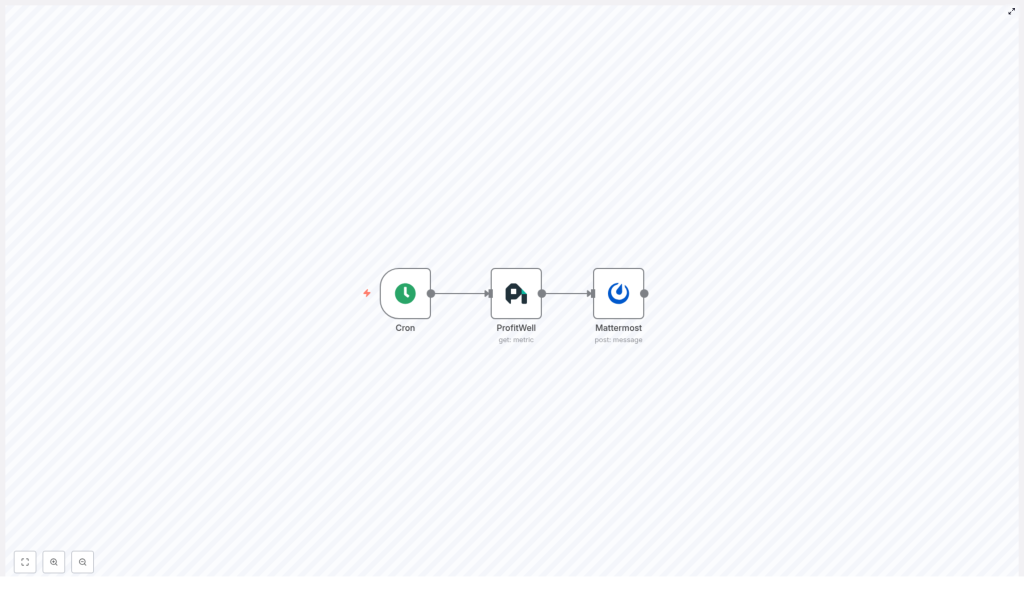
At its core, this is a simple automation that runs once a month, fetches metrics from ProfitWell, and posts them into Mattermost. It is built from just three n8n nodes:
- Cron node – schedules the workflow to run once a month
- ProfitWell node – pulls your subscription and revenue metrics
- Mattermost node – sends a nicely formatted message into a channel
The workflow is lightweight, easy to understand, and very easy to customize. You can change the timing, add or remove metrics, tweak the formatting, or even send the same data somewhere else like Slack or email.
When this template is useful
You will probably love this template if:
- You share monthly revenue or subscription updates with your team.
- You want leadership, investors, or product teams to see key financial metrics without chasing spreadsheets.
- You are trying to reduce repetitive reporting work and keep everything in one place, like a Mattermost channel.
It is especially handy for recurring reports such as monthly executive summaries, board updates, or internal dashboards that live in Mattermost.
How the workflow is wired: architecture & JSON
Behind the scenes, the workflow JSON simply connects three nodes in sequence:
- Cron node fires on a monthly schedule.
- ProfitWell node runs next, using your API key to fetch metrics like:
active_customersactive_trialing_customersnew_customersgrowth_raterecurring_revenue(MRR)
- Mattermost node takes those numbers and posts a message into the channel you choose.
Inside the Mattermost node, the message body uses n8n expressions to pull values directly from the ProfitWell node’s JSON output. Here is the basic template used in the workflow:
=Active Customers: {{$node["ProfitWell"].json["active_customers"]}}
Trailing Customers: {{$node["ProfitWell"].json["active_trialing_customers"]}}
New Customers: {{$node["ProfitWell"].json["new_customers"]}}
Growth Rate: {{$node["ProfitWell"].json["growth_rate"]}}
Recurring Revenue: {{$node["ProfitWell"].json["recurring_revenue"]}}
Those {{$node[...]}} expressions are n8n’s way of saying “go grab this field from that node’s output and drop it right here in the message.” Once you understand that pattern, customizing the message is very straightforward.
Step-by-step: setting up the workflow in n8n
Let us go through the setup once. After that, it just runs on autopilot every month.
1. Get the template into your n8n instance
You have two options here:
- Import the JSON into n8n using the workflow import feature.
- Recreate it manually by adding:
- 1 x Cron node
- 1 x ProfitWell node
- 1 x Mattermost node
and connecting them in that order.
The logic is simple: Cron triggers ProfitWell, ProfitWell passes data to Mattermost.
2. Configure the Cron node (your monthly schedule)
Next, you decide when the workflow should run. In the template, the Cron node is set to trigger once a month at 09:00 (9 a.m.). You can adjust this to whatever day and time makes sense.
One thing to keep in mind: the Cron node uses the server’s local timezone. So if your n8n instance is running in a different timezone than your team, the trigger time might not be what you expect. You can either:
- Run n8n in the timezone you care about, or
- Adjust the Cron settings to compensate for the server timezone.
3. Add and connect your ProfitWell credentials
Now it is time to plug in ProfitWell so n8n can fetch your metrics.
- Create a ProfitWell API credential in n8n using your ProfitWell API key.
- In the ProfitWell node, choose the metric type. The template uses
type: monthlyso you get monthly data. - Select or confirm the metrics you want, such as:
active_customersnew_customersrecurring_revenue(MRR)growth_rate- trial-related metrics like
active_trialing_customers
You can always expand this later if you want more data points.
4. Configure Mattermost credentials and target channel
Finally, connect Mattermost so the report has somewhere to go.
- In Mattermost, create a personal access token or a bot token.
- Store that token in n8n as a Mattermost credential. Avoid hardcoding it in the workflow itself.
- Grab the channelId of the channel where you want to post the report. You can:
- Inspect the channel info in the Mattermost UI, or
- Use the Mattermost API to look it up.
- Paste the message template (from earlier) into the Mattermost node’s message field.
On each monthly run, the node will replace the expressions with the live ProfitWell values and send the final text to that channel.
Testing your workflow before going live
Before you flip the switch and let this run on a schedule, it is worth doing a quick manual test.
- Trigger the workflow manually using “Execute Workflow” in n8n. This lets you see the entire flow from ProfitWell to Mattermost.
- Inspect the ProfitWell node output in the n8n editor. Check that the field names match what you are using in the message, for example:
active_customersactive_trialing_customersrecurring_revenue
If you change endpoints or options in the ProfitWell node, the JSON fields may differ, so update the expressions accordingly.
- Look at the message in Mattermost. Confirm:
- The channel is correct.
- The formatting looks good.
- Numbers are in the expected units and currency.
Once everything looks right, you can safely enable the Cron schedule.
Making the Mattermost report nicer to read
Plain text works, but you can make the monthly report much more readable with a bit of formatting. Mattermost supports Markdown, so you can add headings, bullets, bold text, and more.
Use Markdown for a clearer snapshot
Here is an example of a more polished message body for the Mattermost node:
**Monthly Financial Snapshot**
- Active Customers: {{$node["ProfitWell"].json["active_customers"]}}
- New Customers: {{$node["ProfitWell"].json["new_customers"]}}
- MRR: ${{$node["ProfitWell"].json["recurring_revenue"]}}
- Growth Rate: {{$node["ProfitWell"].json["growth_rate"]}}%
This version is much easier to scan at a glance, especially for busy stakeholders who just want the highlights.
Add a CSV or simple table as an attachment
If you have teammates who like raw data, you can go a step further:
- Add a Function or Set node to build a CSV string with your metrics.
- Attach that CSV in the Mattermost node so it is posted along with the message.
This is great for archiving, quick imports into spreadsheets, or sharing more detailed numbers without cluttering the main message.
Generate visual charts from ProfitWell data
Want something more visual? You can:
- Use a charting API or custom Node code to generate a small chart image based on the ProfitWell metrics.
- Store the image temporarily, then upload it via the Mattermost node.
Charts make it much easier to see trends and growth over time, especially for recurring monthly reports.
Send the same report to multiple places
Sometimes you need the same financial snapshot in more than one channel or tool. You can:
- Use a SplitInBatches node or add multiple Mattermost nodes to send the report to several channels, such as:
- Leadership channel
- Revenue or sales channel
- Product or engineering dashboard channel
- Forward the metrics to other destinations like:
- Slack
- A reporting dashboard or BI tool
All of this can come from the same ProfitWell data you are already fetching.
Security tips and best practices
Since you are dealing with financial data and API keys, it is worth keeping things secure from the start.
- Use scoped API keys in ProfitWell, with only the permissions needed to read metrics.
- Store secrets in n8n credentials, not hardcoded in nodes or expressions.
- Limit channel access so financial reports only appear in private or properly permissioned Mattermost channels.
- Watch ProfitWell API rate limits if you expand the workflow to pull lots of endpoints or run more often.
Troubleshooting common issues
If something does not work right away, here are a few quick checks that usually solve it:
- No data from ProfitWell
- Verify the API key is correct and active.
- Confirm the metric type (for example, monthly) and any date or filter settings.
- Run the ProfitWell node manually and inspect the JSON output to see what fields are actually present.
- Message looks broken in Mattermost
- Double check your n8n expression syntax like
{{$node["ProfitWell"].json["field_name"]}}. - If you use Markdown, make sure special characters are escaped as needed.
- Double check your n8n expression syntax like
- Cron triggers at the wrong time
- Check your n8n server timezone.
- Adjust the Cron node schedule or change the server timezone to match your expectations.
- Permission denied when posting to Mattermost
- Confirm the token has permission to post messages.
- Make sure the token user or bot has access to the target
channelId.
Real-world ways to use this template
This workflow is a great “base layer” for all kinds of recurring financial updates. A few ideas:
- Send MRR, churn, and growth rate to your revenue team on the first business day of each month.
- Combine ProfitWell metrics with product usage data from your analytics tool to connect revenue with engagement.
- Set up a private investor or board channel that receives scheduled financial snapshots automatically.
- Feed engineering or product dashboards with revenue context so teams can see impact over time.
Wrapping up: set it once, forget the manual reporting
Automating your monthly financial metrics with n8n, ProfitWell, and Mattermost saves you from repetitive reporting work and keeps everyone aligned on the numbers that matter. Once the workflow is live, you get consistent, timely updates without anyone having to remember to run a report.
Here is a simple way to get started:
- Import the workflow template into n8n.
- Add your ProfitWell and Mattermost credentials.
- Run a manual test to confirm metrics and formatting.
- Enable the Cron trigger so it runs every month.
- Optionally, polish the message with Markdown or add charts and CSV exports.
If you would like help taking it further, you can:
- Customize the Mattermost message with richer Markdown and chart images.
- Add a CSV export or connect Google Sheets for long term archiving.
- Walk through a specific error or edge case and fine tune the node configuration.
Once you have it running, you will probably wonder why you ever did this manually.
