


Automate Monthly Social Media Reports with n8n & Weaviate
If you’re tired of cobbling together monthly social media reports by hand, you’re not alone. Copying metrics, digging through past posts, trying to add “insights” at the last minute… it gets old fast.
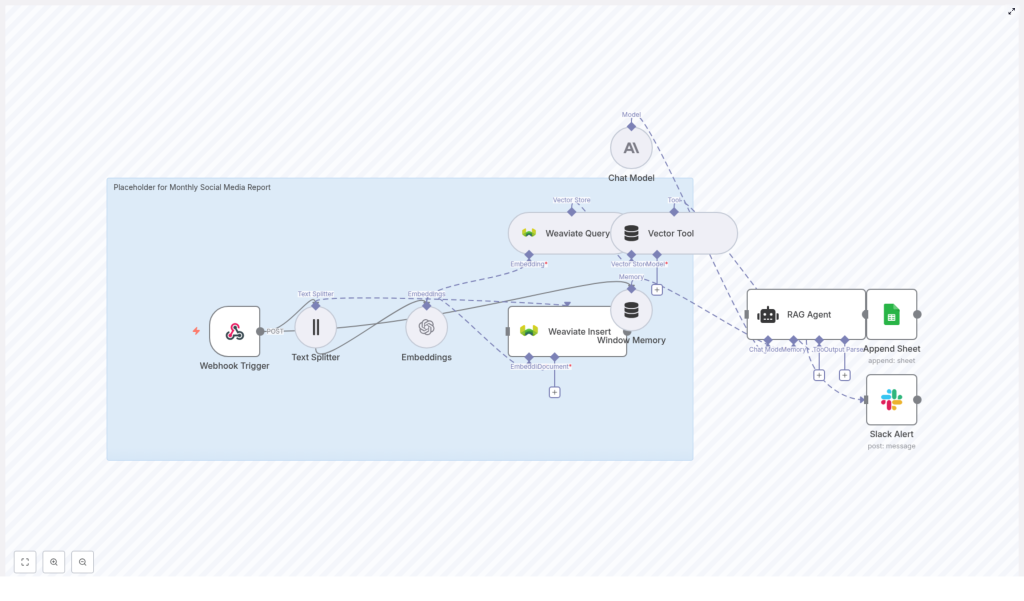
The good news: you can hand most of that work off to an n8n workflow that does the heavy lifting for you. This setup takes raw report data, chunks and embeds it, stores it in Weaviate, uses a RAG (retrieval-augmented generation) agent to add context and insights, then logs everything neatly in Google Sheets, with Slack alerts if anything breaks.
Let’s walk through what this template does, when it’s worth using, and how each part fits together, in plain language.
What this n8n workflow template actually does
At a high level, this workflow turns raw social media data into a structured, insight-rich monthly report. Here’s the journey your data takes:
- It arrives at an n8n Webhook as a POST request.
- The content is split into smaller pieces with a Text Splitter.
- Each chunk is turned into a vector via an Embeddings node using OpenAI.
- Those vectors and their metadata are stored in a Weaviate index.
- When you want a report, a Vector Tool queries Weaviate for relevant context.
- A RAG Agent with Window Memory and an Anthropic chat model uses that context to generate insights.
- The final report is written into a Google Sheets “Log” sheet.
- If anything fails, a Slack Alert pings you in a channel like
#alerts.
So instead of hunting through spreadsheets and past posts, you get a repeatable, context-aware monthly report that’s ready to share with your team.
Why automate monthly social media reports at all?
Let’s be honest: manual reporting is not the best use of anyone’s time. Automation helps you:
- Save hours every month by skipping copy-paste work and manual summaries.
- Reduce errors from typos, missed posts, or inconsistent formulas.
- Stay consistent in how you track metrics and present insights.
- React faster to trends because your data and insights are always up to date.
By combining vector search with a RAG agent, your reports also get smarter. The workflow can look back at historical posts, pull in similar content, and tailor insights to your brand’s actual performance instead of generating generic advice.
When this template is a good fit
You’ll get the most value from this n8n workflow template if:
- You already collect social media metrics monthly and want to streamline the process.
- You have content that benefits from historical context, like comparing performance month over month.
- You want a single source of truth in Google Sheets that other tools or dashboards can use.
- You’re comfortable using APIs and have access to OpenAI, Weaviate, Anthropic, Google Sheets, and Slack.
If that sounds like your setup, this workflow can become your “reporting assistant” that runs quietly in the background.
How the workflow is structured
Here’s a more detailed look at the main components and how they work together inside n8n.
1. Webhook Trigger – your data entry point
Everything starts with a Webhook node in n8n. You configure it with a POST path like:
monthly-social-media-reportThis endpoint accepts JSON payloads that might include things like:
- Raw content (post text, captions, descriptions)
- Source or platform (e.g. Twitter, Instagram, LinkedIn)
- Date or time period
- Metrics (impressions, clicks, likes, shares, etc.)
On the caller side, protect the webhook with authentication or an API key. You do not want just anyone sending data into your reporting system.
2. Text Splitter – breaking content into chunks
Long reports or posts can be tricky for embeddings. That is where the Text Splitter node comes in. It breaks your text into smaller, overlapping chunks that are easier to embed and search.
Recommended starting settings:
chunkSize: 400chunkOverlap: 40
You can tweak these based on how long your posts or summaries usually are. Smaller chunks often improve retrieval relevance, but if you go too small, you might lose important context.
3. Embeddings – turning text into vectors
Next, the Embeddings node converts each chunk into a numeric vector that captures semantic meaning. In this template, you can use an OpenAI model such as:
text-embedding-3-smallMake sure your OpenAI API credentials are properly configured in n8n. The output from this node is crucial, since Weaviate uses these vectors to perform semantic search later when the RAG agent needs context.
4. Weaviate Insert – storing content and metadata
Once you have embeddings, the Weaviate Insert node saves both the vectors and the original documents into a Weaviate index. In this workflow, the index is named:
monthly_social_media_reportYou should map useful metadata fields, for example:
dateor reporting periodplatform(e.g. Facebook, Instagram)post_idor unique identifiermetricslike engagement, reach, CTR
Good schema design pays off later. It lets you filter or sort by platform, time range, or performance during retrieval, instead of treating everything as one big pile of text.
5. Weaviate Query & Vector Tool – retrieving context
When it is time to generate a report, the workflow queries Weaviate for relevant items. This might include:
- Similar posts to a high-performing one
- Recent content for the current month
- Historical posts to compare performance
The Vector Tool node wraps the Weaviate query and exposes it as a tool that the RAG agent can call. That way, the agent does not just rely on the prompt, it can actively fetch context it needs from the vector store.
6. Window Memory & Chat Model – keeping short-term context
To make the agent feel more “aware” of the current conversation or reporting session, the workflow uses a Window Memory node. This stores a short history, like recent prompts or user queries, so the agent can stay on topic.
For generation, the template uses an Anthropic chat model as the core LLM. You can plug in your preferred Anthropic model, as long as your credentials are configured correctly in n8n.
7. RAG Agent – the brain of the operation
The RAG Agent node is where everything comes together. It:
- Calls the Vector Tool to pull relevant context from Weaviate.
- Uses the Anthropic chat model to interpret that context.
- Generates the final report content and insights.
To keep the agent focused, configure a system message such as:
You are an assistant for Monthly Social Media ReportIt also helps to define a clear output structure. For example, you might ask the agent to always return:
- A short summary of performance
- Key metrics and highlights
- Notable posts or trends
- Recommended actions or next steps
Having a predictable structure makes it much easier to parse and store the output in Google Sheets or feed it into other tools.
8. Append Sheet – logging everything in Google Sheets
Once the RAG agent has created the report, the Append Sheet node writes it into a Google Sheet. You can use a dedicated sheet, for example:
- Sheet ID: your reporting document
- Sheet name:
Log
Typical columns might include:
- Date or reporting period
- Platform or segment
- Summary
- Key metrics
- Insights and recommendations
- Status or error info
Make sure your Google Sheets OAuth2 credentials are set up in n8n so the workflow can append rows automatically.
9. Slack Alert – catching errors early
No automation is perfect, so it is smart to plan for failure. In this template, the RAG agent’s onError path connects to a Slack node that posts a message to a channel like #alerts.
For example, you might send something like:
Monthly Social Media Report error: {$json.error.message}That way, if a model times out, an API key breaks, or Weaviate is unavailable, you get a quick heads-up instead of silently missing a month’s report.
Best practices for a reliable reporting workflow
To keep this n8n workflow robust and scalable, a few practical tips go a long way.
- Use rich metadata: Store platform, date, author, campaign, and engagement metrics as metadata in Weaviate. It makes filtered retrieval and analysis much easier.
- Experiment with chunk size: Large chunks can blur meaning in embeddings, while very small ones can lose context. Start with
chunkSize: 400andchunkOverlap: 40, then adjust based on retrieval quality. - Consistent index naming: Use predictable names like
monthly_social_media_reportso you can manage multiple indices across projects without confusion. - Watch rate limits and costs: Embeddings and LLM calls add up. Batch data where possible and monitor usage for OpenAI and Anthropic to avoid surprises.
- Plan error handling: Use the
onErrorpath not just for Slack alerts, but also to optionally log failures into your Google Sheet for later review. - Secure everything: Protect the webhook with a token or IP allowlist. Keep API keys secret and restrict IAM permissions for Google Sheets and Weaviate to the minimum needed.
- Test in staging first: Start with a staging Weaviate index and a few sample payloads before sending production data through the workflow.
Ideas to extend and customize the template
Once the core flow is working smoothly, you can start layering on extra capabilities. Here are a few ideas:
- Automated scheduling: Add a Cron node so the workflow runs at month-end automatically instead of waiting for an external trigger.
- BI dashboards: Use the Google Sheet as a data source for Looker Studio, Tableau, or another BI tool to create visual dashboards on top of the reports.
- Data enrichment: During ingestion, add sentiment analysis, detect trending hashtags, or calculate engagement rate per post before storing in Weaviate.
- Per-platform reports: Generate separate reports for each platform by filtering the vector search or by using platform-specific prompts in the RAG agent.
Troubleshooting common issues
Embeddings are not storing correctly
If vectors are not showing up in Weaviate, check the following:
- Verify your OpenAI API key and model configuration in the Embeddings node.
- Confirm that the Embeddings node is actually outputting vectors.
- Make sure the Weaviate Insert node schema matches your payload fields.
- Double-check that the
indexName(e.g.monthly_social_media_report) is spelled correctly.
Retrieval quality is low
If the agent is pulling irrelevant or weak context:
- Experiment with different
chunkSizeandchunkOverlapvalues. - Add more descriptive metadata, like topic, campaign, or audience segment.
- Use hybrid search that combines metadata filters with vector similarity to narrow results.
The agent times out or throws errors
If the RAG agent node is failing:
- Check Anthropic model quotas and any rate limits.
- Review response time limits in n8n and your model provider.
- Add retry logic or break very complex generation tasks into smaller subtasks.
Putting it all together
By combining n8n, embeddings, and Weaviate, you can turn messy social media data into a clean, contextual monthly report that practically builds itself. The RAG agent handles the heavy thinking, Google Sheets keeps everything organized, and Slack lets you know if anything goes off the rails.
Once set up, this workflow lets you focus on strategy and creativity instead of wrestling with spreadsheets every month.
Ready to try the n8n workflow template?
If you want to see this in action, you can clone the template into your n8n instance and plug in your own credentials:
- OpenAI for embeddings
- Weaviate for vector storage and search
- Anthropic for the chat model
- Google Sheets for logging
- Slack for alerts
Start with a few sample posts or a single month of data, run a test, and tweak the prompts, schema, and chunking until the insights feel right for your brand.
If you need help customizing prompts, refining your Weaviate schema, or scaling the pipeline, you can always reach out to a team experienced with n8n and RAG workflows.
Next steps: clone the workflow, secure your webhook, send some sample data, and let the automation handle your next monthly social media report.
Keywords: n8n workflow, monthly social media report, Weaviate, embeddings, RAG agent, Anthropic, Google Sheets, Slack alerts, social media automation.
