


Automate Multi-Level Blog Content Creation for WordPress
Publishing high quality blog posts on a regular schedule is challenging on its own. It becomes even harder when you want the same article to be easy to understand for very different reading levels, such as Grade 2, Grade 5, and Grade 9.
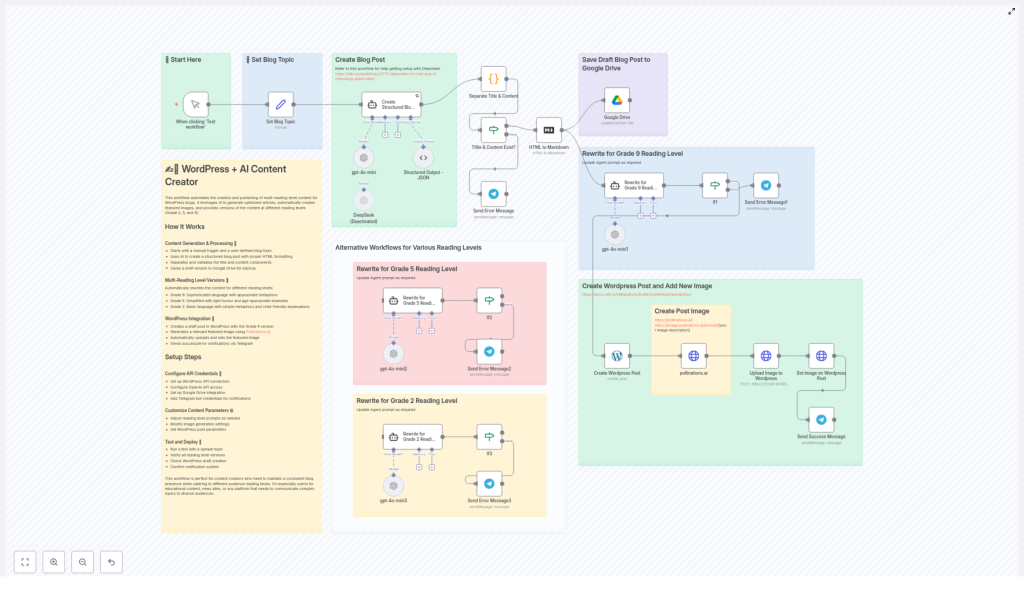
This n8n workflow template solves that problem by using AI to generate one core article, then automatically rewriting it for multiple reading levels, backing it up, creating a featured image, and sending everything to WordPress. You end up with a structured, SEO friendly post that is ready to publish, along with clear notifications about what happened in the workflow.
What You Will Learn
By the end of this guide, you will understand:
- How the n8n workflow generates a base blog post from a topic you provide
- How that post is rewritten into Grade 2, Grade 5, and Grade 9 reading levels
- How the workflow backs up your content to Google Drive
- How it integrates with WordPress to create a draft post
- How featured images are created with Pollinations.ai and attached to WordPress
- How Telegram notifications keep you informed about successes and errors
- Which API credentials and settings you need to customize for your own use
Key Concepts Before You Start
n8n Workflow Template
An n8n workflow is a series of connected nodes that pass data from one step to the next. This template is designed specifically for:
- Blog content automation
- Multi level reading adaptations
- WordPress publishing
Multi-Level Reading Content
The same topic is expressed in three different ways so it fits a wider audience:
- Grade 9 – more complex language, metaphors, and nuance for high school readers
- Grade 5 – simpler vocabulary, light humor, and relatable examples for middle school
- Grade 2 – very clear, short sentences with simple metaphors for young readers
This is especially useful for educational blogs, news explainers, and any site that wants to be inclusive for different reading abilities.
Services Used in the Workflow
- OpenAI or similar AI model for generating and rewriting text
- Google Drive for automatic content backup
- WordPress for creating draft posts and storing images
- Pollinations.ai for generating featured images
- Telegram for instant notifications about workflow results
How the Workflow Works: Step by Step
Step 1 – Trigger the Workflow With a Topic
The process begins with a manual trigger node in n8n. You start the workflow and provide a blog topic or a short description of what you want the article to cover. This gives you control over when content is created and what it should focus on.
Example: You might enter a topic like, “How to save energy at home” or “Basics of photosynthesis for kids.” The rest of the workflow uses this input as the foundation for all generated content.
Step 2 – Generate the Core Blog Post
Next, the workflow passes your topic to an AI node (for example, OpenAI) that:
- Creates a full blog article based on your topic
- Includes HTML formatting suitable for WordPress, such as headings, paragraphs, and lists
- Outputs a structured piece of content that can be reused in later steps
After the AI has generated the article, another node validates and splits the content into two key parts:
- Title – the main heading of your blog post
- Body – the full HTML formatted article
This separation is important because WordPress expects a title field and a content field when creating a post. By preparing both early in the workflow, you avoid issues later in the publishing step.
Step 3 – Create Multi-Level Reading Versions
With the base article ready, the workflow now focuses on accessibility and audience fit. It sends the original content to AI nodes that rewrite the article at different reading levels.
The workflow automatically produces three versions:
- Grade 9 version
Uses more advanced vocabulary, longer sentences, and may include metaphors or more detailed explanations. This is ideal for high school readers or adult audiences who prefer richer language. - Grade 5 version
Uses shorter sentences, simpler words, and light humor or relatable examples that resonate with middle school readers. - Grade 2 version
Focuses on very clear, direct language with simple metaphors. Sentences are short and easy to follow, making it suitable for young readers or early learners.
All three versions are based on the same original article, so the core information remains consistent, while the language and style adapt to each group. This step is the heart of the multi-level content strategy.
Step 4 – Back Up Content to Google Drive
Before anything is sent to WordPress, the workflow creates a backup copy of your work in Google Drive. This usually includes:
- The original AI generated article
- The Grade 9, Grade 5, and Grade 2 versions
- Associated metadata, such as the topic or timestamp
Saving to Google Drive gives you:
- A secure archive of all drafts
- A simple way to review or edit content manually later
- An audit trail for what was generated and when
If something goes wrong with WordPress or you want to revise a post in the future, you can return to these backups without having to regenerate the content.
Step 5 – Create the WordPress Draft Post
Once the content is backed up, the workflow connects to your WordPress site using the WordPress API. A dedicated node handles this integration and uses the split title and body fields.
Typically, the workflow:
- Uses the Grade 9 version as the main article body for the WordPress draft
- Sets the post title from the generated title field
- Creates the post as a draft, not immediately published, so you can review it
You can later decide whether to publish only the Grade 9 version or to also add the Grade 5 and Grade 2 versions as separate posts, sections, or downloadable resources. The template focuses on ensuring at least one high quality draft is automatically created in WordPress.
Step 6 – Generate and Attach a Featured Image
Visuals are important for engagement and SEO, so the workflow includes an image automation step using Pollinations.ai.
In this part of the workflow:
- The topic or a short description of the post is used to generate a relevant image
- Pollinations.ai returns a vibrant, topic-matched image
- The image is then uploaded to the WordPress media library
- The uploaded image is set as the featured image for the draft post
This means every draft created by the workflow already includes a featured image, saving you the time of searching for or designing one manually.
Step 7 – Receive Notifications via Telegram
To keep you informed about automation results, the workflow ends with a notification system using Telegram.
There are typically two types of messages:
- Success notifications – Sent when a blog post is generated, backed up, and created in WordPress without issues. The message can include the post title or link.
- Error notifications – Sent when any step fails, such as a problem with an API, a content generation error, or a WordPress connection issue.
This immediate feedback allows you to:
- Know when new drafts are ready to review
- React quickly if something breaks in the workflow
- Monitor your content pipeline without logging into n8n every time
Setting Up and Customizing the Workflow
Required API Credentials
To get the template running in your own n8n instance, you need to configure credentials for:
- WordPress – API access to create posts and upload media
- OpenAI (or equivalent) – for generating and rewriting content
- Google Drive – to store your content backups
- Telegram – to send you notifications about workflow status
Each of these is set up inside n8n as a credential resource, then linked to the appropriate nodes in the template.
Customizing Content Style and Prompts
The template is flexible so you can adapt it to your brand or educational goals. You can:
- Adjust the main content prompt to change the tone, structure, or length of the base article
- Modify the Grade 9, Grade 5, and Grade 2 prompts to refine how each reading level should sound
- Specify SEO elements such as keyword usage or meta description hints in the prompts
- Change the image prompt sent to Pollinations.ai to match your visual style
With small tweaks, you can turn the same workflow into a system that writes in your unique voice while still handling the technical automation.
Who This Workflow Is Best For
This n8n template is especially useful for:
- Bloggers who want to keep a consistent publishing schedule without writing every word manually
- Educators who need the same concept explained to different age groups
- Publishers who want accessible versions of their content for readers with different literacy levels
- Content teams that need reliable backups, structured workflows, and clear notifications
By automatically creating versions for multiple reading levels, you make your WordPress site more inclusive and engaging, and you increase the chances that every visitor finds content they can understand comfortably.
Recap: What This n8n Template Delivers
- Starts with a manual topic input so you control the subject
- Uses AI to generate a structured, HTML ready blog article
- Splits the result into title and body for WordPress compatibility
- Rewrites the article into Grade 9, Grade 5, and Grade 2 reading levels
- Backs up all content to Google Drive for safety and future editing
- Creates a WordPress draft post using the Grade 9 version
- Generates a featured image with Pollinations.ai and attaches it to the post
- Sends Telegram notifications on success or error
Automating these steps saves you time, reduces manual work, and helps you maintain a steady flow of accessible content that serves diverse audiences.
FAQ
Can I change which reading level is posted to WordPress?
Yes. In n8n you can adjust the node that sends content to WordPress so it uses the Grade 5 or Grade 2 version instead of Grade 9, or even combine multiple versions in one post.
Do I have to use all three reading levels?
No. You can disable or remove nodes for any level you do not need. The workflow will still function with fewer versions.
What happens if an API fails during the workflow?
If an error occurs, the workflow sends a Telegram notification so you can investigate. Because content is backed up to Google Drive before publishing, you usually will not lose generated text.
Can I edit the drafts before publishing?
Yes. The workflow creates draft posts in WordPress, not published posts. You can review, edit, and optimize them manually before making them live.
If you want to streamline your WordPress content strategy and serve readers at every level, this n8n workflow template gives you a complete, automated system from idea to draft post.
