


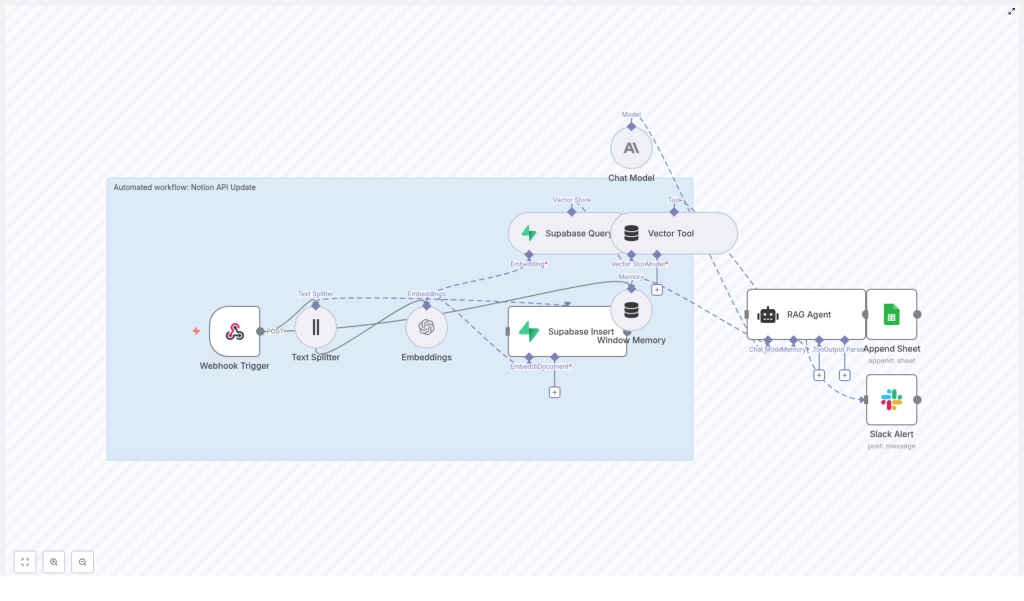
Automate Notion API Updates with n8n & Supabase
Keeping Notion databases synchronized and enriched with AI-generated context can quickly become complex at scale. This reference-style guide documents an n8n workflow template that automates the entire pipeline: ingesting updates via webhook, chunking and embedding text, storing vectors in Supabase, running a retrieval-augmented generation (RAG) agent, and finally logging results to Google Sheets with Slack-based error notifications.
The goal is to provide a precise, implementation-ready description of the workflow so you can deploy, audit, and extend it confidently in production environments.
1. Workflow Overview
This n8n template automates Notion-related updates and downstream processing by chaining together a series of specialized nodes. At a high level, the workflow:
- Accepts structured update events via an HTTP webhook (from Notion or any external system).
- Splits long text fields into overlapping chunks suitable for embedding.
- Generates vector embeddings for each chunk using an OpenAI embedding model.
- Persists vectors and associated metadata in a Supabase vector table for similarity search.
- Exposes this vector store and short-term memory to a RAG agent.
- Uses a chat model to produce context-aware outputs (summaries, suggested updates, automation hints).
- Appends the final result to a Google Sheet for logging and auditing.
- Sends Slack alerts when errors occur in the RAG or downstream processing stages.
This architecture is suitable for:
- Notion content enrichment and summarization.
- Semantic search over Notion pages using Supabase as a vector backend.
- Automated recommendations or follow-up tasks based on Notion changes.
2. Architecture & Data Flow
The workflow is composed of the following logical components, each implemented with one or more n8n nodes:
- Ingress
- Webhook Trigger – Receives POST requests at a dedicated path and passes the payload into the workflow.
- Preprocessing
- Text Splitter – Breaks long content into overlapping character-based chunks (chunkSize 400, overlap 40).
- Vectorization & Storage
- Embeddings – Calls OpenAI’s
text-embedding-3-small(or another configured embedding model) to generate vector representations. - Supabase Insert – Writes embeddings, raw chunks, and metadata into a Supabase vector table (index name
notion_api_update). - Supabase Query – Retrieves top-k similar vectors when the RAG agent requests context.
- Embeddings – Calls OpenAI’s
- RAG & Orchestration
- Vector Tool – Wraps the Supabase vector store as a tool that the agent can call.
- Window Memory – Maintains a sliding window of recent conversational or processing context.
- RAG Agent – Orchestrates the chat model and vector tool to produce a context-aware response.
- Output & Observability
- Append Sheet – Logs each agent output to a Google Sheets worksheet (sheetName:
Log). - Slack Alert – Sends error notifications when upstream nodes fail.
- Append Sheet – Logs each agent output to a Google Sheets worksheet (sheetName:
The data path is linear in the success case, with side branches for logging and error handling. Each node consumes the JSON output of the previous node, optionally enriching it with additional metadata.
3. Node-by-Node Breakdown
3.1 Webhook Trigger
The entry point is an n8n Webhook node configured to accept POST requests at a path such as:
/notion-api-update
Typical JSON payload structure:
{  "page_id": "abc123",  "title": "Quarterly Report",  "content": "Long text body or concatenated comments",  "source": "notion"
}
Key considerations:
- Required fields:
page_id– Unique identifier for the Notion page or record.content– The main text body to embed and analyze.
- Optional fields:
title,source, timestamps, or any other metadata you want to store in Supabase or pass to the agent.
- Payload size:
- Keep the payload as lean as possible, especially if content is very long. Avoid embedding unnecessary large fields.
Edge cases:
- If
contentis empty or missing, you may want to short-circuit the workflow with a validation step before the Text Splitter, or handle this case explicitly in the RAG agent prompt. - Non-UTF-8 or malformed JSON should be handled by the caller; the webhook expects valid JSON.
3.2 Text Splitter
Next, a Text Splitter node prepares the text for embedding by splitting it into overlapping segments. The template uses a character-based strategy:
- chunkSize:
400 - chunkOverlap:
40
Behavior:
- The node takes the
contentfield and produces an array of text chunks. - Each chunk is at most 400 characters, with 40 characters of overlap between consecutive chunks to preserve local context.
Configuration notes:
- For shorter texts, you may get only a single chunk. The workflow still functions correctly.
- If you change the embedding model to one with different token limits, you can adjust
chunkSizeaccordingly while keeping some overlap to avoid cutting important sentences in half.
3.3 Embeddings Node
The Embeddings node converts each text chunk into a vector representation using OpenAI. In the template, the model is:
- Model:
text-embedding-3-small
Key configuration elements:
- Credentials:
- Use n8n’s credential manager to store your OpenAI API key.
- Reference these credentials in the node configuration rather than hard-coding keys.
- Input mapping:
- Ensure the node is configured to read the array of chunks emitted by the Text Splitter.
Output:
- For each chunk, the node outputs:
- The original text chunk.
- The corresponding embedding vector (as an array of floats).
Error handling:
- Embedding failures can occur due to:
- Invalid or missing API key.
- Incorrect model name.
- Provider-side rate limiting or transient network issues.
- For production setups, consider enabling retry logic (for example, via n8n’s error workflows or custom logic nodes) with exponential backoff for transient failures.
3.4 Supabase Insert & Supabase Query
3.4.1 Supabase Insert
This node persists each embedding to a Supabase vector table. The template assumes a vector index named:
notion_api_update
Typical table schema (conceptual):
id– Primary key.page_id– Notion page identifier.title– Optional title of the page or record.content_chunk– The text chunk associated with the embedding.embedding– Vector column (for example,vectortype) used for similarity search.source– Source system, for examplenotion.timestamp– Ingestion or update timestamp.
Configuration notes:
- Ensure your Supabase credentials (URL and API key or service role key) are stored in n8n’s credential manager.
- Map the fields from the Embeddings node output to the appropriate columns in Supabase.
- Verify that the vector column and index are configured correctly in Supabase for efficient similarity search.
Common failure modes:
- Mismatched column names or types between Supabase and the node configuration.
- Incorrect index name (
notion_api_updatemust match the configured index in your Supabase project). - Insufficient permissions for the Supabase API key used by n8n.
3.4.2 Supabase Query
The Supabase Query node performs similarity search when the RAG agent requests context. It typically:
- Accepts a query vector (for example, an embedding of a user query or the current content).
- Retrieves the top-k nearest neighbors from the
notion_api_updateindex.
Key parameters:
- Index name:
notion_api_update. - k: Number of similar vectors to retrieve. Adjust based on the amount of context you want to provide to the agent.
Ensure the query node:
- Uses the same vector dimensionality and model as the insert node.
- Returns both the matched text chunks and relevant metadata (for example,
page_id,title) so the agent can interpret results.
3.5 Vector Tool & Window Memory
3.5.1 Vector Tool
The Vector Tool node wraps the Supabase vector store so that the RAG agent can call it as a tool during generation. This tool abstracts:
- How queries are converted to embeddings.
- How similarity search is performed against Supabase.
- What fields are returned as context.
In practice, the agent invokes this tool when it needs additional context related to the current task or input payload.
3.5.2 Window Memory
The Window Memory node maintains short-term state across agent turns or multiple workflow steps. It provides:
- A configurable memory window that stores the most recent interactions.
- Context for the agent so it can generate more coherent, multi-step outputs.
Configuration guidelines:
- Set the memory window size based on your use case:
- Small window for one-shot summarization and simple updates.
- Larger window if you expect the agent to reference multiple prior steps or conversations.
- Monitor token usage if you increase the memory window, as this directly affects model costs and latency.
3.6 RAG Agent
The RAG Agent is the core reasoning component that combines:
- A chat model (Anthropic in the template, though OpenAI or similar models can be used).
- The Vector Tool for context retrieval.
- Window Memory for short-term state.
Its job is to produce context-aware outputs for the task “Notion API Update”. Typical outputs include:
- Concise summaries of the page content.
- Suggested updates or modifications to the Notion page.
- Automation commands or follow-up actions based on the content.
The template uses a custom system prompt similar to:
You are an assistant for Notion API Update. Process the following data for task 'Notion API Update': {{ $json }}
You can further refine the agent behavior using a prompt template like:
System: You are an assistant for Notion API Update.
User: Process this payload and suggest page updates or a concise summary depending on the content.
Context: {{retrieved_chunks}}
Input: {{ $json }}
Tips for controlling agent behavior:
- Clarify in the system message what the agent should and should not do (for example, no speculative content, only use provided context).
- If outputs are off-topic, adjust:
- The system prompt wording.
- The amount of retrieved context (k value in Supabase Query).
- Any additional instructions in the user message.
3.7 Append Sheet & Slack Alert
3.7.1 Append Sheet (Google Sheets)
The Append Sheet node writes the agent’s output to a Google Sheet for logging, analytics, or manual review. The template uses:
- sheetName:
Log
Common fields to append:
timestamppage_idtitle- Agent output (for example, summary or recommended changes)
- Error status or flags if applicable
Configuration notes:
- Store Google credentials in n8n’s credential manager.
- Confirm that the sheet exists and that the node is configured to append rows rather than overwrite existing data.
3.7.2 Slack Alert
The Slack Alert node is typically wired to the onError output of the RAG Agent or other critical nodes. When an error is raised:
- The node sends a concise message to a designated Slack channel.
- The message can include:
- Error type and message.
- Relevant identifiers such as
page_idor timestamp.
Best practices:
- Use a dedicated Slack channel for automation alerts to avoid noise.
- Include enough context in the alert to quickly diagnose whether the issue is with credentials, payload format, or external services.
4. Configuration & Security Best Practices
To run this workflow safely in production, pay attention to the following:
- Credential management:
- Store all sensitive data in n8n’s credential manager:
- OpenAI (or other LLM provider) API keys.
- Supabase keys.
- Google Sheets credentials.
- Slack tokens.
- Anthropic or other chat model credentials.
- Never hard-code secrets in node parameters or expressions.
- Store all sensitive data in n8n’s credential manager:
- Webhook security:
- Prefer private or authenticated endpoints.
- If exposed publicly:
